> ## Documentation Index
> Fetch the complete documentation index at: https://www.spacebring.com/docs/llms.txt
> Use this file to discover all available pages before exploring further.
# Administrators
> Understand the administrator role, how to assign or remove admin access for someone, and what permissions administrators have in Spacebring
## Who is an administrator
An administrator is a person on your coworking space's staff or team (e.g., a community manager, receptionist, or employee) who is responsible for managing a specific location. Each location can have an unlimited number of administrators.
Users with the **Administrator** role are identified by a shield icon next to their name on the **Customers** page:
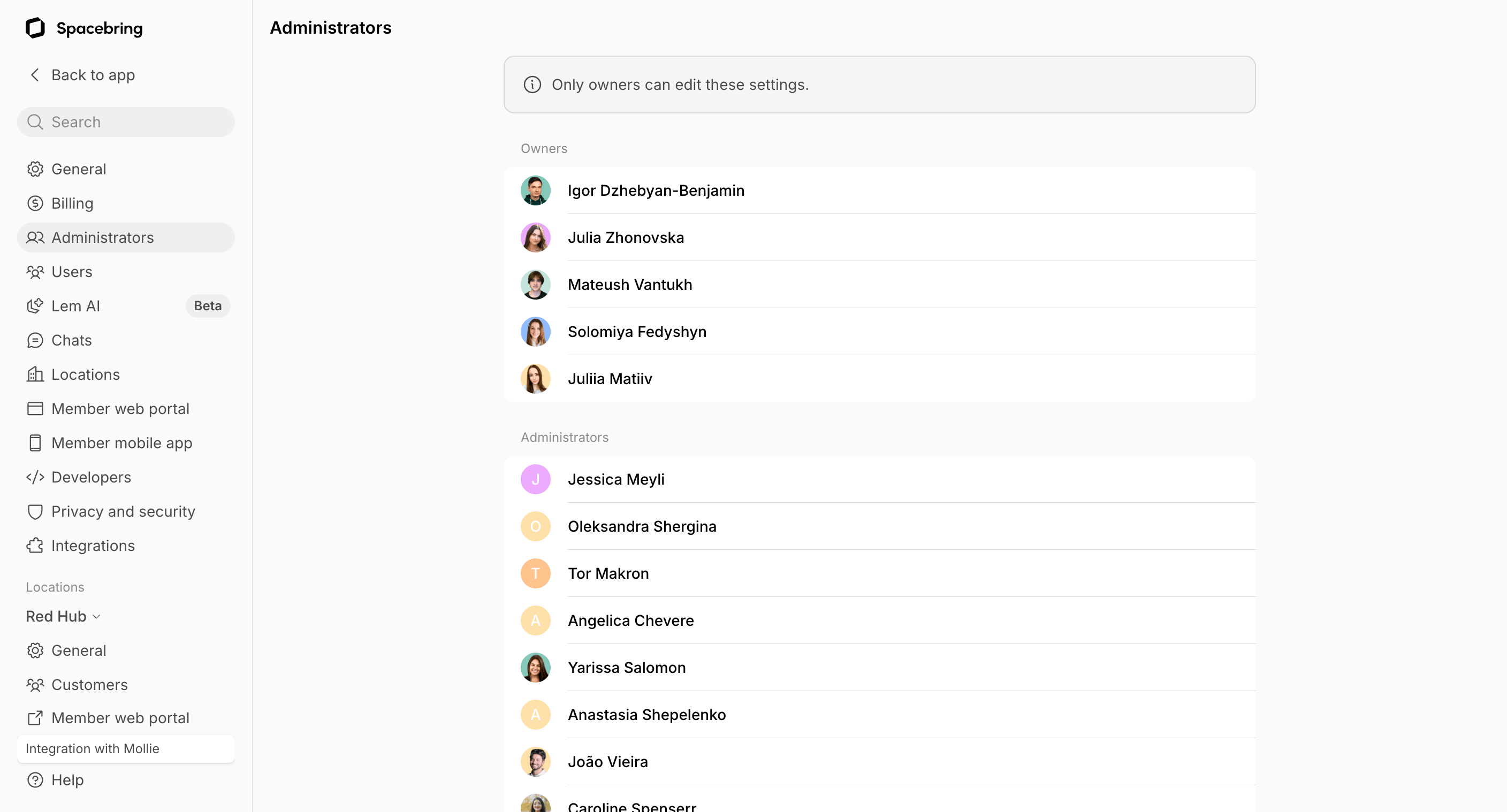
 To view all administrators across all your locations, go to **Network settings > Administrators**.
 ## Assign or remove administrator role
Administrators can assign new administrators or remove admin access for any user. For this:
1. Go to **Customers** > **Users** tab > select the user from the list.
2. Press the **(...)** menu top right in their profile > select **Edit**.
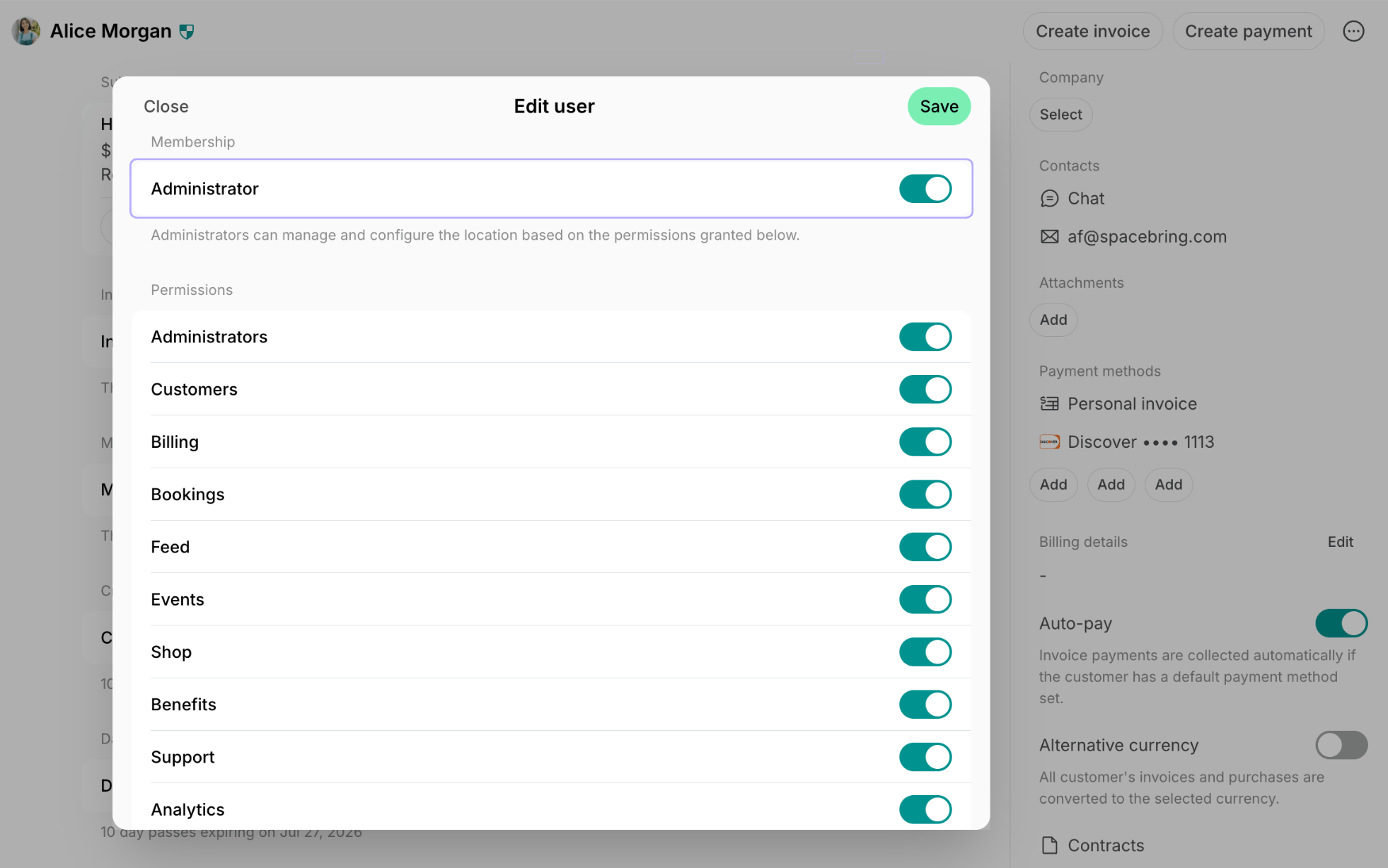
3. Toggle the **Administrator** switch:
* Enable it to make the user an administrator and [customize administrator permissions.](/docs/administration/permissions)
* Disable it to make an administrator a regular member.
## Assign or remove administrator role
Administrators can assign new administrators or remove admin access for any user. For this:
1. Go to **Customers** > **Users** tab > select the user from the list.
2. Press the **(...)** menu top right in their profile > select **Edit**.
3. Toggle the **Administrator** switch:
* Enable it to make the user an administrator and [customize administrator permissions.](/docs/administration/permissions)
* Disable it to make an administrator a regular member.
 If the user is not yet added to Spacebring, [invite them](/docs/customer-management/users/members#invite-a-member) first and toggle the **Administrator** switch.
## What an administrator can do
According to the [enabled permissions](/docs/administration/permissions), administrators can:
* Manage general location settings.
* Add any location content.
* Manage **Customers** page: invite users, create companies, subscriptions, etc.
* Fully access users' contact and membership information.
* Book rooms and other resources for free using the **Free** payment method.
* [View analytics](/docs/analytics) and download custom reports.
* [Receive notifications](/docs/account/notifications) about all users' activities.
* [Invite](/docs/customer-management/users/members#invite-a-member) or assign new administrators, [manage administrators' permissions](/docs/administration/permissions), or remove [administrators](/docs/customer-management/users/remove).
Administrators become active and count towards your subscription only if they [meet the criteria](/docs/administration/billing/active-users) by interacting with Spacebring.
If the user is not yet added to Spacebring, [invite them](/docs/customer-management/users/members#invite-a-member) first and toggle the **Administrator** switch.
## What an administrator can do
According to the [enabled permissions](/docs/administration/permissions), administrators can:
* Manage general location settings.
* Add any location content.
* Manage **Customers** page: invite users, create companies, subscriptions, etc.
* Fully access users' contact and membership information.
* Book rooms and other resources for free using the **Free** payment method.
* [View analytics](/docs/analytics) and download custom reports.
* [Receive notifications](/docs/account/notifications) about all users' activities.
* [Invite](/docs/customer-management/users/members#invite-a-member) or assign new administrators, [manage administrators' permissions](/docs/administration/permissions), or remove [administrators](/docs/customer-management/users/remove).
Administrators become active and count towards your subscription only if they [meet the criteria](/docs/administration/billing/active-users) by interacting with Spacebring.