> ## Documentation Index
> Fetch the complete documentation index at: https://www.spacebring.com/docs/llms.txt
> Use this file to discover all available pages before exploring further.
# Create, edit & configure
> Use Lem AI to create, bulk create, duplicate, and edit resources, shop products, events, benefits, guides, plans, packages, discounts, alternative currencies, and categories, to delete resources and discount coupons, to manage bookings, subscriptions, and contracts, to change your location and network settings, to email a customer and message people in Chats, and to approve its actions automatically
Ask Lem AI in your admin dashboard to make changes for you, instead of clicking through each page yourself.
## What Lem AI can change
| Item | Lem AI can | What to know |
| - | - | - |
| Resources | Create Duplicate Edit Delete | |
| Bookings | Create Edit Cancel | A booking Lem AI creates is free, even for a paid resource. |
| Plans | Create Edit | |
| Packages | Create Edit | |
| Subscriptions | Edit Cancel | Editing covers the end date, the payment collection pause, and advance invoicing. Canceling ends the subscription right away. |
| Contracts | Issue Edit Terminate Delete | Only a draft can be edited or deleted, and editing changes its dates. Only a signed contract can be terminated. |
| Coupons | Create Edit Delete | Editing changes which items the coupon applies to. |
| Promo codes | Create Archive | |
| Alternative currencies | Create Edit | Editing changes the exchange rate. |
| Events | Create Duplicate Edit | |
| Feed posts | Create Edit | |
| Chats | Message | Messages are sent from you, to a person or an existing chat. |
| Group chats | Create Add participants | Lem AI can add participants only to a group you are an admin of. |
| Benefits | Create Duplicate Edit | |
| Benefit categories | Create | |
| Shop products | Create Duplicate Edit | |
| Shop categories | Create | |
| Guides | Create Edit | |
| Support tickets | Reply | Lem AI replies only until an administrator has replied. |
| Customers | Email | |
| Location settings | Edit | For example, the address, Wi-Fi, booking windows, taxes, and which modules are on. |
| Network settings | Edit | Only the owner can change them. |
Lem AI can look up other data, such as invoices, orders, and visitors, but not change it.
## Create or duplicate an item
1. Open **Lem AI** top left and start a chat.
2. Tell Lem AI what you want to achieve using one of these methods:
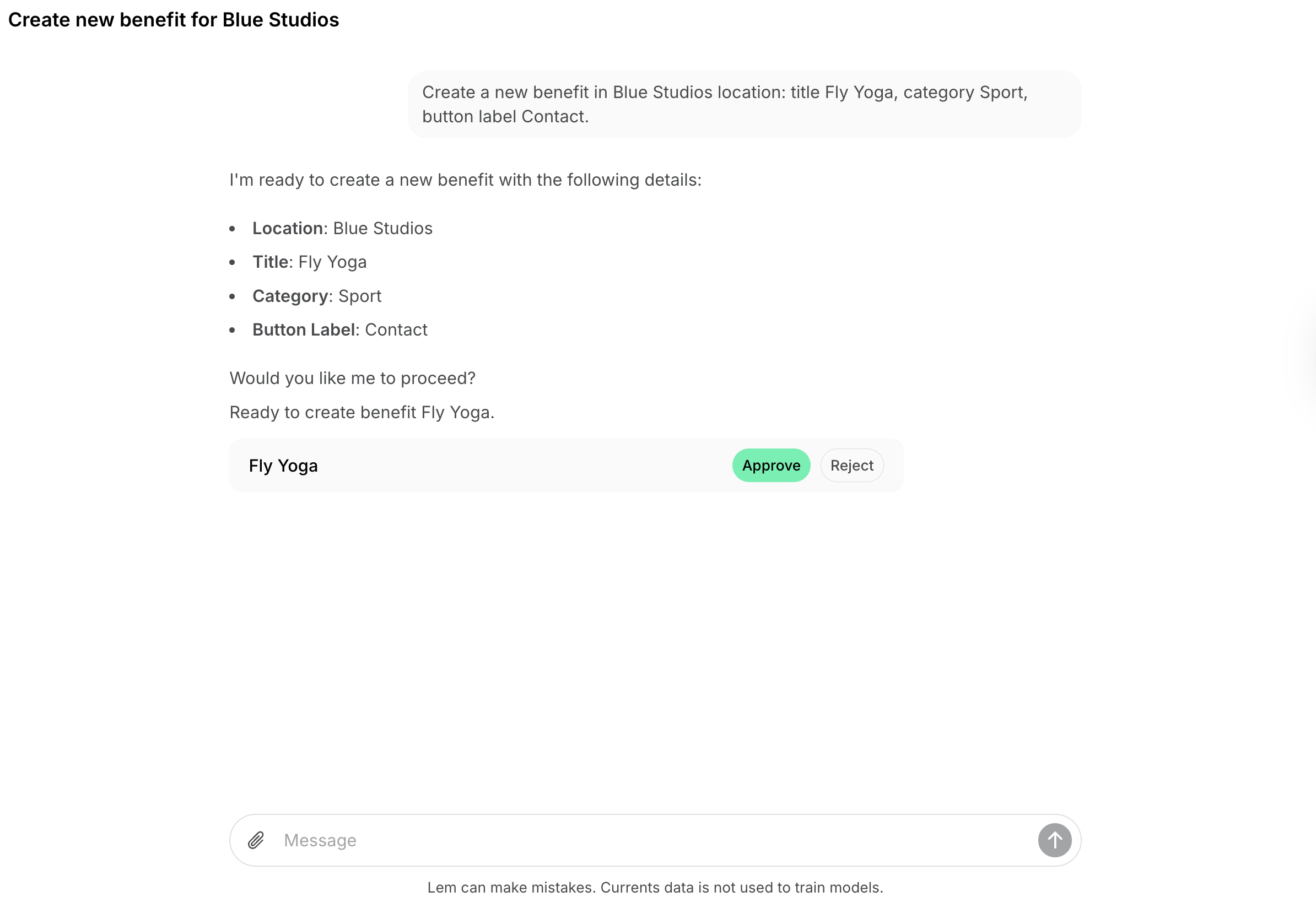
* **To create from scratch**: Ask Lem AI to create one or multiple items. Specify details like name, description, price, visibility, dates or schedule (e.g., exact dates or “every Tuesday from April to August”).
 * **To duplicate an existing resource, shop product, event, or benefit**: Create one item manually first (e.g., a desk on the **Desks** page), then ask Lem AI to duplicate it. Specify how many duplicates you need, their new titles, and if any specific settings should change or remain identical.
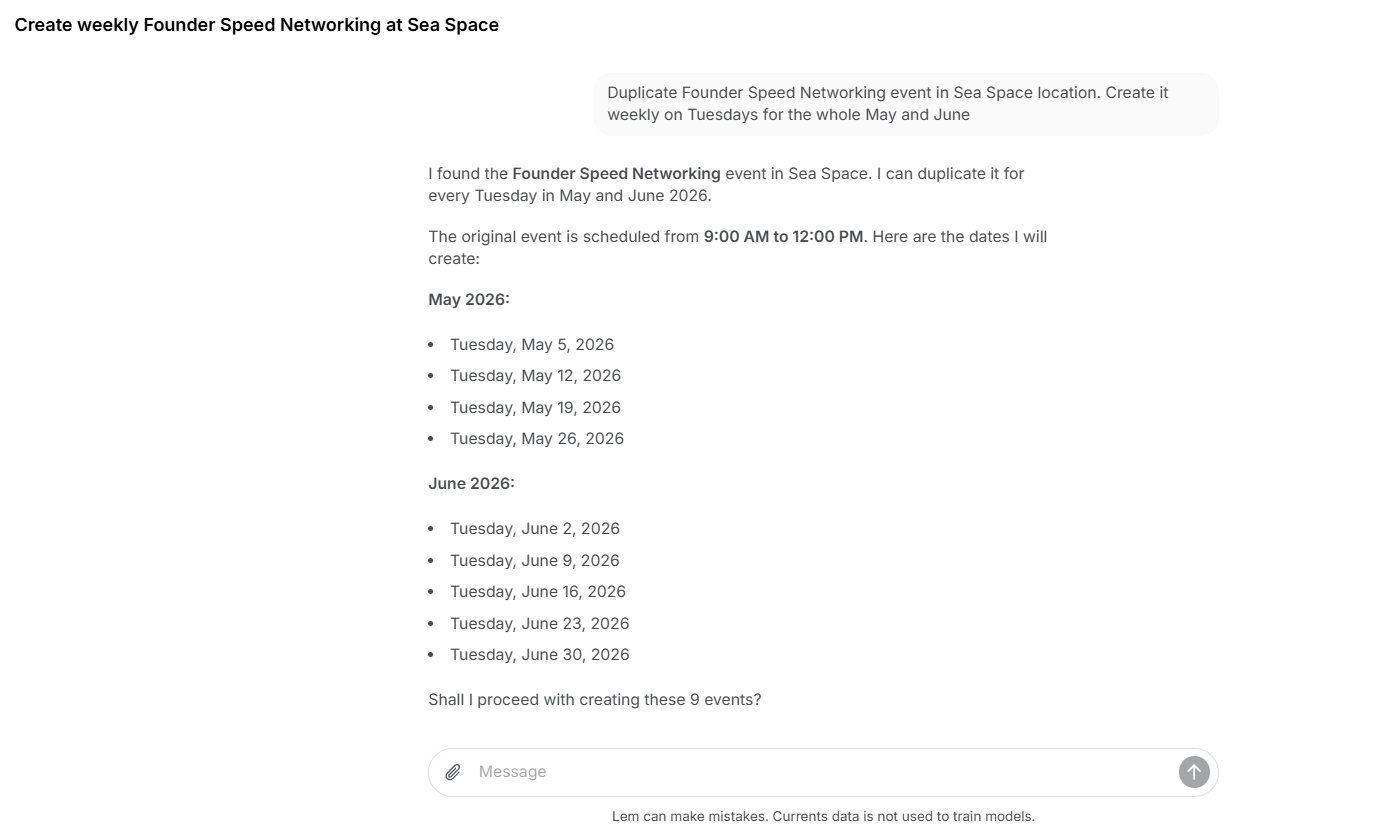 3. Provide any additional settings or details Lem AI asks you for in the chat.
4. Lem AI will prepare the items and list them in the chat. Click **Approve** or **Reject** next to each item.
3. Provide any additional settings or details Lem AI asks you for in the chat.
4. Lem AI will prepare the items and list them in the chat. Click **Approve** or **Reject** next to each item.
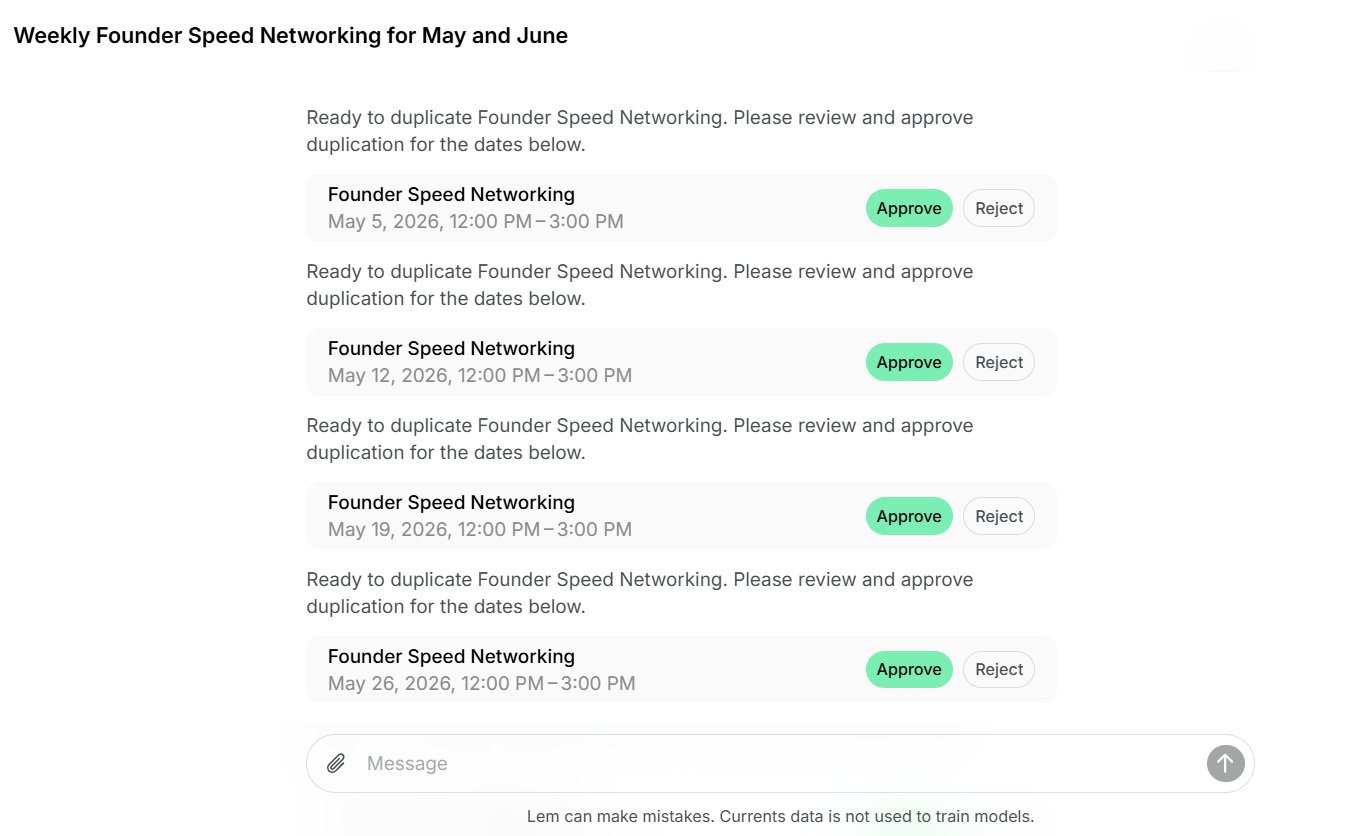 5. Once done, Lem AI will confirm the created items in the chat.
You can ask Lem AI to create or duplicate multiple items at the same time.
If a benefit or shop product needs a category that doesn't exist yet, ask Lem AI to create the category first — it only needs the category title and location.
## Edit an item
Instead of opening an item to change its settings by hand, ask Lem AI to update it for you.
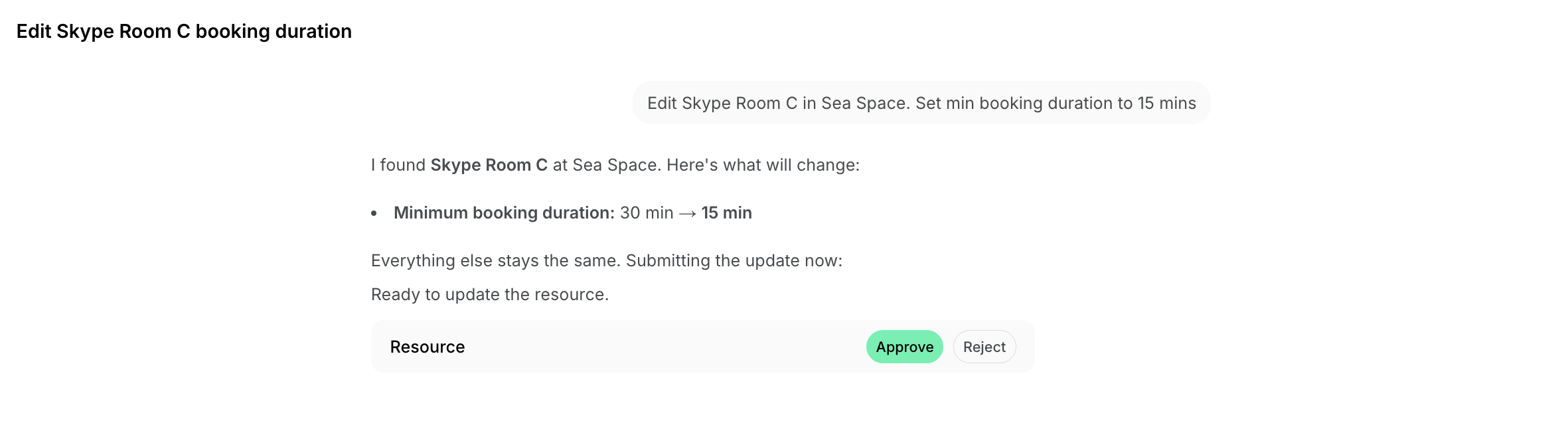
1. In the chat, tell Lem AI which item to update and what to change. Be specific with the item name and location, and describe the new values — for example, its name, description, capacity, pricing, or visibility.
2. Lem AI will prepare the update and show it in the chat. Click **Approve** to apply the change, or **Reject** to cancel it.
3. Once done, Lem AI will confirm the change in the chat.
5. Once done, Lem AI will confirm the created items in the chat.
You can ask Lem AI to create or duplicate multiple items at the same time.
If a benefit or shop product needs a category that doesn't exist yet, ask Lem AI to create the category first — it only needs the category title and location.
## Edit an item
Instead of opening an item to change its settings by hand, ask Lem AI to update it for you.
1. In the chat, tell Lem AI which item to update and what to change. Be specific with the item name and location, and describe the new values — for example, its name, description, capacity, pricing, or visibility.
2. Lem AI will prepare the update and show it in the chat. Click **Approve** to apply the change, or **Reject** to cancel it.
3. Once done, Lem AI will confirm the change in the chat.
 It is not currently possible to set an item's image through Lem AI when creating, duplicating, or editing it. Duplicates keep the original item's image automatically. For new or edited items, add the image directly on the item's page.
## Delete a resource
1. In the chat, tell Lem AI which resource to delete. Be specific with the resource name and location.
2. Lem AI will show the resource and how many upcoming bookings it has. Click **Approve** to delete it, or **Reject** to keep it.
3. Once done, Lem AI will confirm the deletion in the chat.
Deleting a resource is irreversible. All of its bookings are canceled without a refund, and it is removed from the subscriptions that include it.
## Delete a coupon
1. In the chat, tell Lem AI which coupon to delete. A coupon has no name, so describe its discount, the items it applies to, and its location — for example, *the 10% room bookings coupon in Riverside*.
2. Lem AI will show the coupon and its promo codes. Click **Approve** to delete it, or **Reject** to keep it.
3. Once done, Lem AI will confirm the deletion in the chat.
Deleting a coupon is irreversible. Its promo codes are archived, and it is removed from the **Granted coupons** of plans, resource plans, and subscriptions. Discounts customers have already redeemed stay in place.
## Manage bookings
Ask Lem AI to book a resource for a customer, or to move, change, or cancel a booking, instead of doing it on the **Bookings** page.
1. In the chat, name the customer, the resource, and the date and time. To change or cancel a booking, describe the booking and what to do with it.
2. Lem AI checks that the resource is free, writes out the booking or the change, and shows it for your review. Click **Approve** to apply it, or **Reject** to cancel it.
3. Once approved, Lem AI confirms the booking in the chat.
What to know:
* A booking Lem AI creates is free, even for a paid resource. The customer must belong to the resource's location.
* For a repeating booking, Lem AI can change or cancel one occurrence, or that occurrence and every later one. It can also cancel the whole series.
* Changing the time or seats of a paid booking changes its price. An extension is charged to the customer, and a shortened booking is not refunded.
* Lem AI can't change the time, seats, or resource of a booking paid by card. The customer can change it in the member app, where they pay the difference.
* A canceled booking is refunded according to the resource's refund policy, unless you ask Lem AI to cancel it without a refund.
* Lem AI can't change or cancel a booking imported from Google Calendar or Outlook.
## Manage subscriptions
Ask Lem AI to change or cancel a customer's subscription instead of opening their profile.
1. In the chat, name the customer and tell Lem AI what to change in their subscription.
2. Lem AI writes out the change and shows it for your review. Click **Approve** to apply it, or **Reject** to cancel it.
What to know:
* Lem AI can change a subscription's end date, [pause payment collection](/docs/billing/subscriptions/invoice-issuance), and change [advance invoicing](/docs/billing/subscriptions/advance-invoicing). It can't change the subscription's items or prices.
* The new end date can't be in the past or before the current billing cycle ends. Ask Lem AI to remove the end date to let the subscription renew with no end.
* Canceling a subscription ends it right away, and it can't be undone. To end it later, ask Lem AI to set an end date instead.
## Manage contracts
Ask Lem AI to issue, re-date, terminate, or delete a contract. Lem AI can't create a contract, so [create the draft](/docs/billing/contracts#create-a-contract) yourself first.
1. In the chat, name the customer or the contract, and tell Lem AI what to do with it.
2. Lem AI writes out the change and shows it for your review. Click **Approve** to apply it, or **Reject** to cancel it.
What to know:
* Lem AI can issue a draft for eSignature, which emails every signatory, or for external signature, where you collect the signatures yourself.
* A contract issued for eSignature needs an expiration date within 90 days.
* Lem AI can change the start, end, and expiration dates of a draft, or delete a draft. An issued contract can't be changed or deleted.
* Lem AI can terminate a signed contract with a reason, and the customer is emailed about it. Terminating doesn't end the contract's subscription or void its invoices.
## Change location settings
Ask Lem AI to update a location's settings instead of opening each settings page yourself. It covers most of what the **Location settings** pages hold, such as the location's name, address, contact details, Wi-Fi, and time zone, which modules are on and who can see them, booking windows, and taxes.
1. In the chat, name the location, the setting to change, and the new value.
2. Lem AI will read the current settings, prepare the change, and show it for your review. Click **Approve** to apply it, or **Reject** to cancel it.
3. Once approved, Lem AI will update the location and confirm it in the chat.
Lem AI can change a location's settings only if your [permissions](/docs/administration/permissions) let you change them yourself.
## Change network settings
Ask Lem AI to update your network settings instead of opening each settings page yourself. It covers most of what the **Network settings** pages hold, such as your network name, branding, default language, chats, cross-location credits and day passes, and the default visibility of user information.
1. In the chat, tell Lem AI which setting to change and the new value.
2. Lem AI will read the current settings, prepare the change, and show it for your review. Click **Approve** to apply it, or **Reject** to cancel it.
3. Once approved, Lem AI will update the network and confirm it in the chat.
Only the [owner](/docs/administration/owners) can change network settings. If another administrator asks Lem AI to change one, Lem AI replies in the chat that it has no permission.
To find out whether Lem AI can change a specific setting, just ask it in the chat.
## Email a customer
Ask Lem AI to email a customer instead of writing the message yourself.
1. In the chat, name the customer and tell Lem AI what you need to say to them.
2. Lem AI writes the subject and the text, and shows the email for your review. Click **Approve** to send it, or **Reject** to cancel it.
Who receives it:
* Lem AI can send emails to your customers only — the members, nonmembers, and companies added in Spacebring. Arbitrary email addresses are impossible.
* An email to a company is sent to the company's contact **Email** by default. If you need to send emails to the company's members or managers, say so explicitly in your prompt to Lem AI.
Each email is written in the customer's [account language](/docs/member/account/language) and sent under your network name from your [MAIL FROM address](/docs/general/mail-from-and-footer), or from `hello@transactional.spacebring.com` if you have not set one up. It carries your logo, your accent color, your email footer, and links to your mobile apps once they are published.
## Message people in Chats
Ask Lem AI to write to a member in [Chats](/docs/engagement/chats), create a group chat, or add people to a group.
1. Tell Lem AI who to message and what to say. To create a group, give its title and the people to add.
2. Lem AI writes out the message or the group and shows it for your review. Click **Approve** to send it, or **Reject** to cancel it.
What to know:
* Messages are sent from you. A message to a person goes to your one-on-one chat with them, which Lem AI starts if there is none yet.
* Lem AI can't message a company. Ask it to email the company or message its members instead.
* Each message goes to one person or group, and you approve each one. To reach a whole location, ask Lem AI for a feed post or a group chat instead.
* You become the admin of a group Lem AI creates, and every participant is notified. Lem AI can add people only to a group you are an admin of.
## Approve actions automatically
Lem AI normally waits for you to click **Approve** or **Reject** before it creates, changes, sends, or deletes anything. To let it act without asking in a chat:
1. In the message field, click **Manual approval**.
2. Choose **Approve automatically**.
What to know:
* The choice applies only to the chat you are in. A new chat, or a chat you open again, starts with **Manual approval**.
* To start a new chat with **Approve automatically**, choose it before you send the first message.
* The option is only available in the admin web portal.
With **Approve automatically**, Lem AI also sends emails and chat messages, cancels subscriptions, and deletes resources without asking.
It is not currently possible to set an item's image through Lem AI when creating, duplicating, or editing it. Duplicates keep the original item's image automatically. For new or edited items, add the image directly on the item's page.
## Delete a resource
1. In the chat, tell Lem AI which resource to delete. Be specific with the resource name and location.
2. Lem AI will show the resource and how many upcoming bookings it has. Click **Approve** to delete it, or **Reject** to keep it.
3. Once done, Lem AI will confirm the deletion in the chat.
Deleting a resource is irreversible. All of its bookings are canceled without a refund, and it is removed from the subscriptions that include it.
## Delete a coupon
1. In the chat, tell Lem AI which coupon to delete. A coupon has no name, so describe its discount, the items it applies to, and its location — for example, *the 10% room bookings coupon in Riverside*.
2. Lem AI will show the coupon and its promo codes. Click **Approve** to delete it, or **Reject** to keep it.
3. Once done, Lem AI will confirm the deletion in the chat.
Deleting a coupon is irreversible. Its promo codes are archived, and it is removed from the **Granted coupons** of plans, resource plans, and subscriptions. Discounts customers have already redeemed stay in place.
## Manage bookings
Ask Lem AI to book a resource for a customer, or to move, change, or cancel a booking, instead of doing it on the **Bookings** page.
1. In the chat, name the customer, the resource, and the date and time. To change or cancel a booking, describe the booking and what to do with it.
2. Lem AI checks that the resource is free, writes out the booking or the change, and shows it for your review. Click **Approve** to apply it, or **Reject** to cancel it.
3. Once approved, Lem AI confirms the booking in the chat.
What to know:
* A booking Lem AI creates is free, even for a paid resource. The customer must belong to the resource's location.
* For a repeating booking, Lem AI can change or cancel one occurrence, or that occurrence and every later one. It can also cancel the whole series.
* Changing the time or seats of a paid booking changes its price. An extension is charged to the customer, and a shortened booking is not refunded.
* Lem AI can't change the time, seats, or resource of a booking paid by card. The customer can change it in the member app, where they pay the difference.
* A canceled booking is refunded according to the resource's refund policy, unless you ask Lem AI to cancel it without a refund.
* Lem AI can't change or cancel a booking imported from Google Calendar or Outlook.
## Manage subscriptions
Ask Lem AI to change or cancel a customer's subscription instead of opening their profile.
1. In the chat, name the customer and tell Lem AI what to change in their subscription.
2. Lem AI writes out the change and shows it for your review. Click **Approve** to apply it, or **Reject** to cancel it.
What to know:
* Lem AI can change a subscription's end date, [pause payment collection](/docs/billing/subscriptions/invoice-issuance), and change [advance invoicing](/docs/billing/subscriptions/advance-invoicing). It can't change the subscription's items or prices.
* The new end date can't be in the past or before the current billing cycle ends. Ask Lem AI to remove the end date to let the subscription renew with no end.
* Canceling a subscription ends it right away, and it can't be undone. To end it later, ask Lem AI to set an end date instead.
## Manage contracts
Ask Lem AI to issue, re-date, terminate, or delete a contract. Lem AI can't create a contract, so [create the draft](/docs/billing/contracts#create-a-contract) yourself first.
1. In the chat, name the customer or the contract, and tell Lem AI what to do with it.
2. Lem AI writes out the change and shows it for your review. Click **Approve** to apply it, or **Reject** to cancel it.
What to know:
* Lem AI can issue a draft for eSignature, which emails every signatory, or for external signature, where you collect the signatures yourself.
* A contract issued for eSignature needs an expiration date within 90 days.
* Lem AI can change the start, end, and expiration dates of a draft, or delete a draft. An issued contract can't be changed or deleted.
* Lem AI can terminate a signed contract with a reason, and the customer is emailed about it. Terminating doesn't end the contract's subscription or void its invoices.
## Change location settings
Ask Lem AI to update a location's settings instead of opening each settings page yourself. It covers most of what the **Location settings** pages hold, such as the location's name, address, contact details, Wi-Fi, and time zone, which modules are on and who can see them, booking windows, and taxes.
1. In the chat, name the location, the setting to change, and the new value.
2. Lem AI will read the current settings, prepare the change, and show it for your review. Click **Approve** to apply it, or **Reject** to cancel it.
3. Once approved, Lem AI will update the location and confirm it in the chat.
Lem AI can change a location's settings only if your [permissions](/docs/administration/permissions) let you change them yourself.
## Change network settings
Ask Lem AI to update your network settings instead of opening each settings page yourself. It covers most of what the **Network settings** pages hold, such as your network name, branding, default language, chats, cross-location credits and day passes, and the default visibility of user information.
1. In the chat, tell Lem AI which setting to change and the new value.
2. Lem AI will read the current settings, prepare the change, and show it for your review. Click **Approve** to apply it, or **Reject** to cancel it.
3. Once approved, Lem AI will update the network and confirm it in the chat.
Only the [owner](/docs/administration/owners) can change network settings. If another administrator asks Lem AI to change one, Lem AI replies in the chat that it has no permission.
To find out whether Lem AI can change a specific setting, just ask it in the chat.
## Email a customer
Ask Lem AI to email a customer instead of writing the message yourself.
1. In the chat, name the customer and tell Lem AI what you need to say to them.
2. Lem AI writes the subject and the text, and shows the email for your review. Click **Approve** to send it, or **Reject** to cancel it.
Who receives it:
* Lem AI can send emails to your customers only — the members, nonmembers, and companies added in Spacebring. Arbitrary email addresses are impossible.
* An email to a company is sent to the company's contact **Email** by default. If you need to send emails to the company's members or managers, say so explicitly in your prompt to Lem AI.
Each email is written in the customer's [account language](/docs/member/account/language) and sent under your network name from your [MAIL FROM address](/docs/general/mail-from-and-footer), or from `hello@transactional.spacebring.com` if you have not set one up. It carries your logo, your accent color, your email footer, and links to your mobile apps once they are published.
## Message people in Chats
Ask Lem AI to write to a member in [Chats](/docs/engagement/chats), create a group chat, or add people to a group.
1. Tell Lem AI who to message and what to say. To create a group, give its title and the people to add.
2. Lem AI writes out the message or the group and shows it for your review. Click **Approve** to send it, or **Reject** to cancel it.
What to know:
* Messages are sent from you. A message to a person goes to your one-on-one chat with them, which Lem AI starts if there is none yet.
* Lem AI can't message a company. Ask it to email the company or message its members instead.
* Each message goes to one person or group, and you approve each one. To reach a whole location, ask Lem AI for a feed post or a group chat instead.
* You become the admin of a group Lem AI creates, and every participant is notified. Lem AI can add people only to a group you are an admin of.
## Approve actions automatically
Lem AI normally waits for you to click **Approve** or **Reject** before it creates, changes, sends, or deletes anything. To let it act without asking in a chat:
1. In the message field, click **Manual approval**.
2. Choose **Approve automatically**.
What to know:
* The choice applies only to the chat you are in. A new chat, or a chat you open again, starts with **Manual approval**.
* To start a new chat with **Approve automatically**, choose it before you send the first message.
* The option is only available in the admin web portal.
With **Approve automatically**, Lem AI also sends emails and chat messages, cancels subscriptions, and deletes resources without asking.