> ## Documentation Index
> Fetch the complete documentation index at: https://www.spacebring.com/docs/llms.txt
> Use this file to discover all available pages before exploring further.
# Spacebring in Slack
> Connect your Spacebring account to Slack, and ask Spacebring about your bookings, invoices, members, and support tickets right in Slack
Ask Spacebring about your network right in Slack, without opening your admin dashboard. Send it a direct message or tag it in a channel, and it answers from your Spacebring data.
Spacebring in Slack is currently in private beta.
## Connect Spacebring to Slack
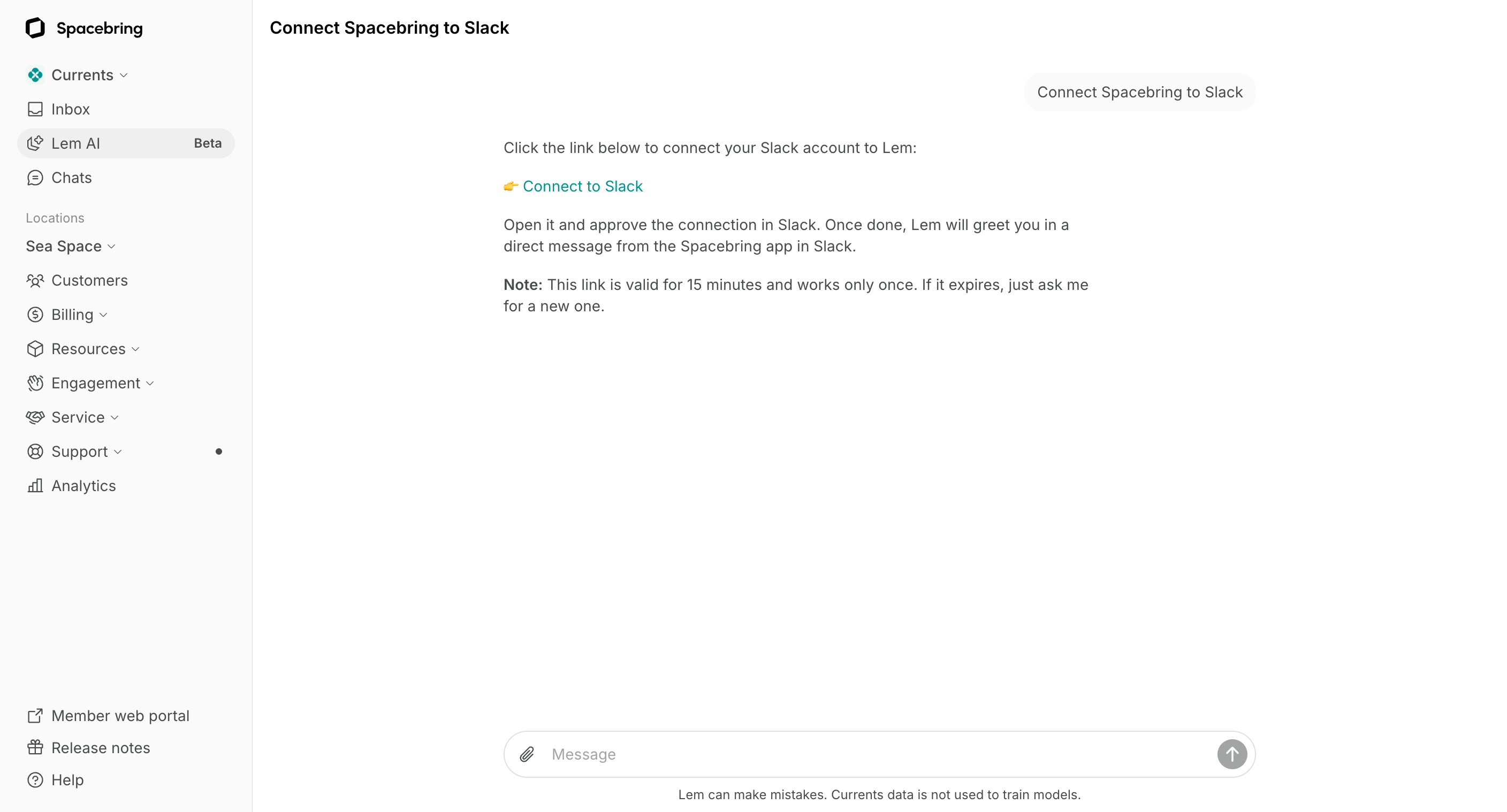
1. Click the **Lem AI** icon in the top left corner of your Spacebring admin dashboard and send: [Connect Slack](https://app.spacebring.com/lem?q=Connect%20Slack).
2. You get a link in the chat. Open it — it works once and expires in 15 minutes, so ask again if you need a new one.
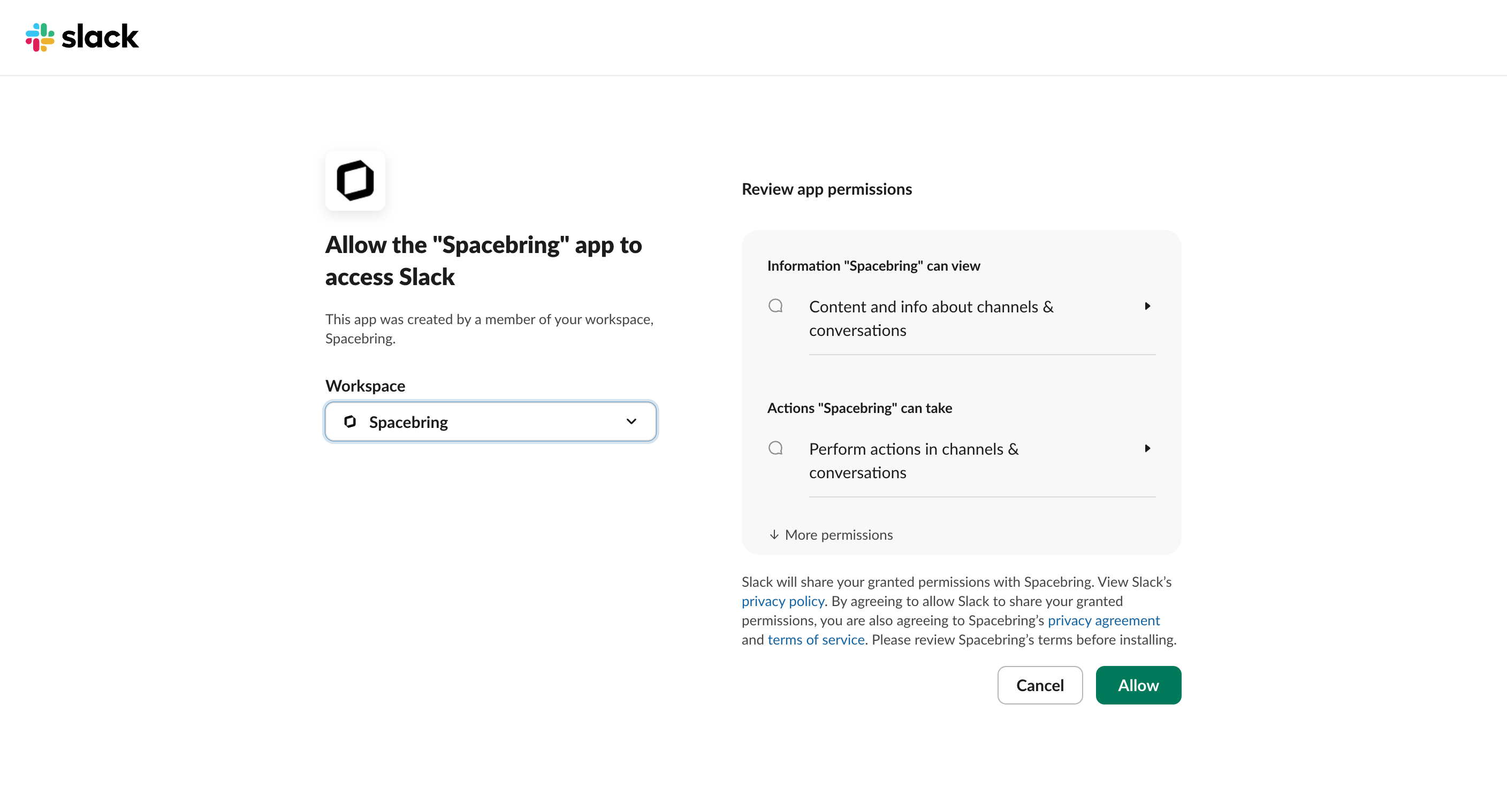
 3. Pick your Slack workspace and click **Allow** to let the **Spacebring** app access it. Spacebring then confirms the connection in a Slack message.
 Only administrators can connect Spacebring to Slack. Each administrator connects Spacebring to their own Slack account. When the first administrator connects, the **Spacebring** app is also added to your Slack workspace — your Slack workspace owner may need to approve that.
## Ask Spacebring in Slack
Write your question in plain language, the same way you would in your Spacebring admin dashboard.
### In a direct message
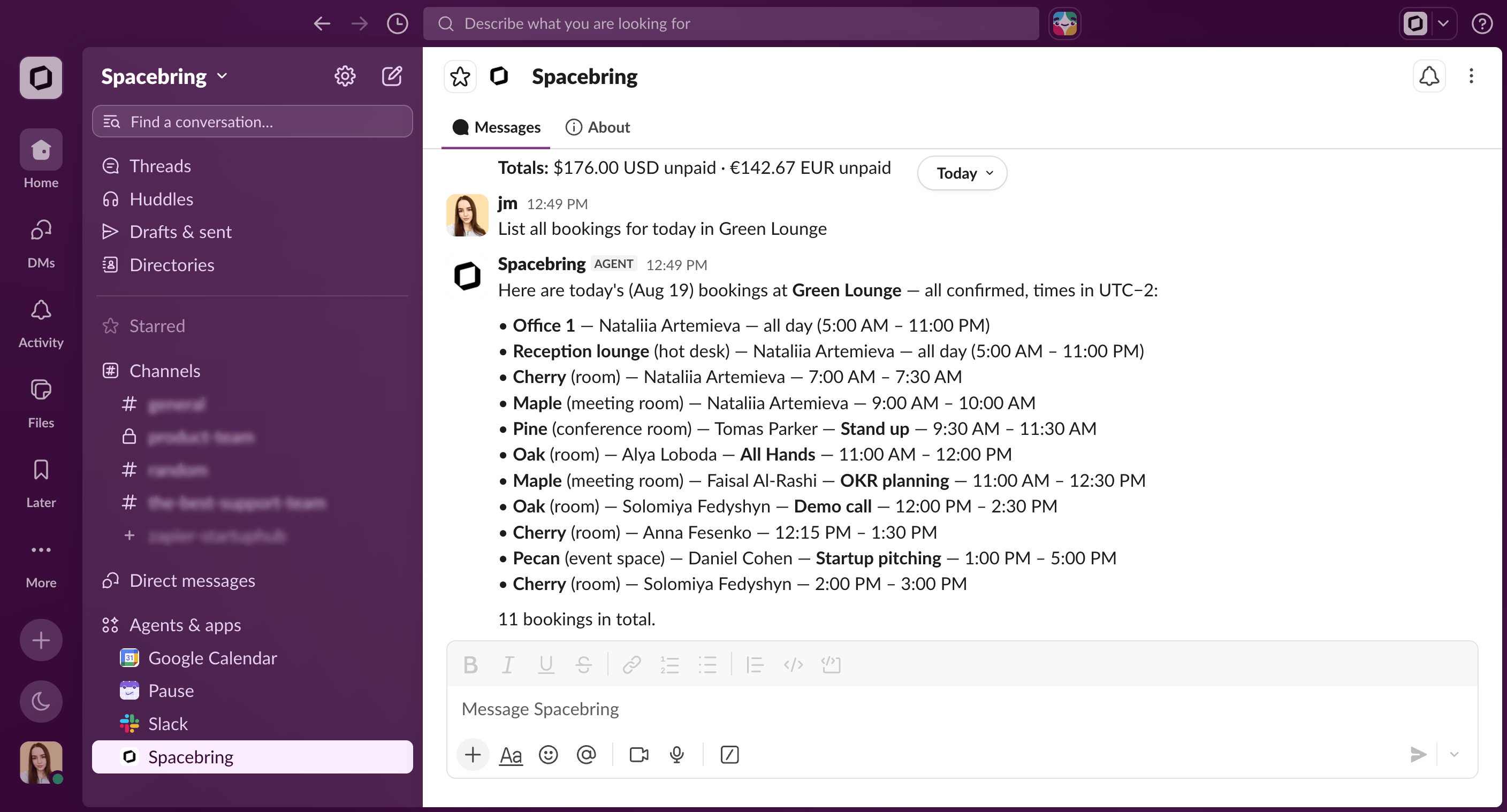
1. In Slack, open **Spacebring** under **Agents & apps**.
2. Send your question. Spacebring keeps the conversation, so you can follow up on its answer.
Only administrators can connect Spacebring to Slack. Each administrator connects Spacebring to their own Slack account. When the first administrator connects, the **Spacebring** app is also added to your Slack workspace — your Slack workspace owner may need to approve that.
## Ask Spacebring in Slack
Write your question in plain language, the same way you would in your Spacebring admin dashboard.
### In a direct message
1. In Slack, open **Spacebring** under **Agents & apps**.
2. Send your question. Spacebring keeps the conversation, so you can follow up on its answer.
 You can attach an image, such as a screenshot, and ask about it.
Your direct message conversation with Spacebring in Slack is also saved as a chat with Lem AI in your Spacebring admin dashboard.
### In a channel
1. Add the **Spacebring** app to any channel in your workspace. Once anyone tags `@Spacebring` there, Slack offers to add the app.
* You can also add it by clicking the channel name and going to **Agents & apps > Add an app**.
2. Tag `@Spacebring` with your question. It replies in a thread on your message, so everyone in the channel sees the answer.
3. Tag `@Spacebring` again for every next question, in the thread or in the channel.
Only administrators who connected Spacebring to their Slack account can tag and ask Spacebring in a channel. Anyone else who tags it gets the instructions to connect Spacebring to their Slack account first.
Spacebring does not read images in a channel. Send them in your direct message with Spacebring instead.
Each answer in a channel stands on its own, without memory of earlier questions. Use your direct message with Spacebring when you want to build on an earlier answer.
## What you can ask Spacebring
Ask about any of the following, in plain language, and Spacebring finds the answer for you:
* Network and locations
* Members, companies, and contracts
* Plans and subscriptions
* Resources, bookings, and occupancy
* Invoices, payments, and discounts
* Credits and day passes
* Shop products and orders
* Events and tickets
* Benefits and applications
* Feed posts, support tickets, and visitors
* Guides
Spacebring can also:
* Combine these in one request — for example, unpaid invoices per location for last month.
* Link you straight to the right page of your Spacebring admin dashboard.
* Answer how-to questions about Spacebring from its documentation.
### Commands
In your direct message with Spacebring, a few words work as commands. Type them without a slash, because Slack keeps messages that start with `/` for its own commands.
| Command | What it does |
| ------- | ------------------------------------------------------ |
| `help` | Lists the commands and what Spacebring can do in Slack |
| `new` | Starts a fresh conversation |
| `stop` | Disconnects your Slack account from your network |
## How Spacebring in Slack works
* In Slack, Spacebring answers questions. To create, edit, or change settings, ask directly in your Spacebring admin dashboard.
* Slack cannot show charts, tables, or file exports, so answers come as sentences and short bullet lists.
* You can upload images up to 5 MB. Documents, spreadsheets, voice messages, and video cannot be read in Slack — send those in your Spacebring admin dashboard, which [supports more file types](/docs/lem-ai/ask#start-a-chat-with-lem-ai).
* Your Slack account is connected to one Spacebring network at a time. Connect again from another network to switch to it.
* Spacebring stops answering you in Slack as soon as your Spacebring administrator role is removed.
## Disconnect Spacebring from Slack
**Disconnect your own account**
* Send `stop` in your direct message with Spacebring.
* The **Spacebring** app stays in **Agents & apps** and stops answering your questions. Your earlier messages with Spacebring stay in Slack and in your Spacebring admin dashboard — nothing is deleted.
* To use it again, [connect Spacebring to Slack](#connect-spacebring-to-slack) once more.
**Disconnect everyone in the workspace**
* Remove the **Spacebring** app in Slack, under **Settings & administration > Manage apps**. A Slack workspace owner or administrator can do this.
* The **Spacebring** app then disappears from **Agents & apps** for everyone in the workspace.
* As soon as one administrator [connects Spacebring to Slack](#connect-spacebring-to-slack) again, the app is back for everyone.
You can attach an image, such as a screenshot, and ask about it.
Your direct message conversation with Spacebring in Slack is also saved as a chat with Lem AI in your Spacebring admin dashboard.
### In a channel
1. Add the **Spacebring** app to any channel in your workspace. Once anyone tags `@Spacebring` there, Slack offers to add the app.
* You can also add it by clicking the channel name and going to **Agents & apps > Add an app**.
2. Tag `@Spacebring` with your question. It replies in a thread on your message, so everyone in the channel sees the answer.
3. Tag `@Spacebring` again for every next question, in the thread or in the channel.
Only administrators who connected Spacebring to their Slack account can tag and ask Spacebring in a channel. Anyone else who tags it gets the instructions to connect Spacebring to their Slack account first.
Spacebring does not read images in a channel. Send them in your direct message with Spacebring instead.
Each answer in a channel stands on its own, without memory of earlier questions. Use your direct message with Spacebring when you want to build on an earlier answer.
## What you can ask Spacebring
Ask about any of the following, in plain language, and Spacebring finds the answer for you:
* Network and locations
* Members, companies, and contracts
* Plans and subscriptions
* Resources, bookings, and occupancy
* Invoices, payments, and discounts
* Credits and day passes
* Shop products and orders
* Events and tickets
* Benefits and applications
* Feed posts, support tickets, and visitors
* Guides
Spacebring can also:
* Combine these in one request — for example, unpaid invoices per location for last month.
* Link you straight to the right page of your Spacebring admin dashboard.
* Answer how-to questions about Spacebring from its documentation.
### Commands
In your direct message with Spacebring, a few words work as commands. Type them without a slash, because Slack keeps messages that start with `/` for its own commands.
| Command | What it does |
| ------- | ------------------------------------------------------ |
| `help` | Lists the commands and what Spacebring can do in Slack |
| `new` | Starts a fresh conversation |
| `stop` | Disconnects your Slack account from your network |
## How Spacebring in Slack works
* In Slack, Spacebring answers questions. To create, edit, or change settings, ask directly in your Spacebring admin dashboard.
* Slack cannot show charts, tables, or file exports, so answers come as sentences and short bullet lists.
* You can upload images up to 5 MB. Documents, spreadsheets, voice messages, and video cannot be read in Slack — send those in your Spacebring admin dashboard, which [supports more file types](/docs/lem-ai/ask#start-a-chat-with-lem-ai).
* Your Slack account is connected to one Spacebring network at a time. Connect again from another network to switch to it.
* Spacebring stops answering you in Slack as soon as your Spacebring administrator role is removed.
## Disconnect Spacebring from Slack
**Disconnect your own account**
* Send `stop` in your direct message with Spacebring.
* The **Spacebring** app stays in **Agents & apps** and stops answering your questions. Your earlier messages with Spacebring stay in Slack and in your Spacebring admin dashboard — nothing is deleted.
* To use it again, [connect Spacebring to Slack](#connect-spacebring-to-slack) once more.
**Disconnect everyone in the workspace**
* Remove the **Spacebring** app in Slack, under **Settings & administration > Manage apps**. A Slack workspace owner or administrator can do this.
* The **Spacebring** app then disappears from **Agents & apps** for everyone in the workspace.
* As soon as one administrator [connects Spacebring to Slack](#connect-spacebring-to-slack) again, the app is back for everyone.