> ## Documentation Index
> Fetch the complete documentation index at: https://www.spacebring.com/docs/llms.txt
> Use this file to discover all available pages before exploring further.
# Track membership growth
> Monitor membership sales and community growth, and identify how many new members joined your space during a specific period
You can track customer base growth and the number of new subscriptions purchased in a specific period using the custom **Subscriptions** and **Users** reports.
## Track subscription purchases
To check how many new subscriptions have begun during the specified period, follow these steps:
1. Go to **Analytics** > press **Create report** top right.
2. Select the [**Subscriptions**](/docs/analytics/reports) report type and filter it by status.
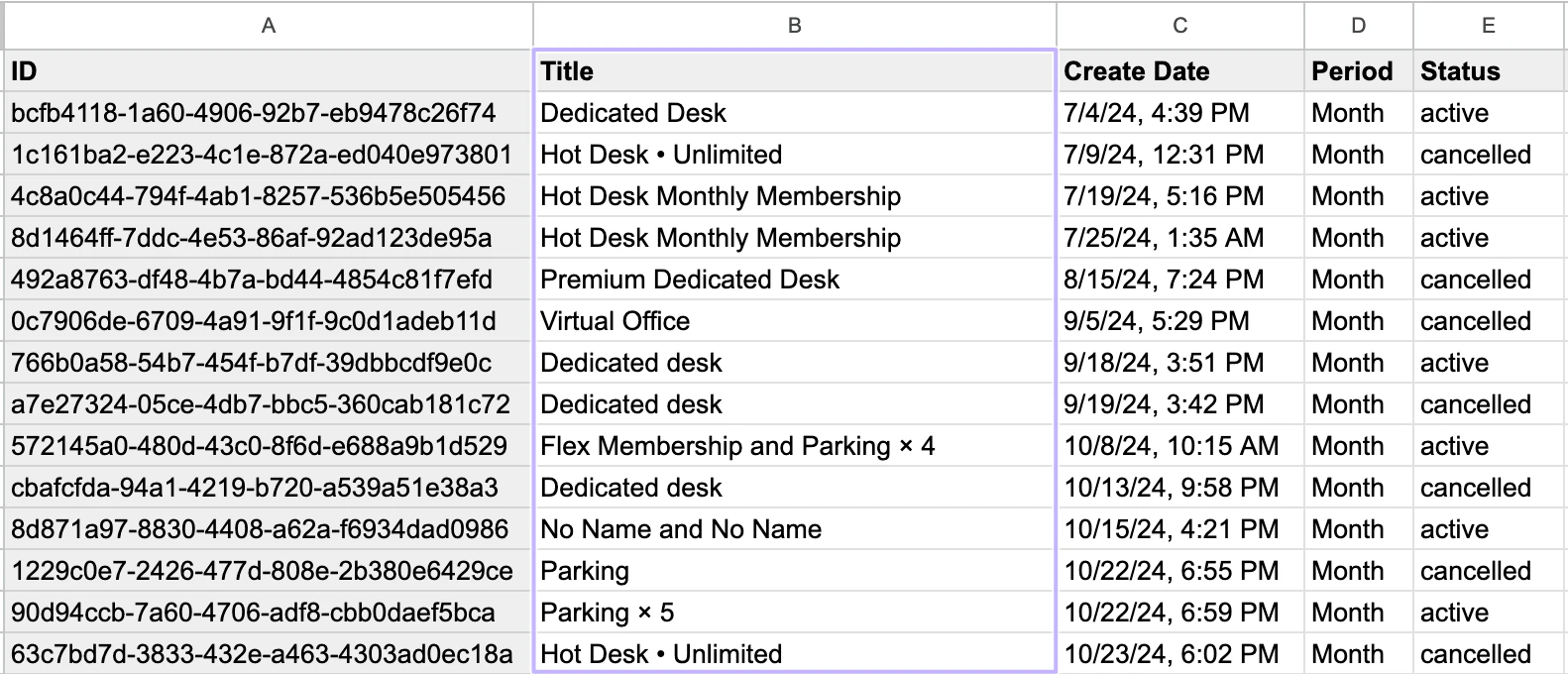
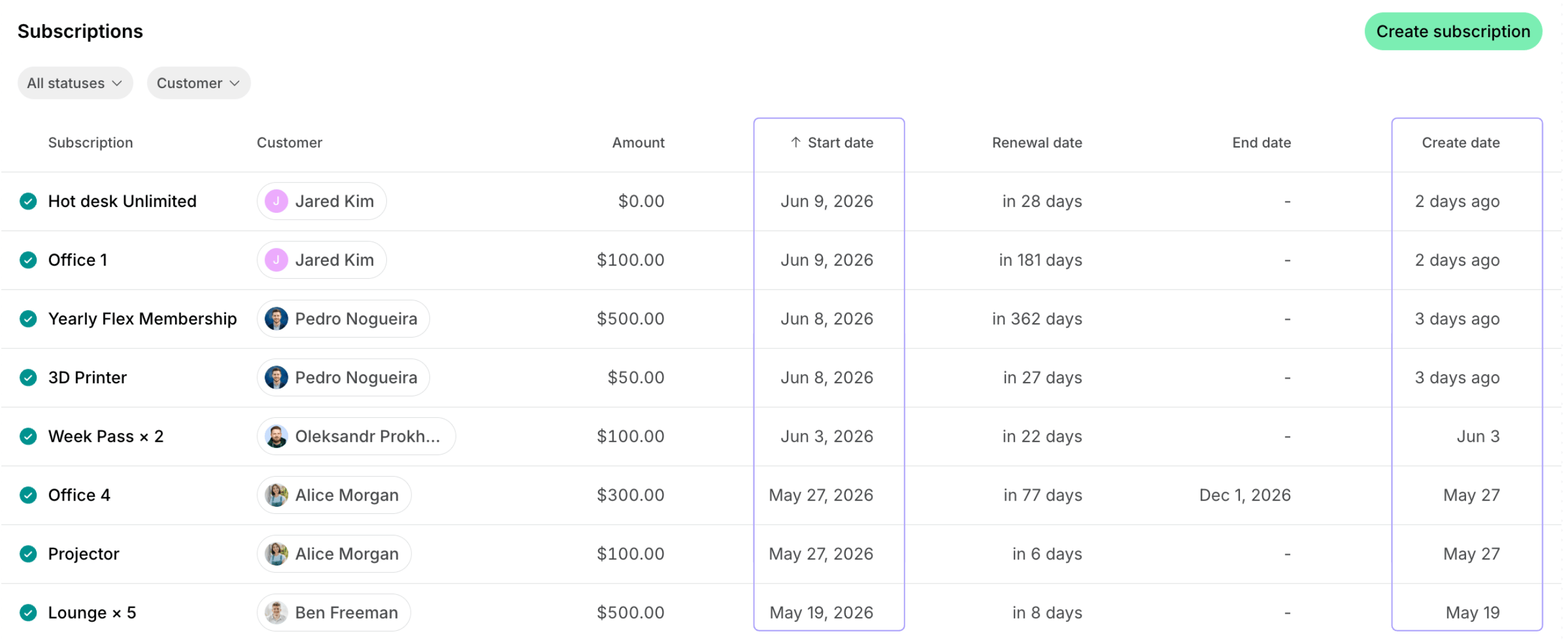
3. Filter the report by **Create date** to see how many new subscriptions were purchased during a specific period or by **Start date** to see how many new subscriptions started during a specific period.
For instance, in the screenshot below, we can observe that 14 new subscriptions were purchased during July-November 2024, 7 of which are active and 7 have been canceled since.
 You can also track subscription purchases directly from the **Billing > Subscriptions** page by using the **Start date** and **Create date** filters.
 ## Track customer base growth
In addition to subscription purchase analytics, you are empowered to track the growth of the customer base in your space. For this, follow these steps:
1. Go to **Analytics** > press **Create report** top right.
2. Select the [**Users**](/docs/analytics/reports) report type and include only members, only nonmembers or both in it to check the growth of the specific customer type.
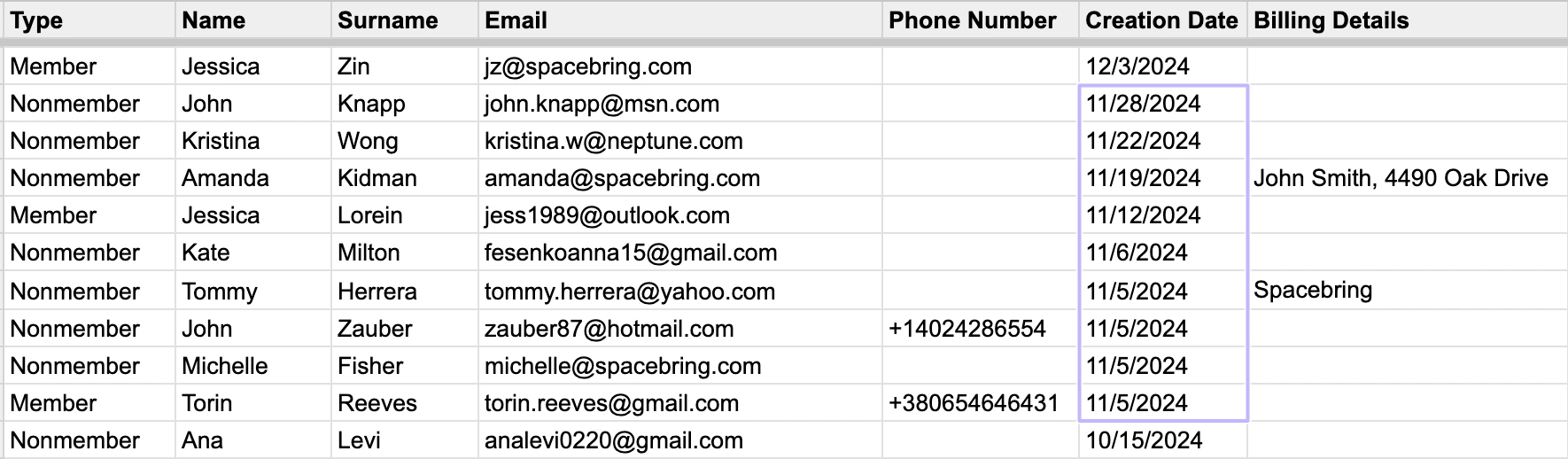
3. Filter the report by **Create date** to see how many new customers joined during a specific period.
For example, in the screenshot below, we can observe that 9 new customers have joined your space during November 2024.
## Track customer base growth
In addition to subscription purchase analytics, you are empowered to track the growth of the customer base in your space. For this, follow these steps:
1. Go to **Analytics** > press **Create report** top right.
2. Select the [**Users**](/docs/analytics/reports) report type and include only members, only nonmembers or both in it to check the growth of the specific customer type.
3. Filter the report by **Create date** to see how many new customers joined during a specific period.
For example, in the screenshot below, we can observe that 9 new customers have joined your space during November 2024.
 With these solutions, you can gain detailed insights into your membership sales and customer base growth over time, identify trends, and make informed decisions to improve your offerings.
**FAQs**
To calculate the average subscription duration:
1. Go to **Analytics** > click **Create report** top right.
2. Select [**Subscriptions**](/docs/analytics/reports) as the report type.
3. To include both current and past members in your analysis, include "Active," "Ended," and **Canceled** statuses.
4. Find the **Start Date** column for the subscription's beginning.
5. Identify the subscription's **Renew Date** (for active subscriptions), **End Date** (for expired subscriptions), and **Delete Date** (for canceled subscriptions).
6. Using Google Sheets or Excel possibilities, calculate the duration in months for each subscription based on its relevant dates.
7. Once you have the duration for each, calculate the average across all the subscriptions you've included.
With these solutions, you can gain detailed insights into your membership sales and customer base growth over time, identify trends, and make informed decisions to improve your offerings.
**FAQs**
To calculate the average subscription duration:
1. Go to **Analytics** > click **Create report** top right.
2. Select [**Subscriptions**](/docs/analytics/reports) as the report type.
3. To include both current and past members in your analysis, include "Active," "Ended," and **Canceled** statuses.
4. Find the **Start Date** column for the subscription's beginning.
5. Identify the subscription's **Renew Date** (for active subscriptions), **End Date** (for expired subscriptions), and **Delete Date** (for canceled subscriptions).
6. Using Google Sheets or Excel possibilities, calculate the duration in months for each subscription based on its relevant dates.
7. Once you have the duration for each, calculate the average across all the subscriptions you've included.