> ## Documentation Index
> Fetch the complete documentation index at: https://www.spacebring.com/docs/llms.txt
> Use this file to discover all available pages before exploring further.
# Track sales
> Track and analyze your space sales by monitoring daily or weekly revenue trends on the Analytics dashboards, and download detailed reports for transactions, subscriptions, and resource bookings
Analytics in Spacebring allows you to track sales from all business activities within the space, such as bookings, subscriptions, payments, and others.
Visit the **Analytics**page to monitor your sales by period or download custom reports to get comprehensive sales reports.
## Track all sales
### Quick daily/weekly tracking
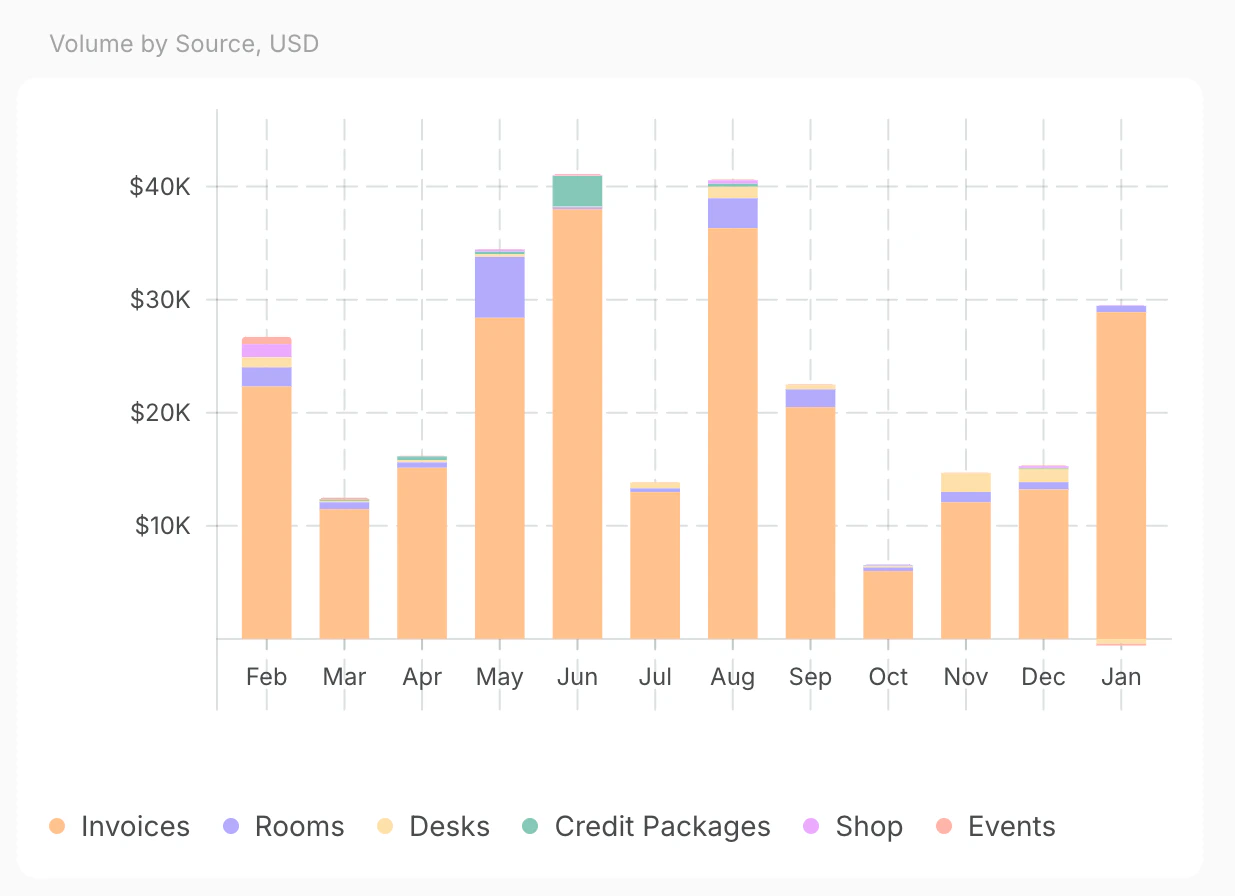
To check all your successfully processed payments go to **Analytics** > **Payments** page. Use the **Volume by source** graph to see revenue sources (e.g., memberships, bookings) and choose a relevant timeline:
* 7D/28D - bookings by days.
* 26W - bookings by weeks.
* 12M - bookings by months.
 ### Generate a report
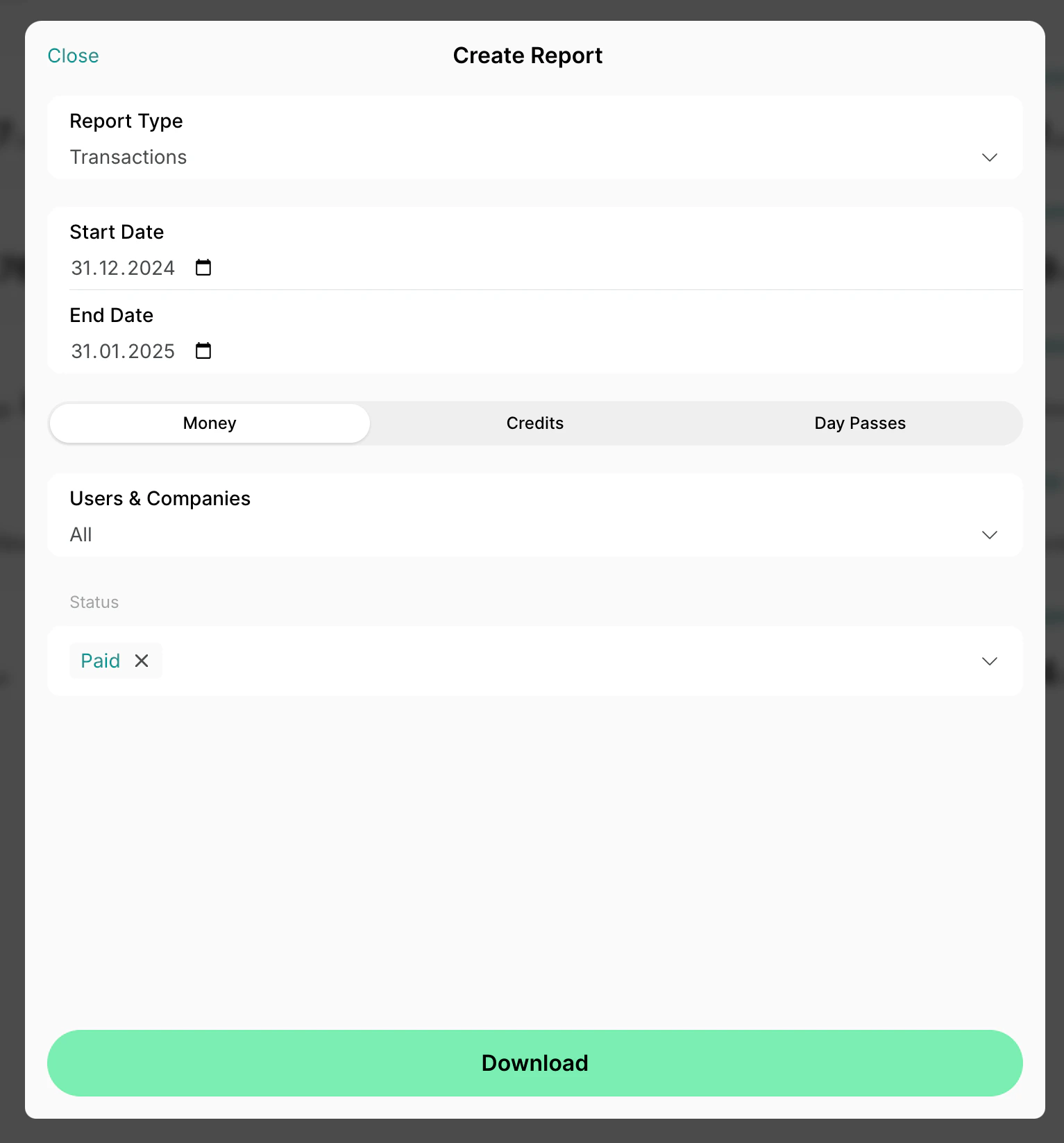
To get a report of all transactions go to **Analytics** > press **Create report** and select the **Transactions** report type.
Set the necessary start and end date, select **Money** to include only monetary transactions, keep **All** in the **Users & companies** dropdown, and only the **Paid** filter for transaction status.
### Generate a report
To get a report of all transactions go to **Analytics** > press **Create report** and select the **Transactions** report type.
Set the necessary start and end date, select **Money** to include only monetary transactions, keep **All** in the **Users & companies** dropdown, and only the **Paid** filter for transaction status.
 The report will allow you to view the total revenue, breakdowns by source, and other insights.
## Track membership plan sales
### Quick daily/weekly tracking
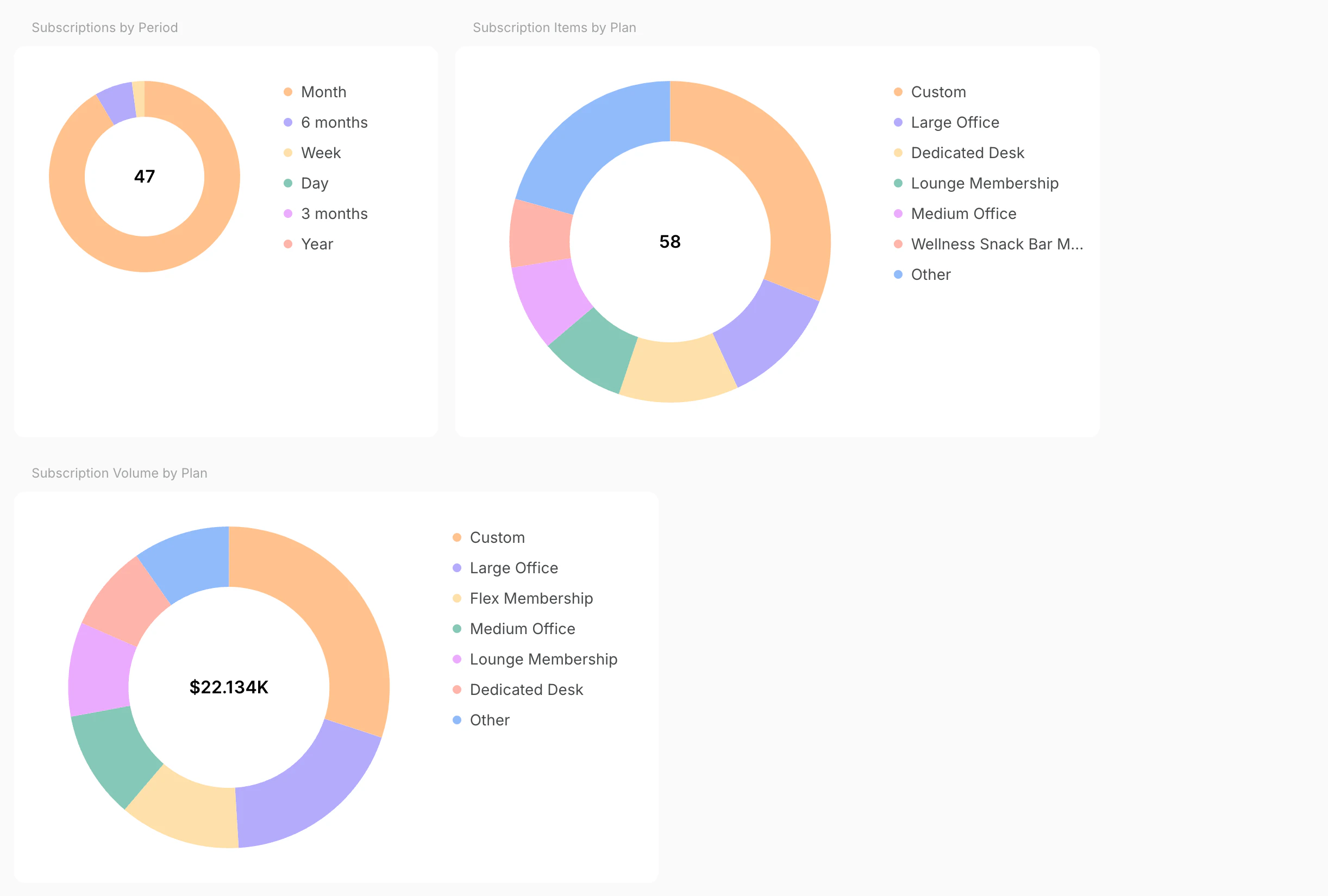
To check your current membership plan sales go to the **Analytics** page > **Subscriptions** tab.
* The **Subscriptions** tab: displays the current number of active subscriptions.
* The **Subscription items by plan**: shows active subscriptions for the most popular membership plans.
* The **Subscription volume by plan**: shows recurring revenue.
The report will allow you to view the total revenue, breakdowns by source, and other insights.
## Track membership plan sales
### Quick daily/weekly tracking
To check your current membership plan sales go to the **Analytics** page > **Subscriptions** tab.
* The **Subscriptions** tab: displays the current number of active subscriptions.
* The **Subscription items by plan**: shows active subscriptions for the most popular membership plans.
* The **Subscription volume by plan**: shows recurring revenue.
 ### Generate a report
##### ****Subscriptions** custom report**
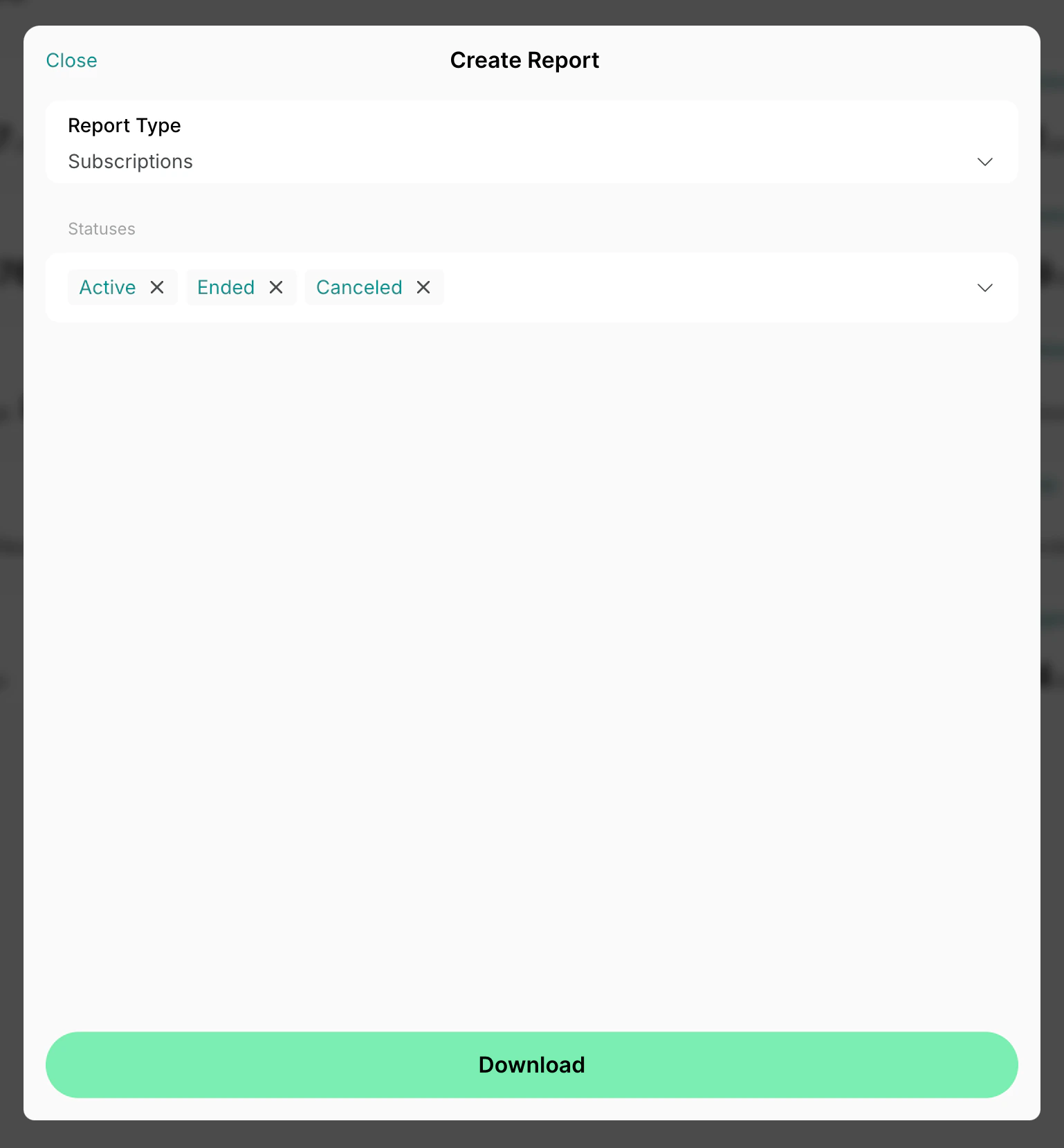
To get full insight into subscriptions in your space, you can download a report of the **Subscriptions** type by going to the **Analytics** page > press **Create report**. Configure the statuses to filter out the needed information and press the **Download** button.
### Generate a report
##### ****Subscriptions** custom report**
To get full insight into subscriptions in your space, you can download a report of the **Subscriptions** type by going to the **Analytics** page > press **Create report**. Configure the statuses to filter out the needed information and press the **Download** button.
 ##### ****Invoice Items** custom report**
To get a report about invoice payments for each membership plan, select the **Invoice Items** report type, set the necessary create date and issue date, filter the **Status** field as required, and press the **Download** button.
##### ****Invoice Items** custom report**
To get a report about invoice payments for each membership plan, select the **Invoice Items** report type, set the necessary create date and issue date, filter the **Status** field as required, and press the **Download** button.
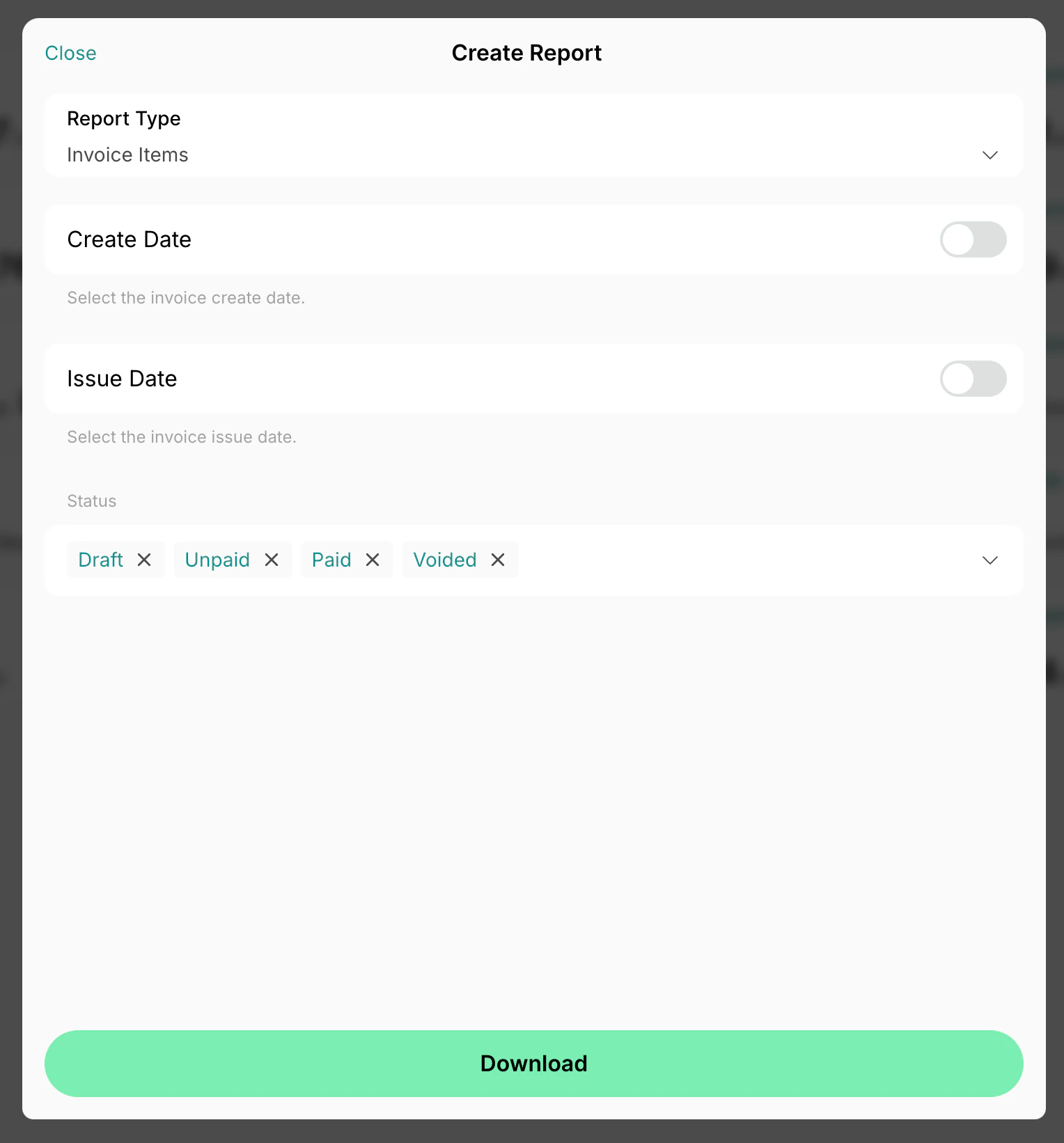 The report will show the revenue of the issued invoices and what membership plan is the most popular among the customers.
## Track room and desk booking sales
### Quick daily/weekly tracking
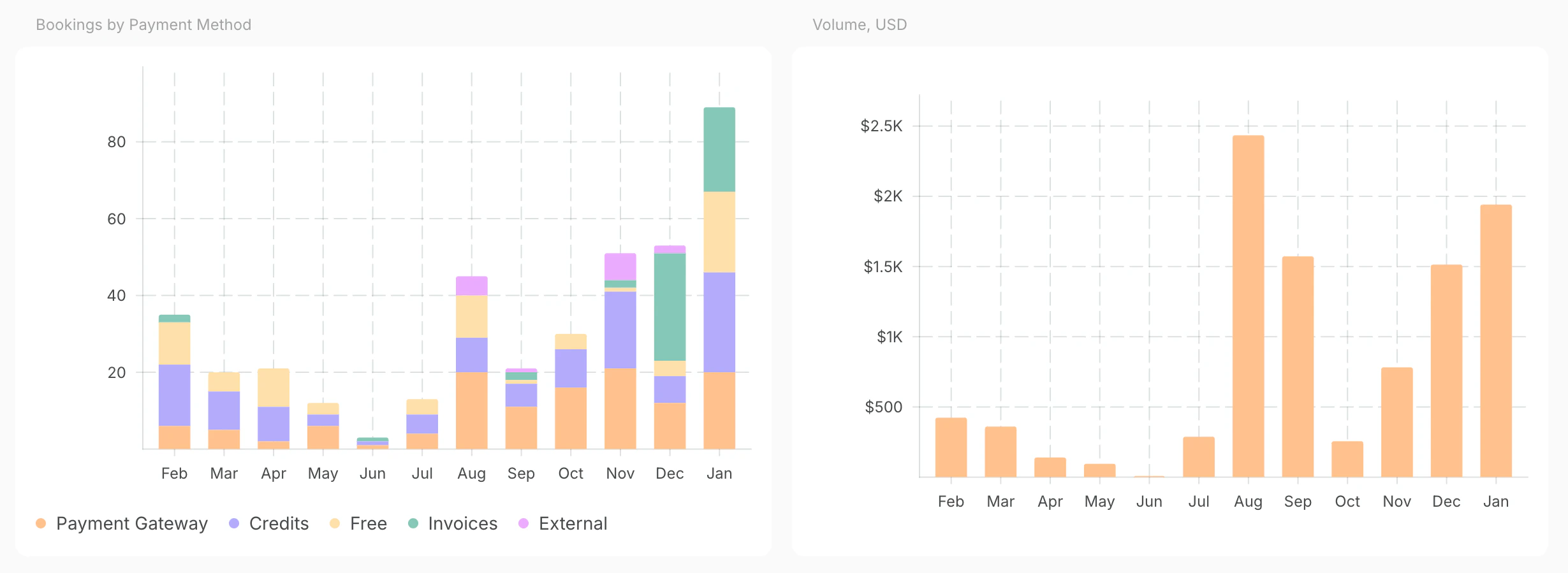
To check all your revenue go to **Analytics** > **Rooms** or **Desks** tab for this month's booking stats and select a timeline.
* **Bookings by payment method**: shows the number of bookings.
* **Volume**: shows the revenue from bookings.
The report will show the revenue of the issued invoices and what membership plan is the most popular among the customers.
## Track room and desk booking sales
### Quick daily/weekly tracking
To check all your revenue go to **Analytics** > **Rooms** or **Desks** tab for this month's booking stats and select a timeline.
* **Bookings by payment method**: shows the number of bookings.
* **Volume**: shows the revenue from bookings.
 ### Generate a report
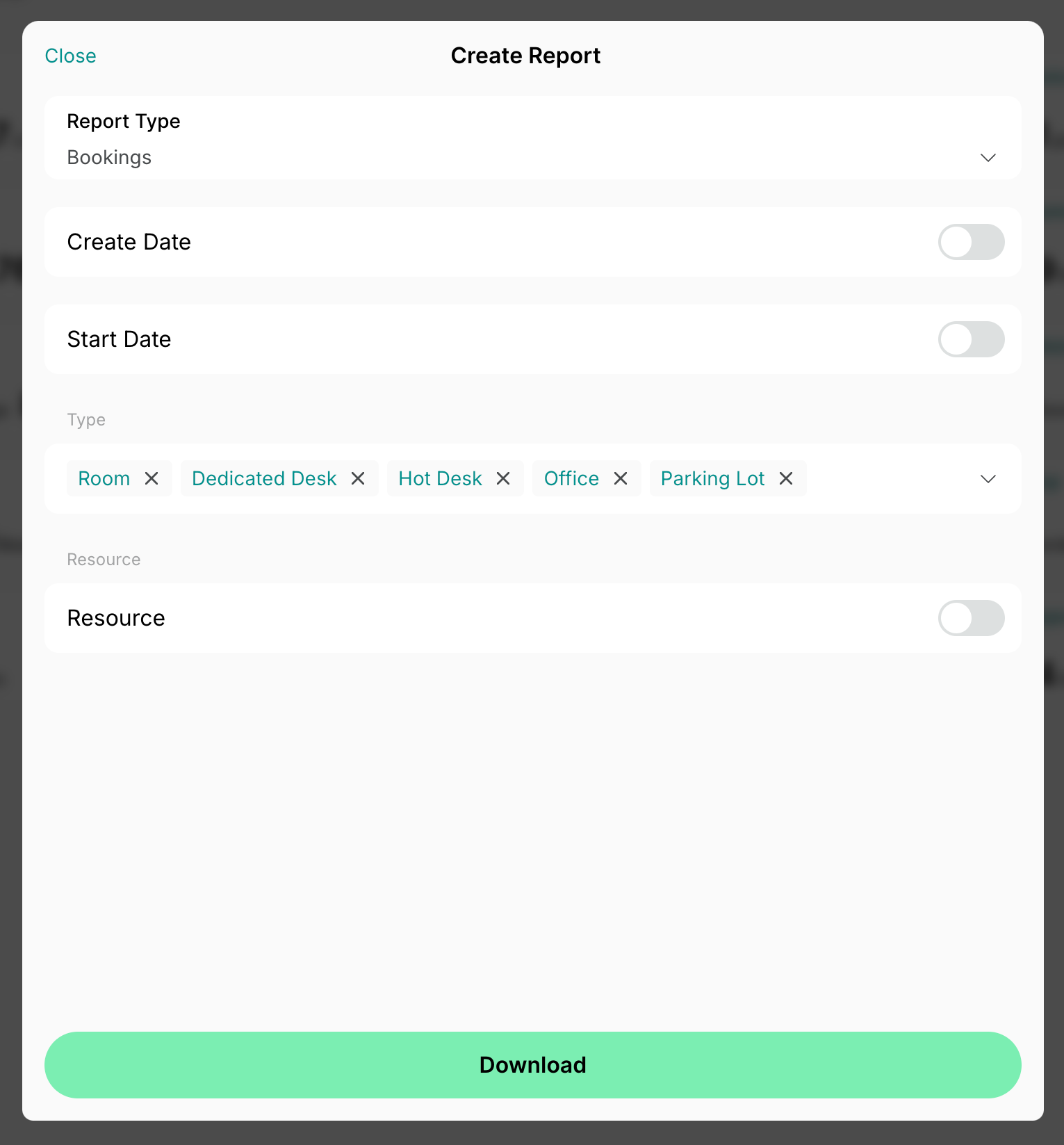
To get a report on bookings, go to **Analytics** > **Create report** and select **Bookings**, set the necessary create and start dates. In the **Type** section choose your resource type, enable **Resource** and choose the individual resources if required.
### Generate a report
To get a report on bookings, go to **Analytics** > **Create report** and select **Bookings**, set the necessary create and start dates. In the **Type** section choose your resource type, enable **Resource** and choose the individual resources if required.
 These reports will allow you to get insights into the number of bookings made, purchased subscriptions, as well as the revenue earned.