> ## Documentation Index
> Fetch the complete documentation index at: https://www.spacebring.com/docs/llms.txt
> Use this file to discover all available pages before exploring further.
# Cross-location credits and day passes
> Allow members to spend credits and day passes on bookings outside their home location
The **Cross-location credits** feature allows your members to spend their credits from one location on room, desk, parking and equipment bookings in other network locations. Similarly, with the **Cross-location day passes**, your members can use their day passes across the network for hot desk bookings.
## Configure cross-location credits and day passes
1. The [owner](/docs/administration/owners) needs to click the network name top left > go to **Network settings** > **Locations**.
2. Set the required percentage value on the **Cross-location credits** and **Cross-location day passes** sliders.
For example, if the value is set to 0%, members of any location won't be able to use their credits or day passes outside their home location. If the value is set to 50% and a member receives 50 ☆ or day passes with a monthly subscription, then only 25 ☆ or day passes can be spent outside the home location per month.
 ## How users book with cross-location credits and day passes
1. Select a different location within the network.
2. Choose **Room, Desk, Parking**, or **Equipment**.
3. At checkout, they can see their credits and day passes from all locations to pay for the booking.
## How users book with cross-location credits and day passes
1. Select a different location within the network.
2. Choose **Room, Desk, Parking**, or **Equipment**.
3. At checkout, they can see their credits and day passes from all locations to pay for the booking.
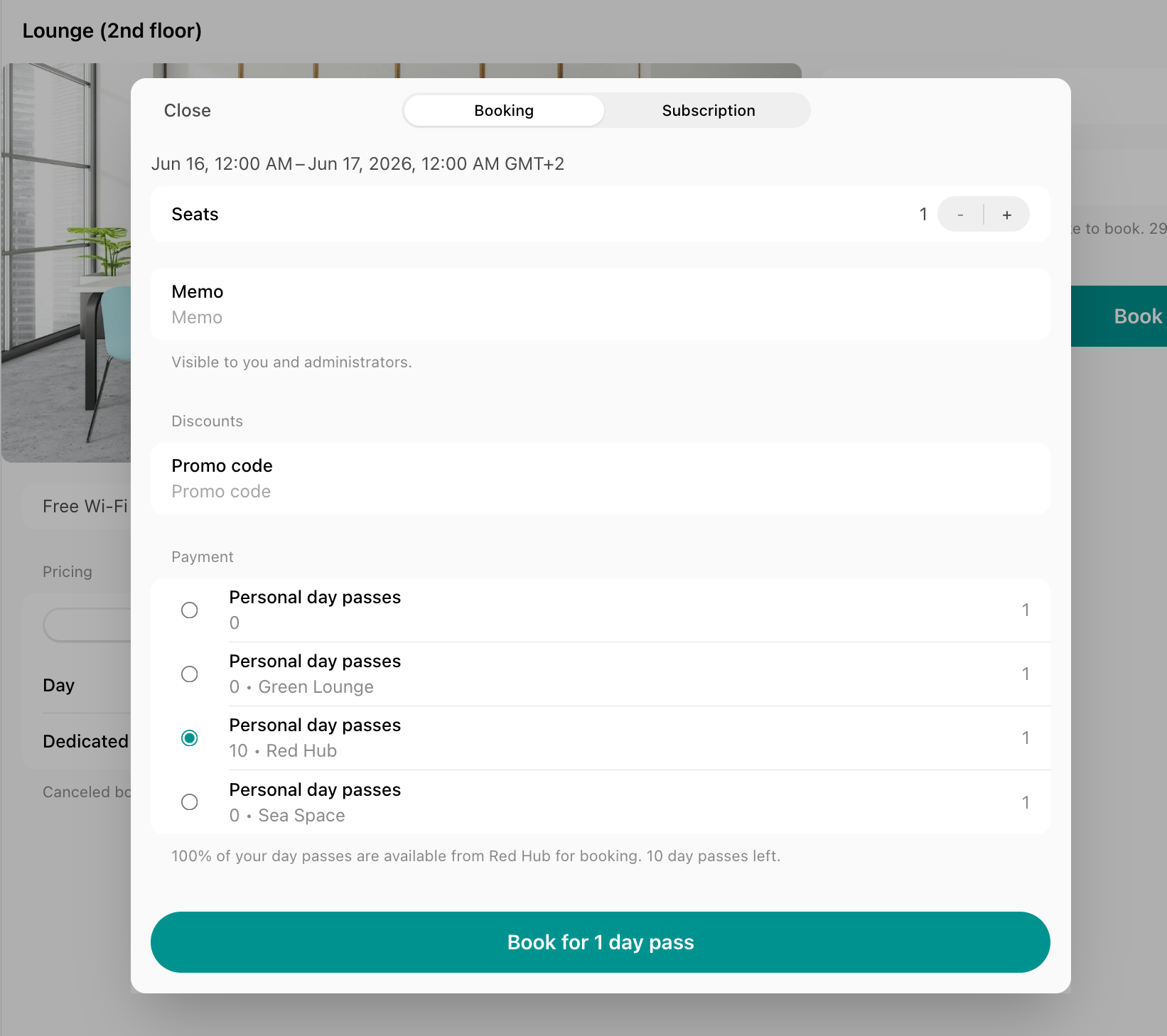 Cross-location credits can be spent on room, desk, parking and equipment bookings in other network locations. They cannot be used to purchase event tickets or shop products.
## Best practices
If you have multiple locations, you can use this feature:
* **As a unique benefit of your space:** no matter in what locations your members have a subscription, they can visit other locations and make bookings with credits or day passes.
* **As a retention tool:** members can spend credits in other locations and may wish to become a member in some of your other locations in the future.
Cross-location credits can be spent on room, desk, parking and equipment bookings in other network locations. They cannot be used to purchase event tickets or shop products.
## Best practices
If you have multiple locations, you can use this feature:
* **As a unique benefit of your space:** no matter in what locations your members have a subscription, they can visit other locations and make bookings with credits or day passes.
* **As a retention tool:** members can spend credits in other locations and may wish to become a member in some of your other locations in the future.