> ## Documentation Index
> Fetch the complete documentation index at: https://www.spacebring.com/docs/llms.txt
> Use this file to discover all available pages before exploring further.
# Scheduled transactions
> Understand how bookings with credits and day passes are charged, and how scheduled credit and day pass transactions work
When members make bookings using subscription credits or day passes, they are deducated from the subscription period in which the booking occurs. This allows members to book future dates without draining their current balance.
## When purchases with credits and day passes are deducted
| | |
| ------------------------------------------------------- | ----------------------------------------------------------------------------------------------------------------------------------------------------------------------------------------------------------------- |
| **Bookings with subscription credits and day passes** | - Bookings for dates within current subscription period — charged immediately.
- Dates in future subscription periods — scheduled and charged when the relevant subscription period begins.
|
| **Booking with non-subscription credits or day passes** | If using credits and day passes purchased as packages or given by admin — charged immediately, regardless of the booking date. |
| **Event tickets or shop products** | Charged immediately at the time of purchase. |
## How scheduled transactions work
1. When booking with subscription credits and day passes for future periods, these bookings appear under **Scheduled transactions** and are created in the **Tentative** status. No credits or day passes are deducted immediately.
 Even though the status is tentative, the timeslot is fully secured and cannot be booked by other customers.
2. When the subscription period in which the booking takes place begins, the user receives their new credit/day pass balance, the booking is automatically charged, and the status changes to "Confirmed." (Administrators will receive a [notification](/docs/account/notifications) of the new booking at this time).
**Example**:
Your current period is **June 2 – July 1,** and you make a booking for **August 13.** The booking is scheduled. On **August 2** (the start of the **August 2 – September 1** period in which the booking takes place), your new balance is issued and the booking is automatically charged.
* If rescheduled to a date within the current period, it is charged immediately.
* If canceled according to the [rescheduling policy](/docs/billing/payments/refunds), the scheduled charge is removed.
* If canceled outside the rescheduling policy, the charge remains **Pending** and will still be deducted when the relevant subscription period begins.
* The soonest upcoming bookings are charged first.
* Any remaining bookings that cannot be covered are canceled. The transaction status changes to "Failed," and the user receives [a push notification](/docs/member/account/notifications) about the unsuccessful charge and the canceled booking.
* However, if the user has non-subscription credits or day passes on their balance (from packages or given by admin), the system will deduct from those instead of canceling the booking.
If a user has multiple subscriptions including credits/day passes with different renewal dates:
* If at least one subscription renews before the booking date, the booking is created as a scheduled future transaction and not charged immediately.
* The credit/day pass charge is scheduled against the subscription that renews soonest before the booking's occurrence date.
If the user's subscription is [canceled](/docs/billing/subscriptions/cancel) before the future bookings are charged:
* All scheduled future bookings are instantly canceled, and credit/day pass transactions are marked as **Failed**.
* However, if the user has non-subscription credits/day passes on their balance (from packages or given by admin), the system will use those to save the booking.
Only members with credits/day passes included in their subscription can schedule future transactions.
Members with a subscription set to start in the future can begin booking immediately, provided the booking dates are on or after their subscription start date.
## Track scheduled transactions
Administrators:
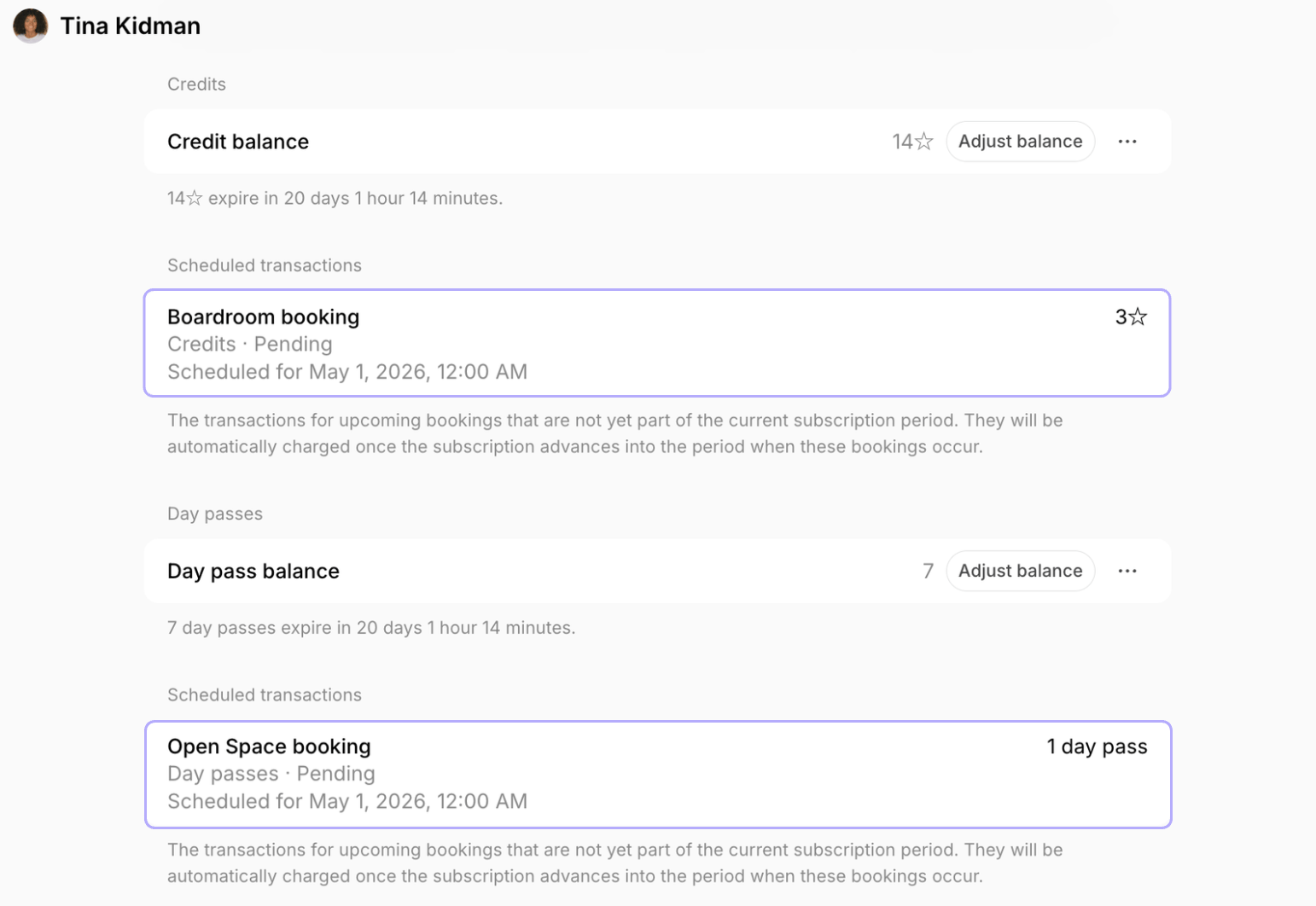
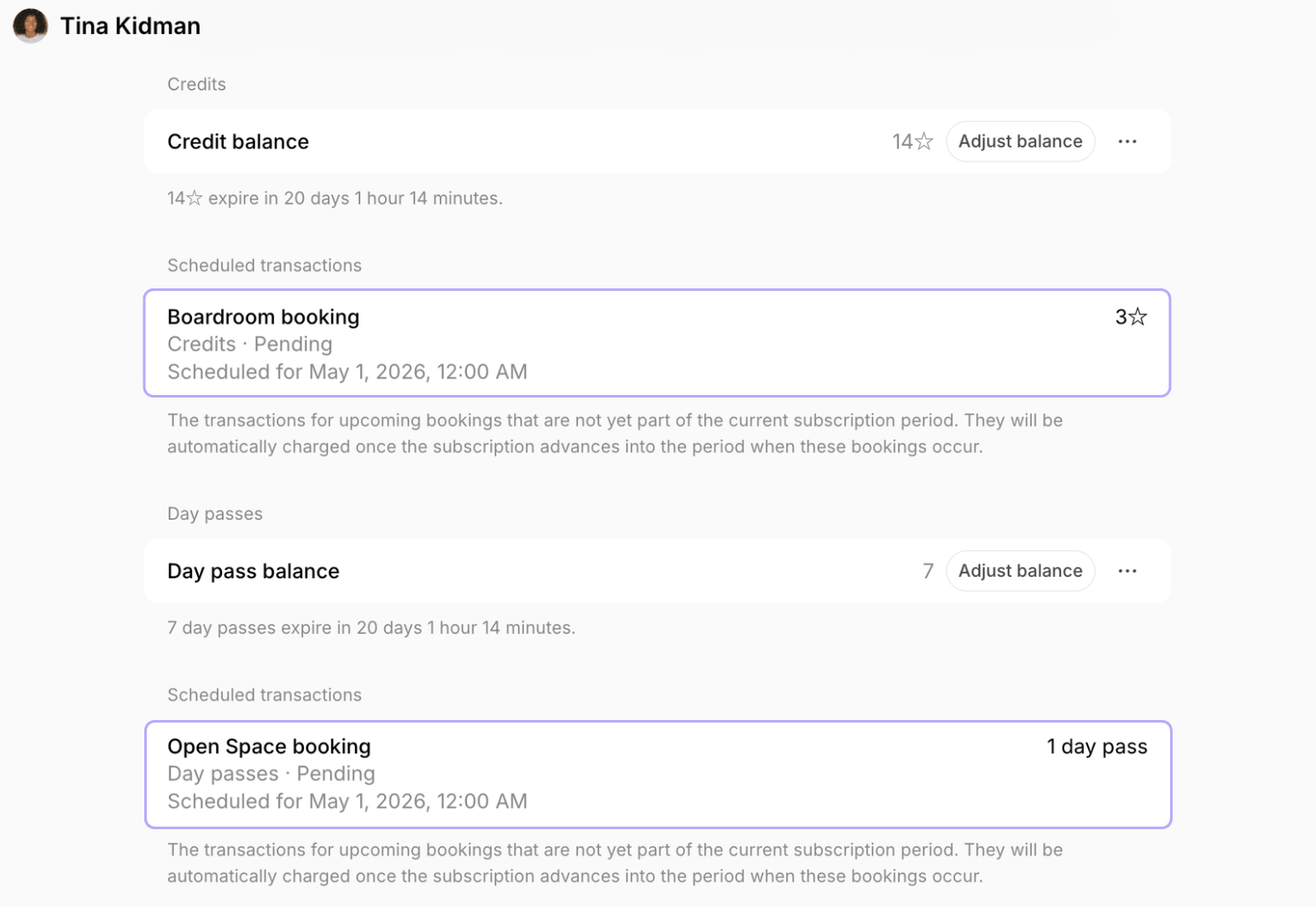
1. Go to **Customers** > open the necessary customer profile.
2. Under **Credits** and **Day passes** sections, locate the **Scheduled transactions** section.
Even though the status is tentative, the timeslot is fully secured and cannot be booked by other customers.
2. When the subscription period in which the booking takes place begins, the user receives their new credit/day pass balance, the booking is automatically charged, and the status changes to "Confirmed." (Administrators will receive a [notification](/docs/account/notifications) of the new booking at this time).
**Example**:
Your current period is **June 2 – July 1,** and you make a booking for **August 13.** The booking is scheduled. On **August 2** (the start of the **August 2 – September 1** period in which the booking takes place), your new balance is issued and the booking is automatically charged.
* If rescheduled to a date within the current period, it is charged immediately.
* If canceled according to the [rescheduling policy](/docs/billing/payments/refunds), the scheduled charge is removed.
* If canceled outside the rescheduling policy, the charge remains **Pending** and will still be deducted when the relevant subscription period begins.
* The soonest upcoming bookings are charged first.
* Any remaining bookings that cannot be covered are canceled. The transaction status changes to "Failed," and the user receives [a push notification](/docs/member/account/notifications) about the unsuccessful charge and the canceled booking.
* However, if the user has non-subscription credits or day passes on their balance (from packages or given by admin), the system will deduct from those instead of canceling the booking.
If a user has multiple subscriptions including credits/day passes with different renewal dates:
* If at least one subscription renews before the booking date, the booking is created as a scheduled future transaction and not charged immediately.
* The credit/day pass charge is scheduled against the subscription that renews soonest before the booking's occurrence date.
If the user's subscription is [canceled](/docs/billing/subscriptions/cancel) before the future bookings are charged:
* All scheduled future bookings are instantly canceled, and credit/day pass transactions are marked as **Failed**.
* However, if the user has non-subscription credits/day passes on their balance (from packages or given by admin), the system will use those to save the booking.
Only members with credits/day passes included in their subscription can schedule future transactions.
Members with a subscription set to start in the future can begin booking immediately, provided the booking dates are on or after their subscription start date.
## Track scheduled transactions
Administrators:
1. Go to **Customers** > open the necessary customer profile.
2. Under **Credits** and **Day passes** sections, locate the **Scheduled transactions** section.
 Members and company members:
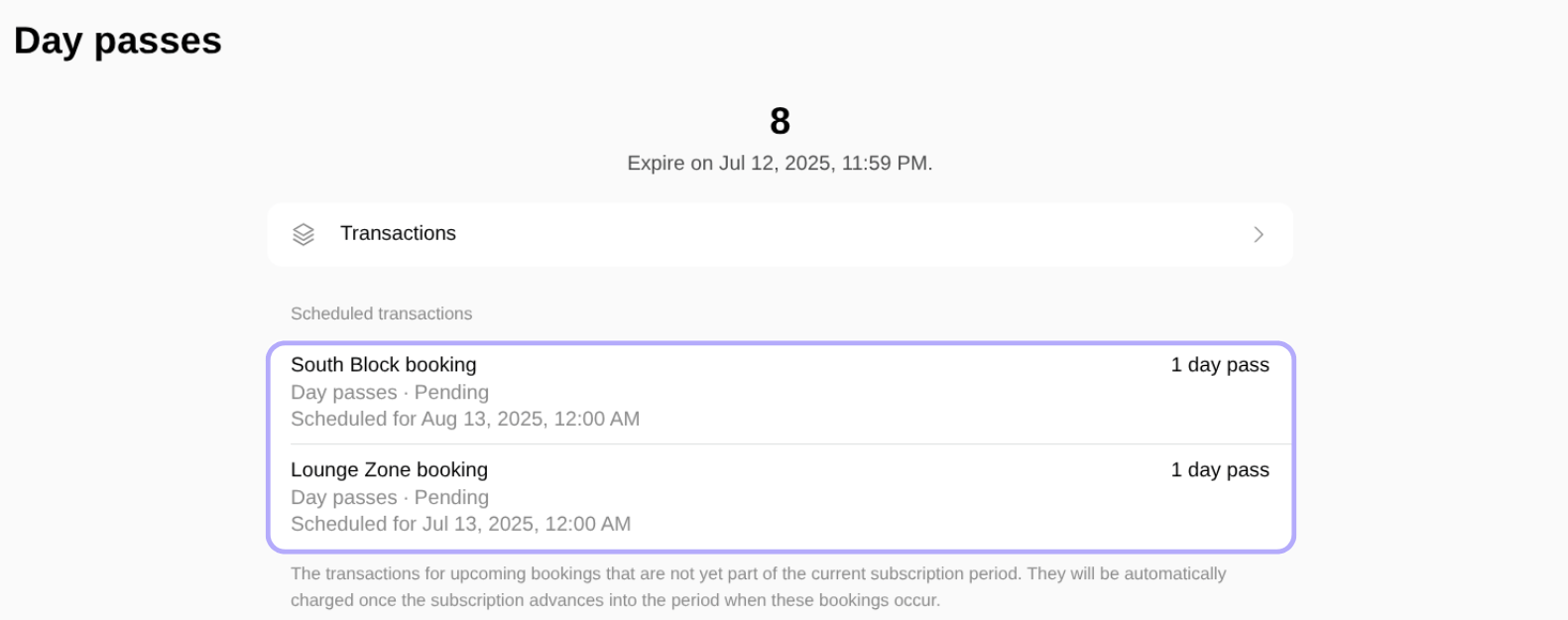
1. Go to **Membership** > **Credits** or **Day passes** in the personal or company section.
2. Locate the **Scheduled transactions** section.
Members and company members:
1. Go to **Membership** > **Credits** or **Day passes** in the personal or company section.
2. Locate the **Scheduled transactions** section.