> ## Documentation Index
> Fetch the complete documentation index at: https://www.spacebring.com/docs/llms.txt
> Use this file to discover all available pages before exploring further.
# myDATA in Greece
> Enable myDATA eInvoicing for Greece to report invoices to the Greek tax authority (IAPR) in real time through Invopop's certified provider ILYDA
Spacebring supports eInvoicing via myDATA (IAPR) for Greece and helps you stay compliant by:
* Automatically generating eInvoices and credit notes in the format required by the Greek tax authority (IAPR)
* Reporting them in real time to myDATA through Invopop's certified provider, ILYDA
* Adding the myDATA MARK (the unique registration number returned by IAPR) and a QR code to the PDF invoices and credit notes sent to customers
* Tracking sync status for every invoice.
This feature is currently in beta. Its functionality and appearance are subject to change, and it may not be fully stable. We welcome your feedback at [support@spacebring.com](mailto:support@spacebring.com).
## Prerequisites
To enable eInvoicing, ensure the following requirements are completed.
### Complete location billing details
Your location billing details, tax, and currency must be complete and accurate.
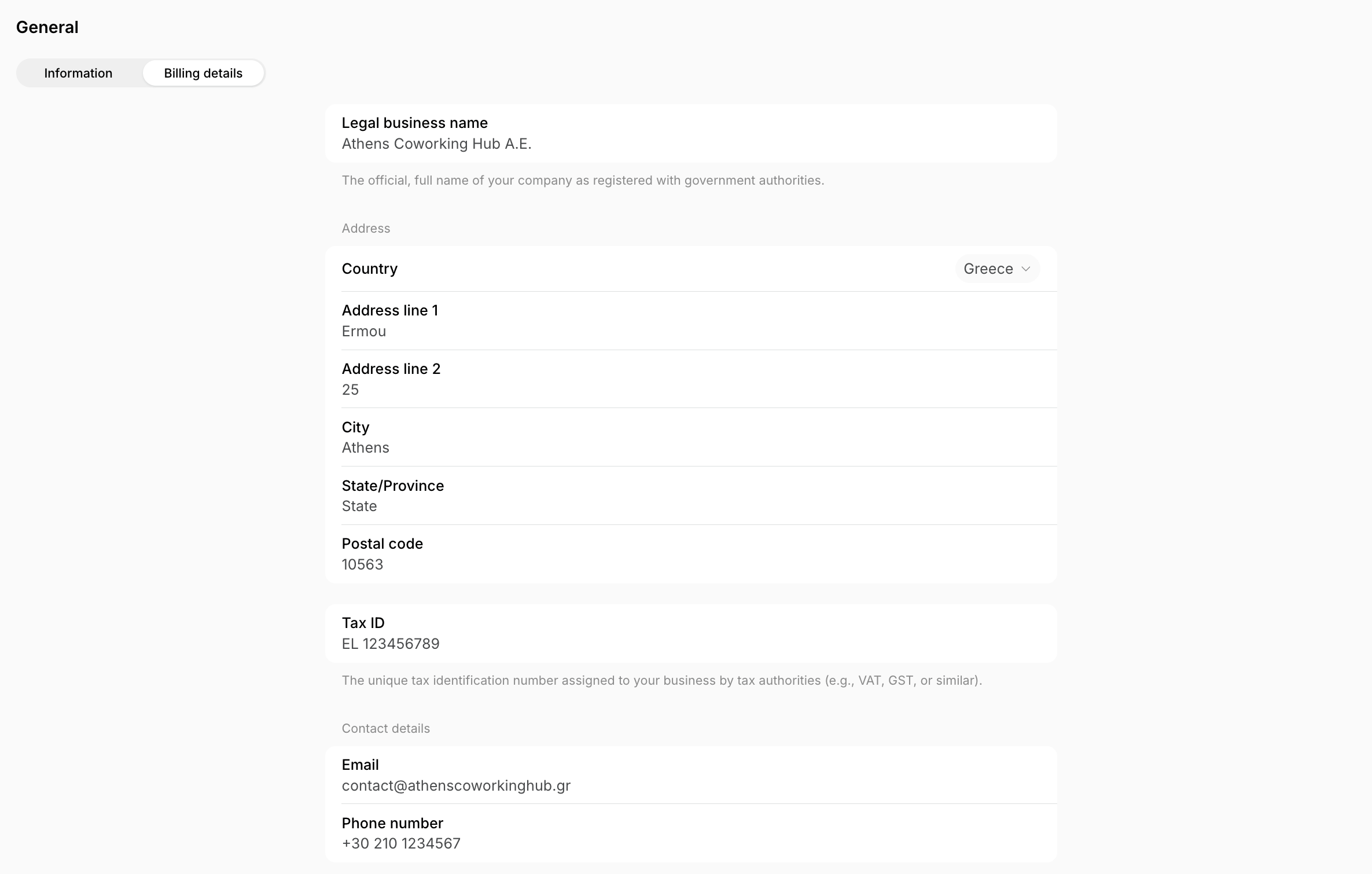
1. Go to **Location settings** > **General** page > **Billing details** tab.
2. Fill in your location's billing details.
* **Legal business name**
* **Address** — Country (Greece), Address line 1, Address line 2 (your street number), City, and Postal code are all mandatory.
* **Tax ID** — a valid Greek VAT number (AFM)
* **Contact details** — Email and Phone number are both mandatory.
 3. Go to **Location settings** > **Billing** page > **Invoices** tab.
* Set **Invoice type** to **Invoice**.
myDATA eInvoicing doesn't support proforma invoice types.
4. Go to **Location settings** > **Billing** page > [**Taxes**](/docs/billing/taxes) tab.
* Set the **Tax type** to **VAT**.
* In the **Tax rate** field, enter a valid Greek VAT rate.
* If you use [custom tax rates](/docs/billing/taxes/custom-tax-rates) in individual customers' subscriptions or invoices, ensure they are also valid Greek VAT rates.
5. Go to **Location settings** > **Billing** page > **Currencies** tab.
* Make sure your main location currency is set to EUR.
* If your primary location currency is different, [add EUR as an alternative currency](/docs/billing/currencies) and apply it to all customer profiles for whom you want to generate eInvoices.
Only invoices issued in EUR can be reported to myDATA.
### Complete customer billing details
Each customer must also have accurate billing details.
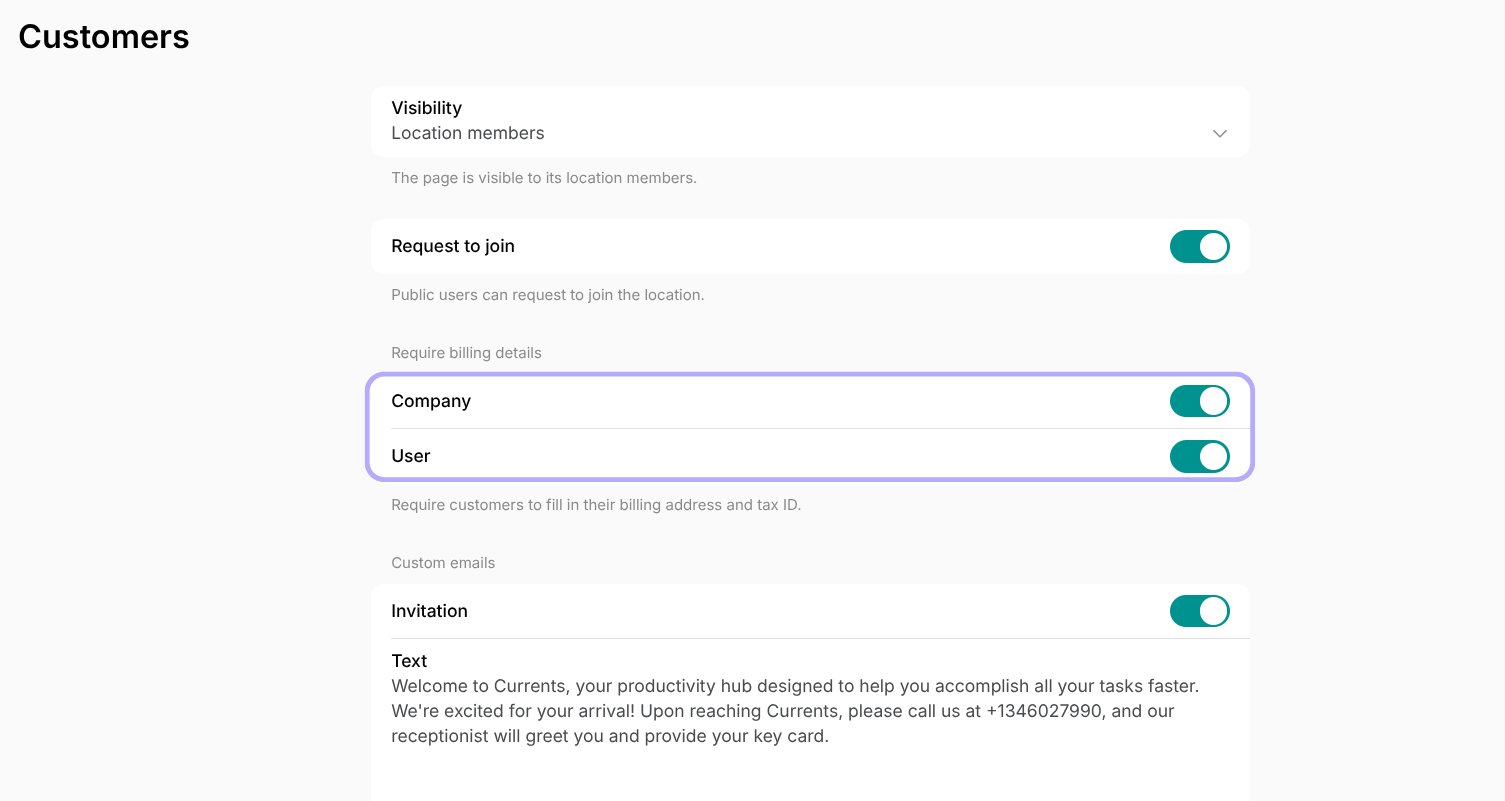
1. Go to **Location settings > Customers** and manage the [**Require billing details**](/docs/customer-management/billing-details) setting depending on your needs:
* Enable this requirement for both individual users and companies
* Or only for companies, if you need to generate eInvoices only for companies.
3. Go to **Location settings** > **Billing** page > **Invoices** tab.
* Set **Invoice type** to **Invoice**.
myDATA eInvoicing doesn't support proforma invoice types.
4. Go to **Location settings** > **Billing** page > [**Taxes**](/docs/billing/taxes) tab.
* Set the **Tax type** to **VAT**.
* In the **Tax rate** field, enter a valid Greek VAT rate.
* If you use [custom tax rates](/docs/billing/taxes/custom-tax-rates) in individual customers' subscriptions or invoices, ensure they are also valid Greek VAT rates.
5. Go to **Location settings** > **Billing** page > **Currencies** tab.
* Make sure your main location currency is set to EUR.
* If your primary location currency is different, [add EUR as an alternative currency](/docs/billing/currencies) and apply it to all customer profiles for whom you want to generate eInvoices.
Only invoices issued in EUR can be reported to myDATA.
### Complete customer billing details
Each customer must also have accurate billing details.
1. Go to **Location settings > Customers** and manage the [**Require billing details**](/docs/customer-management/billing-details) setting depending on your needs:
* Enable this requirement for both individual users and companies
* Or only for companies, if you need to generate eInvoices only for companies.
 If **Require billing details** is enabled for a customer type:
* New customers will be prompted to fill out their billing details at the first payment.
* Existing customers missing billing details will be prompted to update their details during their next payment.
2. To review or update customer details manually:
* Go to the **Customers** page > open each customer profile > locate the [**Billing details**](/docs/customer-management/billing-details) section on the right side panel. Fill in any missing billing details as an administrator.
* Alternatively, ask customers to update billing details on their own under [**Membership > Billing**.](/docs/customer-management/billing-details)
#### Requirements for companies
For companies, complete billing details — legal business name, valid Tax ID (AFM), and full address — are required for eInvoices to be generated and reported.
If a company's billing details are incomplete or invalid, invoices for that company will remain in [**Draft**](/docs/billing/invoices/statuses) status with a warning and cannot be issued.
#### Requirements for individual users
For individual members, only fill in billing details if you want their invoices generated as eInvoices and reported to myDATA.
* If you do not want to generate eInvoices for individual members, leave their billing details, especially the **Legal business name** and **Tax ID**, empty.
* If at least one of these fields is filled for an individual member, Spacebring will attempt to report their invoices as eInvoices to myDATA.
## Enable eInvoicing
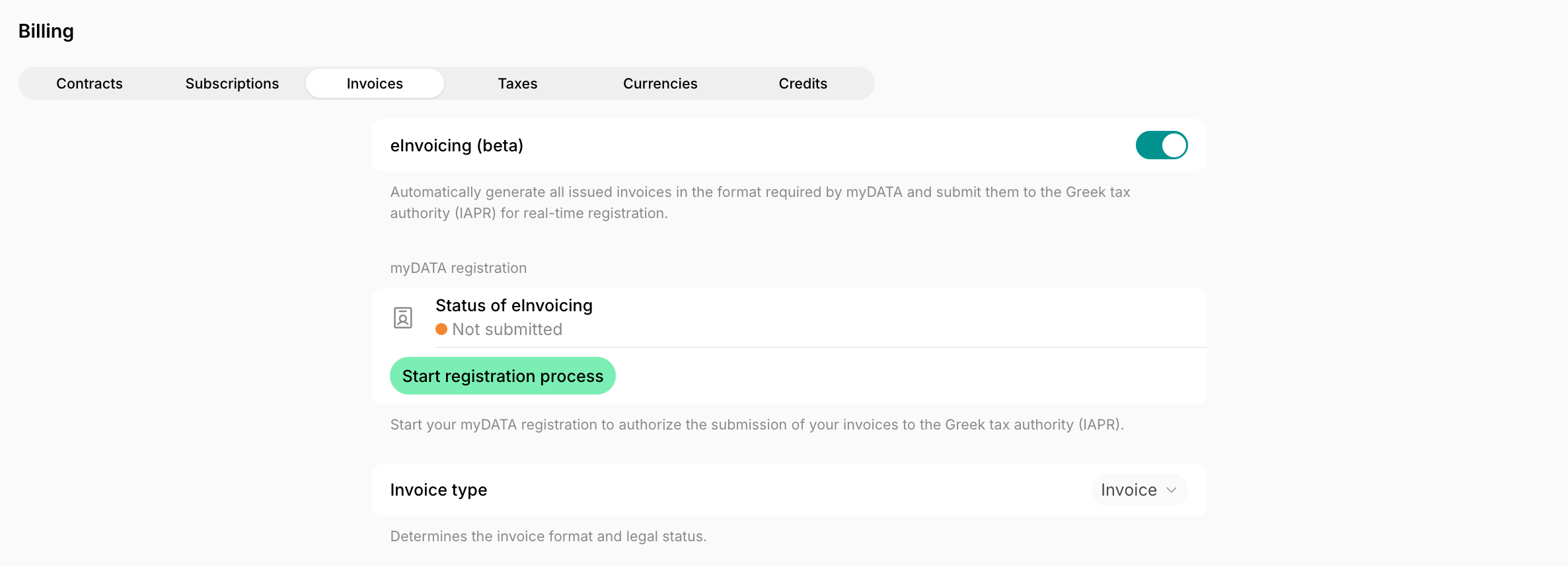
1. Go to **Location settings > Billing > Invoices** tab.
2. Enable the **eInvoicing** switch.
3. In the **myDATA registration** section, click **Start registration process**.
If **Require billing details** is enabled for a customer type:
* New customers will be prompted to fill out their billing details at the first payment.
* Existing customers missing billing details will be prompted to update their details during their next payment.
2. To review or update customer details manually:
* Go to the **Customers** page > open each customer profile > locate the [**Billing details**](/docs/customer-management/billing-details) section on the right side panel. Fill in any missing billing details as an administrator.
* Alternatively, ask customers to update billing details on their own under [**Membership > Billing**.](/docs/customer-management/billing-details)
#### Requirements for companies
For companies, complete billing details — legal business name, valid Tax ID (AFM), and full address — are required for eInvoices to be generated and reported.
If a company's billing details are incomplete or invalid, invoices for that company will remain in [**Draft**](/docs/billing/invoices/statuses) status with a warning and cannot be issued.
#### Requirements for individual users
For individual members, only fill in billing details if you want their invoices generated as eInvoices and reported to myDATA.
* If you do not want to generate eInvoices for individual members, leave their billing details, especially the **Legal business name** and **Tax ID**, empty.
* If at least one of these fields is filled for an individual member, Spacebring will attempt to report their invoices as eInvoices to myDATA.
## Enable eInvoicing
1. Go to **Location settings > Billing > Invoices** tab.
2. Enable the **eInvoicing** switch.
3. In the **myDATA registration** section, click **Start registration process**.
 4. The Spacebring team receives a notification and will get back to you to confirm more details and the next steps. You will need to:
* Authorize **ILYDA** as your eInvoicing provider and declare ILYDA as the issuer in myTaxisnet.
* Sign the ILYDA service agreement you receive soon afterwards.
5. Once the registration is completed, your eInvoicing status in Spacebring becomes **Connected**.
Greek regulation does not allow two myDATA eInvoicing providers for the same VAT number at the same time, so ILYDA must be your authorized provider before invoices can be reported.
## How eInvoicing works
After eInvoicing is enabled and your registration is connected:
* All invoices with valid billing details are automatically generated in the myDATA-compliant eInvoice format.
* During issuance, invoices are reported to the Greek tax authority (IAPR) through myDATA in real time and receive a **MARK** — the unique registration number assigned by IAPR — along with a QR code.
* Customers receive the PDF invoice with the myDATA MARK and QR code only after the MARK and QR code are returned by myDATA.
* Credit notes are also reported to myDATA. A credit note can only be issued after the original invoice has received its MARK from IAPR.
* When eInvoicing is enabled, voiding invoices and credit notes is not supported, because this is not allowed under myDATA. Instead, you can:
* [Issue a credit note](/docs/billing/invoices/credit-notes) to correct the invoice.
* If necessary, issue a credit note for the full invoice amount to cancel it.
### Track eInvoice syncing
Each invoice has the eInvoice sync status indicated.
4. The Spacebring team receives a notification and will get back to you to confirm more details and the next steps. You will need to:
* Authorize **ILYDA** as your eInvoicing provider and declare ILYDA as the issuer in myTaxisnet.
* Sign the ILYDA service agreement you receive soon afterwards.
5. Once the registration is completed, your eInvoicing status in Spacebring becomes **Connected**.
Greek regulation does not allow two myDATA eInvoicing providers for the same VAT number at the same time, so ILYDA must be your authorized provider before invoices can be reported.
## How eInvoicing works
After eInvoicing is enabled and your registration is connected:
* All invoices with valid billing details are automatically generated in the myDATA-compliant eInvoice format.
* During issuance, invoices are reported to the Greek tax authority (IAPR) through myDATA in real time and receive a **MARK** — the unique registration number assigned by IAPR — along with a QR code.
* Customers receive the PDF invoice with the myDATA MARK and QR code only after the MARK and QR code are returned by myDATA.
* Credit notes are also reported to myDATA. A credit note can only be issued after the original invoice has received its MARK from IAPR.
* When eInvoicing is enabled, voiding invoices and credit notes is not supported, because this is not allowed under myDATA. Instead, you can:
* [Issue a credit note](/docs/billing/invoices/credit-notes) to correct the invoice.
* If necessary, issue a credit note for the full invoice amount to cancel it.
### Track eInvoice syncing
Each invoice has the eInvoice sync status indicated.
 If an eInvoice fails to sync (for example, due to invalid or missing customer billing details):
* The invoice will not be issued.
* The system will display:
* "eInvoice sync failed" status
* A red warning triangle next to the affected invoice
* A red warning triangle next to the customer's name on the **Customers** page.
If an eInvoice fails to sync (for example, due to invalid or missing customer billing details):
* The invoice will not be issued.
* The system will display:
* "eInvoice sync failed" status
* A red warning triangle next to the affected invoice
* A red warning triangle next to the customer's name on the **Customers** page.
 If prompted, update the customer's billing details or complete any required actions, and click **Issue** again.
You can also see the eInvoice sync status for all invoices in the [**Invoices** report](/docs/analytics/reports).
If prompted, update the customer's billing details or complete any required actions, and click **Issue** again.
You can also see the eInvoice sync status for all invoices in the [**Invoices** report](/docs/analytics/reports).