> ## Documentation Index
> Fetch the complete documentation index at: https://www.spacebring.com/docs/llms.txt
> Use this file to discover all available pages before exploring further.
# Edit invoices
> Modify draft and upcoming invoices directly to update billing details, invoice items, or discounts, or use a credit note, voiding, and invoice duplication to correct finalized invoices
You may need to edit an invoice to adjust invoice items, amount, billing details, or apply a discount. The available editing options depend on the invoice status:
* Draft and upcoming invoices can be edited directly.
* Finalized invoices (unpaid or paid) must be corrected using credit notes.
## Edit a draft invoice
### Edit invoice items or due date
1. Go to the **Billing** > **Invoices** page.
2. Locate the required draft invoice.
3. To remove an item, click **(...)** > **Delete** next to it.
4. Manually created custom items can also be edited directly. Click **(...)** > **Edit** next to it.
5. To add an item, click **Create item**.
* Select a [one-off product or service from the **Product** list](/docs/guides/catalog-of-reusable-fees).
* Or add a **Custom** item.
6. [Manage the **Payment due**](/docs/billing/invoices/due-date) date in the right-side panel.
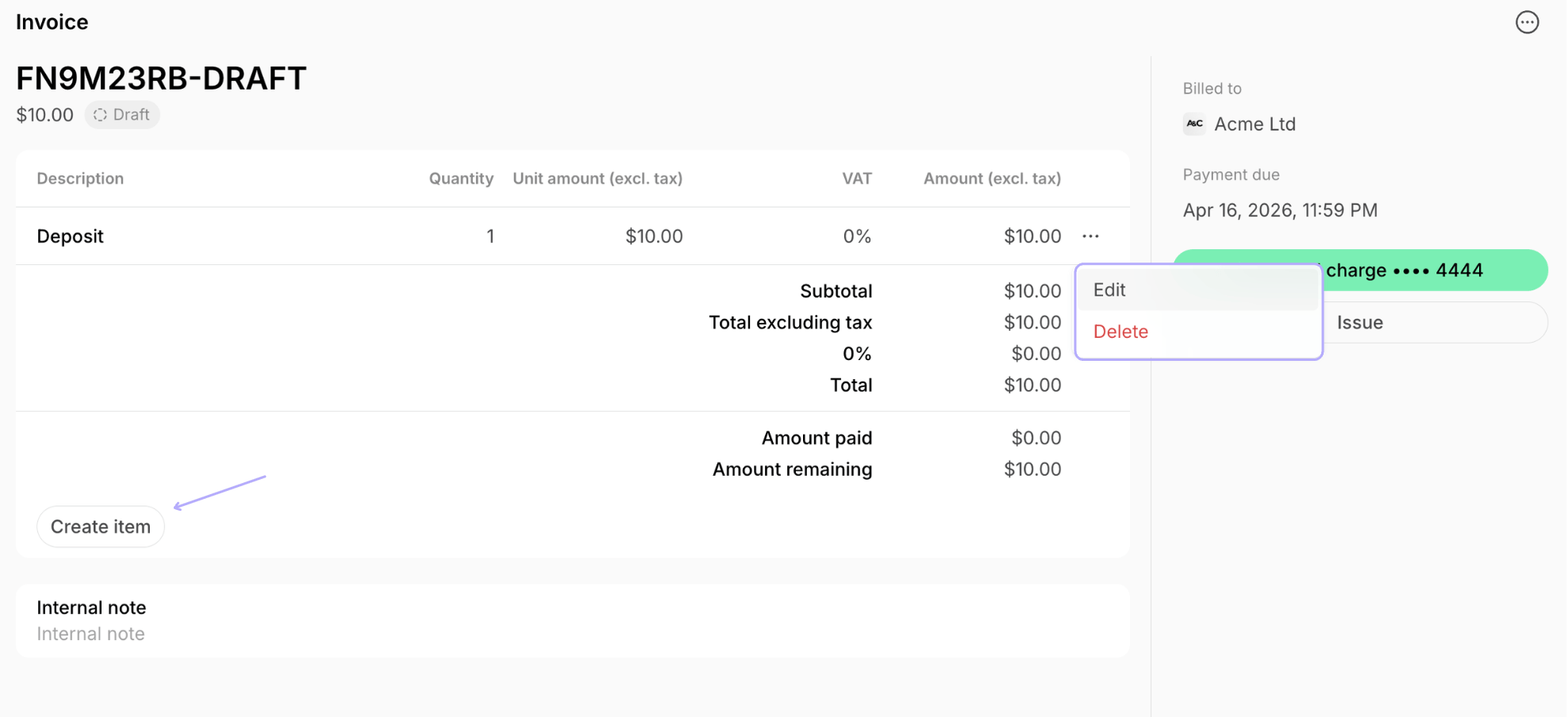 The invoice date format is standardized for all users and appears as \\\*\\*February 17, 2025.\\*\\\*
### Edit billing details
To update your space's billing details:
1. Tap the **(...)** next to the location name > **Location** **settings.**
2. Go to **General** > **Billing details** tab to [update your billing details.](/docs/billing)
3. Go to **Billing** > **Invoices** tab to update **Footer**.
4. Issue the invoice. It will reflect the updated details.
Updating the tax rate or option doesn't affect existing invoice items. Delete them and create new items.
To update a customer's billing details:
1. Go to **Customers** > customer profile.
2. In the right-side panel, locate the **Billing details** section > click **Edit**.
3. [Add or update the customer's billing details.](/docs/customer-management/billing-details)
4. Issue the invoice. It will reflect the updated details.
### Apply a discount
The administrator or customer should apply a discount when creating a [subscription](/docs/billing/discounts/redeem-for-subscription-items), [booking](/docs/billing/discounts/redeem-for-bookings), or another purchase, rather than adding a discount inside the invoice later. This ensures the discount is automatically reflected on the invoice. If needed:
1. [Delete the draft invoice.](/docs/billing/invoices/void-or-delete)
2. Recreate the booking/subscription, and apply a coupon during creation.
If the draft invoice is already created and you can't recreate it:
1. In the customer's profile, add the discount amount to [**Money balance**.](/docs/billing/invoices/money-balance)
2. It will appear as **Applied balance** on the invoice and reduce the amount due.
The invoice date format is standardized for all users and appears as \\\*\\*February 17, 2025.\\*\\\*
### Edit billing details
To update your space's billing details:
1. Tap the **(...)** next to the location name > **Location** **settings.**
2. Go to **General** > **Billing details** tab to [update your billing details.](/docs/billing)
3. Go to **Billing** > **Invoices** tab to update **Footer**.
4. Issue the invoice. It will reflect the updated details.
Updating the tax rate or option doesn't affect existing invoice items. Delete them and create new items.
To update a customer's billing details:
1. Go to **Customers** > customer profile.
2. In the right-side panel, locate the **Billing details** section > click **Edit**.
3. [Add or update the customer's billing details.](/docs/customer-management/billing-details)
4. Issue the invoice. It will reflect the updated details.
### Apply a discount
The administrator or customer should apply a discount when creating a [subscription](/docs/billing/discounts/redeem-for-subscription-items), [booking](/docs/billing/discounts/redeem-for-bookings), or another purchase, rather than adding a discount inside the invoice later. This ensures the discount is automatically reflected on the invoice. If needed:
1. [Delete the draft invoice.](/docs/billing/invoices/void-or-delete)
2. Recreate the booking/subscription, and apply a coupon during creation.
If the draft invoice is already created and you can't recreate it:
1. In the customer's profile, add the discount amount to [**Money balance**.](/docs/billing/invoices/money-balance)
2. It will appear as **Applied balance** on the invoice and reduce the amount due.
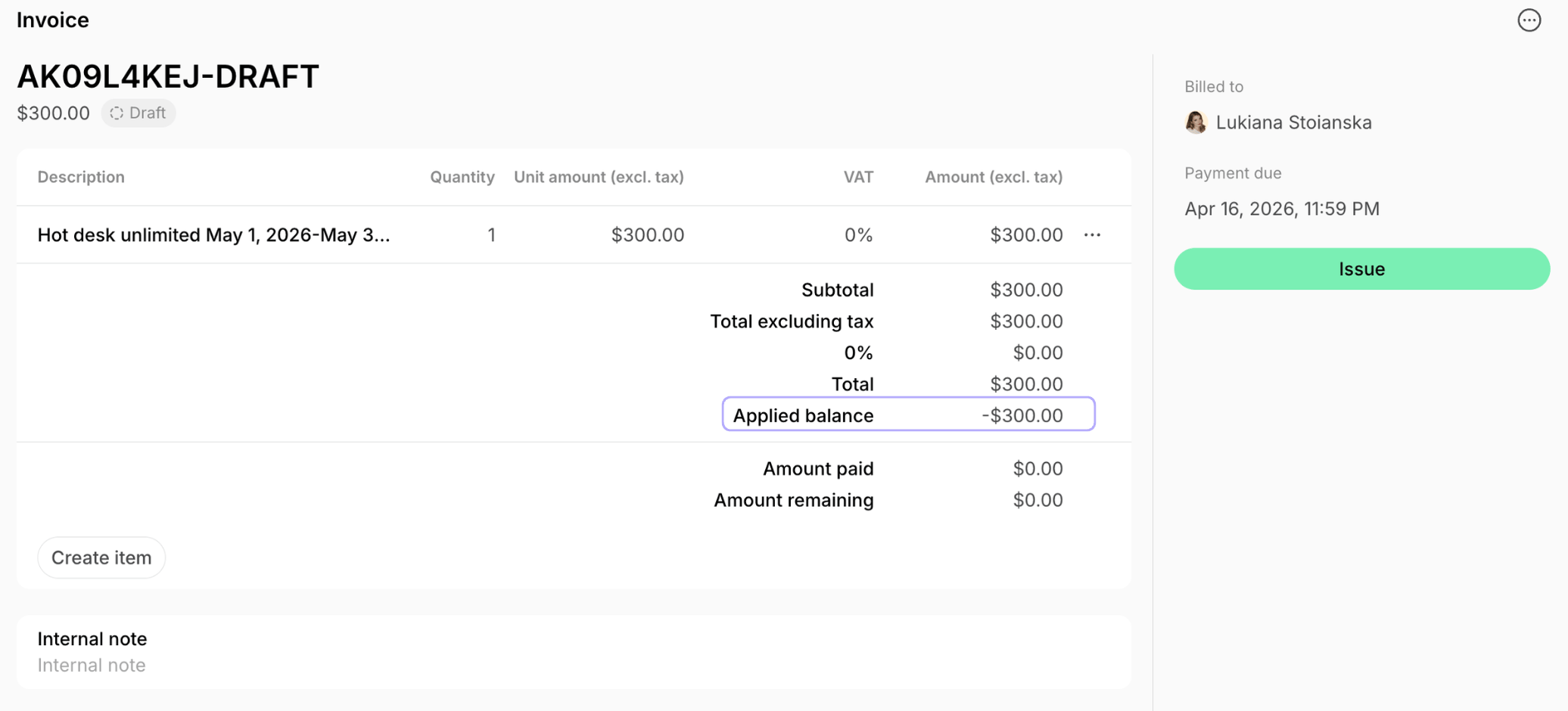 You can add a money balance equal to the full invoice amount so the customer immediately receives the invoice as fully paid during issuance.
## Edit a finalized invoice
Once an invoice is issued or paid, it becomes a finalized financial record and cannot be edited directly. To make changes, you can:
* Issue a credit note
* Void the invoice
* Duplicate (if applicable), update, and reissue it.
### Edit invoice items, amount, or apply a discount
1. Open the issued or paid invoice.
2. In the **Credit notes** section, create [a credit note.](/docs/billing/invoices/credit-notes)
3. Adjust the amount or quantity for specific or all items and specify the reason.
* For paid invoices, this creates a proper correction record.
* For unpaid invoices, this changes the amount due.
### Edit billing details
For an unpaid invoice:
1. [Void this invoice.](/docs/billing/invoices/void-or-delete)
2. Update [customer](/docs/customer-management/billing-details) or [location](/docs/billing) billing details.
3. [Duplicate](#duplicate-invoice) or recreate the invoice and issue it.
4. The new invoice will include updated billing details.
For a paid invoice:
1. Open the invoice.
2. In the **Credit notes** section, create [a credit note](/docs/billing/invoices/credit-notes) for the full amount.
3. Choose **Customer balance** as a credit option.
4. Update [customer](/docs/customer-management/billing-details) or [location](/docs/billing) billing details.
5. [Duplicate](#duplicate-invoice) or recreate the invoice.
6. The system will apply the balance and set the new invoice total to 0 and mark it as paid immediately once issued.
7. The updated billing details will appear on the new invoice.
### Other changes
You may encounter situations such as:
* You marked an invoice as paid by mistake
* You marked the invoice as fully paid while it's partially paid
* You marked an invoice as refunded by mistake
* You need to void a paid invoice
* Customer paid with the wrong card and wants to pay with a different one
It's important remember that once an invoice is marked as **Paid**, it cannot be reverted to **Unpaid** status. Here is what you can do instead:
1. [Issue a credit note](/docs/billing/invoices/credit-notes) for this invoice.
2. Select the appropriate credit option.
3. If needed, [duplicate](#duplicate-invoice) or recreate the invoice and issue it.
4. Record the payment or let the customer pay correctly.
### Duplicate invoice
You can duplicate manually created one-off invoices for faster corrections. Automatically generated subscription invoices, however, cannot be duplicated, and you need to recreate them manually.
To duplicate a one-off invoice:
1. Open the necessary invoice.
2. Click **(...)** top right > **Duplicate**.
You can add a money balance equal to the full invoice amount so the customer immediately receives the invoice as fully paid during issuance.
## Edit a finalized invoice
Once an invoice is issued or paid, it becomes a finalized financial record and cannot be edited directly. To make changes, you can:
* Issue a credit note
* Void the invoice
* Duplicate (if applicable), update, and reissue it.
### Edit invoice items, amount, or apply a discount
1. Open the issued or paid invoice.
2. In the **Credit notes** section, create [a credit note.](/docs/billing/invoices/credit-notes)
3. Adjust the amount or quantity for specific or all items and specify the reason.
* For paid invoices, this creates a proper correction record.
* For unpaid invoices, this changes the amount due.
### Edit billing details
For an unpaid invoice:
1. [Void this invoice.](/docs/billing/invoices/void-or-delete)
2. Update [customer](/docs/customer-management/billing-details) or [location](/docs/billing) billing details.
3. [Duplicate](#duplicate-invoice) or recreate the invoice and issue it.
4. The new invoice will include updated billing details.
For a paid invoice:
1. Open the invoice.
2. In the **Credit notes** section, create [a credit note](/docs/billing/invoices/credit-notes) for the full amount.
3. Choose **Customer balance** as a credit option.
4. Update [customer](/docs/customer-management/billing-details) or [location](/docs/billing) billing details.
5. [Duplicate](#duplicate-invoice) or recreate the invoice.
6. The system will apply the balance and set the new invoice total to 0 and mark it as paid immediately once issued.
7. The updated billing details will appear on the new invoice.
### Other changes
You may encounter situations such as:
* You marked an invoice as paid by mistake
* You marked the invoice as fully paid while it's partially paid
* You marked an invoice as refunded by mistake
* You need to void a paid invoice
* Customer paid with the wrong card and wants to pay with a different one
It's important remember that once an invoice is marked as **Paid**, it cannot be reverted to **Unpaid** status. Here is what you can do instead:
1. [Issue a credit note](/docs/billing/invoices/credit-notes) for this invoice.
2. Select the appropriate credit option.
3. If needed, [duplicate](#duplicate-invoice) or recreate the invoice and issue it.
4. Record the payment or let the customer pay correctly.
### Duplicate invoice
You can duplicate manually created one-off invoices for faster corrections. Automatically generated subscription invoices, however, cannot be duplicated, and you need to recreate them manually.
To duplicate a one-off invoice:
1. Open the necessary invoice.
2. Click **(...)** top right > **Duplicate**.
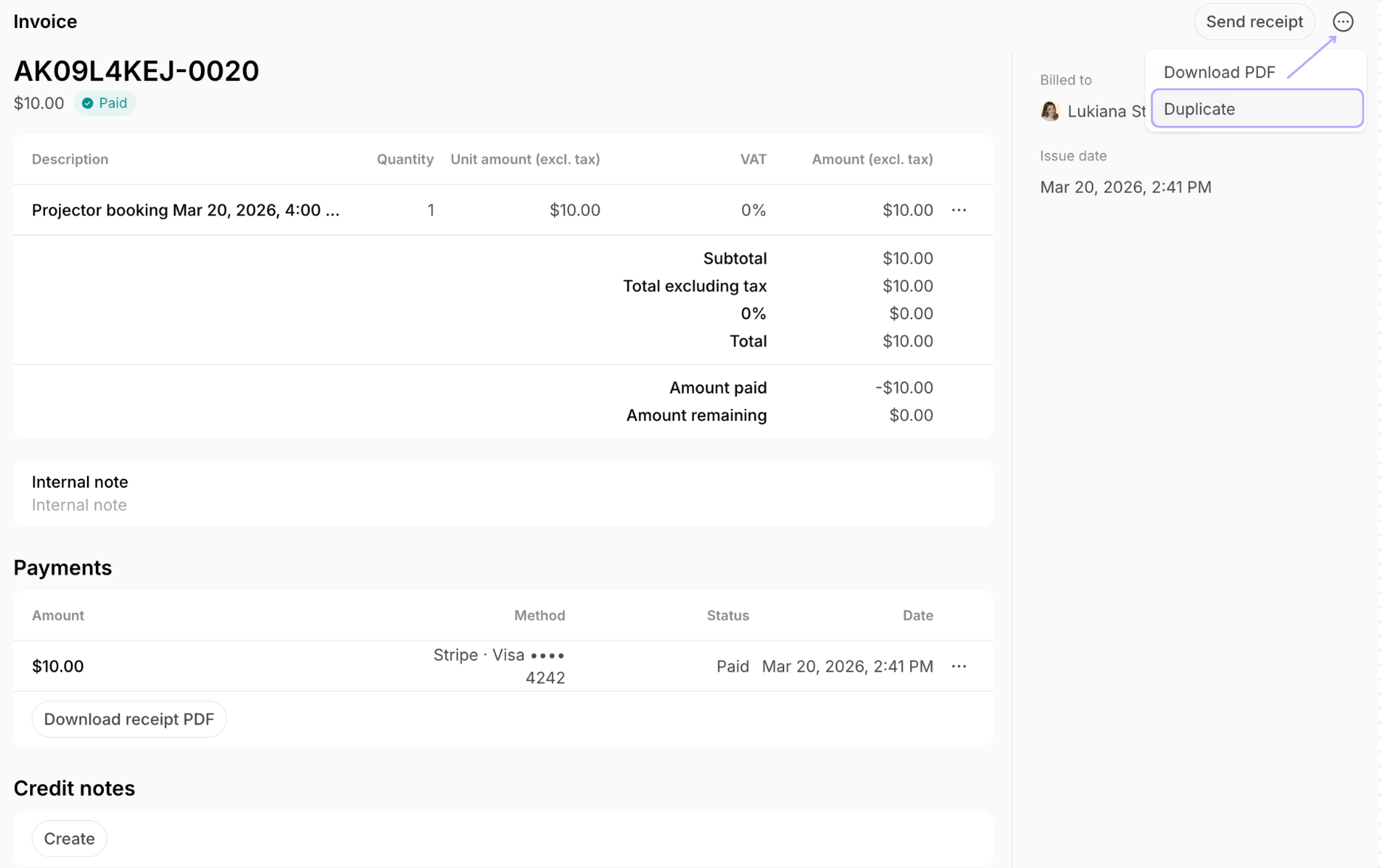 3. The system creates a copy in **Draft** status. Press **View invoice** to open it.
4. Apply the necessary change and issue the invoice.
Invoices duplicate without any discounts.
**FAQ**
Only manually created one-off invoices are eligible for duplication. Automatically generated invoices for subscription or bookings cannot be duplicated. If you are trying to duplicate such an invoice, the **Duplicate** option will not appear in the menu.
When managing a customer's invoice, the method to add charges depends on the specific category of the product or service. Follow these guidelines to ensure the invoice is accurate:
* **Bookings —** to add a booking to an invoice, make a booking on the **Resources** page, select the customer as a booker, and [choose the **Invoice** payment method](/docs/billing/payments/pay-with-invoice#book-for-customers-with-the-invoice-payment-method).
* **One-off products or services from Shop** **—** open an existing draft or upcoming invoice > press **Create item** > in the **Product** section, select the necessary product.
* **Event tickets** **—** it is not possible for an administrator to add event tickets to the customer's invoice at this time. Customers can only purchase them themselves.
* **Other charges** **—** add any custom fees to the customer's invoice by pressing **Create item** and selecting **Custom** in the **Product** field.
3. The system creates a copy in **Draft** status. Press **View invoice** to open it.
4. Apply the necessary change and issue the invoice.
Invoices duplicate without any discounts.
**FAQ**
Only manually created one-off invoices are eligible for duplication. Automatically generated invoices for subscription or bookings cannot be duplicated. If you are trying to duplicate such an invoice, the **Duplicate** option will not appear in the menu.
When managing a customer's invoice, the method to add charges depends on the specific category of the product or service. Follow these guidelines to ensure the invoice is accurate:
* **Bookings —** to add a booking to an invoice, make a booking on the **Resources** page, select the customer as a booker, and [choose the **Invoice** payment method](/docs/billing/payments/pay-with-invoice#book-for-customers-with-the-invoice-payment-method).
* **One-off products or services from Shop** **—** open an existing draft or upcoming invoice > press **Create item** > in the **Product** section, select the necessary product.
* **Event tickets** **—** it is not possible for an administrator to add event tickets to the customer's invoice at this time. Customers can only purchase them themselves.
* **Other charges** **—** add any custom fees to the customer's invoice by pressing **Create item** and selecting **Custom** in the **Product** field.