> ## Documentation Index
> Fetch the complete documentation index at: https://www.spacebring.com/docs/llms.txt
> Use this file to discover all available pages before exploring further.
# Payment retries and reminders
> Enable automatic charge retry attempts and email reminders for customers' failed invoice payments, or resend invoice manually. Understand how they work and which notifications customers receive
Spacebring lets you automate payment retries and reminders for invoices to ensure a higher payment success rate.
## Manage payment retries and reminders
Administrators can manage automatic payment retries and reminders in a location:
1. Go to **Location settings** > **Billing** > **Invoices** tab.
2. Toggle the **Payment retries and reminders** switch on or off.
 Payment retries and reminders are enabled for all locations by default.
## How payment retries and reminders work
Whenever an attempt to pay an invoice fails, Spacebring schedules up to 2 automatic retries or reminders depending on the situation.
Retries and reminders are scheduled when:
* A subscription issues a recurring [invoice](/docs/billing/subscriptions/invoice-issuance) to the customer.
* A manual attempt to pay the invoice initiated by the customer or admin fails.
* An auto-charge fails for a customer with [Auto-pay](/docs/billing/subscriptions/invoice-auto-charge) enabled.
* A customer has no [default payment method](/docs/billing/payments/payment-gateway) at the time of an auto-charge attempt.
Payment retries and reminders work for all invoices, both subscription and one-off.
## Retry and reminder schedule and notifications
Each notification links to the invoice page, where the customer can view full details, the invoice PDF, and pay.
1. First retry/reminder happens 3 days after the initial payment attempt.
* If it succeeds:
* The customer receives an email with a receipt.
* The administrator gets a notification about a successful invoice payment.
* If it fails:
* The customer receives an email and a push notification asking to add a valid payment method.
* The administrator gets a notification about a failed invoice payment.
* A second retry is scheduled.
* If the customer doesn't have a [default payment method](/docs/billing/payments/payment-gateway) or [Auto-pay](/docs/billing/subscriptions/invoice-auto-charge) is disabled:
* The customer gets a payment reminder instead of a retry.
2. Second retry/reminder happens 3 days after the first retry.
* Same outcomes apply as above.
* No more automatic retries or reminders are scheduled.
* If an additional reminder is needed, administrators can always manually [resend the invoice](#send-a-manual-reminder) or try to [charge it](/docs/billing/invoicing/charge-an-invoice) again.
If the administrator or customer tries to pay the invoice manually after the first failed attempt, the next retry will be rescheduled to 3 days after the latest failed attempt. If the manual attempt succeeds, no further retries are triggered.
If no [Auto-pay](/docs/billing/subscriptions/invoice-auto-charge) or manual payment attempt is made, automatic retries and reminders won’t be triggered. For example, if you manually issue an invoice but no one attempts to pay it, the system will not schedule any retries or reminders.
Example of an unsuccessful retry email:
Payment retries and reminders are enabled for all locations by default.
## How payment retries and reminders work
Whenever an attempt to pay an invoice fails, Spacebring schedules up to 2 automatic retries or reminders depending on the situation.
Retries and reminders are scheduled when:
* A subscription issues a recurring [invoice](/docs/billing/subscriptions/invoice-issuance) to the customer.
* A manual attempt to pay the invoice initiated by the customer or admin fails.
* An auto-charge fails for a customer with [Auto-pay](/docs/billing/subscriptions/invoice-auto-charge) enabled.
* A customer has no [default payment method](/docs/billing/payments/payment-gateway) at the time of an auto-charge attempt.
Payment retries and reminders work for all invoices, both subscription and one-off.
## Retry and reminder schedule and notifications
Each notification links to the invoice page, where the customer can view full details, the invoice PDF, and pay.
1. First retry/reminder happens 3 days after the initial payment attempt.
* If it succeeds:
* The customer receives an email with a receipt.
* The administrator gets a notification about a successful invoice payment.
* If it fails:
* The customer receives an email and a push notification asking to add a valid payment method.
* The administrator gets a notification about a failed invoice payment.
* A second retry is scheduled.
* If the customer doesn't have a [default payment method](/docs/billing/payments/payment-gateway) or [Auto-pay](/docs/billing/subscriptions/invoice-auto-charge) is disabled:
* The customer gets a payment reminder instead of a retry.
2. Second retry/reminder happens 3 days after the first retry.
* Same outcomes apply as above.
* No more automatic retries or reminders are scheduled.
* If an additional reminder is needed, administrators can always manually [resend the invoice](#send-a-manual-reminder) or try to [charge it](/docs/billing/invoicing/charge-an-invoice) again.
If the administrator or customer tries to pay the invoice manually after the first failed attempt, the next retry will be rescheduled to 3 days after the latest failed attempt. If the manual attempt succeeds, no further retries are triggered.
If no [Auto-pay](/docs/billing/subscriptions/invoice-auto-charge) or manual payment attempt is made, automatic retries and reminders won’t be triggered. For example, if you manually issue an invoice but no one attempts to pay it, the system will not schedule any retries or reminders.
Example of an unsuccessful retry email:
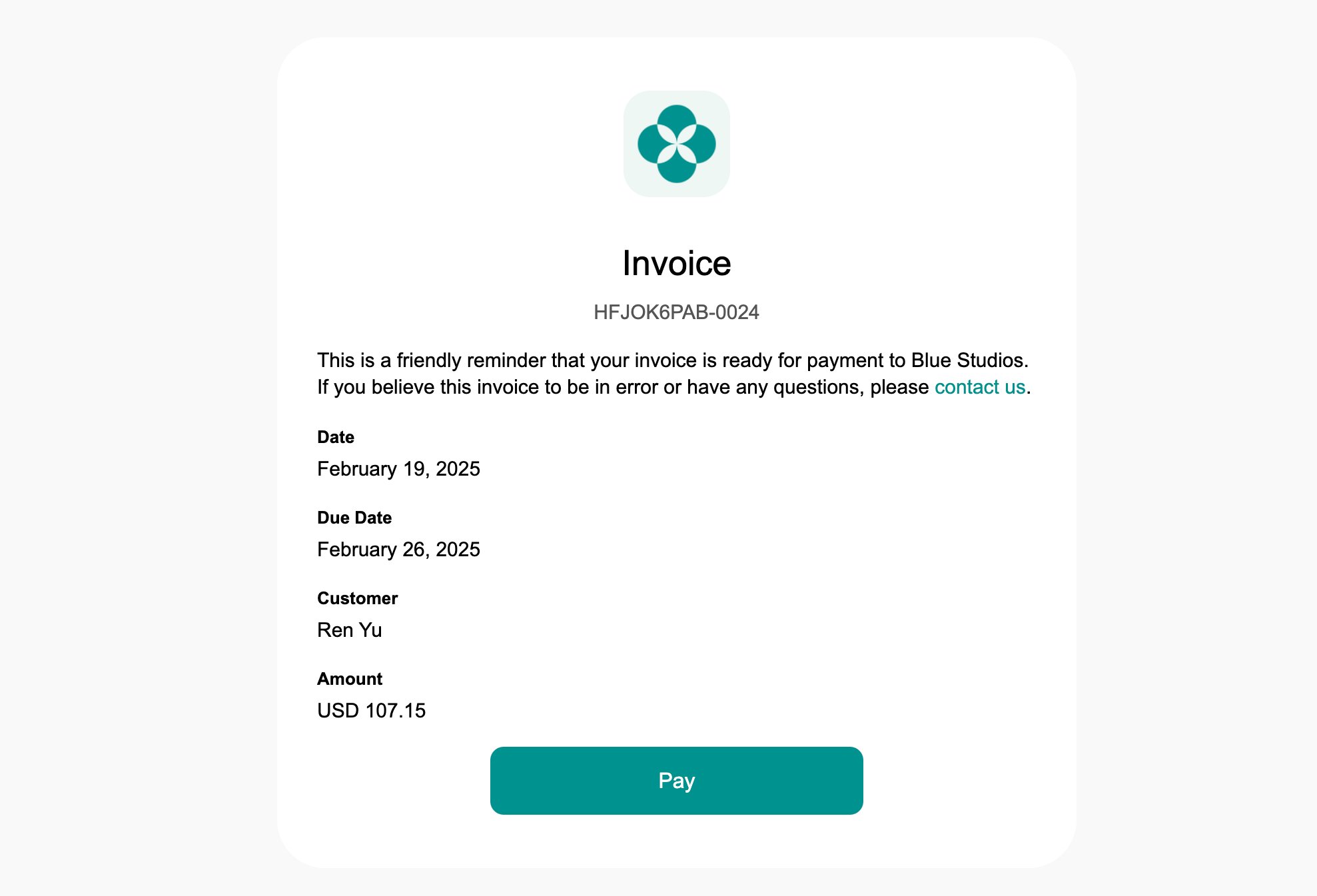
 Example of a payment reminder email (for those with no [default payment method](/docs/billing/payments/payment-gateway) or [Auto-pay](/docs/billing/subscriptions/invoice-auto-charge) turned off):
 ## Send a manual reminder
Even after the automatic retries and reminders run their course, you can resend an unpaid invoice at any time to nudge the customer:
1. Go to **Billing** > **Invoices** > tap on the necessary invoice.
2. Press **Resend invoice** top right to send the invoice to the customer once again.
## Send a manual reminder
Even after the automatic retries and reminders run their course, you can resend an unpaid invoice at any time to nudge the customer:
1. Go to **Billing** > **Invoices** > tap on the necessary invoice.
2. Press **Resend invoice** top right to send the invoice to the customer once again.
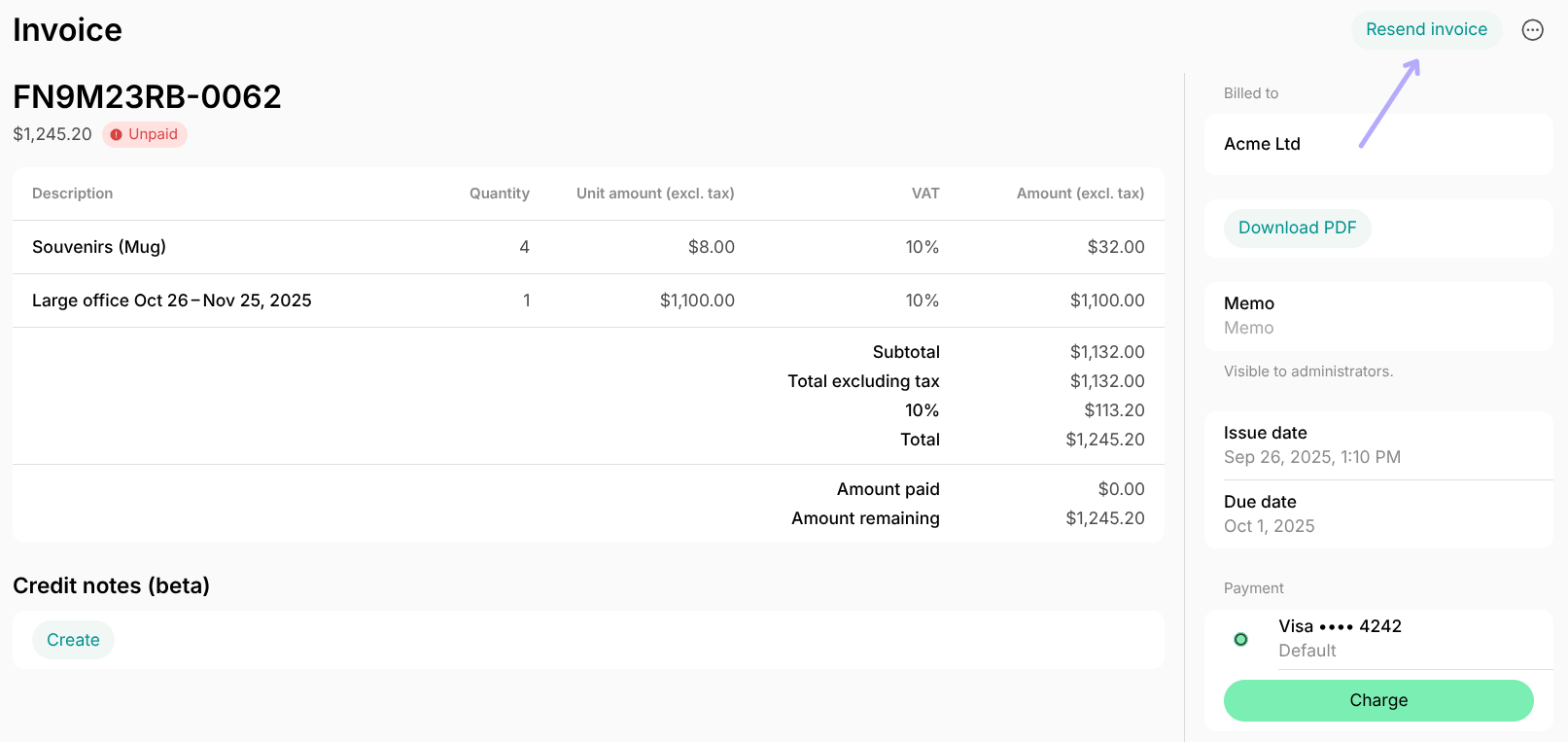 When you resend an invoice, the user receives a push notification and an email invoice payment reminder with the invoice attached.
 Only unpaid invoices show the **Resend invoice** button. For paid invoices, this button is replaced by [Send receipt](/docs/billing/payments/receipts), which emails the customer both the invoice and the receipt PDFs.