> ## Documentation Index
> Fetch the complete documentation index at: https://www.spacebring.com/docs/llms.txt
> Use this file to discover all available pages before exploring further.
# Invoice payments
> Learn how invoices are paid automatically via Auto-pay, how customers pay them manually, and how admins record full or partial invoice payments by charging a customer's saved payment method or registering external payments
There are three ways an invoice gets paid: the system charges it automatically, the customer pays it manually, or an administrator records the payment on the customer's behalf.
## Automatic payment
When a subscription issues a recurring [invoice](/docs/billing/subscriptions/invoice-issuance), the system charges it automatically as long as all of the following are true:
* The customer has a [default payment method](/docs/billing/payments/payment-gateway) on file.
* [Auto-pay](/docs/billing/subscriptions/invoice-auto-charge) is turned on for the customer.
* Your connected payment gateway supports Auto-pay.
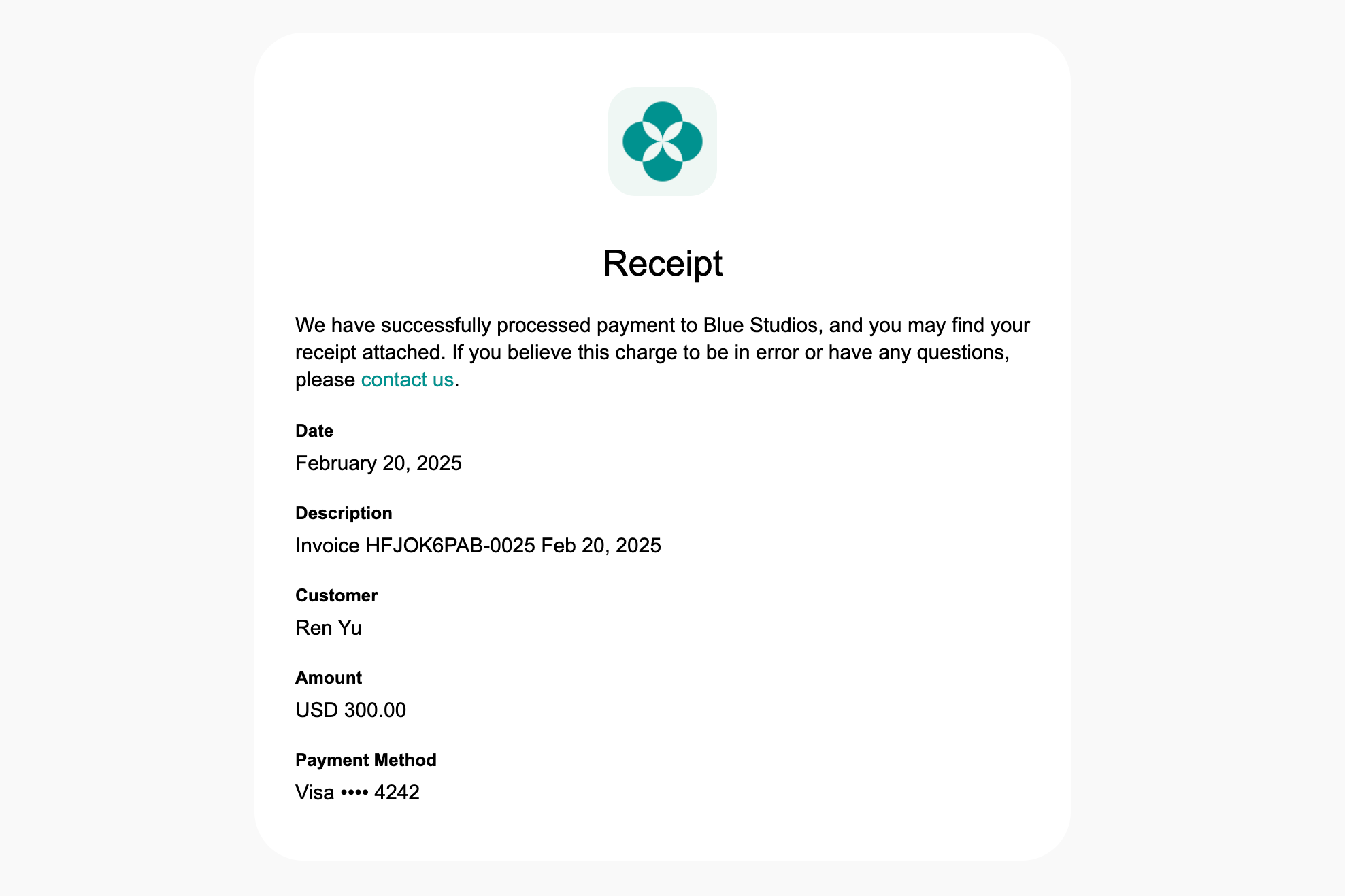
The customer receives an email confirming the payment. It includes the invoice details and the invoice and receipt PDFs attached.
 ## Manual payment
When Auto-pay can't charge an invoice, the customer pays it manually. This happens when:
* The customer has no default payment method on file.
* [Auto-pay](/docs/billing/subscriptions/invoice-auto-charge) is turned off for them.
* Your connected [payment gateway](/docs/integrations/payments) doesn't support Auto-pay.
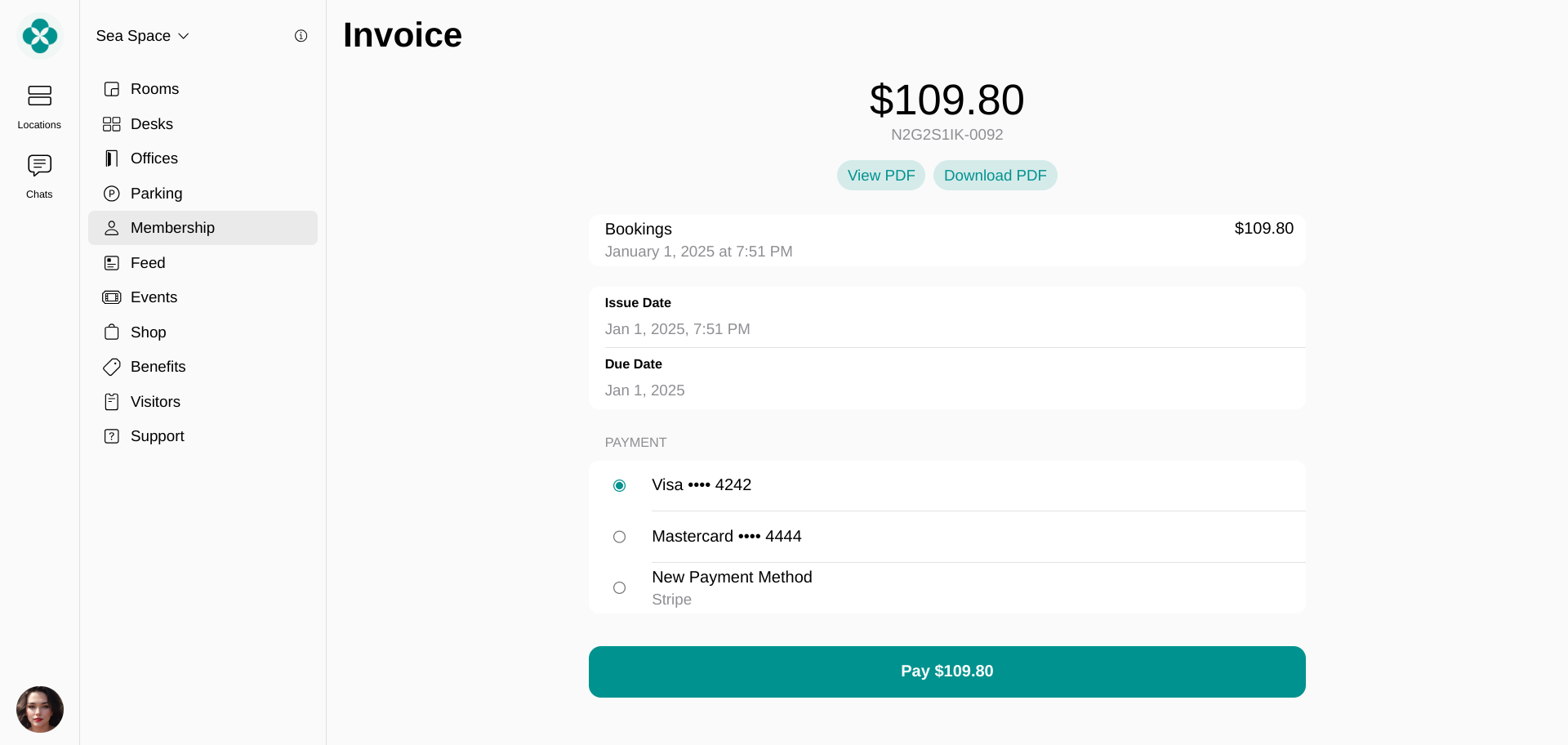
When the invoice is issued, the customer is notified by email, push, and a persistent widget. Each notification links to the invoice page, where they can view the full details, open the invoice PDF, and pay.
The customer can also pay from the member portal or mobile app at any time:
* To pay a personal invoice, go to **Membership** > **Billing** > **Invoices**, select the unpaid invoice, and choose a payment method.
* To pay a company invoice, [company managers](/docs/customer-management/companies#add-company-members-and-managers) go to **Membership** > **Billing** > **Invoices** (under the company name), select the unpaid invoice, and choose a payment method.
## Manual payment
When Auto-pay can't charge an invoice, the customer pays it manually. This happens when:
* The customer has no default payment method on file.
* [Auto-pay](/docs/billing/subscriptions/invoice-auto-charge) is turned off for them.
* Your connected [payment gateway](/docs/integrations/payments) doesn't support Auto-pay.
When the invoice is issued, the customer is notified by email, push, and a persistent widget. Each notification links to the invoice page, where they can view the full details, open the invoice PDF, and pay.
The customer can also pay from the member portal or mobile app at any time:
* To pay a personal invoice, go to **Membership** > **Billing** > **Invoices**, select the unpaid invoice, and choose a payment method.
* To pay a company invoice, [company managers](/docs/customer-management/companies#add-company-members-and-managers) go to **Membership** > **Billing** > **Invoices** (under the company name), select the unpaid invoice, and choose a payment method.
 ## Record payments as an administrator
Administrators can record a full or partial payment against an invoice—either by charging the customer's [saved payment method](/docs/billing/payments/payment-methods) or by logging a payment received outside Spacebring. This keeps your financial records accurate and auditable.
### Use cases
* Record a partial payment when a customer doesn't pay the full balance at once.
* Log a payment received outside Spacebring, such as cash, check, or bank transfer.
* Retry a failed payment to collect on an unpaid invoice.
### Create invoice payments
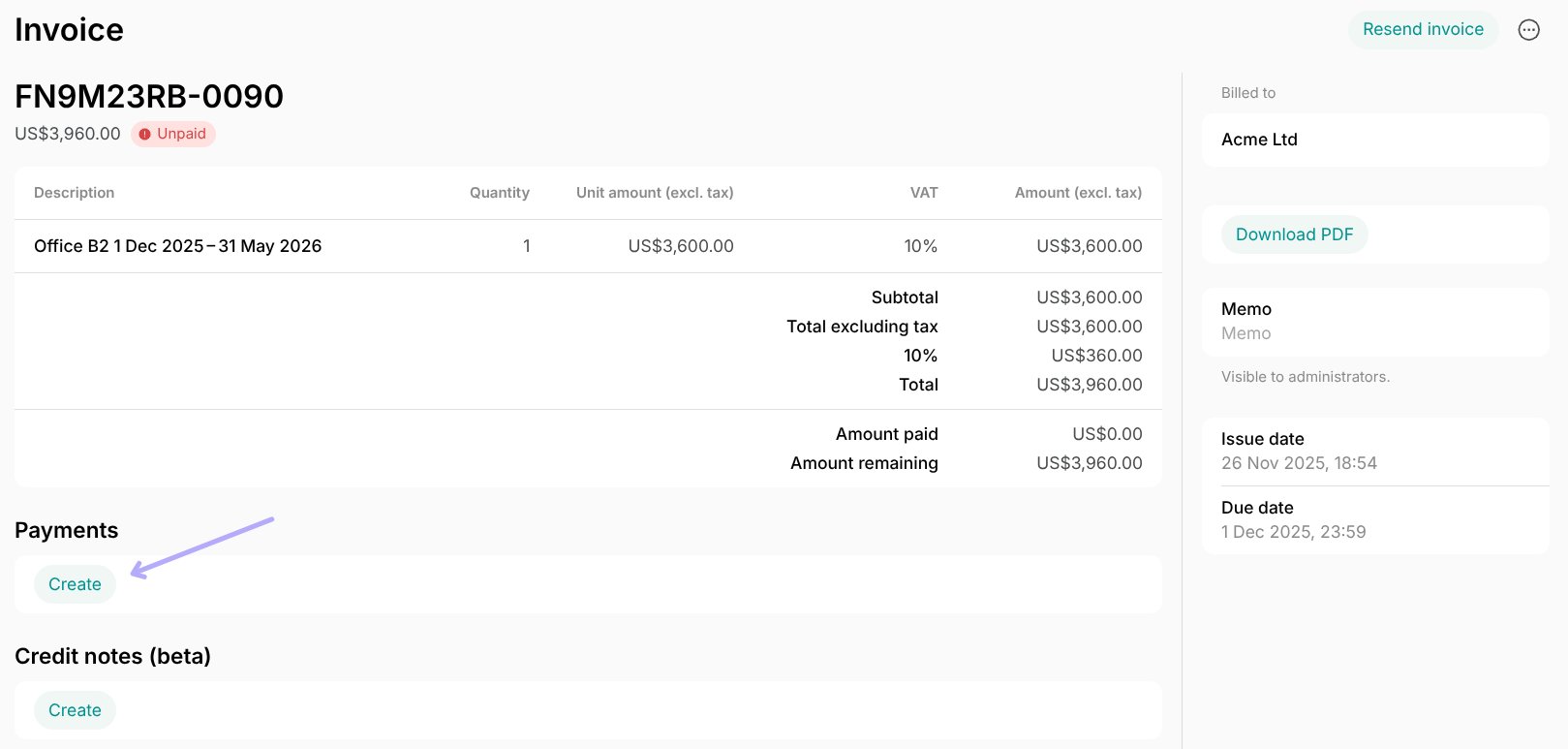
1. Go to **Billing** > **Invoices** and open the invoice.
2. In the **Payments** section, press **Create**.
## Record payments as an administrator
Administrators can record a full or partial payment against an invoice—either by charging the customer's [saved payment method](/docs/billing/payments/payment-methods) or by logging a payment received outside Spacebring. This keeps your financial records accurate and auditable.
### Use cases
* Record a partial payment when a customer doesn't pay the full balance at once.
* Log a payment received outside Spacebring, such as cash, check, or bank transfer.
* Retry a failed payment to collect on an unpaid invoice.
### Create invoice payments
1. Go to **Billing** > **Invoices** and open the invoice.
2. In the **Payments** section, press **Create**.
 3. Enter the amount and select the payment method:
* Select the customer's [saved payment method](/docs/billing/payments/payment-methods#saved-payment-method) to charge them now.
* Select **External** if the customer already paid with cash, check, or bank transfer.
3. Enter the amount and select the payment method:
* Select the customer's [saved payment method](/docs/billing/payments/payment-methods#saved-payment-method) to charge them now.
* Select **External** if the customer already paid with cash, check, or bank transfer.
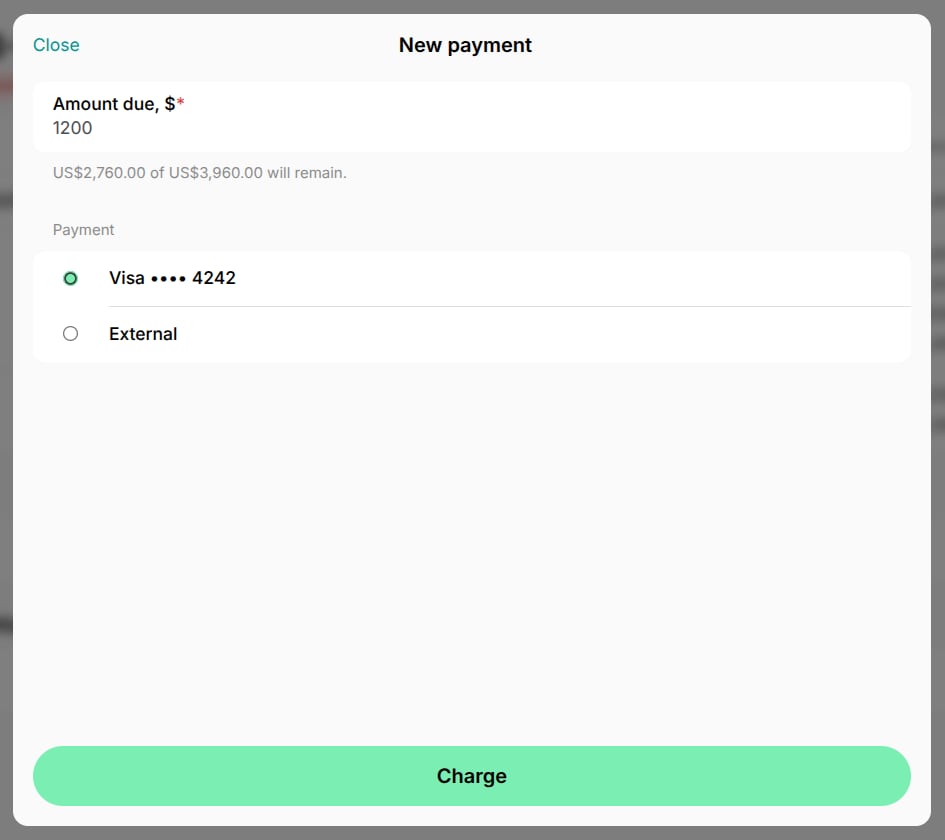 4. Press **Charge**.
You can charge the invoice only if the customer has a [saved payment method](/docs/billing/payments/payment-methods#saved-payment-method).
The payment then appears in the **Payments** section, and the invoice balance updates automatically.
4. Press **Charge**.
You can charge the invoice only if the customer has a [saved payment method](/docs/billing/payments/payment-methods#saved-payment-method).
The payment then appears in the **Payments** section, and the invoice balance updates automatically.
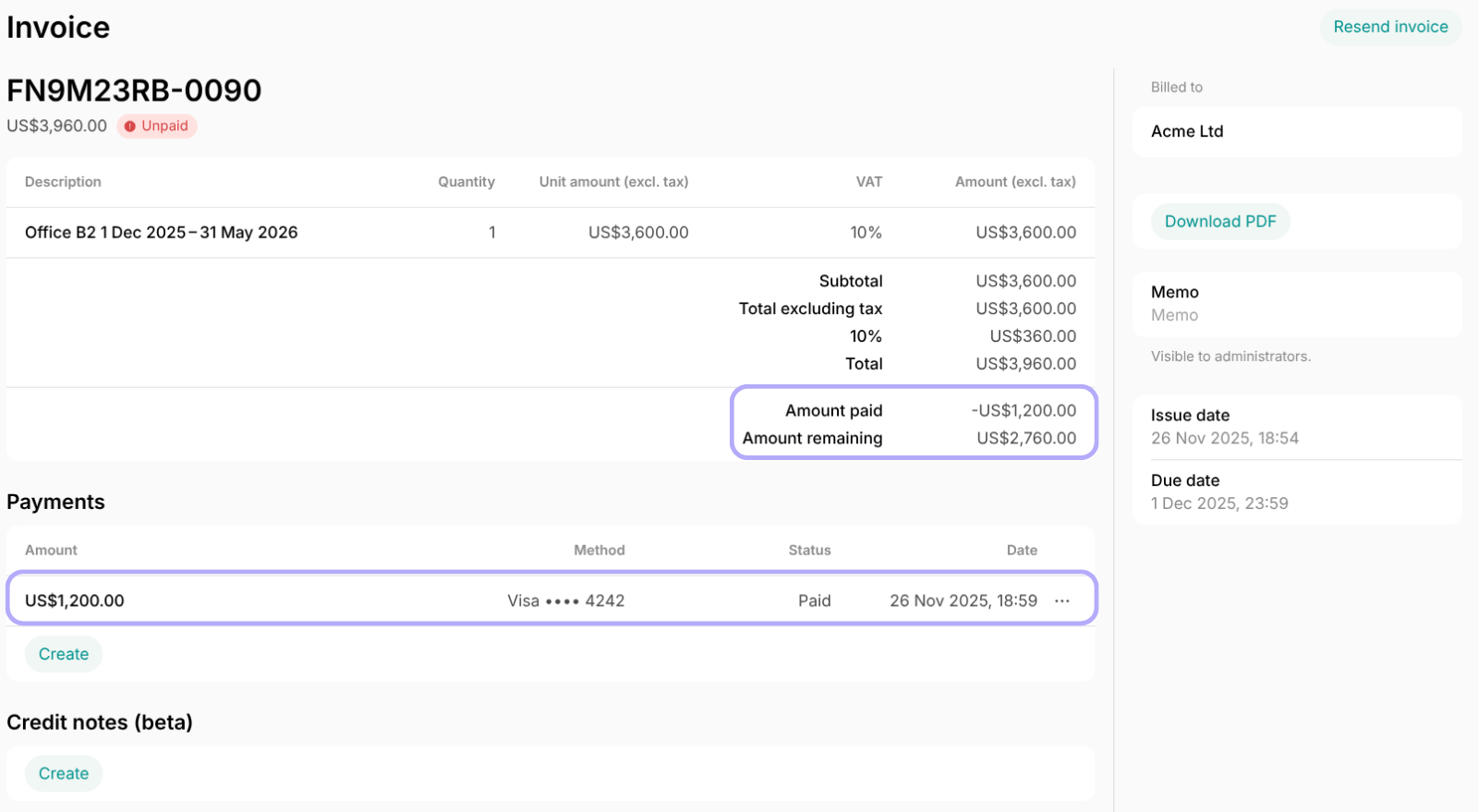 To collect payment the moment you issue a draft invoice, use the **Issue and charge** button instead.
**FAQs**
To find out what payment gateway the user paid with for the invoice, follow the next steps:
1. Navigate to **Analytics** > press the **Create report** button top right and select **Invoices** type.
2. Set the necessary start and end dates, status, and press **Download**.
3. Find the necessary invoice and check the **Payment type** row to see the payment gateway.
To collect payment the moment you issue a draft invoice, use the **Issue and charge** button instead.
**FAQs**
To find out what payment gateway the user paid with for the invoice, follow the next steps:
1. Navigate to **Analytics** > press the **Create report** button top right and select **Invoices** type.
2. Set the necessary start and end dates, status, and press **Download**.
3. Find the necessary invoice and check the **Payment type** row to see the payment gateway.