> ## Documentation Index
> Fetch the complete documentation index at: https://www.spacebring.com/docs/llms.txt
> Use this file to discover all available pages before exploring further.
# Void or delete an invoice
> Delete a draft invoice or void an unpaid invoice you no longer need
As an administrator, you can remove an invoice you no longer need. Which action is available depends on the invoice's status: delete a **Draft** invoice, or void an **Unpaid** invoice that's already been issued.
## Delete a draft invoice
You can delete a [**Draft**](/docs/billing/invoices/statuses) invoice — one created but not yet issued — at any time.
To delete a draft invoice:
1. Go to **Billing** > **Invoices**.
2. Locate the draft invoice you want to delete.
3. Tap the menu **(...)** top right > click **Delete** and confirm your choice.
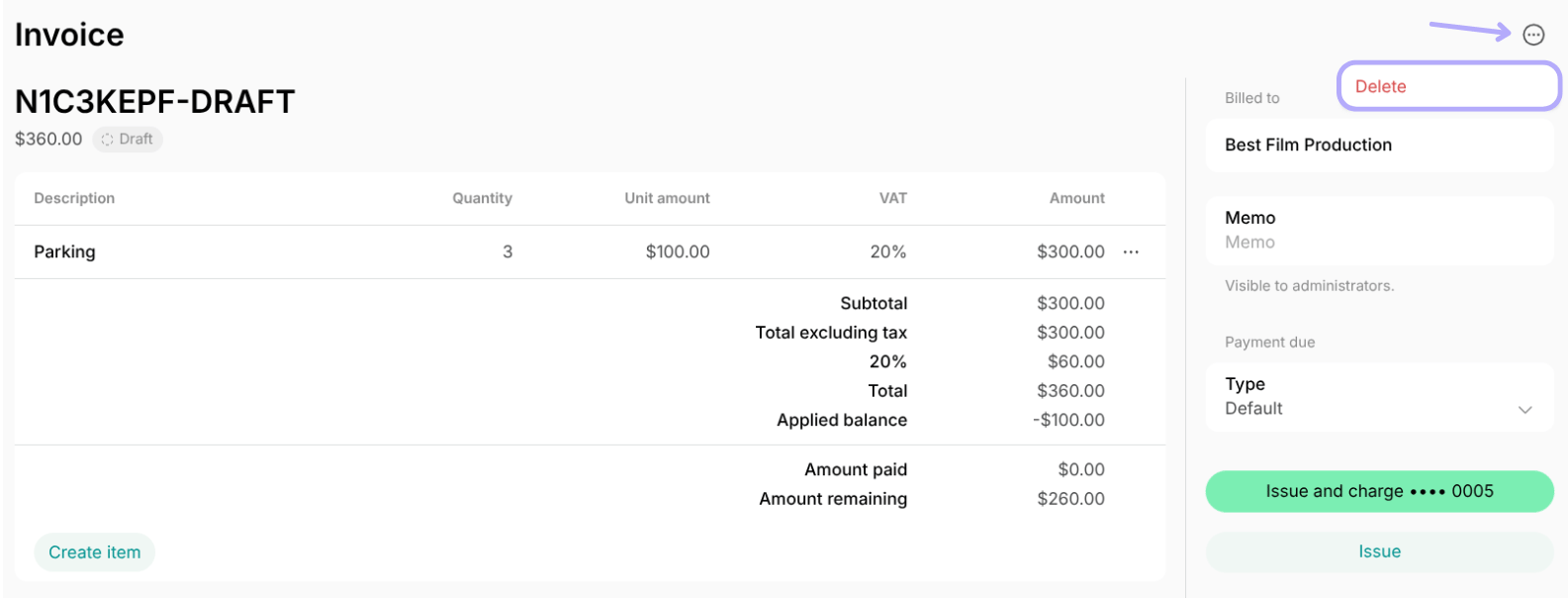 Deleting an invoice is irreversible. It is not possible to recover a deleted invoice.
## Void an unpaid invoice
Deleting an issued invoice isn't possible, but you can void it instead. Voiding cancels the invoice and its payment requirement while keeping a record of it, rather than erasing the data.
Only invoices with the [**Unpaid**](/docs/billing/invoices/statuses) status can be voided. When an invoice payment has **Pending**, **Failed**, or **Processing** status, you can't void it.
To void an unpaid invoice:
1. Go to **Billing** > **Invoices**.
2. Locate the unpaid invoice you want to void.
Deleting an invoice is irreversible. It is not possible to recover a deleted invoice.
## Void an unpaid invoice
Deleting an issued invoice isn't possible, but you can void it instead. Voiding cancels the invoice and its payment requirement while keeping a record of it, rather than erasing the data.
Only invoices with the [**Unpaid**](/docs/billing/invoices/statuses) status can be voided. When an invoice payment has **Pending**, **Failed**, or **Processing** status, you can't void it.
To void an unpaid invoice:
1. Go to **Billing** > **Invoices**.
2. Locate the unpaid invoice you want to void.
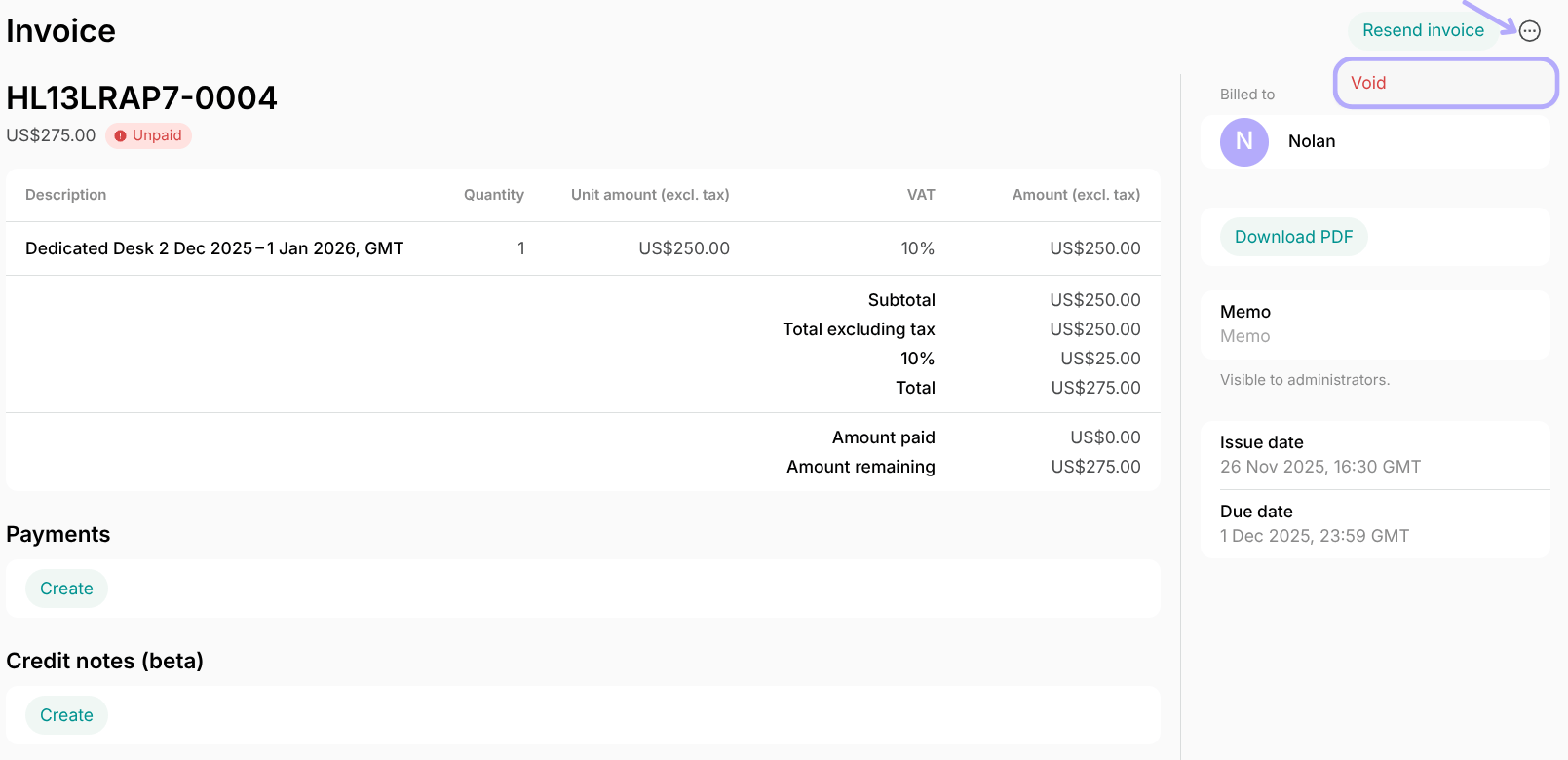
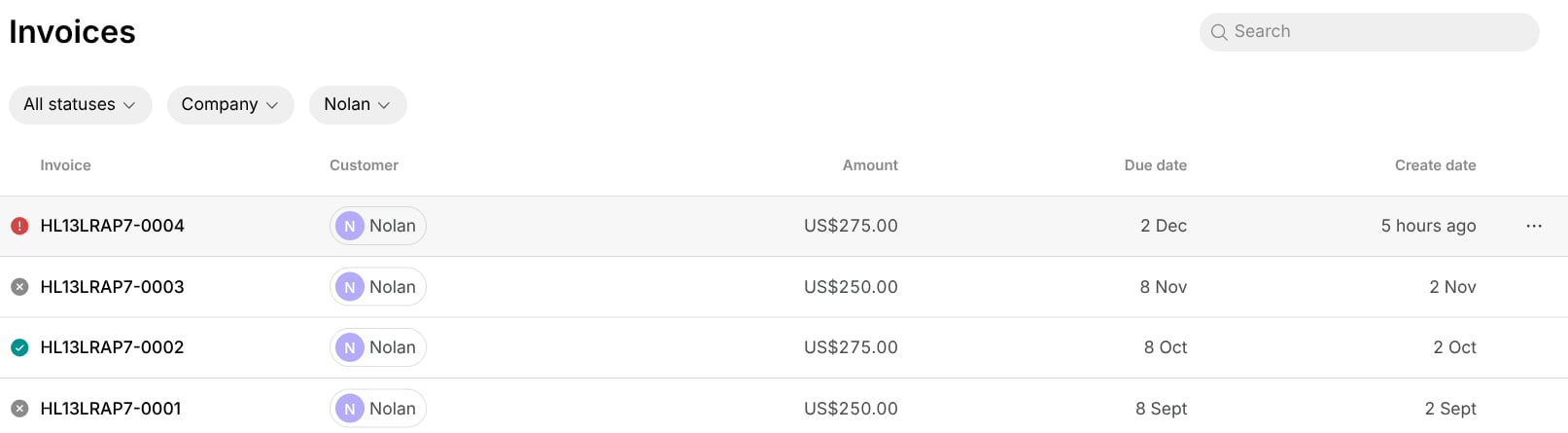 3. Press the **(...)** menu top right, click **Void**, and confirm your choice.
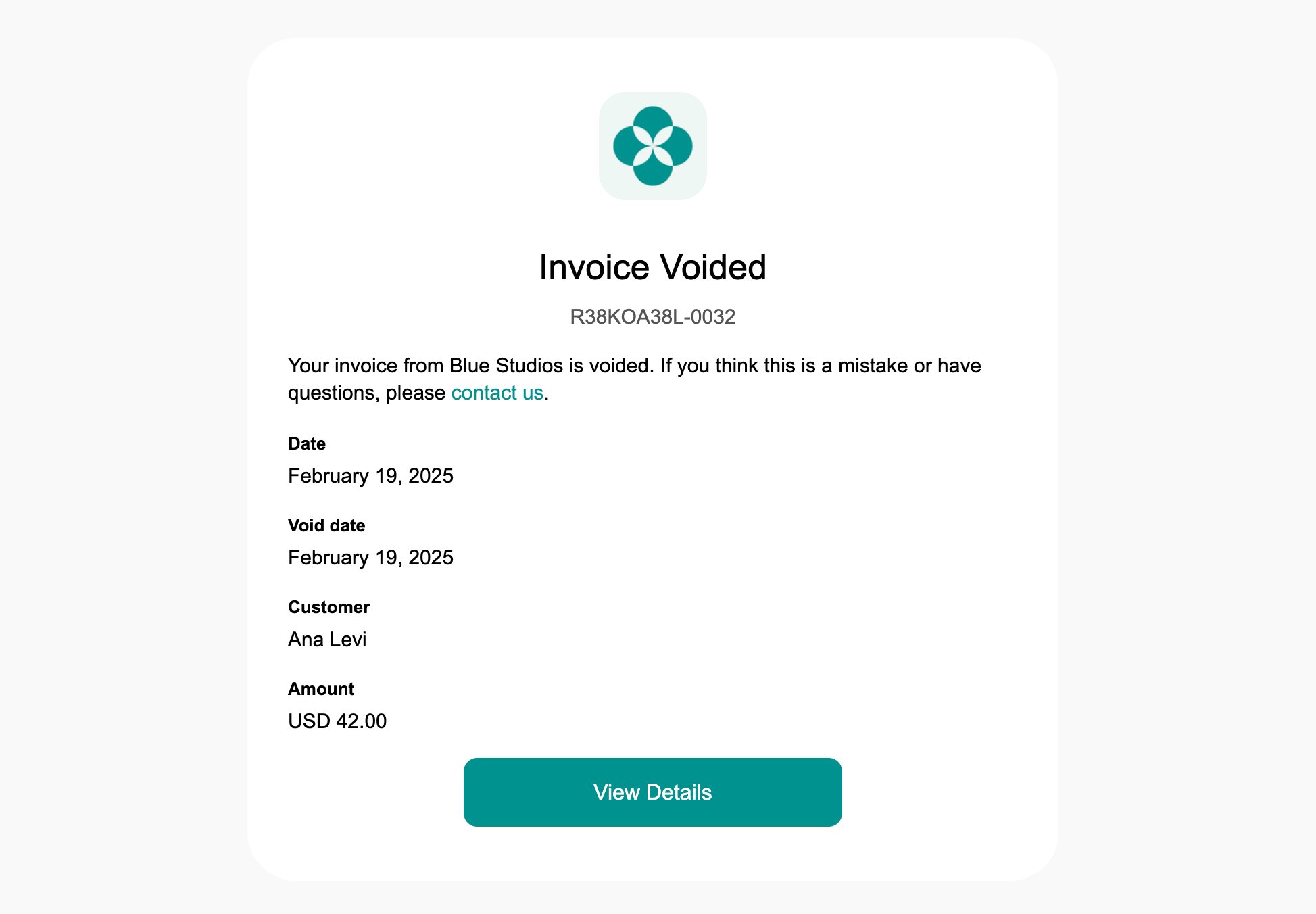
 Once you void the invoice, the user will receive a push notification in the member web portal and mobile app, as well as a confirmation email.
 Voiding an invoice is irreversible. Once an invoice has been voided, it cannot be recovered.
If you need to view or save the PDF for the voided invoice, press **Download PDF** after you void it.
Voiding an invoice is irreversible. Once an invoice has been voided, it cannot be recovered.
If you need to view or save the PDF for the voided invoice, press **Download PDF** after you void it.
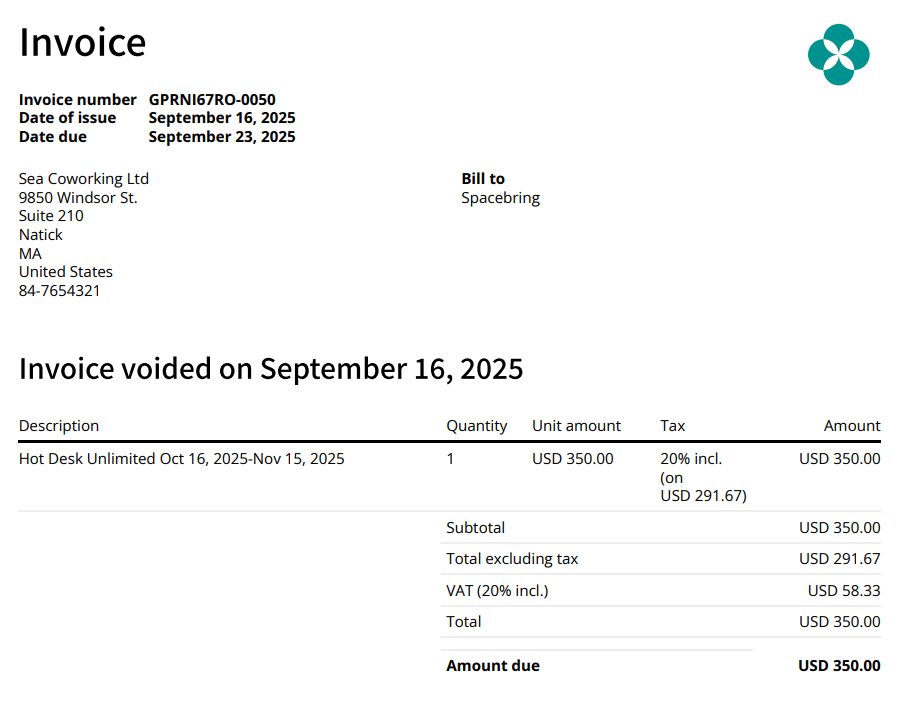
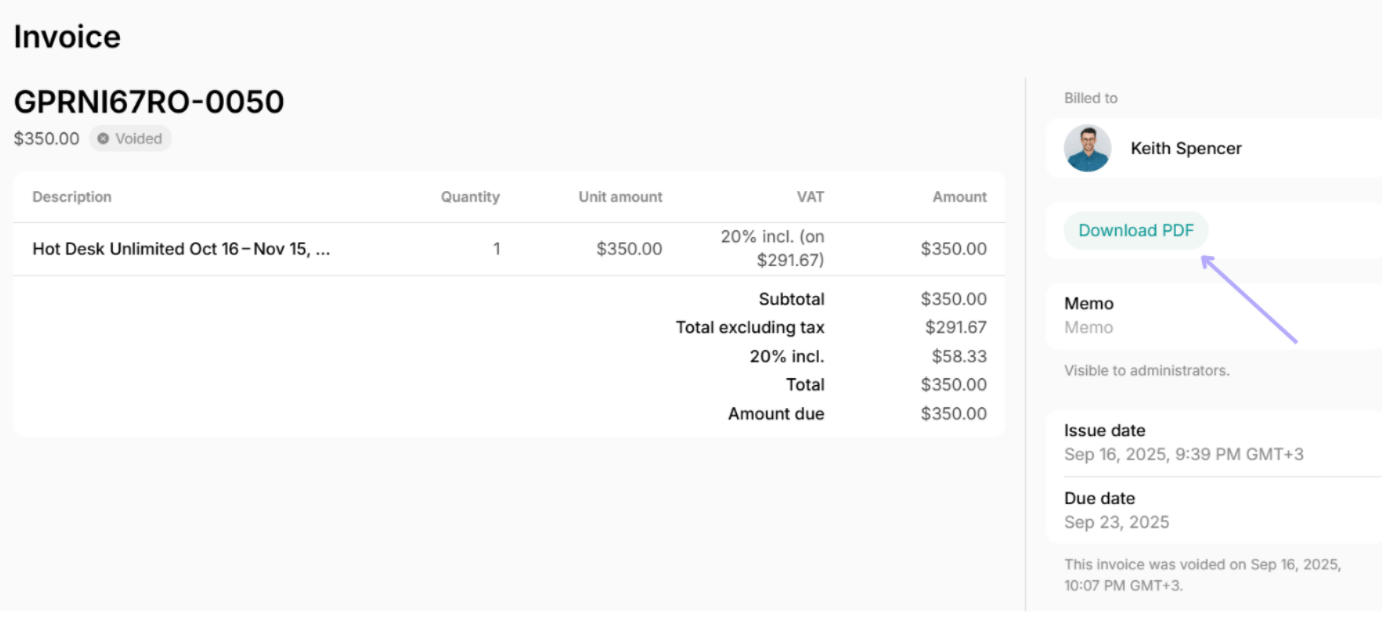 The invoice void date is reflected on the PDF.