> ## Documentation Index
> Fetch the complete documentation index at: https://www.spacebring.com/docs/llms.txt
> Use this file to discover all available pages before exploring further.
# Issue invoices
> Learn how to issue recurring invoices for leases and memberships automatically and how to manually create one-off invoices for custom charges
An invoice is an official document issued to a customer that lists the products or services provided to them, their costs, and the total amount due. It serves as a financial record and a request for payment.
All invoices are listed on the **Billing > Invoices** page, and in each individual customer's profile on the **Invoices** page.
In Spacebring, you can issue invoices in three ways:
## Invoices for rental or membership
For members or tenants who get a membership or rental for a specific period:
1. Go to **Customers** > customer profile.
2. [Create a subscription](/docs/billing/subscriptions).
A subscription will automatically generate invoices based on the terms you set: frequency (invoice for one week/month or recurring invoices), amount, items, within the period you set, etc, and automate other things besides invoices.
## Invoices for one-off purchases
For one-off purchases (booking, event ticket, shop order, etc.):
1. The customer makes a purchase in the member web portal or mobile app by themselves and [pays through a payment gateway](/docs/billing/payments/payment-gateway).
2. Alternatively, you, as an administrator, can record a one-off booking for the customer with the [**External** payment method](/docs/billing/payments/external).
3. The one-off invoice is generated automatically.
## Manual one-off invoices
For occasional or irregular charges that are not part of a rental, membership, or a specific service purchase, you can also issue one-off invoices to any customer.
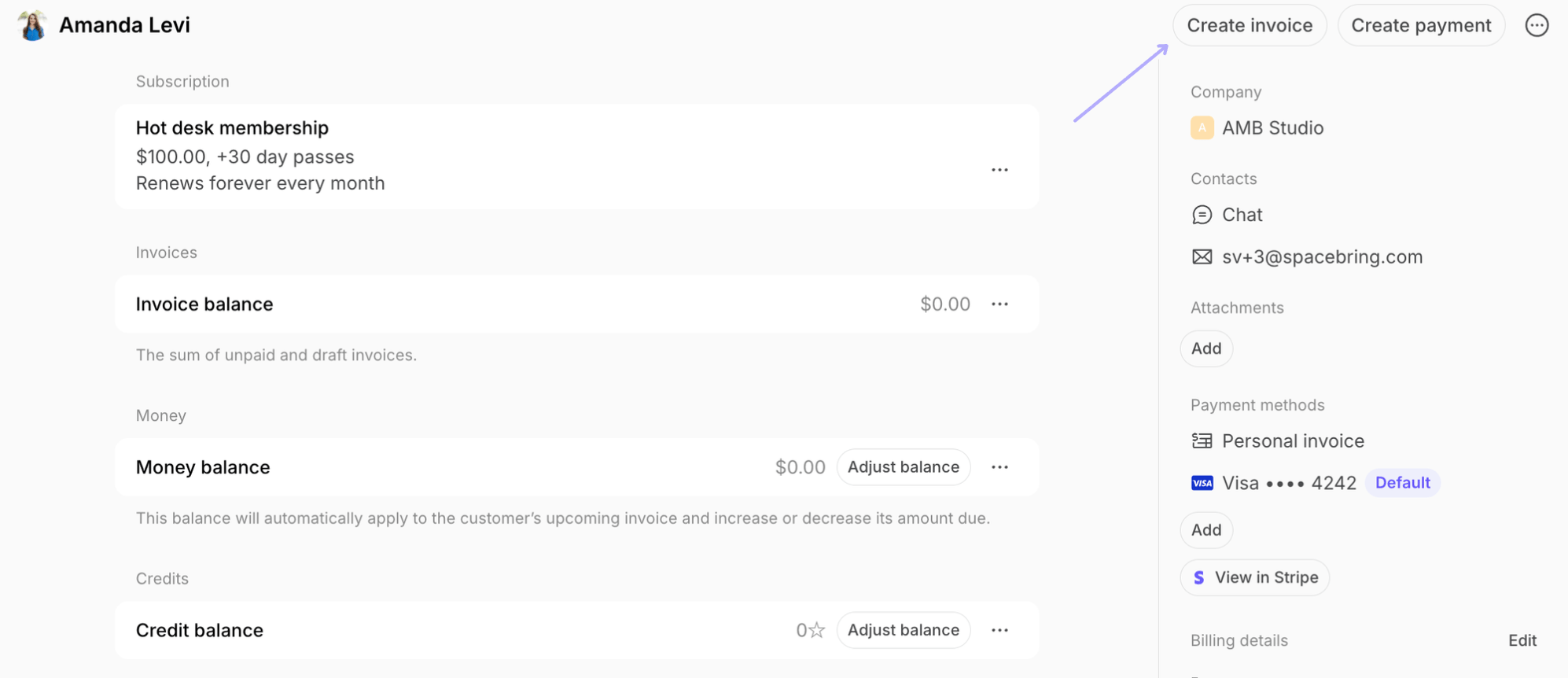
1. Go to **Billing > Invoices** or to the customer's profile.
2. Click **Create invoice** top right.
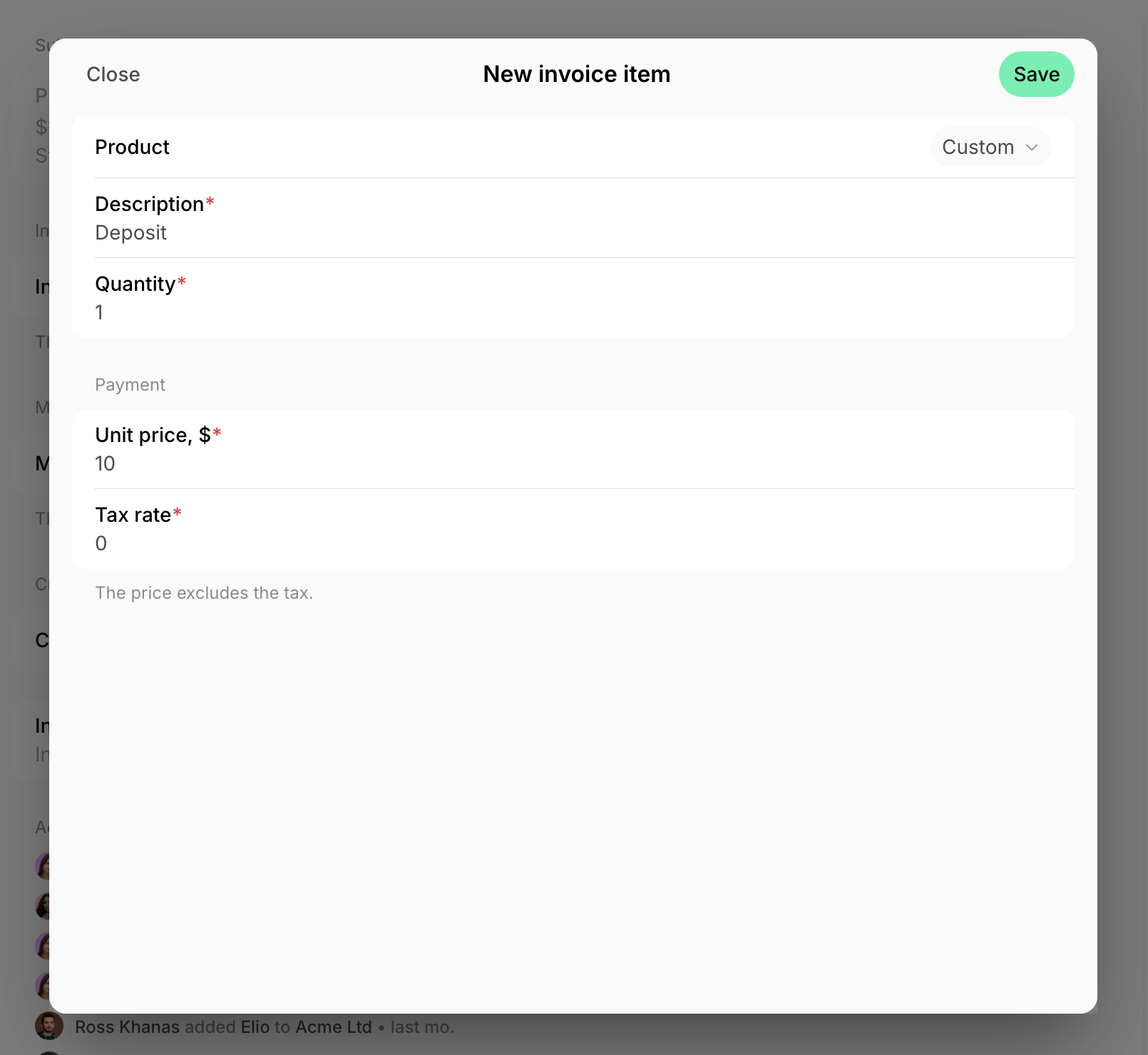
3. Tap **Add** > in the **Product** field, select [the pre-created item](/docs/guides/catalog-of-reusable-fees) or keep **Custom** to add a unique item and price.
4. Specify **Quantity**, and fill out the other remaining fields > press `Save`.
5. Optionally, add an internal note to indicate the source of payment or any other relevant details for your payment records, and [set a custom **Payment due** date](/docs/billing/invoices/due-date). Press **Create**.
6. Tap **View invoice** in the confirmation window below.
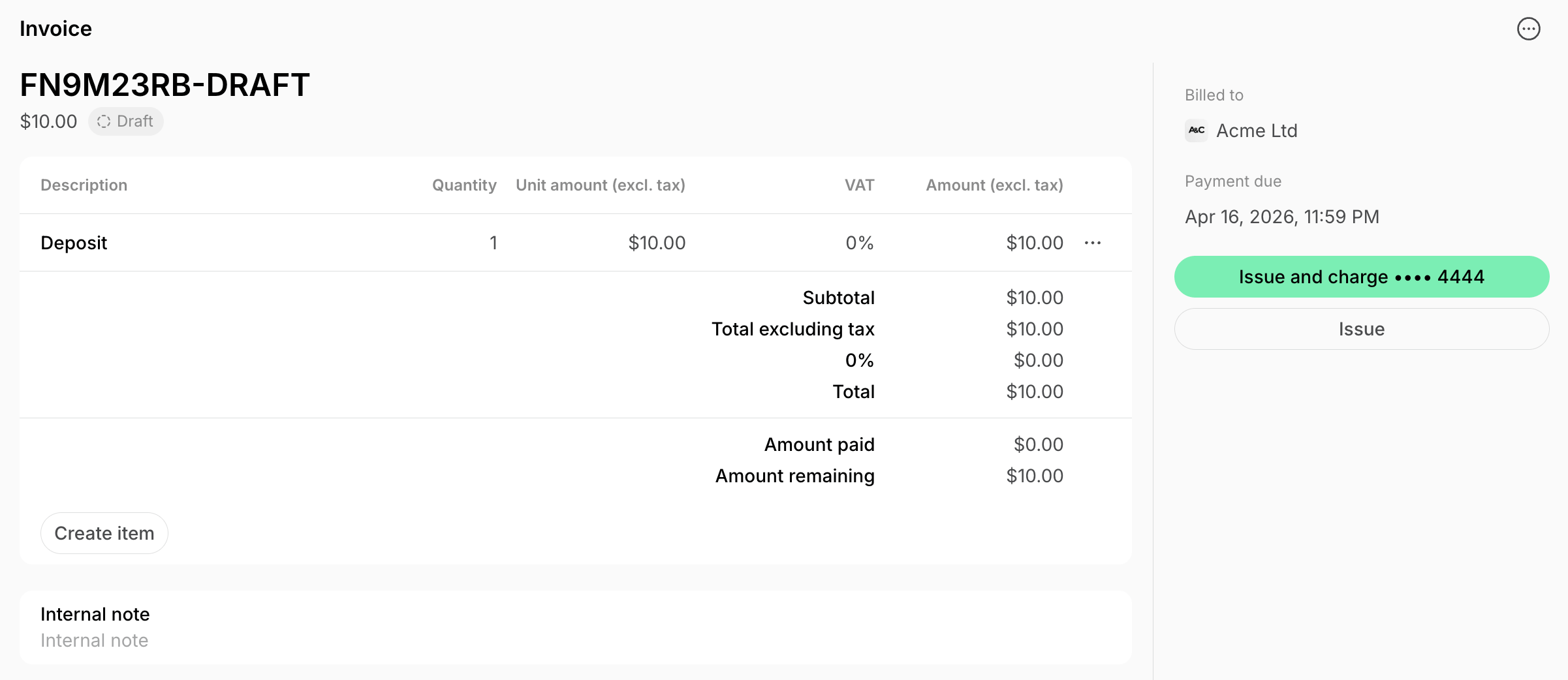
7. Press **Issue**. If a user has any [saved payment methods](/docs/billing/payments/payment-methods), you'll see **Issue and charge** button and can charge the invoice right away.
If [**Require billing details**](/docs/customer-management/billing-details) is enabled, the customer's billing details must be [added](/docs/customer-management/billing-details) to be able to issue the invoice.
Manually created invoices use today's issuance date and the following available sequence number.
 3. Tap **Add** > in the **Product** field, select [the pre-created item](/docs/guides/catalog-of-reusable-fees) or keep **Custom** to add a unique item and price.
4. Specify **Quantity**, and fill out the other remaining fields > press `Save`.
3. Tap **Add** > in the **Product** field, select [the pre-created item](/docs/guides/catalog-of-reusable-fees) or keep **Custom** to add a unique item and price.
4. Specify **Quantity**, and fill out the other remaining fields > press `Save`.
 5. Optionally, add an internal note to indicate the source of payment or any other relevant details for your payment records, and [set a custom **Payment due** date](/docs/billing/invoices/due-date). Press **Create**.
6. Tap **View invoice** in the confirmation window below.
7. Press **Issue**. If a user has any [saved payment methods](/docs/billing/payments/payment-methods), you'll see **Issue and charge** button and can charge the invoice right away.
5. Optionally, add an internal note to indicate the source of payment or any other relevant details for your payment records, and [set a custom **Payment due** date](/docs/billing/invoices/due-date). Press **Create**.
6. Tap **View invoice** in the confirmation window below.
7. Press **Issue**. If a user has any [saved payment methods](/docs/billing/payments/payment-methods), you'll see **Issue and charge** button and can charge the invoice right away.