> ## Documentation Index
> Fetch the complete documentation index at: https://www.spacebring.com/docs/llms.txt
> Use this file to discover all available pages before exploring further.
# Track and manage invoices
> Manage all customer invoices from a single dashboard, monitor unpaid, failed, or overdue bills, and add internal notes for your team
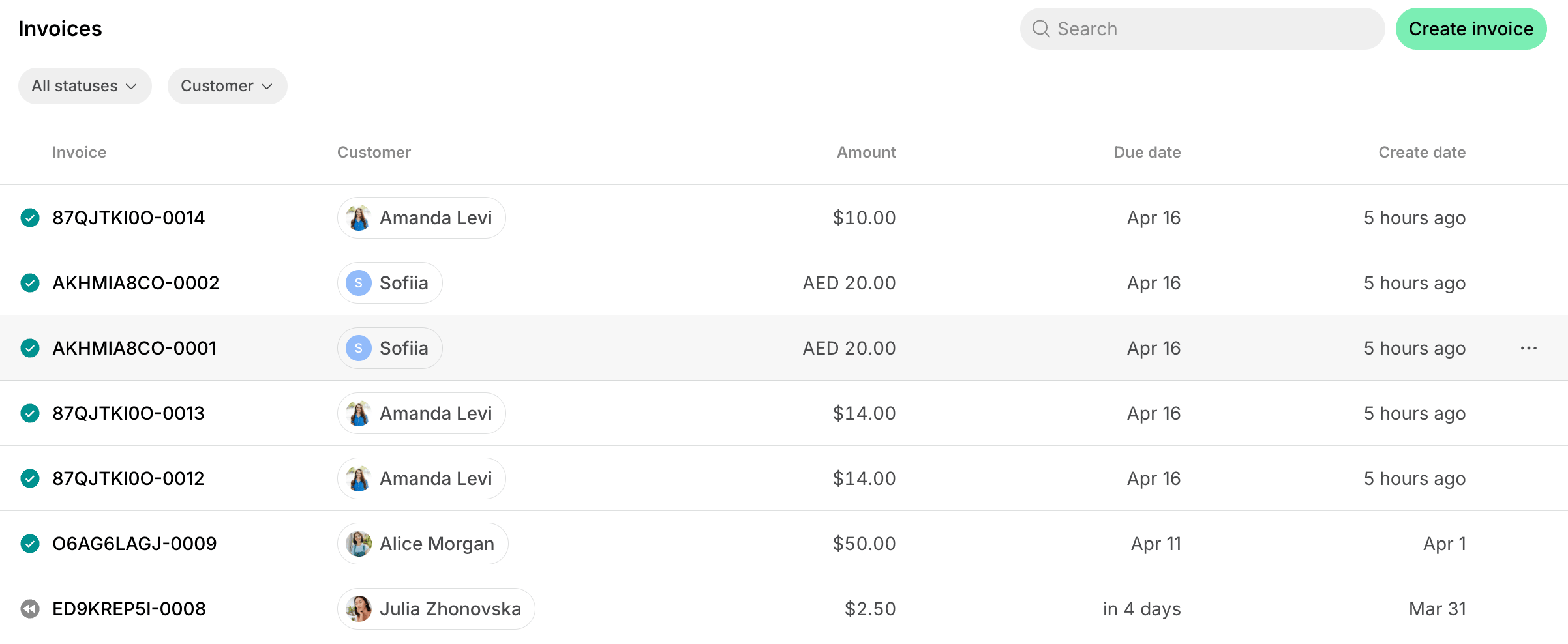
You can see a comprehensive list of all invoices across all customers on the dedicated **Invoices** page, where you can easily track payments and manage invoices.
## View all invoices
To view all the invoices, follow these steps:
1. Go to **Billing** > **Invoices** on the left-side panel.
2. Use the filters at the top of the page to quickly find and manage the necessary invoices:
* **Status** – See all invoices of the specific status: Draft, Issued, Paid, or Voided.
* **Customer** – See all invoices of a specific company or individual member.
* **Issue date** – See all invoices issued within a date range.
* **Create date** – See all invoices created within a date range, including drafts.
Alternatively, you can use the **Search** field to search for a specific invoice by its number.
 **Issued** invoice status filter replaces the former **Unpaid** status and includes only unpaid invoices.
## Manage invoices
By clicking on a specific invoice on the **Invoices** page, you can quickly manage it:
| **For issued invoices** |
**Issued** invoice status filter replaces the former **Unpaid** status and includes only unpaid invoices.
## Manage invoices
By clicking on a specific invoice on the **Invoices** page, you can quickly manage it:
| **For issued invoices** | - See the invoice details
- [**Download PDF**](/docs/billing/invoices/download)
- [**Resend an invoice**](/docs/billing/invoices/payment-retries-and-reminders#send-a-manual-reminder) to the customer
- [**Record invoice payments**](/docs/billing/invoices/payments)
- [**Void an invoice**](/docs/billing/invoices/void-or-delete)
- Add an internal note
- [**Charge an invoice**](/docs/billing/invoicing/charge-an-invoice)
- [**Edit invoices with credit notes**](/docs/billing/invoices/credit-notes)
|
| :---------------------- | :------------------------------------------------------------------------------------------------------------------------------------------------------------------------------------------------------------------------------------------------------------------------------------------------------------------------------------------------------------------------------------------------------------------------------------------------------------------------------------------------------------------------------------------ |
| **For draft invoices** | - See the invoice details
- [**Edit an invoice**](/docs/billing/invoices/edit)
- Issue or [**issue and charge an invoice**](/docs/billing/invoicing/charge-an-invoice)
- [**Delete an invoice**](/docs/billing/invoices/void-or-delete)
- Add an internal note
|
| **For paid invoices** | - See the invoice details
- [**Download PDF**](/docs/billing/invoices/download)
- [**Download receipt PDF**](/docs/billing/payments/receipts)
- [**Send a receipt**](/docs/billing/payments/receipts) to the customer
- [**Refund an invoice**](/docs/billing/payments/refunds)
- Add an internal note
- [**Edit invoices with credit notes**](/docs/billing/invoices/credit-notes)
|
| **For voided invoices** | - See the invoice details
- [**Download PDF**](/docs/billing/invoices/download)
- Add an internal note
|
Notifications about invoice payments appear on the **Notifications** page by default. If you don't see notifications about invoice payments, [manage your notification settings.](/docs/account/notifications)
### How to handle unpaid invoices
Although Spacebring automates [payment retries and reminders](/docs/billing/invoices/payment-retries-and-reminders) for invoices, sometimes it's useful to see who has an unpaid invoice to follow up manually.
1. Use the **Issued** status filter on the **Invoices** page to quickly see all unpaid invoices across all customers.
2. Check the **Due date** next to each invoice to track payment deadlines.This helps you quickly identify which invoices need your immediate attention.
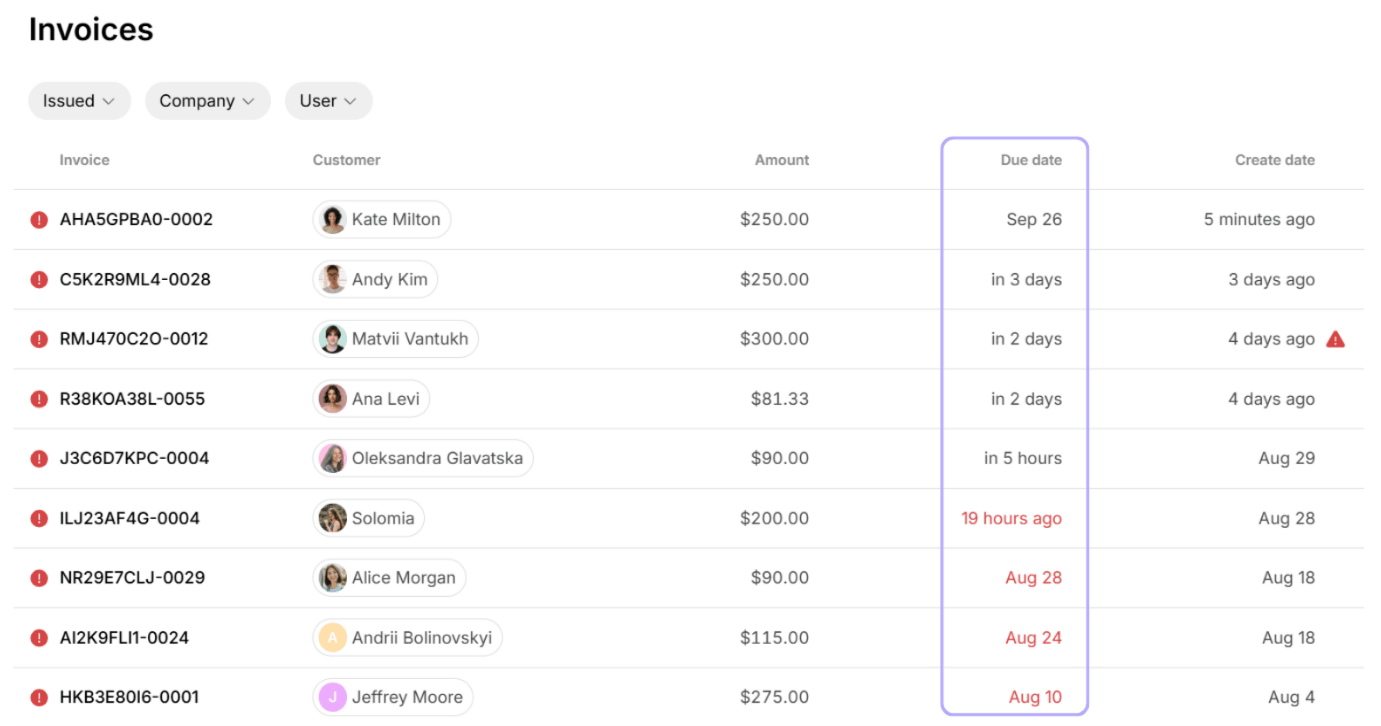 * Black color indicates the invoice is still within the payment terms.
* Red color highlights overdue invoices.
3. Click on the invoice and use the [`Resend invoice`](/docs/billing/invoices/payment-retries-and-reminders#send-a-manual-reminder) button to send the customer a reminder about the due invoice payment.
4. The customer will receive an automatic [payment reminder via email.](/docs/member/account/notifications)
### How to handle failed invoice payments
Invoice payments can fail due to various reasons, such as insufficient funds, the customer's bank restrictions, or issues with the payment gateway. To promptly notice failed invoice payments and reduce the risk of missed payments, follow these steps:
1. [Enable automatic payment retries and reminders.](/docs/billing/invoices/payment-retries-and-reminders)
2. [Enable notifications](/docs/account/notifications) about invoice **Payments failed** on the **Account > Notifications** page in Spacebring.
3. Once you notice a notification about a failed invoice payment, tap on it to view the details.
4. [Contact the customer via chat](/docs/engagement/chats) to assist them in resolving the issue.
5. [Resend the invoice](/docs/billing/invoices/payment-retries-and-reminders#send-a-manual-reminder) to the customer if an additional reminder is needed after 2 automatic ones.
## Add internal notes to invoices
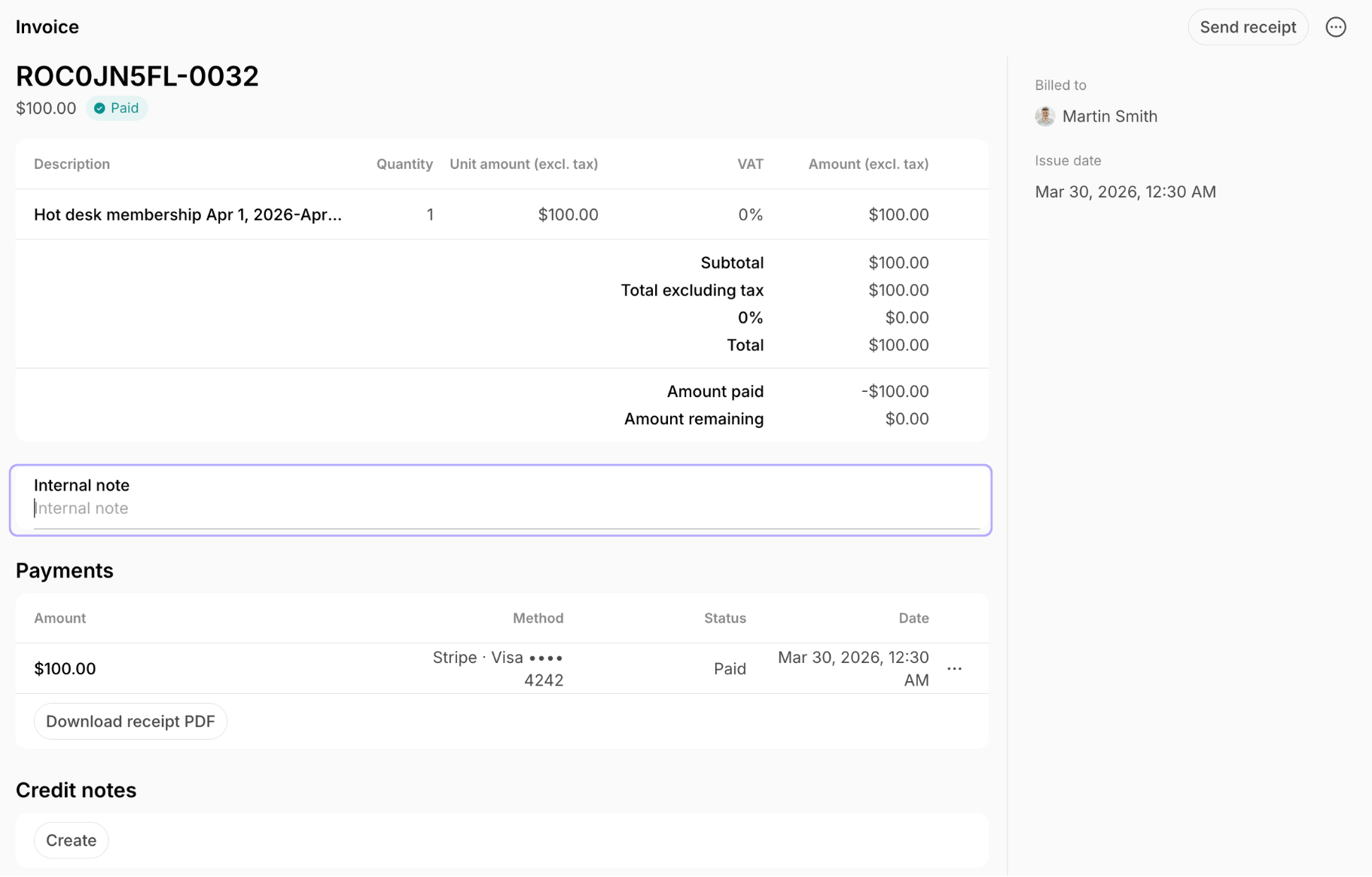
In Spacebring, you can add internal notes to any invoice at any time for record-keeping and tracking. You can use internal notes on voided invoices for audit purposes, leave internal notes to improve team collaboration, and add internal notes when processing external invoice payments to specify the payment source or other key details.
To add an internal note, go to **Billing > Invoices**, open the relevant invoice, and enter your note in the **Internal note** field. Internal notes are visible only to administrators and are also included in the "[Invoices" report](/docs/analytics/reports).
* Black color indicates the invoice is still within the payment terms.
* Red color highlights overdue invoices.
3. Click on the invoice and use the [`Resend invoice`](/docs/billing/invoices/payment-retries-and-reminders#send-a-manual-reminder) button to send the customer a reminder about the due invoice payment.
4. The customer will receive an automatic [payment reminder via email.](/docs/member/account/notifications)
### How to handle failed invoice payments
Invoice payments can fail due to various reasons, such as insufficient funds, the customer's bank restrictions, or issues with the payment gateway. To promptly notice failed invoice payments and reduce the risk of missed payments, follow these steps:
1. [Enable automatic payment retries and reminders.](/docs/billing/invoices/payment-retries-and-reminders)
2. [Enable notifications](/docs/account/notifications) about invoice **Payments failed** on the **Account > Notifications** page in Spacebring.
3. Once you notice a notification about a failed invoice payment, tap on it to view the details.
4. [Contact the customer via chat](/docs/engagement/chats) to assist them in resolving the issue.
5. [Resend the invoice](/docs/billing/invoices/payment-retries-and-reminders#send-a-manual-reminder) to the customer if an additional reminder is needed after 2 automatic ones.
## Add internal notes to invoices
In Spacebring, you can add internal notes to any invoice at any time for record-keeping and tracking. You can use internal notes on voided invoices for audit purposes, leave internal notes to improve team collaboration, and add internal notes when processing external invoice payments to specify the payment source or other key details.
To add an internal note, go to **Billing > Invoices**, open the relevant invoice, and enter your note in the **Internal note** field. Internal notes are visible only to administrators and are also included in the "[Invoices" report](/docs/analytics/reports).