> ## Documentation Index
> Fetch the complete documentation index at: https://www.spacebring.com/docs/llms.txt
> Use this file to discover all available pages before exploring further.
# Create one-off payments
> Quickly charge custom one-off payments to the customer's card or record external ad-hoc transactions
Sometimes, you need to charge a customer outside of standard [online payments](/docs/billing/payments/payment-gateway) and [recurring subscription invoices](/docs/billing/subscriptions). In these cases, you have two options:
* Create and [issue a one-off invoice](/docs/billing/invoices/issue) for the customer to pay
* Create a one-off payment to immediately charge the customer's card or record an externally received payment.
## Create a one-off payment
Follow these steps to create and process a one-off payment:
1. Go to the **Billing** > **Transactions** page > press **Create payment** top right.
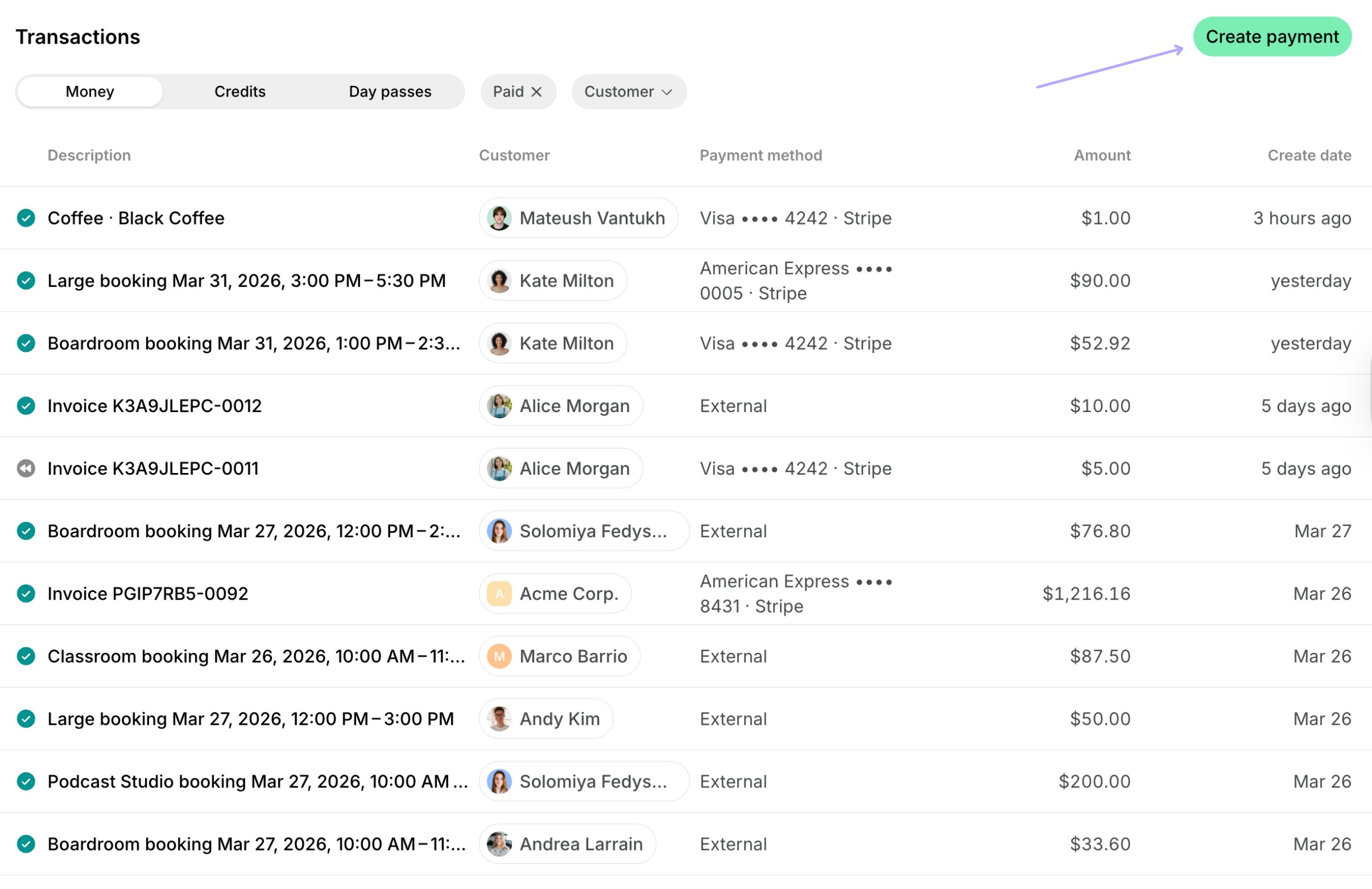 2. Select the necessary customer.
3. Enter the payment details:
* **Description** — the product or service you are charging for.
* **Quantity** — how many units of the service/product.
* **Unit price** — the price per unit.
* **Currency** — leave the default location currency or select an [alternative currency](/docs/billing/currencies).
* **Tax rate** — leave the default location tax percentage or enter a [custom tax rate](/docs/billing/taxes/custom-tax-rates).
* **Payment method** — choose the customer's [saved payment method](/docs/billing/payments/payment-methods), or select [**External**](/docs/billing/payments/external) if you've already received the money via another method (like cash) and just need to record the transaction.
4. Enter the customer's [billing details](/docs/customer-management/billing-details), if they haven't yet. Billing details fields appear depending on the [**Require billing details** setting.](/docs/customer-management/billing-details)
5. Confirm the payment.
## How creating one-off payments works
Once you create a one-off payment:
1. A transaction is immediately created for the payment in the customer's profile under **Transactions**, and the invoice for a one-off payment is created and can be found on the **Invoices** page.
2. Select the necessary customer.
3. Enter the payment details:
* **Description** — the product or service you are charging for.
* **Quantity** — how many units of the service/product.
* **Unit price** — the price per unit.
* **Currency** — leave the default location currency or select an [alternative currency](/docs/billing/currencies).
* **Tax rate** — leave the default location tax percentage or enter a [custom tax rate](/docs/billing/taxes/custom-tax-rates).
* **Payment method** — choose the customer's [saved payment method](/docs/billing/payments/payment-methods), or select [**External**](/docs/billing/payments/external) if you've already received the money via another method (like cash) and just need to record the transaction.
4. Enter the customer's [billing details](/docs/customer-management/billing-details), if they haven't yet. Billing details fields appear depending on the [**Require billing details** setting.](/docs/customer-management/billing-details)
5. Confirm the payment.
## How creating one-off payments works
Once you create a one-off payment:
1. A transaction is immediately created for the payment in the customer's profile under **Transactions**, and the invoice for a one-off payment is created and can be found on the **Invoices** page.
 * If you selected a customer's card, the charge will be initiated to that card, and you can [check its status](/docs/billing/payments/payment-gateway) on the transaction (whether it succeeded or failed).
* If you selected **External** as the payment method, the transaction will be recorded as an [external payment.](/docs/administration/billing/make-changes-to-spacebring-subscription#update-your-payment-or-billing-information)
2. The payment will appear in **Analytics** with the **Custom** type, allowing you to track these specific charges.
## Best practices
A one-off payment can be especially useful when:
1. A customer's payment was disputed, and you need to re-charge them.
2. An immediate payment is required for an urgent, last-minute service or an upgrade.
3. A small, ad-hoc charge is needed for a service or product not covered by standard invoicing (e.g., a minor administrative fee, or a supplemental service).
* If you selected a customer's card, the charge will be initiated to that card, and you can [check its status](/docs/billing/payments/payment-gateway) on the transaction (whether it succeeded or failed).
* If you selected **External** as the payment method, the transaction will be recorded as an [external payment.](/docs/administration/billing/make-changes-to-spacebring-subscription#update-your-payment-or-billing-information)
2. The payment will appear in **Analytics** with the **Custom** type, allowing you to track these specific charges.
## Best practices
A one-off payment can be especially useful when:
1. A customer's payment was disputed, and you need to re-charge them.
2. An immediate payment is required for an urgent, last-minute service or an upgrade.
3. A small, ad-hoc charge is needed for a service or product not covered by standard invoicing (e.g., a minor administrative fee, or a supplemental service).