> ## Documentation Index
> Fetch the complete documentation index at: https://www.spacebring.com/docs/llms.txt
> Use this file to discover all available pages before exploring further.
# Pay with invoice
> Enable customers to include their purchases in a personal or company invoice instead of paying immediately, book for customers with "Invoice", and manage how payments with invoice are billed
The **Pay with invoice** option allows customers to complete bookings or purchases without paying immediately. Instead, charges are collected and billed later via invoice. For companies, this makes it easy to consolidate all team expenses into a single company invoice.
## Enable **Pay with invoice**
1. Go to **Customers** > **Members** or **Nonmembers** tab.
2. Open a user or company profile > in the right-hand panel, find **Payment methods**.
3. Click **(...)** > **Edit** next to **Company invoice** or **Personal invoice**.
* For an individual customer, select the services for which they can pay by personal invoice. For a company, choose who can pay by company invoice for each service:
* **None** — paying with an invoice is unavailable for this service.
* **Company managers** — only managers of the company can pay by company invoice, while members cannot.
* **Company members** — both company managers and members can pay by company invoice for the selected service.
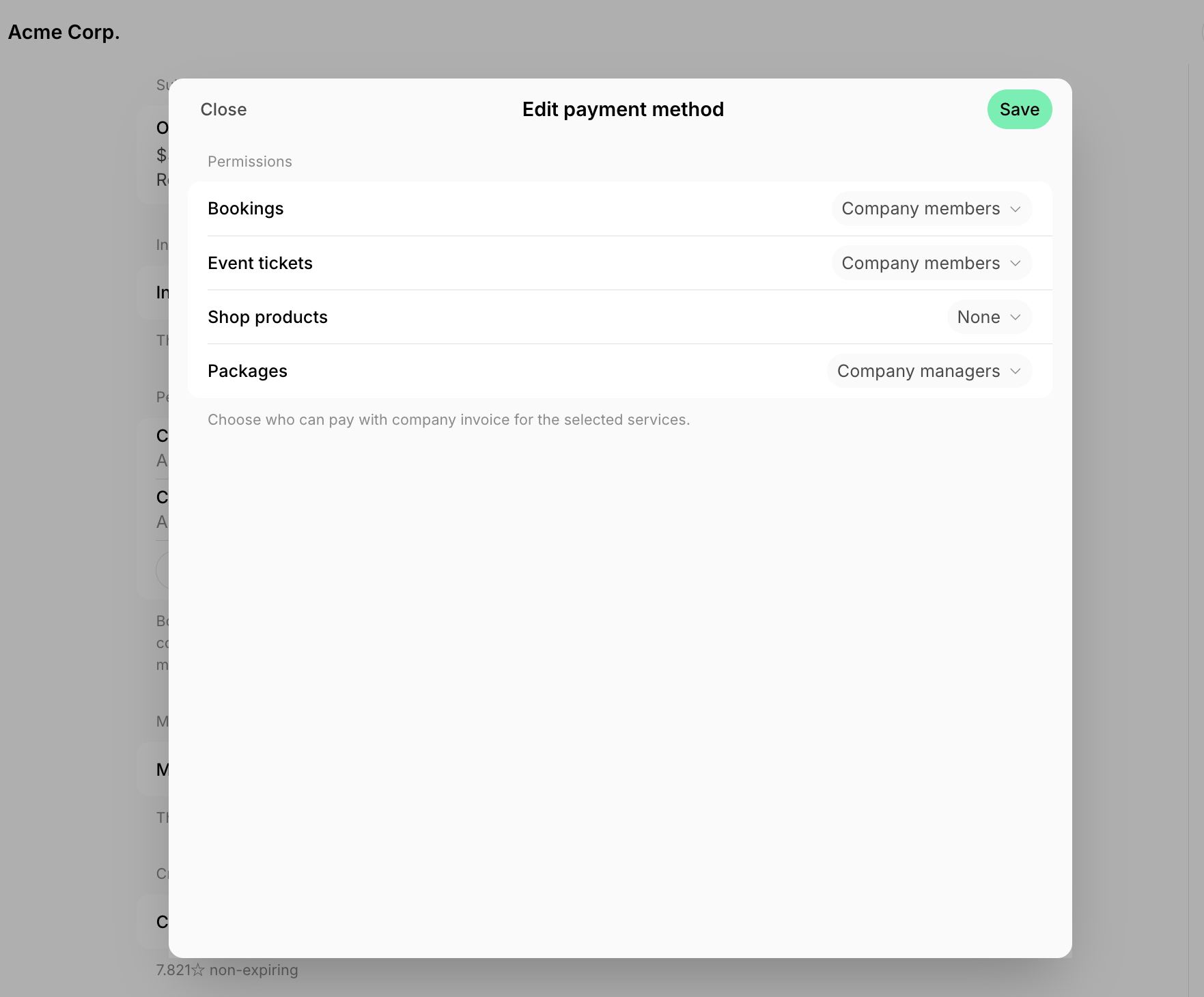 For companies, choose **Company managers** or **Company members** to enable payments by invoice. Company managers can [edit these permissions](/docs/customer-management/companies/payment-method-permissions) from their side later.
## Configure how payments with invoice are billed
For nonmembers or members without a subscription, all payments by invoice are saved as pending invoice items and must be invoiced manually by an administrator when needed.
For members with subscriptions, you can choose how payments by invoice are billed:
1. Open the customer's profile.
2. Open their subscription.
3. Manage the **Add to subscription invoices** toggle in the right-hand panel.
For companies, choose **Company managers** or **Company members** to enable payments by invoice. Company managers can [edit these permissions](/docs/customer-management/companies/payment-method-permissions) from their side later.
## Configure how payments with invoice are billed
For nonmembers or members without a subscription, all payments by invoice are saved as pending invoice items and must be invoiced manually by an administrator when needed.
For members with subscriptions, you can choose how payments by invoice are billed:
1. Open the customer's profile.
2. Open their subscription.
3. Manage the **Add to subscription invoices** toggle in the right-hand panel.
 If a customer has multiple subscriptions:
* Disable this switch in all subscriptions if you want to [bill their payments with invoice separately](/docs/billing/payments/pay-with-invoice#bill-separately) from subscription invoices.
* Enable this switch in the specific subscription to which invoices you want their [payments with invoice to be added.](/docs/billing/payments/pay-with-invoice#add-to-subscription-invoices)
### Add to subscription invoices
When **Add to subscription invoices** is enabled, payments by invoice are consolidated into the customer's subscription invoices.
* Bookings for dates within the current subscription period, as well as other purchases (event tickets, shop products, packages), are added directly to the [upcoming invoice](/docs/billing/invoices/upcoming).
* Bookings for future dates are added to future subscription invoices issued after the booking takes place.
The consolidated invoice includes the subscription products and all additional purchases. This option is ideal for customers who want one combined invoice per billing cycle.
If a customer has multiple subscriptions:
* Disable this switch in all subscriptions if you want to [bill their payments with invoice separately](/docs/billing/payments/pay-with-invoice#bill-separately) from subscription invoices.
* Enable this switch in the specific subscription to which invoices you want their [payments with invoice to be added.](/docs/billing/payments/pay-with-invoice#add-to-subscription-invoices)
### Add to subscription invoices
When **Add to subscription invoices** is enabled, payments by invoice are consolidated into the customer's subscription invoices.
* Bookings for dates within the current subscription period, as well as other purchases (event tickets, shop products, packages), are added directly to the [upcoming invoice](/docs/billing/invoices/upcoming).
* Bookings for future dates are added to future subscription invoices issued after the booking takes place.
The consolidated invoice includes the subscription products and all additional purchases. This option is ideal for customers who want one combined invoice per billing cycle.
 ### Bill separately
When **Add to subscription invoices** is disabled, payments by invoice remain as **Pending invoice items** for administrators to bill manually in a separate invoice.
* Pending invoice items are not invoiced automatically.
* You must issue an invoice with them manually at the necessary time.
This is useful when you need to separate invoices for subscription and other one-off purchases.
### Bill separately
When **Add to subscription invoices** is disabled, payments by invoice remain as **Pending invoice items** for administrators to bill manually in a separate invoice.
* Pending invoice items are not invoiced automatically.
* You must issue an invoice with them manually at the necessary time.
This is useful when you need to separate invoices for subscription and other one-off purchases.
 ## How **Pay with invoice** works
To make a booking or purchase with **Invoice**, customers:
1. Select the service they want to purchase.
2. Choose **Personal invoice** or **Company invoice** as the payment method.
## How **Pay with invoice** works
To make a booking or purchase with **Invoice**, customers:
1. Select the service they want to purchase.
2. Choose **Personal invoice** or **Company invoice** as the payment method.
 **Pay with invoice** is disabled for all customers by default. Only customers with this option enabled can use it. Make sure to enable it for eligible customers.
## Book for customers with the **Invoice** payment method
As an administrator, you can create a booking on behalf of any customer and select the **Invoice** payment method to bill them.
1. Go to **Resources** > **Rooms**, **Desks**, **Parking,** or **Equipment**.
2. Select the necessary resource.
3. Fill out the booking details.
4. Find the customer in the **Booker** dropdown.
**Pay with invoice** is disabled for all customers by default. Only customers with this option enabled can use it. Make sure to enable it for eligible customers.
## Book for customers with the **Invoice** payment method
As an administrator, you can create a booking on behalf of any customer and select the **Invoice** payment method to bill them.
1. Go to **Resources** > **Rooms**, **Desks**, **Parking,** or **Equipment**.
2. Select the necessary resource.
3. Fill out the booking details.
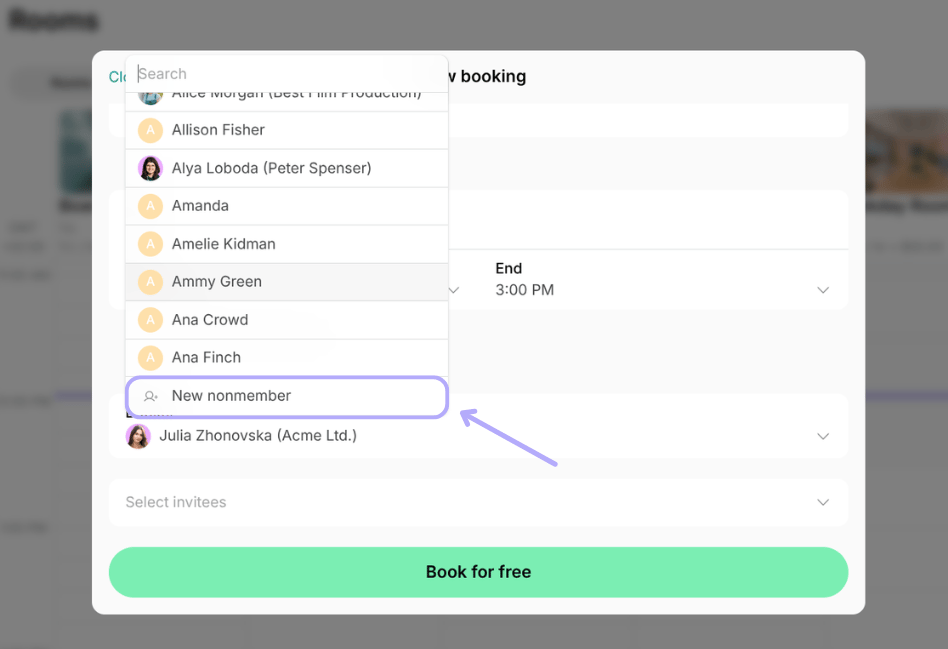
4. Find the customer in the **Booker** dropdown.  * If booking for a brand-new customer with no prior bookings or purchases, select **New nonmember** in the **Booker** dropdown and enter their details. A [nonmember](/docs/customer-management/users/nonmembers) profile will be created automatically.
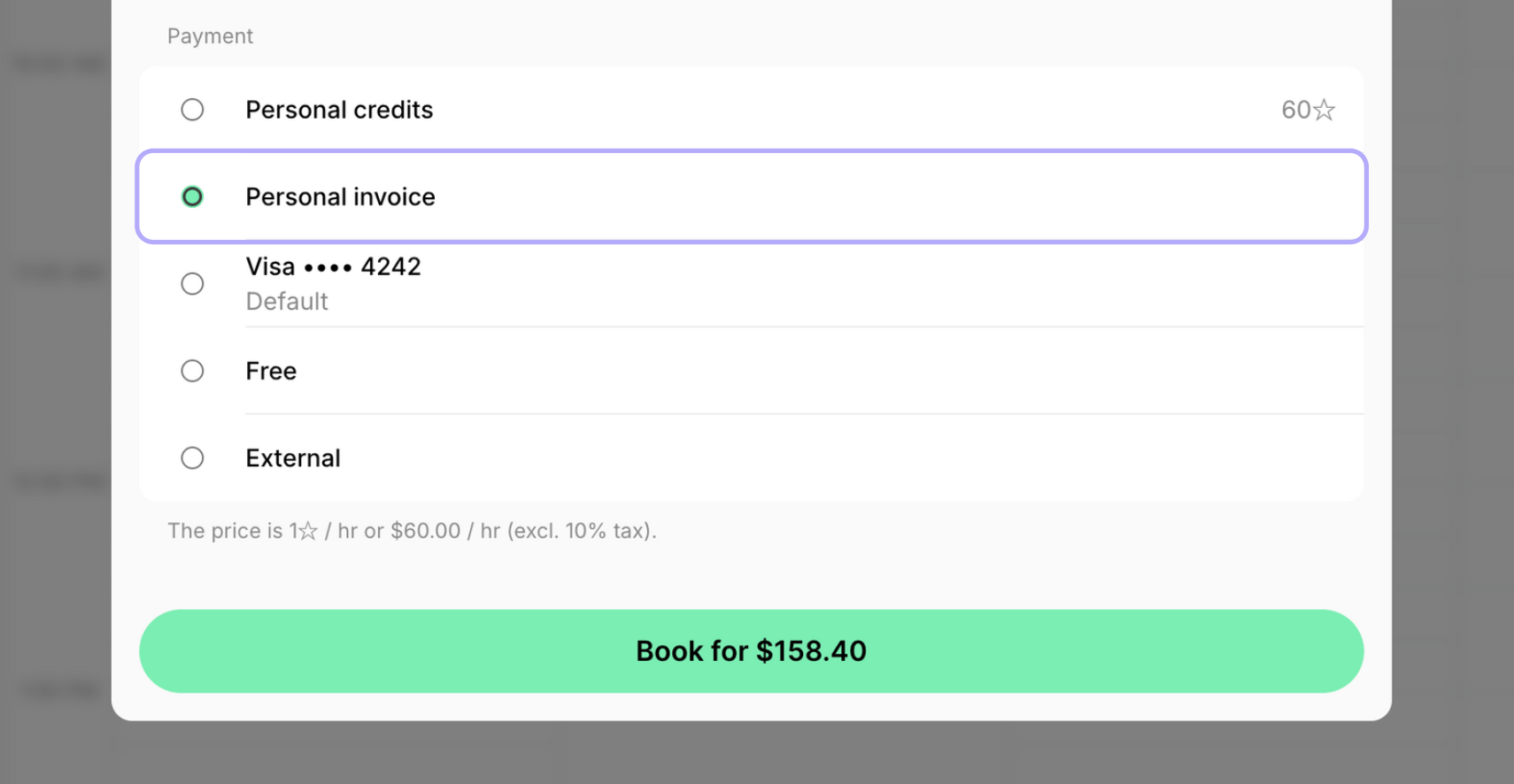
 5. In the **Payment** section, select **Personal invoice** or **Company invoice** > press **Book**.
  6. If this is a booking for a member with a subscription and [**Add to subscription invoices** enabled](/docs/billing/payments/pay-with-invoice), that's it. The booking will be automatically added to the appropriate invoice.
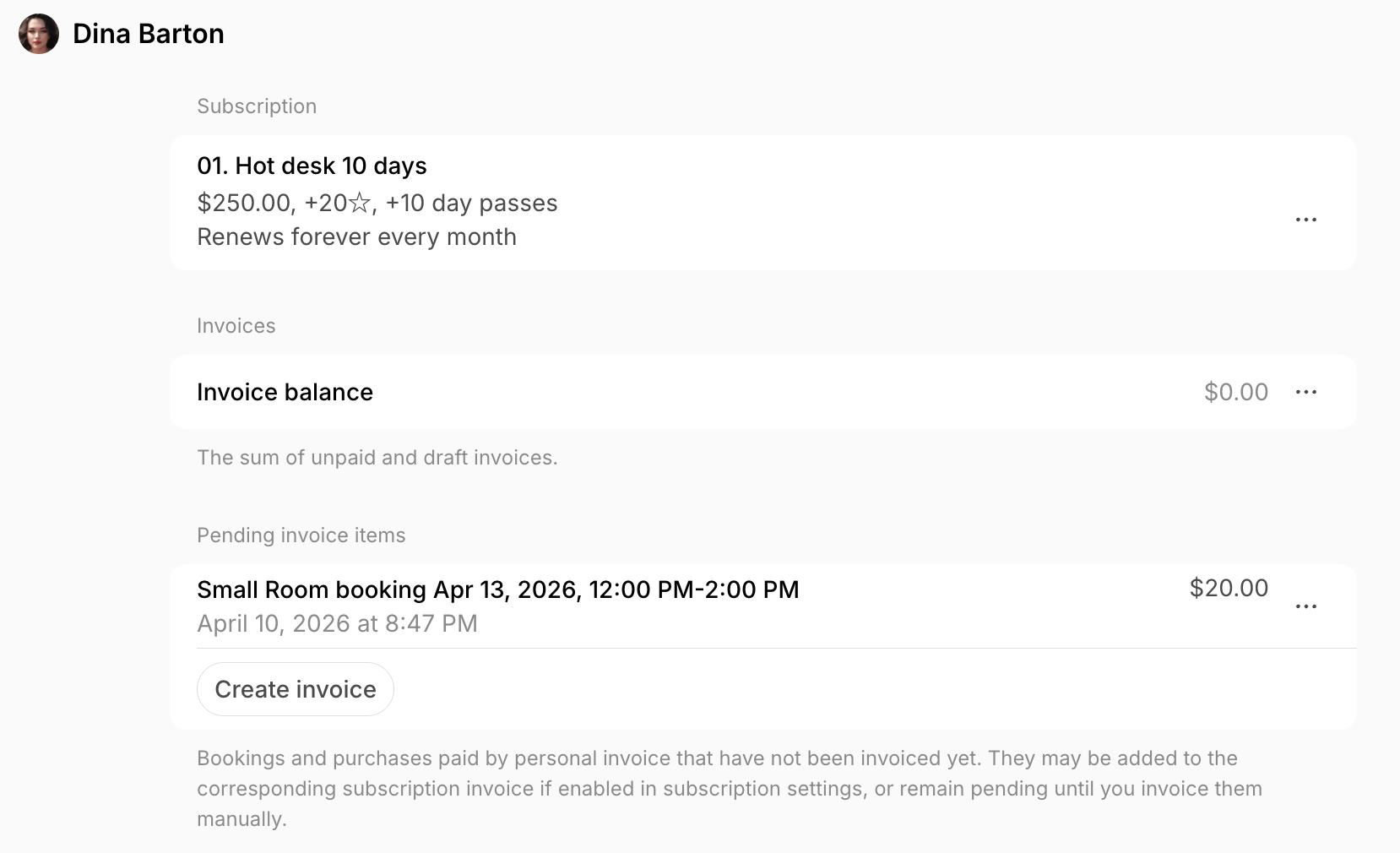
7. If this is a booking for: The payment is created as a **Pending invoice item** in the customer's profile.
* Member with [**Add to subscription invoices** disabled](/docs/billing/payments/pay-with-invoice)
* Member without subscription
* Nonmember,
### Manage pending invoice items
1. Go to the customer's profile.
2. If needed, [add the customer's billing details](/docs/customer-management/billing-details) on the right-hand panel to appear on the invoice and receipt.
3. Locate the **Pending invoice items** section.
* For a one-time booking, create and issue the invoice immediately.
* For regular customers, you can issue a consolidated invoice with all pending items immediately, or when needed (e.g., monthly). They accumulate here until you issue an invoice.
* Once items are accumulated, they cannot be split into separate invoices. You can issue only one invoice containing all pending items.
4. Click **Create invoice** under the **Pending invoice items** section to generate a draft invoice.
6. If this is a booking for a member with a subscription and [**Add to subscription invoices** enabled](/docs/billing/payments/pay-with-invoice), that's it. The booking will be automatically added to the appropriate invoice.
7. If this is a booking for: The payment is created as a **Pending invoice item** in the customer's profile.
* Member with [**Add to subscription invoices** disabled](/docs/billing/payments/pay-with-invoice)
* Member without subscription
* Nonmember,
### Manage pending invoice items
1. Go to the customer's profile.
2. If needed, [add the customer's billing details](/docs/customer-management/billing-details) on the right-hand panel to appear on the invoice and receipt.
3. Locate the **Pending invoice items** section.
* For a one-time booking, create and issue the invoice immediately.
* For regular customers, you can issue a consolidated invoice with all pending items immediately, or when needed (e.g., monthly). They accumulate here until you issue an invoice.
* Once items are accumulated, they cannot be split into separate invoices. You can issue only one invoice containing all pending items.
4. Click **Create invoice** under the **Pending invoice items** section to generate a draft invoice.
 5. If necessary, [edit it](/docs/billing/invoices/edit) before issuing.
6. Press **Issue** to send the invoice to the customer for payment, or **Issue and charge** to charge the customer immediately if they have a payment method on file.
## FAQs
While users can't directly select several dates and book them with one payment, it is possible to include multiple bookings on a consolidated invoice:
1. [Enable **Pay with invoice**](/docs/billing/payments/pay-with-invoice) for the relevant service in the customer's profile.
2. The customer can then make multiple bookings using the **Invoice** payment method, and these will be added to the invoice rather than requiring immediate, separate payments for each.
Alternatively, as an administrator, make multiple bookings for the customer and choose [the **Invoice** payment method](#book-for-customers-with-the-invoice-payment-method).
No, currently, administrators can only make bookings on behalf of customers and select the **Invoice** payment method.
It is not possible to add a company as a standalone nonmember entity; nonmember profiles are created as individuals. However, you can add the company manager as an individual nonmember. To do so:
1. Go to the **Customers** page > press the menu **(...)** top tight > [Add nonmember](/docs/customer-management/users/nonmembers#from-the-customers-page)
2. [Enter their company billing details](/docs/customer-management/billing-details) in their profile.
When [creating a booking for this nonmember,](#book-for-customers-with-the-invoice-payment-method) select **Personal invoice** in the **Payment** section. The system will then automatically generate the invoice using the company details you provided.
Subsidizing means someone other than the member covers the cost. If the customer is a company member and you want their company to cover the cost instead:
* If you're subsidizing the use of a bookable resource — a room, desk, parking spot, or piece of equipment — [book the resource for the customer](#book-for-customers-with-the-invoice-payment-method) and select **Company invoice** as the payment method. This bills the charge to the company instead of the member, so the company covers it on the member's behalf.
* For other charges, [add it to the company's invoice](/docs/billing/invoices/edit#edit-invoice-items-or-due-date) yourself.
This way, the charge is added to the company's invoice and paid by the company.
5. If necessary, [edit it](/docs/billing/invoices/edit) before issuing.
6. Press **Issue** to send the invoice to the customer for payment, or **Issue and charge** to charge the customer immediately if they have a payment method on file.
## FAQs
While users can't directly select several dates and book them with one payment, it is possible to include multiple bookings on a consolidated invoice:
1. [Enable **Pay with invoice**](/docs/billing/payments/pay-with-invoice) for the relevant service in the customer's profile.
2. The customer can then make multiple bookings using the **Invoice** payment method, and these will be added to the invoice rather than requiring immediate, separate payments for each.
Alternatively, as an administrator, make multiple bookings for the customer and choose [the **Invoice** payment method](#book-for-customers-with-the-invoice-payment-method).
No, currently, administrators can only make bookings on behalf of customers and select the **Invoice** payment method.
It is not possible to add a company as a standalone nonmember entity; nonmember profiles are created as individuals. However, you can add the company manager as an individual nonmember. To do so:
1. Go to the **Customers** page > press the menu **(...)** top tight > [Add nonmember](/docs/customer-management/users/nonmembers#from-the-customers-page)
2. [Enter their company billing details](/docs/customer-management/billing-details) in their profile.
When [creating a booking for this nonmember,](#book-for-customers-with-the-invoice-payment-method) select **Personal invoice** in the **Payment** section. The system will then automatically generate the invoice using the company details you provided.
Subsidizing means someone other than the member covers the cost. If the customer is a company member and you want their company to cover the cost instead:
* If you're subsidizing the use of a bookable resource — a room, desk, parking spot, or piece of equipment — [book the resource for the customer](#book-for-customers-with-the-invoice-payment-method) and select **Company invoice** as the payment method. This bills the charge to the company instead of the member, so the company covers it on the member's behalf.
* For other charges, [add it to the company's invoice](/docs/billing/invoices/edit#edit-invoice-items-or-due-date) yourself.
This way, the charge is added to the company's invoice and paid by the company.