> ## Documentation Index
> Fetch the complete documentation index at: https://www.spacebring.com/docs/llms.txt
> Use this file to discover all available pages before exploring further.
# Receipts
> Access receipt PDFs for customers' online and external payments, learn how users receive and access receipts, and understand the receipt breakdowns
Spacebring generates receipts for all user payments—both online (via payment gateway) and external. This includes:
* One-off purchases: bookings, shop orders, event tickets
* Invoice payments
Receipts are sent to users by email after they complete the payment. Users can also view or download them anytime in the member web portal or mobile app.
Administrators can access all receipts via the admin web portal and export them in bulk for accounting purposes.
## What a receipt looks like
A receipt is a document that confirms a successful payment.
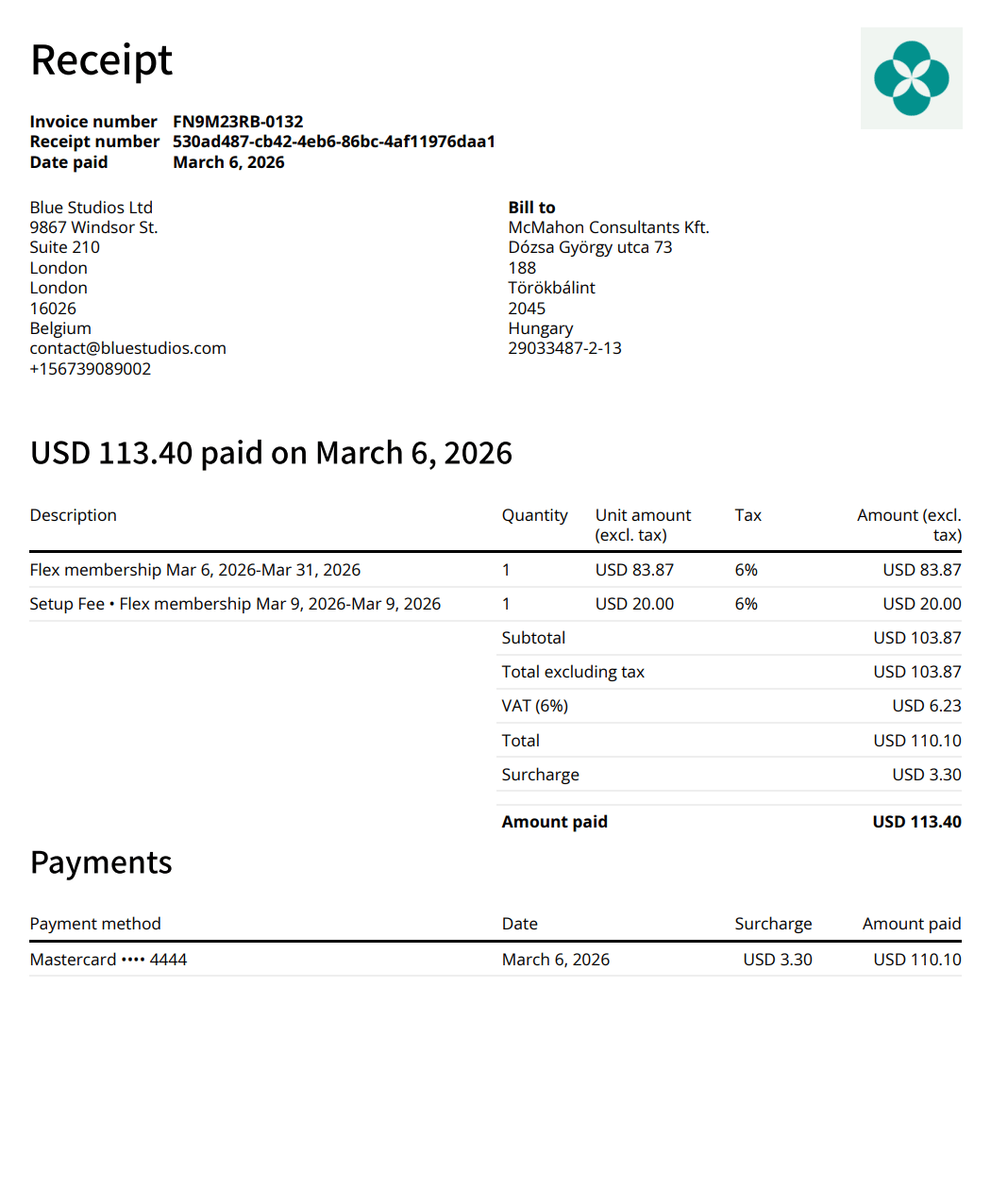 Each receipt includes:
* **Receipt number** — matches the ID in the [**Transactions** report](/docs/analytics/reports).
* **Invoice number** (if applicable)
* **Date paid**
* [**Your space logo**](/docs/member-web-portal/customize)
* [**Legal business name and address of the location**](/docs/billing) (if added)
* **Name, [legal business name, and address of the customer](/docs/customer-management/billing-details)** (if added)
* **Description** of the purchased item
* **Quantity** of the purchased item
* **Unit amount** — price per unit
* [**Tax**](/docs/billing/taxes) percentage for each item (if applicable)
* **Amount** — Quantity *x* Unit amount
* **Discount** (if applicable)
* **Subtotal** — Sum of all Amounts minus any discounts
* **Total excluding tax** — sum of all Amounts minus discounts and taxes
* **Tax** — percentage and amount of tax for all items
* **Total** — total value after taxes
* **Surcharge** (if applicable)
* [**Credit note**](/docs/billing/invoices/credit-notes) (if applicable)
* **Amount paid** — Total minus any credit note (if applicable)
* **Refunded on \\\[Date\\]** — [amount refunded](/docs/billing/payments/refunds) after payment (if applicable)
* **Total refunded** — total amount of all refunds
* **Payment method** the customer used
* [**Footer**](/docs/billing) — optional details appearing on all invoices and receipts (if added).
If your location tax option is **Inclusive**, you can choose whether to display amounts with or without tax on the invoice and receipt breakdown by configuring the [**Display tax-exclusive prices** setting](/docs/billing/taxes). Some EU countries require all amounts to be shown exclusive of tax. If your tax option is **Exclusive**, the invoice and receipt breakdown will always show amounts without tax, regardless of this setting.
Once a receipt is created, it cannot be modified. Any updates to billing details, customer name, or resources and services will only be reflected in receipts for future payments.
## How users get and access receipts
Once a user completes an online payment, they receive an email confirmation with a downloadable invoice and receipt PDFs attached.
Each receipt includes:
* **Receipt number** — matches the ID in the [**Transactions** report](/docs/analytics/reports).
* **Invoice number** (if applicable)
* **Date paid**
* [**Your space logo**](/docs/member-web-portal/customize)
* [**Legal business name and address of the location**](/docs/billing) (if added)
* **Name, [legal business name, and address of the customer](/docs/customer-management/billing-details)** (if added)
* **Description** of the purchased item
* **Quantity** of the purchased item
* **Unit amount** — price per unit
* [**Tax**](/docs/billing/taxes) percentage for each item (if applicable)
* **Amount** — Quantity *x* Unit amount
* **Discount** (if applicable)
* **Subtotal** — Sum of all Amounts minus any discounts
* **Total excluding tax** — sum of all Amounts minus discounts and taxes
* **Tax** — percentage and amount of tax for all items
* **Total** — total value after taxes
* **Surcharge** (if applicable)
* [**Credit note**](/docs/billing/invoices/credit-notes) (if applicable)
* **Amount paid** — Total minus any credit note (if applicable)
* **Refunded on \\\[Date\\]** — [amount refunded](/docs/billing/payments/refunds) after payment (if applicable)
* **Total refunded** — total amount of all refunds
* **Payment method** the customer used
* [**Footer**](/docs/billing) — optional details appearing on all invoices and receipts (if added).
If your location tax option is **Inclusive**, you can choose whether to display amounts with or without tax on the invoice and receipt breakdown by configuring the [**Display tax-exclusive prices** setting](/docs/billing/taxes). Some EU countries require all amounts to be shown exclusive of tax. If your tax option is **Exclusive**, the invoice and receipt breakdown will always show amounts without tax, regardless of this setting.
Once a receipt is created, it cannot be modified. Any updates to billing details, customer name, or resources and services will only be reflected in receipts for future payments.
## How users get and access receipts
Once a user completes an online payment, they receive an email confirmation with a downloadable invoice and receipt PDFs attached.
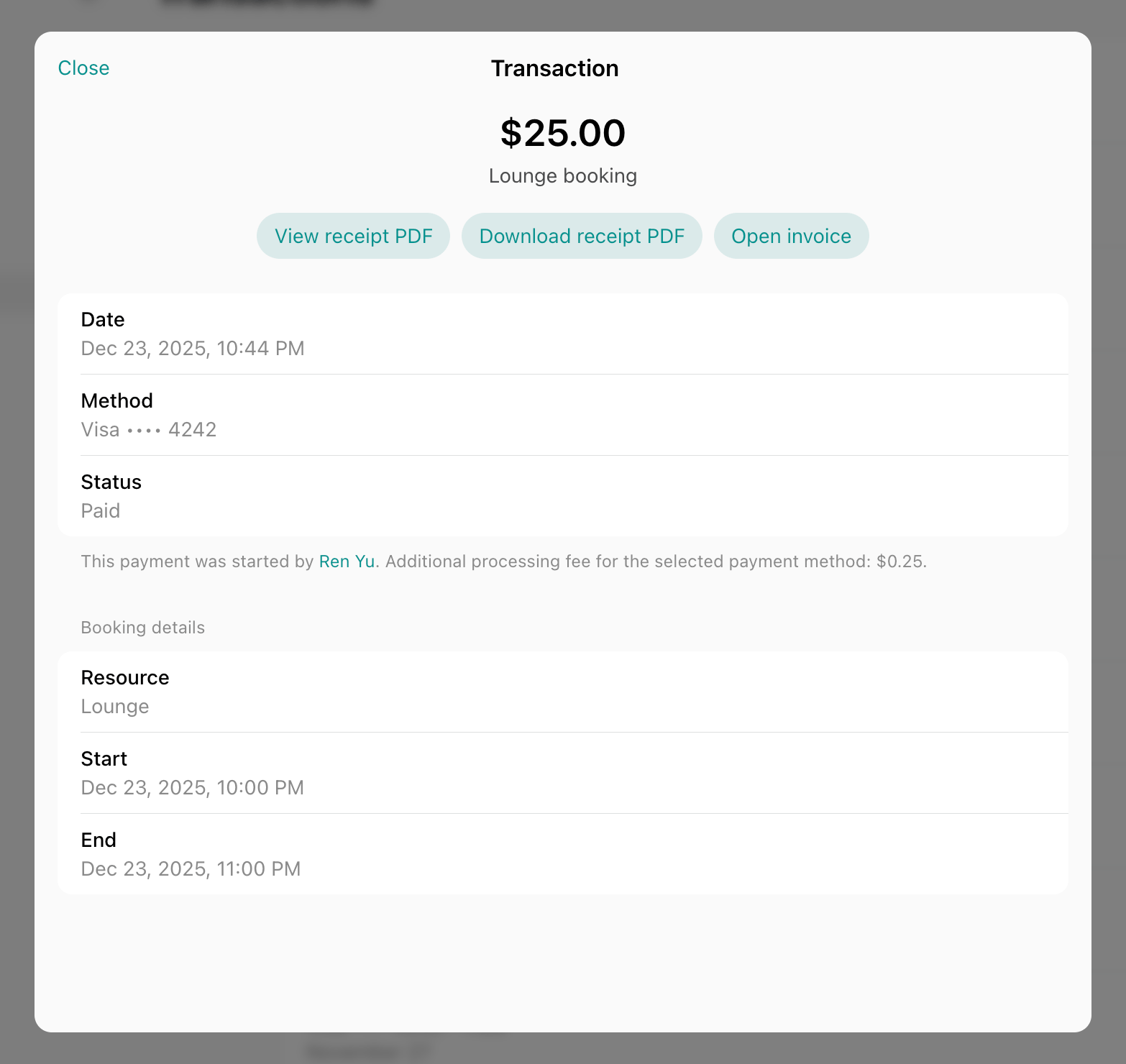
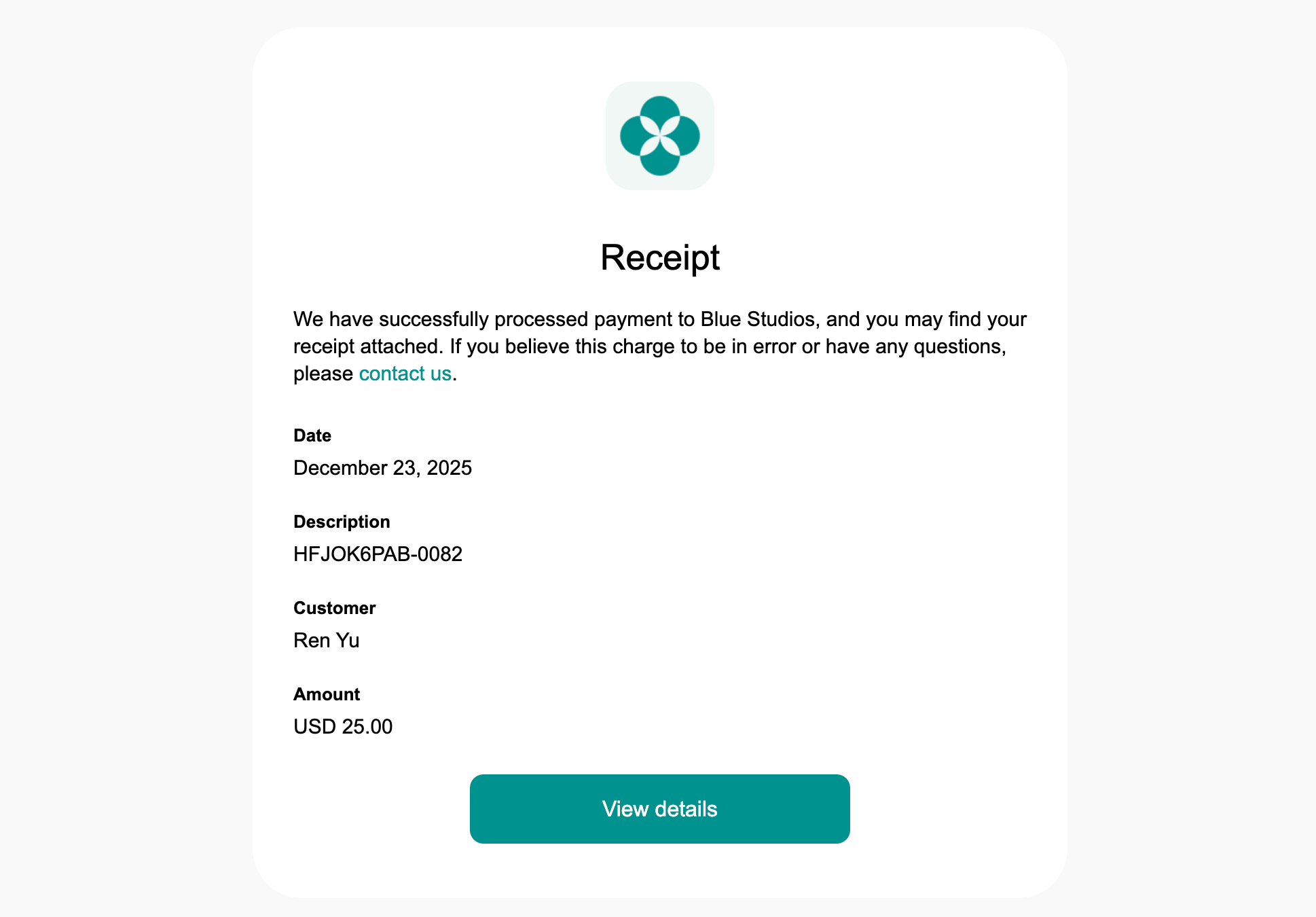 Users can also view or download receipts anytime in the member web portal or mobile app. For this, users:
1. Go to the **Locations** > **Membership**.
2. Click **Billing** under the **Personal** or company section > **Transactions**.
3. Open the successful transaction, and tap **View receipt PDF** or **Download receipt PDF**.
Users can also view or download receipts anytime in the member web portal or mobile app. For this, users:
1. Go to the **Locations** > **Membership**.
2. Click **Billing** under the **Personal** or company section > **Transactions**.
3. Open the successful transaction, and tap **View receipt PDF** or **Download receipt PDF**.
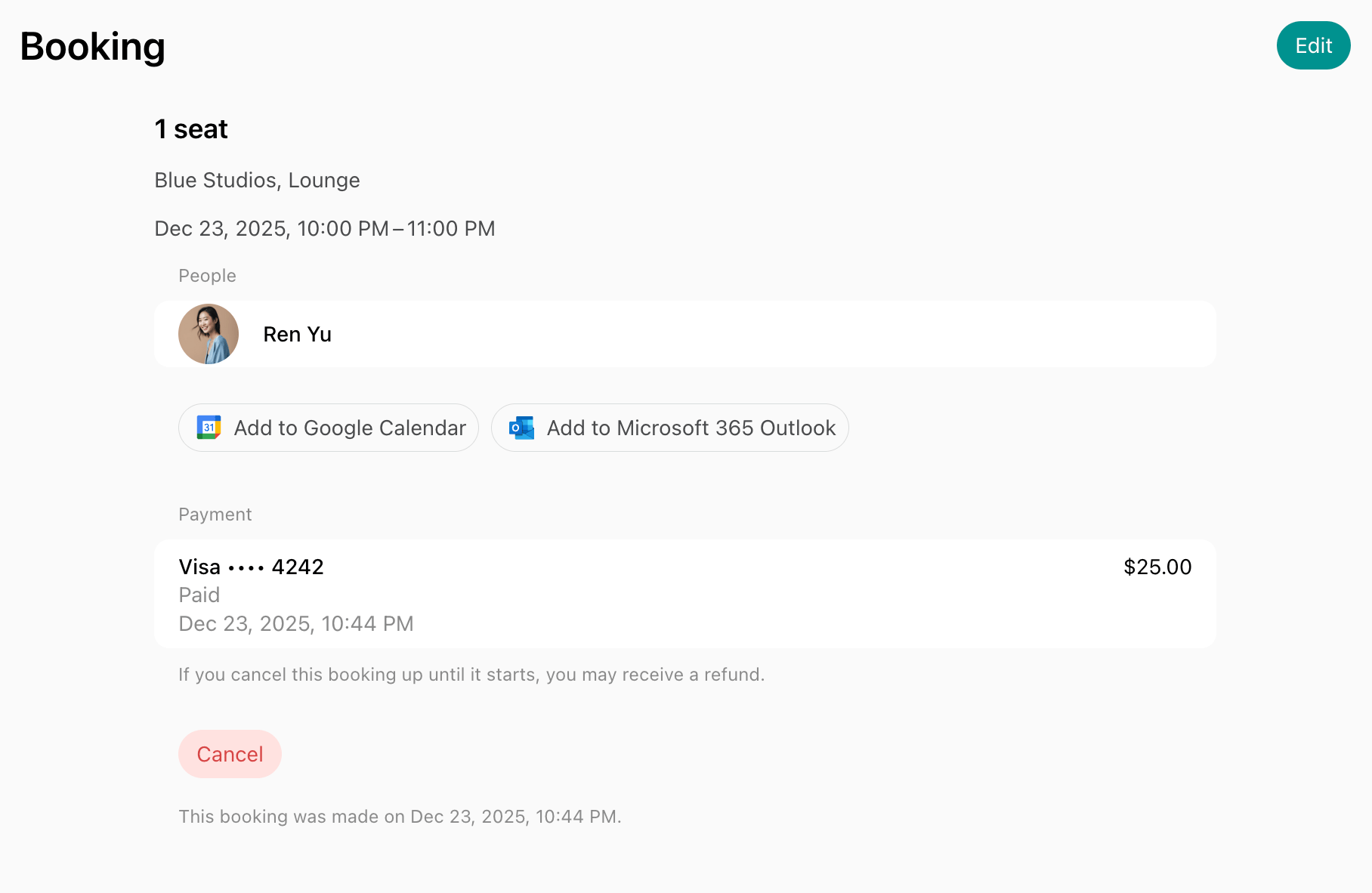
 Alternatively:
1. Go to the **Account** page by pressing a button with your profile image, initials, or the user icon on the app's main page.
2. Choose **Bookings**, **Tickets**, or **Orders**.
3. Open the specific booking, ticket, or order. In the **Payment** section, tap **Download receipt PDF**.
Alternatively:
1. Go to the **Account** page by pressing a button with your profile image, initials, or the user icon on the app's main page.
2. Choose **Bookings**, **Tickets**, or **Orders**.
3. Open the specific booking, ticket, or order. In the **Payment** section, tap **Download receipt PDF**.
 To locate the receipt for an invoice, users follow the first option.
## How administrators access receipts
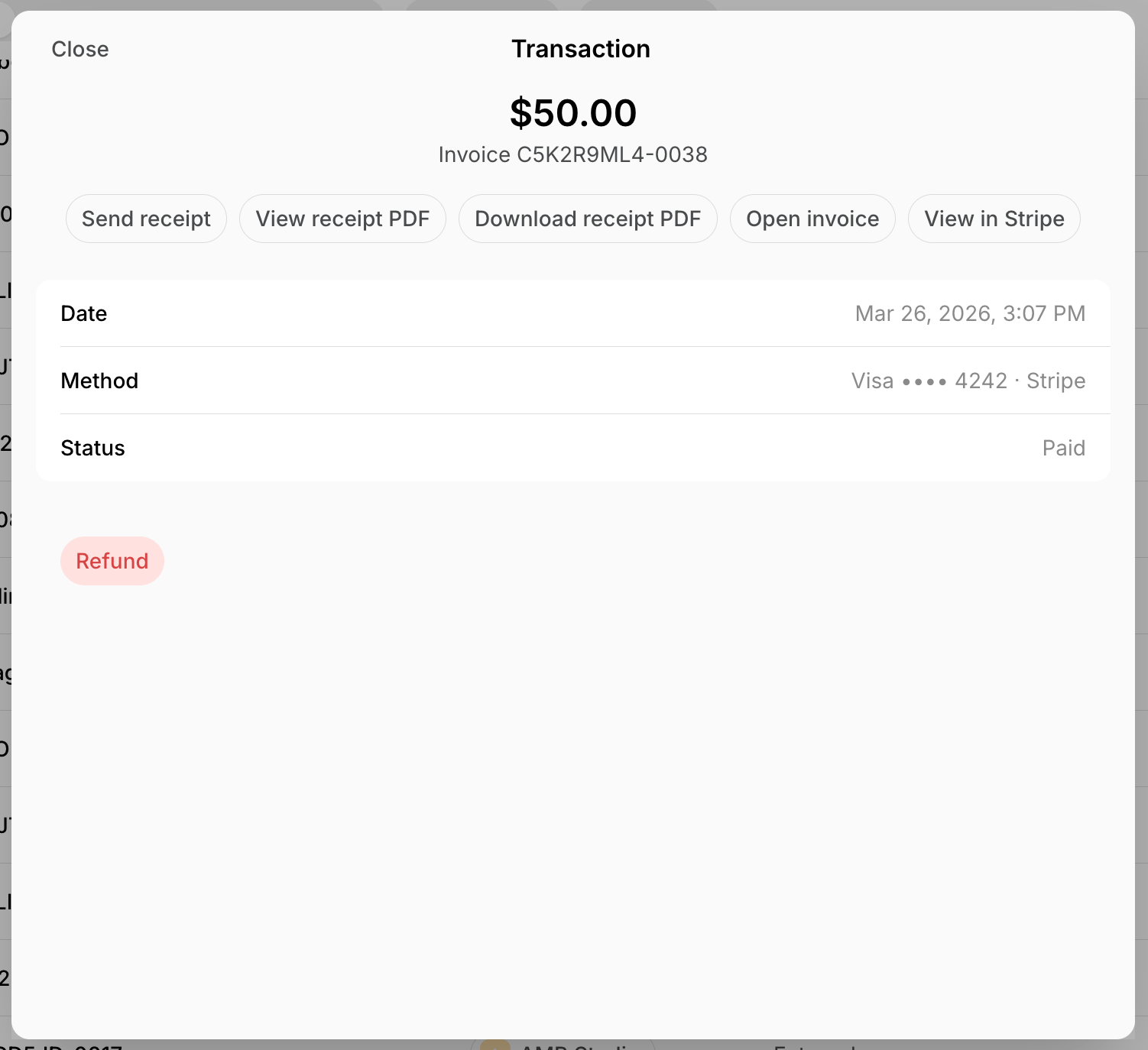
1. Go to **Billing** > **Transactions** page > **Money** tab > filter by company or user.
2. Open a transaction and tap **Send receipt**, **View receipt PDF**, or **Download receipt PDF**.
You may want to click **Send receipt** if a customer missed the email and is asking you to provide a receipt confirming their payment.
To locate the receipt for an invoice, users follow the first option.
## How administrators access receipts
1. Go to **Billing** > **Transactions** page > **Money** tab > filter by company or user.
2. Open a transaction and tap **Send receipt**, **View receipt PDF**, or **Download receipt PDF**.
You may want to click **Send receipt** if a customer missed the email and is asking you to provide a receipt confirming their payment.
 Alternatively:
1. Open the user's invoice, booking, event ticket, or shop order:
* Either from the customer's profile on the **Customers** page.
* Or from the **Invoices**, **Rooms, Desks, Parking, Equipment, Events**, or **Shop** page.
2. Tap **Download receipt PDF** or click on the **Payment** section to send, view, or download the receipt.
Alternatively:
1. Open the user's invoice, booking, event ticket, or shop order:
* Either from the customer's profile on the **Customers** page.
* Or from the **Invoices**, **Rooms, Desks, Parking, Equipment, Events**, or **Shop** page.
2. Tap **Download receipt PDF** or click on the **Payment** section to send, view, or download the receipt.
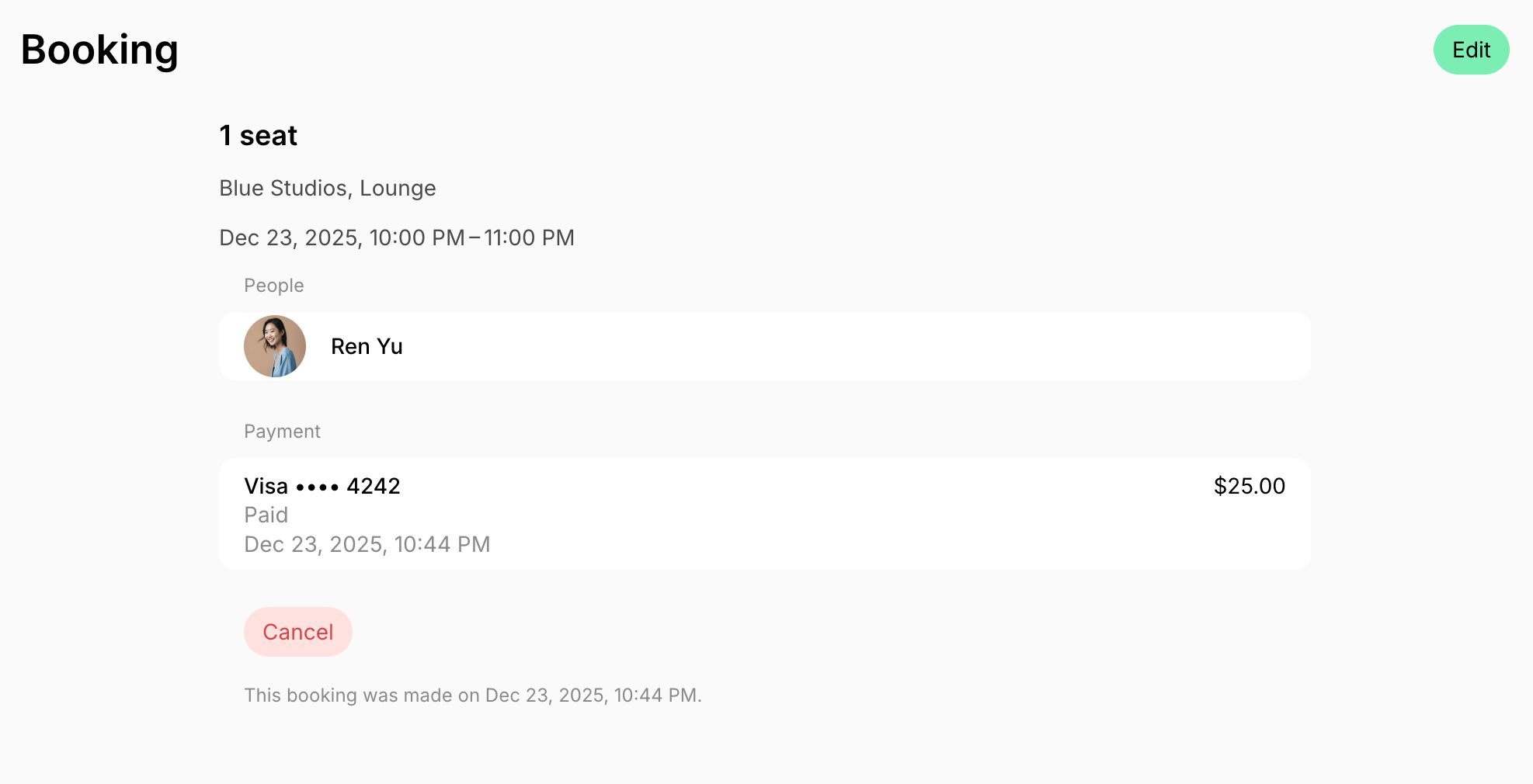 You can also [export all receipts in bulk](/docs/analytics/export-invoices-for-accounting) for accounting purposes using the **Transactions** custom report in **Analytics**.
## Receipts for external payments
When an administrator makes a booking for the customer with an [**External** payment method](/docs/billing/payments/external) or [marks their invoice as paid externally](/docs/billing/invoices/payments), Spacebring generates a receipt for such a payment as well. This ensures you can always provide customers with a document confirming their payment.
The receipts for external payments aren't automatically sent to the user by email, but are available to both the user and the administrator, like any other receipt:
### Users
1. Go to **Membership** > **Billing > Transactions** page.
2. Open the relevant transaction and click **View receipt PDF** or **Download receipt PDF**.
You can also [export all receipts in bulk](/docs/analytics/export-invoices-for-accounting) for accounting purposes using the **Transactions** custom report in **Analytics**.
## Receipts for external payments
When an administrator makes a booking for the customer with an [**External** payment method](/docs/billing/payments/external) or [marks their invoice as paid externally](/docs/billing/invoices/payments), Spacebring generates a receipt for such a payment as well. This ensures you can always provide customers with a document confirming their payment.
The receipts for external payments aren't automatically sent to the user by email, but are available to both the user and the administrator, like any other receipt:
### Users
1. Go to **Membership** > **Billing > Transactions** page.
2. Open the relevant transaction and click **View receipt PDF** or **Download receipt PDF**.
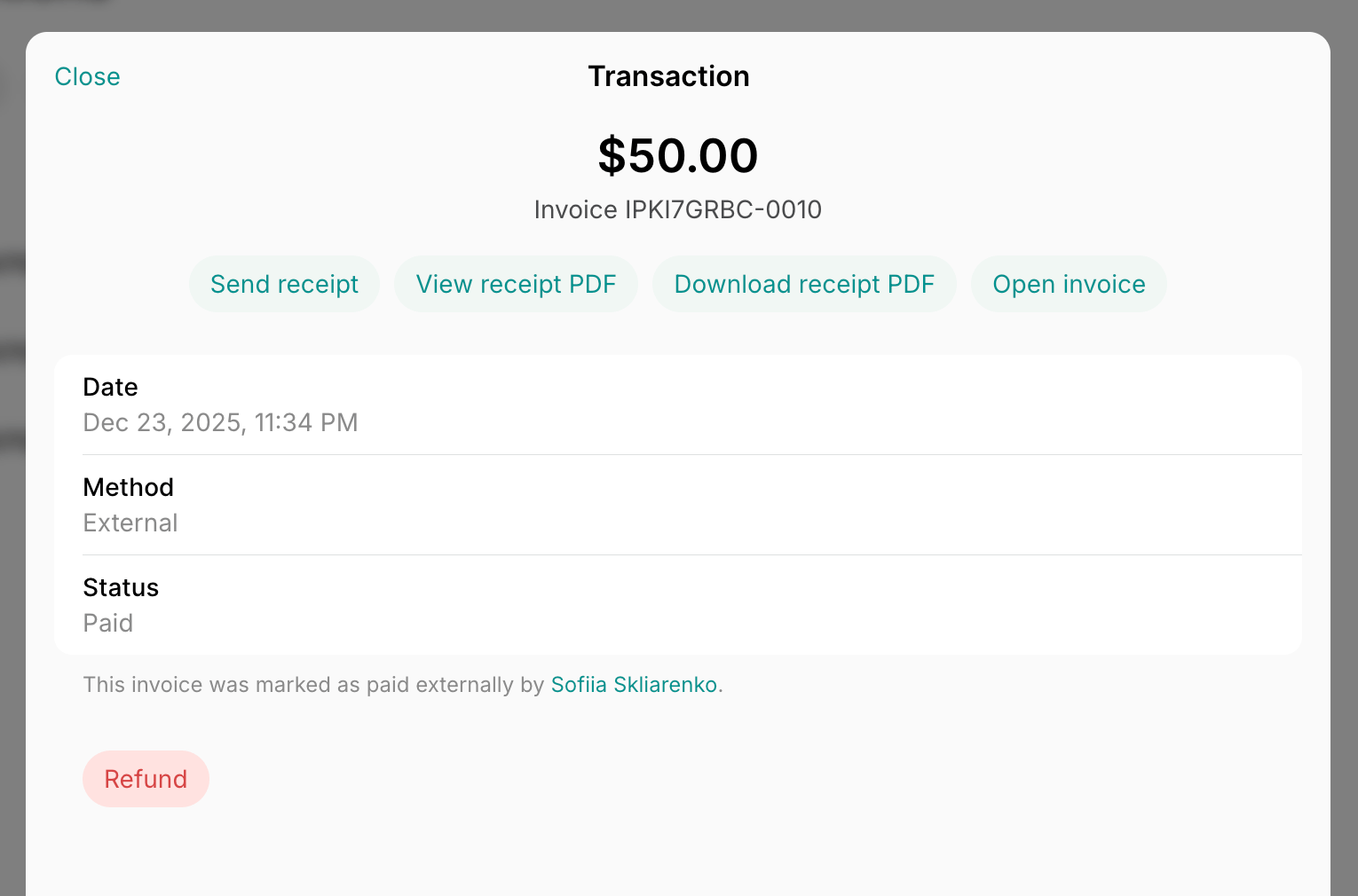 Alternatively, users:
1. Go to **Account** > **Bookings** page.
2. Open the specific booking.
3. In the **Payment** section, tap **Download receipt PDF**.
### Administrators
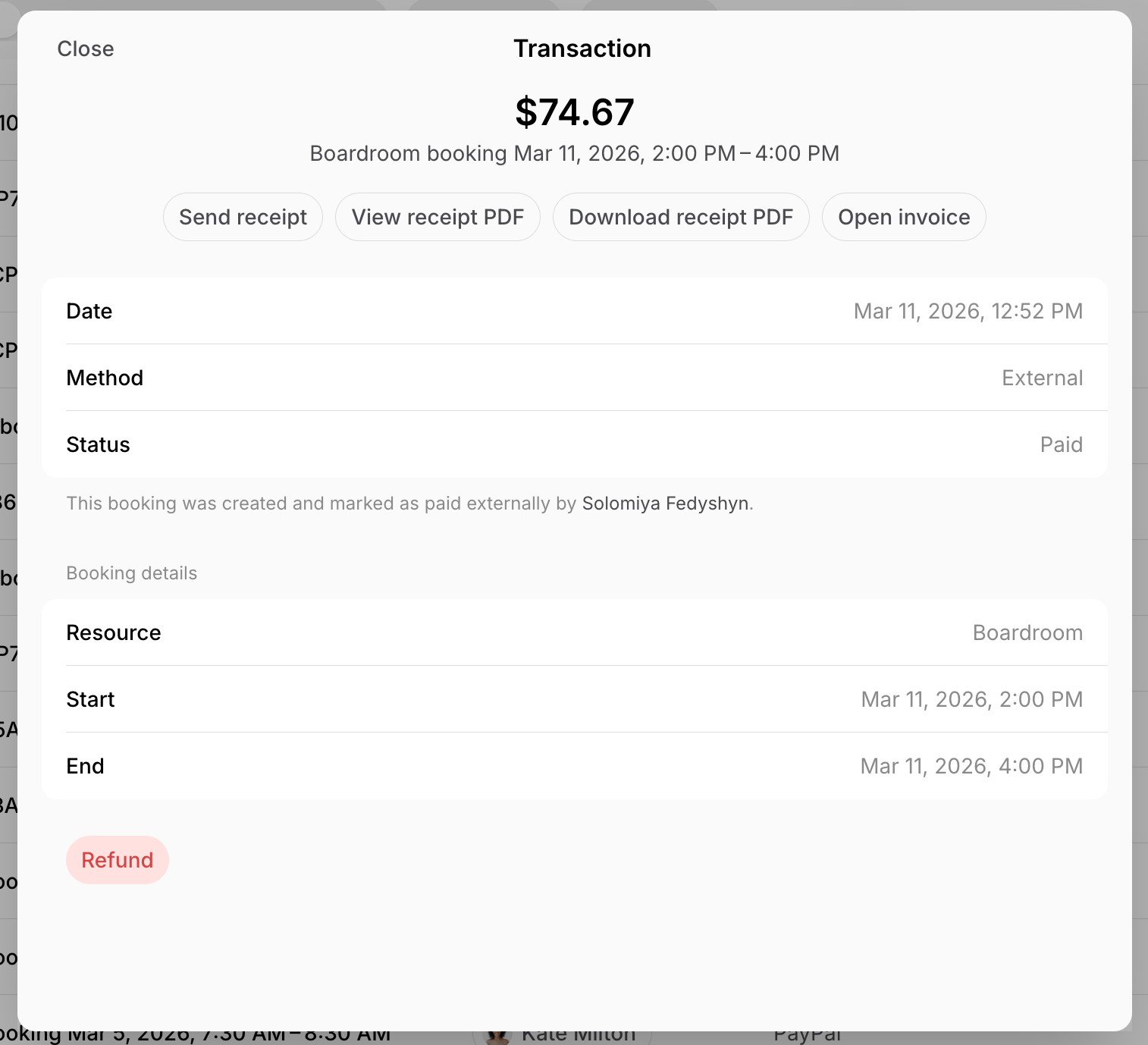
1. Go to the **Billing** > **Transactions** page > **Money** tab > filter by company or user.
2. Open the relevant transaction and take the necessary action:
* Click **Send receipt** to email the receipt to the user.
* Click **View receipt PDF** to view the receipt.
* Click **Download receipt PDF** to print or save a local copy, if requested by the customer.
* Click **Open invoice** to view the invoice for the transaction.
Alternatively, users:
1. Go to **Account** > **Bookings** page.
2. Open the specific booking.
3. In the **Payment** section, tap **Download receipt PDF**.
### Administrators
1. Go to the **Billing** > **Transactions** page > **Money** tab > filter by company or user.
2. Open the relevant transaction and take the necessary action:
* Click **Send receipt** to email the receipt to the user.
* Click **View receipt PDF** to view the receipt.
* Click **Download receipt PDF** to print or save a local copy, if requested by the customer.
* Click **Open invoice** to view the invoice for the transaction.
 Alternatively, administrators:
1. Open the user's invoice or booking:
* Either from the customer's profile on the **Customers** page.
* Or from the **Invoices**, **Rooms, Desks, Parking,** or **Equipment** page.
2. Tap **Download receipt PDF** or click on the **Payment** section to send, view, or download the receipt.
Alternatively, administrators:
1. Open the user's invoice or booking:
* Either from the customer's profile on the **Customers** page.
* Or from the **Invoices**, **Rooms, Desks, Parking,** or **Equipment** page.
2. Tap **Download receipt PDF** or click on the **Payment** section to send, view, or download the receipt.