> ## Documentation Index
> Fetch the complete documentation index at: https://www.spacebring.com/docs/llms.txt
> Use this file to discover all available pages before exploring further.
# Refunds
> Configure automatic refunds for cancellations, set refund policies for all products, and learn how to manually issue partial and full refunds to customers
Spacebring supports automatic and admin-initiated refunds for the following payment methods:
| **Payment method** | **Automatic refund** | **Admin-initiated refund via Spacebring** |
| ------------------------------------------------------------------------------------------------------------------------------------------- | -------------------------------------------------- | ----------------------------------------- |
| Credits | ✓
Enabled by default | ✓ |
| External | *X* | ✓ |
| [Stripe](/docs/integrations/payments/stripe)
[KakaoPay](/docs/integrations/payments/kakaopay)
[WayForPay](/docs/integrations/payments/wayforpay) | ✓
Yes, if enabled in the integration settings | ✓ |
| [Other payment gateways](/docs/integrations/payments) | *X* | *X* |
You can enable or disable and set conditions for automatic refunds by setting the rescheduling or refund policy for each resource and service.
For all other payment gateways, refunds must be handled manually via the gateway's dashboard.
You can initiate a refund for a credit transaction, or [manually add the credits](/docs/billing/credits-and-day-passes/credits#add-credits) to the user's balance.
## Configure automatic refunds
To enable automatic refunds:
1. In Spacebring, click the **(...)** menu next to the location name on the left-side panel.
2. Go to **Integrations** > open your payment gateway's page ([Stripe](/docs/integrations/payments/stripe), [WayForPay](/docs/integrations/payments/wayforpay), or [KakaoPay](/docs/integrations/payments/kakaopay)).
3. Toggle on **Automatic refunds**.
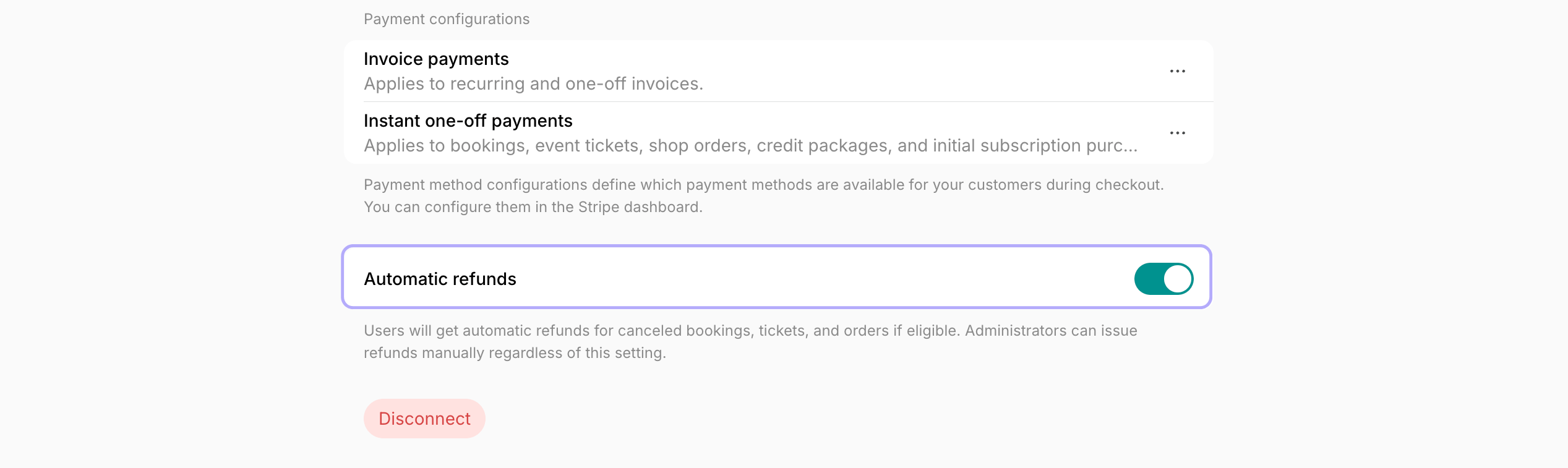 4. Configure the refund conditions to control when automatic refunds are allowed when customers cancel by themselves:
* **Rescheduling policy** — for rooms, desks, parking, and equipment
* **Refund policy** — for events and shop products.
### Set rescheduling policy
1. Go to Spacebring > **Resources** > **Rooms**, **Desks**, **Parking**, or **Equipment**.
2. Add a new resource or edit an existing one.
3. In the **Rescheduling policy** section, choose one of the following:
* **Before the start** — automatically refund if canceled any time before the booking start.
* **Specific time** (1 hour, 2 days, etc.) — automatically refund only if canceled the selected time before the booking start.
* **No refund** – no automatic refunds upon cancellation.
4. Configure the refund conditions to control when automatic refunds are allowed when customers cancel by themselves:
* **Rescheduling policy** — for rooms, desks, parking, and equipment
* **Refund policy** — for events and shop products.
### Set rescheduling policy
1. Go to Spacebring > **Resources** > **Rooms**, **Desks**, **Parking**, or **Equipment**.
2. Add a new resource or edit an existing one.
3. In the **Rescheduling policy** section, choose one of the following:
* **Before the start** — automatically refund if canceled any time before the booking start.
* **Specific time** (1 hour, 2 days, etc.) — automatically refund only if canceled the selected time before the booking start.
* **No refund** – no automatic refunds upon cancellation.
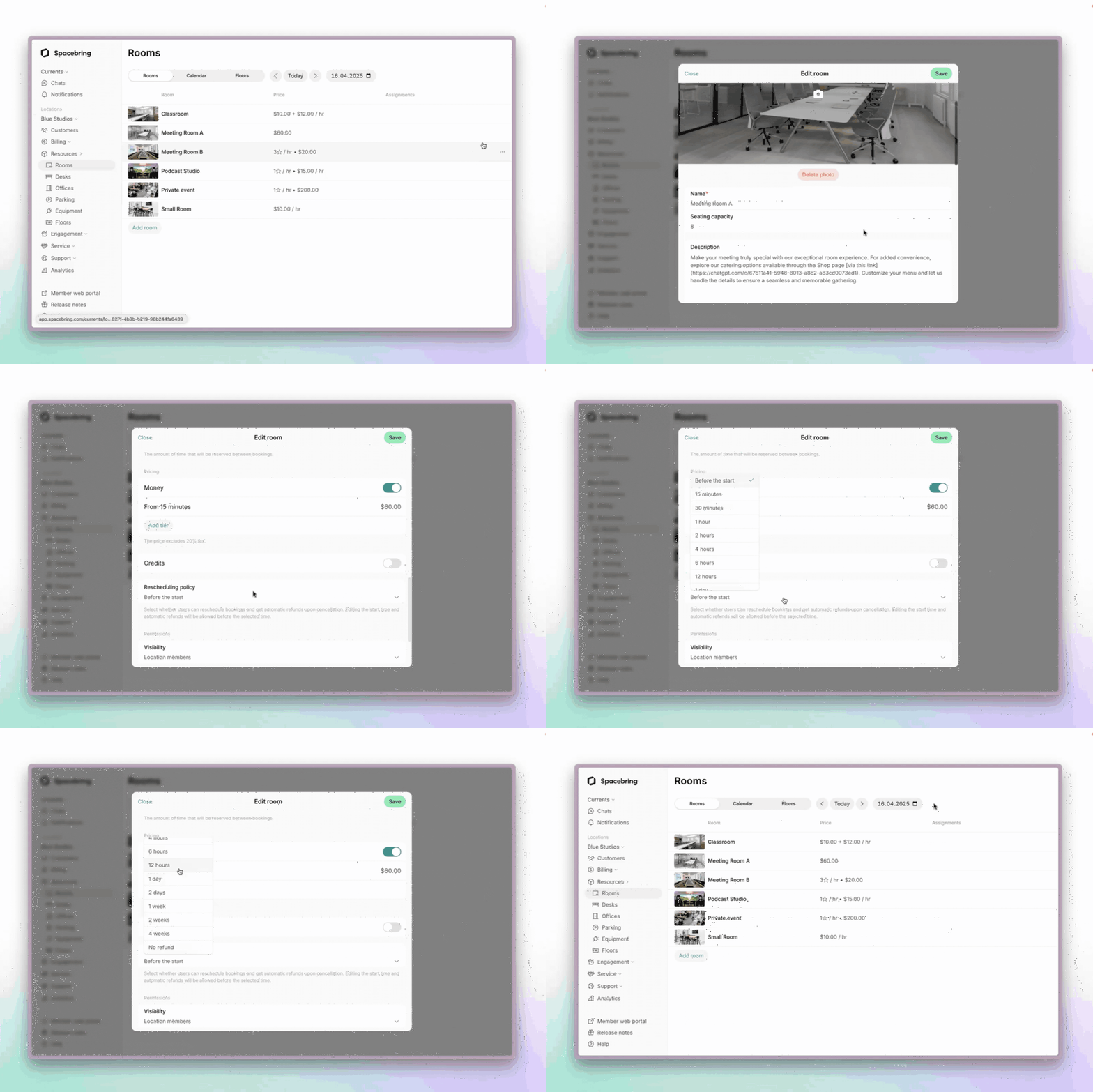 Users see the rescheduling policy on the resource information page and during booking.
### Set refund policy
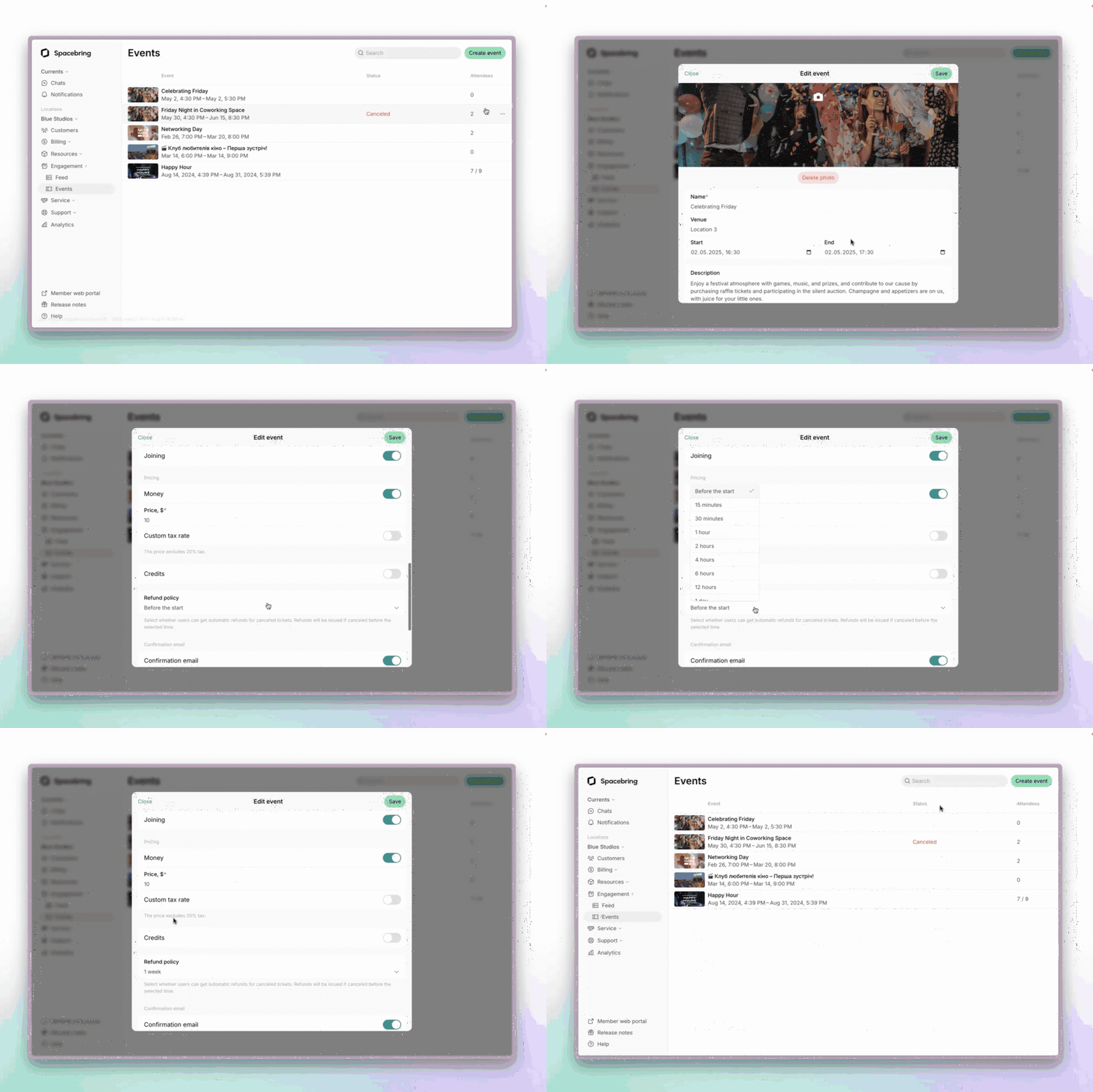
To set the refund policy for events:
1. Go to Spacebring > **Engagement** > **Events**.
2. [Add a new event](/docs/engagement/events) or [edit an existing one](/docs/engagement/events#edit-an-event).
3. Choose the necessary property in the **Refund policy** section.
Users see the rescheduling policy on the resource information page and during booking.
### Set refund policy
To set the refund policy for events:
1. Go to Spacebring > **Engagement** > **Events**.
2. [Add a new event](/docs/engagement/events) or [edit an existing one](/docs/engagement/events#edit-an-event).
3. Choose the necessary property in the **Refund policy** section.
 To set the refund policy for shop products:
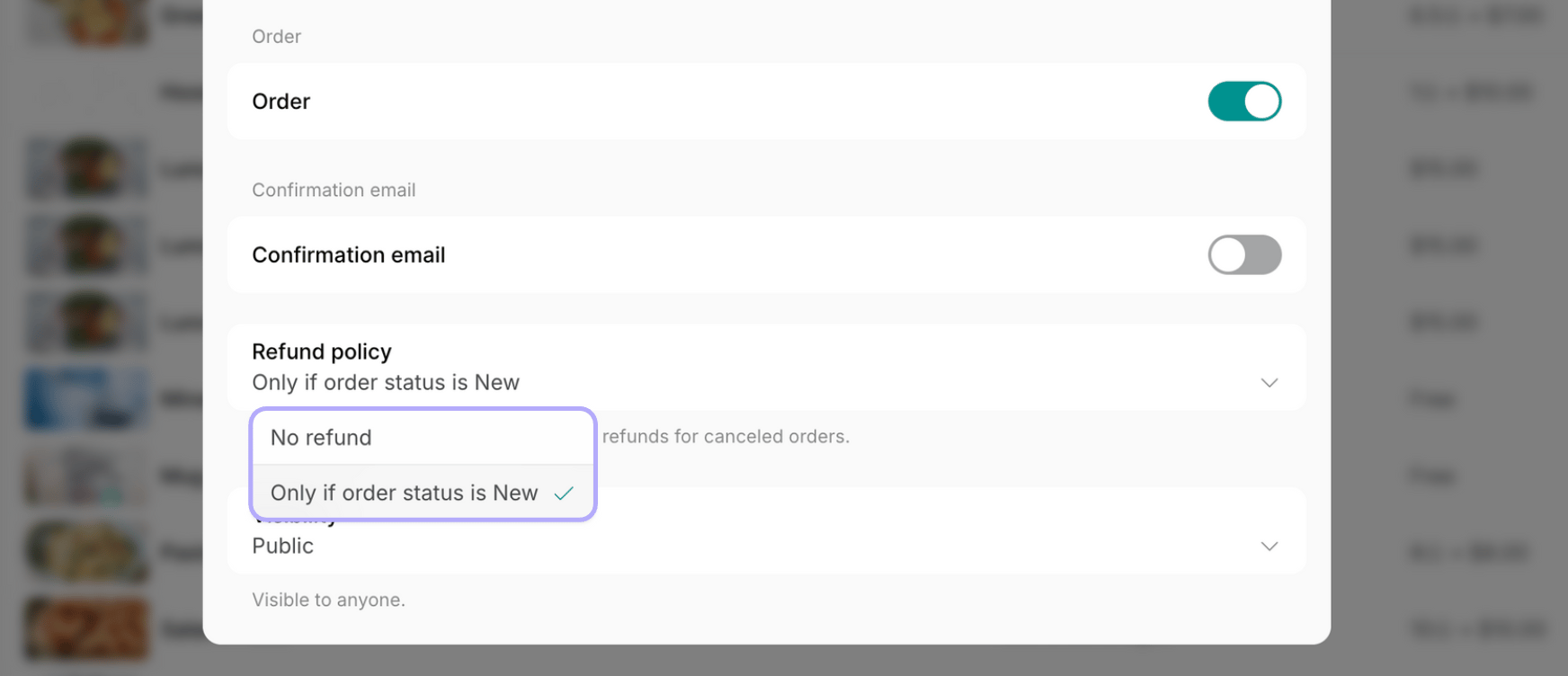
1. Go to Spacebring > **Services** > **Shop**.
2. [Add a new product](/docs/service/shop) or [edit an existing one](/docs/service/shop#edit-or-delete-a-product).
3. Choose the necessary property in the **Refund policy** section:
* **No refund**
* **Only if the order status is New** ([Understand order statuses](/docs/service/shop/orders))
To set the refund policy for shop products:
1. Go to Spacebring > **Services** > **Shop**.
2. [Add a new product](/docs/service/shop) or [edit an existing one](/docs/service/shop#edit-or-delete-a-product).
3. Choose the necessary property in the **Refund policy** section:
* **No refund**
* **Only if the order status is New** ([Understand order statuses](/docs/service/shop/orders))
 Customers are informed about the rescheduling/refund policy of the resource, event, or shop product:
* On the resource information page
* During the purchase process
* When they click the **Cancel** button.
## Issue refunds manually via Spacebring
Administrators can manually issue full or partial refunds from the Spacebring web portal for external payments or payments processed via Stripe, WayForPay, or KakaoPay—regardless of the rescheduling or refund policy, or automatic refund settings.
You may want to issue refunds manually via Spacebring:
* If you have disabled automatic refunds.
* To override a rescheduling or refund policy as an exception.
* To refund for a past event, booking, or order.
* To refund an invoice (users cannot cancel invoices themselves).
You may want to issue refunds manually via Spacebring:
* If you have disabled automatic refunds.
* To override a rescheduling or refund policy as an exception.
* To refund for a past event, booking, or order.
* To refund an invoice (users cannot cancel invoices themselves).
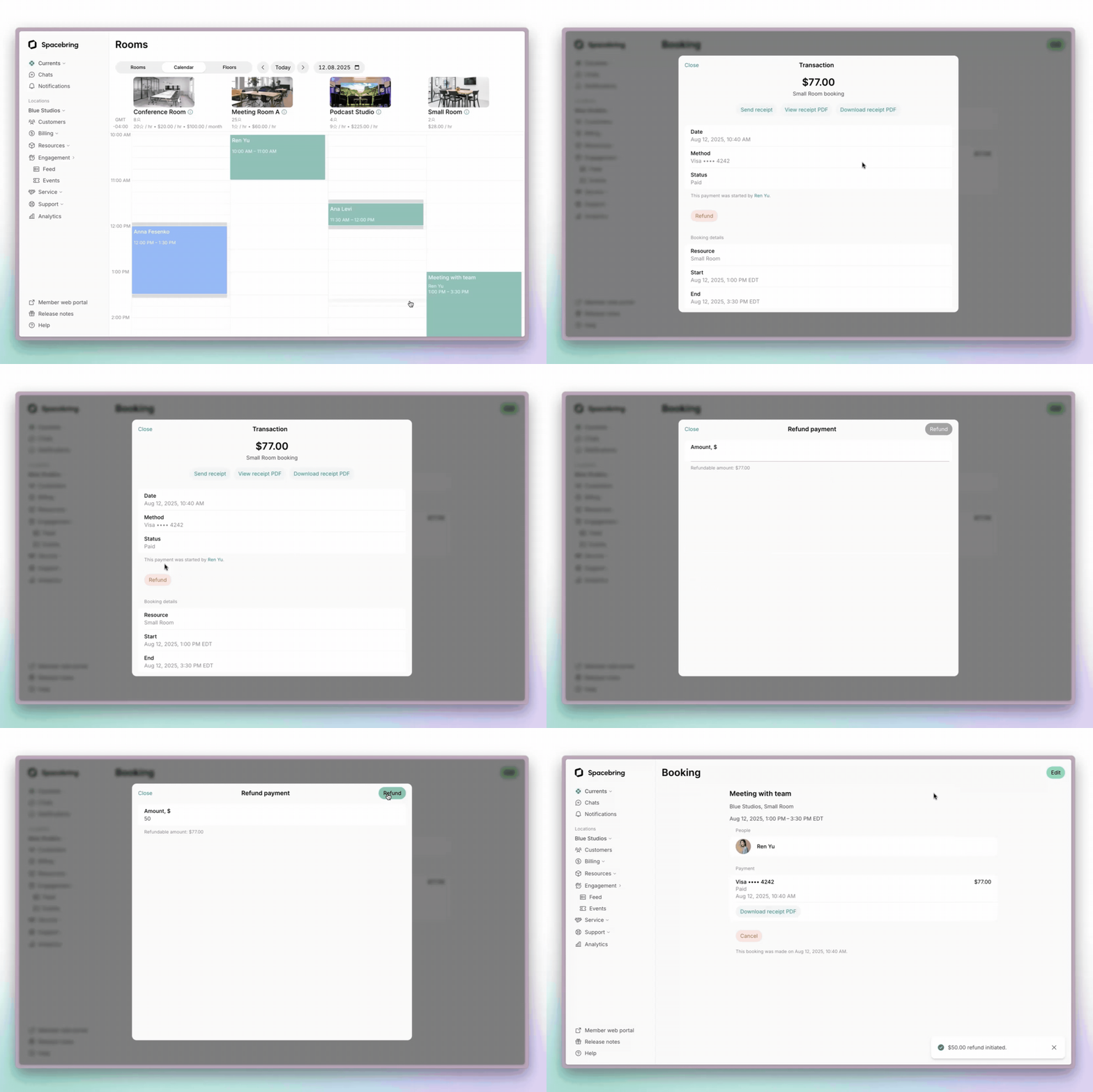
To initiate a refund for a booking, event ticket, or shop order:
1. Open the user's booking, event ticket, or shop order:
* Either from the customer's profile on the **Customers** page.
* Or from the **Rooms, Desks, Parking, Equipment, Events**, or **Shop** page.
2. If you want to cancel the booking, ticket, or order, click **Cancel** > confirm the cancellation > confirm issuing a refund.
3. If you want to refund it without cancelling, click on the **Payment** section > **Refund** > input the amount you want to refund and confirm.
Customers are informed about the rescheduling/refund policy of the resource, event, or shop product:
* On the resource information page
* During the purchase process
* When they click the **Cancel** button.
## Issue refunds manually via Spacebring
Administrators can manually issue full or partial refunds from the Spacebring web portal for external payments or payments processed via Stripe, WayForPay, or KakaoPay—regardless of the rescheduling or refund policy, or automatic refund settings.
You may want to issue refunds manually via Spacebring:
* If you have disabled automatic refunds.
* To override a rescheduling or refund policy as an exception.
* To refund for a past event, booking, or order.
* To refund an invoice (users cannot cancel invoices themselves).
You may want to issue refunds manually via Spacebring:
* If you have disabled automatic refunds.
* To override a rescheduling or refund policy as an exception.
* To refund for a past event, booking, or order.
* To refund an invoice (users cannot cancel invoices themselves).
To initiate a refund for a booking, event ticket, or shop order:
1. Open the user's booking, event ticket, or shop order:
* Either from the customer's profile on the **Customers** page.
* Or from the **Rooms, Desks, Parking, Equipment, Events**, or **Shop** page.
2. If you want to cancel the booking, ticket, or order, click **Cancel** > confirm the cancellation > confirm issuing a refund.
3. If you want to refund it without cancelling, click on the **Payment** section > **Refund** > input the amount you want to refund and confirm.
 Partial refunds are supported for monetary transactions only.
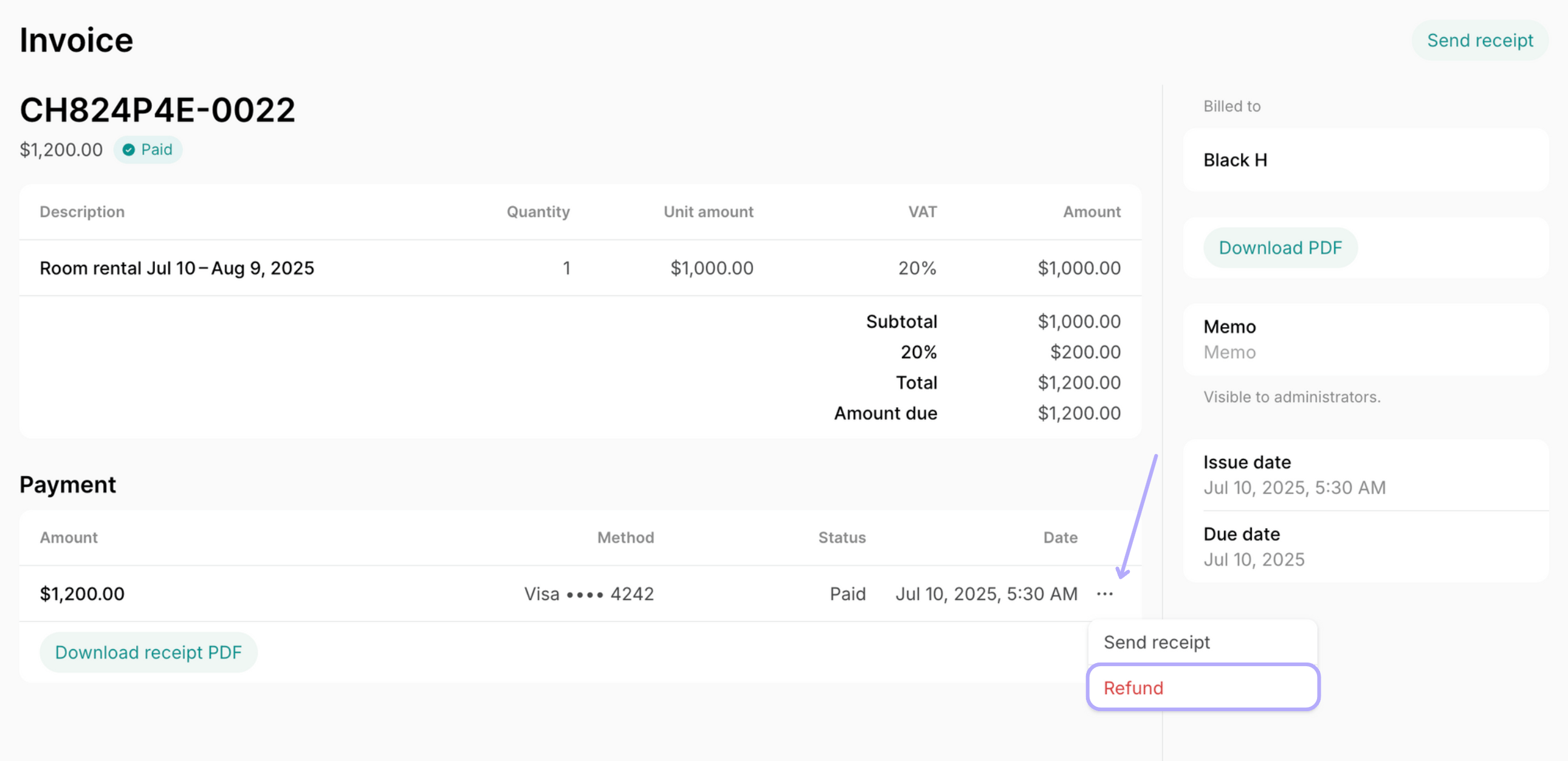
To initiate a refund for an invoice:
1. Go to **Billing > Invoices** page > filter by company or user > open the necessary invoice.
2. Click on the **Payment** section or the **(...)** menu next to the payment > **Refund** > input the amount you want to refund and confirm.
Partial refunds are supported for monetary transactions only.
To initiate a refund for an invoice:
1. Go to **Billing > Invoices** page > filter by company or user > open the necessary invoice.
2. Click on the **Payment** section or the **(...)** menu next to the payment > **Refund** > input the amount you want to refund and confirm.
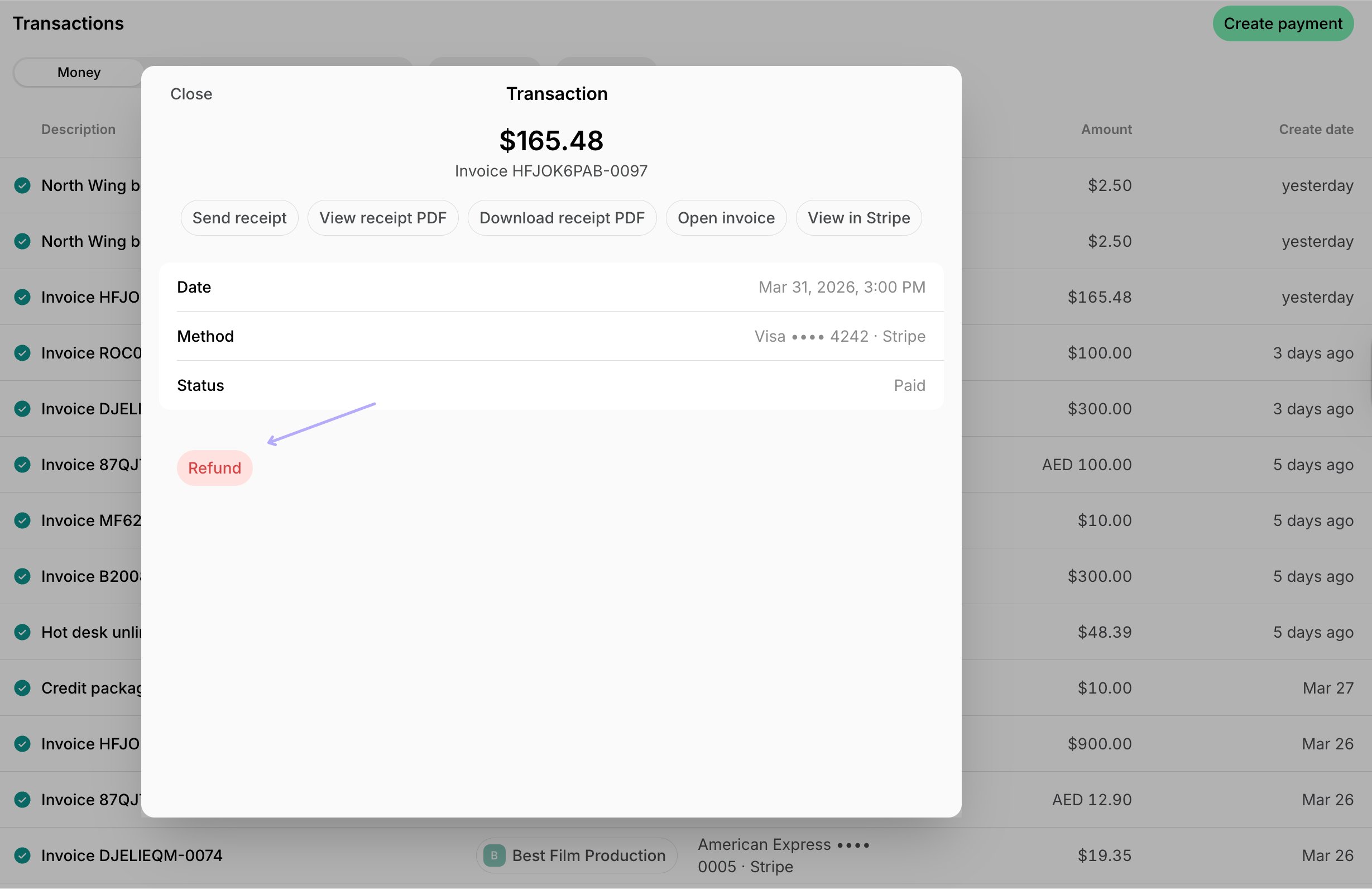
 Alternatively, to initiate a refund for any payment:
1. Go to **Billing > Transactions** page > **Money** tab > filter by company or user > open the necessary transaction.
2. Click **Refund** > input the amount you want to refund and confirm.
Alternatively, to initiate a refund for any payment:
1. Go to **Billing > Transactions** page > **Money** tab > filter by company or user > open the necessary transaction.
2. Click **Refund** > input the amount you want to refund and confirm.
 ## Issue refunds via payment gateway dashboard
For payment gateways that don't support automatic refunds or refund initiation via Spacebring, admins can refund manually from the payment gateway's dashboard:
1. Set up relevant alerts on the [**Notifications**](/docs/account/notifications) page to be notified of cancellations.
2. Find the receipt number in Spacebring:
* Go to **Billing** > **Transactions** > **Money** tab filter by company or user.
* Open the necessary transaction > **View receipt PDF** > copy the receipt number.
3. Go to your payment gateway's dashboard.
4. Locate the transaction by its number and issue the refund.
If you're using Stripe, you can go directly to the transaction's page in your Stripe dashboard by clicking the **View in Stripe** button on the transaction in Spacebring.
Refunds made via the Stripe dashboard automatically sync to the corresponding transactions in Spacebring.
## See refunded transactions
### Monetary transactions
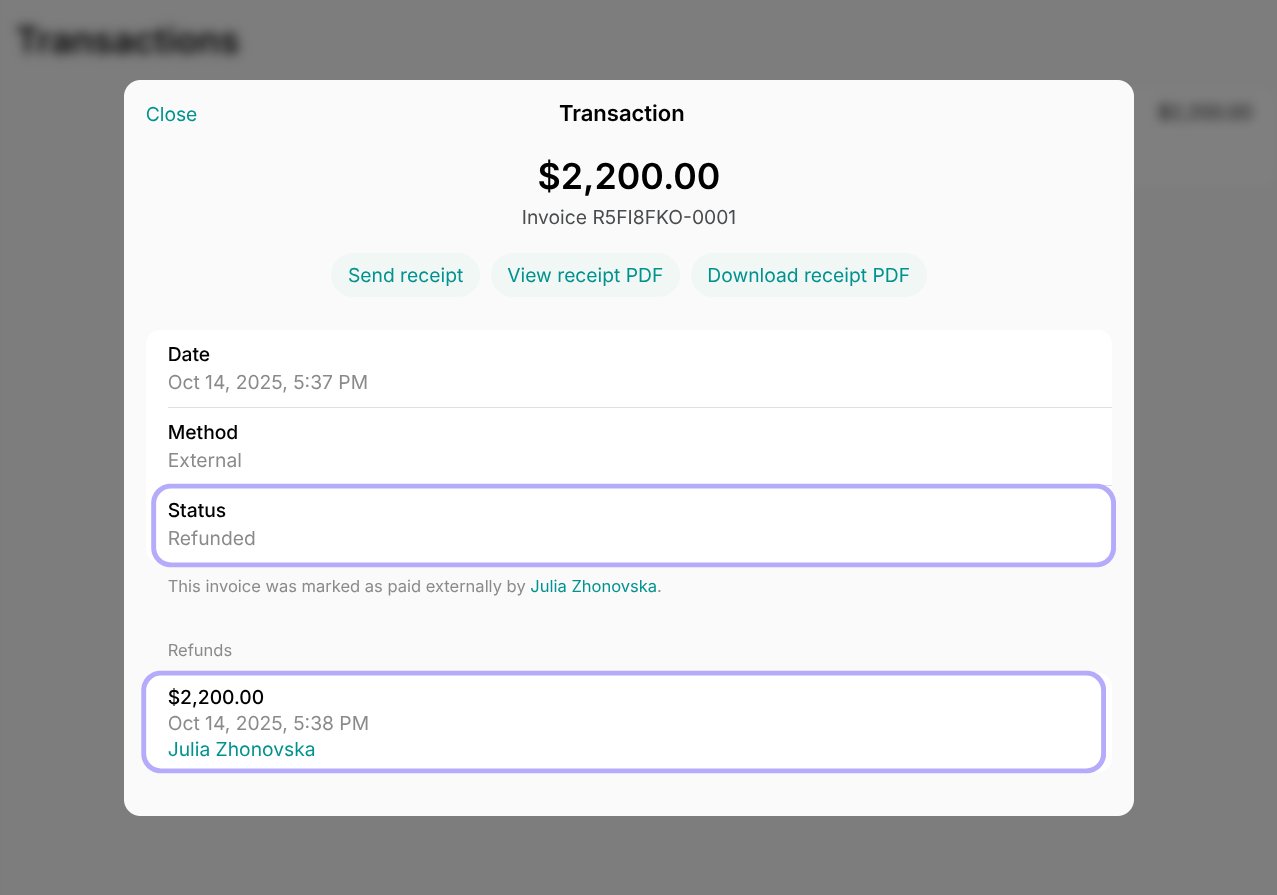
After confirming the cancellation, a pop-up message **Refund initiated** appears to the user or administrator (depending on who initiates it).
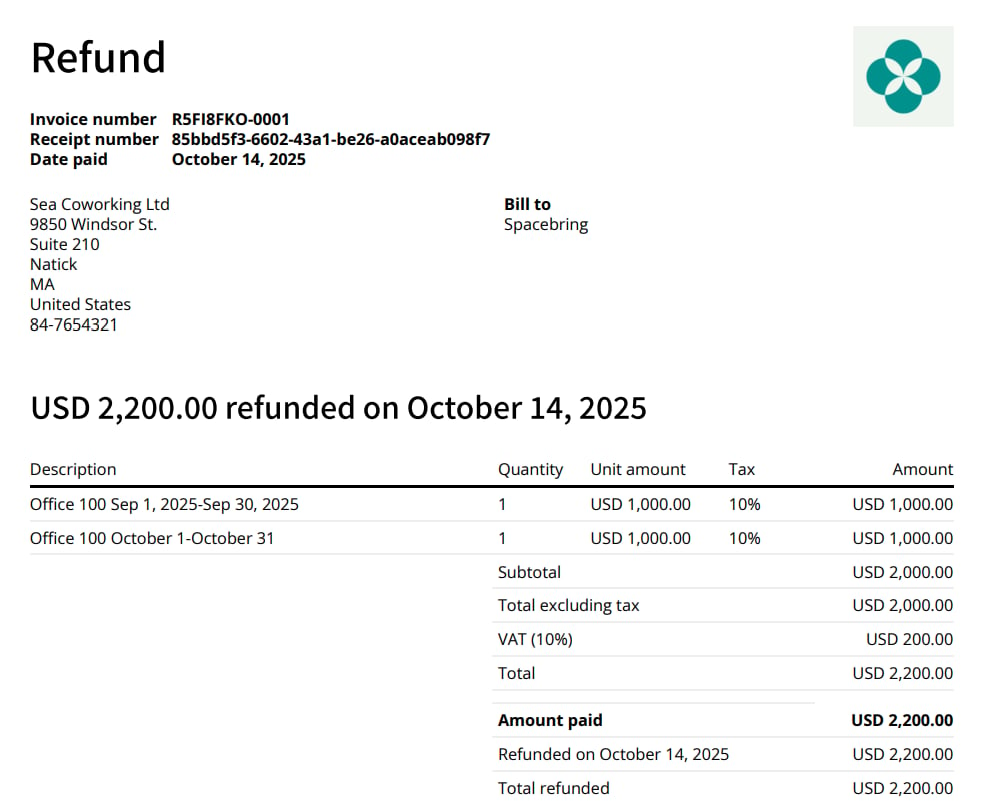
The original transaction will reflect a **Refunded** or **Partially refunded** status, and the refund details can be found in the **Refunds** section.
## Issue refunds via payment gateway dashboard
For payment gateways that don't support automatic refunds or refund initiation via Spacebring, admins can refund manually from the payment gateway's dashboard:
1. Set up relevant alerts on the [**Notifications**](/docs/account/notifications) page to be notified of cancellations.
2. Find the receipt number in Spacebring:
* Go to **Billing** > **Transactions** > **Money** tab filter by company or user.
* Open the necessary transaction > **View receipt PDF** > copy the receipt number.
3. Go to your payment gateway's dashboard.
4. Locate the transaction by its number and issue the refund.
If you're using Stripe, you can go directly to the transaction's page in your Stripe dashboard by clicking the **View in Stripe** button on the transaction in Spacebring.
Refunds made via the Stripe dashboard automatically sync to the corresponding transactions in Spacebring.
## See refunded transactions
### Monetary transactions
After confirming the cancellation, a pop-up message **Refund initiated** appears to the user or administrator (depending on who initiates it).
The original transaction will reflect a **Refunded** or **Partially refunded** status, and the refund details can be found in the **Refunds** section.
 The receipt PDF will also update to reflect the refund:
 * Users can see refunded transactions in the member web portal or mobile app on the **Membership** > **Billing** > **Transactions** page.
* Administrators see refunded transactions on the **Billing** > **Transactions** page > **Money** tab.
* The [**Transactions** report](/docs/analytics/reports) reflects refunds in the **Amount refunded** column.
### Credit and day pass transactions
For any credit or day pass transaction, the system maintains a transparent audit trail. Every booking modification, shortening, or cancellation that results in a refund triggers the creation of a separate, dedicated **Refund** transaction. This ensures that the original purchase and the subsequent adjustment are documented as distinct line items.
* Users can see refunded transactions in the member web portal or mobile app on the **Membership** > **Billing** > **Transactions** page.
* Administrators see refunded transactions on the **Billing** > **Transactions** page > **Money** tab.
* The [**Transactions** report](/docs/analytics/reports) reflects refunds in the **Amount refunded** column.
### Credit and day pass transactions
For any credit or day pass transaction, the system maintains a transparent audit trail. Every booking modification, shortening, or cancellation that results in a refund triggers the creation of a separate, dedicated **Refund** transaction. This ensures that the original purchase and the subsequent adjustment are documented as distinct line items.
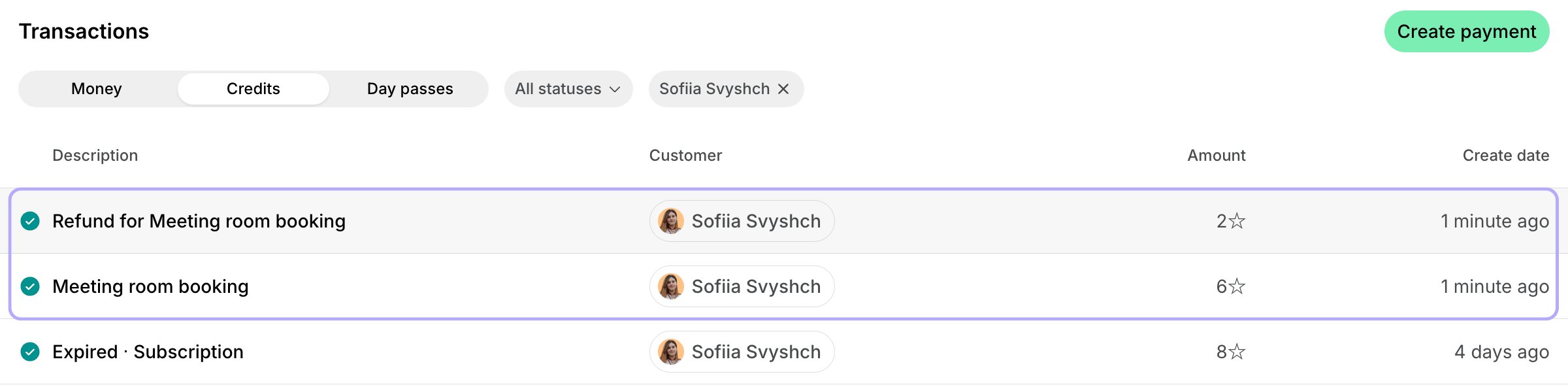 * Users can view refunded credit or day pass transactions in the member web portal or mobile app under **Locations > Membership > Credits/Day passes > Transactions**.
* Administrators can see refunded credit or day pass transactions on the **Billing** > **Transactions** page > **Credits** or **Day passes** tab.
**Notes**
* Refunds are processed by the payment gateways (Stripe, WayForPay, or KakaoPay). Customers receive funds once the gateway completes the refund.
* Spacebring initiates refunds but is not responsible for their completion. Refunds may fail due to payment gateway issues.
* The transaction status in Spacebring stays as **Refunded** and does not update.
* To verify the final refund status, check the transaction in the gateway's dashboard directly.
## Tips
Before issuing a monetary refund, consider offering alternatives to retain customers:
* Offer a refund in [credits](/docs/billing/credits-and-day-passes/credits) instead of money. No transaction fees apply, and users can spend them on your services.
* Give a [promo code](/docs/billing/discounts/give-and-apply#create-promo-codes) with the appropriate discount to encourage future purchases.
**FAQs**
Customers are always informed about the rescheduling/refund policy of the resource, event, or shop product at two key points:
1. When they are making a purchase.
2. When they click the **Cancel** button.
If the user has already made a cancellation, both the users and administrators can check the transaction status. Administrators follow these steps:
1. Go to the **Billing** > **Transactions** page > depending on the payment method used, click on the **Money**, **Credits**, or **Day passes** tab.
2. Filter by company or user > check the relevant transaction to see whether it has been refunded.
Users follow these steps:
1. Go to the **Membership** page.
2. Depending on the payment method used, go to the relevant section:
* **Billing** > **Transactions** (for monetary payments)
* **Credits** > **Transactions**
* **Day passes** > **Transactions**.
3. Check the relevant transaction to see whether it has been refunded.
If it has been refunded, please keep in mind that while credit and day pass refunds are instant, for monetary transactions, the actual time it takes for the customer to receive the refund depends on your payment gateway (Stripe, WayForPay, or KakaoPay).
If the transaction wasn't refunded due to your [rescheduling](/docs/billing/payments/refunds)/[refund policy](/docs/billing/payments/refunds), [**Automatic refunds** setting](/docs/billing/payments/refunds) is disabled, or your payment gateway does not support automatic refunds, you can proceed with [issuing a refund manually](/docs/billing/payments/refunds) to this user.
* Users can view refunded credit or day pass transactions in the member web portal or mobile app under **Locations > Membership > Credits/Day passes > Transactions**.
* Administrators can see refunded credit or day pass transactions on the **Billing** > **Transactions** page > **Credits** or **Day passes** tab.
**Notes**
* Refunds are processed by the payment gateways (Stripe, WayForPay, or KakaoPay). Customers receive funds once the gateway completes the refund.
* Spacebring initiates refunds but is not responsible for their completion. Refunds may fail due to payment gateway issues.
* The transaction status in Spacebring stays as **Refunded** and does not update.
* To verify the final refund status, check the transaction in the gateway's dashboard directly.
## Tips
Before issuing a monetary refund, consider offering alternatives to retain customers:
* Offer a refund in [credits](/docs/billing/credits-and-day-passes/credits) instead of money. No transaction fees apply, and users can spend them on your services.
* Give a [promo code](/docs/billing/discounts/give-and-apply#create-promo-codes) with the appropriate discount to encourage future purchases.
**FAQs**
Customers are always informed about the rescheduling/refund policy of the resource, event, or shop product at two key points:
1. When they are making a purchase.
2. When they click the **Cancel** button.
If the user has already made a cancellation, both the users and administrators can check the transaction status. Administrators follow these steps:
1. Go to the **Billing** > **Transactions** page > depending on the payment method used, click on the **Money**, **Credits**, or **Day passes** tab.
2. Filter by company or user > check the relevant transaction to see whether it has been refunded.
Users follow these steps:
1. Go to the **Membership** page.
2. Depending on the payment method used, go to the relevant section:
* **Billing** > **Transactions** (for monetary payments)
* **Credits** > **Transactions**
* **Day passes** > **Transactions**.
3. Check the relevant transaction to see whether it has been refunded.
If it has been refunded, please keep in mind that while credit and day pass refunds are instant, for monetary transactions, the actual time it takes for the customer to receive the refund depends on your payment gateway (Stripe, WayForPay, or KakaoPay).
If the transaction wasn't refunded due to your [rescheduling](/docs/billing/payments/refunds)/[refund policy](/docs/billing/payments/refunds), [**Automatic refunds** setting](/docs/billing/payments/refunds) is disabled, or your payment gateway does not support automatic refunds, you can proceed with [issuing a refund manually](/docs/billing/payments/refunds) to this user.