> ## Documentation Index
> Fetch the complete documentation index at: https://www.spacebring.com/docs/llms.txt
> Use this file to discover all available pages before exploring further.
# Transactions
> Track money, credit, and day pass transactions, check failed and pending payments, charge a customer a custom amount with a one-off payment, add an internal note to a payment, and export a transactions report
Every payment, credit deduction, and day pass deduction is recorded as a transaction on the **Billing** > **Transactions** page. Use it to check whether a payment went through, to charge a customer a custom amount, and to export payments for accounting.
## Track transactions
Go to **Billing** > **Transactions**.
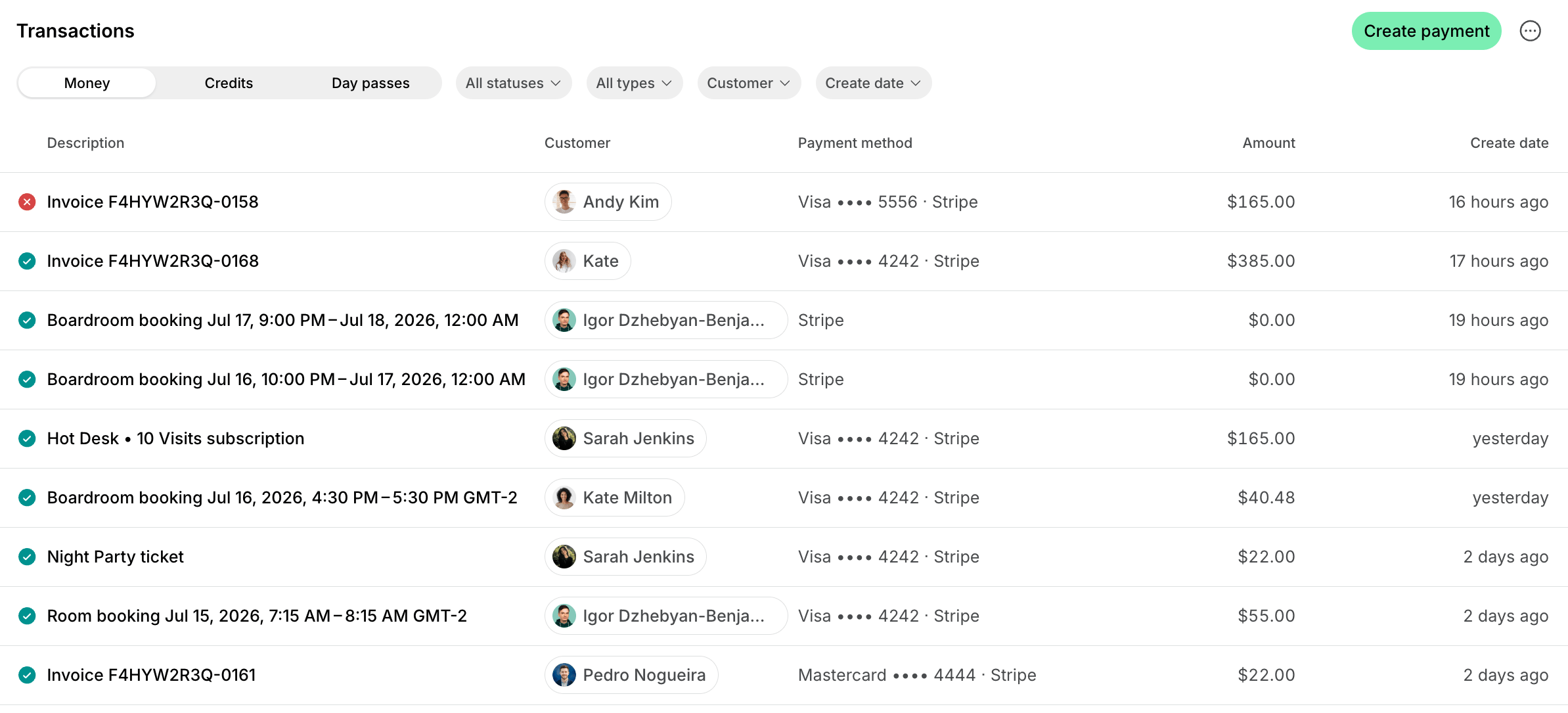 * Use the **Money**, **Credits**, and **Day passes** tabs to switch between transaction types.
* Filter transactions by [**Status**](#transaction-statuses).
* Filter transactions by **Type** to see payments for specific product types or transactions of a specific kind:
* **Money:** Subscription, Invoice, Package, Booking, Ticket, Order, Custom.
* **Credits:** Administrator · Added, Administrator · Deducted, Booking, Ticket, Order, Purchased, Refund, Subscription · Added, Subscription · Expired.
* **Day passes:** Administrator · Added, Administrator · Deducted, Booking, Purchased, Refund, Subscription · Added, Subscription · Expired.
* Filter transactions by **Customer** to see all transactions of a specific customer.
* Filter transactions by **Create date** to see transactions made in a ready-made period, such as **Today** or **Last 28 days**, or click **Custom** to set an exact date or range.
Customers see their own transactions and download receipts under **Membership** > **Billing** > **Transactions** in the member portal.
### Transaction statuses
| Transaction status | Meaning |
| :- | :- |
| Paid | The payment has been successfully completed. The booking or purchase appears on the corresponding page in the member web portal, member mobile app, and Spacebring. |
| Pending |
* Use the **Money**, **Credits**, and **Day passes** tabs to switch between transaction types.
* Filter transactions by [**Status**](#transaction-statuses).
* Filter transactions by **Type** to see payments for specific product types or transactions of a specific kind:
* **Money:** Subscription, Invoice, Package, Booking, Ticket, Order, Custom.
* **Credits:** Administrator · Added, Administrator · Deducted, Booking, Ticket, Order, Purchased, Refund, Subscription · Added, Subscription · Expired.
* **Day passes:** Administrator · Added, Administrator · Deducted, Booking, Purchased, Refund, Subscription · Added, Subscription · Expired.
* Filter transactions by **Customer** to see all transactions of a specific customer.
* Filter transactions by **Create date** to see transactions made in a ready-made period, such as **Today** or **Last 28 days**, or click **Custom** to set an exact date or range.
Customers see their own transactions and download receipts under **Membership** > **Billing** > **Transactions** in the member portal.
### Transaction statuses
| Transaction status | Meaning |
| :- | :- |
| Paid | The payment has been successfully completed. The booking or purchase appears on the corresponding page in the member web portal, member mobile app, and Spacebring. |
| Pending | - The customer has opened the payment page but still needs to complete the payment. The transaction remains **Pending** for 15 minutes. If the customer doesn't pay within this window, the transaction automatically moves to **Canceled** status.
- An administrator recorded an [external payment](/docs/billing/payments/external) for a booking, event ticket, or shop order with the **Pending** status. The transaction stays **Pending** until an administrator changes it to **Paid** or **Canceled**.
|
| Processing | The customer completed the payment, and their bank must confirm it. |
| Canceled | - The customer opened and closed the payment page without completing the payment within 15 minutes.
- An administrator [changed a pending external payment](/docs/billing/payments/external#manage-pending-external-payments) to **Canceled**.
|
| Failed | The customer started the payment, but the payment gateway declined it, for example because of an insufficient balance or an issue with the customer's bank. [Troubleshoot failed payments](/docs/integrations/payments/stripe/troubleshoot-failed-payments) |
## Create a one-off payment
Charge a customer a custom amount right away, or record a payment they made outside Spacebring, such as cash received in person. For example, re-charge a customer after a disputed payment, or charge a small fee for a service their plan doesn't cover. To bill the customer and let them pay later instead, [issue a one-off invoice](/docs/billing/invoices/issue).
1. On the **Billing** > **Transactions** page, click **Create payment** in the top right corner.
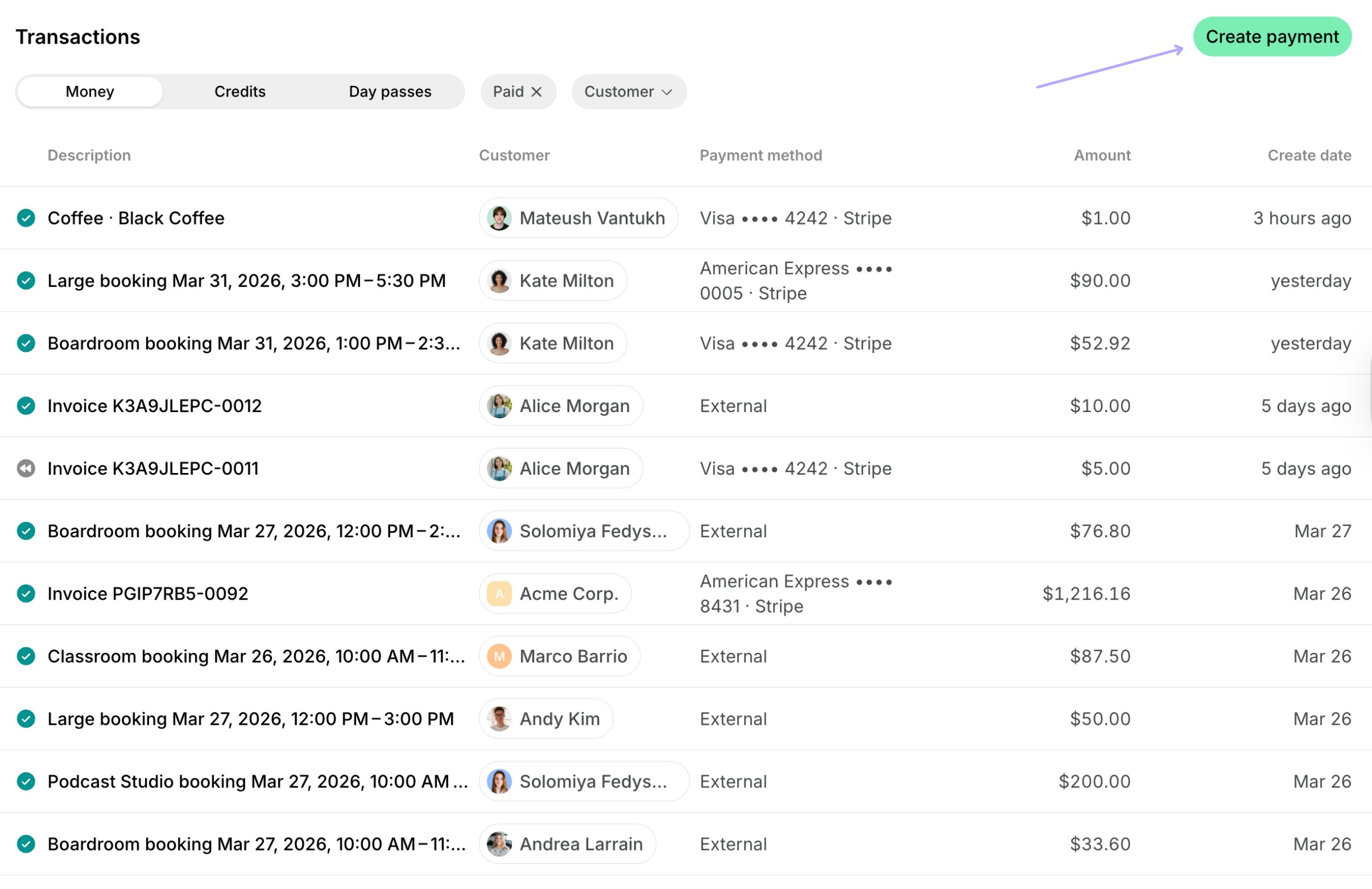 2. Select the customer.
3. Enter the payment details:
* **Description** — the product or service you are charging for.
* **Quantity** — how many units of the service or product.
* **Unit price** — the price per unit.
* **Currency** — leave the default location currency or select an [alternative currency](/docs/billing/currencies).
* **Tax rate** — leave the default location tax percentage or enter a [custom tax rate](/docs/billing/taxes#custom-tax-rates-for-different-products).
* **Payment method** — how you collect the money:
* The customer's [saved card or bank account](/docs/billing/payments/payment-gateway#saved-payment-methods) — charge it right away.
* [**External**](/docs/billing/payments/external) — record money you already received another way, like cash. It's recorded as paid.
4. Enter the customer's [billing details](/docs/customer-management/billing-details), if they haven't yet. Billing details fields appear depending on the **Require billing details** setting.
5. Confirm the payment.
The payment appears as a transaction on the **Transactions** page and in the customer's profile, with the **Custom** type. An invoice for it appears on the **Invoices** page. A card charge shows on the transaction whether it succeeded or failed.
2. Select the customer.
3. Enter the payment details:
* **Description** — the product or service you are charging for.
* **Quantity** — how many units of the service or product.
* **Unit price** — the price per unit.
* **Currency** — leave the default location currency or select an [alternative currency](/docs/billing/currencies).
* **Tax rate** — leave the default location tax percentage or enter a [custom tax rate](/docs/billing/taxes#custom-tax-rates-for-different-products).
* **Payment method** — how you collect the money:
* The customer's [saved card or bank account](/docs/billing/payments/payment-gateway#saved-payment-methods) — charge it right away.
* [**External**](/docs/billing/payments/external) — record money you already received another way, like cash. It's recorded as paid.
4. Enter the customer's [billing details](/docs/customer-management/billing-details), if they haven't yet. Billing details fields appear depending on the **Require billing details** setting.
5. Confirm the payment.
The payment appears as a transaction on the **Transactions** page and in the customer's profile, with the **Custom** type. An invoice for it appears on the **Invoices** page. A card charge shows on the transaction whether it succeeded or failed.
 A one-off payment always creates a new invoice for itself. To record an external payment on an invoice you have already issued, open that invoice and [create the payment in its **Payments** section](/docs/billing/invoices/payments#create-invoice-payments) instead.
Creating a one-off payment does not send the customer an email or push notification, unlike [issuing an invoice](/docs/billing/invoices/issue), which does. This makes it a good way to record a payment the customer already made outside Spacebring, such as cash received in person, without notifying them that an invoice is ready.
## Add an internal note to a payment
Record how a payment was collected, such as in cash, by bank transfer, or on a card terminal, or anything else your team needs to know about it.
1. On the **Billing** > **Transactions** page, open the **Money** tab and click the transaction.
2. Enter the text in **Internal note**.
3. Click outside the field to save the note.
Only administrators see the note, and only administrators with the **Billing** [permission](/docs/administration/permissions) can change it. Customers don't see it in the member portal or on the receipt. To remove the note, clear the field.
## Export a transactions report
On the **Transactions** page, apply the necessary filters, then click **(...)** in the top right corner > **Export money transactions**, **Export credit transactions**, or **Export day pass transactions**, depending on the active tab, and choose **CSV** or **XLSX** to download a report on the filtered transactions.
A one-off payment always creates a new invoice for itself. To record an external payment on an invoice you have already issued, open that invoice and [create the payment in its **Payments** section](/docs/billing/invoices/payments#create-invoice-payments) instead.
Creating a one-off payment does not send the customer an email or push notification, unlike [issuing an invoice](/docs/billing/invoices/issue), which does. This makes it a good way to record a payment the customer already made outside Spacebring, such as cash received in person, without notifying them that an invoice is ready.
## Add an internal note to a payment
Record how a payment was collected, such as in cash, by bank transfer, or on a card terminal, or anything else your team needs to know about it.
1. On the **Billing** > **Transactions** page, open the **Money** tab and click the transaction.
2. Enter the text in **Internal note**.
3. Click outside the field to save the note.
Only administrators see the note, and only administrators with the **Billing** [permission](/docs/administration/permissions) can change it. Customers don't see it in the member portal or on the receipt. To remove the note, clear the field.
## Export a transactions report
On the **Transactions** page, apply the necessary filters, then click **(...)** in the top right corner > **Export money transactions**, **Export credit transactions**, or **Export day pass transactions**, depending on the active tab, and choose **CSV** or **XLSX** to download a report on the filtered transactions.
 The report includes each transaction's ID, status, amount, and date, and the names of the customer, their company, and whoever created the transaction. The money export also has the payment category and method, the currency, any refunded amount, the internal note, and a link to the receipt PDF. The credits and day passes exports add the transaction's type and description — credits show any coupon, promo code, and discount applied, and day passes split the amount into expiring and permanent.
## FAQs
1. On the **Billing** > **Transactions** page, open the **Money** tab, set the necessary period, and filter by the **Paid** status.
2. [Export a transactions report](#export-a-transactions-report) and open it in Google Sheets or Excel.
3. Sum the **Amount** column with the `=SUM()` formula to get the total income.
4. Count the distinct customers in the **Customer name** and **Customer surname** columns.
5. Divide the total income by the number of customers.
1. Go to **Billing** > **Transactions**, and filter by the necessary dates and status.
2. Click **(...)** in the top right corner > **Export money transactions** > **CSV** or **XLSX**.
3. Find the necessary transaction and check the **Payment type** column to see the payment gateway.
This documentation is built and hosted on [Mintlify](https://mintlify.com), a developer documentation platform.
The report includes each transaction's ID, status, amount, and date, and the names of the customer, their company, and whoever created the transaction. The money export also has the payment category and method, the currency, any refunded amount, the internal note, and a link to the receipt PDF. The credits and day passes exports add the transaction's type and description — credits show any coupon, promo code, and discount applied, and day passes split the amount into expiring and permanent.
## FAQs
1. On the **Billing** > **Transactions** page, open the **Money** tab, set the necessary period, and filter by the **Paid** status.
2. [Export a transactions report](#export-a-transactions-report) and open it in Google Sheets or Excel.
3. Sum the **Amount** column with the `=SUM()` formula to get the total income.
4. Count the distinct customers in the **Customer name** and **Customer surname** columns.
5. Divide the total income by the number of customers.
1. Go to **Billing** > **Transactions**, and filter by the necessary dates and status.
2. Click **(...)** in the top right corner > **Export money transactions** > **CSV** or **XLSX**.
3. Find the necessary transaction and check the **Payment type** column to see the payment gateway.
This documentation is built and hosted on [Mintlify](https://mintlify.com), a developer documentation platform.