> ## Documentation Index
> Fetch the complete documentation index at: https://www.spacebring.com/docs/llms.txt
> Use this file to discover all available pages before exploring further.
# Subscriptions
> Learn how to set up customer subscriptions and automate memberships, leases, and recurring billing
A subscription defines the terms of a customer's membership or lease and automates the entire experience for your member. It allows you to:
* Automatically issue recurring invoices and collect payments.
* [Provide physical access to your space.](/docs/integrations/access-control)
* Auto-allocate credits, day passes, and discounts with the selected frequency.
* Assign resources (e.g., desks or offices) to members who rent them and automate your inventory management.
* Allow members to add one-time purchases to their next [invoice](/docs/billing/payments/pay-with-invoice), and more.
## Create a subscription
1. Go to **Customers** > select a user or a company.
2. Open their profile > locate the **Subscriptions** section > press **Create**.
* Alternatively, go to the **Billing** > **Subscriptions** page > press **Create**.
If customer billing details are required on invoices and receipts in your country, [add them](/docs/customer-management/billing-details) in the customer profile before creating the subscription. This ensures they're included on the first invoice.
Configure the subscription:
**1. Cycle** - how often the subscription renews, the customer is billed, and credits or day passes are issued.
The selected cycle determines which plans/tiers are available for subscription items. For example, if you choose the **Month** cycle, weekly or annual plans/tiers won't appear in the **Product** dropdown.
**2. Start date** — the date when the subscription becomes active. All future renewals follow this date unless **First day of the month** is selected as the [billing cycle anchor](/docs/billing/subscriptions/billing-cycle-anchor).
If the subscription start date is set to a past date, the system will generate an invoice only for the most recent cycle, based on the billing cycle anchor.
**3. End renewal:**
* **Never** — the subscription renews indefinitely until [canceled or an **End date** is set.](/docs/billing/subscriptions/cancel)
* **On date** — select an end date or use the cycle shortcut to prefill it.
**4. Items** — add one or more products to the subscription and determine if this item is **Recurring** or **One-off**:
* **Recurring item:** Use these for ongoing charges like rent or membership fees.
* **One-off item:** Use these for deposits, additional services or one-time setup charges. These only appear on the first invoice.
**Recurring item:**
* **Product** — there are two product types:
* [Resources](/docs/resource-management/rentals/assignments) (desks, offices, etc.) — used when a customer rents a specific dedicated resource.
* **Tier** — pricing option for the resource.
* **Entire resource/Quantity** — choose whether the customer rents the entire resource or a number of seats. Automatically assigns the resource or seats to the customer.
* [Membership plans](/docs/billing/plans) — used for access without a dedicated resource.
* **Quantity** — number of plans (e.g., 3 hot desk memberships for a team).
* **Start date:**
* **Subscription default** — the product activates on the subscription's start date.
* **Custom** — set a specific future start date for this product. Use this option to schedule future service changes or expansions, or to manage a trial period.
The item start date can't be earlier than the subscription start date.
* **End date:**
* **Subscription default** — the product ends when the subscription ends.
* **Custom** — set a specific end date for this product. Use this option to schedule future service changes or to manage a trial period.
* **Auto-update from plan/tier** — enable to automatically sync and apply any plan/tier changes to the subscription.
* **Unit price** — price for one seat, plan, or the entire resource (if **Entire resource** enabled) for one subscription cycle.
* **Setup fee** — a one-time setup fee that is included in the customer's first invoice.
* [**Custom tax rate**](/docs/billing/taxes/custom-tax-rates) — enable to set a custom tax rate for this subscription item if the default location tax doesn't apply.
* [**Coupon**](/docs/billing/discounts) — apply a temporary or permanent discount for this subscription item.
* [**Expiring credits**](/docs/billing/credits-and-day-passes/credits) — the number of credits issued per seat, plan, or the entire resource (if **Entire resource** enabled) for one subscription cycle.
* [**Expiring day passes**](/docs/billing/credits-and-day-passes/day-passes) — the number of expiring day passes issued per seat, plan, or the entire resource (if **Entire resource** enabled) for one subscription cycle.
* [**Minimum commitment**](/docs/billing/plans) — enable to set a minimum subscription period before the customer can request cancellation.
* **[Discounts](/docs/billing/discounts/give-and-apply#give-a-discount-to-a-specific-member-or-company) > Granted coupons** — give this customer discount coupons for the necessary services.
* [**Access**](/docs/integrations/access-control) — tap on the **>** sign to grant access to certain doors for the duration of the customer's subscription.
* [**Printing**](/docs/integrations/printing/ezeep-blue) — tap on the **>** sign to grant access to an ezeep Blue group for the duration of the customer's subscription.
The setup fee is subject to tax but is not affected by discounts or invoice proration.
**One-off item:**
* **Product** — one-time fees, deposits, and other one-time charges that should apply to the first invoice.
* **Quantity** — number of products.
* **Unit price** — price for one product.
* [**Custom tax rate**](/docs/billing/taxes/custom-tax-rates) — enable to set a custom tax rate for this subscription item if the default location tax doesn't apply.
**5. [Advance invoicing](/docs/billing/subscriptions/advance-invoicing)** — control how many days before the renewal date the customer's invoices are automatically generated and issued.
**6. Billing cycle anchor** — determines the subscription renewal date. By default, it is set to your [location's billing cycle anchor](/docs/billing/subscriptions/billing-cycle-anchor), but you can choose a different option if needed.
* **Subscription start date** — the subscription renews on its specified start date. The first invoice, credits, and day passes are issued in full.
* **First day of the month** — the subscription renewals align with the 1st of each month. If the selected start date is not the 1st, the first invoice, credits, and day passes are [prorated](/docs/billing/subscriptions/billing-cycle-anchor#how-the-proration-coefficient-is-calculated) accordingly.
Choose the **Subscription start date** option to avoid proration for 3-month, 6-month, or yearly subscriptions, if needed.
Check the **Preview** section to see the period and amount of the first invoices and adjust the **Billing cycle anchor** if needed.
**7. Issue first invoice** — determines how the first subscription invoice will be issued.
* **Automatically** — the first invoice will be issued automatically:
* Immediately with the subscription creation, if the start date is today or in the past.
* On the subscription start date, if it is set for a future date.
* **Manually** — the first invoice will be generated as a draft for administrators to review, edit, and issue it manually.
8. After configuring the subscription, click **Create**.
### **Issue first invoice** setting
1. The **Issue first invoice** setting applies only to the invoice for the first subscription cycle. If you need to stop future automatic issuance for this customer, use [**Pause payment collection**](/docs/billing/subscriptions/invoice-issuance).
2. If **Issue first invoice** is set to **Automatically** and a customer has a [default payment method](/docs/billing/payments/payment-gateway), the invoice will be charged automatically to that method.
3. If the subscription start date is in the future, **Automatically** is selected by default. In this case, the first invoice stays in draft until the subscription begins. Administrators can find and manage it from the customer's profile **> Billing** page > **Upcoming invoice**:
* Edit it, add invoice items
* Issue it earlier if needed
* Delete it if the customer has already paid, etc.
## How subscriptions work
1. Customers view their subscription details on the **Membership > Billing** page > **Subscriptions** section.
* Individual members check it in the **Personal** section on the **Membership** page.
* Company managers check it in the section with their company name on the **Membership** page.
2. The first invoice arrives according to the **Issue first invoice** configuration. All future invoices are issued automatically with each subscription renewal. Customers receive invoices via push, email, and in-app [notifications.](/docs/member/account/notifications)
3. Customers receive credits, day passes, discounts, and access with each subscription renewal until the [subscription ends or is canceled.](/docs/billing/subscriptions/cancel)
## **Track and manage subscriptions**
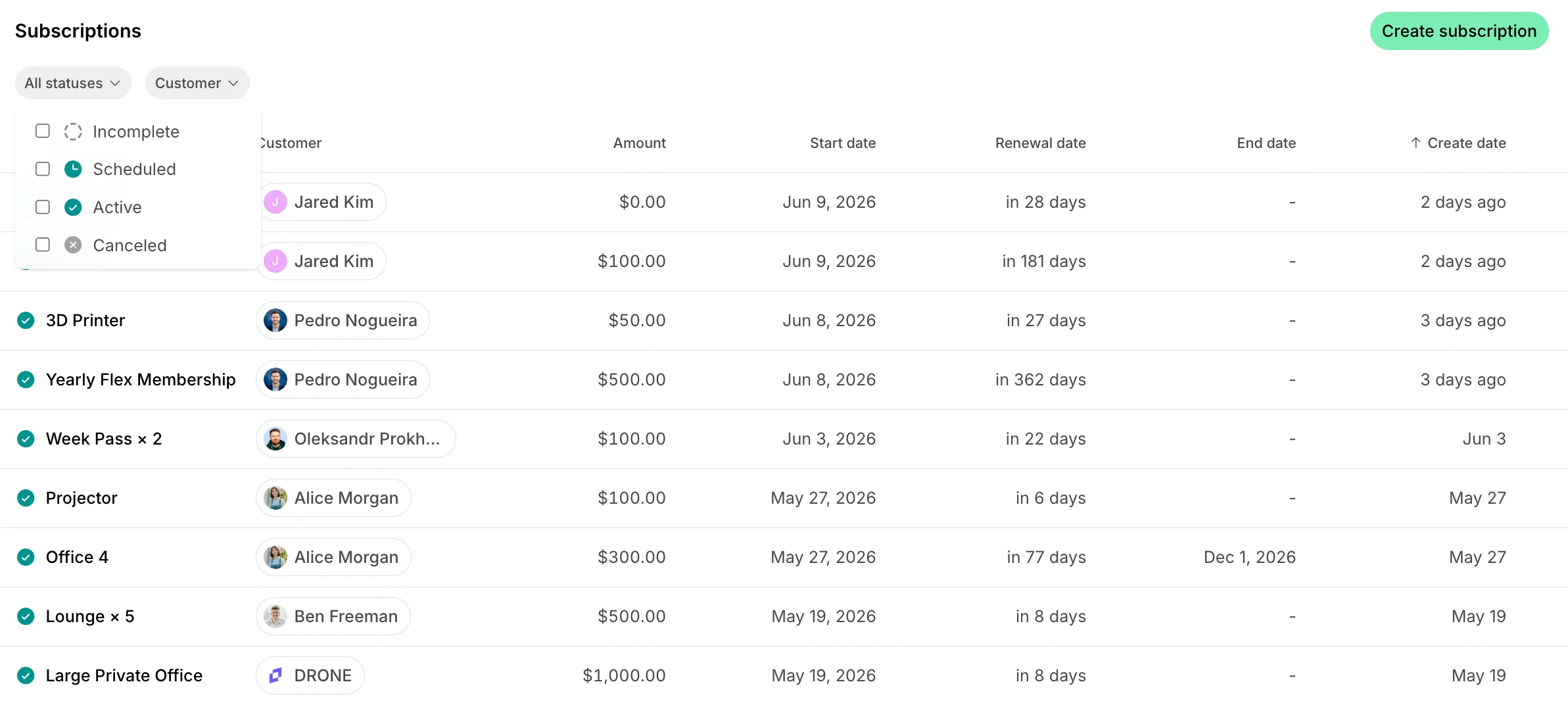
Administrators can track and manage all customer subscriptions on the **Billing > Subscriptions** page:
* Filter subscriptions by **Status**:
* **Active** — the subscription is currently live
* **Incomplete** — the subscription is waiting for contract signing or purchase completion
* **Scheduled** — the subscription is confirmed and set to start on a future date
* **Canceled** — the subscription has ended or was canceled
* Filter subscriptions by **Customer** to view their current active subscription(s) and the history of previous ones.
* Filter subscriptions by **Plan** to see all subscriptions that include a specific plan.
* Filter subscriptions by **Create date** to see subscriptions created on, before, after, or between specific dates.
* From here, you can also create, edit, and cancel subscriptions, [control payment collection](/docs/billing/subscriptions/invoice-issuance), view [upcoming invoices](/docs/billing/invoices/upcoming) and more.
You can also track successful and failed subscription payments through [notifications](/docs/account/notifications) and on the **Billing** > **Invoices** page.
## Multiple subscriptions
You can set up one or multiple subscriptions for a customer. Multiple subscriptions allow you to:
* Allocate credits with a different frequency than subscription renewal (e.g., bill annually but allocate credits monthly).
* Set up plans with different cycles for the same customer (e.g., an annual membership plus a monthly subscription).
* Switch a member to a subscription with a different cycle (e.g., from a monthly to a 3-month plan).
* Mix billing cycles within a company (e.g., annual billing for some members and monthly for others).
* Generate separate invoices for different subscriptions.
**FAQs**
Add a **One-off item** during subscription creation. It will be included in the first invoice and removed from the subscription once issued. If you prefer to charge the deposit separately, you can create and issue a [one-off invoice](/docs/billing/invoices/issue) from the customer's profile.
To charge a customer for multiple months in advance:
1. **Create the subscription** and set [**Issue first invoice**](/docs/billing/subscriptions) to **Manually**.
2. In the customer's profile, go to the **Invoices** page, and open the generated draft invoice.
3. Add invoice items for the months you want to charge upfront > issue the invoice.
To prevent the customer from being charged again during the prepaid period, [pause payment collection](/docs/billing/subscriptions/invoice-issuance) in the customer's subscription until the specific prepaid end date.
The customer will not receive invoices during this period and the regular monthly billing will start automatically after the specified **Resume date**.
Add the customer as a [nonmember](/docs/customer-management/users/nonmembers) and issue them a [one-off invoice](/docs/billing/invoices/issue) manually (e.g., for the first membership fee) — nonmembers can receive and pay invoices but don't get member-only access.
Once they pay:
1. [Invite them as a member](/docs/customer-management/users/members#invite-a-member).
2. [Create a subscription](/docs/billing/subscriptions) for them and set **Issue first invoice** to **Manually**, since the customer already paid for it. This prevents the first invoice from being auto-issued and generates it as a draft instead, which you can delete.
3. From the second invoice onward, invoicing is automated as usual.

 8. After configuring the subscription, click **Create**.
### **Issue first invoice** setting
1. The **Issue first invoice** setting applies only to the invoice for the first subscription cycle. If you need to stop future automatic issuance for this customer, use [**Pause payment collection**](/docs/billing/subscriptions/invoice-issuance).
2. If **Issue first invoice** is set to **Automatically** and a customer has a [default payment method](/docs/billing/payments/payment-gateway), the invoice will be charged automatically to that method.
3. If the subscription start date is in the future, **Automatically** is selected by default. In this case, the first invoice stays in draft until the subscription begins. Administrators can find and manage it from the customer's profile **> Billing** page > **Upcoming invoice**:
* Edit it, add invoice items
* Issue it earlier if needed
* Delete it if the customer has already paid, etc.
## How subscriptions work
1. Customers view their subscription details on the **Membership > Billing** page > **Subscriptions** section.
* Individual members check it in the **Personal** section on the **Membership** page.
* Company managers check it in the section with their company name on the **Membership** page.
8. After configuring the subscription, click **Create**.
### **Issue first invoice** setting
1. The **Issue first invoice** setting applies only to the invoice for the first subscription cycle. If you need to stop future automatic issuance for this customer, use [**Pause payment collection**](/docs/billing/subscriptions/invoice-issuance).
2. If **Issue first invoice** is set to **Automatically** and a customer has a [default payment method](/docs/billing/payments/payment-gateway), the invoice will be charged automatically to that method.
3. If the subscription start date is in the future, **Automatically** is selected by default. In this case, the first invoice stays in draft until the subscription begins. Administrators can find and manage it from the customer's profile **> Billing** page > **Upcoming invoice**:
* Edit it, add invoice items
* Issue it earlier if needed
* Delete it if the customer has already paid, etc.
## How subscriptions work
1. Customers view their subscription details on the **Membership > Billing** page > **Subscriptions** section.
* Individual members check it in the **Personal** section on the **Membership** page.
* Company managers check it in the section with their company name on the **Membership** page.
 2. The first invoice arrives according to the **Issue first invoice** configuration. All future invoices are issued automatically with each subscription renewal. Customers receive invoices via push, email, and in-app [notifications.](/docs/member/account/notifications)
3. Customers receive credits, day passes, discounts, and access with each subscription renewal until the [subscription ends or is canceled.](/docs/billing/subscriptions/cancel)
## **Track and manage subscriptions**
Administrators can track and manage all customer subscriptions on the **Billing > Subscriptions** page:
* Filter subscriptions by **Status**:
* **Active** — the subscription is currently live
* **Incomplete** — the subscription is waiting for contract signing or purchase completion
* **Scheduled** — the subscription is confirmed and set to start on a future date
* **Canceled** — the subscription has ended or was canceled
* Filter subscriptions by **Customer** to view their current active subscription(s) and the history of previous ones.
* Filter subscriptions by **Plan** to see all subscriptions that include a specific plan.
* Filter subscriptions by **Create date** to see subscriptions created on, before, after, or between specific dates.
* From here, you can also create, edit, and cancel subscriptions, [control payment collection](/docs/billing/subscriptions/invoice-issuance), view [upcoming invoices](/docs/billing/invoices/upcoming) and more.
2. The first invoice arrives according to the **Issue first invoice** configuration. All future invoices are issued automatically with each subscription renewal. Customers receive invoices via push, email, and in-app [notifications.](/docs/member/account/notifications)
3. Customers receive credits, day passes, discounts, and access with each subscription renewal until the [subscription ends or is canceled.](/docs/billing/subscriptions/cancel)
## **Track and manage subscriptions**
Administrators can track and manage all customer subscriptions on the **Billing > Subscriptions** page:
* Filter subscriptions by **Status**:
* **Active** — the subscription is currently live
* **Incomplete** — the subscription is waiting for contract signing or purchase completion
* **Scheduled** — the subscription is confirmed and set to start on a future date
* **Canceled** — the subscription has ended or was canceled
* Filter subscriptions by **Customer** to view their current active subscription(s) and the history of previous ones.
* Filter subscriptions by **Plan** to see all subscriptions that include a specific plan.
* Filter subscriptions by **Create date** to see subscriptions created on, before, after, or between specific dates.
* From here, you can also create, edit, and cancel subscriptions, [control payment collection](/docs/billing/subscriptions/invoice-issuance), view [upcoming invoices](/docs/billing/invoices/upcoming) and more.
 You can also track successful and failed subscription payments through [notifications](/docs/account/notifications) and on the **Billing** > **Invoices** page.
## Multiple subscriptions
You can set up one or multiple subscriptions for a customer. Multiple subscriptions allow you to:
* Allocate credits with a different frequency than subscription renewal (e.g., bill annually but allocate credits monthly).
* Set up plans with different cycles for the same customer (e.g., an annual membership plus a monthly subscription).
* Switch a member to a subscription with a different cycle (e.g., from a monthly to a 3-month plan).
* Mix billing cycles within a company (e.g., annual billing for some members and monthly for others).
* Generate separate invoices for different subscriptions.
**FAQs**
You can also track successful and failed subscription payments through [notifications](/docs/account/notifications) and on the **Billing** > **Invoices** page.
## Multiple subscriptions
You can set up one or multiple subscriptions for a customer. Multiple subscriptions allow you to:
* Allocate credits with a different frequency than subscription renewal (e.g., bill annually but allocate credits monthly).
* Set up plans with different cycles for the same customer (e.g., an annual membership plus a monthly subscription).
* Switch a member to a subscription with a different cycle (e.g., from a monthly to a 3-month plan).
* Mix billing cycles within a company (e.g., annual billing for some members and monthly for others).
* Generate separate invoices for different subscriptions.
**FAQs**