> ## Documentation Index
> Fetch the complete documentation index at: https://www.spacebring.com/docs/llms.txt
> Use this file to discover all available pages before exploring further.
# Discounts
> Overview of the Spacebring discount system, how to create coupons and promo codes, track their redemptions, and the ways to use, apply and share them
Discounts help you attract new customers, increase loyalty and retention, and drive demand for your products and services. Spacebring lets you create discounts with flexible custom rules and use them in the way that fits your goal.
Two key concepts to understand:
* **Coupon** — represents the discount and its rules: what products it applies to, the discount percentage or amount, how long it lasts, and how many times it can be used.
* **Promo code** — a unique code word (e.g., *SUMMER20*) linked to a coupon. Administrators share promo codes with specific customers or in promotions. Customers enter the code in the member portal at checkout to redeem the discount (coupon).
## Create coupons
1. Go to **Catalog** > **Discounts**.
2. Click **Create coupon** and configure its properties.
| | |
| :- | :- |
| **Redeemable for** | Choose the product type(s) the discount applies to:
Room bookings
Conference room bookings
Event space bookings
Meeting room bookings
Phone booth bookings
Studio bookings
Station bookings
Hot desk bookings
Dedicated desk bookings
Office bookings
Parking bookings
Equipment bookings
Event tickets
Shop products
Packages
Subscription items (discounts for membership plans or resource plans)
|
| **Apply to specific items** | Enable if the discount should apply only to selected items. Select the items from the dropdown. |
| **Discount type** | Fixed amount or Percentage. |
| **Percentage**, % or **Fixed amount** | Depending on the selected discount type, enter the discount percent or amount. |
| **Applicable to credits** | Available only for **Percentage** discounts. Enable if the discount should apply to both monetary and credit payments. |
| **Duration type** | Applicable only to **Subscription items**. Defines how long the discount applies to subscription invoices:
**Forever** — applies indefinitely until the administrator removes the coupon from the subscription
**Once** — applies only to the first subscription invoice generated after the coupon is applied
**Repeating** — applies to all subscription invoices generated during the selected period.
|
| **Duration in months** | Available only for the **Repeating** duration type. Defines the number of months the discount will apply to subscription invoices. |
| **Limited redemption** | Enable to limit how many times the coupon can be redeemed across all customers. The limit applies to transactions, not seats or items — if the limit is 5, the coupon can be applied to 5 separate transactions. |
Choose the right **Redeemable for** type so discounts apply as expected:
* For short-term (hourly, daily) bookings, create coupons redeemable for the relevant **Bookings** (e.g., room, meeting room, hot desk).
* For long-term subscriptions (weekly, monthly, and longer) for plans or resource rentals, create coupons redeemable for **Subscription items**.
If one discount should be valid for both, select both types in the **Redeemable for** field.
Once created, a coupon cannot be edited. If **Apply to specific items** was enabled during creation, only the applicable items can be modified later. You can [delete a coupon](#delete-a-coupon) and create a new one.
## Create promo codes
A promo code is a unique code — for example, *SUMMER20* — linked to a coupon. You can create and share promo codes with specific customers or distribute it broadly for a promotion or marketing campaign.
To create a promo code:
1. Go to **Catalog** > **Discounts**.
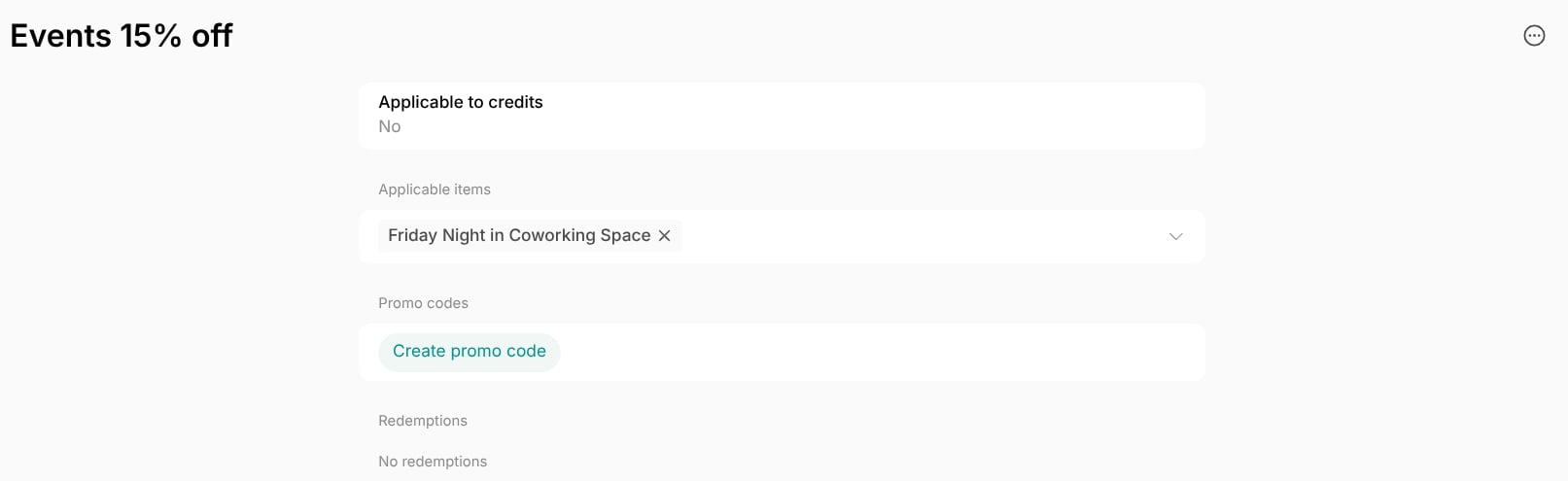
2. On the **Coupons** tab, select the coupon the promo code should be linked to.
3. Click **Create promo code**.
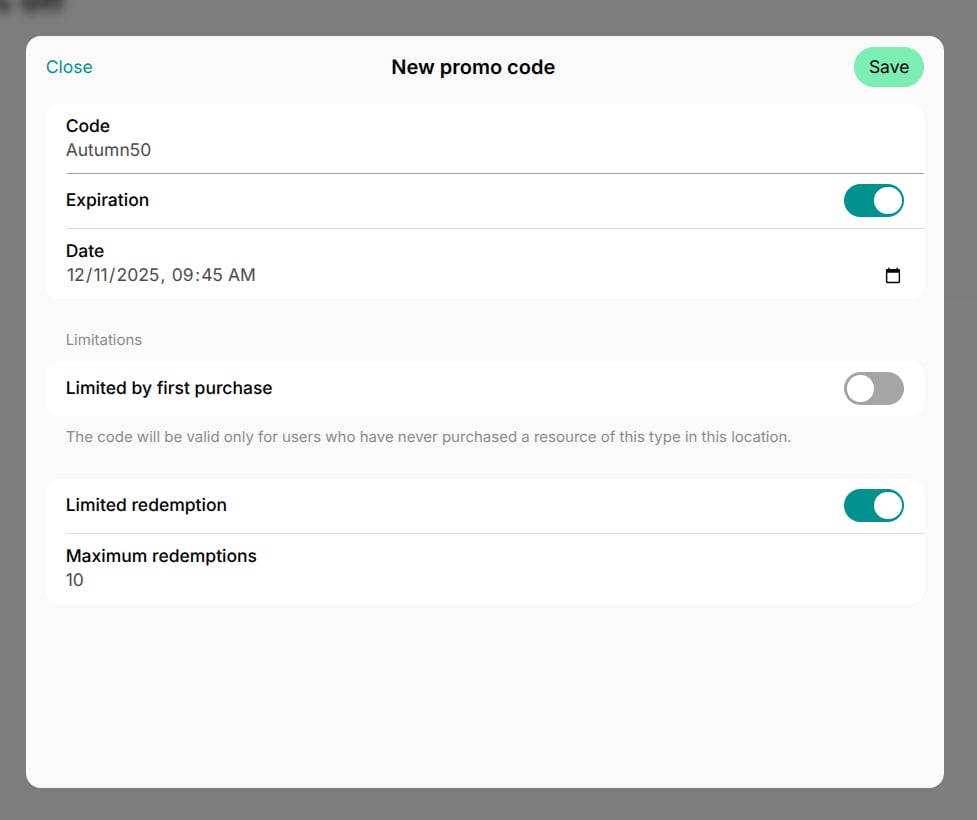
4. Configure the promo code properties.
| | |
| :- | :- |
| **Code** | The code customers enter at checkout to redeem the discount. |
| **Expiration** | Enable if the promo code should be valid only until a specific date. The expiration date is the last day the code can be redeemed, though customers can apply it to bookings scheduled after that date. |
| **Limited by first purchase** | Enable to make the promo code valid only for customers making their first purchase of this product type at the location. |
| **Limited redemption** | Enable to limit how many times the promo code can be redeemed across all customers. The promo code redemption limit cannot exceed the coupon's redemption limit. The limit applies to transactions — if the limit is 5, the promo code can be used for 5 separate purchases. |
Once created, a promo code cannot be edited. [Archive the promo code](#archive-a-promo-code) and create a new one if changes are needed.
5. [Share the promo code](#find-and-manage-promo-codes) directly with customers or publish it in your marketing campaign. Customers enter it at checkout to redeem the discount.
Explore the [most common discount scenarios](/docs/guides/use-coupons-and-promo-codes) and setup examples.
## What's next
Once you have created discount coupons, you can put them to work in three ways:
Give a customer a discount on their membership plan or rental price.
Let members pay less for meeting rooms, desks, and other purchases as part of their membership.
Give a discount on a customer's one-off booking, shop product, event ticket, or package.
## Track coupon and promo code usage
To see how many times each discount has been redeemed, who redeemed it, and when:
1. Go to **Catalog** > **Discounts**.
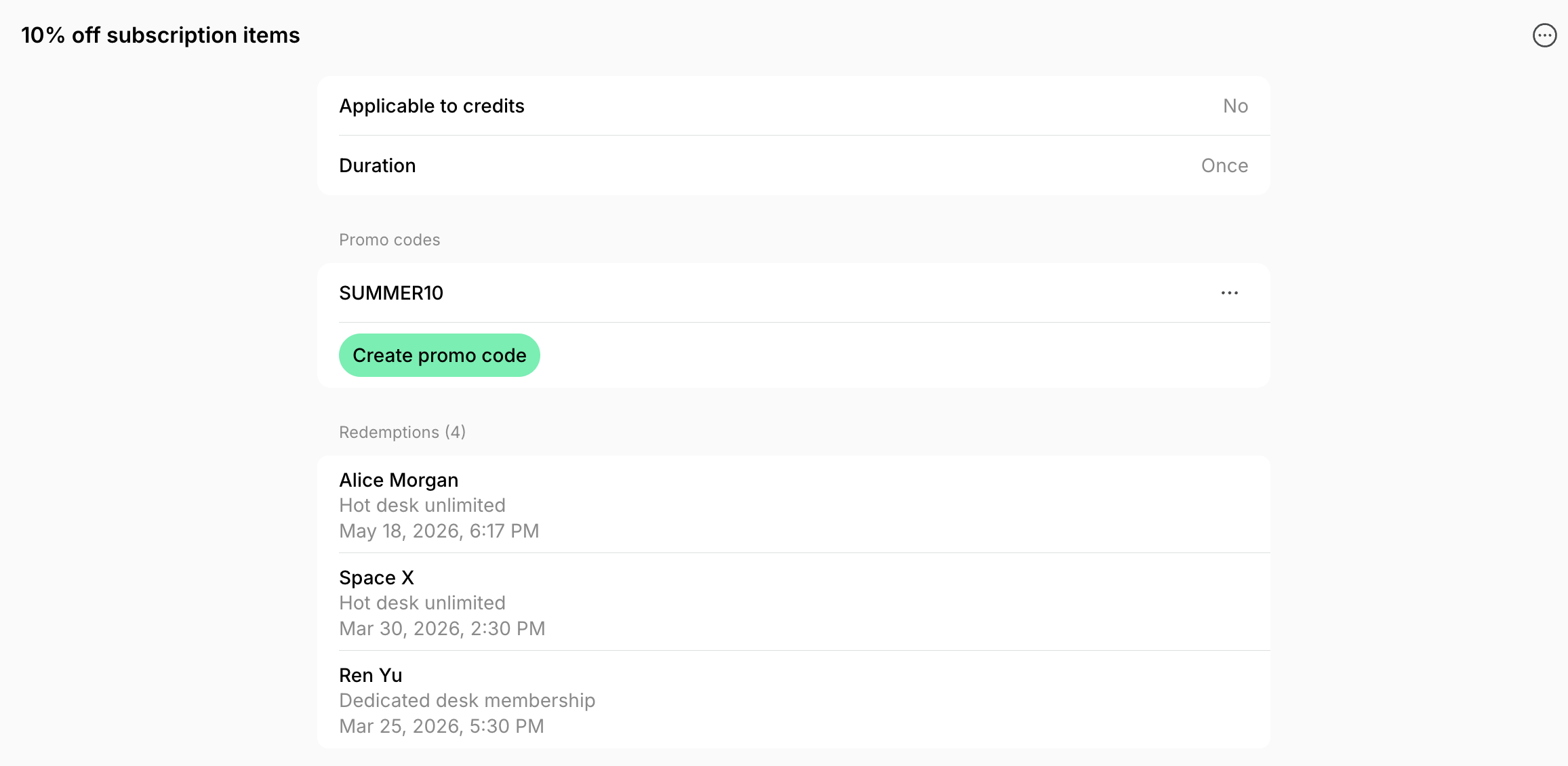
2. Open a coupon on the **Coupons** tab, or a promo code on the **Promo codes** tab, to view:
* Total redemptions
* Customer name
* Product the coupon or promo code was applied to
* Redemption date
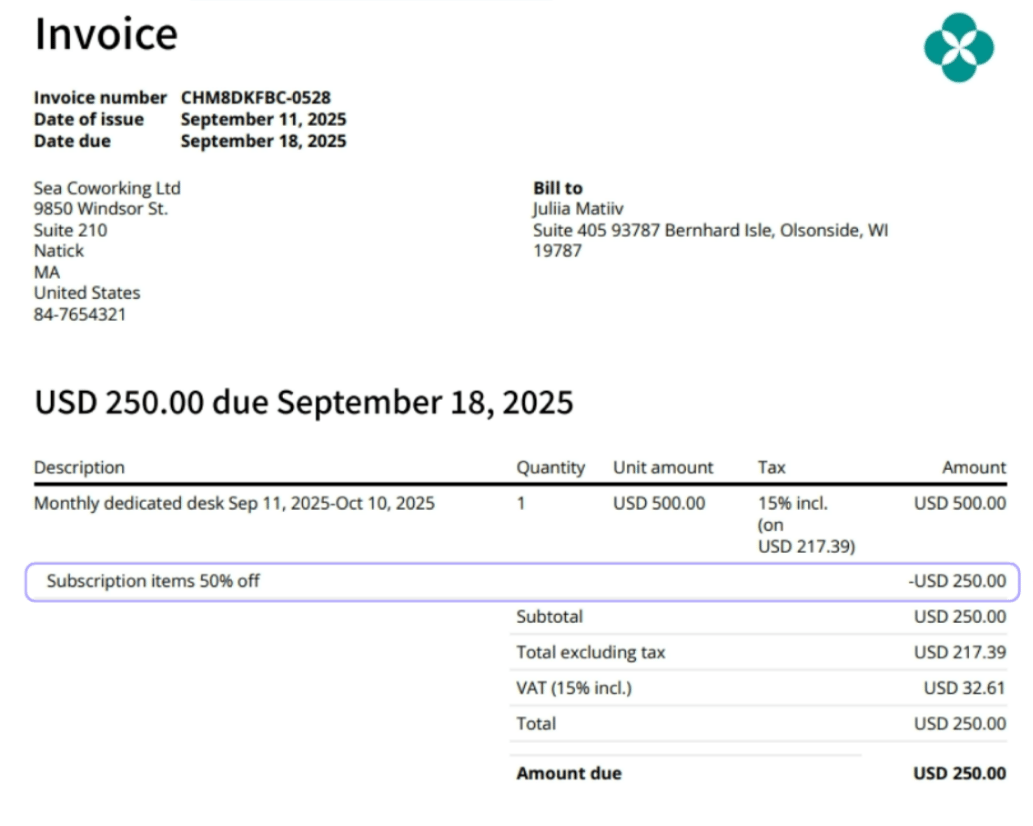
Once a coupon or promo code is applied, the discount appears in transaction and invoice details, as well as on invoice and receipt PDFs.
For broader analytics, export the [invoice items report](/docs/billing/invoices/track-and-manage#export-an-invoices-report) to analyze discount usage. The report provides information about all the discount applications.
## Find and manage promo codes
The **Discounts** page has a separate **Promo codes** tab that shows all codes of the location in one list, each with its coupon, status, and number of redemptions. On this tab you can:
* Click **(...)** next to a code > **Copy** to copy it and share it with a customer.
* Filter promo codes by coupon in the **Any coupon** field.
* Open a code to see [who redeemed it and when](#track-coupon-and-promo-code-usage).
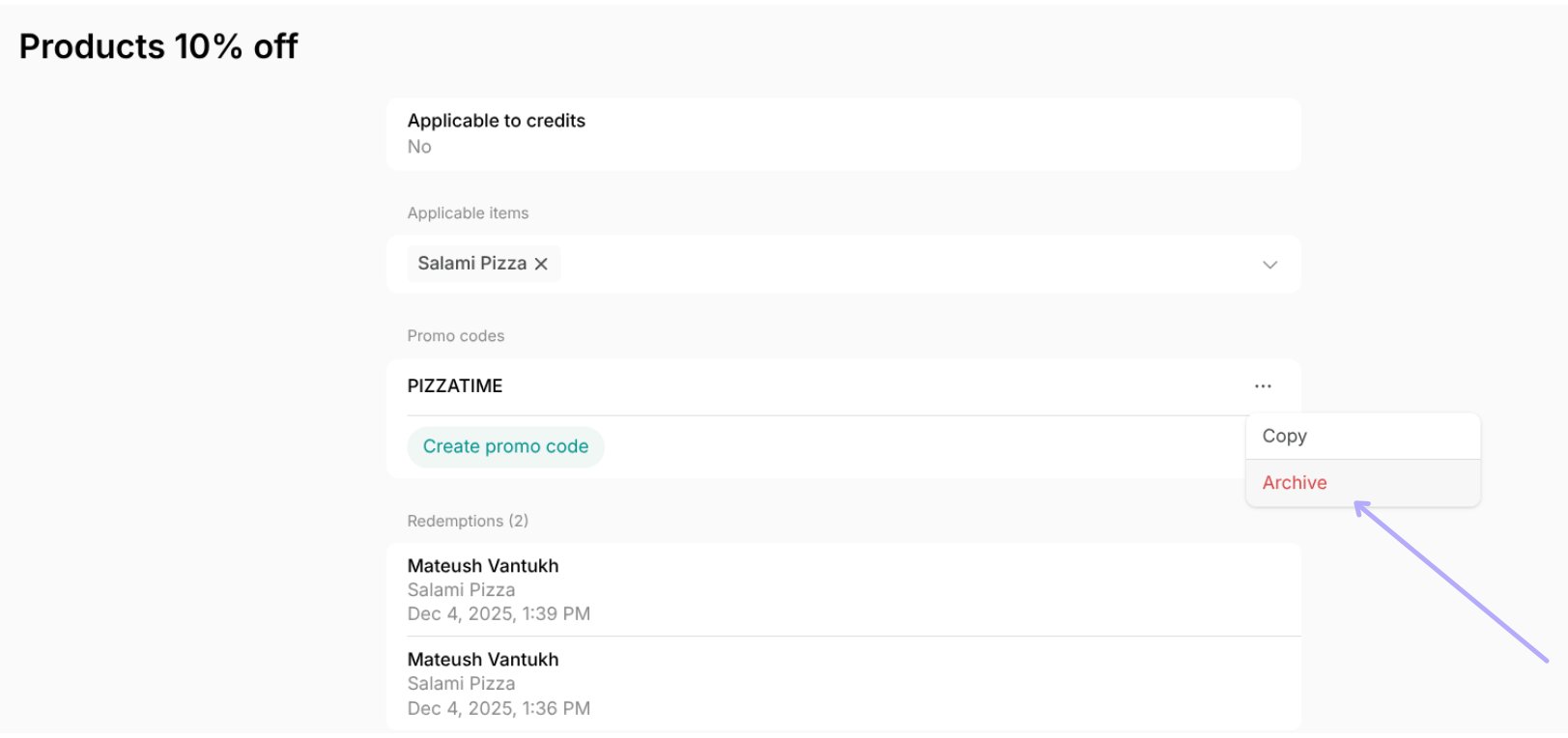
* Click **(...)** next to a code > **Archive** to [stop new redemptions](#archive-a-promo-code).
The tab lists only codes that are not archived. To see archived codes, open the coupon on the **Coupons** tab and check its **Promo codes** section.
## Delete a coupon
Delete a coupon when you no longer want the discount to be redeemable. For this:
1. Go to **Catalog** > **Discounts**.
2. Click **(...)** next to the coupon > **Delete**.
Once deleted, the coupon will no longer be available to use for both administrators and customers who had it in their subscription.
## Archive a promo code
Archive a promo code when a promotion ends or the discount is no longer available. For this:
1. Go to **Catalog** > **Discounts**.
2. Open the **Promo codes** tab.
3. Click **(...)** next to the promo code > **Archive**.
Once archived, the promo code will no longer be valid to redeem discounts.
This documentation is built and hosted on [Mintlify](https://mintlify.com), a developer documentation platform.
 4. Configure the promo code properties.
 | | |
| :- | :- |
| **Code** | The code customers enter at checkout to redeem the discount. |
| **Expiration** | Enable if the promo code should be valid only until a specific date. The expiration date is the last day the code can be redeemed, though customers can apply it to bookings scheduled after that date. |
| **Limited by first purchase** | Enable to make the promo code valid only for customers making their first purchase of this product type at the location. |
| **Limited redemption** | Enable to limit how many times the promo code can be redeemed across all customers. The promo code redemption limit cannot exceed the coupon's redemption limit. The limit applies to transactions — if the limit is 5, the promo code can be used for 5 separate purchases. |
| | |
| :- | :- |
| **Code** | The code customers enter at checkout to redeem the discount. |
| **Expiration** | Enable if the promo code should be valid only until a specific date. The expiration date is the last day the code can be redeemed, though customers can apply it to bookings scheduled after that date. |
| **Limited by first purchase** | Enable to make the promo code valid only for customers making their first purchase of this product type at the location. |
| **Limited redemption** | Enable to limit how many times the promo code can be redeemed across all customers. The promo code redemption limit cannot exceed the coupon's redemption limit. The limit applies to transactions — if the limit is 5, the promo code can be used for 5 separate purchases. |
 Once a coupon or promo code is applied, the discount appears in transaction and invoice details, as well as on invoice and receipt PDFs.
 Once deleted, the coupon will no longer be available to use for both administrators and customers who had it in their subscription.
## Archive a promo code
Archive a promo code when a promotion ends or the discount is no longer available. For this:
1. Go to **Catalog** > **Discounts**.
2. Open the **Promo codes** tab.
3. Click **(...)** next to the promo code > **Archive**.
Once deleted, the coupon will no longer be available to use for both administrators and customers who had it in their subscription.
## Archive a promo code
Archive a promo code when a promotion ends or the discount is no longer available. For this:
1. Go to **Catalog** > **Discounts**.
2. Open the **Promo codes** tab.
3. Click **(...)** next to the promo code > **Archive**.