> ## Documentation Index
> Fetch the complete documentation index at: https://www.spacebring.com/docs/llms.txt
> Use this file to discover all available pages before exploring further.
# Plans
> Create and manage membership plans for long-term or recurring access without a dedicated resource rental
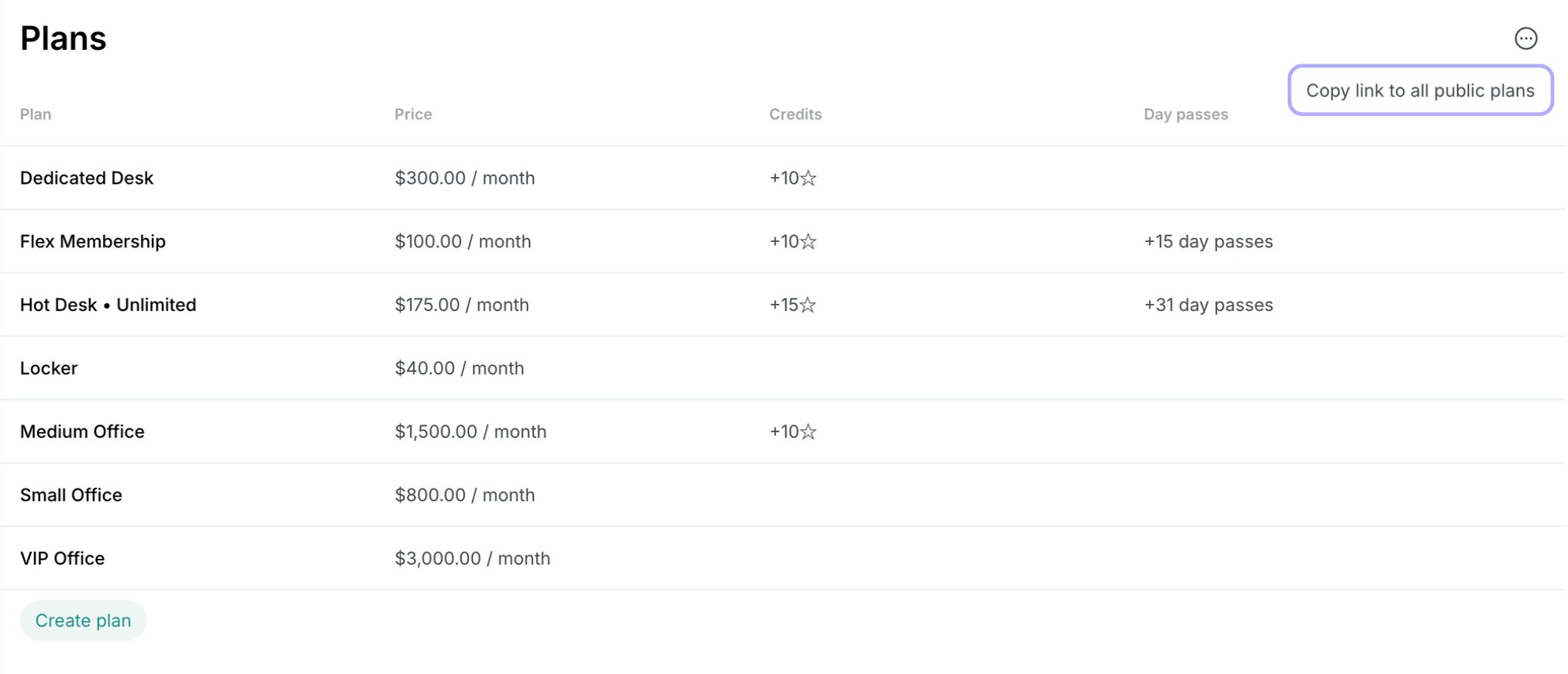
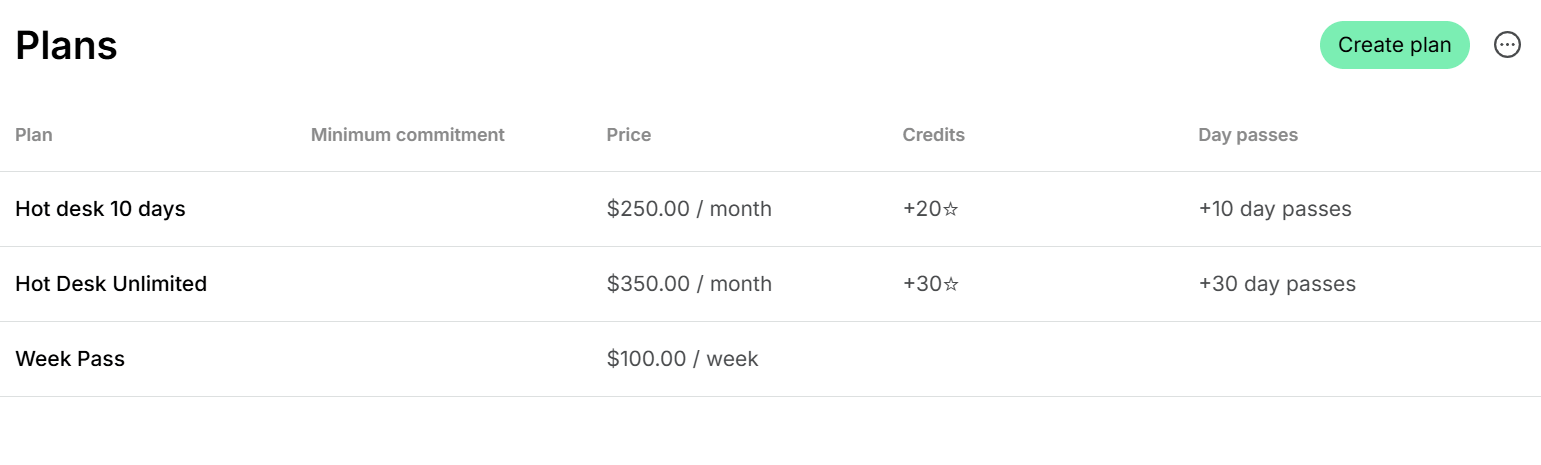
Plans are membership options or bundles of services that customers can subscribe to, usually on a long-term or recurring basis. Common examples in coworking spaces include Hot desk unlimited, Hot desk (10 days per month), or Flex membership.
Plans are designed for subscriptions which don't involve a dedicated resource rental — for example, a hot desk plan, a flex membership plan with 10 days per month, a plan with credits, or a virtual office plan. Rentals of a dedicated resource, such as a dedicated desk or a private office, are [set up inside that resource](/docs/guides/organize-your-plans) instead.
With plans, you can:
* Structure and present your membership options to customers
* Let customers sign up instantly or submit applications
* Quickly set up new customers for subscriptions, using plans as templates.
## Set up plans
1. Go to **Catalog** > **Plans**.
2. Click **Create plan**.
### Plan configuration
* **Name** — appears on customer invoices.
* **Cycle** — the interval of plan validity and how often the subscription renews. Available options: 1 week, 1 month, 3 months, 6 months, or 1 year.
* **Description** — customer-facing details of what is included.
* **Price** — the fee for 1 cycle.
* **Setup fee** — one-time charge to add to the customer's first invoice.
The setup fee is taxable but is not affected by discounts or invoice proration.
* [**Custom tax rate**](/docs/billing/taxes#custom-tax-rates-for-different-products) — overrides the location's default tax rate for this plan.
* **Minimum commitment** — the mandatory minimum number of cycles a customer can subscribe for.
* [**Credits**](/docs/billing/credits-and-day-passes/credits) — expiring credits the customer will receive each cycle for bookings or purchases.
* [**Day passes**](/docs/billing/credits-and-day-passes/day-passes) - expiring day passes the customer will receive each cycle for booking hot desks.
* **Discounts** > [**Granted coupons**](/docs/catalog/discounts/give-and-apply#give-a-discount-to-all-subscribers-of-a-plan-or-resource-plan) — grant members reduced rates for bookings and other services as part of their membership.
* **Sign-up** — control whether and how customers can see and sign up for this plan.
### Sign-up setting
| Setting | Outcome |
| :- | :- |
| Enable with **Immediate** type | Customers can see this plan and [sign up immediately](/docs/catalog/plans/immediate-sign-ups#how-users-sign-up-for-plans) without admin involvement. |
| Enable with **Request** type | Customers can see this plan and [submit a request](/docs/catalog/plans/applications#how-users-apply-for-a-plan) to sign up. Administrators process requests as support tickets.
Useful if you don't allow new customers to become your members independently.
|
| Disable **Sign-up** | Customers do not see this plan. It stays visible only to administrators for [creating subscriptions](/docs/billing/subscriptions). |
* [**Access**](/docs/integrations/access-control) — access control group. *Appears if you have the [integration with the access control system](/docs/integrations/access-control).*
* [**Printing**](/docs/integrations/printing/ezeep-blue) — printing access group.
* [**Exclusive access**](/docs/resource-management/resources/exclusive-resource-access) — customers on this plan have exclusive access to the resources selected in the **Exclusive resources** field and the benefits selected in the **Exclusive benefits** field.
3. Tap **Save**.
## What's next
After creating your plans:
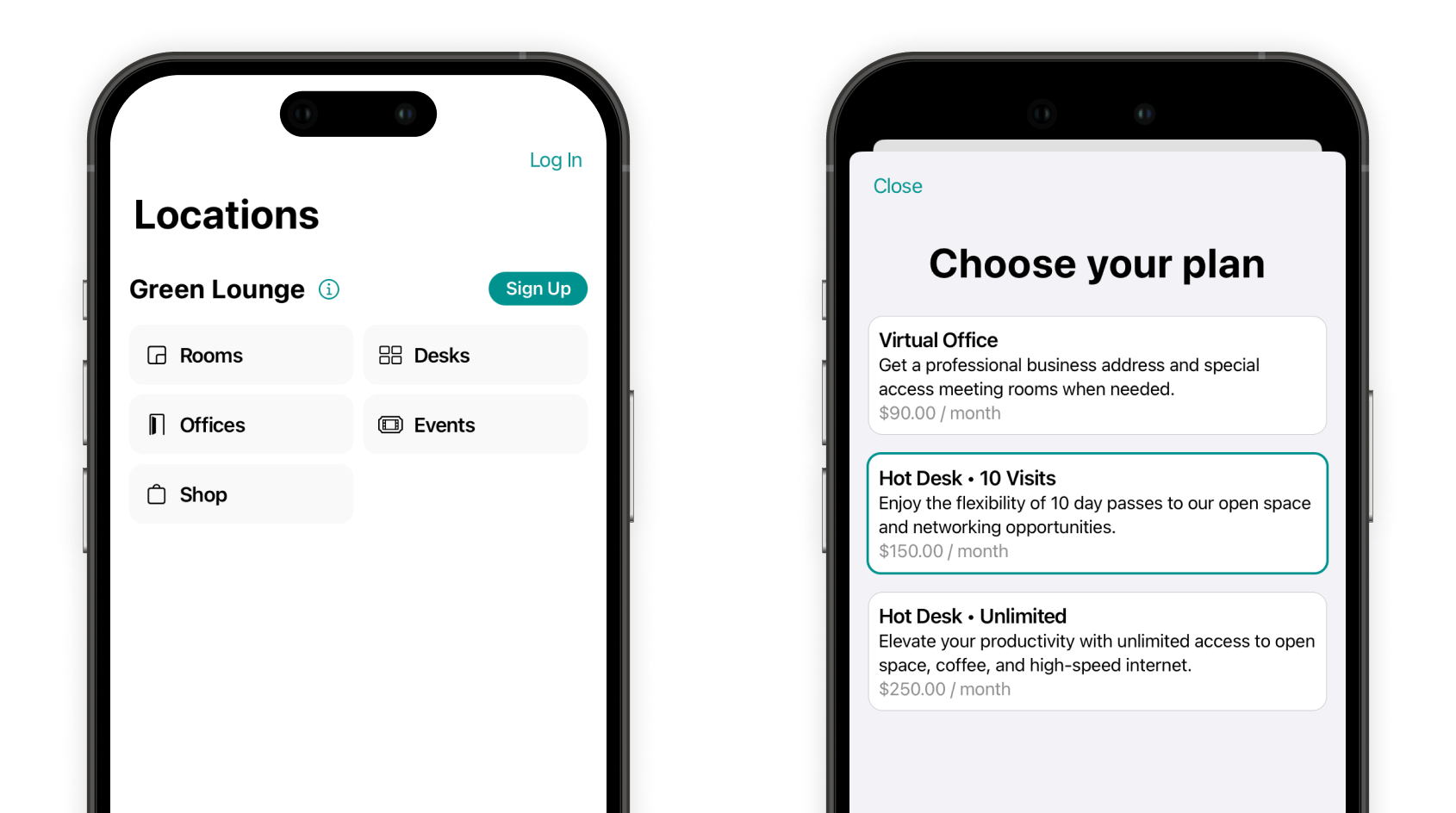
* Customers can explore available plans and [sign up](/docs/catalog/plans/immediate-sign-ups) or [submit requests](/docs/catalog/plans/applications), depending on your settings
* Administrators can quickly [set up new members for subscriptions](/docs/billing/subscriptions), using plans as ready-made templates with predefined pricing, benefits, and access.
## Edit or delete a plan
1. Go to **Catalog** > **Plans**.
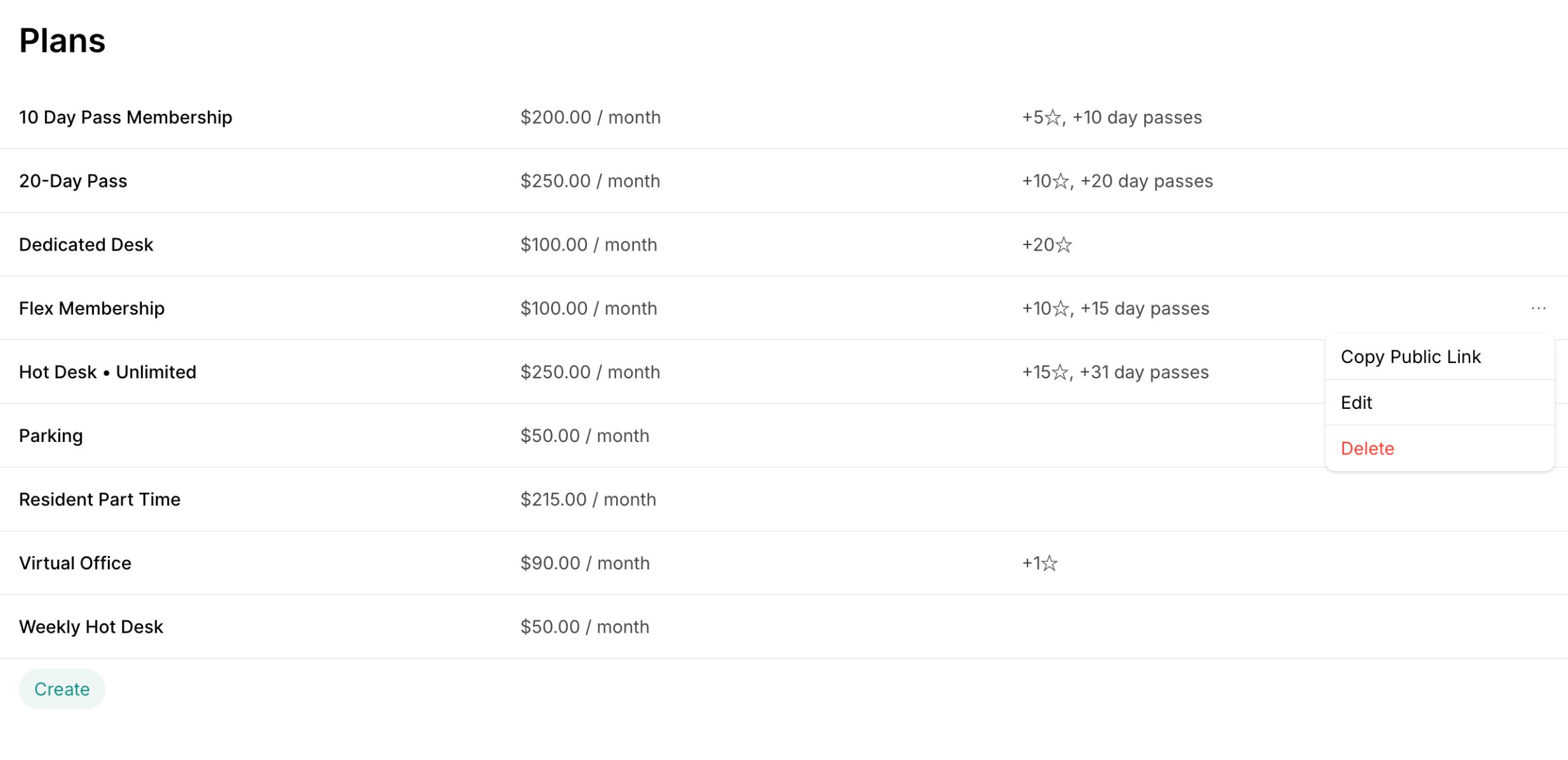
2. Press the menu button **(...)** next to the preliminary [created plan](/docs/catalog/plans) and tap **Edit** or **Delete**.
Deleting a plan does not affect active subscriptions. If your members still have this plan selected in their subscription, it will continue to function for them.
Deleting a plan is irreversible and cannot be undone. Instead of completely deleting a plan, you can [disable the **Sign up**](/docs/catalog/plans) property to hide the plan from customers and make it impossible for them to purchase it by themselves. Meanwhile, administrators will still be able to choose this plan for creating subscriptions manually.
To act on several plans at once, select their checkboxes, then press **Actions** at the bottom of the page and choose **Sign-up** or **Delete**. Free plans keep their [sign-up setting](#sign-up-setting) when you choose **Immediate**. To quickly select several or all items in a long list, select a checkbox, then hold **Shift** and select another checkbox to select every row between them.
## Export a plans report
On the **Plans** page, click **(...)** in the top right corner > **Export plans** > **CSV** or **XLSX** to download a report on all plans.
The report includes each plan's title, price and currency, billing period, and minimum commitment in cycles, the number of credits and day passes it grants per cycle, and its create date.
## FAQs
Check that **Sign-up** is enabled in the plan's settings — it is the only setting that controls whether customers see a plan, as plans have no **Visibility** setting of their own. Customers without a subscription then find the plan behind the **Sign up** button, and those who already have one [subscribe from the **Membership** > **Billing** page](/docs/catalog/plans/immediate-sign-ups#sign-up-for-multiple-plans).
A plan that rents out a specific desk or office is a [resource plan](/docs/guides/organize-your-plans) created inside that resource, and it never appears under the **Sign up** button. Customers find it on the page of the resource it belongs to — **Desks**, **Offices**, or another resource page — and the [resource's **Visibility**](/docs/location/visibility) decides who sees it there.
Start [creating the subscription](/docs/billing/subscriptions) for your customer, keep **Custom** in the **Product** field, and manually type the plan name, price, and other allowances.
Go to **Catalog** > **Plans** > press the menu **(...)** top right > **Copy link to all public plans**.
To offer targeted discounts on specific plans/for selected customers, create [coupons and promo codes](/docs/catalog/discounts#create-promo-codes) of **Subscription items** type. [Apply them](/docs/catalog/discounts/give-and-apply#discount-the-subscription-price) directly when creating subscriptions for users and companies, or share the [promo code](/docs/catalog/discounts#create-promo-codes) with customers to redeem the discount on their own when they sign up.
It depends on whom you sell it to:
* If all customers, including nonmembers, should see and buy it, [create a plan](#set-up-plans) with credits and turn on **Sign-up**. Customers subscribe and receive a set number of expiring credits each cycle. The plan can also give them access to the space, discounts, and other perks.
* If only members should buy it, as a one-off purchase of credits with nothing else included, [create a credit package](/docs/catalog/packages). Members can buy it at any time, with or without a subscription.
Changes to the plan only apply to new future subscriptions and those exiting members that have **Auto-update from plan** enabled in their subscription.
To apply plan changes to existing members, you have two options:
* [Edit their subscriptions](/docs/billing/subscriptions/edit) individually and apply changes manually, or
* Turn on **Auto-update from plan** in existing customers' subscriptions > then make a change to the plan. This way, it will automatically apply to existing members, too.
Ensure the [**Auto-update from plan** setting is enabled](/docs/billing/subscriptions/edit) in all your customers' active subscriptions who have that plan. Then, edit the plan as needed.
* Any changes made to pricing, credits, or day passes will apply automatically to their subscriptions with the start of the next billing cycle.
* Changes to discounts, door access, and exclusive access to resources and benefits apply immediately.
In the member web portal and mobile app, plans are sorted by billing cycle from shortest to longest—Week, Month, 3 months, 6 months, then Year—and plans with the same cycle are sorted by price from lowest to highest.
This documentation is built and hosted on [Mintlify](https://mintlify.com), a developer documentation platform.
 ### Plan configuration
* **Name** — appears on customer invoices.
* **Cycle** — the interval of plan validity and how often the subscription renews. Available options: 1 week, 1 month, 3 months, 6 months, or 1 year.
* **Description** — customer-facing details of what is included.
* **Price** — the fee for 1 cycle.
* **Setup fee** — one-time charge to add to the customer's first invoice.
### Plan configuration
* **Name** — appears on customer invoices.
* **Cycle** — the interval of plan validity and how often the subscription renews. Available options: 1 week, 1 month, 3 months, 6 months, or 1 year.
* **Description** — customer-facing details of what is included.
* **Price** — the fee for 1 cycle.
* **Setup fee** — one-time charge to add to the customer's first invoice.
 * Administrators can quickly [set up new members for subscriptions](/docs/billing/subscriptions), using plans as ready-made templates with predefined pricing, benefits, and access.
## Edit or delete a plan
1. Go to **Catalog** > **Plans**.
2. Press the menu button **(...)** next to the preliminary [created plan](/docs/catalog/plans) and tap **Edit** or **Delete**.
* Administrators can quickly [set up new members for subscriptions](/docs/billing/subscriptions), using plans as ready-made templates with predefined pricing, benefits, and access.
## Edit or delete a plan
1. Go to **Catalog** > **Plans**.
2. Press the menu button **(...)** next to the preliminary [created plan](/docs/catalog/plans) and tap **Edit** or **Delete**.
 The report includes each plan's title, price and currency, billing period, and minimum commitment in cycles, the number of credits and day passes it grants per cycle, and its create date.
## FAQs
The report includes each plan's title, price and currency, billing period, and minimum commitment in cycles, the number of credits and day passes it grants per cycle, and its create date.
## FAQs