> ## Documentation Index
> Fetch the complete documentation index at: https://www.spacebring.com/docs/llms.txt
> Use this file to discover all available pages before exploring further.
# Add billing details for invoices and receipts
> Make billing details collection mandatory or optional, learn how customers add their billing details for invoices and receipts, and how administrators can do it on customers' behalf
In some countries, customer billing details are legally required on invoices and receipts. Spacebring allows customers to add their billing details during their first purchase—or later—and administrators can also add them on the customer's behalf. You can configure whether billing details are required or optional, depending on your local compliance needs.
## Configure billing details collection
1. Tap the **(...)** next to the location name on the left-side panel > go to **Location** **settings.**
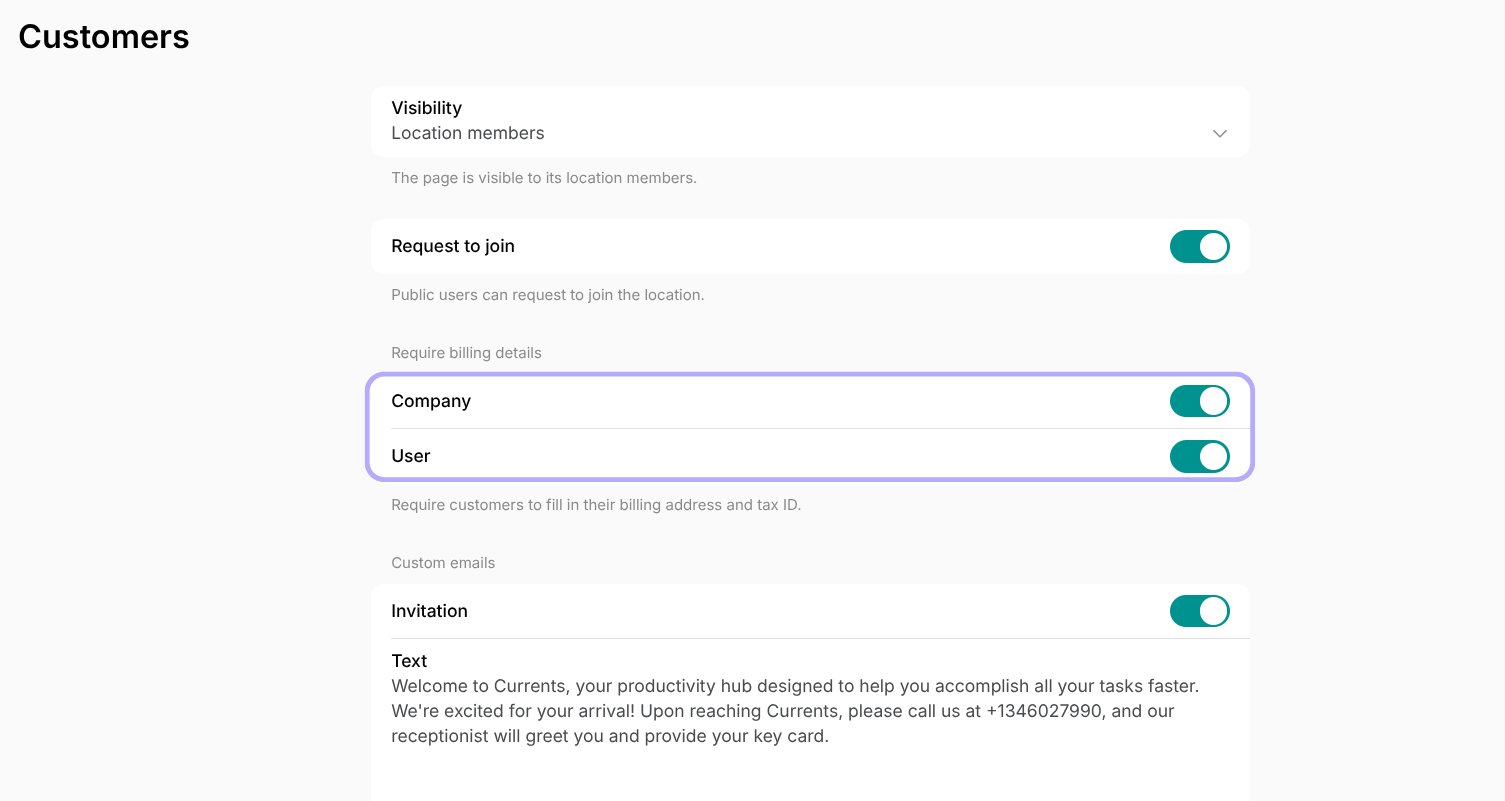
2. Go to **Customers** and manage the **Require billing details** setting. Depending on your needs, you can toggle this requirement for two different types of customers:
* **Company** — customers who sign up as company or make payments using a company invoice or company card will be required to enter their company billing details.
* **User** — customers who sign up as individuals or make payments using a personal card or personal invoice will be required to enter their personal billing details.
If **Require billing details** is enabled for a customer type, the following fields become mandatory during their first purchase:
* Legal business name
* Address
* Tax ID
If disabled, these fields are optional and can be filled in by customers if they choose.
 If you want to use [eInvoicing](/docs/billing/einvoicing/belgium), make sure to enable **Require billing details**.
## How customers add their billing details
### If **Require billing details** is disabled
Customers who have never interacted with the location can optionally fill in their billing details by switching the **Add billing details** toggle on during their first booking, subscription purchase, shop order, or event ticket purchase.
If you want to use [eInvoicing](/docs/billing/einvoicing/belgium), make sure to enable **Require billing details**.
## How customers add their billing details
### If **Require billing details** is disabled
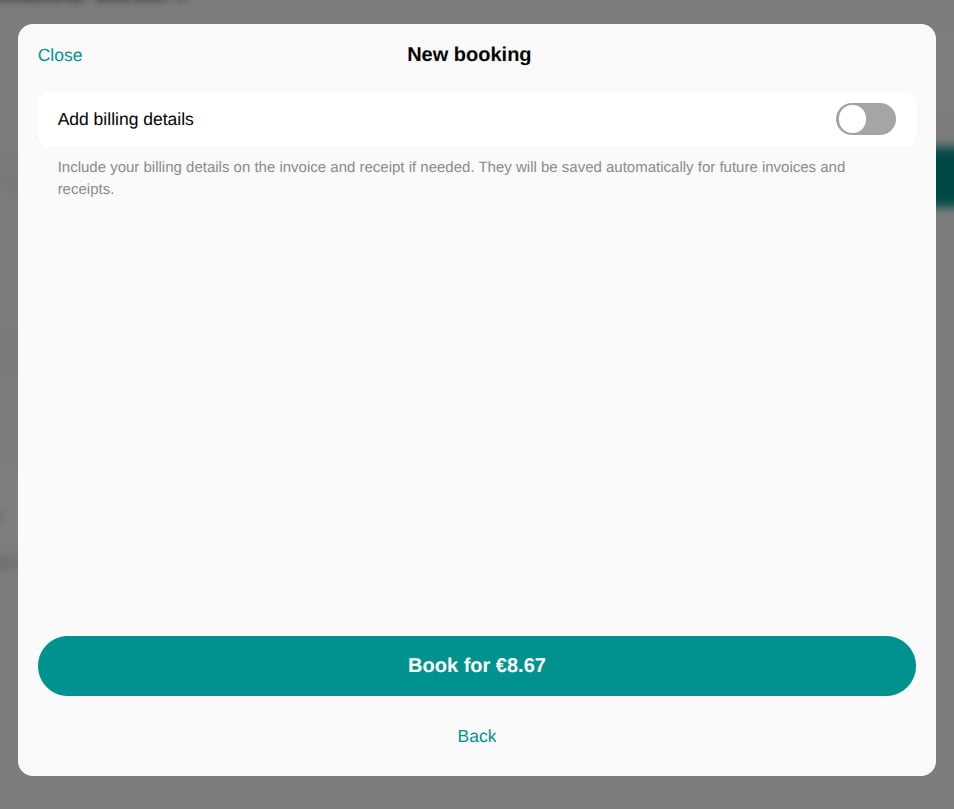
Customers who have never interacted with the location can optionally fill in their billing details by switching the **Add billing details** toggle on during their first booking, subscription purchase, shop order, or event ticket purchase.
 During subsequent payments, the billing fields do not appear at checkout. However, customers can [add them](#how-customers-manage-their-billing-details) anytime via the **Membership > Billing** page.
### If **Require billing details** is enabled
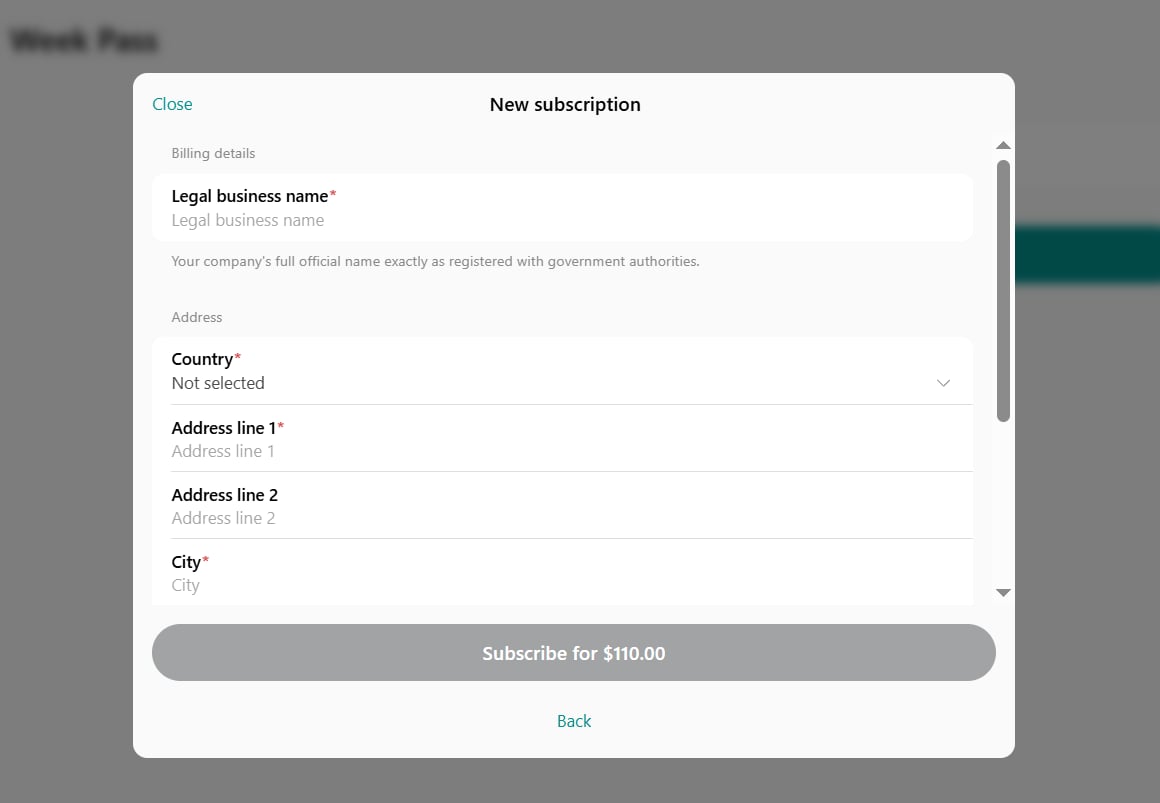
Billing details fields are mandatory, and customers should provide them before completing the first purchase.
* New customers are required to enter billing details during their first booking, subscription purchase, shop order, or event ticket purchase.
* Your existing customers who haven't filled out their billing details yet will be prompted to enter them at their next purchase, after you've enabled this setting.
During subsequent payments, the billing fields do not appear at checkout. However, customers can [add them](#how-customers-manage-their-billing-details) anytime via the **Membership > Billing** page.
### If **Require billing details** is enabled
Billing details fields are mandatory, and customers should provide them before completing the first purchase.
* New customers are required to enter billing details during their first booking, subscription purchase, shop order, or event ticket purchase.
* Your existing customers who haven't filled out their billing details yet will be prompted to enter them at their next purchase, after you've enabled this setting.
 During all future payments using a [monetary](/docs/billing/payments/payment-gateway) or the [**Invoice**](/docs/billing/payments/pay-with-invoice#book-for-customers-with-the-invoice-payment-method) payment method, billing fields appear at checkout, pre-filled with the customer's data. Users can update the details if needed or just proceed with the payment.
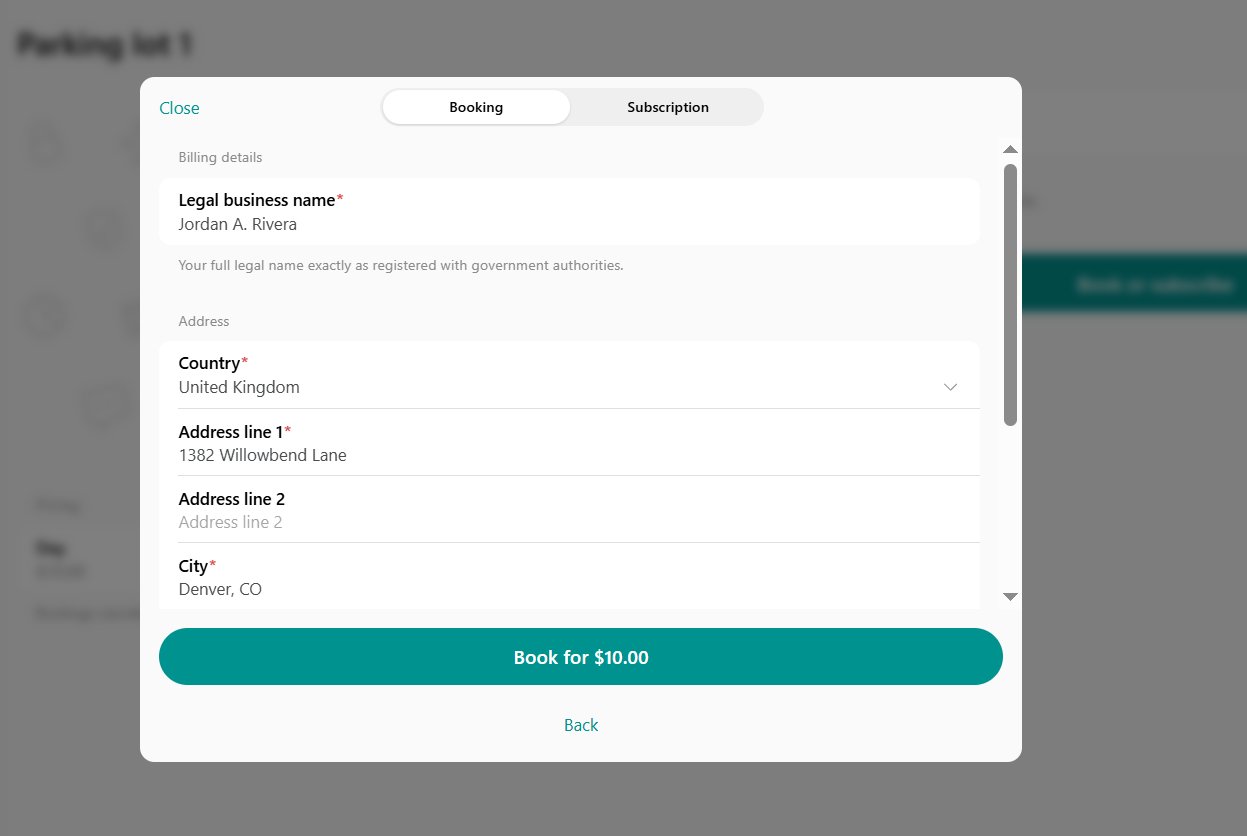 When purchasing totally free products, users are not asked to enter billing details.
## How customers manage their billing details
Customers can always add or update their billing details via the **Membership** page.
* Individual users update their personal details under the **Personal** section > **Billing**.
* [Company managers](/docs/customer-management/companies/members-and-managers) update their company details under the section with their company name > **Billing**.
When purchasing totally free products, users are not asked to enter billing details.
## How customers manage their billing details
Customers can always add or update their billing details via the **Membership** page.
* Individual users update their personal details under the **Personal** section > **Billing**.
* [Company managers](/docs/customer-management/companies/members-and-managers) update their company details under the section with their company name > **Billing**.
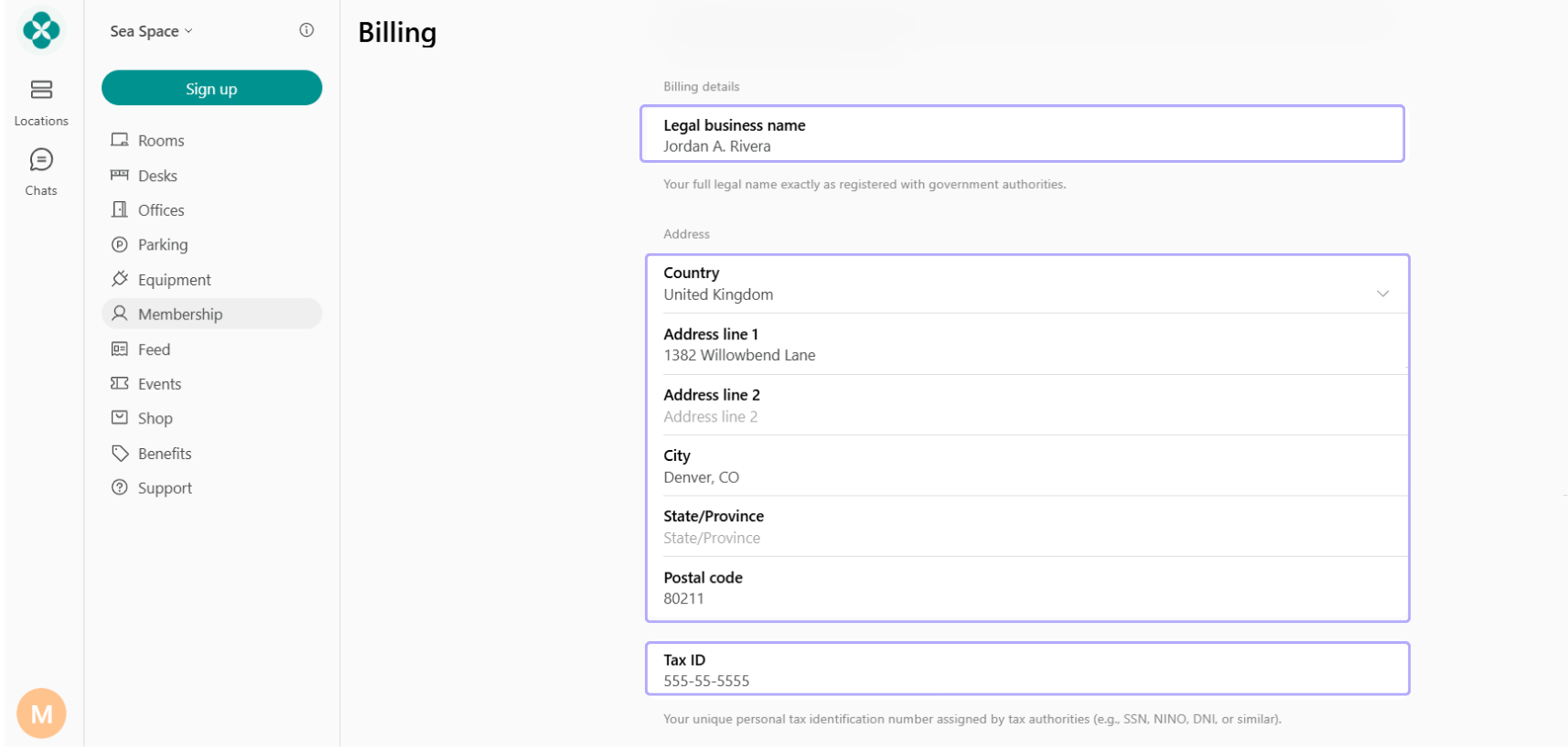 Changes to billing details apply to all newly issued receipts and invoices.
## How administrators add billing details for customers
[Administrators](/docs/administration/administrators) can enter billing details on behalf of a customer by following these steps:
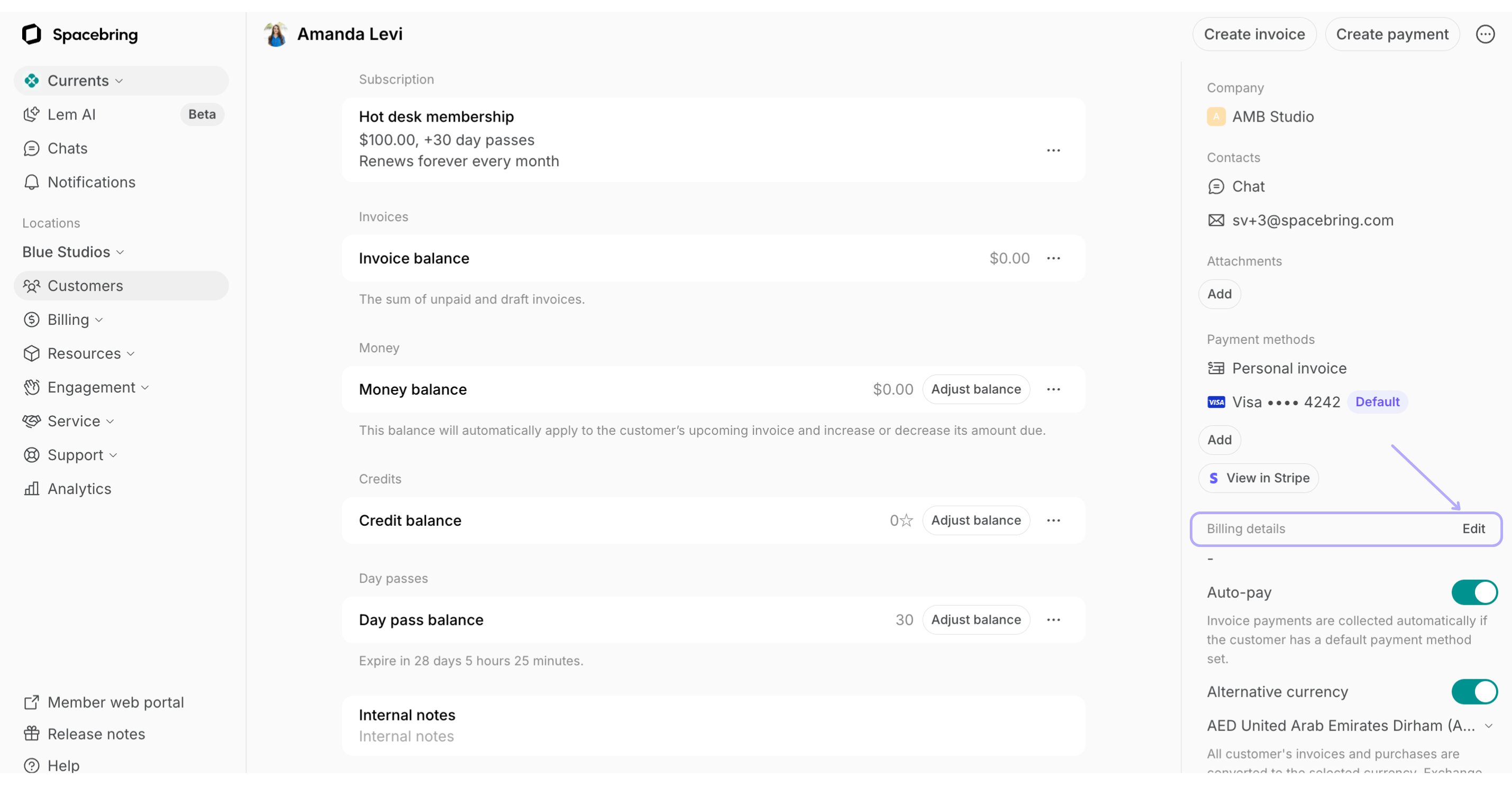
1. Go to the **Customers** page > select a user or a company > locate **Billing details** section > click **Edit**.
Changes to billing details apply to all newly issued receipts and invoices.
## How administrators add billing details for customers
[Administrators](/docs/administration/administrators) can enter billing details on behalf of a customer by following these steps:
1. Go to the **Customers** page > select a user or a company > locate **Billing details** section > click **Edit**.
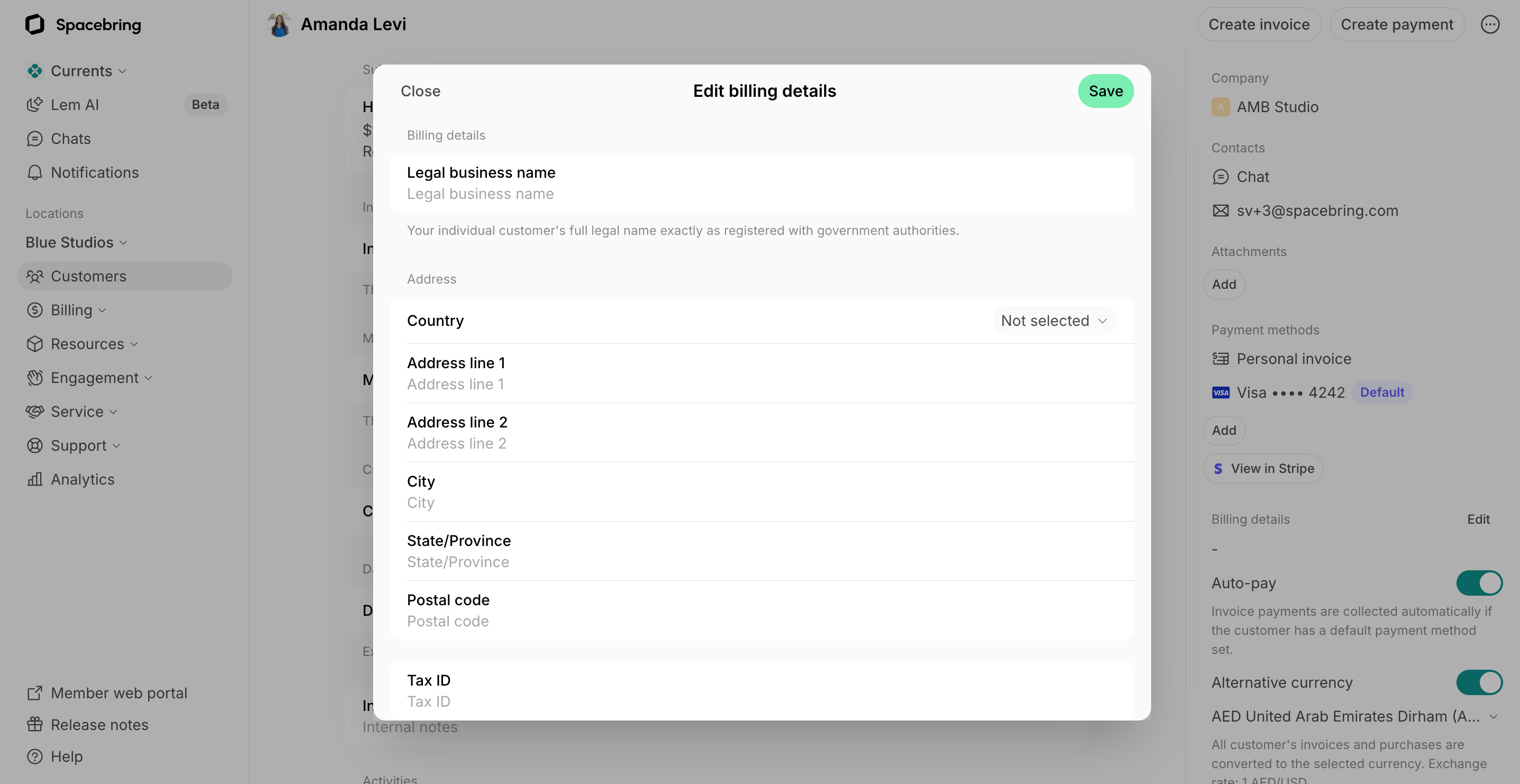
 2. Fill out the **Legal business name**, **Address**, and **Tax ID** fields on the right-side panel.
3. For companies, you can also add an **Email** — an additional billing email to send company's invoices and receipts to, in addition to company managers.
2. Fill out the **Legal business name**, **Address**, and **Tax ID** fields on the right-side panel.
3. For companies, you can also add an **Email** — an additional billing email to send company's invoices and receipts to, in addition to company managers.
 Additionally, if **Require billing details** is enabled, when making a booking for a customer, [creating an invoice](/docs/billing/invoices/issue), or a [one-off payment](/docs/billing/payments/create-one-off-payments), administrators are required to fill out the customer's billing details if the customer hasn't yet.
Before [creating a subscription](/docs/billing/subscriptions) for a user or company as an administrator, ensure their billing details are added. Otherwise, the first invoice will be issued without them.
Invoices display the customer's name as follows:If no billing details are filled in (Legal business name, Address, or Tax ID), the invoice displays the user's/company's regular name.If any billing detail is provided, the invoice uses the customer's **Legal business name**. If this field is empty, the **Bill to** section will appear blank.For this reason, always fill in the **Legal business name** when adding the customer's billing details, even if it matches the customer's regular name.
## How billing details appear on invoices and receipts
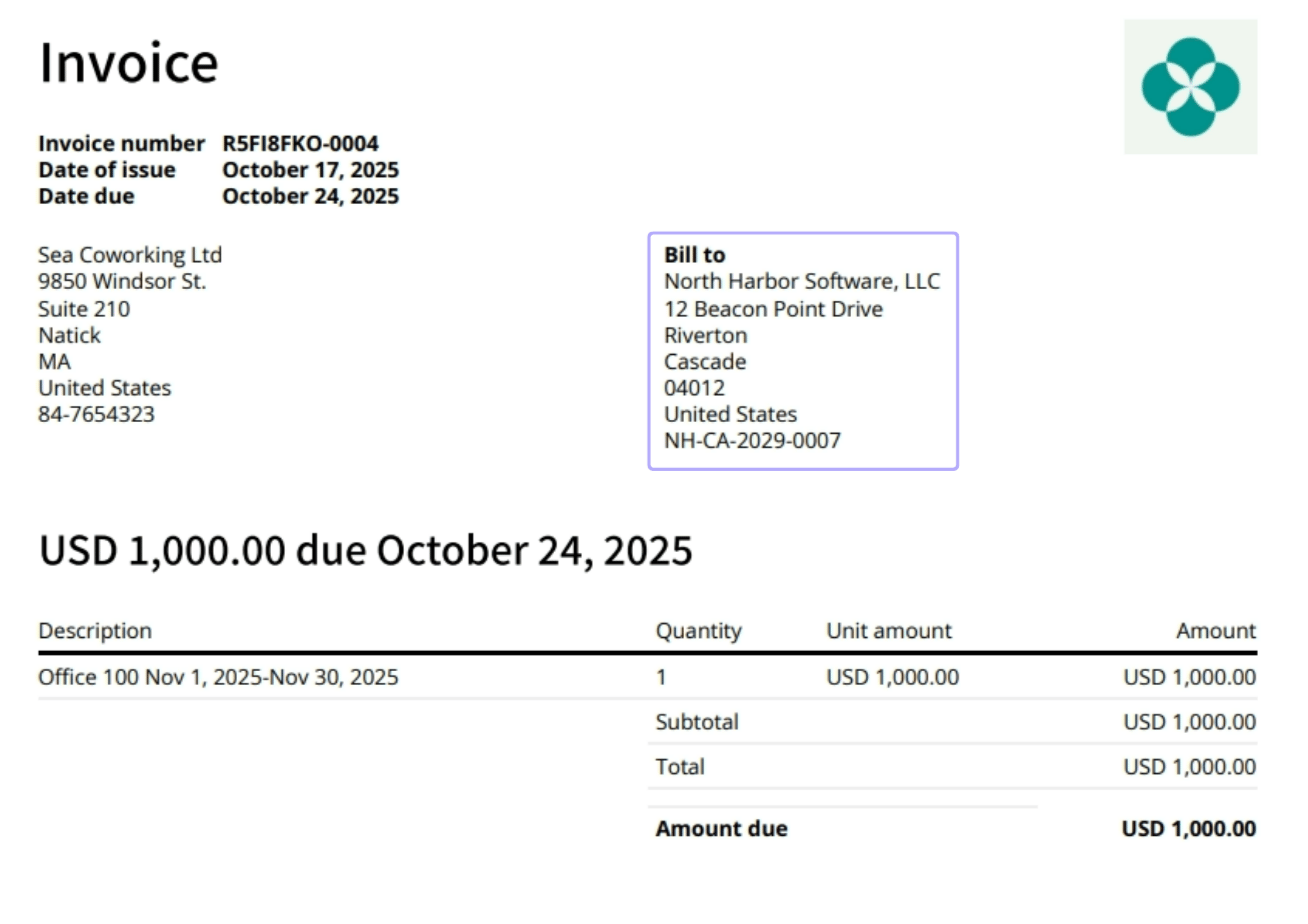
Billing details appear under **Bill to** on the customer's [invoices](/docs/billing/invoices/download) and [receipts](/docs/billing/payments/receipts).
Additionally, if **Require billing details** is enabled, when making a booking for a customer, [creating an invoice](/docs/billing/invoices/issue), or a [one-off payment](/docs/billing/payments/create-one-off-payments), administrators are required to fill out the customer's billing details if the customer hasn't yet.
Before [creating a subscription](/docs/billing/subscriptions) for a user or company as an administrator, ensure their billing details are added. Otherwise, the first invoice will be issued without them.
Invoices display the customer's name as follows:If no billing details are filled in (Legal business name, Address, or Tax ID), the invoice displays the user's/company's regular name.If any billing detail is provided, the invoice uses the customer's **Legal business name**. If this field is empty, the **Bill to** section will appear blank.For this reason, always fill in the **Legal business name** when adding the customer's billing details, even if it matches the customer's regular name.
## How billing details appear on invoices and receipts
Billing details appear under **Bill to** on the customer's [invoices](/docs/billing/invoices/download) and [receipts](/docs/billing/payments/receipts).