> ## Documentation Index
> Fetch the complete documentation index at: https://www.spacebring.com/docs/llms.txt
> Use this file to discover all available pages before exploring further.
# Customer profile
> Navigate a user or company profile and manage the customer's subscriptions, invoices, balances, internal notes, attachments, payment methods, billing details, and billing settings
Every user and company has a profile where you manage them as a customer: their subscriptions, invoices, balances, payment methods, and billing settings. Personal details belong to the user. Only they can change their name, photo, email, phone number, and [privacy settings](/docs/member/account#set-privacy-settings).
To open a profile, go to the **Customers** page > **Users** or **Companies** tab and click the customer. Customers are sorted alphabetically by default. Click the **Subscriptions**, **Payment method**, or **Invoices** column header to sort by that column instead — for example, by **Invoices** to see who owes the most in unpaid and draft invoices.
## Header
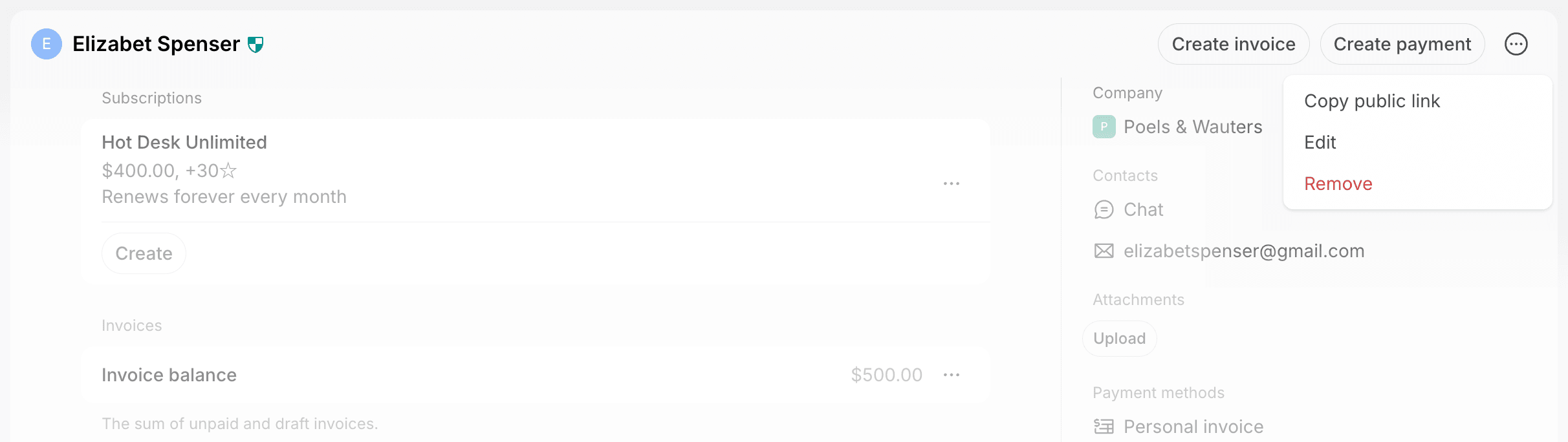 * **Create invoice** — issue a one-off invoice to the customer.
* **Create payment** — record a one-off payment.
* The **(...)** menu:
* For users — **Copy public link** to their member portal profile, **Edit** their administrator role and permissions, and **Remove** a member or **Delete** a nonmember.
* For companies — **Edit** the company details, **Remove** the company with or without its members, or **Delete** a nonmember company.
A shield icon next to a user's name means they are an administrator.
## Main column
* **Create invoice** — issue a one-off invoice to the customer.
* **Create payment** — record a one-off payment.
* The **(...)** menu:
* For users — **Copy public link** to their member portal profile, **Edit** their administrator role and permissions, and **Remove** a member or **Delete** a nonmember.
* For companies — **Edit** the company details, **Remove** the company with or without its members, or **Delete** a nonmember company.
A shield icon next to a user's name means they are an administrator.
## Main column
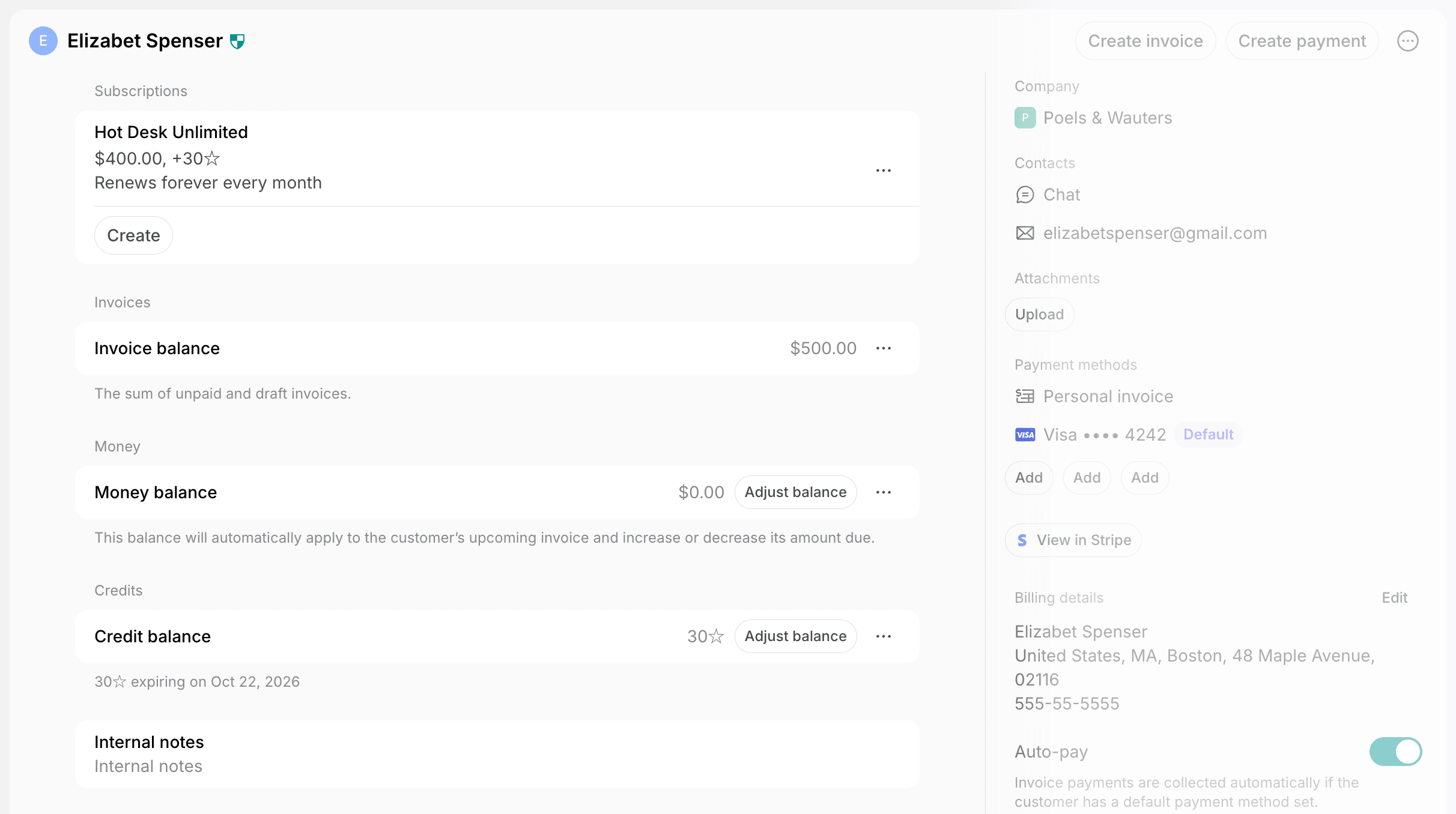 * **Invitation** — shows until an invited member activates their account. Click **Resend invite** to send the invitation email again.
* **Invite as member** — shows on a nonmember's profile, to invite them back as a member.
* **Subscriptions** — click **Create** to [create a subscription](/docs/billing/subscriptions), or **(...)** next to one to edit it, pause payment collection, view the upcoming invoice, or cancel it.
* **Invoices** — the **Invoice balance** is the sum of unpaid and draft invoices. Click **(...)** > **View invoices** to manage all the customer's invoices, including drafts. A warning icon next to it means charging the default payment method or syncing an eInvoice failed.
* **Pending invoice items** — bookings and purchases paid by invoice that aren't invoiced yet. Click **Create invoice** to invoice them now.
* **Money** — the money balance that applies to the customer's next invoice. Click **Adjust balance** to change it, or **(...)** > **View adjustments** to see its history.
* **Credits** and **Day passes** — the customer's credits and day passes with their expiration dates, followed by any scheduled transactions. Click **Adjust balance** to change the balance, or **(...)** > **View transactions** to see its history.
* **Internal notes** — details for your team, such as office requirements or preferences. Only administrators see them.
* **Activities** — the [timeline of changes](/docs/customer-management/account-history) to the customer's role, subscriptions, and billing settings.
## Right-hand panel
* **Invitation** — shows until an invited member activates their account. Click **Resend invite** to send the invitation email again.
* **Invite as member** — shows on a nonmember's profile, to invite them back as a member.
* **Subscriptions** — click **Create** to [create a subscription](/docs/billing/subscriptions), or **(...)** next to one to edit it, pause payment collection, view the upcoming invoice, or cancel it.
* **Invoices** — the **Invoice balance** is the sum of unpaid and draft invoices. Click **(...)** > **View invoices** to manage all the customer's invoices, including drafts. A warning icon next to it means charging the default payment method or syncing an eInvoice failed.
* **Pending invoice items** — bookings and purchases paid by invoice that aren't invoiced yet. Click **Create invoice** to invoice them now.
* **Money** — the money balance that applies to the customer's next invoice. Click **Adjust balance** to change it, or **(...)** > **View adjustments** to see its history.
* **Credits** and **Day passes** — the customer's credits and day passes with their expiration dates, followed by any scheduled transactions. Click **Adjust balance** to change the balance, or **(...)** > **View transactions** to see its history.
* **Internal notes** — details for your team, such as office requirements or preferences. Only administrators see them.
* **Activities** — the [timeline of changes](/docs/customer-management/account-history) to the customer's role, subscriptions, and billing settings.
## Right-hand panel
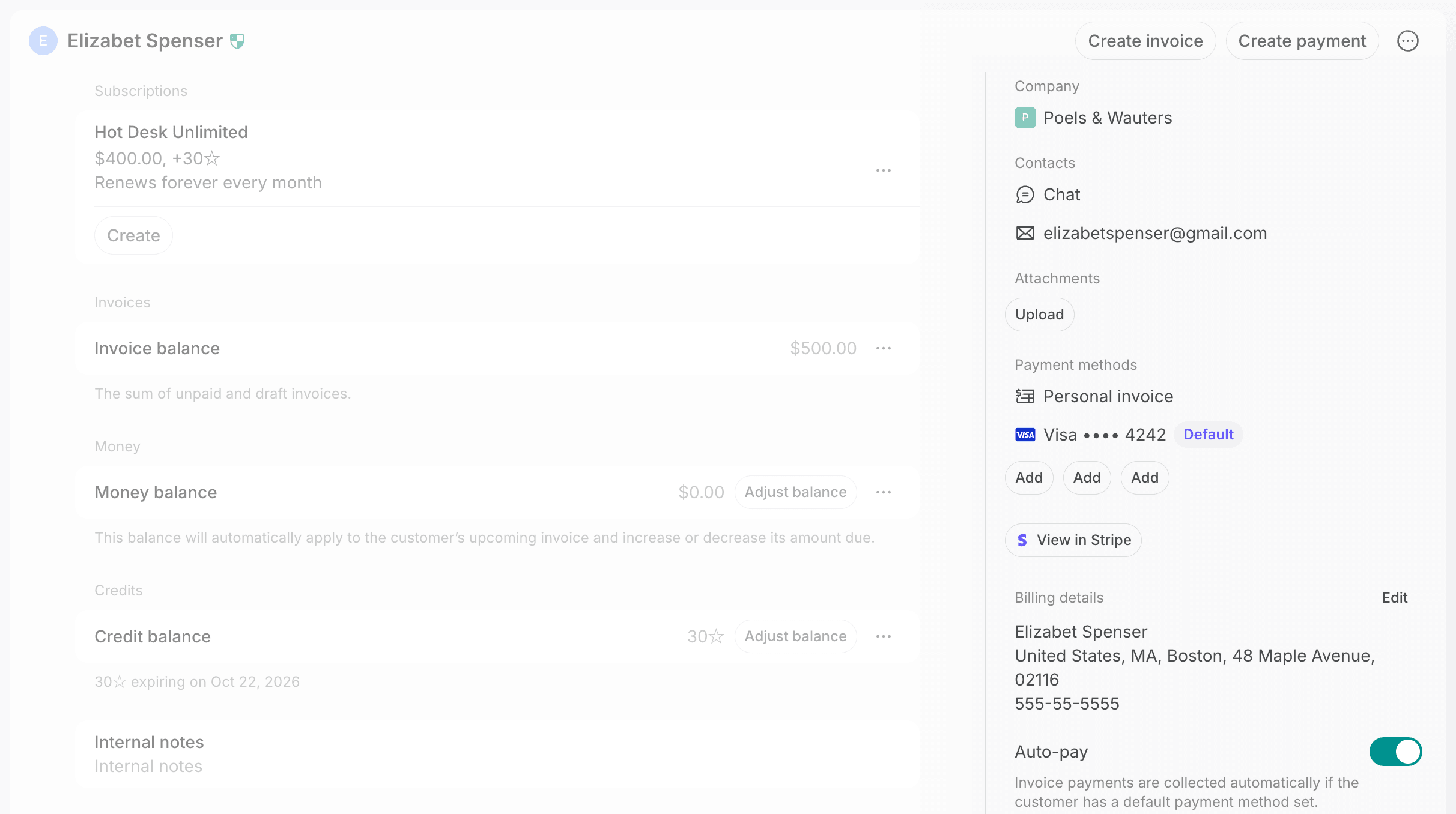 * **Company** — the company a user belongs to. On a member without a company, click **Select** to add them to one.
* **Members** — on a company's profile, [add, invite, and manage company members and managers](/docs/customer-management/companies#add-company-members-and-managers).
* **Contacts** — chat with the customer, or copy their email and phone number.
* **Attachments** — upload files, such as ID scans. Any image, video, or document format works, up to 50 MB per file. Only administrators see attachments.
* **Payment methods** — click **Add** to add a payment method, or **(...)** next to one to set it as default or delete it.
* **Personal invoice** or **Company invoice** — click **(...)** > **Edit** to let the customer pay with invoice.
* **Company credits** and **Company day passes** — click **(...)** > **Edit** to choose who in the company can pay with them.
* **View in Stripe** — open the customer's payment history in Stripe, if you have the Stripe integration connected.
* **Billing details** — click **Edit** to update the customer's [legal business name, address, and tax ID](/docs/customer-management/billing-details), and a company's **Billing emails**.
* **Auto-pay** — charge invoices to the default payment method automatically.
* **Alternative currency** — bill the customer in another currency.
* **Contracts**, **Invoices**, **Transactions**, and **Bookings** — the customer's contracts, invoices, transactions, and bookings. A user's profile also links to their event tickets, orders, benefit applications, and support tickets.
## When a user deletes their account
Only users can delete their accounts. When one does, you get a notification that opens their profile. The profile stays on the **Customers** page as **Deleted user**, so you can still cancel their subscription, manage their billing, or remove them.
## FAQs
Hover over the icon on the **Customers** page to see which of the following needs your attention:
* Charging their default payment method failed.
* An eInvoice failed to sync.
* Their invitation email couldn't be delivered.
Failures to sync a customer to an access control system show in the **Activities** section of their profile instead.
* **Company** — the company a user belongs to. On a member without a company, click **Select** to add them to one.
* **Members** — on a company's profile, [add, invite, and manage company members and managers](/docs/customer-management/companies#add-company-members-and-managers).
* **Contacts** — chat with the customer, or copy their email and phone number.
* **Attachments** — upload files, such as ID scans. Any image, video, or document format works, up to 50 MB per file. Only administrators see attachments.
* **Payment methods** — click **Add** to add a payment method, or **(...)** next to one to set it as default or delete it.
* **Personal invoice** or **Company invoice** — click **(...)** > **Edit** to let the customer pay with invoice.
* **Company credits** and **Company day passes** — click **(...)** > **Edit** to choose who in the company can pay with them.
* **View in Stripe** — open the customer's payment history in Stripe, if you have the Stripe integration connected.
* **Billing details** — click **Edit** to update the customer's [legal business name, address, and tax ID](/docs/customer-management/billing-details), and a company's **Billing emails**.
* **Auto-pay** — charge invoices to the default payment method automatically.
* **Alternative currency** — bill the customer in another currency.
* **Contracts**, **Invoices**, **Transactions**, and **Bookings** — the customer's contracts, invoices, transactions, and bookings. A user's profile also links to their event tickets, orders, benefit applications, and support tickets.
## When a user deletes their account
Only users can delete their accounts. When one does, you get a notification that opens their profile. The profile stays on the **Customers** page as **Deleted user**, so you can still cancel their subscription, manage their billing, or remove them.
## FAQs
Hover over the icon on the **Customers** page to see which of the following needs your attention:
* Charging their default payment method failed.
* An eInvoice failed to sync.
* Their invitation email couldn't be delivered.
Failures to sync a customer to an access control system show in the **Activities** section of their profile instead.