> ## Documentation Index
> Fetch the complete documentation index at: https://www.spacebring.com/docs/llms.txt
> Use this file to discover all available pages before exploring further.
# Chats
> Enable in-app Chats to replace external messaging tools, and let administrators and members message each other one-on-one or in groups
Use in-app chats to centralize communication and encourage member networking. Message people one-on-one, or create group chats to bring several members together in one conversation.
With chats, you can:
* Replace external tools by letting members connect, network, and message each other directly within your web portal and mobile app.
* Centralize communication between customers and administrators.
* Bring members together in group chats — to reach a whole company, share announcements, or group people by shared interest.
## Enable Chats
1. Tap the **(...)** next to the network name > **Network settings** > **Chats**.
2. Enable the **Chats** switch.
 Once enabled, the **Chats** option will appear in the main navigation menu for both administrators and users.
Chats work at the network level. If turned on, chats are available in all locations.
## One-on-one chats
### Administrators
Administrators can chat with any customer to provide support or follow up on requests.
1. Go to the **Chats** page.
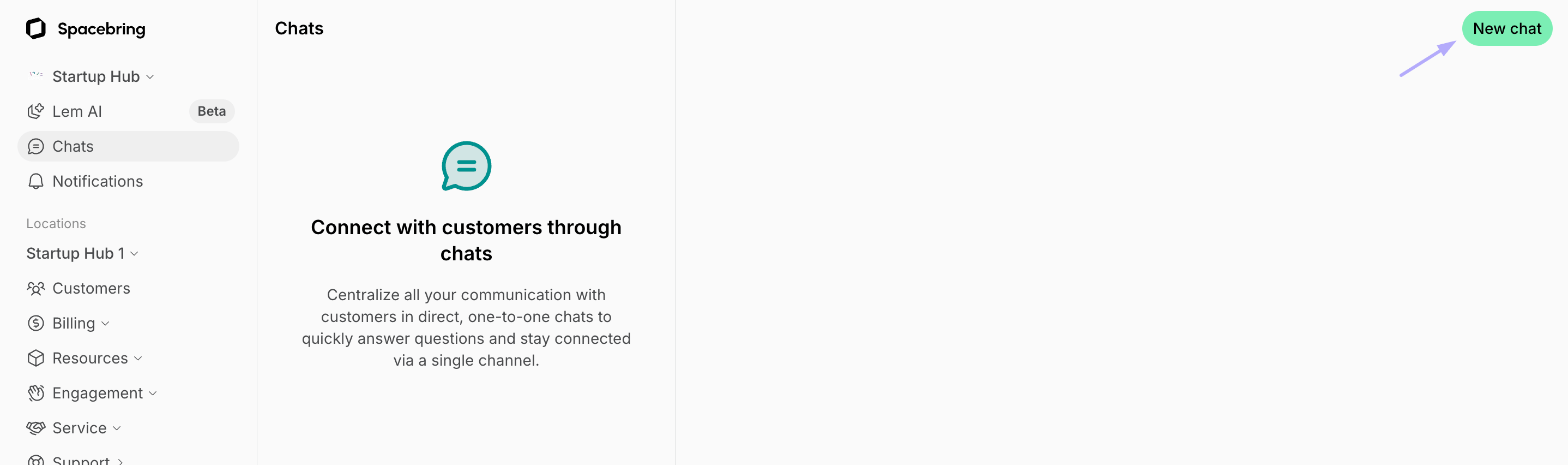
2. Open an existing conversation, or click **New chat** top right and search for a customer.
Once enabled, the **Chats** option will appear in the main navigation menu for both administrators and users.
Chats work at the network level. If turned on, chats are available in all locations.
## One-on-one chats
### Administrators
Administrators can chat with any customer to provide support or follow up on requests.
1. Go to the **Chats** page.
2. Open an existing conversation, or click **New chat** top right and search for a customer.
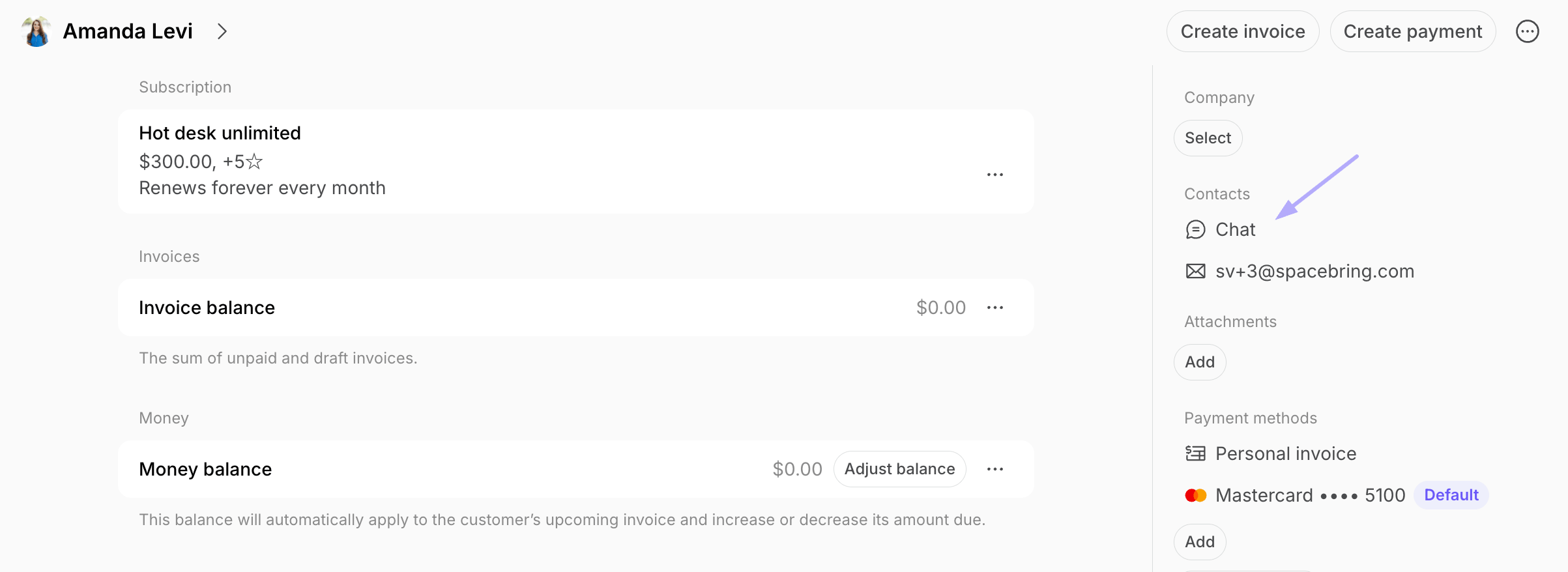
 You can also start a chat directly from the customer's profile, or by opening their profile from any other page.
 ### Users
Members can chat with other community members depending on your visibility settings.
* If you set the **Community** page [visibility](/docs/location/visibility) to **Location members** or "Network members," members can browse other community members and start a chat with any other member of the location or network from the **Chats** page.
### Users
Members can chat with other community members depending on your visibility settings.
* If you set the **Community** page [visibility](/docs/location/visibility) to **Location members** or "Network members," members can browse other community members and start a chat with any other member of the location or network from the **Chats** page.
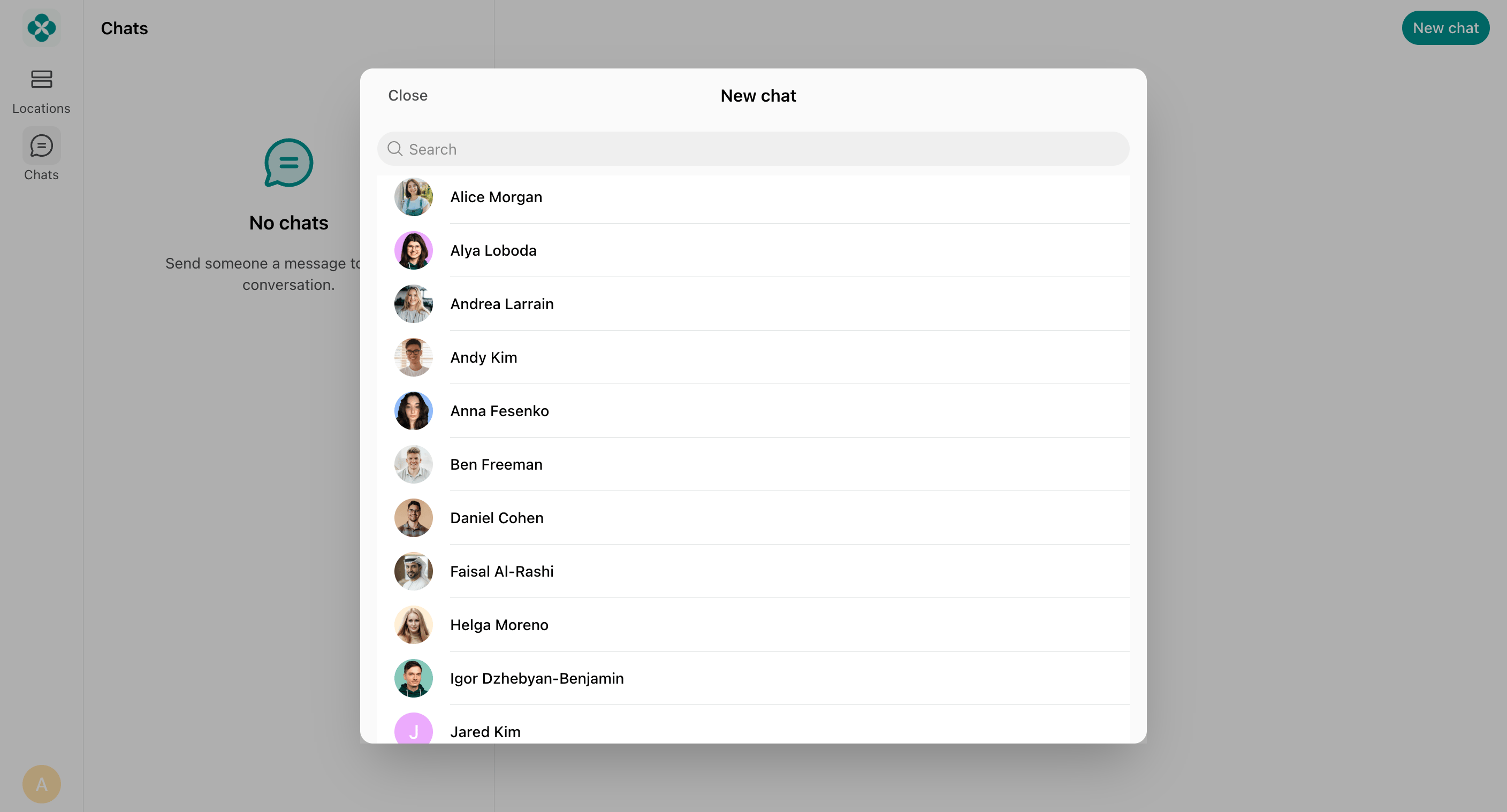 * If the **Community** page visibility is set to "Administrators," members can start chats only with members who made themselves discoverable on the other pages. For example, they can message someone who published a feed post by clicking on their name.
## Group chats
Group chats bring several members together in one conversation. They're useful to:
* Message an entire company at once, or a specific set of members — like founders from different companies.
* Group members by shared interest — a yoga group, a speaking club, or a film-lovers club — so they can socialize inside the app.
### Administrators
Only administrators can create group chats. To create one:
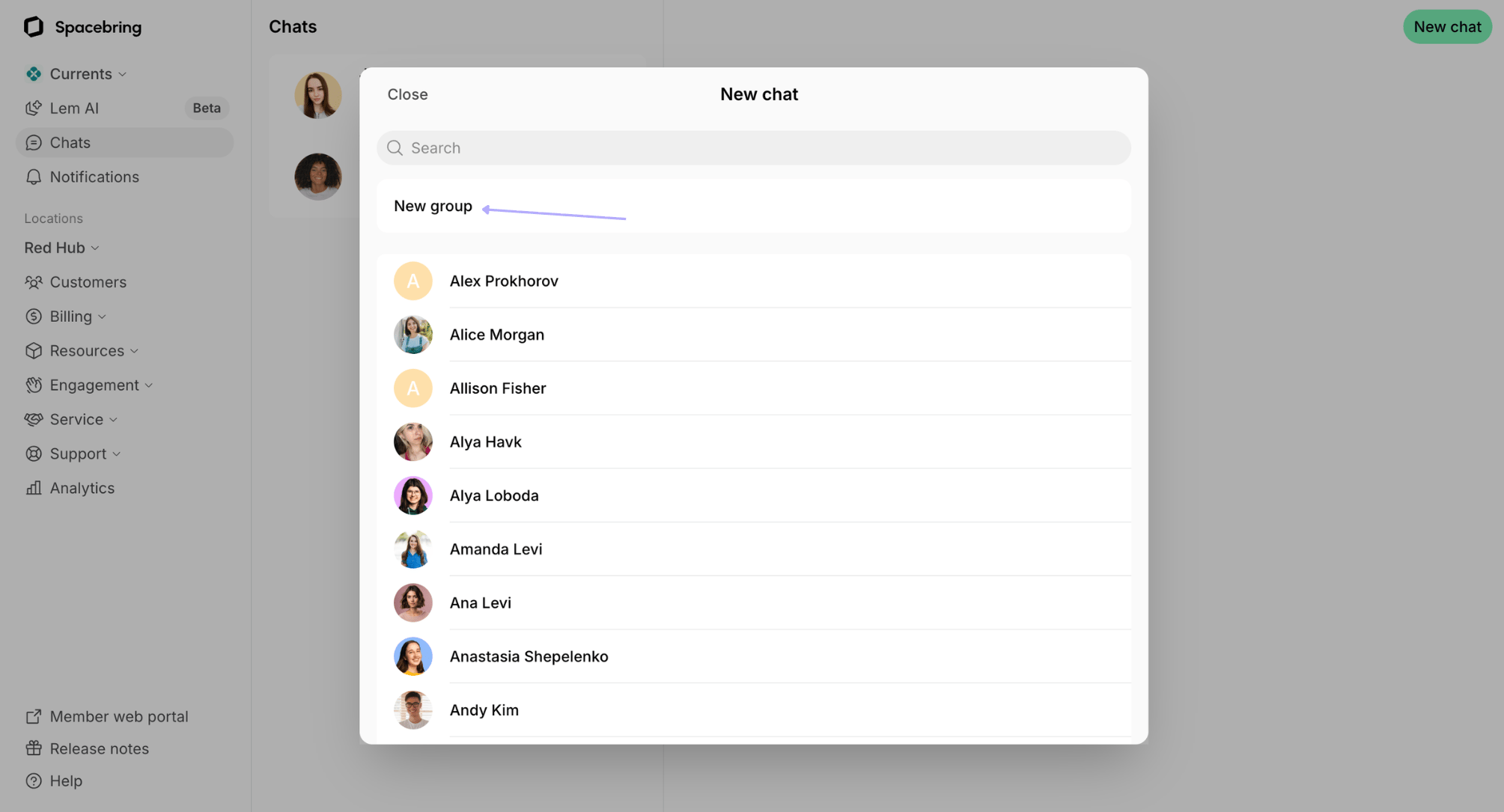
1. Go to the **Chats** page and click **New chat** > **New group**.
2. Search and select the participants, then click **Next**.
* An administrator can add members of the locations they manage.
* An owner can add anyone in the network — both members and nonmembers, across all locations.
3. Give the group a title, optionally add a group photo, and click **Create**.
* If the **Community** page visibility is set to "Administrators," members can start chats only with members who made themselves discoverable on the other pages. For example, they can message someone who published a feed post by clicking on their name.
## Group chats
Group chats bring several members together in one conversation. They're useful to:
* Message an entire company at once, or a specific set of members — like founders from different companies.
* Group members by shared interest — a yoga group, a speaking club, or a film-lovers club — so they can socialize inside the app.
### Administrators
Only administrators can create group chats. To create one:
1. Go to the **Chats** page and click **New chat** > **New group**.
2. Search and select the participants, then click **Next**.
* An administrator can add members of the locations they manage.
* An owner can add anyone in the network — both members and nonmembers, across all locations.
3. Give the group a title, optionally add a group photo, and click **Create**.
 To manage a group, open it and click the **(...)** menu in the top-right corner:
* **Information** — view the group photo and participants.
* **Edit** — rename the group, add or change the group photo, add or remove participants, and change participant roles.
* To change someone's role, click the **(...)** menu next to their name and choose **Make admin** or **Make member**.
* Both administrators and members can be assigned as group chat admins.
* A group can have several admins, but must always have at least one.
* **Leave** — leave the group.
An admin can leave the group as long as at least one other admin remains.
* **Delete** — permanently delete the group for everyone.
### Users
When added to a group, everyone can:
* Send messages to everyone in the group.
* Open the **(...)** menu > **Information** to see the group photo and who's in the group.
* Leave the group at any time from the **(...)** menu > **Leave**.
A member who is made a chat admin gets the same management options as any administrator: they can **Edit** the group (rename it, change the photo, add or remove participants, and change roles) and **Delete** it.
To manage a group, open it and click the **(...)** menu in the top-right corner:
* **Information** — view the group photo and participants.
* **Edit** — rename the group, add or change the group photo, add or remove participants, and change participant roles.
* To change someone's role, click the **(...)** menu next to their name and choose **Make admin** or **Make member**.
* Both administrators and members can be assigned as group chat admins.
* A group can have several admins, but must always have at least one.
* **Leave** — leave the group.
An admin can leave the group as long as at least one other admin remains.
* **Delete** — permanently delete the group for everyone.
### Users
When added to a group, everyone can:
* Send messages to everyone in the group.
* Open the **(...)** menu > **Information** to see the group photo and who's in the group.
* Leave the group at any time from the **(...)** menu > **Leave**.
A member who is made a chat admin gets the same management options as any administrator: they can **Edit** the group (rename it, change the photo, add or remove participants, and change roles) and **Delete** it.
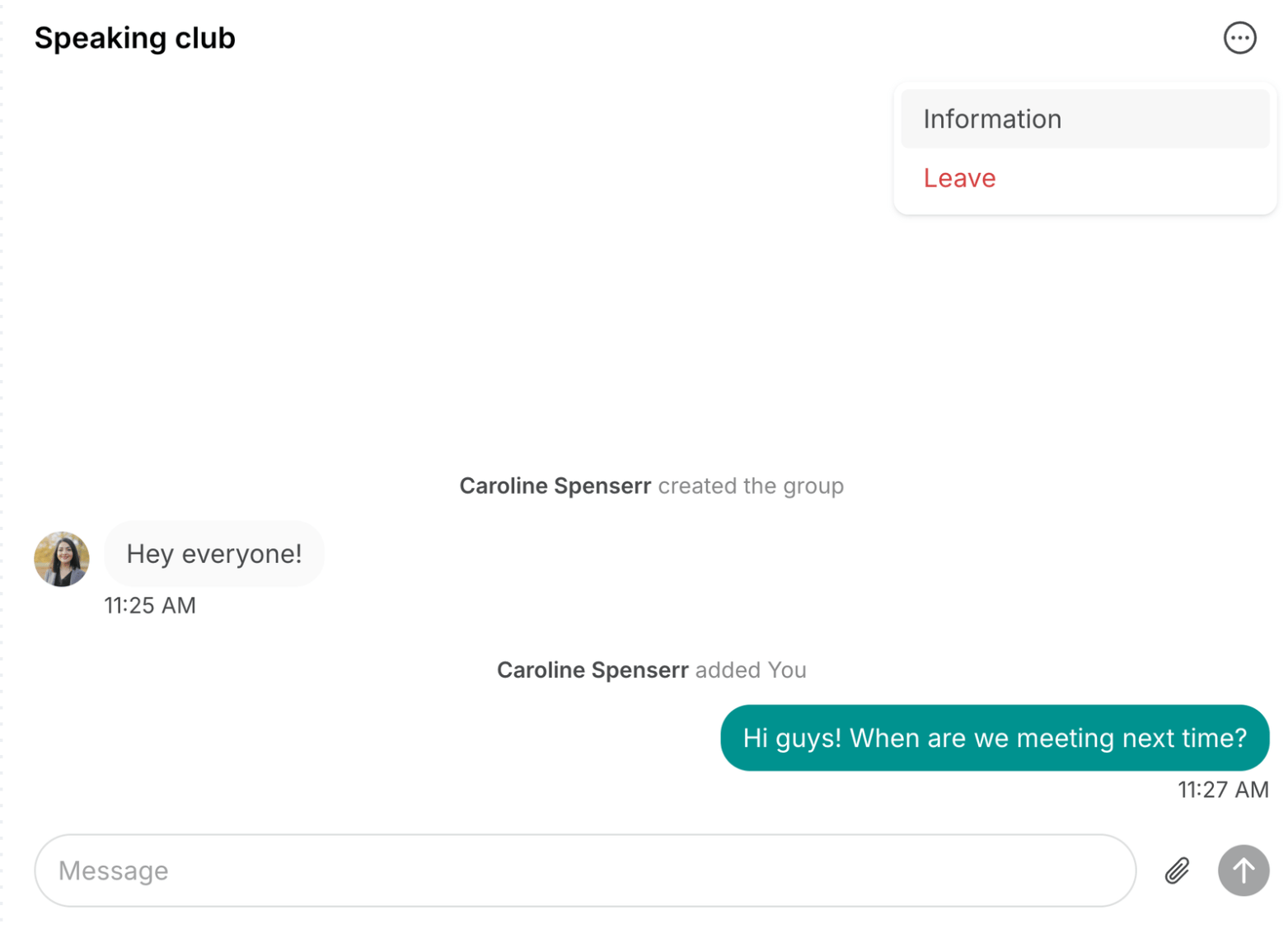 A member added to an existing group sees the full message history, not only messages sent after they joined.
## Manage messages
* Attachments: To send files, contracts, or images, click the **Attachment** (paperclip) icon in the bottom right. Check the allowed media and file formats [here](/docs/general/media-formats).
* Delete messages: Users and administrators can unsend a message by hovering over the message, tapping the **(...)** button, and pressing **Delete**.
## What's next?
* [Manage admin notifications](/docs/account/notifications) to stay alerted to new messages.
* [Understand visibility settings](/docs/location/visibility) to control how users discover each other.
**FAQ**
To turn off **Chats**, go to **Network settings** > **Chats** and toggle the **Chats** switch off. This will hide the chat icon from the navigation menu for all users.
If privacy-conscious users choose to hide their name visibility on bookings and do not deliberately make themselves visible in your app (e.g. by posting on **Feed**), nobody will be able to send them a message.
No. Only administrators can create group chats. Members can be added to a group, send messages, and leave at any time. However, an administrator can promote a member to a group chat admin to help manage the group — and can even leave it, if wanted.
A member added to an existing group sees the full message history, not only messages sent after they joined.
## Manage messages
* Attachments: To send files, contracts, or images, click the **Attachment** (paperclip) icon in the bottom right. Check the allowed media and file formats [here](/docs/general/media-formats).
* Delete messages: Users and administrators can unsend a message by hovering over the message, tapping the **(...)** button, and pressing **Delete**.
## What's next?
* [Manage admin notifications](/docs/account/notifications) to stay alerted to new messages.
* [Understand visibility settings](/docs/location/visibility) to control how users discover each other.
**FAQ**
To turn off **Chats**, go to **Network settings** > **Chats** and toggle the **Chats** switch off. This will hide the chat icon from the navigation menu for all users.
If privacy-conscious users choose to hide their name visibility on bookings and do not deliberately make themselves visible in your app (e.g. by posting on **Feed**), nobody will be able to send them a message.
No. Only administrators can create group chats. Members can be added to a group, send messages, and leave at any time. However, an administrator can promote a member to a group chat admin to help manage the group — and can even leave it, if wanted.