> ## Documentation Index
> Fetch the complete documentation index at: https://www.spacebring.com/docs/llms.txt
> Use this file to discover all available pages before exploring further.
# Check-ins
> Enable check-ins for bookings, event tickets, and subscriptions, learn how users check in and out, check users in and out as an administrator, and track who is in your location
Check-ins allow you to track everyone who comes to your space for a booking, an event, or a visit, and members who come on their subscription. You can confirm that the user walking in is expected, see who is in your location right now, and see when each user arrived and left.
## Enable check-ins
1. Click the menu **(...)** next to your location name > **Location settings** > **Front desk** > **Check-ins**.
2. Enable the **Check-ins** switch.
3. Enable the switches for the users who should get a check-in code and check in with it:
* **Event tickets** — users who have an event ticket.
* **Room bookings** — users who book a room, and their invitees.
* **Desk bookings** — users who book a desk, and their invitees.
* **Subscriptions** — members who have an active subscription. They check in with their [personal code](#how-members-get-a-personal-check-in-code).
* Visits have no switch. Visitors always get an invitation with a visit code as soon as they are [registered](/docs/member/visitors/preregister-visitors-and-approve-visit-requests).
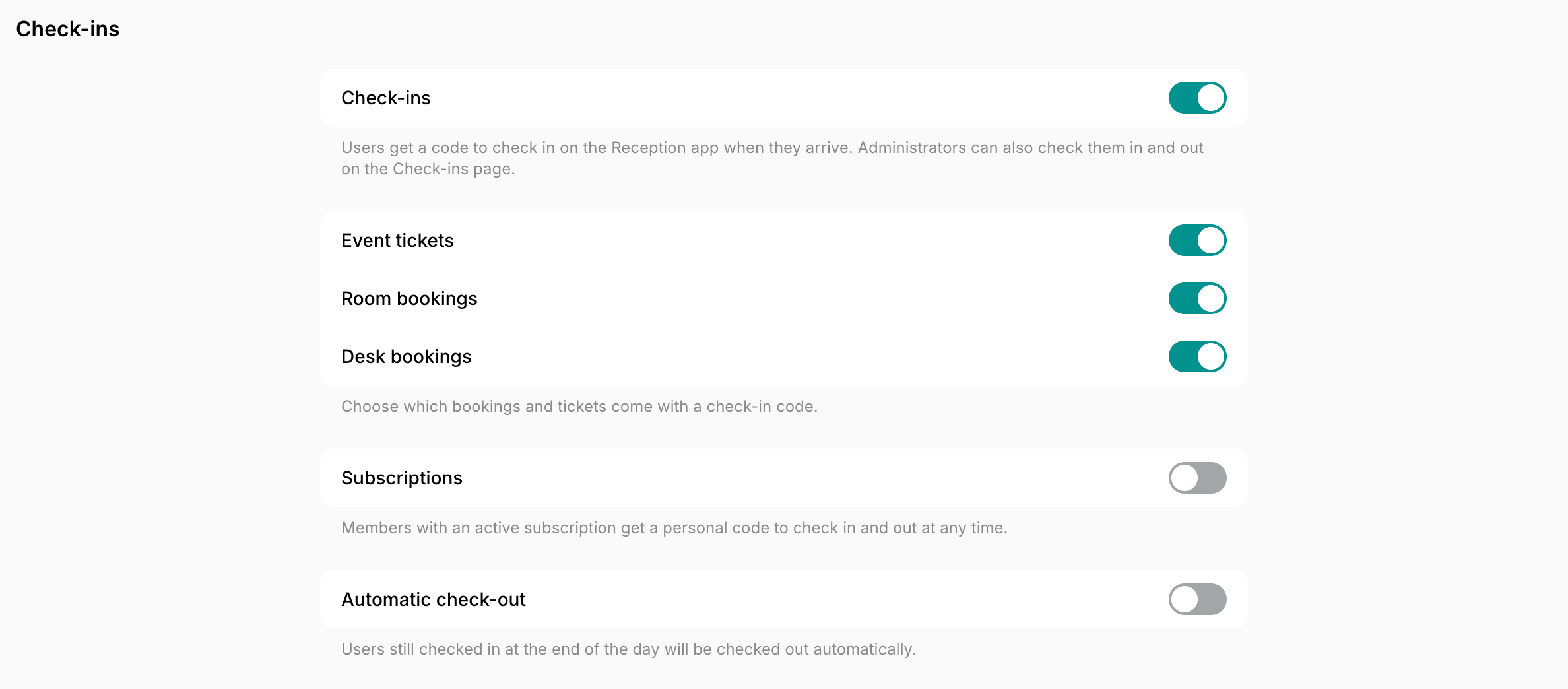 Turning **Check-ins** off turns all these switches off and hides the **Check-ins** page. Visitors still get a visit code and check in with it on the Reception app. You [track their visits](/docs/front-desk/visitors/track-and-manage-visits) on the **Front desk** > **Visitors** page.
When you enable **Room bookings** or **Desk bookings**, only new bookings get a code. When you enable **Event tickets**, both new and already purchased tickets get a code.
### How users get a check-in code for a booking, an event ticket, or a visit
1. A user books a room or a desk, gets an event ticket, or is registered as a visitor.
2. Spacebring gives them a six-digit check-in code. On a booking, the booker and each invitee get their own.
3. Spacebring sends the code:
* For a room or desk booking — in the resource's [confirmation email](/docs/general/customize-emails) when one is set up, in the email someone gets when a booking is made for them or they are added to one as an invitee, and in the reminders before it starts, by push notification or email.
* For an event ticket — in the event's [confirmation email](/docs/general/customize-emails) when one is set up, and in the reminders before the event, by push notification or email.
* For a visit — in the visit invitation email.
Turning **Check-ins** off turns all these switches off and hides the **Check-ins** page. Visitors still get a visit code and check in with it on the Reception app. You [track their visits](/docs/front-desk/visitors/track-and-manage-visits) on the **Front desk** > **Visitors** page.
When you enable **Room bookings** or **Desk bookings**, only new bookings get a code. When you enable **Event tickets**, both new and already purchased tickets get a code.
### How users get a check-in code for a booking, an event ticket, or a visit
1. A user books a room or a desk, gets an event ticket, or is registered as a visitor.
2. Spacebring gives them a six-digit check-in code. On a booking, the booker and each invitee get their own.
3. Spacebring sends the code:
* For a room or desk booking — in the resource's [confirmation email](/docs/general/customize-emails) when one is set up, in the email someone gets when a booking is made for them or they are added to one as an invitee, and in the reminders before it starts, by push notification or email.
* For an event ticket — in the event's [confirmation email](/docs/general/customize-emails) when one is set up, and in the reminders before the event, by push notification or email.
* For a visit — in the visit invitation email.
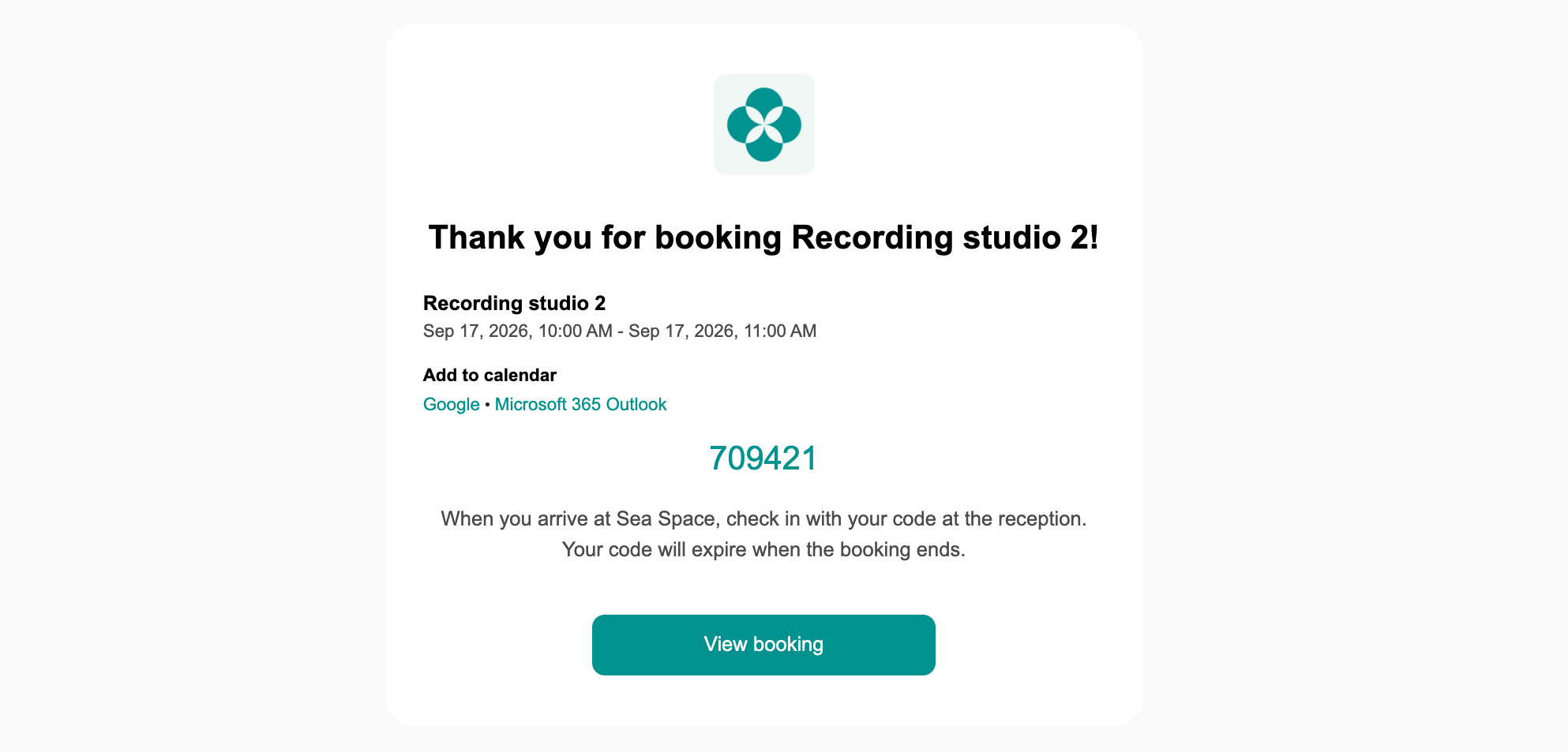 4. Users also find the code themselves in the member web portal and mobile app:
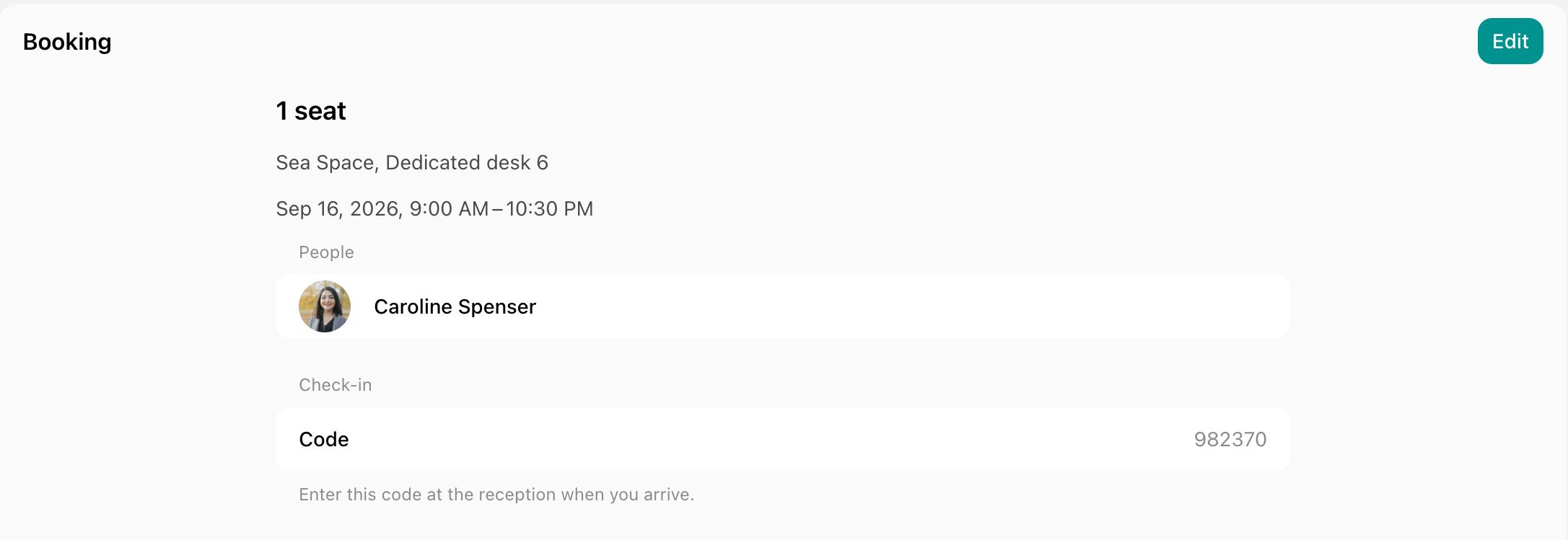
* On the widget on the location's **Home** page, for a booking, an event ticket, or a visit that is coming up.
4. Users also find the code themselves in the member web portal and mobile app:
* On the widget on the location's **Home** page, for a booking, an event ticket, or a visit that is coming up.
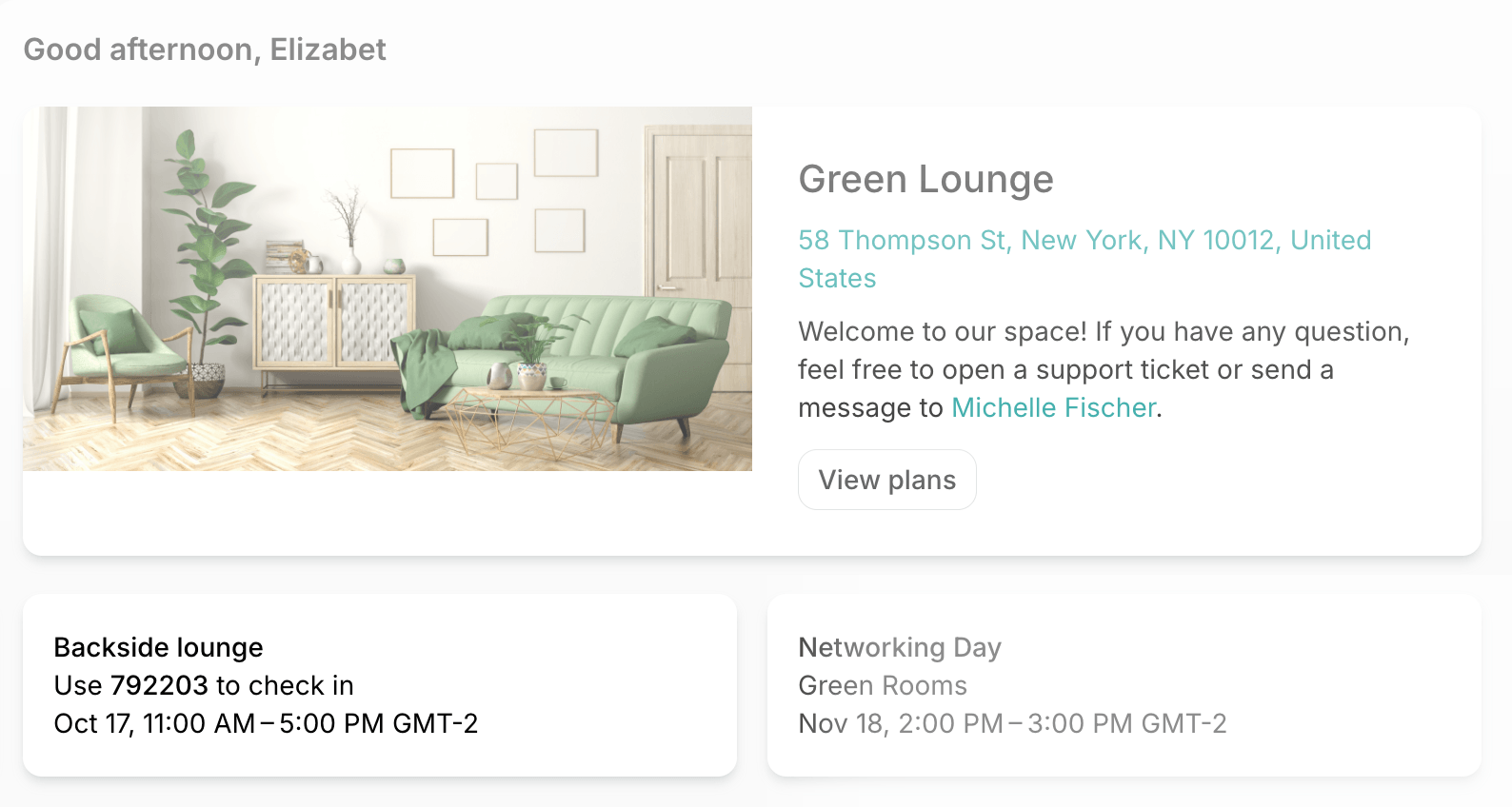 * On the booking on the **Account** > **Bookings** page, or on the ticket on the **Account** > **Tickets** page. An invitee sees their own code on the booking, not the booker's.
 * On the **Visitors** page, where the host can find their visitor's code to share it again.
5. The code starts working an hour before the start and stops working at the end:
* A booking code — until the booking ends.
* An event ticket code — until the event ends.
* A visit code — until the end of the visit day.
When a booking, an event, or a visit moves to another time, its codes move with it. When a booking, a ticket, or a visit is canceled, its codes stop working. An invitee removed from a booking loses their code too.
### How members get a personal check-in code
If you turn on check-ins for subscriptions with the **Subscriptions** switch, members with a subscription can also check in with a personal code, whether or not they have a booking:
* Every member gets a six-digit personal code as soon as they become a member of your location.
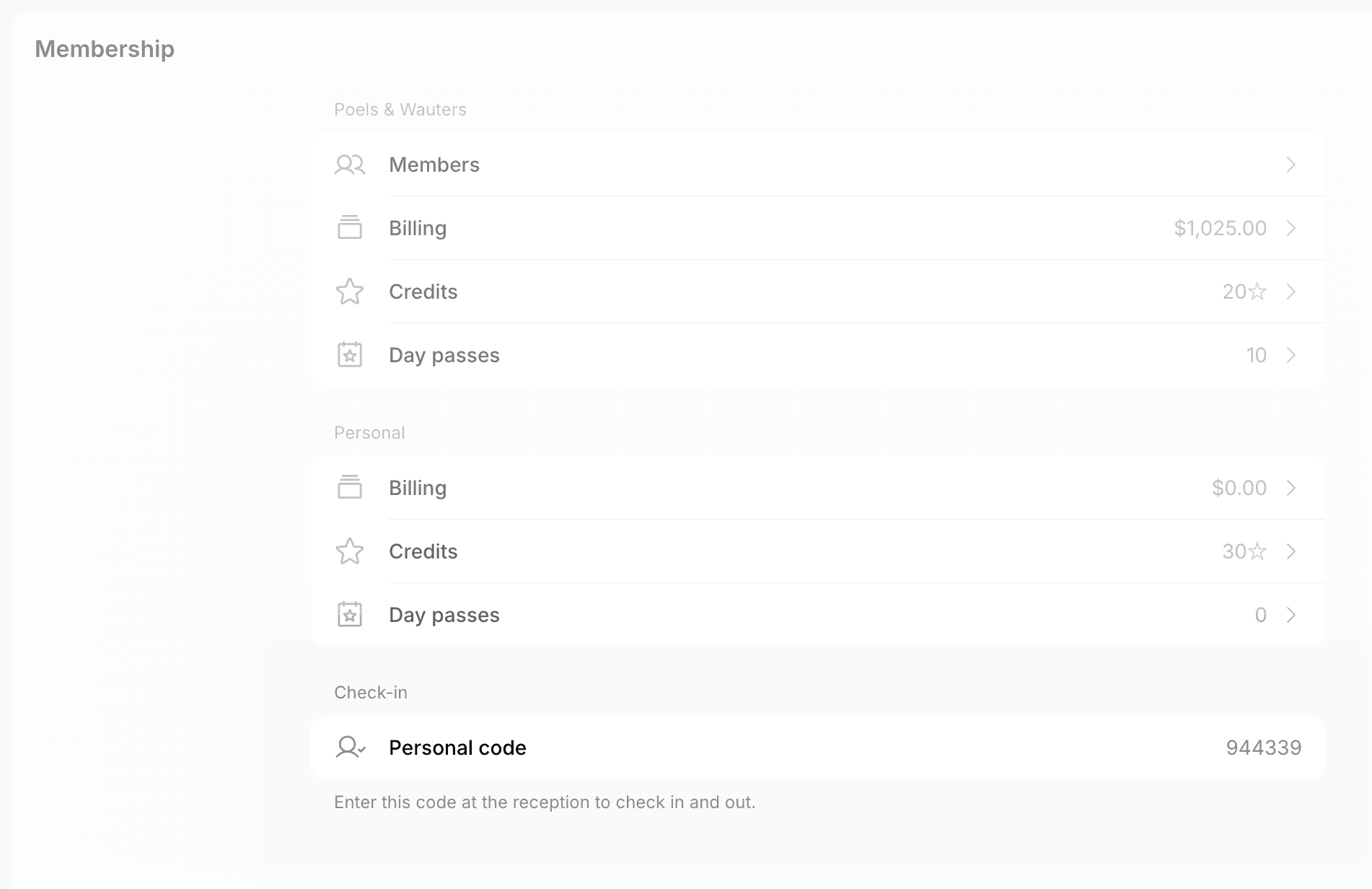
* Members find the code on the **Membership** page > **Check-in** > **Personal code**. They see it only while they or their company have an active subscription.
* On the **Visitors** page, where the host can find their visitor's code to share it again.
5. The code starts working an hour before the start and stops working at the end:
* A booking code — until the booking ends.
* An event ticket code — until the event ends.
* A visit code — until the end of the visit day.
When a booking, an event, or a visit moves to another time, its codes move with it. When a booking, a ticket, or a visit is canceled, its codes stop working. An invitee removed from a booking loses their code too.
### How members get a personal check-in code
If you turn on check-ins for subscriptions with the **Subscriptions** switch, members with a subscription can also check in with a personal code, whether or not they have a booking:
* Every member gets a six-digit personal code as soon as they become a member of your location.
* Members find the code on the **Membership** page > **Check-in** > **Personal code**. They see it only while they or their company have an active subscription.
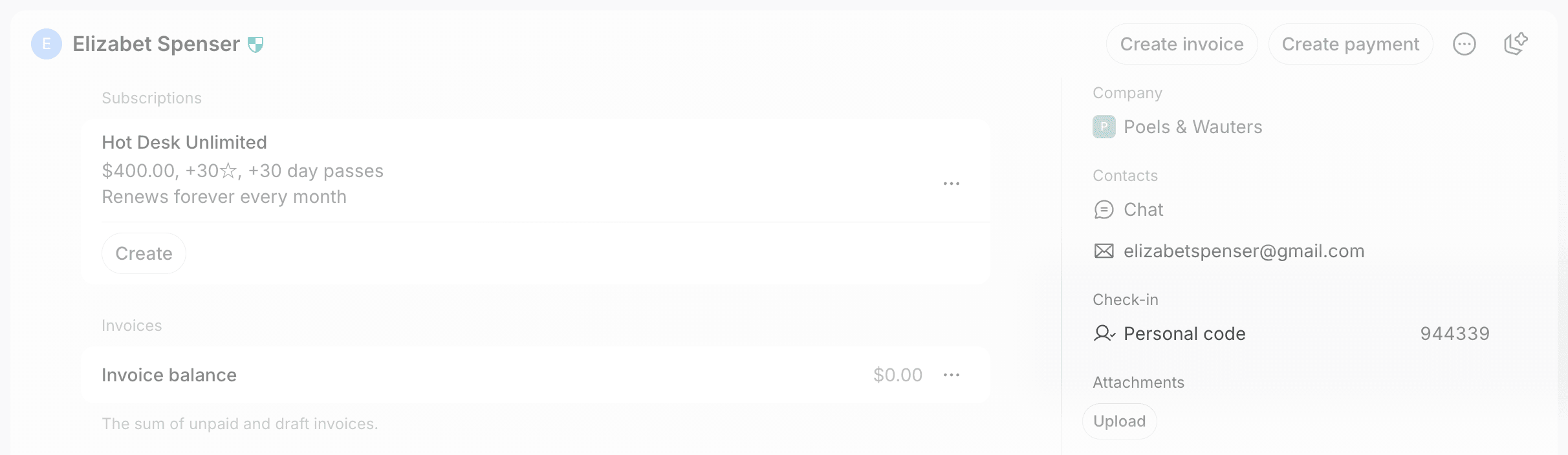
 * Administrators find the code in the **Check-in** section of the member's [profile](/docs/customer-management/profile#right-hand-panel). They see it only while the member or their company has an active subscription.
 * The code works at any time while the member or their company has an active subscription. There is no start or end time.
* A member who is deleted and invited again gets the same code back.
### How users check in
Sign up for the [Visitors add-on](/docs/administration/billing/make-changes-to-spacebring-subscription), which includes the [Reception app](/docs/front-desk/visitors), if you haven't yet, and set the tablet up at your front desk.
Event attendees, users with a room or desk booking, members with a subscription, and visitors check themselves in on the Reception tablet:
1. The user taps **Check in** on the tablet when they arrive and confirms that they have a code.
* The code works at any time while the member or their company has an active subscription. There is no start or end time.
* A member who is deleted and invited again gets the same code back.
### How users check in
Sign up for the [Visitors add-on](/docs/administration/billing/make-changes-to-spacebring-subscription), which includes the [Reception app](/docs/front-desk/visitors), if you haven't yet, and set the tablet up at your front desk.
Event attendees, users with a room or desk booking, members with a subscription, and visitors check themselves in on the Reception tablet:
1. The user taps **Check in** on the tablet when they arrive and confirms that they have a code.
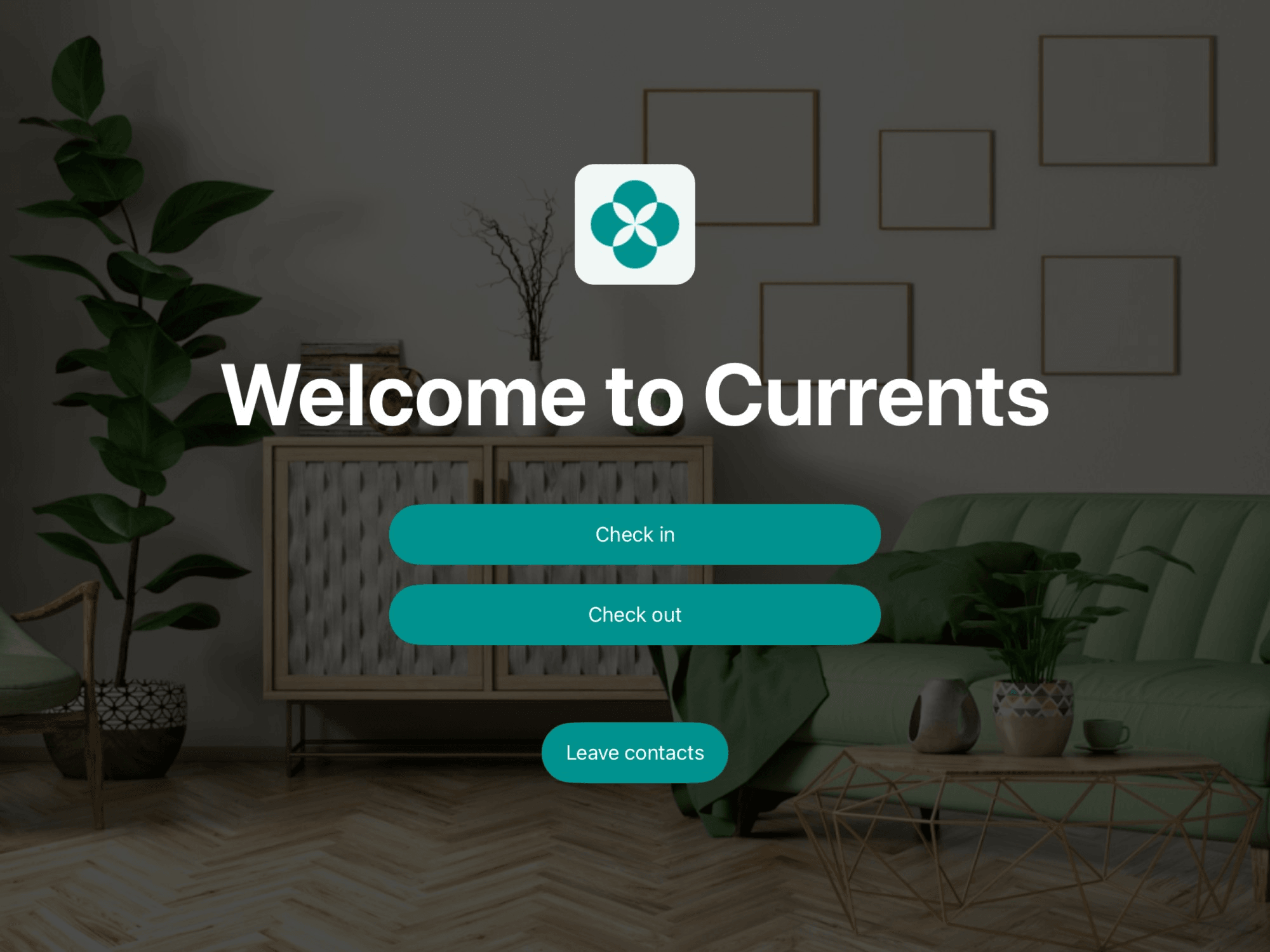 2. They enter their six-digit code.
3. Reception confirms the check-in. For a visit, it also notifies the host that their visitor has arrived.
While the code works, users can use it as many times as they need. For example, a member who leaves for lunch [checks out](#how-users-check-out) and then checks in again with the same code. A user who is already checked in can't check in again until they check out.
Nobody can check in with a booking, ticket, or visit code before it starts working or after it stops working. A member whose subscription hasn't started, isn't paid yet, or has ended can't check in with their personal code. Bookings for an office, a parking lot, or equipment, and bookings imported from Google Calendar or Outlook Calendar can't be checked in at all, because they never get a code.
### How administrators check users in
When your subscription has no Visitors add-on with the Reception app, or there is no tablet at the door, your team checks users in instead:
1. Go to the **Front desk** > **Check-ins** page.
2. Click **Check in** top right.
3. Enter the six-digit code the user shows you.
* You can also check in event attendees:
* By [scanning their ticket](#check-in-attendees-by-scanning-their-ticket-qr-code) in the admin mobile app.
* From the [event page](#check-in-attendees-from-the-event-page), without entering a code.
* You can also check in members with a subscription without entering a code:
* Type their name in the search field above **Code** and select them from the list.
* The list shows only members whose own or company subscription is active.
2. They enter their six-digit code.
3. Reception confirms the check-in. For a visit, it also notifies the host that their visitor has arrived.
While the code works, users can use it as many times as they need. For example, a member who leaves for lunch [checks out](#how-users-check-out) and then checks in again with the same code. A user who is already checked in can't check in again until they check out.
Nobody can check in with a booking, ticket, or visit code before it starts working or after it stops working. A member whose subscription hasn't started, isn't paid yet, or has ended can't check in with their personal code. Bookings for an office, a parking lot, or equipment, and bookings imported from Google Calendar or Outlook Calendar can't be checked in at all, because they never get a code.
### How administrators check users in
When your subscription has no Visitors add-on with the Reception app, or there is no tablet at the door, your team checks users in instead:
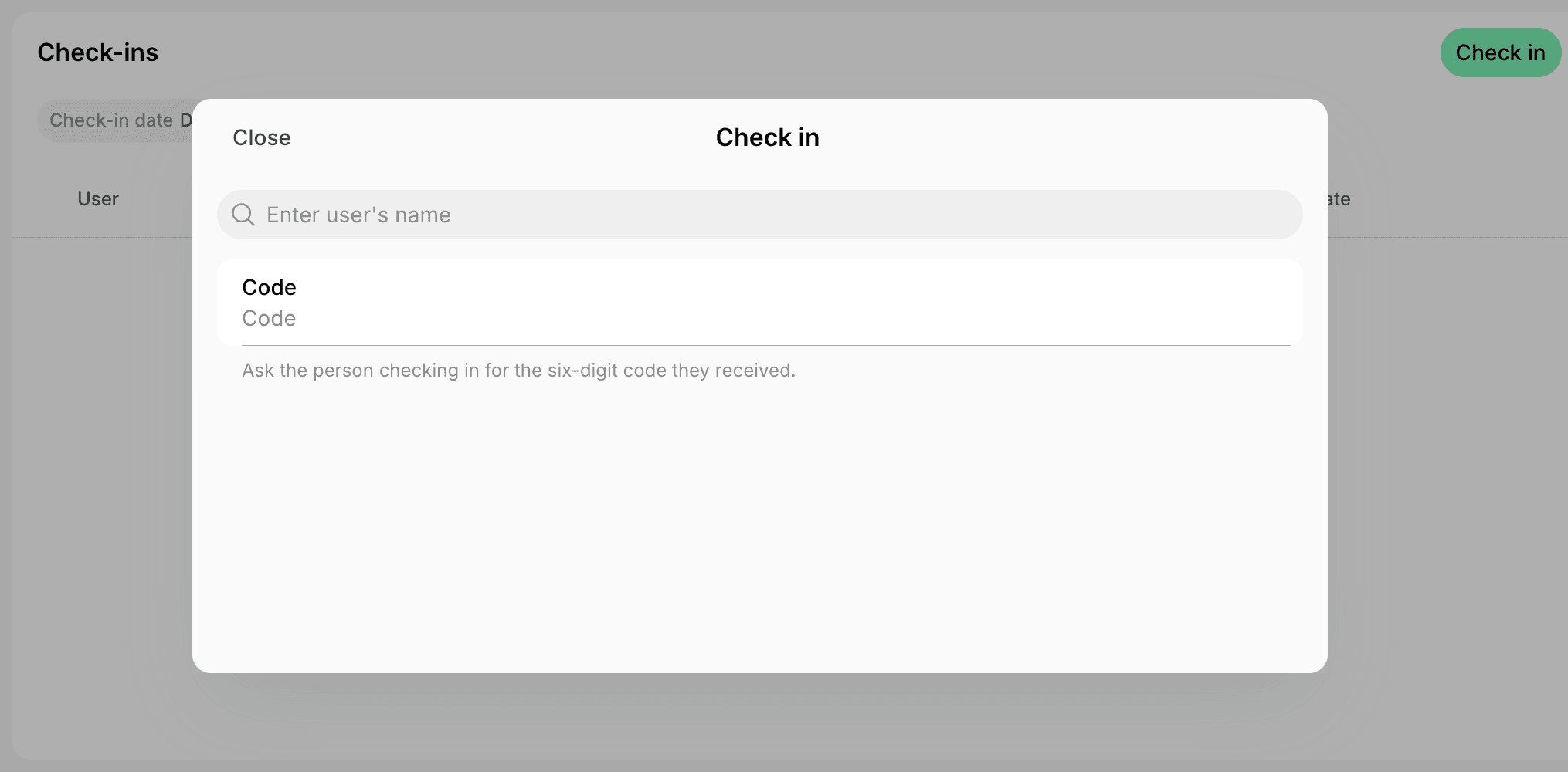
1. Go to the **Front desk** > **Check-ins** page.
2. Click **Check in** top right.
3. Enter the six-digit code the user shows you.
* You can also check in event attendees:
* By [scanning their ticket](#check-in-attendees-by-scanning-their-ticket-qr-code) in the admin mobile app.
* From the [event page](#check-in-attendees-from-the-event-page), without entering a code.
* You can also check in members with a subscription without entering a code:
* Type their name in the search field above **Code** and select them from the list.
* The list shows only members whose own or company subscription is active.
 #### Check in attendees by scanning their ticket QR code
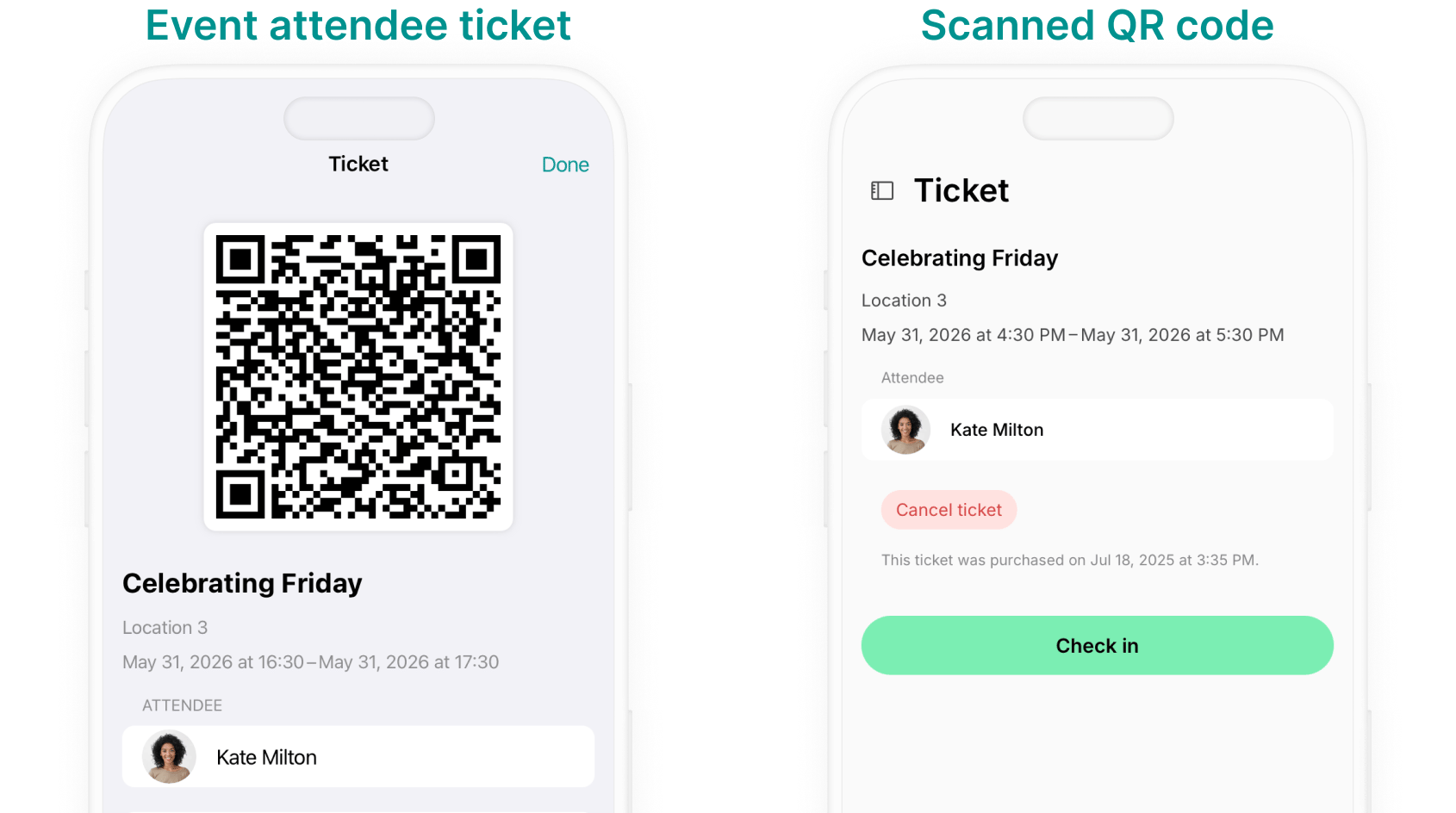
1. In the admin mobile app, go to the **Check-ins** page and tap **Check in**.
* On Android, tap the floating check-in button at the bottom right.
* The first time, allow the app to use your camera.
2. Ask the attendee to open their ticket on the **Account** > **Tickets** page.
3. Scan the **QR code** on the ticket. The attendee's ticket page opens.
* Scan from the **Check in** screen, not with the phone's camera app, which only opens the event in the member portal.
4. Tap **Check in** at the bottom of the ticket page. The button changes to **Checked in**.
5. Close the ticket page to scan the next attendee.
#### Check in attendees by scanning their ticket QR code
1. In the admin mobile app, go to the **Check-ins** page and tap **Check in**.
* On Android, tap the floating check-in button at the bottom right.
* The first time, allow the app to use your camera.
2. Ask the attendee to open their ticket on the **Account** > **Tickets** page.
3. Scan the **QR code** on the ticket. The attendee's ticket page opens.
* Scan from the **Check in** screen, not with the phone's camera app, which only opens the event in the member portal.
4. Tap **Check in** at the bottom of the ticket page. The button changes to **Checked in**.
5. Close the ticket page to scan the next attendee.
 #### Check in attendees from the event page
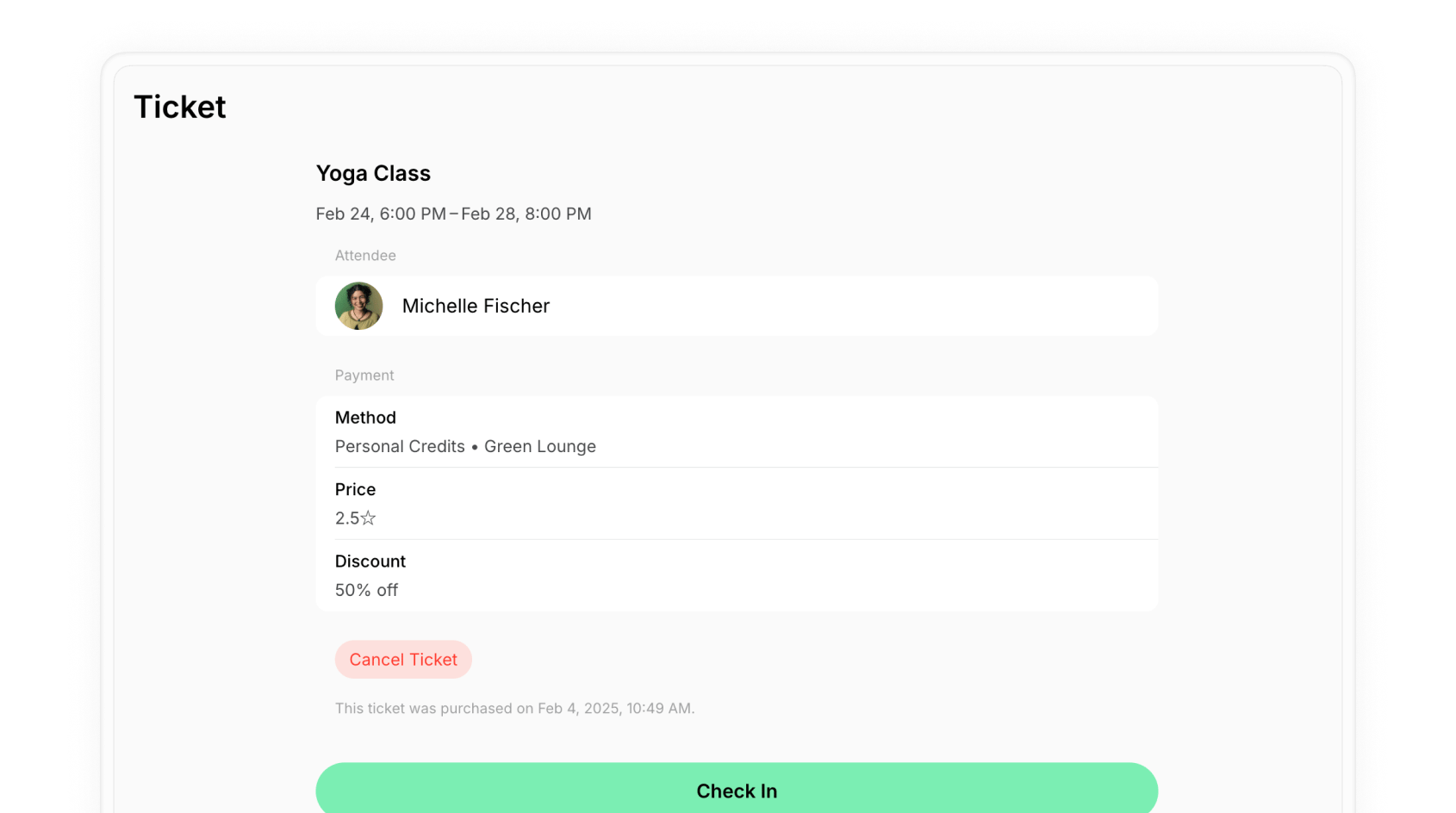
1. Go to **Engagement** > **Events** and open the event.
2. Click the attendee to open their ticket.
* The ticket's **Check-in** section shows the attendee's code, if they need it.
3. Click **Check in** at the bottom of the page.
#### Check in attendees from the event page
1. Go to **Engagement** > **Events** and open the event.
2. Click the attendee to open their ticket.
* The ticket's **Check-in** section shows the attendee's code, if they need it.
3. Click **Check in** at the bottom of the page.
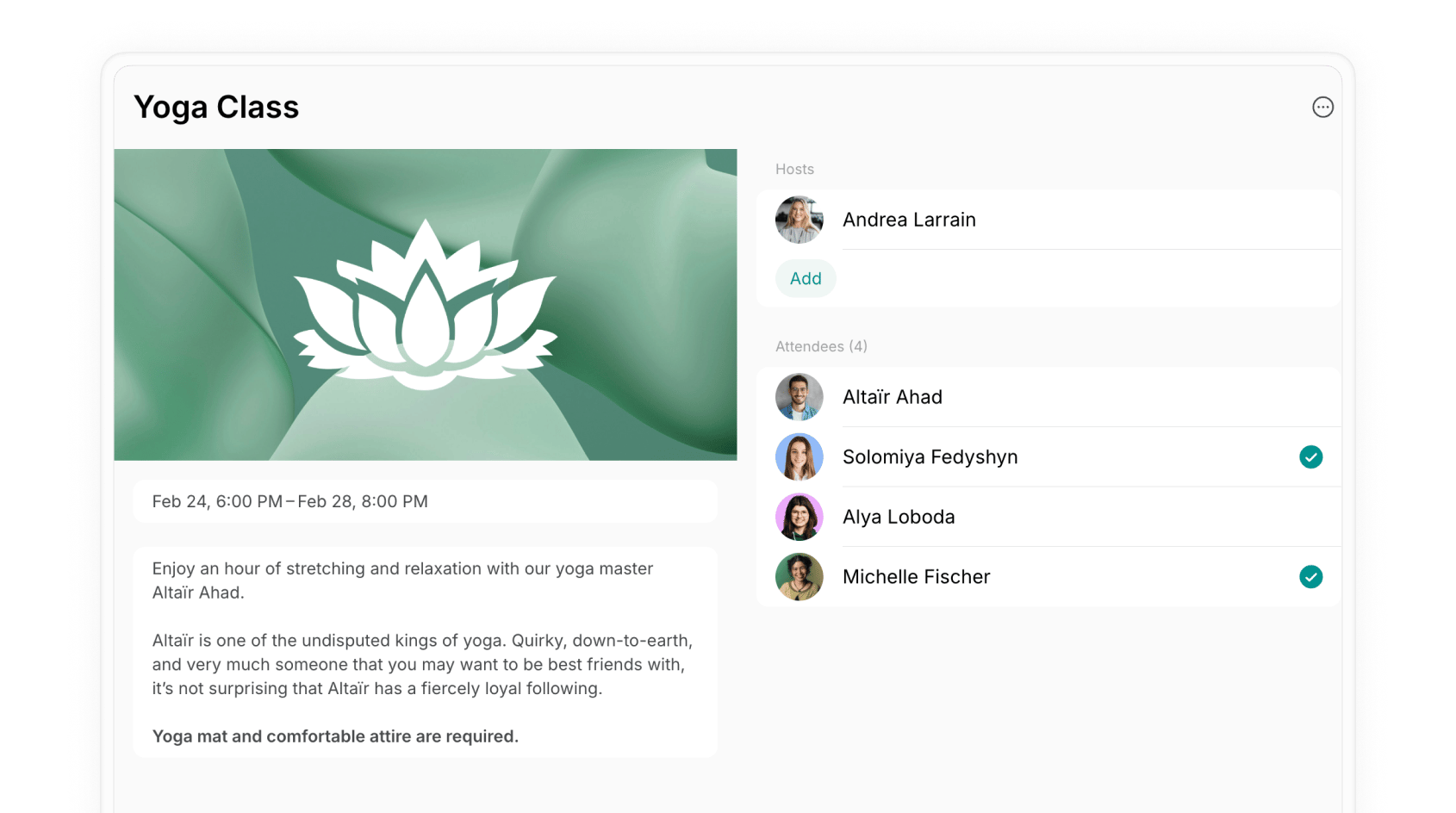
 Checked-in attendees have a green checkbox next to their name on the attendee list. It stays after they check out.
 ## Enable check-out
Sign up for the [Visitors add-on](/docs/administration/billing/make-changes-to-spacebring-subscription), which includes the [Reception app](/docs/front-desk/visitors), if you haven't yet.
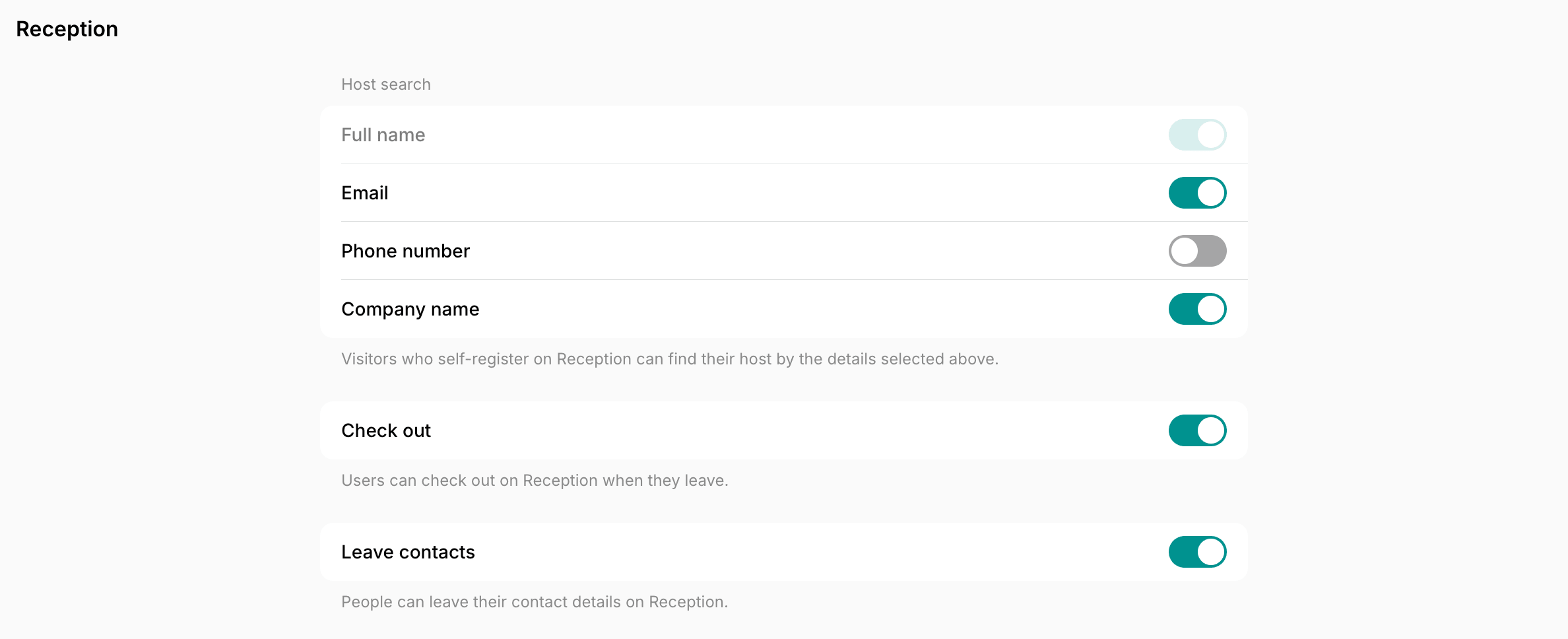
1. Click the menu **(...)** next to your location name > **Location settings** > **Front desk** > **Reception**.
2. Enable the **Check out** switch.
## Enable check-out
Sign up for the [Visitors add-on](/docs/administration/billing/make-changes-to-spacebring-subscription), which includes the [Reception app](/docs/front-desk/visitors), if you haven't yet.
1. Click the menu **(...)** next to your location name > **Location settings** > **Front desk** > **Reception**.
2. Enable the **Check out** switch.
 ### How users check out
Once the **Check out** switch is on, a **Check out** button appears on the Reception tablet. Event attendees, users with a room or desk booking, members with a subscription, and visitors check themselves out the same way:
1. The user taps **Check out** on the tablet when they leave.
2. They enter the same six-digit code they checked in with.
* Users with a booking, an event ticket, or a visit find it on the widget on the location's **Home** page in the member web portal and mobile app until they check out.
3. Reception confirms the check-out and shows how long they stayed.
### How administrators check users out
When your subscription has no Visitors add-on with the Reception app, the **Check out** switch is off, there is no tablet at the door, or someone can't find their code, your team checks them out instead:
1. Go to the **Front desk** > **Check-ins** page, find the user's row, and click **(...)** > **Check out**. The action appears only while the user is checked in.
### How users check out
Once the **Check out** switch is on, a **Check out** button appears on the Reception tablet. Event attendees, users with a room or desk booking, members with a subscription, and visitors check themselves out the same way:
1. The user taps **Check out** on the tablet when they leave.
2. They enter the same six-digit code they checked in with.
* Users with a booking, an event ticket, or a visit find it on the widget on the location's **Home** page in the member web portal and mobile app until they check out.
3. Reception confirms the check-out and shows how long they stayed.
### How administrators check users out
When your subscription has no Visitors add-on with the Reception app, the **Check out** switch is off, there is no tablet at the door, or someone can't find their code, your team checks them out instead:
1. Go to the **Front desk** > **Check-ins** page, find the user's row, and click **(...)** > **Check out**. The action appears only while the user is checked in.
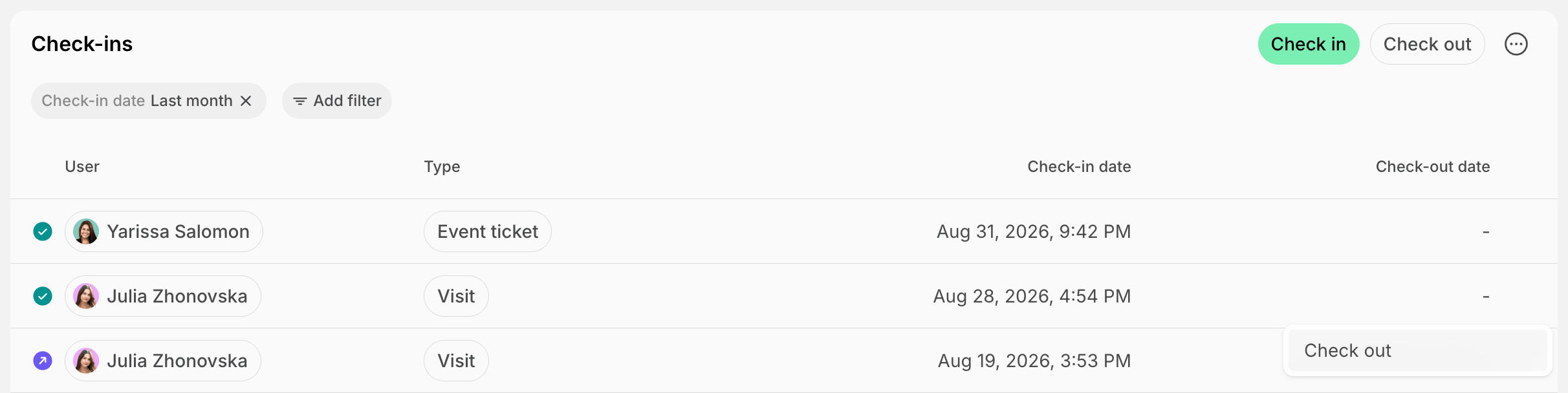 2. To work from the code the user shows you, click **Check out** top right and enter the six-digit code.
### Check users out automatically
Users often leave without checking out. To keep the **Check-ins** page accurate for the next day:
1. Click the menu **(...)** next to your location name > **Location settings** > **Front desk** > **Check-ins**.
2. Enable the **Automatic check-out** switch. Users who are still checked in at midnight, in your location's time zone, are checked out.
* When your location schedule [stays open past midnight](/docs/location/schedule#stay-open-past-midnight), for example until 2:00 AM, users are checked out at closing time instead.
The switch applies to check-ins made while it is on:
* Users who checked in before you enabled it stay checked in until they check out.
* Users who checked in while it was on are still checked out automatically after you disable it.
Automatic check-out works without the Reception app.
## Track check-ins
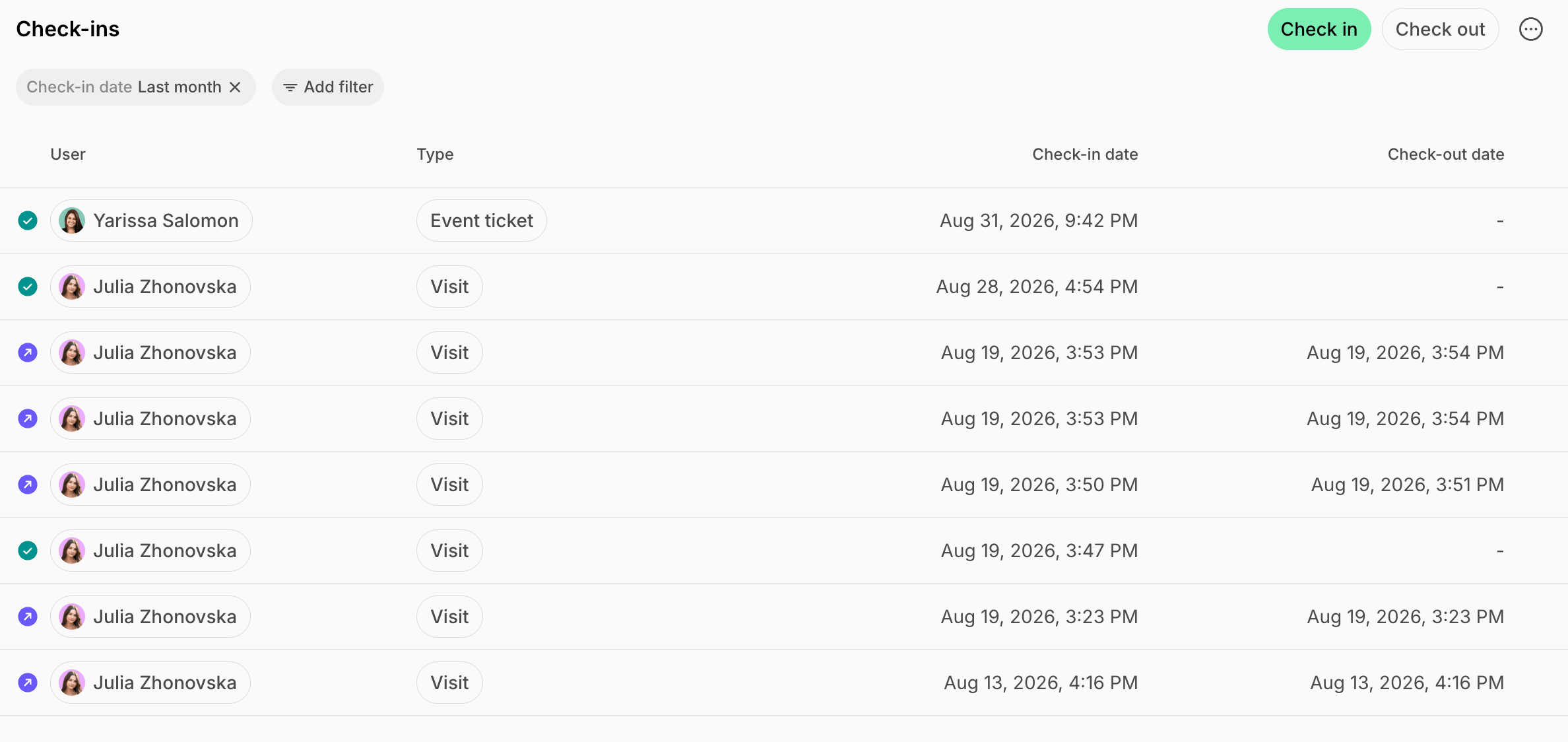
Each row on the **Check-ins** page is one time a user came to your location, with the time they checked in and the time they checked out. A user who checks in and out several times with the same code gets a row for each time.
1. Go to the **Front desk** > **Check-ins** page. It opens on everyone who checked in today.
* The admin mobile app lists every check-in, newest first, without filters.
Users with a booking, an event ticket, a visit, or a subscription don't appear on the page until they check in. To see who is expected, look at the bookings, event tickets, or visits for that day.
2. Filter by **Status**:
* **Checked in** — in your location now.
* **Checked out** — has left.
3. Filter by **Check-in date** to move from today to another day or period.
4. Filter by **Type** to look at room bookings, desk bookings, event tickets, visits, or subscriptions on their own.
5. Filter by **User** to see how often and when one user came to your location.
6. Click a user's name to open their profile, or click the type to open the booking, ticket, or visit behind it.
7. Look for check-out times in red. They mark users who checked out after their code stopped working, for example, because they stayed longer than they booked.
2. To work from the code the user shows you, click **Check out** top right and enter the six-digit code.
### Check users out automatically
Users often leave without checking out. To keep the **Check-ins** page accurate for the next day:
1. Click the menu **(...)** next to your location name > **Location settings** > **Front desk** > **Check-ins**.
2. Enable the **Automatic check-out** switch. Users who are still checked in at midnight, in your location's time zone, are checked out.
* When your location schedule [stays open past midnight](/docs/location/schedule#stay-open-past-midnight), for example until 2:00 AM, users are checked out at closing time instead.
The switch applies to check-ins made while it is on:
* Users who checked in before you enabled it stay checked in until they check out.
* Users who checked in while it was on are still checked out automatically after you disable it.
Automatic check-out works without the Reception app.
## Track check-ins
Each row on the **Check-ins** page is one time a user came to your location, with the time they checked in and the time they checked out. A user who checks in and out several times with the same code gets a row for each time.
1. Go to the **Front desk** > **Check-ins** page. It opens on everyone who checked in today.
* The admin mobile app lists every check-in, newest first, without filters.
Users with a booking, an event ticket, a visit, or a subscription don't appear on the page until they check in. To see who is expected, look at the bookings, event tickets, or visits for that day.
2. Filter by **Status**:
* **Checked in** — in your location now.
* **Checked out** — has left.
3. Filter by **Check-in date** to move from today to another day or period.
4. Filter by **Type** to look at room bookings, desk bookings, event tickets, visits, or subscriptions on their own.
5. Filter by **User** to see how often and when one user came to your location.
6. Click a user's name to open their profile, or click the type to open the booking, ticket, or visit behind it.
7. Look for check-out times in red. They mark users who checked out after their code stopped working, for example, because they stayed longer than they booked.
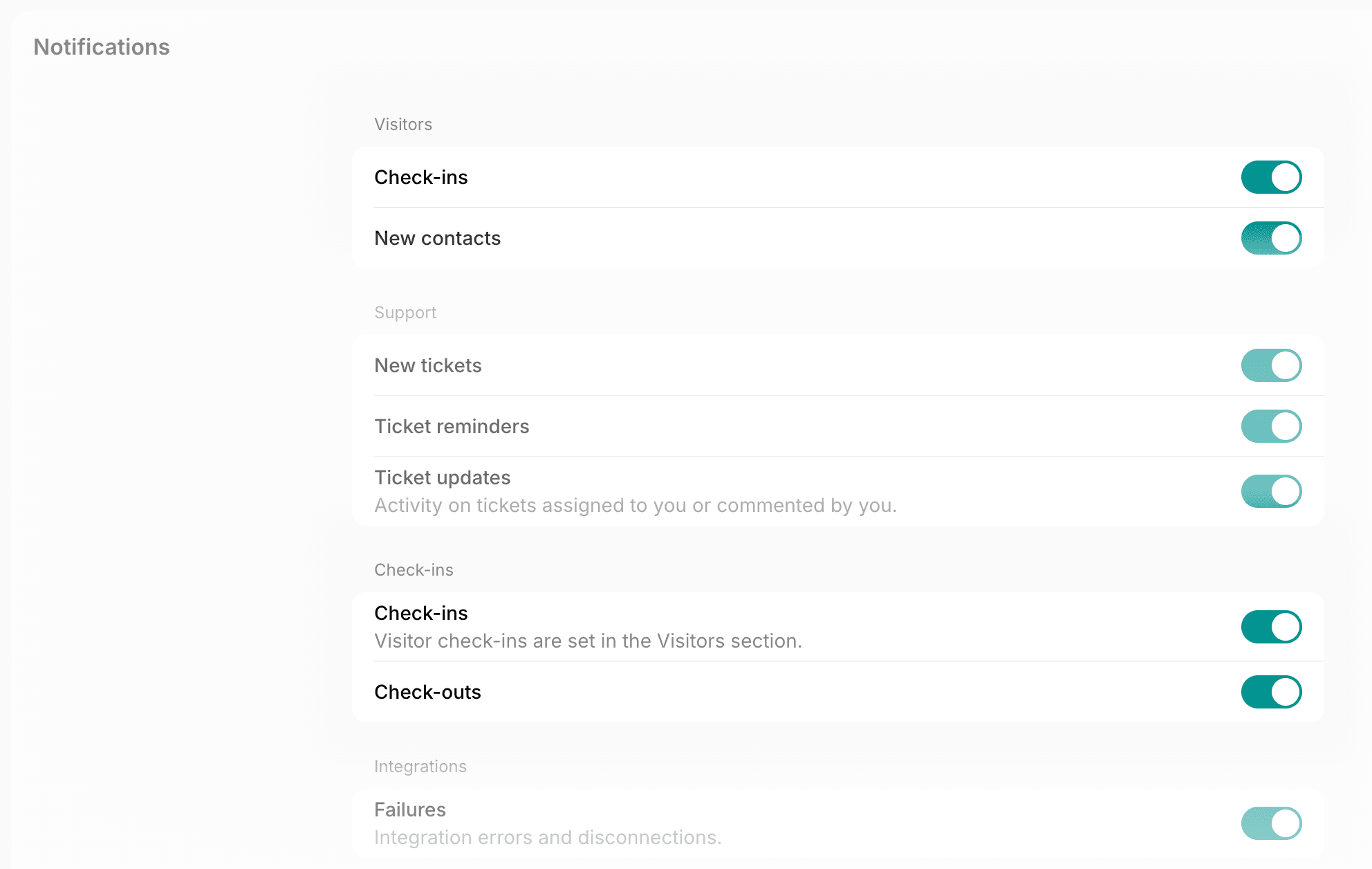
 To get notified each time someone checks in or out, enable **Check-ins** and **Check-outs** in your [notification settings](/docs/account/notifications#configure-notification-preferences). Visitor check-ins are under **Visitors** there.
 ## Export a check-ins report
1. Go to the **Front desk** > **Check-ins** page and apply the filters you need.
2. Click **(...)** in the top right corner.
3. Click **Export check-ins** > **CSV** or **XLSX**.
## Export a check-ins report
1. Go to the **Front desk** > **Check-ins** page and apply the filters you need.
2. Click **(...)** in the top right corner.
3. Click **Export check-ins** > **CSV** or **XLSX**.
 The report has a row for each time a user checked in. It includes the check-in's type and status, the user's contact details, the host's name for visits, the period the code was valid for, and the check-in and check-out times.
This documentation is built and hosted on [Mintlify](https://mintlify.com), a developer documentation platform.
The report has a row for each time a user checked in. It includes the check-in's type and status, the user's contact details, the host's name for visits, the period the code was valid for, and the check-in and check-out times.
This documentation is built and hosted on [Mintlify](https://mintlify.com), a developer documentation platform.