> ## Documentation Index
> Fetch the complete documentation index at: https://www.spacebring.com/docs/llms.txt
> Use this file to discover all available pages before exploring further.
# Visitors
> A step-by-step instruction to configure the Visitors module, enable visitor check-in and check-out, set up and customize the Reception app on the tablet, and troubleshoot issues with accessing the Reception app
The Visitors add-on provides access to the **Visitors** module and **Reception** app.
It is designed to register and track your members' visitors, streamline visitor check-in and check-out at your front desk, instantly notify hosts about their visitors' arrival, and collect contact details of walk-ins — all without a receptionist's involvement.
This creates a professional first impression for visitors in your space and reduces your front-desk workload.
## Who are visitors
A visitor is anyone a member invites to your space — typically for meetings or personal visits. We recommend setting a policy in your space that requires members to register all their visitors for better tracking and a smoother arrival experience.
Common cases:
* Guests attending a meeting with a member.
* Friends or family coming to see a member.
## Prerequisites
1. Have a supported tablet device:
* A minimum screen size of 7 inches.
* Support Google Play (for Android) or the App Store (for iPadOS).
* Android 8.0 or above, iPadOS 17.0 or later
2. If you haven't yet, [sign up for the Visitors add-on](/docs/administration/billing/make-changes-to-spacebring-subscription) from **Network settings** > **Billing**.
## Set up the Visitors module
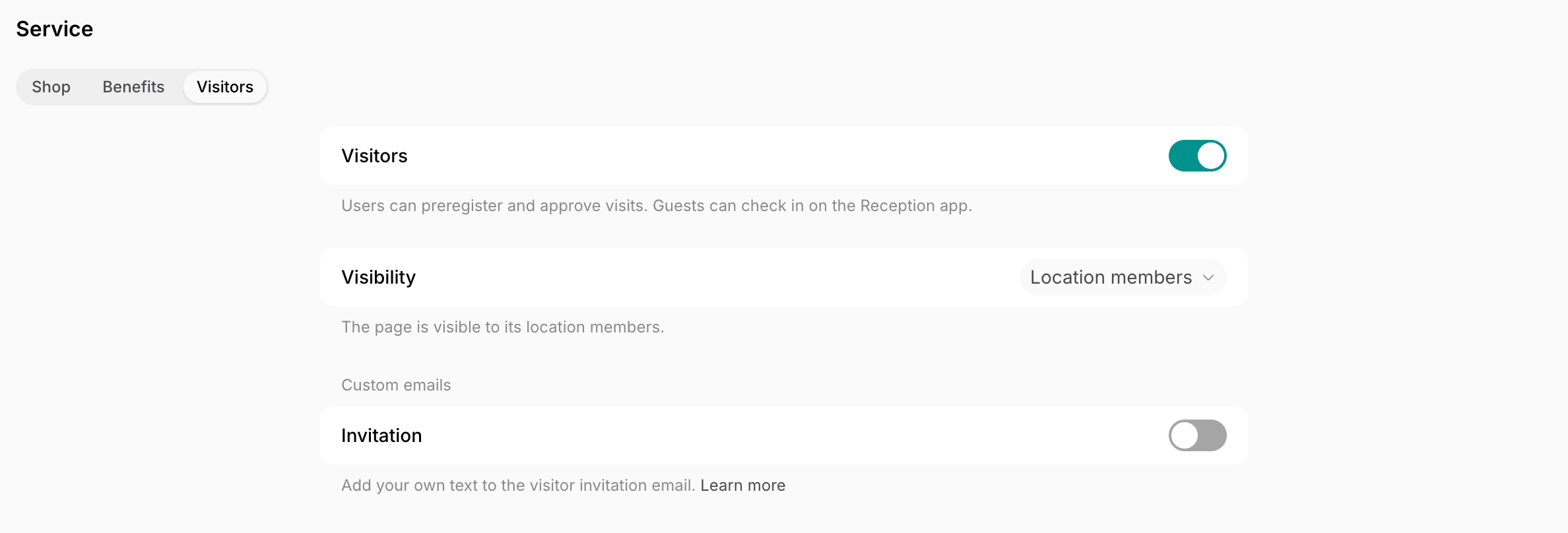
1. Press the menu **(...)** near the location name > go to **Location settings** > **Front desk** > **Visitors** tab.
2. Enable the switch and [manage the visibility](/docs/location/visibility) of the **Visitors** page.
3. **Invitation** — enable if you want to [customize the visit invitation email](/docs/general/customize-emails) that visitors receive.
Once enabled, your members will discover the **Visitors** page and can start [registering their visitors and approving visit requests](/docs/member/visitors/preregister-visitors-and-approve-visit-requests).
## Set up the Reception app
### Choose what Reception shows
1. Press the menu **(...)** near the location name > go to **Location settings** > **Front desk** > **Reception** tab.
2. **Host search** — configure how unregistered visitors can find their host on the Reception tablet:
* Full name (mandatory)
* Email address
* Phone number
* Company name (if the host is a member of any company)
3. **Check out** — enable if you want users to check out when they leave, so you can track how long they stayed.
4. **Leave contacts** — enable if you want to use the Reception app for [collecting contacts of walk-ins](/docs/front-desk/visitors/contacts), too.
### Log in to and set up Reception
1. Download the Reception app to your tablet by following these links:
* Google Play: [https://play.google.com/store/apps/details?id=com.spacebring.reception](https://play.google.com/store/apps/details?id=com.spacebring.reception)
* App Store: [https://apps.apple.com/app/spacebring-reception/id6670606164](https://apps.apple.com/app/spacebring-reception/id6670606164)
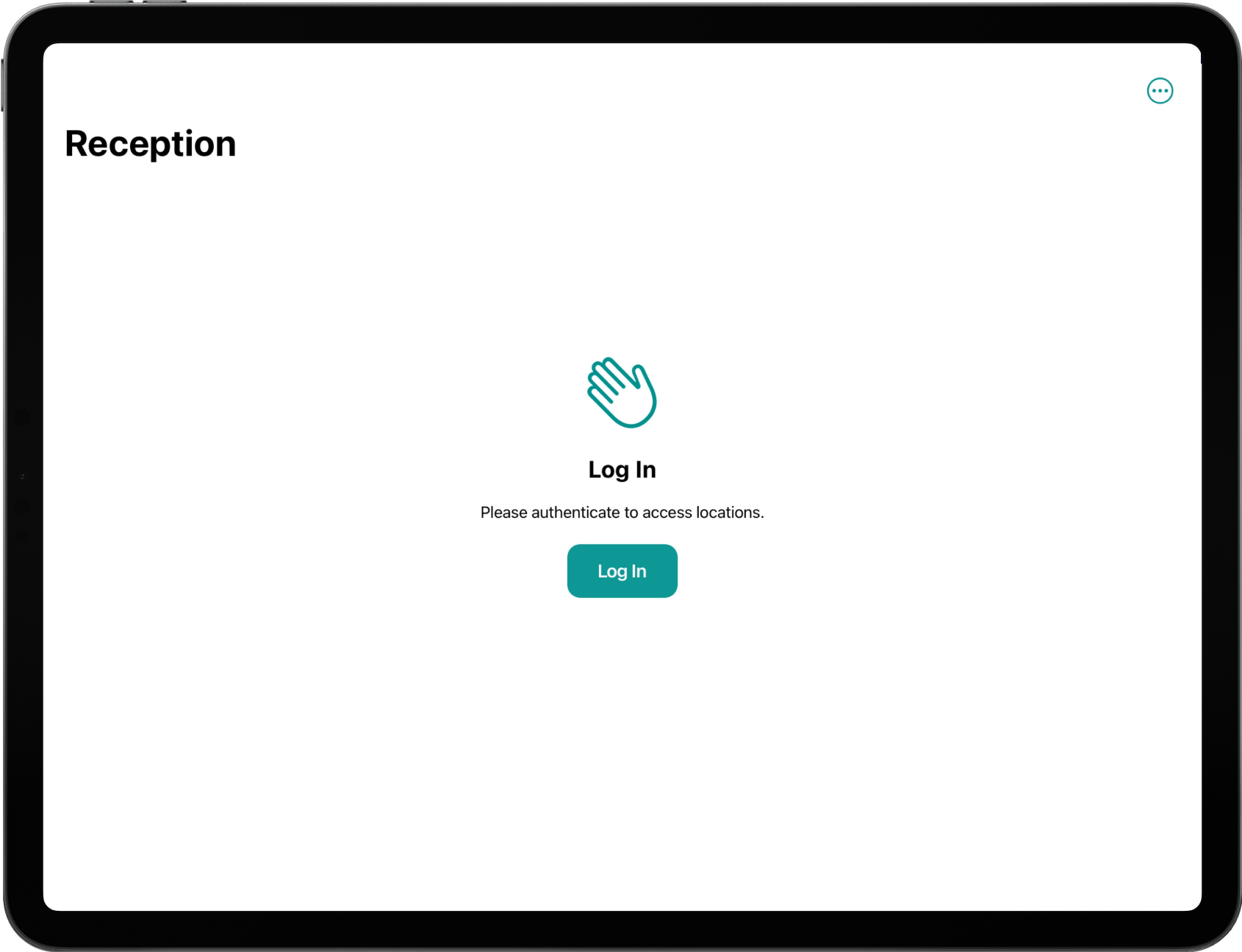
2. Open the app and press **Log in**.
3. Log in with the account of an administrator for the location where you want to enable Reception.
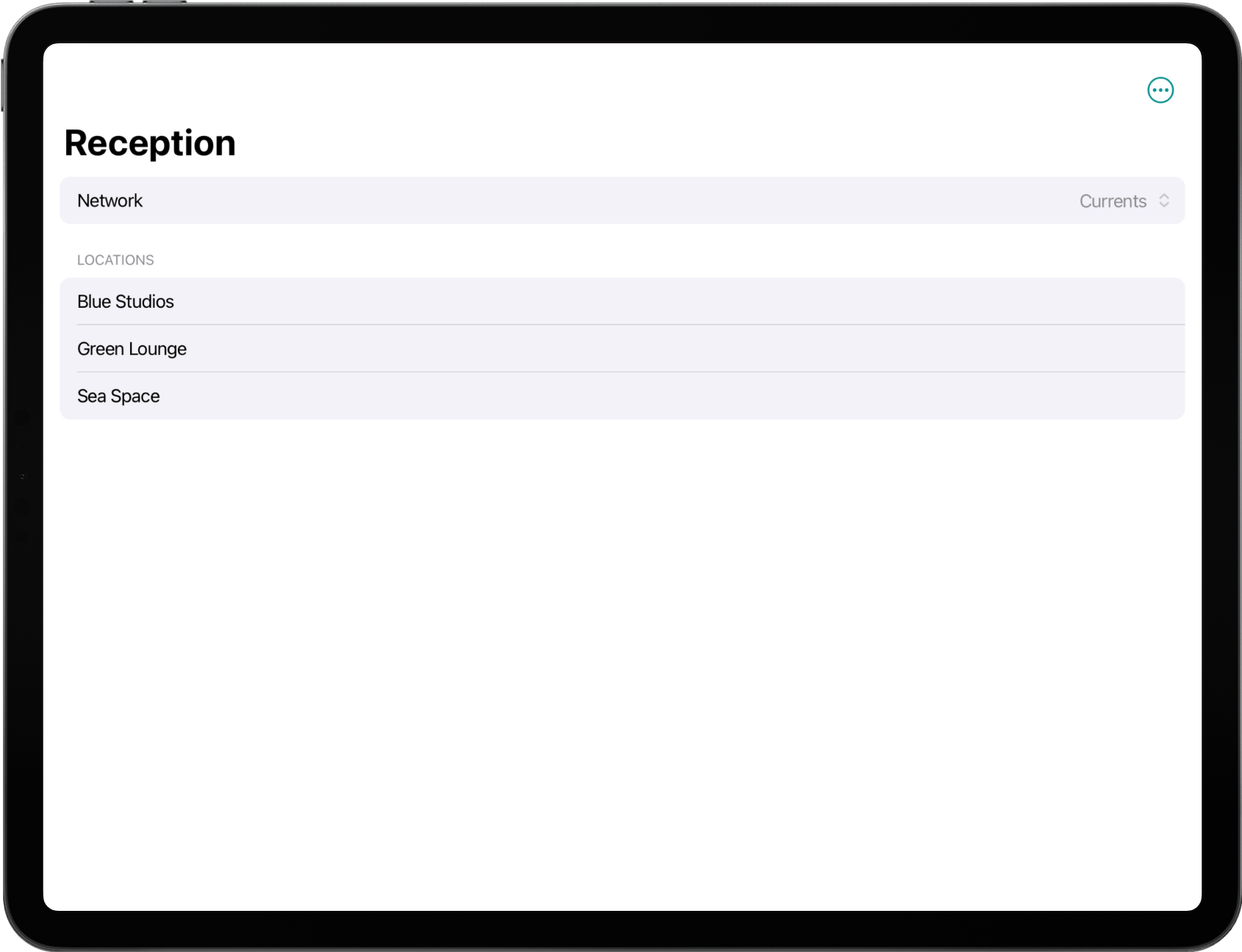
4. Select your network and relevant location.
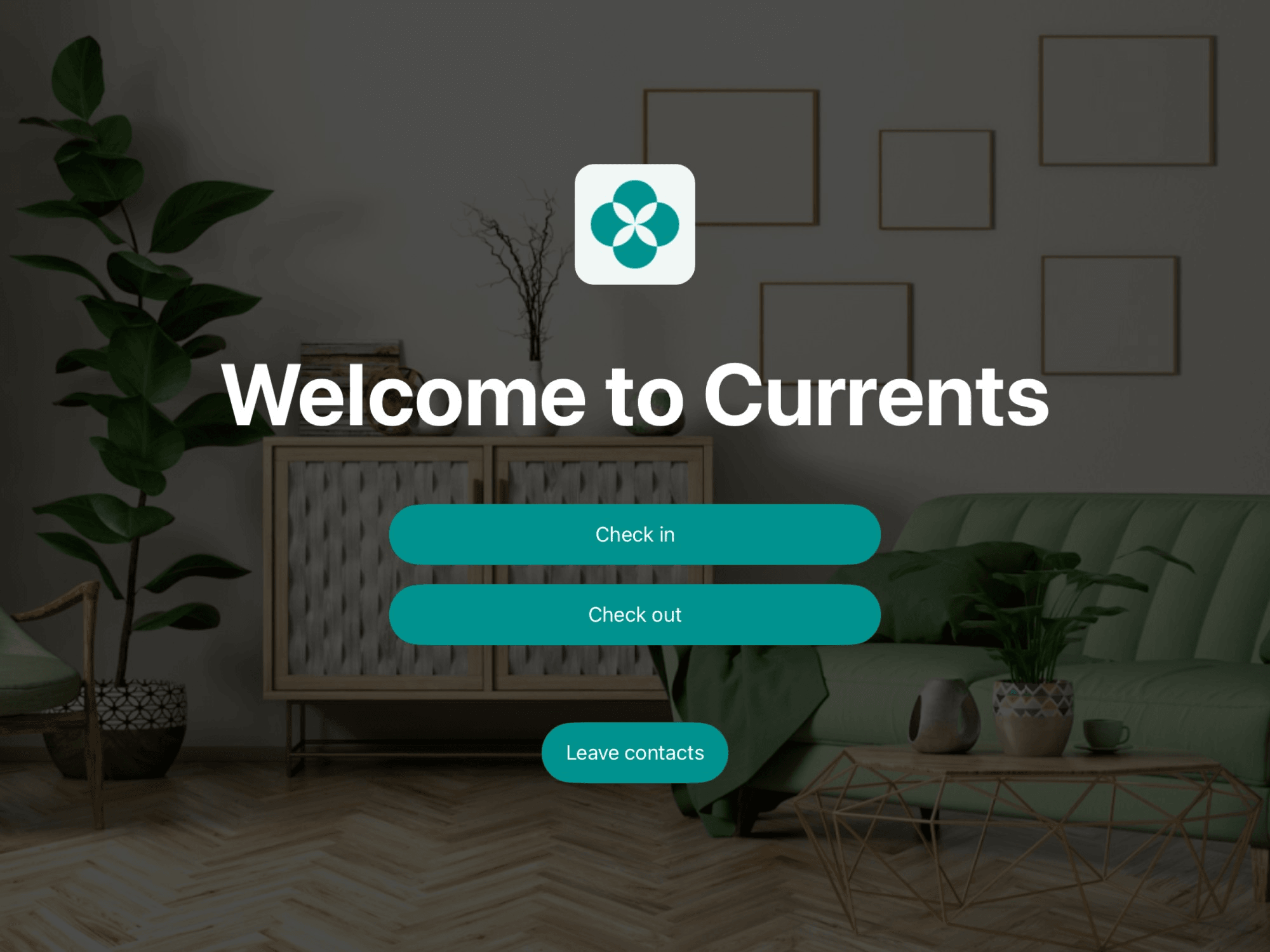
5. Once selected, the screen with the check-in and check-out options will appear for you to invite visitors for registration.
6. To prevent strangers from shutting down the app and reopening your tablet, set up [Guided access](https://support.apple.com/en-us/HT202612) on iPad or [Screen pinning](https://support.google.com/android/answer/9455138?hl=en) on Android tablets.
### Customize Reception
The Reception app automatically reflects your network's branding to create a consistent and professional experience. The following branded elements are displayed:
* The member web portal logo
* The member web portal name
* Accent color
* The last [cover photo](/docs/location/information) of the location where the Reception app is used
If no cover photo is uploaded for the location, background color applies instead.
To customize the appearance of the Reception app, you need to update your network settings.
1. To change the name, logo, or accent color, the [owner](/docs/administration/administrators#understand-administrator-roles) needs to go to **Network settings** > **General** > **Information** and **Branding** tabs.
Changes will apply to the member web portal and/or mobile app as well.
2. To change the background of the Reception app, as an administrator, [upload a new cover photo](/docs/location/information) for the location where the Reception app is used.
1) Turn off the [Guided access](https://support.apple.com/en-us/HT202612) on iPad or [Screen pinning](https://support.google.com/android/answer/9455138?hl=en) on Android.
2) Close the app by swiping it up and off the screen.
To log out from your current account on Reception:
1. Close Reception by swiping it up and off the screen.
2. Reopen it.
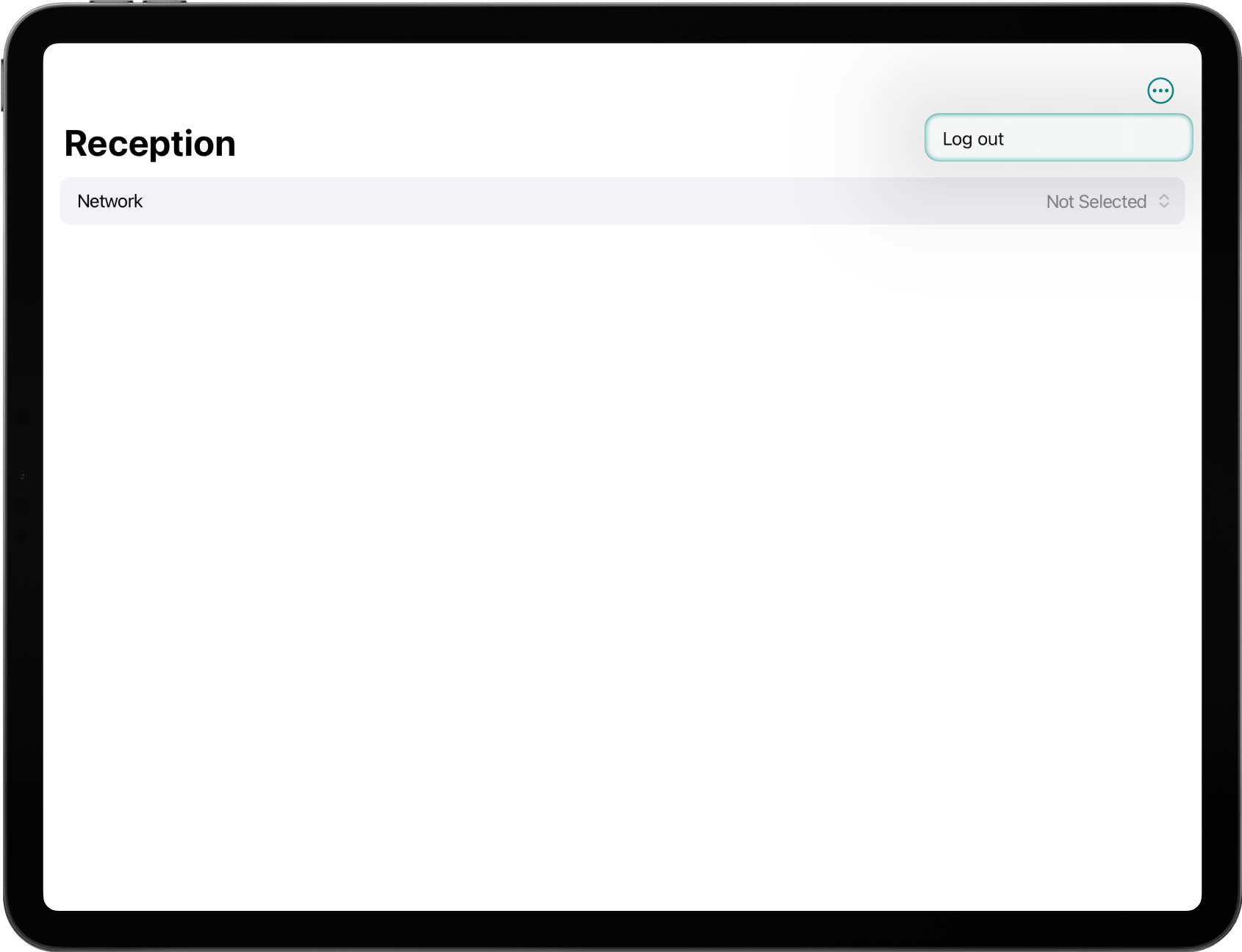
3. Tap the **(...)** button in the top right corner > **Log out**.
## How Visitors solution works
* **Preregistration of visitors and express check-in**: Members can [preregister their visitors](/docs/member/visitors/preregister-visitors-and-approve-visit-requests) via the member web portal or mobile app. Visitors receive an invitation with a visit code by email, with which they [check in](/docs/member/visitors/check-in-and-check-out) on the Reception app upon arrival.
* **Self-service registration**: Unregistered visitors can register themselves on the tablet and [request a visit](/docs/member/visitors/check-in-and-check-out). This prevents reception bottlenecks and allows members to approve or decline the visit from their own device.
* **Automated host notifications**: When a visitor checks in or requests a visit, the host member receives an immediate push notification or email, ensuring they meet their guest promptly without a receptionist's manual coordination.
* **Visitor check-out and duration tracking**: Visitors can [check out](/docs/member/visitors/check-in-and-check-out) through the Reception app, allowing you to track how long each visitor stays.
* **Lead generation for walk-ins**: Apart from visitors, people interested in your space can leave their details using the [**Leave contacts**](/docs/front-desk/visitors/contacts) feature on the Reception app. This helps you grow your lead base without relying on separate tools or manual follow-ups.
* **Custom branded experience**: The Reception app [reflects your brand](/docs/front-desk/visitors#customize-reception) by displaying your logo and location photo, delivering a professional experience from the moment a visitor arrives.
## Troubleshoot visitor check-in
If a visitor can't check in with their visit code, the Reception app shows **The code is not valid or expired**, or a **You're already checked in** screen. The usual causes:
* A visitor who [self-registered on Reception](/docs/member/visitors/preregister-visitors-and-approve-visit-requests) is checked in as soon as the host approves the request. They don't need to enter a code to check in, and if they do, Reception shows **You're already checked in**. The code in their approval email is only for checking out, and for checking in again after that.
* A visit code works as many times as needed until the end of the visit day, but a visitor who is checked in must check out before they can check in again.
Open the visit on the **Front desk** > **Visitors** page to see [its status](/docs/front-desk/visitors/track-and-manage-visits#track-visits).
A code only works on the visit date, starting one hour before the scheduled visit time. Ask the host to [change the visit](/docs/member/visitors/preregister-visitors-and-approve-visit-requests), or [edit it yourself](/docs/front-desk/visitors/track-and-manage-visits#edit-visits).
In a multi-location network, Reception may be logged in to a different location than the one the visit belongs to. Close the app, [log in again](#log-in-to-and-set-up-reception), and pick the right location.
A poor connection on the tablet also breaks check-in — see the next section.
## Troubleshoot issues with access to Reception app
If you can't enable or access the Reception app, here are the most common reasons and how to fix them:
Try reconnecting your tablet to Wi-Fi or switching to a different network.
Make sure you're logging in as an [administrator](/docs/administration/administrators) for the location where you want to use Reception. Only administrators can choose a network and location when logging in.
Ensure you've installed the latest version of the Reception app from the [Google Play Store](https://play.google.com/store/apps/details?id=com.spacebring.reception) or [App Store](https://apps.apple.com/app/spacebring-reception/id6670606164).
Your network appears in the list after you log in, but no locations do, and the app says that the Visitors add-on is not enabled for this network. [Sign up for the add-on](/docs/administration/billing/make-changes-to-spacebring-subscription) from **Network settings** > **Billing**. The add-on also stops working when your subscription is no longer active, so [check your subscription](/docs/administration/billing) status as well.
Ensure your tablet meets the [requirements](/docs/front-desk/visitors) for installing the Reception app.
This documentation is built and hosted on [Mintlify](https://mintlify.com), a developer documentation platform.
 Once enabled, your members will discover the **Visitors** page and can start [registering their visitors and approving visit requests](/docs/member/visitors/preregister-visitors-and-approve-visit-requests).
## Set up the Reception app
### Choose what Reception shows
1. Press the menu **(...)** near the location name > go to **Location settings** > **Front desk** > **Reception** tab.
2. **Host search** — configure how unregistered visitors can find their host on the Reception tablet:
* Full name (mandatory)
* Email address
* Phone number
* Company name (if the host is a member of any company)
3. **Check out** — enable if you want users to check out when they leave, so you can track how long they stayed.
4. **Leave contacts** — enable if you want to use the Reception app for [collecting contacts of walk-ins](/docs/front-desk/visitors/contacts), too.
### Log in to and set up Reception
1. Download the Reception app to your tablet by following these links:
* Google Play: [https://play.google.com/store/apps/details?id=com.spacebring.reception](https://play.google.com/store/apps/details?id=com.spacebring.reception)
* App Store: [https://apps.apple.com/app/spacebring-reception/id6670606164](https://apps.apple.com/app/spacebring-reception/id6670606164)
2. Open the app and press **Log in**.
Once enabled, your members will discover the **Visitors** page and can start [registering their visitors and approving visit requests](/docs/member/visitors/preregister-visitors-and-approve-visit-requests).
## Set up the Reception app
### Choose what Reception shows
1. Press the menu **(...)** near the location name > go to **Location settings** > **Front desk** > **Reception** tab.
2. **Host search** — configure how unregistered visitors can find their host on the Reception tablet:
* Full name (mandatory)
* Email address
* Phone number
* Company name (if the host is a member of any company)
3. **Check out** — enable if you want users to check out when they leave, so you can track how long they stayed.
4. **Leave contacts** — enable if you want to use the Reception app for [collecting contacts of walk-ins](/docs/front-desk/visitors/contacts), too.
### Log in to and set up Reception
1. Download the Reception app to your tablet by following these links:
* Google Play: [https://play.google.com/store/apps/details?id=com.spacebring.reception](https://play.google.com/store/apps/details?id=com.spacebring.reception)
* App Store: [https://apps.apple.com/app/spacebring-reception/id6670606164](https://apps.apple.com/app/spacebring-reception/id6670606164)
2. Open the app and press **Log in**.
 3. Log in with the account of an administrator for the location where you want to enable Reception.
4. Select your network and relevant location.
3. Log in with the account of an administrator for the location where you want to enable Reception.
4. Select your network and relevant location.
 5. Once selected, the screen with the check-in and check-out options will appear for you to invite visitors for registration.
 6. To prevent strangers from shutting down the app and reopening your tablet, set up [Guided access](https://support.apple.com/en-us/HT202612) on iPad or [Screen pinning](https://support.google.com/android/answer/9455138?hl=en) on Android tablets.
### Customize Reception
The Reception app automatically reflects your network's branding to create a consistent and professional experience. The following branded elements are displayed:
* The member web portal logo
* The member web portal name
* Accent color
* The last [cover photo](/docs/location/information) of the location where the Reception app is used
6. To prevent strangers from shutting down the app and reopening your tablet, set up [Guided access](https://support.apple.com/en-us/HT202612) on iPad or [Screen pinning](https://support.google.com/android/answer/9455138?hl=en) on Android tablets.
### Customize Reception
The Reception app automatically reflects your network's branding to create a consistent and professional experience. The following branded elements are displayed:
* The member web portal logo
* The member web portal name
* Accent color
* The last [cover photo](/docs/location/information) of the location where the Reception app is used