> ## Documentation Index
> Fetch the complete documentation index at: https://www.spacebring.com/docs/llms.txt
> Use this file to discover all available pages before exploring further.
# Contacts
> Collect contact details from walk-ins on the Reception app, understand how guests leave their contacts, and how to export gathered contacts
Once the **Visitors** module and the Reception app are [set up](/docs/front-desk/visitors), you can collect contact information from all walk-ins coming to your space with the help of Reception app. This helps grow your lead and marketing base without missing valuable connections. You can later convert these walk-ins into nonmembers or members in just one click.
## Who are contacts
Walk-ins are people who visit your space without a prior booking or registration — often to:
* Request a tour
* Learn more about your pricing or membership plans
* Explore your space
It would be a pity to miss collecting their contact information to reach out later. Reception helps you collect their contact details on the spot through the **Leave contacts** feature.
If a person already has a booking or is coming to a member as a visitor, they don't need to leave their contacts — they're already registered through the member portal or mobile app.
## Enable leaving contacts
To enable the **Leave contacts** feature, do the following:
1. Go to Spacebring > click the **(...)** menu next to the location name on the left-side panel > **Location settings** > **Front desk** > **Reception** tab.
2. [Enable the **Leave contacts** switch](/docs/front-desk/visitors).
3. [Enable the Reception app](/docs/front-desk/visitors) on your tablet.
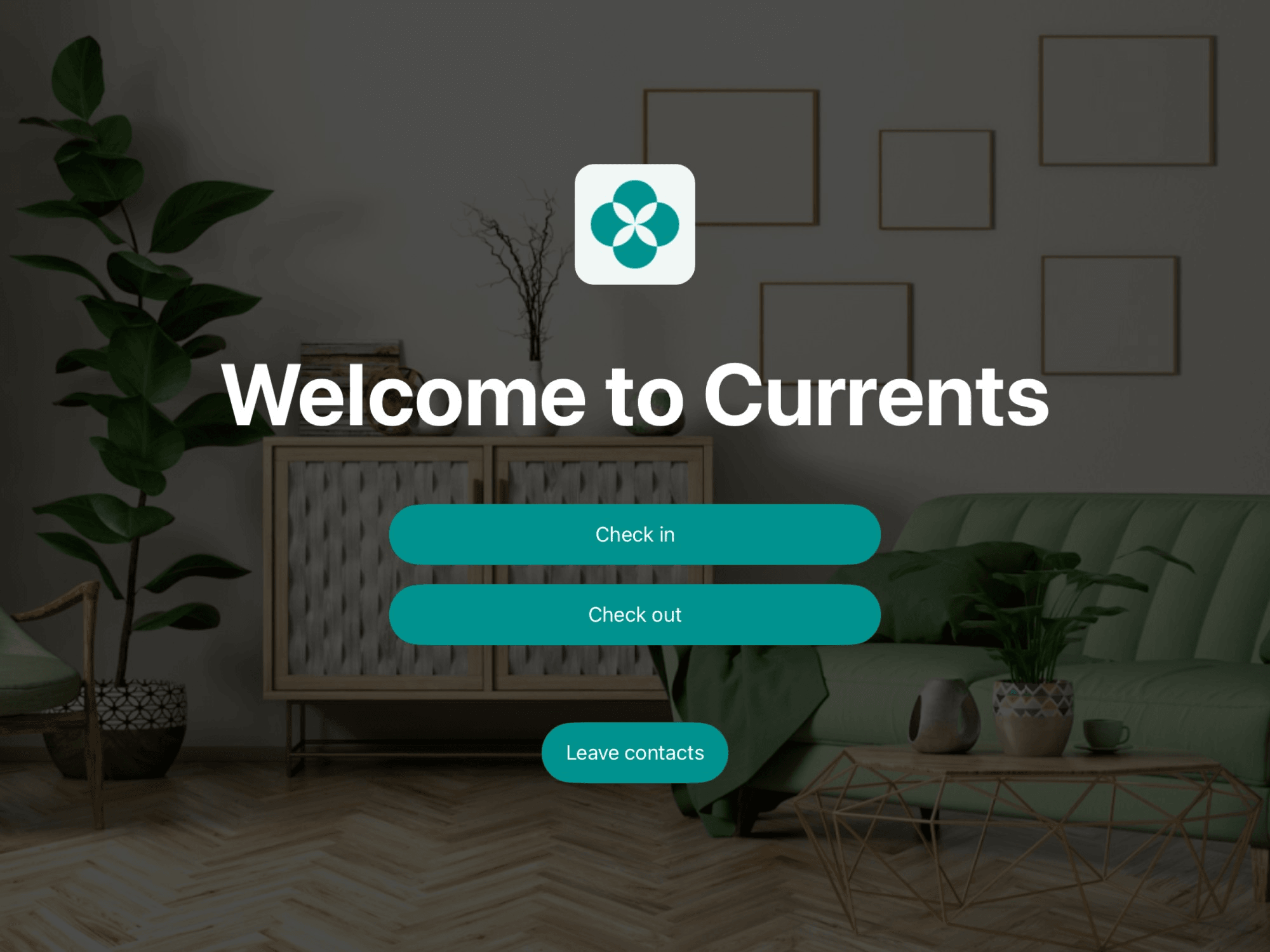
4. The **Leave contacts** button will appear by default on the screen.
 ## How users leave contacts
1. A walk-in person taps the **Leave contacts** button on the Reception app.
2. They enter their contact information and click **Submit**.
## How users leave contacts
1. A walk-in person taps the **Leave contacts** button on the Reception app.
2. They enter their contact information and click **Submit**.
 3. Done! The contacts are saved.
 When people leave their contacts on the Reception app, they automatically agree to your [privacy policy.](/docs/general/privacy-policy)
## Track contacts
As an administrator, you can view and manage all collected contacts:
* Go to **Front desk** > **Visitors** on the left-side panel > open the **Contacts** tab.
When people leave their contacts on the Reception app, they automatically agree to your [privacy policy.](/docs/general/privacy-policy)
## Track contacts
As an administrator, you can view and manage all collected contacts:
* Go to **Front desk** > **Visitors** on the left-side panel > open the **Contacts** tab.
 * Filter contacts by **Create date** to see contacts created in a ready-made period, such as **Today** or **Last 28 days**, or click **Custom** to set an exact date or range.
* Click a certain contact to invite them as a member or add them as a nonmember, if you convert them and need to create a booking or assign a subscription.
* Filter contacts by **Create date** to see contacts created in a ready-made period, such as **Today** or **Last 28 days**, or click **Custom** to set an exact date or range.
* Click a certain contact to invite them as a member or add them as a nonmember, if you convert them and need to create a booking or assign a subscription.
 ### Export a contacts report
On the **Contacts** tab, apply the necessary filters, then click **(...)** in the top right corner > **Export contacts** > **CSV** or **XLSX** to download a report on the filtered contacts.
### Export a contacts report
On the **Contacts** tab, apply the necessary filters, then click **(...)** in the top right corner > **Export contacts** > **CSV** or **XLSX** to download a report on the filtered contacts.
 The report includes each contact's name, email, and phone number, and the date they were collected.
This documentation is built and hosted on [Mintlify](https://mintlify.com), a developer documentation platform.
The report includes each contact's name, email, and phone number, and the date they were collected.
This documentation is built and hosted on [Mintlify](https://mintlify.com), a developer documentation platform.