> ## Documentation Index
> Fetch the complete documentation index at: https://www.spacebring.com/docs/llms.txt
> Use this file to discover all available pages before exploring further.
# Track and manage visits
> Track all visits and visit requests in your location, filter them by date, monitor visit statuses and analytics, export a visits report, and edit visits or add internal notes
Once the **Visitors** module and the Reception app are [set up](/docs/front-desk/visitors), members can [register their visitors](/docs/member/visitors/preregister-visitors-and-approve-visit-requests) and visitors can [check in on Reception](/docs/member/visitors/check-in-and-check-out). Every visit appears on the **Front desk** > **Visitors** page in Spacebring, where administrators track and manage all visits to their location.
## Create visits
Usually members [preregister their visitors](/docs/member/visitors/preregister-visitors-and-approve-visit-requests) in advance, or visitors [self-register on the Reception tablet](/docs/member/visitors/check-in-and-check-out#self-registration-for-unregistered-visitors) when they arrive. If a visitor needs help with that, an administrator can assist them and submit the visit request on their behalf:
1. Go to the **Front desk** > **Visitors** page.
2. Click **New request** top right.
3. Enter the visitor's contact details and select the host member.
4. Click **Request**.
 The host then gets a notification and [approves or rejects](/docs/member/visitors/preregister-visitors-and-approve-visit-requests) the request, exactly as they would for a self-registered visitor.
## Track visits
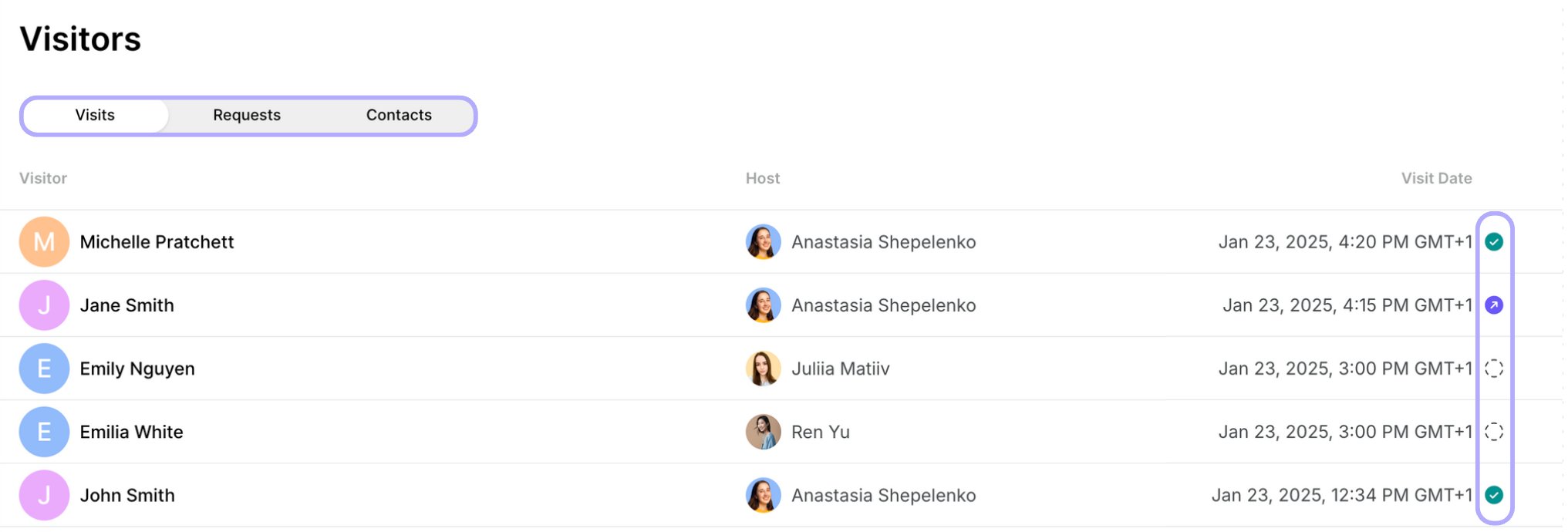
* Administrators can see all the visits, visit requests, and contacts on the **Front desk** > **Visitors** page in Spacebring. Each visit shows the visitor's name, host's name, visit date, and visit status at a glance:
* Empty circle - visitor hasn't checked in.
* Green circle - visitor has checked in.
* Purple circle - visitor has checked in and checked out.
The host then gets a notification and [approves or rejects](/docs/member/visitors/preregister-visitors-and-approve-visit-requests) the request, exactly as they would for a self-registered visitor.
## Track visits
* Administrators can see all the visits, visit requests, and contacts on the **Front desk** > **Visitors** page in Spacebring. Each visit shows the visitor's name, host's name, visit date, and visit status at a glance:
* Empty circle - visitor hasn't checked in.
* Green circle - visitor has checked in.
* Purple circle - visitor has checked in and checked out.
 * Enable [notifications](/docs/account/notifications) to get alerted when a visitor checks in with a visit code or leaves a new contact on Reception.
* The page opens on today's visits. Filter by **Date** to see another ready-made period, such as **Tomorrow** or **Next 7 days**, or click **Custom** to set an exact date or range.
* Filter by **Create date** to see visits created in a ready-made period, or click **Custom** to set an exact date or range. On the **Requests** tab, you can filter visit requests by **Create date** the same way.
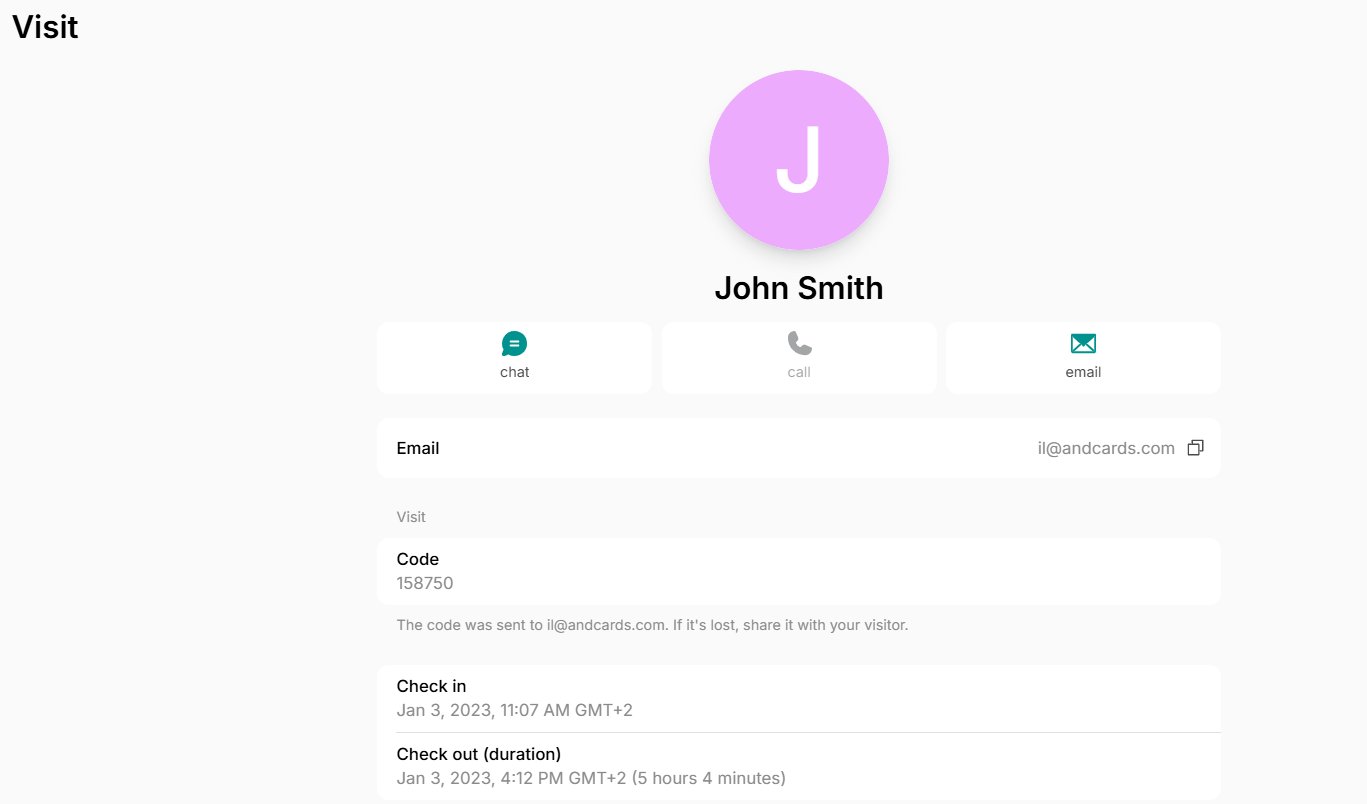
* Click on any visit to view more details, such as the visit code, check-in/out time, visit duration, or to contact the host or visitor.
* A visitor who checks out and comes back the same day checks in again with the same code. The visit then shows only their latest check-in and check-out.
* Enable [notifications](/docs/account/notifications) to get alerted when a visitor checks in with a visit code or leaves a new contact on Reception.
* The page opens on today's visits. Filter by **Date** to see another ready-made period, such as **Tomorrow** or **Next 7 days**, or click **Custom** to set an exact date or range.
* Filter by **Create date** to see visits created in a ready-made period, or click **Custom** to set an exact date or range. On the **Requests** tab, you can filter visit requests by **Create date** the same way.
* Click on any visit to view more details, such as the visit code, check-in/out time, visit duration, or to contact the host or visitor.
* A visitor who checks out and comes back the same day checks in again with the same code. The visit then shows only their latest check-in and check-out.
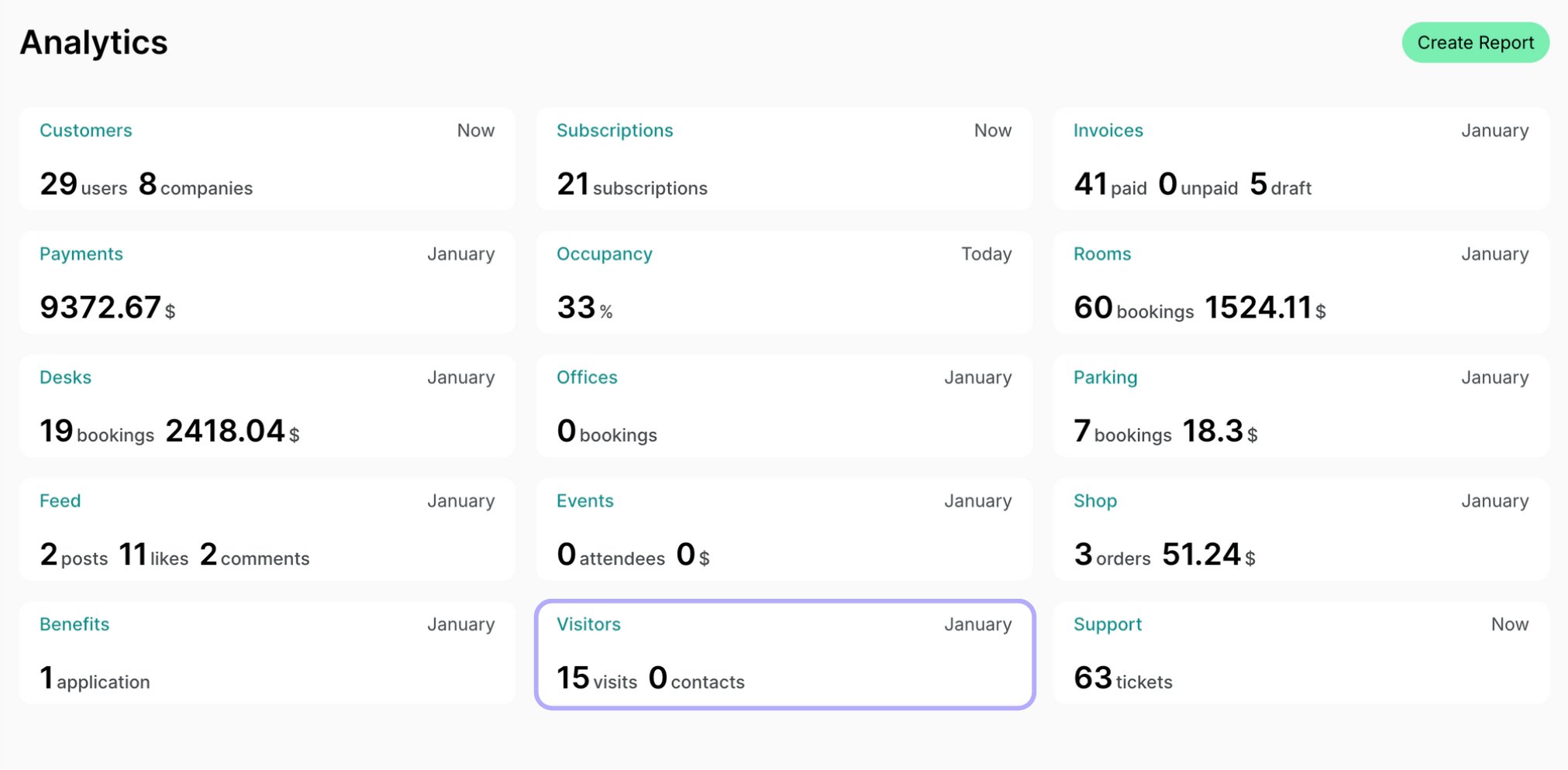
 * Administrators can check the visit statistics on the **Analytics** page > **Visitors** dashboard.
 ## Export a visits report
On the **Visitors** page, apply the necessary filters, then click **(...)** in the top right corner > **Export visits** > **CSV** or **XLSX** to download a report on the filtered visits.
## Export a visits report
On the **Visitors** page, apply the necessary filters, then click **(...)** in the top right corner > **Export visits** > **CSV** or **XLSX** to download a report on the filtered visits.
 The report includes each visit's scheduled date, check-in and check-out time, its duration in hours and minutes, any comment left, the visitor's contact details, and the host's contact details and company. The **Duration** column is empty when a visit has no check-in or check-out time, and covers only the latest stay when the visitor checked in more than once.
On the **Requests** tab, use **Export requests** in the same menu instead. That report includes each request's create date, the visitor's contact details, and the host's name.
## Edit visits
If necessary, administrators can edit visits by following these steps:
1. Go to the **Visitors** page and open the necessary visit.
2. Click on the menu **(...)** top right > **Edit** to change the visit date or time or add an internal note.
Internal notes are only visible to your team of administrators.
This documentation is built and hosted on [Mintlify](https://mintlify.com), a developer documentation platform.
The report includes each visit's scheduled date, check-in and check-out time, its duration in hours and minutes, any comment left, the visitor's contact details, and the host's contact details and company. The **Duration** column is empty when a visit has no check-in or check-out time, and covers only the latest stay when the visitor checked in more than once.
On the **Requests** tab, use **Export requests** in the same menu instead. That report includes each request's create date, the visitor's contact details, and the host's name.
## Edit visits
If necessary, administrators can edit visits by following these steps:
1. Go to the **Visitors** page and open the necessary visit.
2. Click on the menu **(...)** top right > **Edit** to change the visit date or time or add an internal note.
Internal notes are only visible to your team of administrators.
This documentation is built and hosted on [Mintlify](https://mintlify.com), a developer documentation platform.