> ## Documentation Index
> Fetch the complete documentation index at: https://www.spacebring.com/docs/llms.txt
> Use this file to discover all available pages before exploring further.
# Use QR codes
> Generate and customize branded QR code stickers linking to the member web portal, mobile app, or specific products to encourage self-served bookings and app downloads
Create branded QR code stickers for your space to give customers quick access to bookings, sign-ups, your member portal, or mobile app download.
## Generate QR code stickers
1. Click the **(...)** next to your network name.
2. Go to **Network settings > General > Branding.**
3. Click [Generate custom QR code stickers](https://www.spacebring.com/stickers) at the bottom.
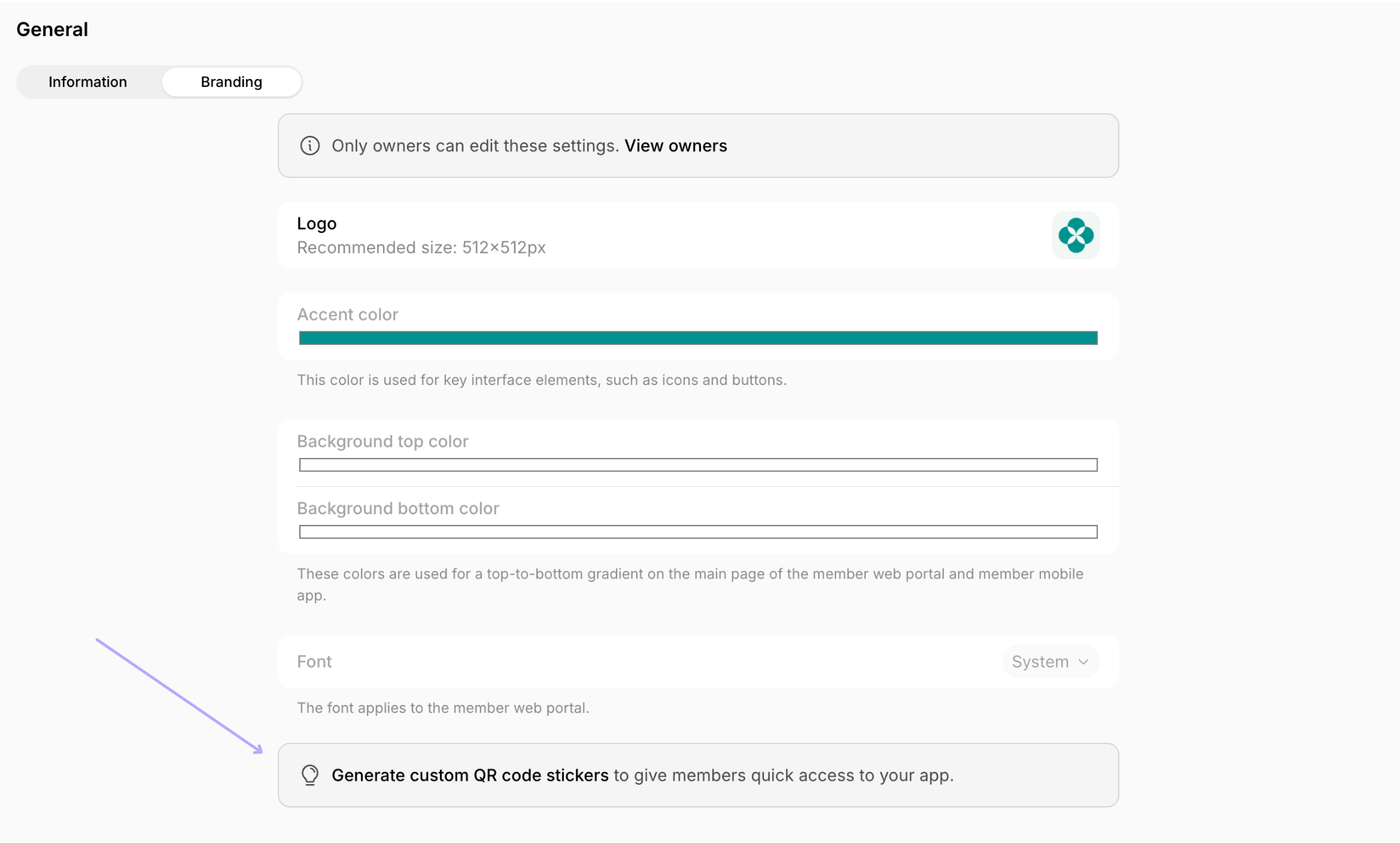 3. Your branded logo, colors, and fonts are pre-filled automatically. Customize them if needed.
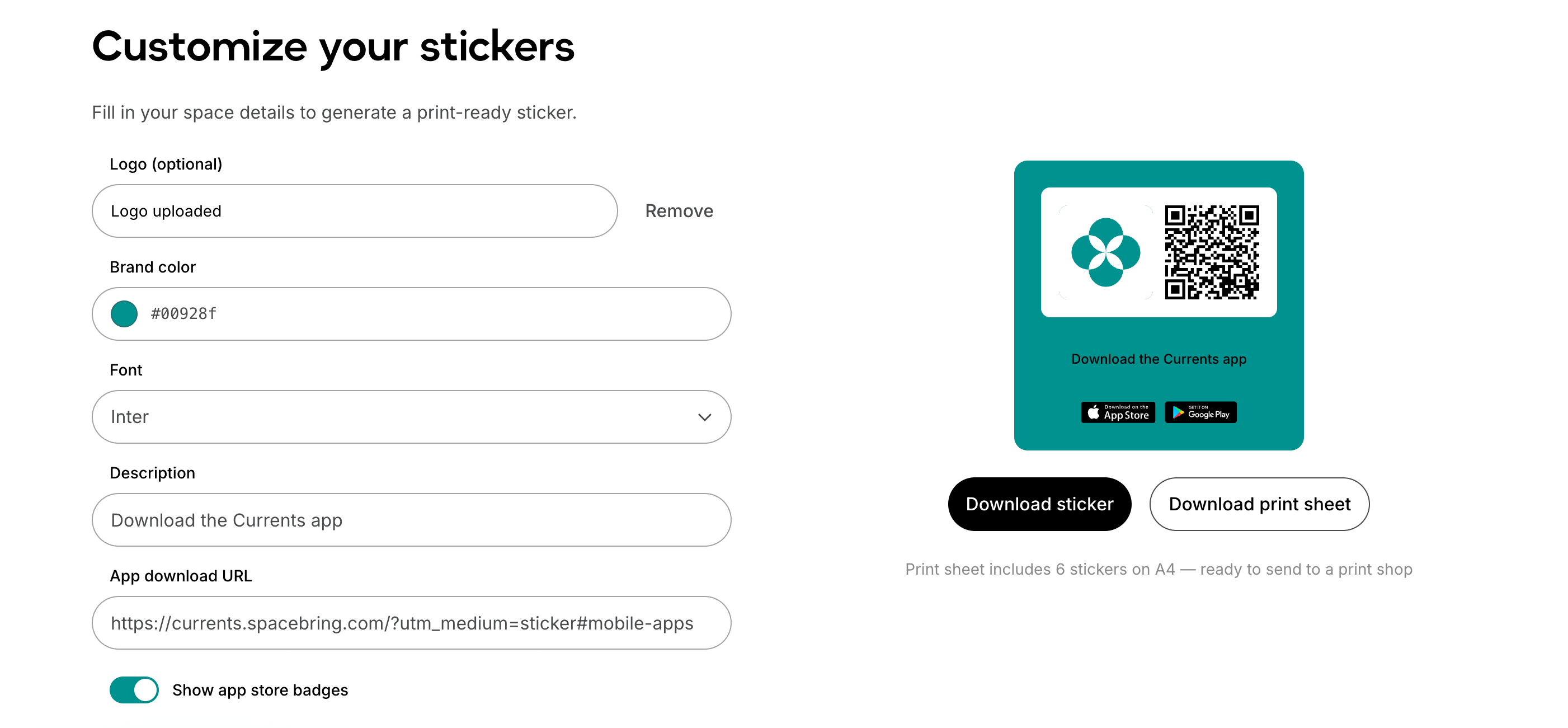
4. The description and QR code URL are also pre-filled.
* If you have the [Member mobile app](/member-mobile-app/index) add-on, the QR code links to download your member mobile app.
* If you don’t have the Member mobile app add-on, the QR code links to your member web portal [landing page.](/member-web-portal/customize-the-landing-page)
* To create QR code stickers for other pages, simply replace the URL and description with your preferred link and text.
5. Choose to show or hide app store badges.
6. Click to download a single QR code sticker or a print sheet of 6 stickers.
7. Print and place the QR codes around your space.
3. Your branded logo, colors, and fonts are pre-filled automatically. Customize them if needed.
4. The description and QR code URL are also pre-filled.
* If you have the [Member mobile app](/member-mobile-app/index) add-on, the QR code links to download your member mobile app.
* If you don’t have the Member mobile app add-on, the QR code links to your member web portal [landing page.](/member-web-portal/customize-the-landing-page)
* To create QR code stickers for other pages, simply replace the URL and description with your preferred link and text.
5. Choose to show or hide app store badges.
6. Click to download a single QR code sticker or a print sheet of 6 stickers.
7. Print and place the QR codes around your space.
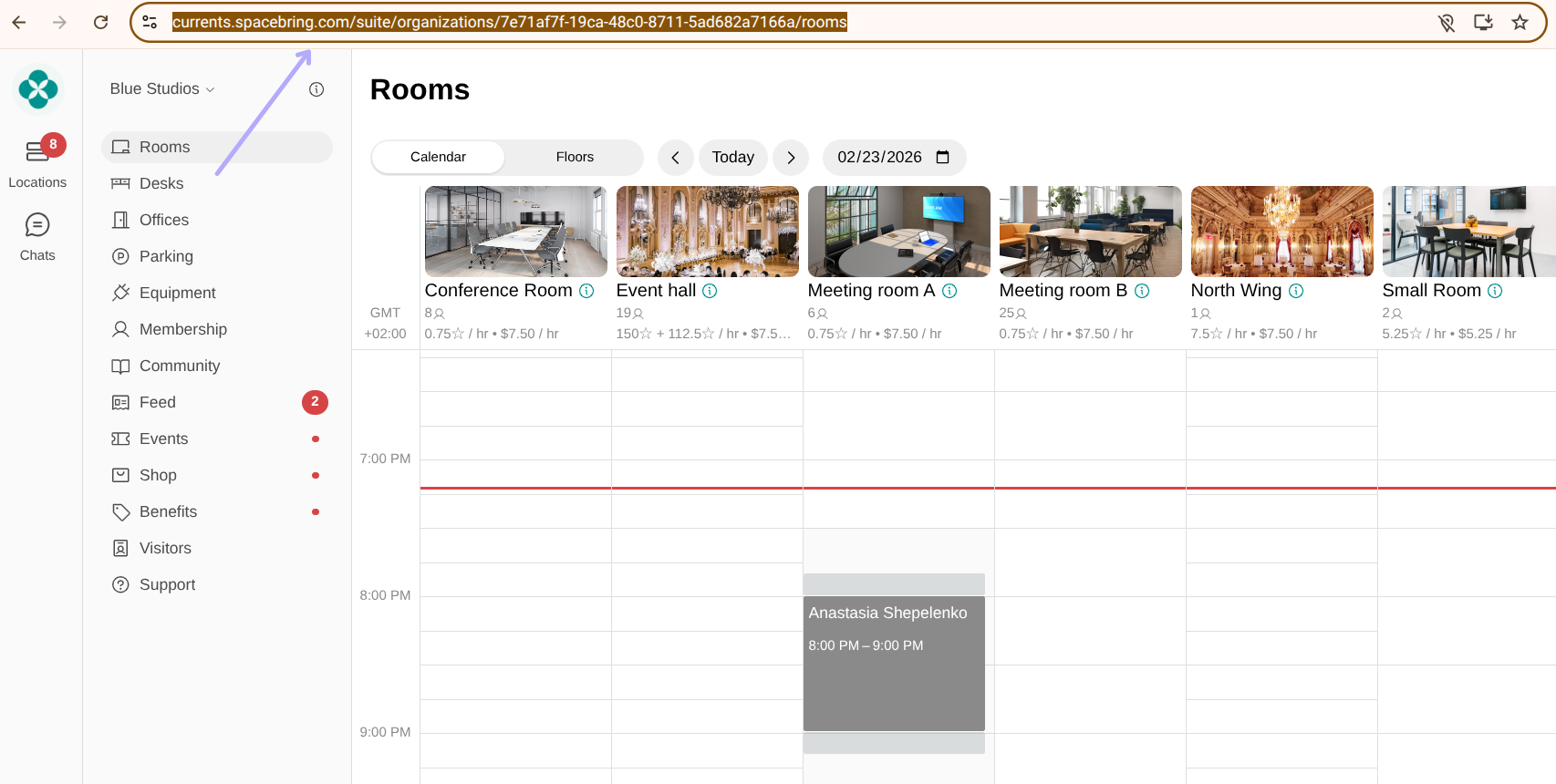
 ### How to copy links to other pages
1. In the admin portal, click **Member web portal** in the bottom left corner.
* Open the page you want to share (e.g., **Rooms**, **Desks**, **Offices**, **Events**, **Shop**, **Support**) and copy the URL directly from your browser.
### How to copy links to other pages
1. In the admin portal, click **Member web portal** in the bottom left corner.
* Open the page you want to share (e.g., **Rooms**, **Desks**, **Offices**, **Events**, **Shop**, **Support**) and copy the URL directly from your browser.
 * To copy a link for a specific room, desk, plan, product, etc., open it and click the `Share` button top right.
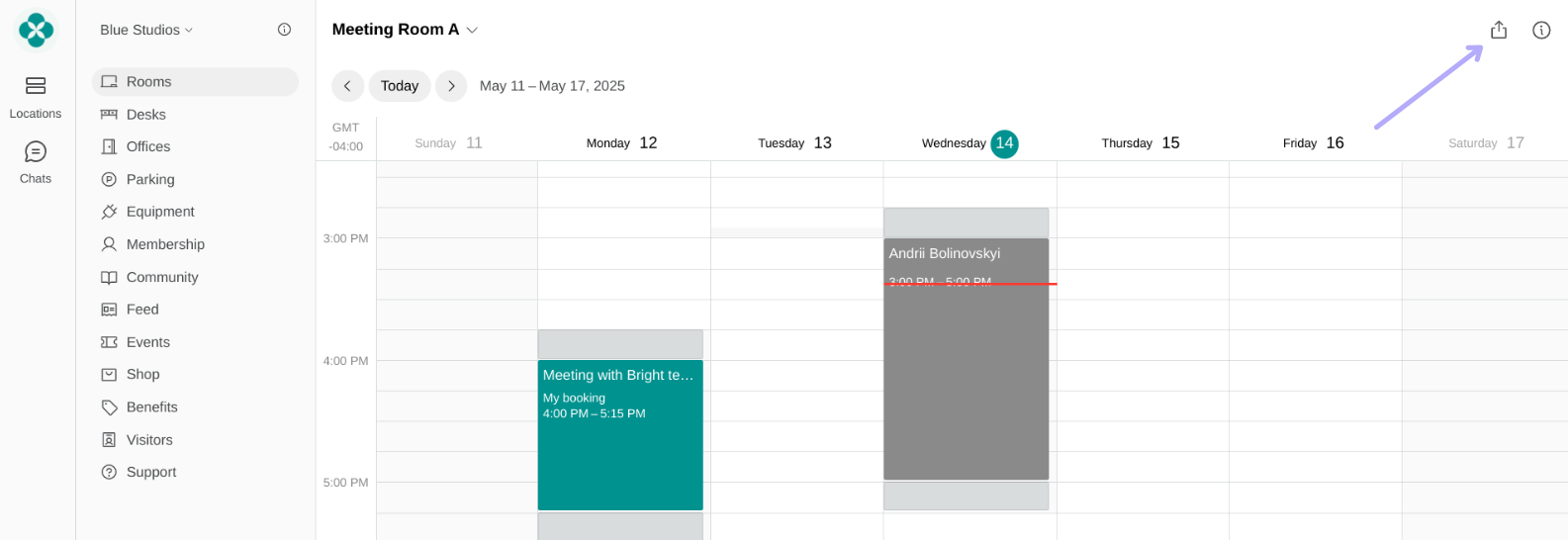 Make sure the resource visibility is set to **Public** so all users can access it after scanning the QR code.
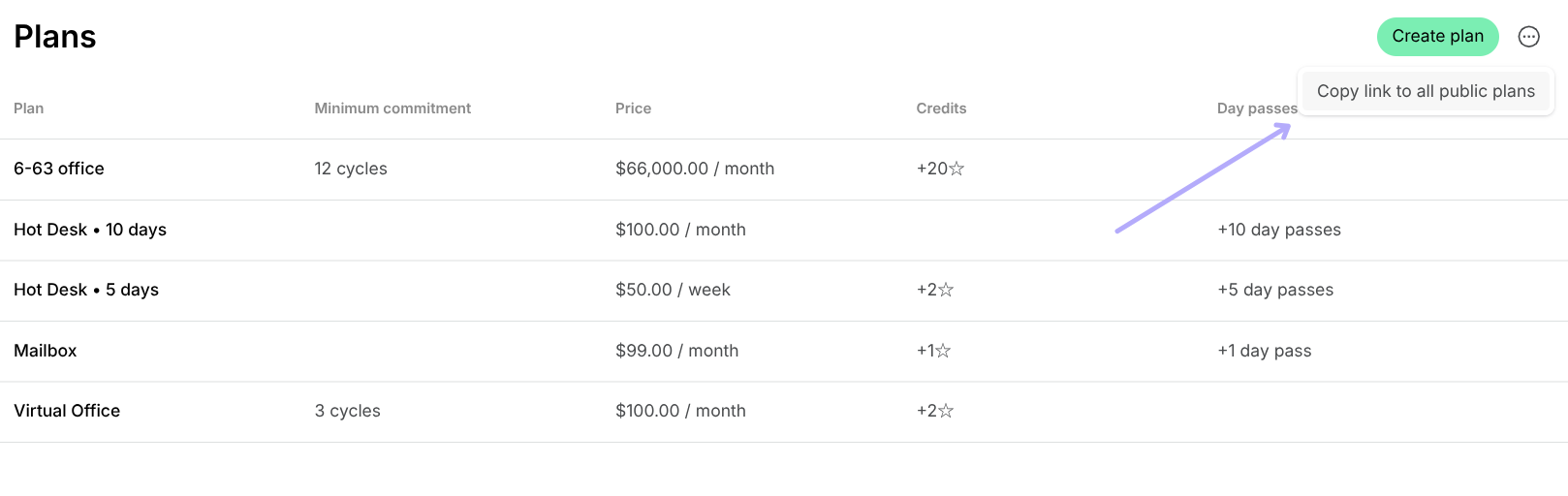
* To copy a link to all plans, go to your admin portal > **Billing** > **Plans** > press the menu **(...)** top right > **Copy link to all public plans**.
Make sure the resource visibility is set to **Public** so all users can access it after scanning the QR code.
* To copy a link to all plans, go to your admin portal > **Billing** > **Plans** > press the menu **(...)** top right > **Copy link to all public plans**.
 ## Best practices
* **Reception:** Display QR codes at reception to encourage visitors to download your member mobile app or explore membership plans.
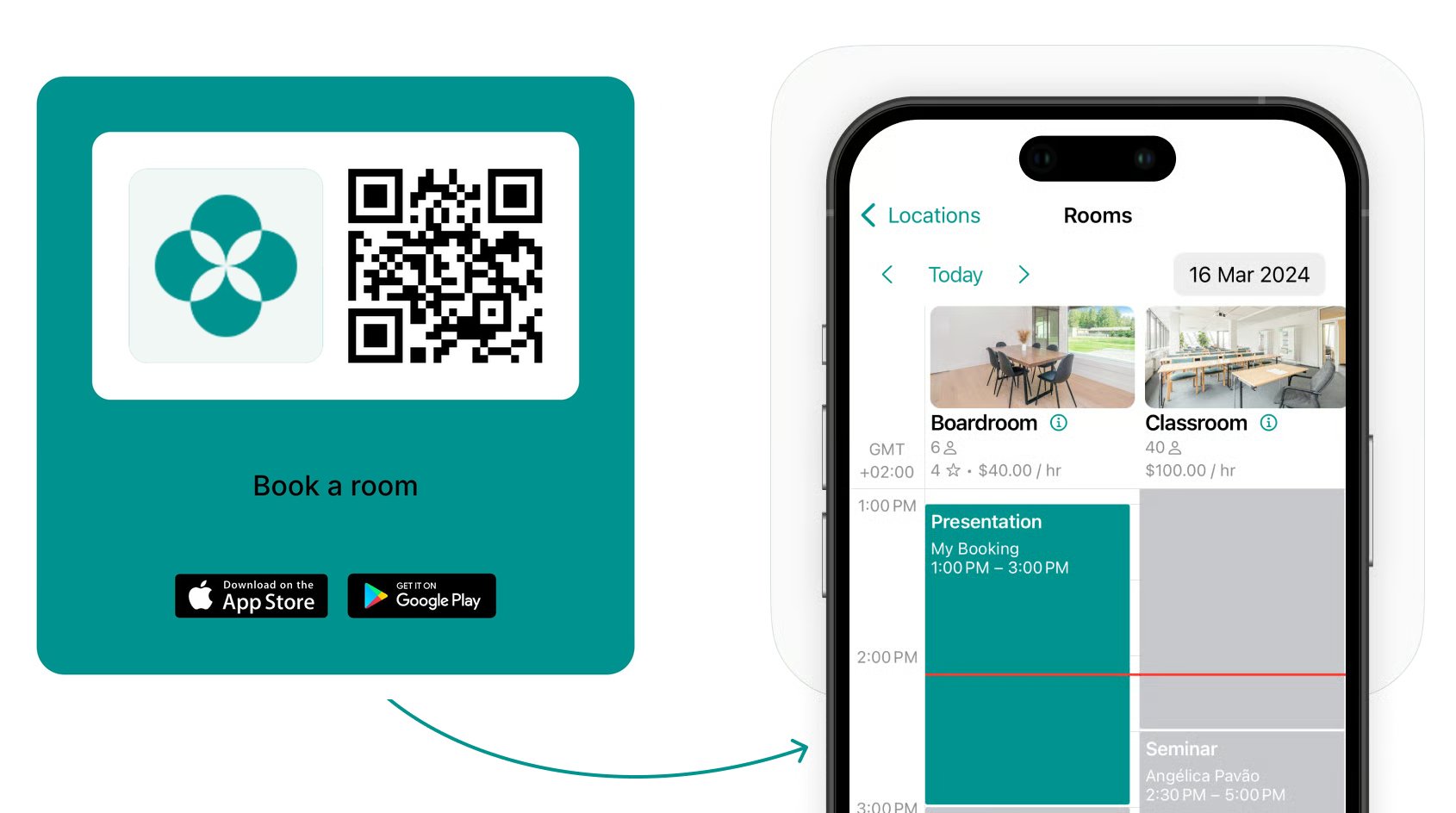
* **Meeting rooms:** Place a QR code near each meeting room door linking directly to that room’s calendar so users can check availability or book the room instantly.
## Best practices
* **Reception:** Display QR codes at reception to encourage visitors to download your member mobile app or explore membership plans.
* **Meeting rooms:** Place a QR code near each meeting room door linking directly to that room’s calendar so users can check availability or book the room instantly.
 * **Hot desks:** Add a QR code sticker on every desk so users can quickly book their daily seat or download the member mobile app.
* **Kitchen & common areas:** Use QR codes to link to the **Support** page for issue reporting or the **Shop** page for ordering refreshments or supplies.
**FAQ**
* If a user has the member mobile app installed on their device, it will be opened.
* If they have no member mobile app installed, the member web portal will be opened.
* If someone has the progressive member web portal installed on their device, it will be opened.
* **Hot desks:** Add a QR code sticker on every desk so users can quickly book their daily seat or download the member mobile app.
* **Kitchen & common areas:** Use QR codes to link to the **Support** page for issue reporting or the **Shop** page for ordering refreshments or supplies.
**FAQ**
* If a user has the member mobile app installed on their device, it will be opened.
* If they have no member mobile app installed, the member web portal will be opened.
* If someone has the progressive member web portal installed on their device, it will be opened.