> ## Documentation Index
> Fetch the complete documentation index at: https://www.spacebring.com/docs/llms.txt
> Use this file to discover all available pages before exploring further.
# Rent out event spaces
> Learn how to set up up event spaces, configure booking permissions and rescheduling policies, handle event space rental applications, and invoice customers
If you have event spaces in your shared space, Spacebring provides a streamlined process to manage their rentals efficiently and ensure a smooth booking experience for your customers.
## Set up event spaces
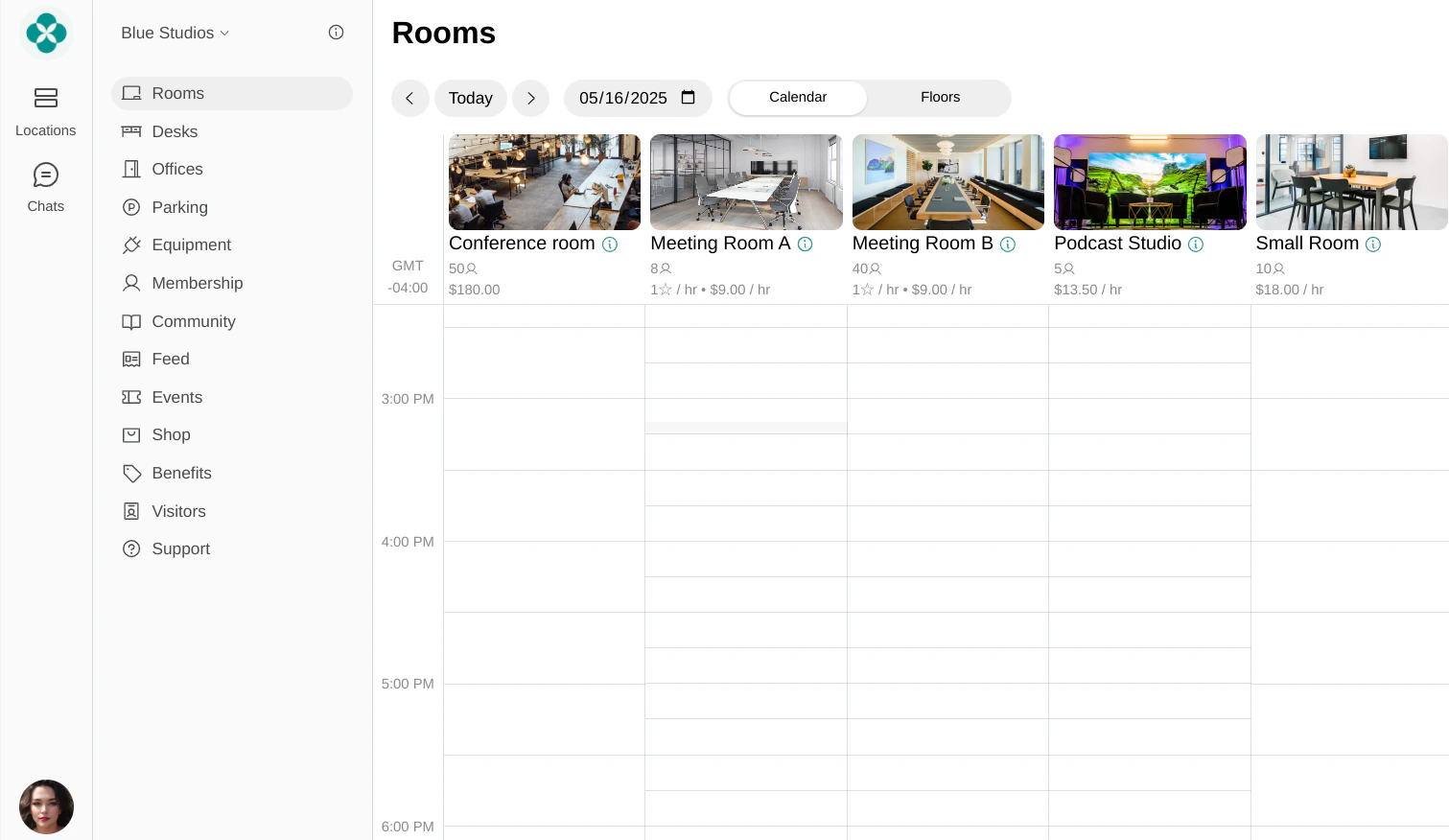
To make event spaces available for booking, [add them under **Rooms**](/resource-management/set-up#rooms) with the **Event space** room type. This provides a clear calendar view, allowing users to see at a glance when the space is available or already booked.
 1. Set a proper rescheduling policy
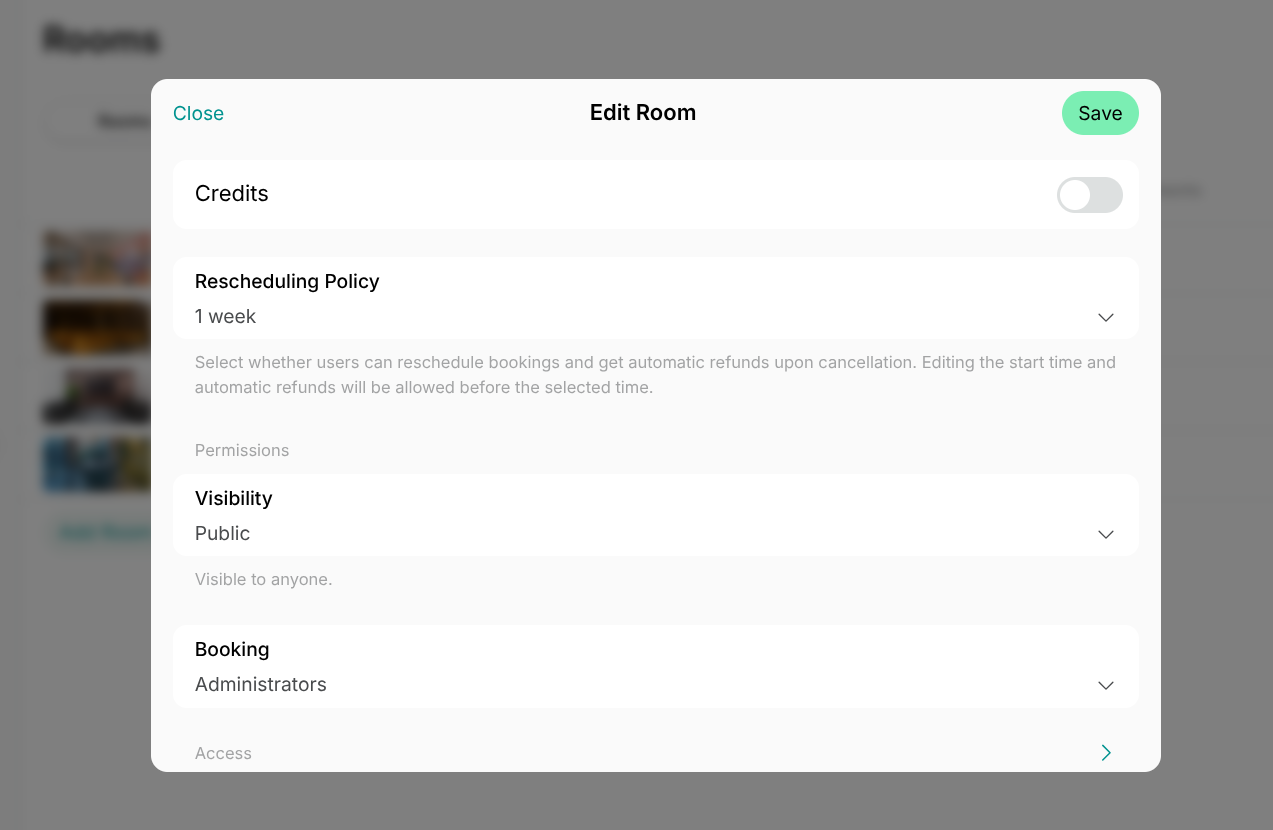
Renting event spaces typically requires more preparation, so we recommend setting the [rescheduling policy](/billing/payments/refunds) to at least 1 week or longer to avoid last-minute changes or cancellations.
2. Configure visibility and booking permissions
* If only administrators should manage bookings, set:
* [**Booking permission**](/resource-management/bookings/applications-for-bookings): Administrators
* [**Visibility permission**](/location/visibility): Public (so all customers can see the event space)
* If you allow everyone to book th event space directly, set:
1. Set a proper rescheduling policy
Renting event spaces typically requires more preparation, so we recommend setting the [rescheduling policy](/billing/payments/refunds) to at least 1 week or longer to avoid last-minute changes or cancellations.
2. Configure visibility and booking permissions
* If only administrators should manage bookings, set:
* [**Booking permission**](/resource-management/bookings/applications-for-bookings): Administrators
* [**Visibility permission**](/location/visibility): Public (so all customers can see the event space)
* If you allow everyone to book th event space directly, set:
 * **Booking permission**: Public
* **Visibility permission**: Public
## How users book or apply for event spaces
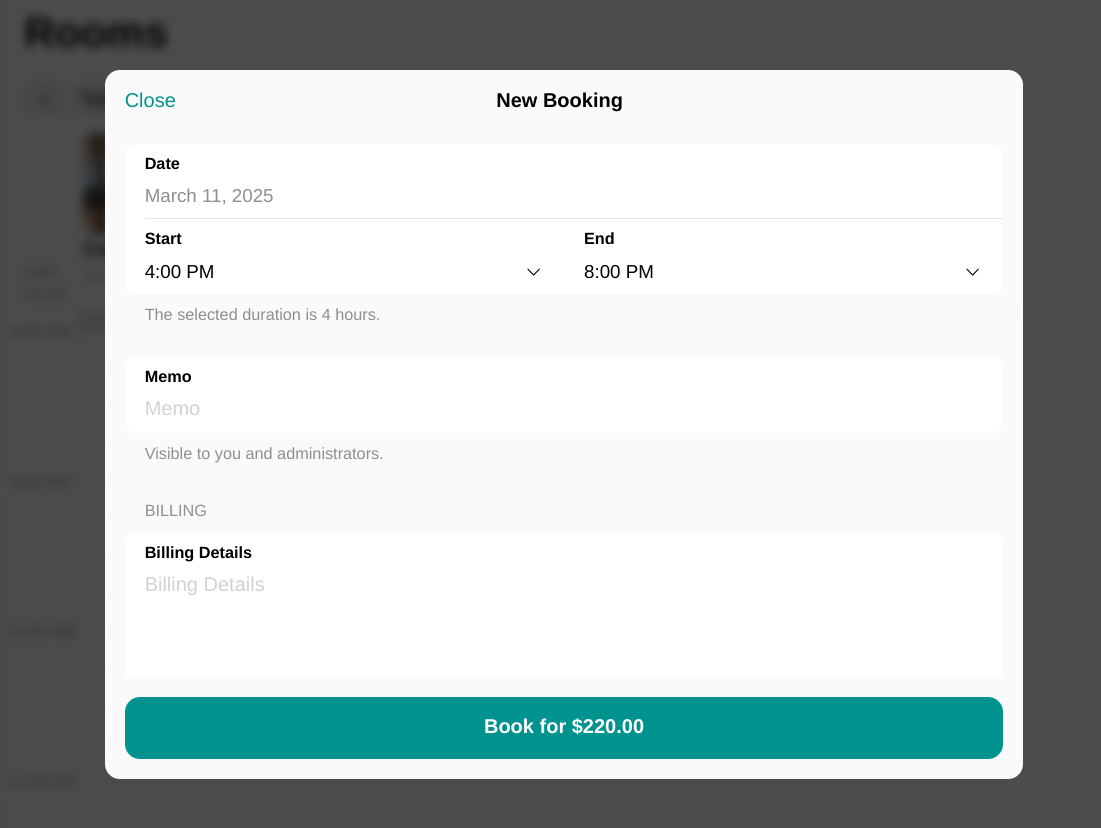
* **If booking permission is set to Public:** Users will see a **Book** button, allowing them to select a date, time, and [complete the booking](/member/bookings/book-a-room) and payment immediately.
* **Booking permission**: Public
* **Visibility permission**: Public
## How users book or apply for event spaces
* **If booking permission is set to Public:** Users will see a **Book** button, allowing them to select a date, time, and [complete the booking](/member/bookings/book-a-room) and payment immediately.
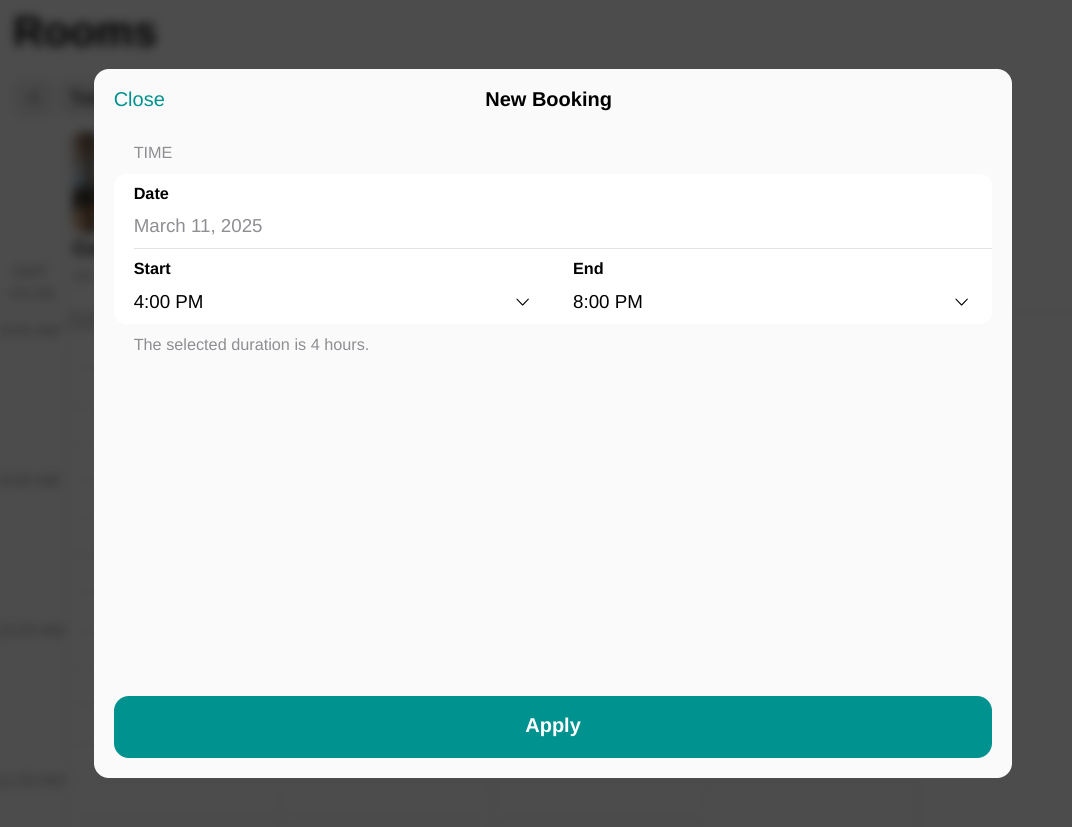
 * **If booking permission is set to administrators:** Users will see an **Apply** button, enabling them to [submit a request](/resource-management/bookings/applications-for-bookings) for the preferred date and time.
 ## How to handle rental applications and invoice customers
1. When a user submits an application for rental, a new ticket appears on the **Support** page. You can [manage the support ticket](/support/tickets) and communicate with the user via ticket comments.
## How to handle rental applications and invoice customers
1. When a user submits an application for rental, a new ticket appears on the **Support** page. You can [manage the support ticket](/support/tickets) and communicate with the user via ticket comments.
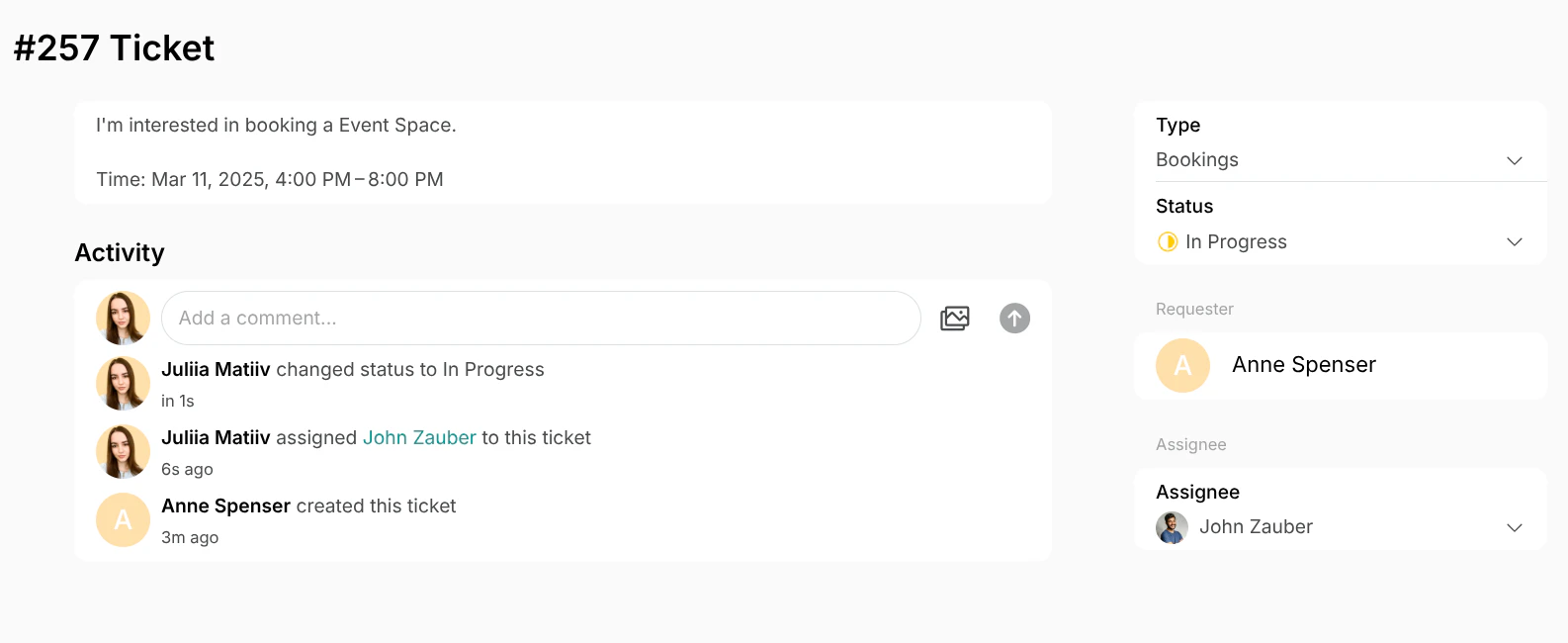 2. Once the rental is confirmed, click on the requester's name in the support ticket to copy their name and email address for an invoice.
3. Go to the **Rooms** page and book the event space for the requested date and time.
* In the **Booker** field:
* Find “New nonmember” option if this is a new customer.
* Otherwise, find the customer by name.
* Choose “Personal invoice” as the payment method.
2. Once the rental is confirmed, click on the requester's name in the support ticket to copy their name and email address for an invoice.
3. Go to the **Rooms** page and book the event space for the requested date and time.
* In the **Booker** field:
* Find “New nonmember” option if this is a new customer.
* Otherwise, find the customer by name.
* Choose “Personal invoice” as the payment method.
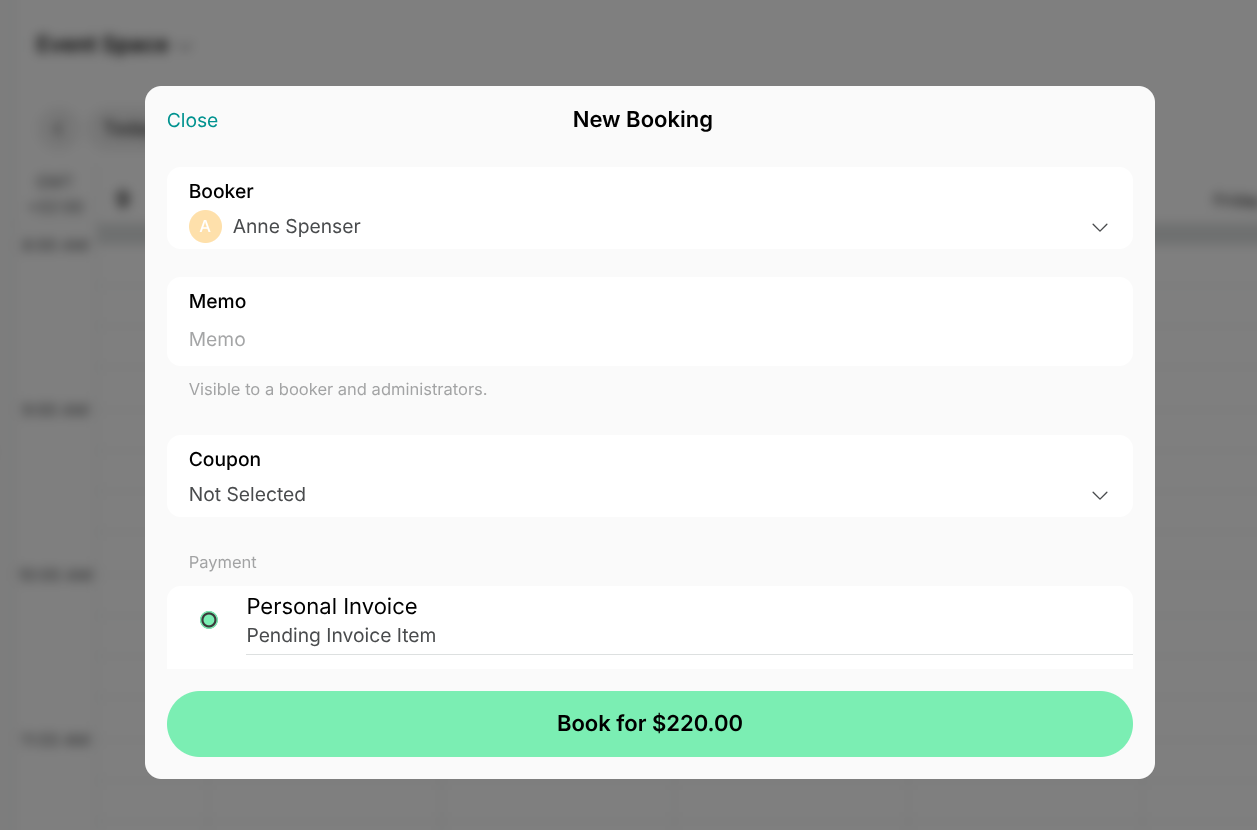 * Complete the booking and issue the generated invoice.
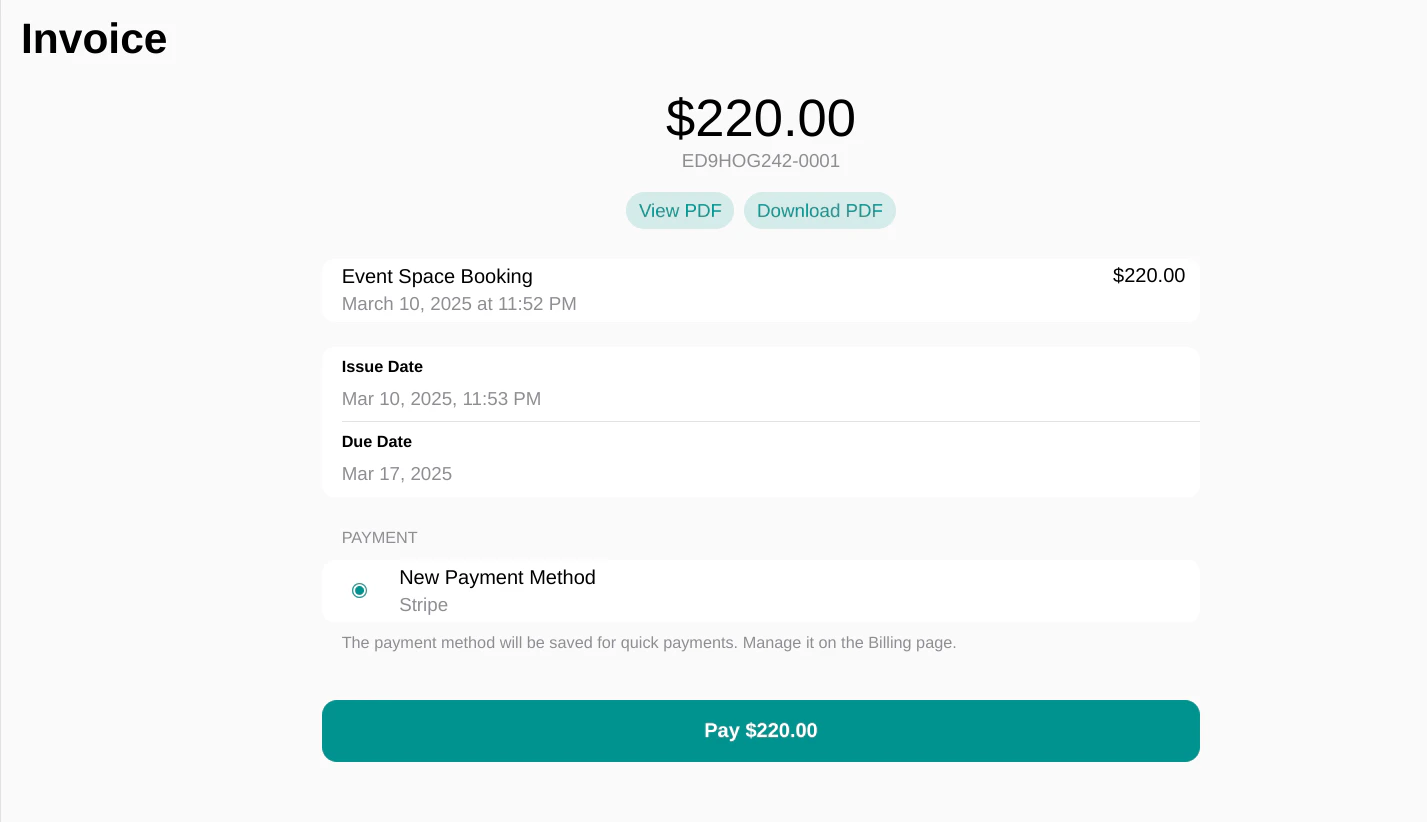
4. The customer receives the invoice via in-app notifications and to their inbox and can [proceed with payment.](/billing/invoicing/pay-for-invoice)
* Complete the booking and issue the generated invoice.
4. The customer receives the invoice via in-app notifications and to their inbox and can [proceed with payment.](/billing/invoicing/pay-for-invoice)
 ## Tips
* If you offer equipment rentals for events —such as chairs, microphones, or projectors—[list them on the **Equipment** page](/resource-management/set-up#equipment). Consider adding links to equipment in the event space description to inform customers of available options and encourage upsells in addition to bookings.
## Tips
* If you offer equipment rentals for events —such as chairs, microphones, or projectors—[list them on the **Equipment** page](/resource-management/set-up#equipment). Consider adding links to equipment in the event space description to inform customers of available options and encourage upsells in addition to bookings.