> ## Documentation Index
> Fetch the complete documentation index at: https://www.spacebring.com/docs/llms.txt
> Use this file to discover all available pages before exploring further.
# Fortnox
> Connect Fortnox to automatically sync issued invoices and credit notes from Spacebring, understand the key prerequisites for successful synchronization, and how the integration works
Sync issued invoices from Spacebring to Fortnox to cut manual accounting work. Invoices land in Fortnox unbookkept, ready for you to review and bookkeep, and credit notes follow once you have bookkept the invoice there.
Fortnox is a distinct company not affiliated with Spacebring. For any inquiries regarding Fortnox's solutions, services, or pricing, reach out to Fortnox directly. We do not have the authority to provide information or support on behalf of Fortnox.
## Prerequisites
1. Have your Fortnox account ready, with a user who can manage customers, invoices, and bookkeeping in the company you want to connect.
2. Set up the same [tax rates](/docs/billing/taxes) in Fortnox as in Spacebring. Every VAT rate you charge must exist among the company's VAT rates in Fortnox.
3. Make sure the currency you invoice in is registered in Fortnox.
4. Set up the revenue accounts in Fortnox, in the 3000 range, where Spacebring should post invoice items.
## Connect the Fortnox integration
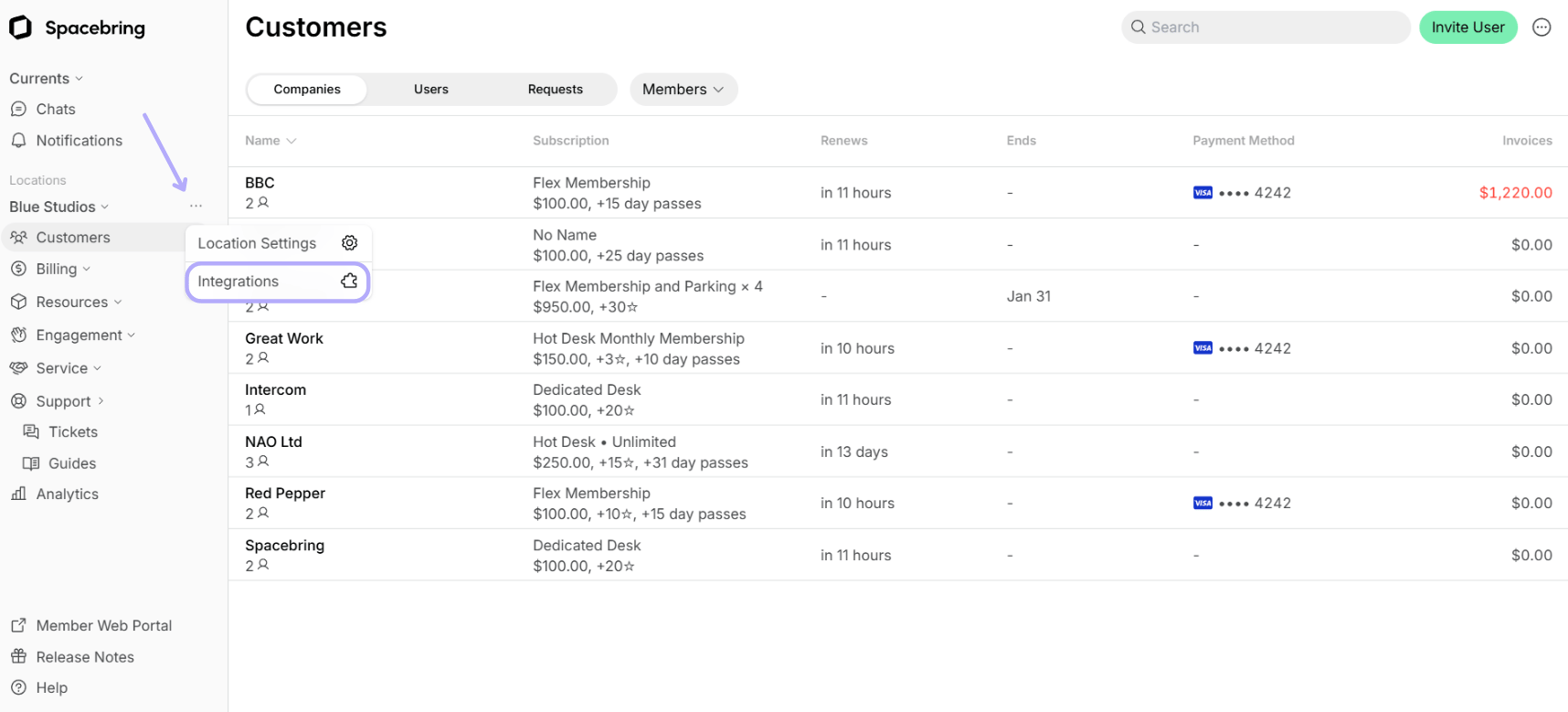
1. Click the menu **(...)** next to the location's name > go to **Integrations**.
 2. Open the **Fortnox** integration page and click **Connect**.
3. Log in to Fortnox and grant Spacebring access to your company. You return to Spacebring, and the page shows the connected **Company**.
4. **Accounts for invoice item sync** — for each invoice item type, select the Fortnox account where Spacebring should post invoice items of that type: **Bookings**, **Event tickets**, **Shop products**, **Packages**, **Subscription items**, and **Custom**.
Only active revenue accounts in the 3000 range are available to select.
Select an account for **all** invoice item types, even the ones you don't sell. The connection stays incomplete and invoices don't sync until every type has an account.
## How Fortnox integration works
Once connected, Spacebring syncs newly issued invoices to Fortnox in real time as unbookkept invoices, and credit notes for unpaid invoices once you have bookkept the invoice in Fortnox.
Spacebring only creates the invoice in Fortnox. It doesn't bookkeep it, send it to the customer, or register its payment, even after the invoice is paid in Spacebring. Bookkeep and send each invoice in Fortnox yourself, and register its payment there.
Voiding an invoice in Spacebring doesn't sync to Fortnox. To correct an invoice, issue a [credit note](/docs/billing/invoices/credit-notes) in Spacebring, which syncs once the invoice is bookkept in Fortnox.
### How invoices sync
The integration maps Spacebring invoice data to Fortnox as follows:
| **Data in Spacebring** | **Data in Fortnox** |
| ------------------------------------------------- | ------------------------------------------------------------------------------------------------------------------------------------------------------------------------------------------------------------------------------------------ |
| Customer legal business name (or name) and tax ID | Spacebring matches an existing Fortnox customer by organisation number, using the customer's tax ID. If there is no match, it creates a customer with that name, address, email, and organisation number, and reuses it for later invoices |
| Customer email | ✓ on the customer Spacebring creates |
| Currency | ✓ |
| Issue date | Invoice date |
| Due date | ✓ |
| Invoice number | Your order number |
| Invoice item name | Description, shortened to 50 characters |
| Invoice item quantity | ✓ |
| Invoice item price | ✓ — gross when your location's prices include tax, net otherwise, and the invoice is marked accordingly |
| Invoice item discount | ✓ as a percentage |
| Tax | VAT rate per invoice item |
| Invoice item type | Posted to the account you selected for it |
| Invoice status | ✗ — always created unbookkept, regardless of the invoice's status in Spacebring |
| Invoice PDF | ✗ — Fortnox generates its own invoice PDF |
### How credit notes sync
Spacebring syncs a credit note issued for an unpaid invoice as a full credit of that invoice in Fortnox. Fortnox creates the credit from the invoice, copies its rows, and links the two documents. The credit note syncs only when both conditions hold:
* The invoice is already bookkept in Fortnox, since Fortnox can only credit a bookkept invoice. Otherwise the credit note fails to sync, and the notification asks you to bookkeep the invoice and create the credit note in Fortnox yourself.
* The credit note covers the whole invoice, since Fortnox credits an invoice in full. A credit note for part of an invoice fails to sync. Create the partial credit in Fortnox yourself.
Applied balance, partial payments, credit notes for paid invoices, and refunds don't sync to Fortnox.
If you see a notification that Fortnox failed to sync an invoice, check [our help article](/docs/account/notifications/integrations-failures) for the cause and how to resolve it.
## Disconnect the Fortnox integration
1. Click the menu **(...)** next to the location's name > go to **Integrations**.
2. Select **Fortnox** > press **Disconnect** and confirm your choice.
Disconnecting stops the sync but doesn't revoke Spacebring's access in Fortnox. To revoke it, remove Spacebring from your company's integrations in Fortnox.
## FAQs
The connection stays incomplete, and nothing syncs, until an account is selected for every invoice item type on the **Integrations** > **Fortnox** page: **Bookings**, **Event tickets**, **Shop products**, **Packages**, **Subscription items**, and **Custom**. Missing even one stops invoices syncing, including item types you don't sell.
If a specific invoice fails rather than everything, the notification names the cause. The most common ones are a VAT rate or a currency on the invoice that isn't set up in your Fortnox company — see [notifications about integrations' failures](/docs/account/notifications/integrations-failures).
2. Open the **Fortnox** integration page and click **Connect**.
3. Log in to Fortnox and grant Spacebring access to your company. You return to Spacebring, and the page shows the connected **Company**.
4. **Accounts for invoice item sync** — for each invoice item type, select the Fortnox account where Spacebring should post invoice items of that type: **Bookings**, **Event tickets**, **Shop products**, **Packages**, **Subscription items**, and **Custom**.
Only active revenue accounts in the 3000 range are available to select.
Select an account for **all** invoice item types, even the ones you don't sell. The connection stays incomplete and invoices don't sync until every type has an account.
## How Fortnox integration works
Once connected, Spacebring syncs newly issued invoices to Fortnox in real time as unbookkept invoices, and credit notes for unpaid invoices once you have bookkept the invoice in Fortnox.
Spacebring only creates the invoice in Fortnox. It doesn't bookkeep it, send it to the customer, or register its payment, even after the invoice is paid in Spacebring. Bookkeep and send each invoice in Fortnox yourself, and register its payment there.
Voiding an invoice in Spacebring doesn't sync to Fortnox. To correct an invoice, issue a [credit note](/docs/billing/invoices/credit-notes) in Spacebring, which syncs once the invoice is bookkept in Fortnox.
### How invoices sync
The integration maps Spacebring invoice data to Fortnox as follows:
| **Data in Spacebring** | **Data in Fortnox** |
| ------------------------------------------------- | ------------------------------------------------------------------------------------------------------------------------------------------------------------------------------------------------------------------------------------------ |
| Customer legal business name (or name) and tax ID | Spacebring matches an existing Fortnox customer by organisation number, using the customer's tax ID. If there is no match, it creates a customer with that name, address, email, and organisation number, and reuses it for later invoices |
| Customer email | ✓ on the customer Spacebring creates |
| Currency | ✓ |
| Issue date | Invoice date |
| Due date | ✓ |
| Invoice number | Your order number |
| Invoice item name | Description, shortened to 50 characters |
| Invoice item quantity | ✓ |
| Invoice item price | ✓ — gross when your location's prices include tax, net otherwise, and the invoice is marked accordingly |
| Invoice item discount | ✓ as a percentage |
| Tax | VAT rate per invoice item |
| Invoice item type | Posted to the account you selected for it |
| Invoice status | ✗ — always created unbookkept, regardless of the invoice's status in Spacebring |
| Invoice PDF | ✗ — Fortnox generates its own invoice PDF |
### How credit notes sync
Spacebring syncs a credit note issued for an unpaid invoice as a full credit of that invoice in Fortnox. Fortnox creates the credit from the invoice, copies its rows, and links the two documents. The credit note syncs only when both conditions hold:
* The invoice is already bookkept in Fortnox, since Fortnox can only credit a bookkept invoice. Otherwise the credit note fails to sync, and the notification asks you to bookkeep the invoice and create the credit note in Fortnox yourself.
* The credit note covers the whole invoice, since Fortnox credits an invoice in full. A credit note for part of an invoice fails to sync. Create the partial credit in Fortnox yourself.
Applied balance, partial payments, credit notes for paid invoices, and refunds don't sync to Fortnox.
If you see a notification that Fortnox failed to sync an invoice, check [our help article](/docs/account/notifications/integrations-failures) for the cause and how to resolve it.
## Disconnect the Fortnox integration
1. Click the menu **(...)** next to the location's name > go to **Integrations**.
2. Select **Fortnox** > press **Disconnect** and confirm your choice.
Disconnecting stops the sync but doesn't revoke Spacebring's access in Fortnox. To revoke it, remove Spacebring from your company's integrations in Fortnox.
## FAQs
The connection stays incomplete, and nothing syncs, until an account is selected for every invoice item type on the **Integrations** > **Fortnox** page: **Bookings**, **Event tickets**, **Shop products**, **Packages**, **Subscription items**, and **Custom**. Missing even one stops invoices syncing, including item types you don't sell.
If a specific invoice fails rather than everything, the notification names the cause. The most common ones are a VAT rate or a currency on the invoice that isn't set up in your Fortnox company — see [notifications about integrations' failures](/docs/account/notifications/integrations-failures).