> ## Documentation Index
> Fetch the complete documentation index at: https://www.spacebring.com/docs/llms.txt
> Use this file to discover all available pages before exploring further.
# Calendly
> Connect Calendly integration to add a 'Book a tour' option to your landing page and let potential customers to schedule space tours
Calendly is a scheduling tool that helps people book meetings or events based on your availability. When connected with Spacebring, it allows potential customers to easily schedule visits to explore your space and services—without the hassle of email coordination.
Calendly is a distinct company not affiliated with us. For any inquiries regarding Calendly's solutions, services, or pricing, please reach out to Calendly directly. We do not have the authority to provide information or support on behalf of Calendly.
## Prerequisites
To enable Calendly integration with Spacebring, make sure you've completed the following prerequisites:
1. Have an active Spacebring subscription.
2. Have your Calendly account and event set up for tour bookings.
## Enable the Calendly integration
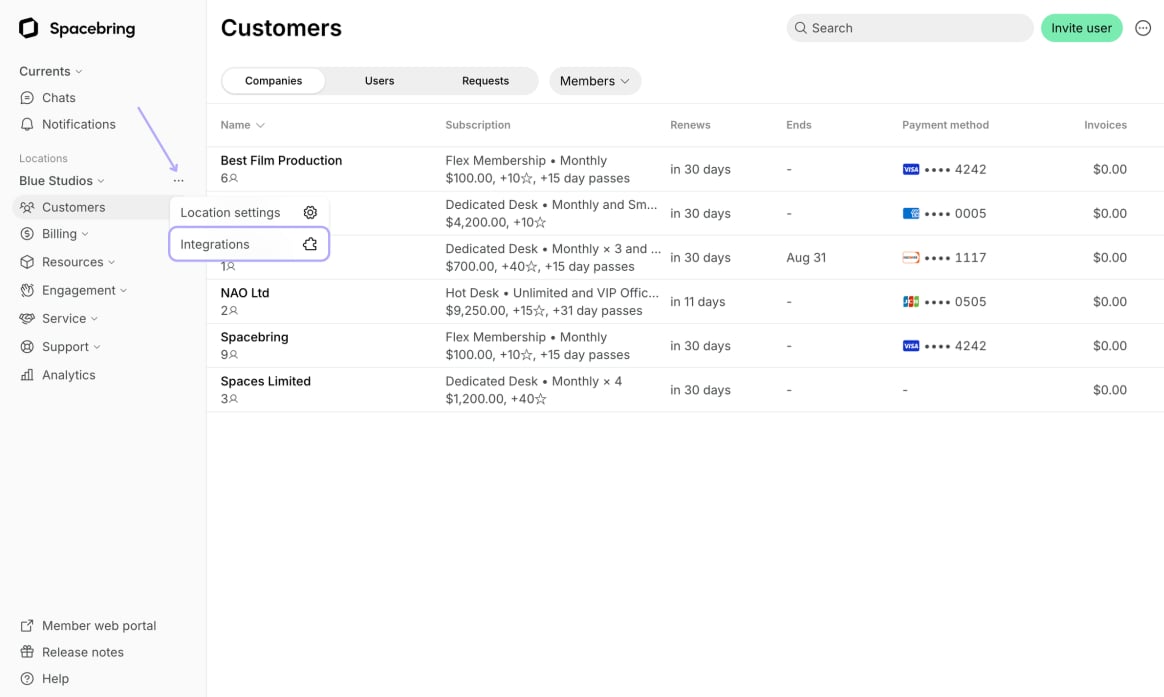
1. Go to Spacebring > **Integrations** page by pressing the menu **(...)** next to the location's name.
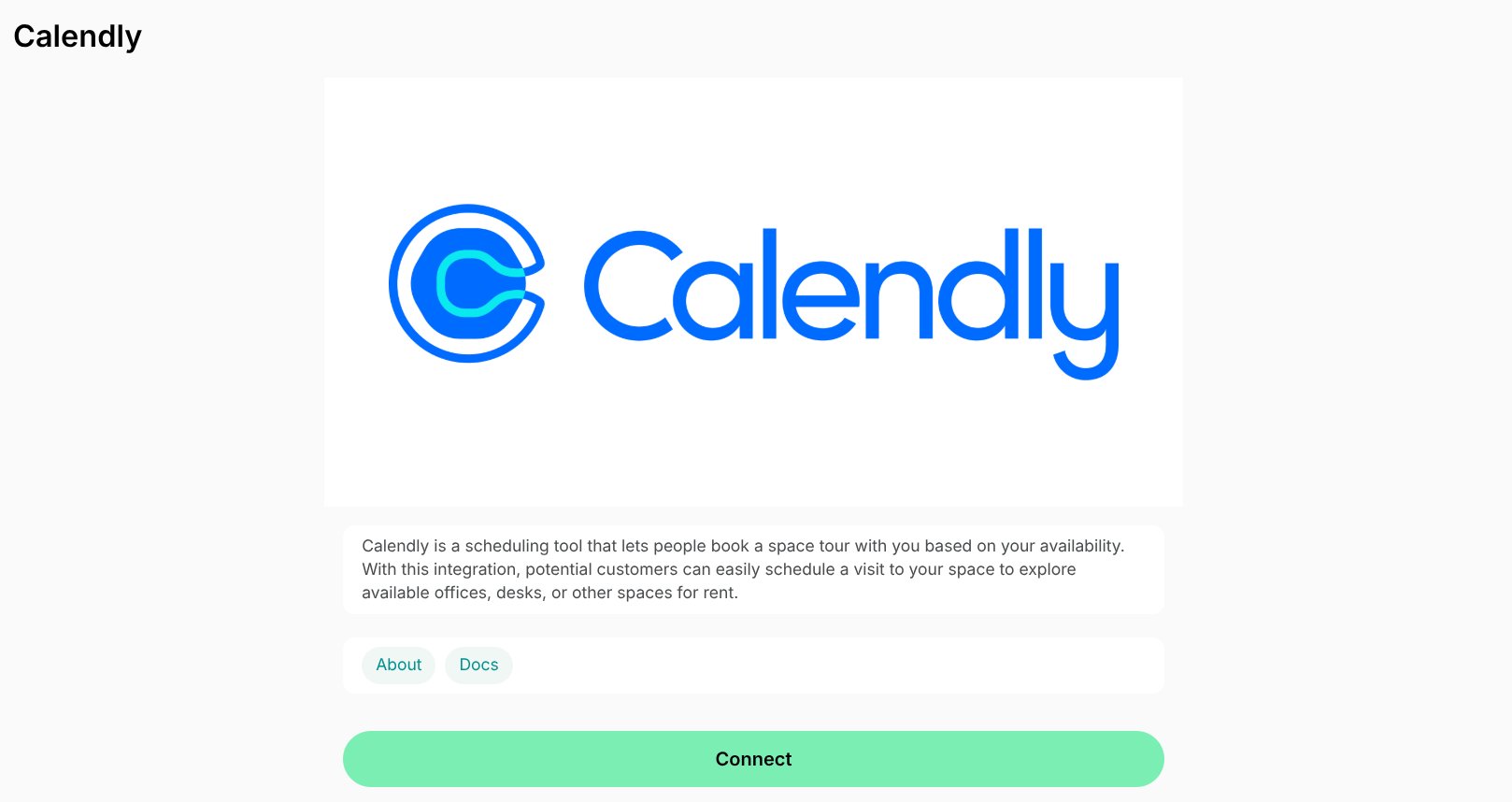
 2. Find the **Calendly** integration page. *On this page, you'll also see two helpful buttons:*
* **About**: For general information about the integration.
* **Docs**: For detailed instructions on connecting and configuring.
2. Find the **Calendly** integration page. *On this page, you'll also see two helpful buttons:*
* **About**: For general information about the integration.
* **Docs**: For detailed instructions on connecting and configuring.
 3. Press **Connect**.
4. Paste your [event link](https://calendly.com/blog/share-scheduling-link) for space tours from Calendly.
3. Press **Connect**.
4. Paste your [event link](https://calendly.com/blog/share-scheduling-link) for space tours from Calendly.
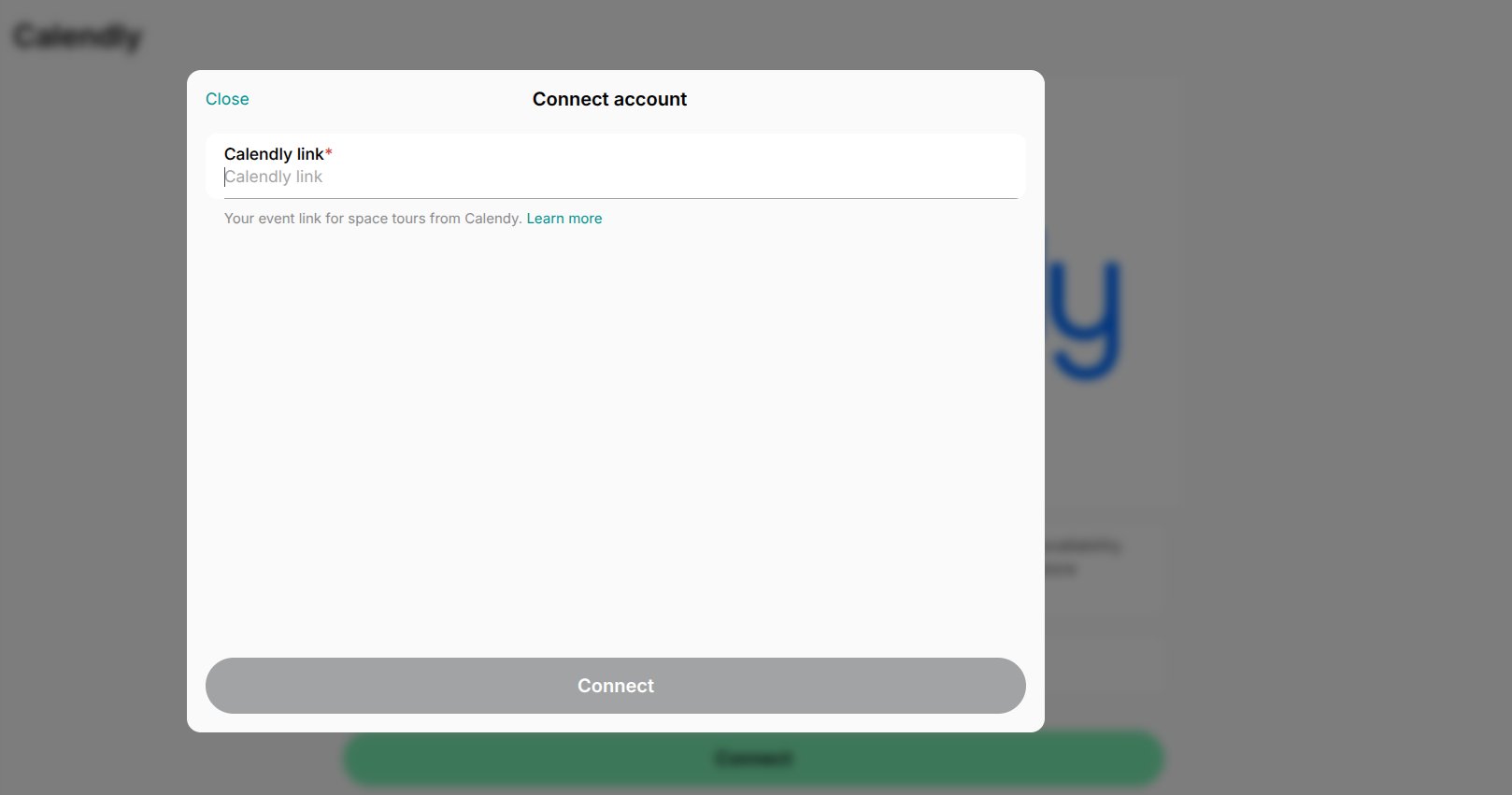 5. Press **Connect**.
You can connect a separate Calendly event link to each location in Spacebring.
## How the Calendly integration works
Once the integration is connected in the specific location, all users can conveniently book the available time slot by pressing on the **Book a tour** button under the necessary location on your [landing page](/docs/member-web-portal/customize-landing-page).
5. Press **Connect**.
You can connect a separate Calendly event link to each location in Spacebring.
## How the Calendly integration works
Once the integration is connected in the specific location, all users can conveniently book the available time slot by pressing on the **Book a tour** button under the necessary location on your [landing page](/docs/member-web-portal/customize-landing-page).
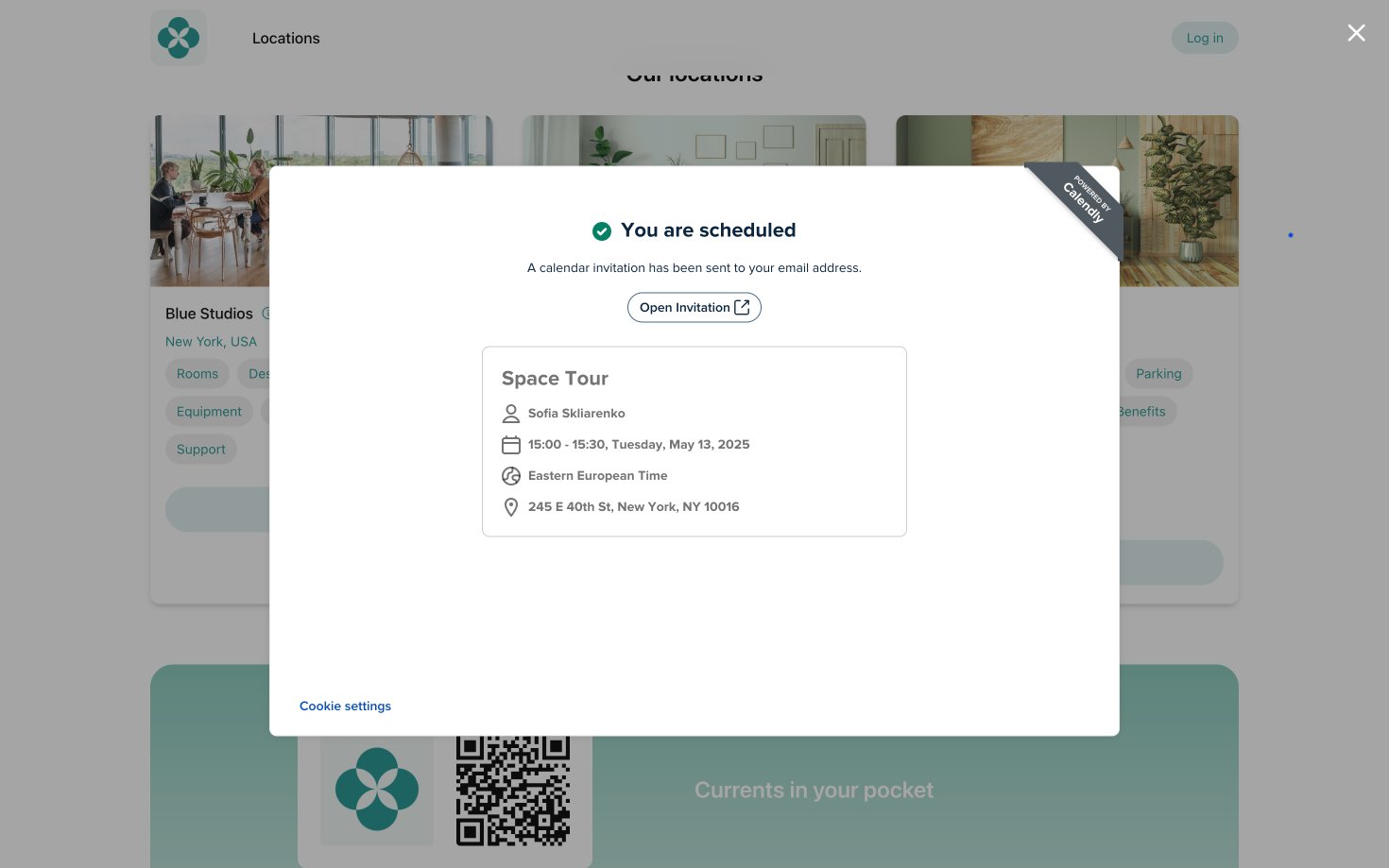
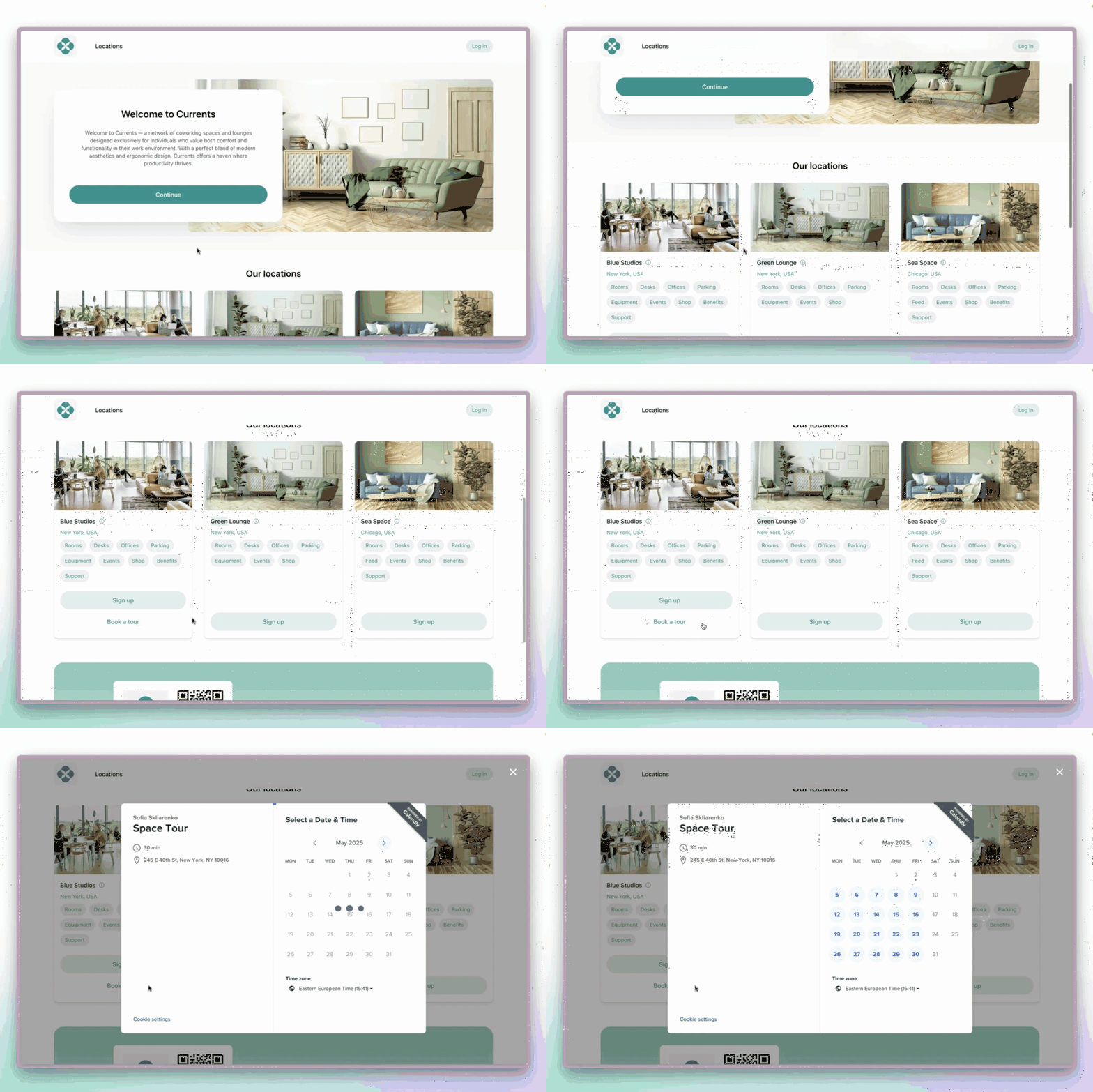 Once the time slot was booked, both you and the visitor will receive calendar invites and reminders based on your Calendly settings to the email address.
 Tour booking events are also automatically sent to [Google Analytics](/docs/integrations/analytics/google-analytics) or [Meta Pixel](/docs/integrations/analytics/meta-pixel), if those integrations are connected.
In addition to tours, learn how to [organize trial days](/docs/guides/organize-trial-days).
## Disconnect the Calendly integration
To update the event link or disconnect Calendly, follow these steps:
1. Go to Spacebring > **Integrations** page by pressing the menu **(...)** next to the location's name > **Calendly**.
2. Press **Disconnect** and confirm your choice.
Tour booking events are also automatically sent to [Google Analytics](/docs/integrations/analytics/google-analytics) or [Meta Pixel](/docs/integrations/analytics/meta-pixel), if those integrations are connected.
In addition to tours, learn how to [organize trial days](/docs/guides/organize-trial-days).
## Disconnect the Calendly integration
To update the event link or disconnect Calendly, follow these steps:
1. Go to Spacebring > **Integrations** page by pressing the menu **(...)** next to the location's name > **Calendly**.
2. Press **Disconnect** and confirm your choice.