> ## Documentation Index
> Fetch the complete documentation index at: https://www.spacebring.com/docs/llms.txt
> Use this file to discover all available pages before exploring further.
# Mailchimp
> Connect Mailchimp to automatically sync members from Spacebring to your Mailchimp audience for automated email marketing, and learn how the integration works
Synchronize members to Mailchimp to automate communication, for example, send custom welcome emails.
Mailchimp is a distinct company not affiliated with us. For any inquiries regarding Mailchimp's solutions, services, or pricing, please reach out to Mailchimp directly. We do not have the authority to provide information or support on behalf of Mailchimp.
## Prerequisites
To enable Mailchimp integration with Spacebring, make sure you've completed the following prerequisites:
1. Have an active Spacebring subscription.
2. Have your Mailchimp account set up.
## Connect the Mailchimp integration
To connect Mailchimp integration, follow the next steps:
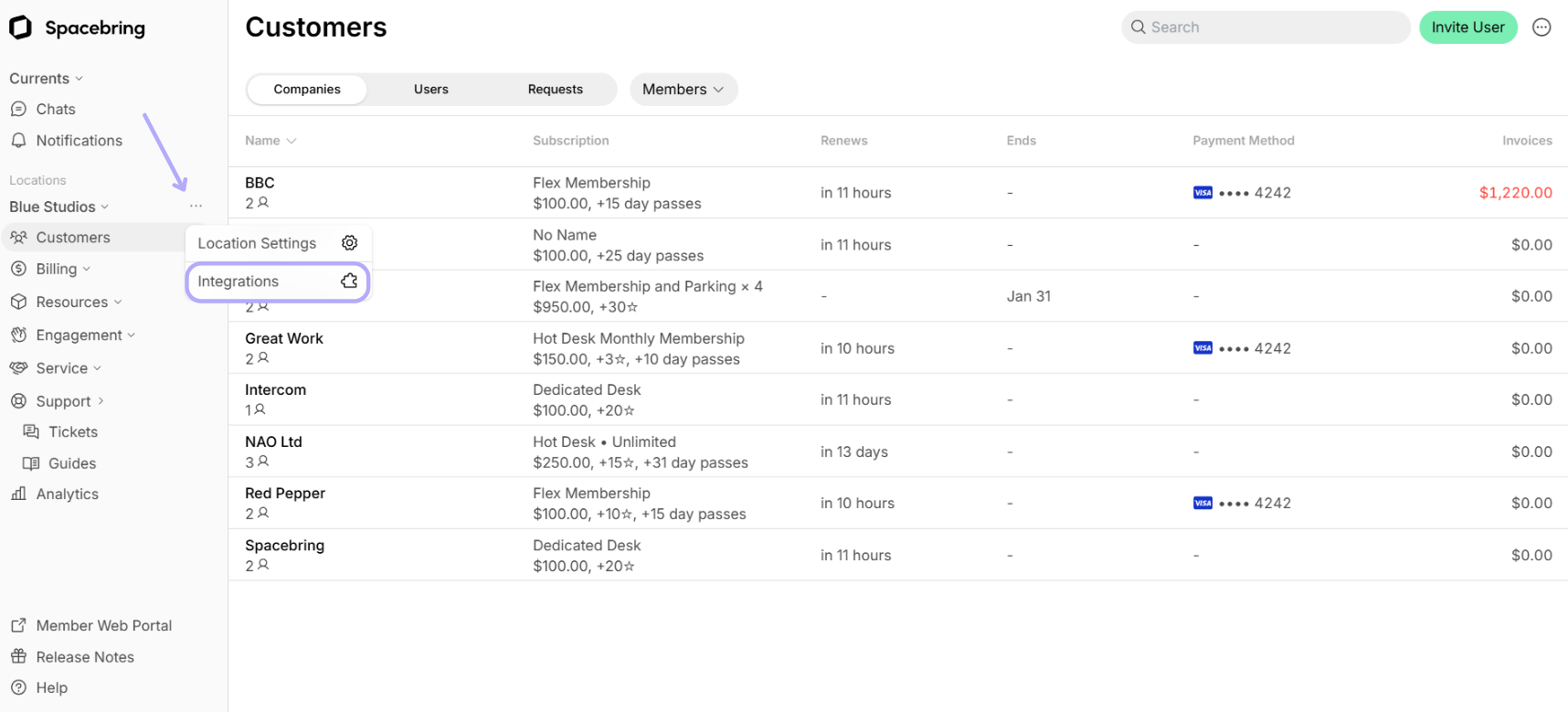
1. Go to Spacebring > **Integrations** page by pressing the menu **(...)** next to the location's name.
 2. Find the **Mailchimp** integration page. *On this page, you'll also see two helpful buttons:*
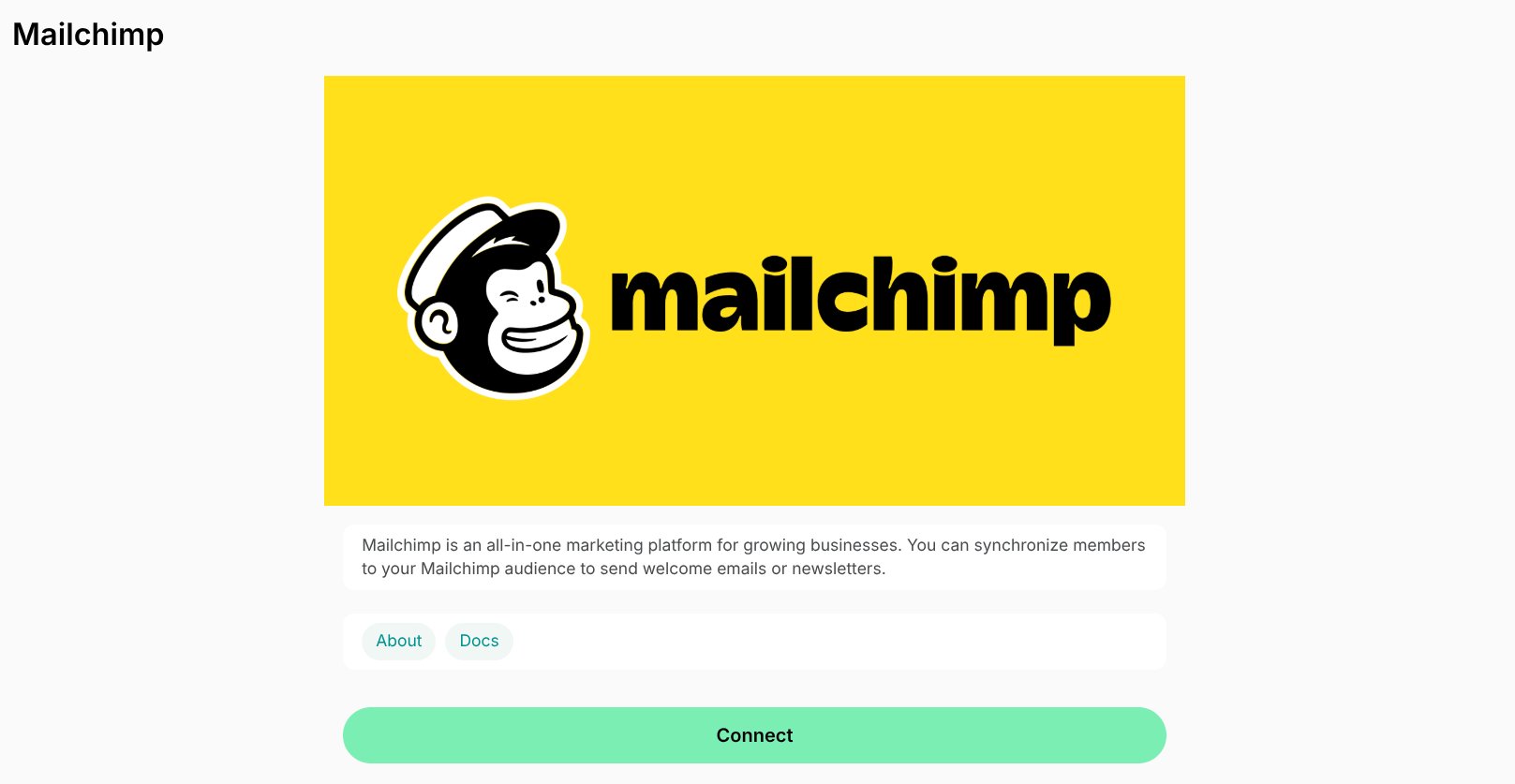 * **About**: For general information about the integration.
* **Docs**: For detailed instructions on connecting and configuring.
3. Press **Connect**.
4. Then log in to Mailchimp and authorize Spacebring to access your account. Once authorized, select an audience where to sync members.
You can connect a different Mailchimp account to a different location or choose different audiences.
## How the Mailchimp integration works
The following user data is synchronized into the audience in Mailchimp in real-time:
* Email address (user's email address in member web portal)
* FNAME merge tag (user's name in member web portal)
* LNAME merge tag (user's surname member web portal)
The user's name and surname are only synced into FNAME and LNAME fields and not any other custom field (for example **NAME**) created by you.
Administrators can additionally manage what data they want to sync from member web portal or mobile apps and what tags they want to appear in Mailchimp. The possible tags to add are:
* Administrator - adds **Administrator** tag to all synced admins
* Company manager - adds **Company manager** tag to all company managers
* Company title - adds company title as a tag to all users belonging to one company
* Location - adds location as a tag name to all users
To add the necessary tags, administrators can turn them on the **Integrations** > **Mailchimp** page.
The integration does not delete contacts in Mailchimp if you delete members in member web portal or mobile apps. All data is pushed to Mailchimp in real time.
## Disconnect the Mailchimp integration
To disconnect Mailchimp, follow these steps:
1. Go to Spacebring > **Integrations** page by pressing the menu **(...)** next to the location's name > **Mailchimp**.
2. Scroll down and press **Disconnect**. Confirm your choice.
**FAQs**
Only members can be automatically synced to Mailchimp, while other users can be added to Mailchimp manually by the administrator. If your lead is a nonmember in member web portal or mobile apps, you can export their contacts from the **Nonmembers** [report](/docs/analytics/reports) and upload them to Mailchimp. If your lead has never booked or interacted with your member web portal or mobile app yet, but you know their name and email, you can add this user to Mailchimp manually as well.
To group the emails to all existing members and compose an email for them, you can [download a **Users** custom report](/docs/analytics/reports) > import members' emails to Mailchimp > create an email campaign for the necessary audience.
* **About**: For general information about the integration.
* **Docs**: For detailed instructions on connecting and configuring.
3. Press **Connect**.
4. Then log in to Mailchimp and authorize Spacebring to access your account. Once authorized, select an audience where to sync members.
You can connect a different Mailchimp account to a different location or choose different audiences.
## How the Mailchimp integration works
The following user data is synchronized into the audience in Mailchimp in real-time:
* Email address (user's email address in member web portal)
* FNAME merge tag (user's name in member web portal)
* LNAME merge tag (user's surname member web portal)
The user's name and surname are only synced into FNAME and LNAME fields and not any other custom field (for example **NAME**) created by you.
Administrators can additionally manage what data they want to sync from member web portal or mobile apps and what tags they want to appear in Mailchimp. The possible tags to add are:
* Administrator - adds **Administrator** tag to all synced admins
* Company manager - adds **Company manager** tag to all company managers
* Company title - adds company title as a tag to all users belonging to one company
* Location - adds location as a tag name to all users
To add the necessary tags, administrators can turn them on the **Integrations** > **Mailchimp** page.
The integration does not delete contacts in Mailchimp if you delete members in member web portal or mobile apps. All data is pushed to Mailchimp in real time.
## Disconnect the Mailchimp integration
To disconnect Mailchimp, follow these steps:
1. Go to Spacebring > **Integrations** page by pressing the menu **(...)** next to the location's name > **Mailchimp**.
2. Scroll down and press **Disconnect**. Confirm your choice.
**FAQs**
Only members can be automatically synced to Mailchimp, while other users can be added to Mailchimp manually by the administrator. If your lead is a nonmember in member web portal or mobile apps, you can export their contacts from the **Nonmembers** [report](/docs/analytics/reports) and upload them to Mailchimp. If your lead has never booked or interacted with your member web portal or mobile app yet, but you know their name and email, you can add this user to Mailchimp manually as well.
To group the emails to all existing members and compose an email for them, you can [download a **Users** custom report](/docs/analytics/reports) > import members' emails to Mailchimp > create an email campaign for the necessary audience.