> ## Documentation Index
> Fetch the complete documentation index at: https://www.spacebring.com/docs/llms.txt
> Use this file to discover all available pages before exploring further.
# KakaoPay
> Connect integration with the KakaoPay payment gateway to enable seamless customer payments
KakaoPay integration allows receiving payments in Spacebring.
🌍 KakaoPay is available in South Korea.
KakaoPay is a distinct company not affiliated with us. For any inquiries regarding KakaoPay's solutions, services, or pricing, please reach out to KakaoPay directly. We do not have the authority to provide information or support on behalf of KakaoPay.
## Connect KakaoPay
To activate KakaoPay:
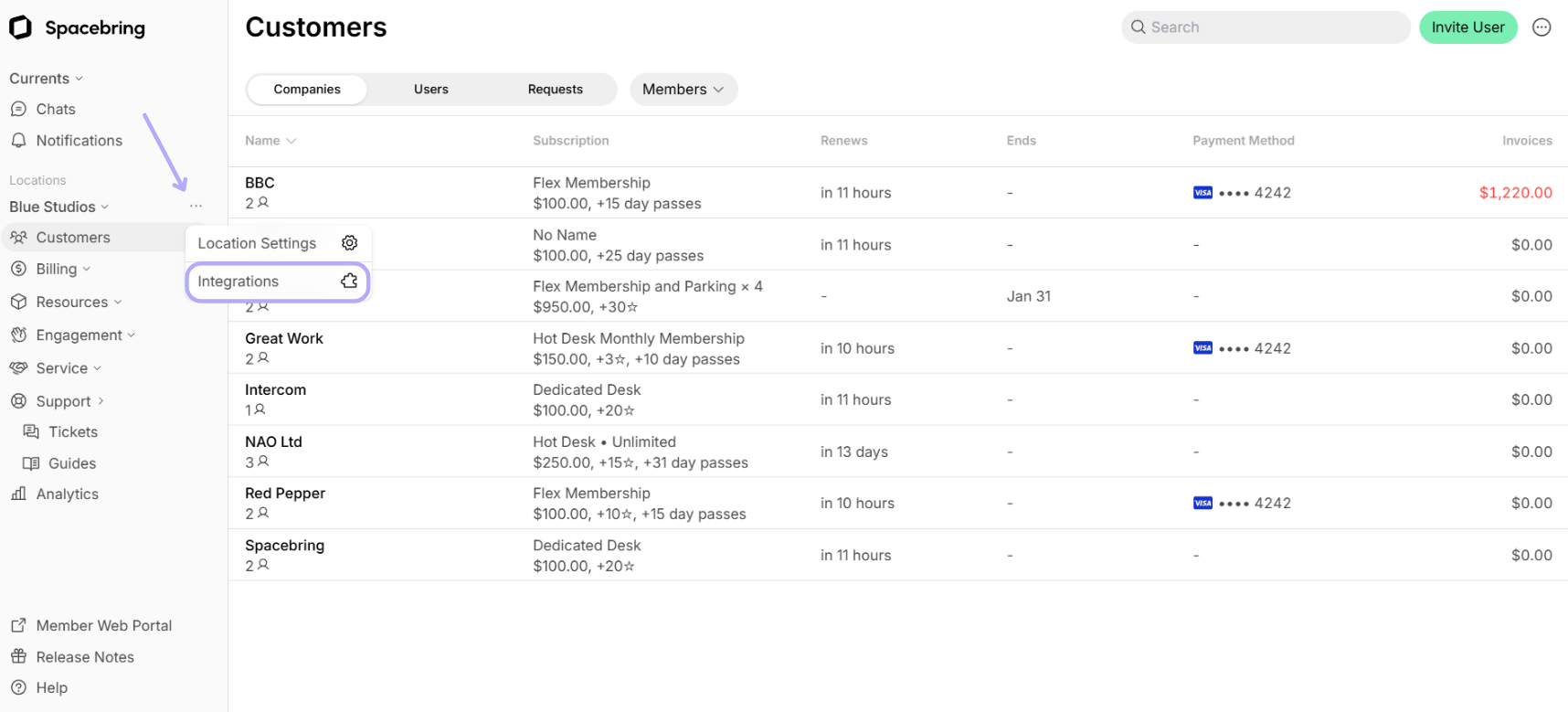
1. Go to Spacebring > **Integrations** page by pressing the menu **(...)** next to the location's name.
 2. Find the **KakaoPay** integration page. *On this page, you'll also see two helpful buttons:*
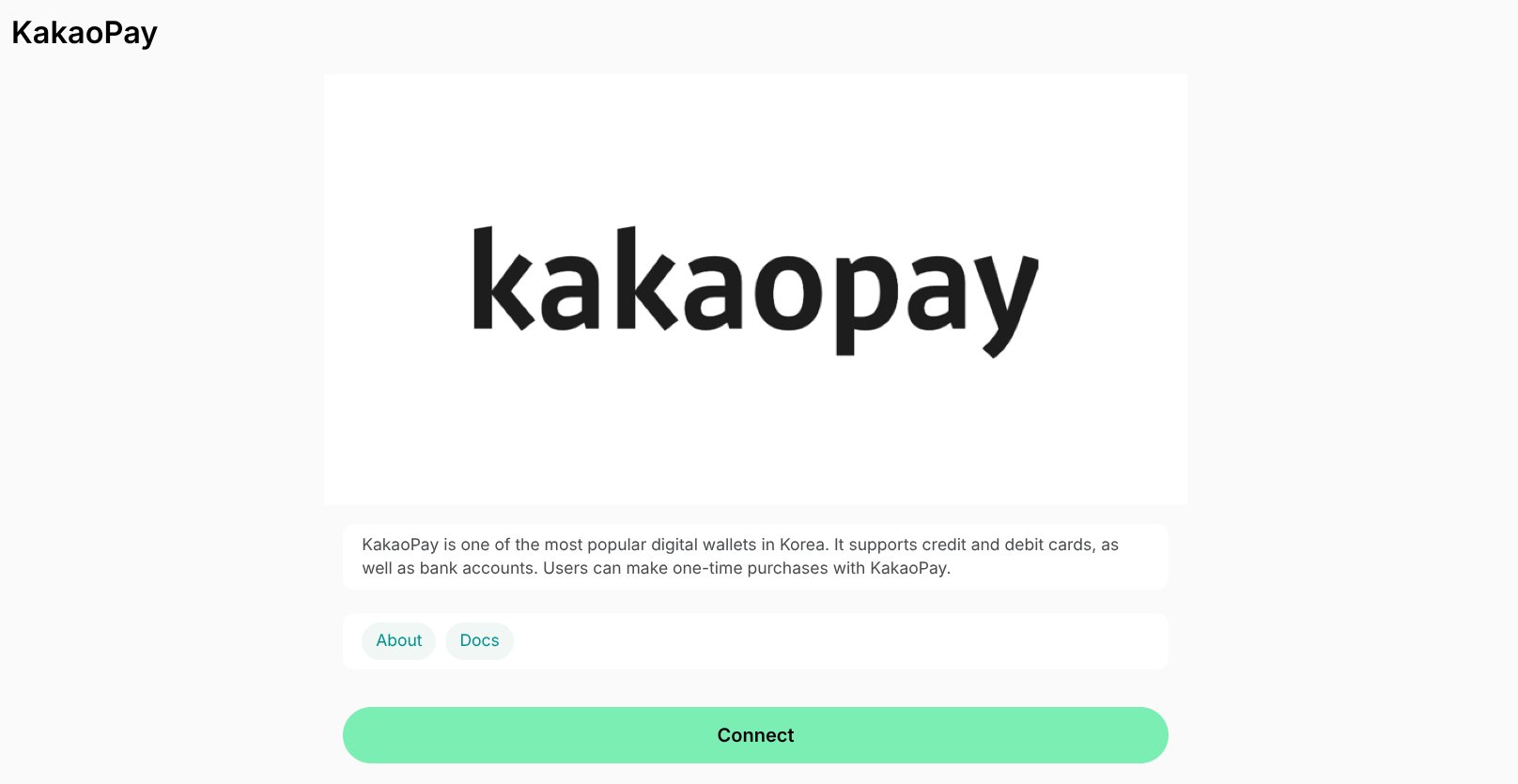 * **About**: For general information about the integration.
* **Docs**: For detailed instructions on connecting and configuring.
3. Press **Connect**.
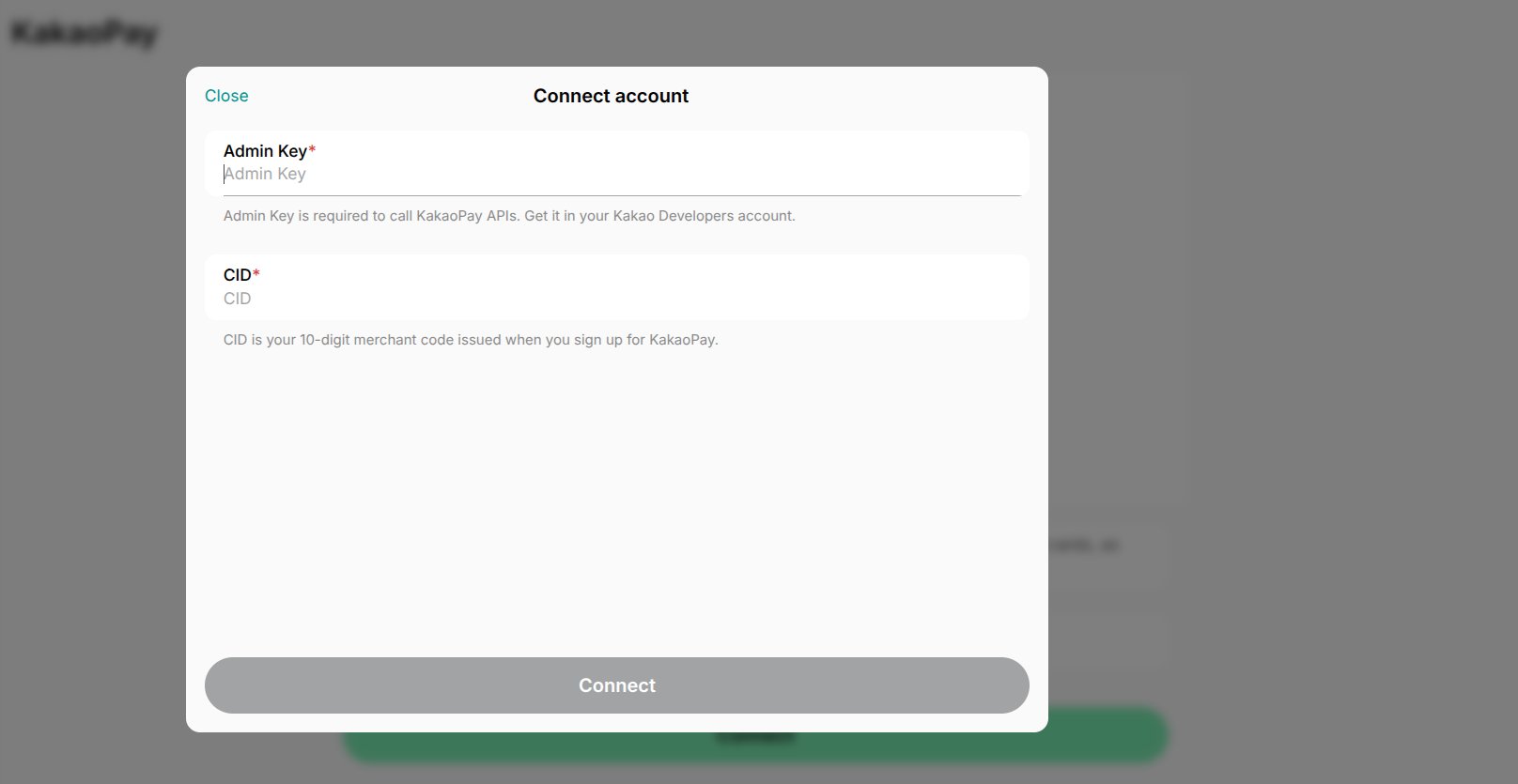
4. Fill in your **Admin key** and "CID."
* **About**: For general information about the integration.
* **Docs**: For detailed instructions on connecting and configuring.
3. Press **Connect**.
4. Fill in your **Admin key** and "CID."
 5. Log in to your KakaoPay account and go to **My Application** > **App Settings** > **Platform**.
6. In the **Web** section, add the following site domains: `https://spacebring.com`, `https://api.spacebring.com`
## Configure KakaoPay
1. Select services for which customers should be able to pay via KakaoPay:
* Bookings
* Event tickets
* Shop products
* Credit packages
* Invoices
2. Enable or disable **Automatic refunds** to let users get automatic refunds for canceled bookings, tickets, and orders if eligible. [Understand refunds](/docs/billing/payments/refunds)
5. Log in to your KakaoPay account and go to **My Application** > **App Settings** > **Platform**.
6. In the **Web** section, add the following site domains: `https://spacebring.com`, `https://api.spacebring.com`
## Configure KakaoPay
1. Select services for which customers should be able to pay via KakaoPay:
* Bookings
* Event tickets
* Shop products
* Credit packages
* Invoices
2. Enable or disable **Automatic refunds** to let users get automatic refunds for canceled bookings, tickets, and orders if eligible. [Understand refunds](/docs/billing/payments/refunds)
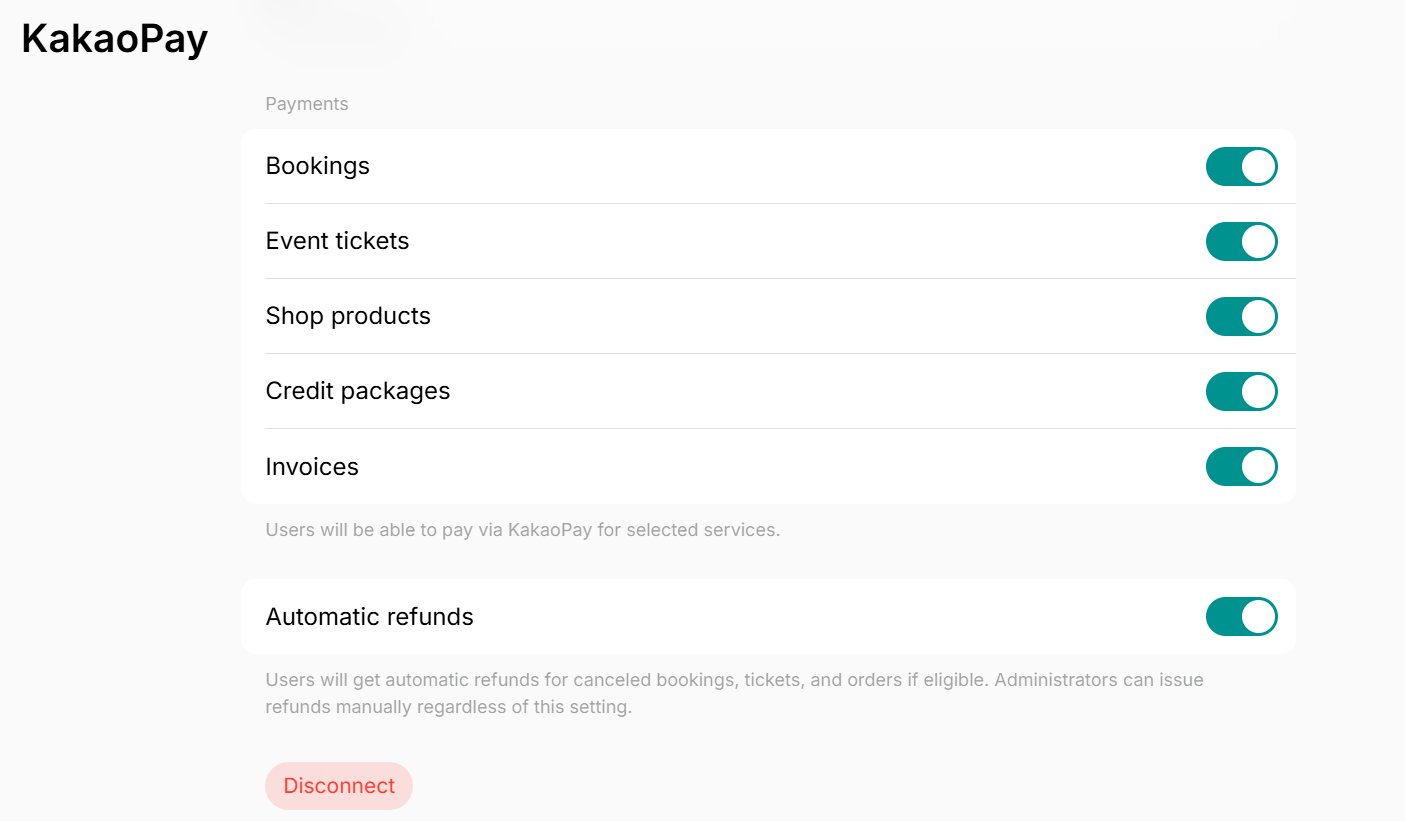 Automatic refunds are enabled by default as soon as the KakaoPay integration is connected.
## How KakaoPay works
The integration adds a new payment method **KakaoPay** to the **Payment methods** section around member web portal and mobile app. Users selecting the **KakaoPay** payment method are redirected to the KakaoPay application and can use any contained payment method.
## Identify users' transactions in KakaoPay
You can easily find users' transaction in the KakaoPay dashboard using the following unique identifiers:
* ID — coincides with **Order ID** in the KakaoPay dashboard. You can copy the ID of the transaction from the [**Transactions** custom report](/docs/analytics/reports).
* Time — coincides with the date and time of the transaction in the Stripe dashboard.
* Description — the types of purchases users make, such as room bookings, desk bookings, **Shop** orders, etc.
## Disconnect KakaoPay
To disconnect KakaoPay integration, follow these steps:
1. Go to Spacebring > **Integrations** page by pressing the menu **(...)** next to the location's name > **KakaoPay.**
2. Press **Disconnect** and confirm your choice.
Automatic refunds are enabled by default as soon as the KakaoPay integration is connected.
## How KakaoPay works
The integration adds a new payment method **KakaoPay** to the **Payment methods** section around member web portal and mobile app. Users selecting the **KakaoPay** payment method are redirected to the KakaoPay application and can use any contained payment method.
## Identify users' transactions in KakaoPay
You can easily find users' transaction in the KakaoPay dashboard using the following unique identifiers:
* ID — coincides with **Order ID** in the KakaoPay dashboard. You can copy the ID of the transaction from the [**Transactions** custom report](/docs/analytics/reports).
* Time — coincides with the date and time of the transaction in the Stripe dashboard.
* Description — the types of purchases users make, such as room bookings, desk bookings, **Shop** orders, etc.
## Disconnect KakaoPay
To disconnect KakaoPay integration, follow these steps:
1. Go to Spacebring > **Integrations** page by pressing the menu **(...)** next to the location's name > **KakaoPay.**
2. Press **Disconnect** and confirm your choice.