> ## Documentation Index
> Fetch the complete documentation index at: https://www.spacebring.com/docs/llms.txt
> Use this file to discover all available pages before exploring further.
# Maya
> Connect integration with the Maya payment gateway to enable seamless customer payments
Maya payment gateway integration allows you to receive payments with Spacebring.
🌍 Maya is available in Philippines.
Maya is a distinct company not affiliated with us. For any inquiries regarding Maya's solutions, services, or pricing, please reach out to Maya directly. We do not have the authority to provide information or support on behalf of Maya.
## Connect Maya
To activate Maya, follow the next steps:
1. Generate Public and Secret API Keys from your Maya dashboard.
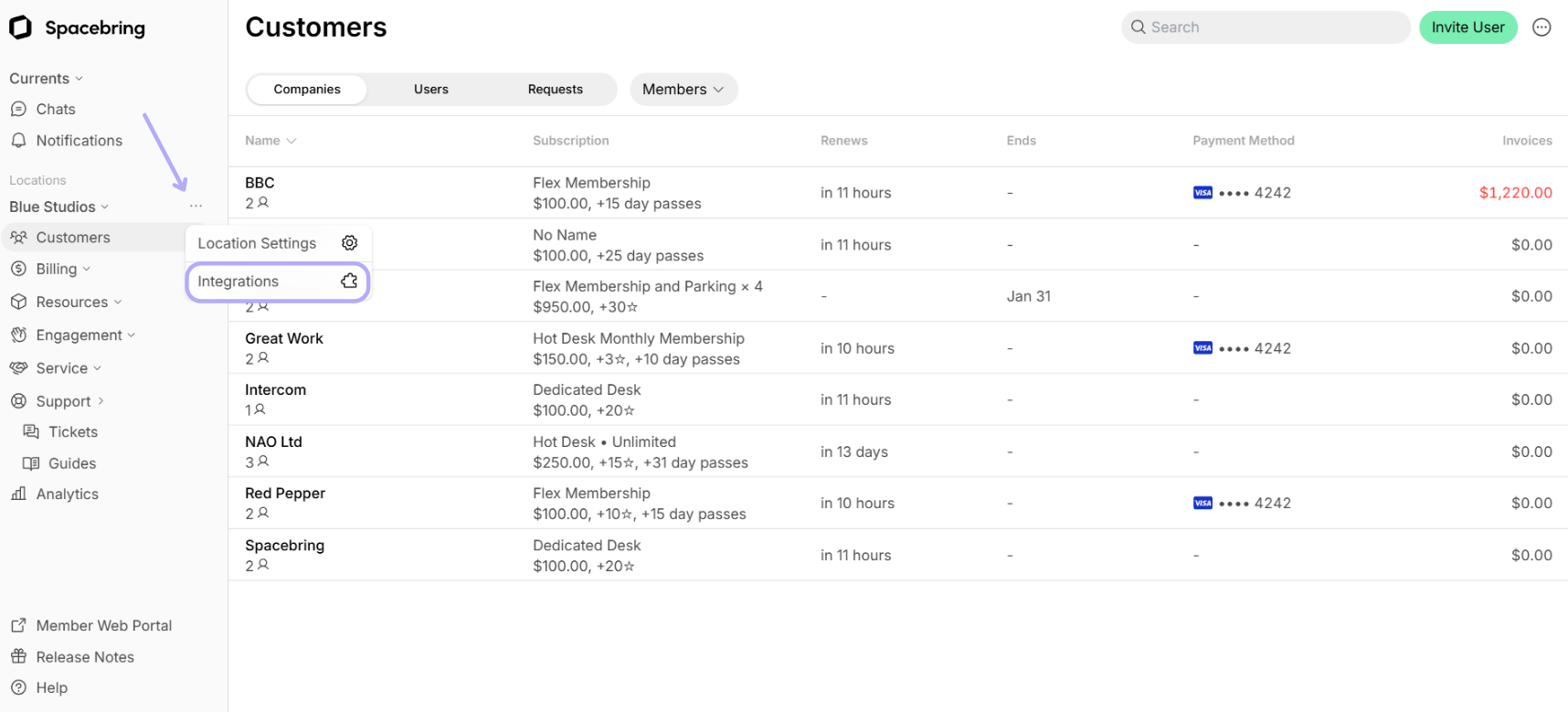
2. Go to Spacebring > **Integrations** page by pressing the menu **(...)** next to the location's name.
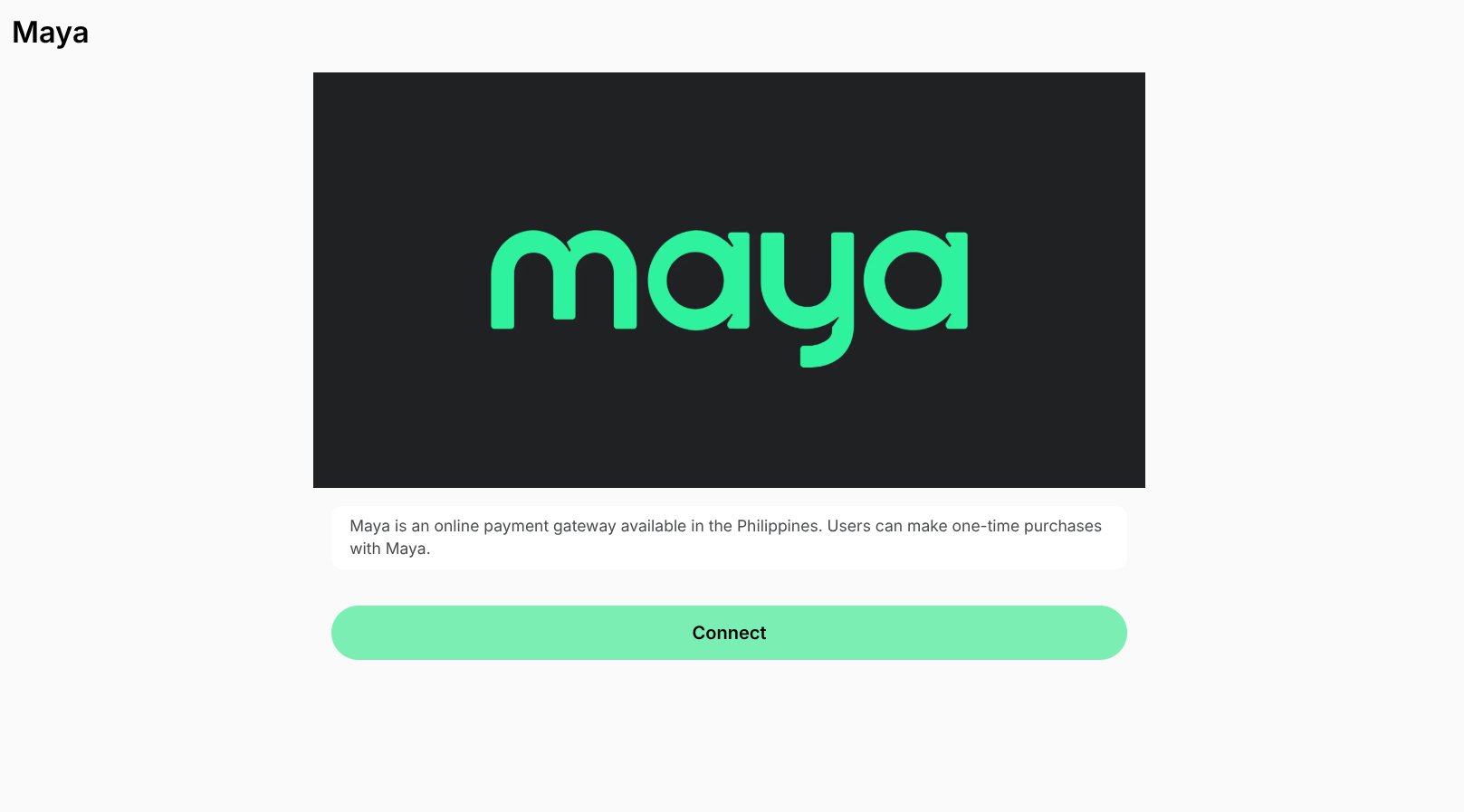
 3. Find the **Maya** integration page. Press **Connect**.
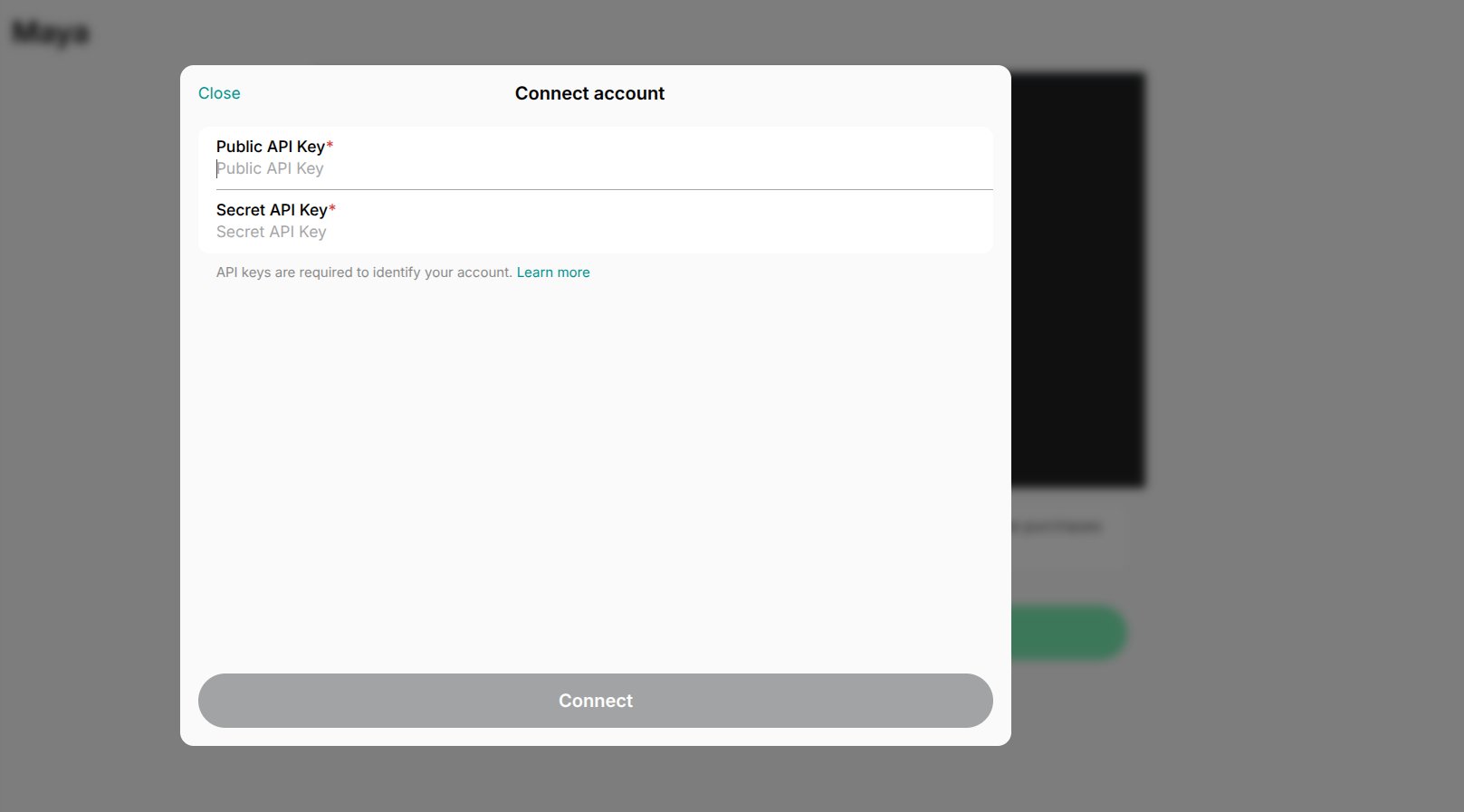
 4. Paste your Public and Secret API Keys, and press **Connect**.
 5. Enter the webhook URL: [https://api.spacebring.com/integrations/maya/v1.0/payments/webhook](https://api.spacebring.com/integrations/maya/v1.0/payments/webhook).
Maya supports the [Authorize (Hold) and Capture](https://developers.maya.ph/docs/authorize-hold-and-capture) feature, which allows you to temporarily hold a user's funds and then capture the payment. To enable this, contact Maya's support team.
## Configure Maya
You can activate payments for the following:
* Bookings
* Event tickets
* Shop products
* Credit packages
* Invoices
## How Maya works
The integration adds **New payment method** to the checkout section around member web portal and mobile app. Users selecting the **New payment method** are redirected to the Maya's checkout page and can use any of the payment methods you enabled for your account.
## Identify users' transactions in Maya
You can easily find users' transactions in the Maya dashboard using the following unique identifiers:
* Booking/Event ticket/Order/Membership ID — coincides with **Reference Number** in Maya dashboard.
* Time — coincides with the date and time of the transaction in the Maya dashboard.
* Items - the types of purchases users make, such as bookings, **Shop** orders, etc.
## Disconnect Maya
To disconnect Maya integration, follow these steps:
1. Go to Spacebring > **Integrations** page by pressing the menu **(...)** next to the location's name > **Maya**.
2. Press **Disconnect** and confirm your choice.
5. Enter the webhook URL: [https://api.spacebring.com/integrations/maya/v1.0/payments/webhook](https://api.spacebring.com/integrations/maya/v1.0/payments/webhook).
Maya supports the [Authorize (Hold) and Capture](https://developers.maya.ph/docs/authorize-hold-and-capture) feature, which allows you to temporarily hold a user's funds and then capture the payment. To enable this, contact Maya's support team.
## Configure Maya
You can activate payments for the following:
* Bookings
* Event tickets
* Shop products
* Credit packages
* Invoices
## How Maya works
The integration adds **New payment method** to the checkout section around member web portal and mobile app. Users selecting the **New payment method** are redirected to the Maya's checkout page and can use any of the payment methods you enabled for your account.
## Identify users' transactions in Maya
You can easily find users' transactions in the Maya dashboard using the following unique identifiers:
* Booking/Event ticket/Order/Membership ID — coincides with **Reference Number** in Maya dashboard.
* Time — coincides with the date and time of the transaction in the Maya dashboard.
* Items - the types of purchases users make, such as bookings, **Shop** orders, etc.
## Disconnect Maya
To disconnect Maya integration, follow these steps:
1. Go to Spacebring > **Integrations** page by pressing the menu **(...)** next to the location's name > **Maya**.
2. Press **Disconnect** and confirm your choice.