> ## Documentation Index
> Fetch the complete documentation index at: https://www.spacebring.com/docs/llms.txt
> Use this file to discover all available pages before exploring further.
# Mollie
> Connect integration with the Mollie payment gateway to enable seamless customer payments
Mollie integration allows you to receive payments in Spacebring.
🌍 Mollie is available to businesses based in the European Economic Area (EEA), Switzerland, and the United Kingdom. Availability and eligibility may vary by country.
Mollie is a distinct company not affiliated with us. For any inquiries regarding Mollie's solutions, services, or pricing, please reach out to Mollie directly. We do not have the authority to provide information or support on behalf of Mollie.
## Connect Mollie
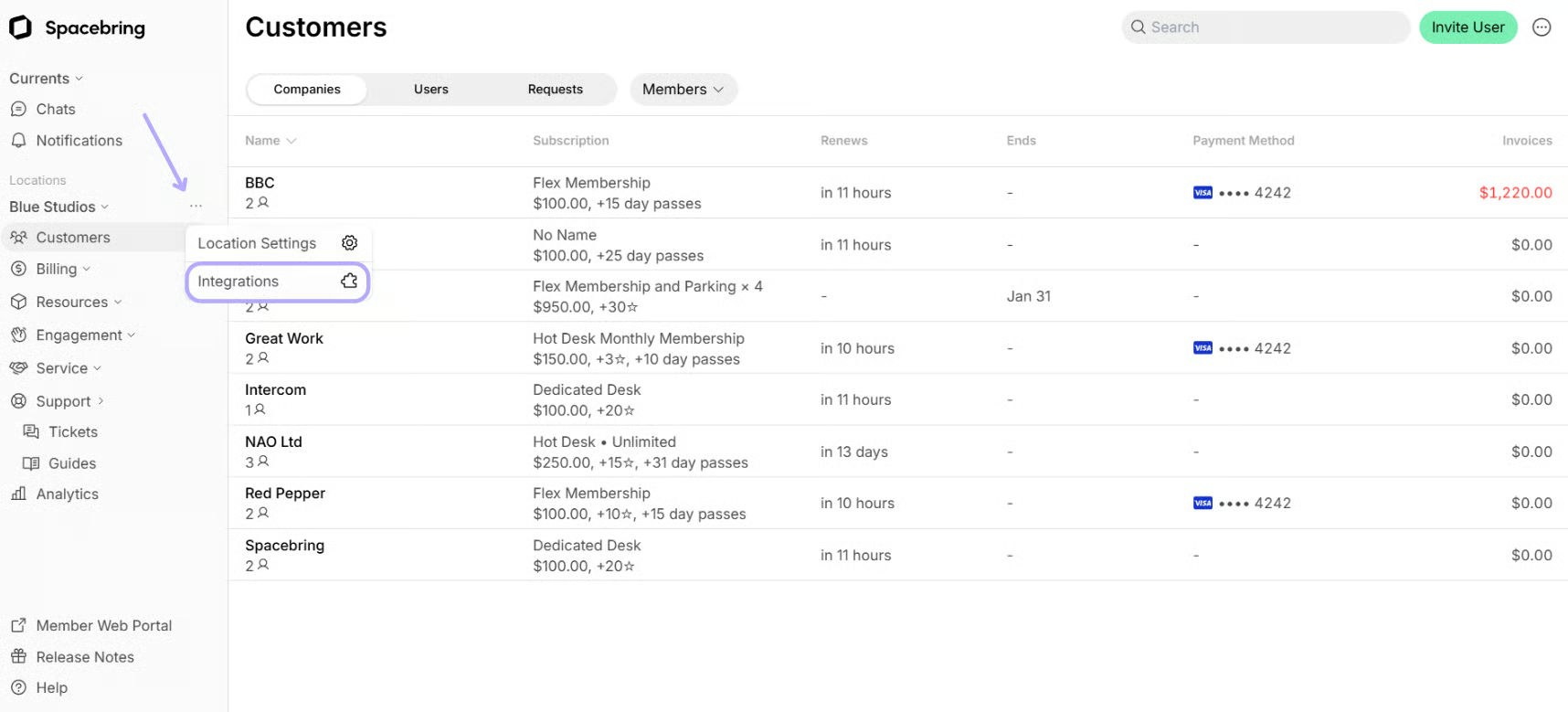
1. Click the menu **(...)** next to the location's name on the left-side panel > **Integrations**.
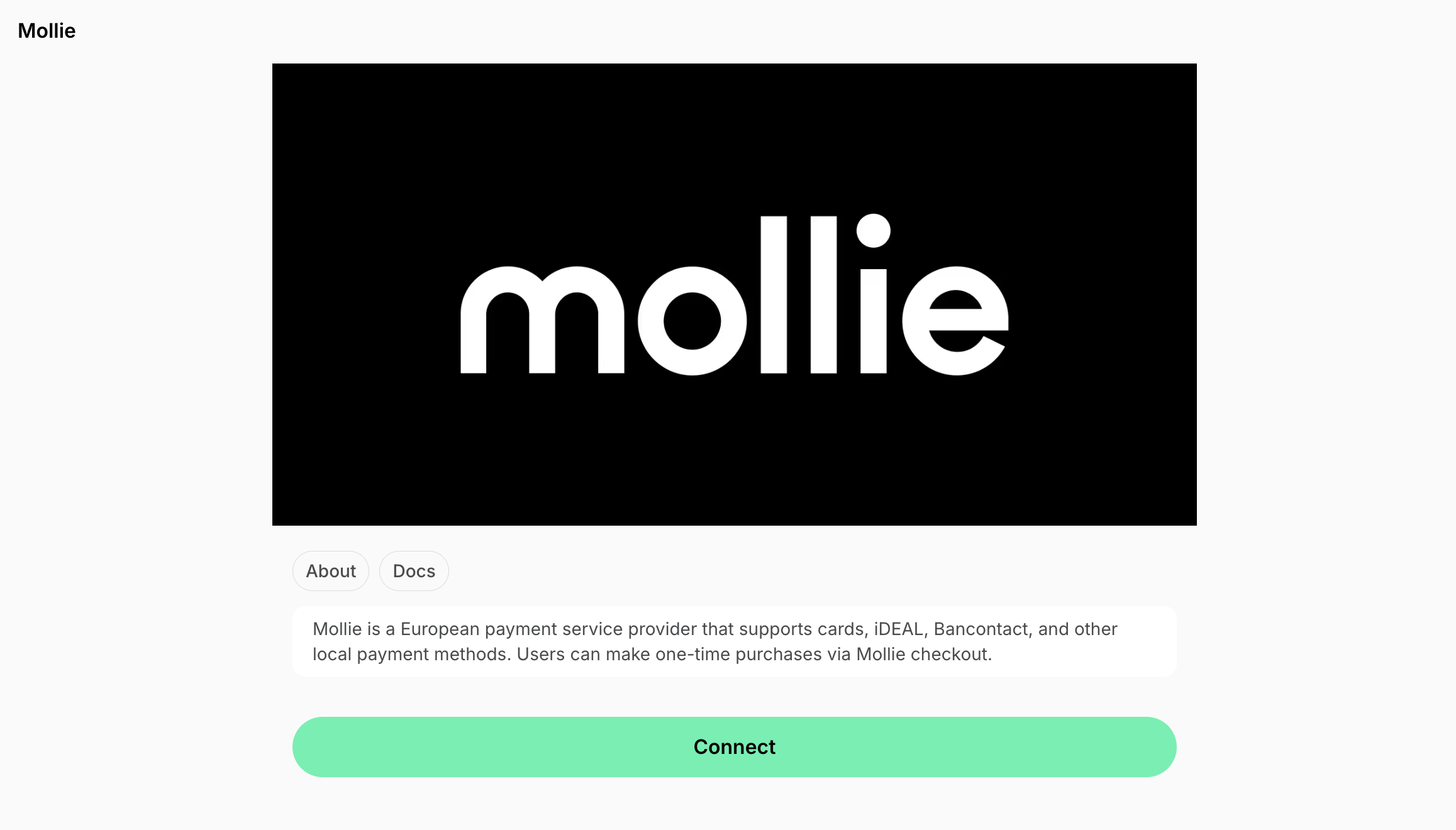
 2. Find **Mollie** > press **Connect**.
 3. You will be redirected to log in to your Mollie account and authorize the connection.
4. After returning to Spacebring, select your **Website profile** to complete the setup.
The connection remains incomplete and users won't be able to pay via Mollie until you select a **Website profile**.
## Configure Mollie
Select services for which customers should be able to pay via Mollie:
* Bookings
* Event tickets
* Shop products
* Packages
* Invoices
## How Mollie works
The integration adds **New payment method** to the checkout section around member web portal and mobile app. Users selecting the **New payment method** are redirected to the Mollie payment page to pay. Currently, the integration supports paying with cards and Google Pay payment methods.
## Identify users' transactions in Mollie
You can easily find users' transactions in the Mollie dashboard using the following unique identifiers:
* ID — coincides with the transaction ID in the Mollie dashboard. You can copy the ID of the transaction from the [**Transactions** custom report](/docs/analytics/reports).
* Time — coincides with the date and time of the transaction in the Mollie dashboard.
* Description — the types of purchases users make, such as room bookings, desk bookings, **Shop** orders, etc.
## Disconnect Mollie
To disconnect Mollie integration, follow these steps:
1. Click the menu **(...)** next to the location's name on the left-side panel > go to **Integrations** > **Mollie**.
2. Press **Disconnect** and confirm your choice.
3. You will be redirected to log in to your Mollie account and authorize the connection.
4. After returning to Spacebring, select your **Website profile** to complete the setup.
The connection remains incomplete and users won't be able to pay via Mollie until you select a **Website profile**.
## Configure Mollie
Select services for which customers should be able to pay via Mollie:
* Bookings
* Event tickets
* Shop products
* Packages
* Invoices
## How Mollie works
The integration adds **New payment method** to the checkout section around member web portal and mobile app. Users selecting the **New payment method** are redirected to the Mollie payment page to pay. Currently, the integration supports paying with cards and Google Pay payment methods.
## Identify users' transactions in Mollie
You can easily find users' transactions in the Mollie dashboard using the following unique identifiers:
* ID — coincides with the transaction ID in the Mollie dashboard. You can copy the ID of the transaction from the [**Transactions** custom report](/docs/analytics/reports).
* Time — coincides with the date and time of the transaction in the Mollie dashboard.
* Description — the types of purchases users make, such as room bookings, desk bookings, **Shop** orders, etc.
## Disconnect Mollie
To disconnect Mollie integration, follow these steps:
1. Click the menu **(...)** next to the location's name on the left-side panel > go to **Integrations** > **Mollie**.
2. Press **Disconnect** and confirm your choice.