> ## Documentation Index
> Fetch the complete documentation index at: https://www.spacebring.com/docs/llms.txt
> Use this file to discover all available pages before exploring further.
# IronWiFi
> Connect IronWiFi integration to automate password-free Wi-Fi access for customers based on subscriptions and bookings. Understand the key prerequisites, how the integration works, and how customers connect to Wi-Fi
Spacebring integrates with IronWiFi to streamline Wi-Fi access control. With this integration, you can:
* Automate giving and revoking access to Wi-Fi.
* Grant access to customers under certain conditions.
* Make it easy to people to connect to Wi-Fi without any passwords.
* Know who is online, how often, and how long with IronWiFi's built-in analytics tools.
IronWiFi is a distinct company not affiliated with us. For any inquiries regarding IronWiFi's solutions, services, or pricing, please reach out to IronWiFi directly. We do not have the authority to provide information or support on behalf of IronWiFi.
## Prerequisites
To use this integration, ensure the following:
* Install Wi-Fi routers that IronWiFi supports. The list of supported vendors is available [on the IronWiFi website.](https://help.ironwifi.com/portal/en/kb/ironwifi) Please [get in touch with IronWiFi](mailto:support@ironwifi.com) if you have any questions about hardware or their cloud-based RADIUS servers.
* Create captive portals inside **global** IronWiFi region, not your local one:
* Sign in to the IronWiFi console
* Switch to the global region - non-regional (button in the top right corner)
* On the Networks page, click "Create new."
## Connect and configure the IronWiFi integration
Ensure you have active IronWiFi and Spacebring accounts to enable the integration. Verify that all networks and captive portals are set up in the IronWiFi account. Then, follow these steps:
1. Go to Spacebring > **Integrations** page by pressing the menu **(...)** next to the location's name.
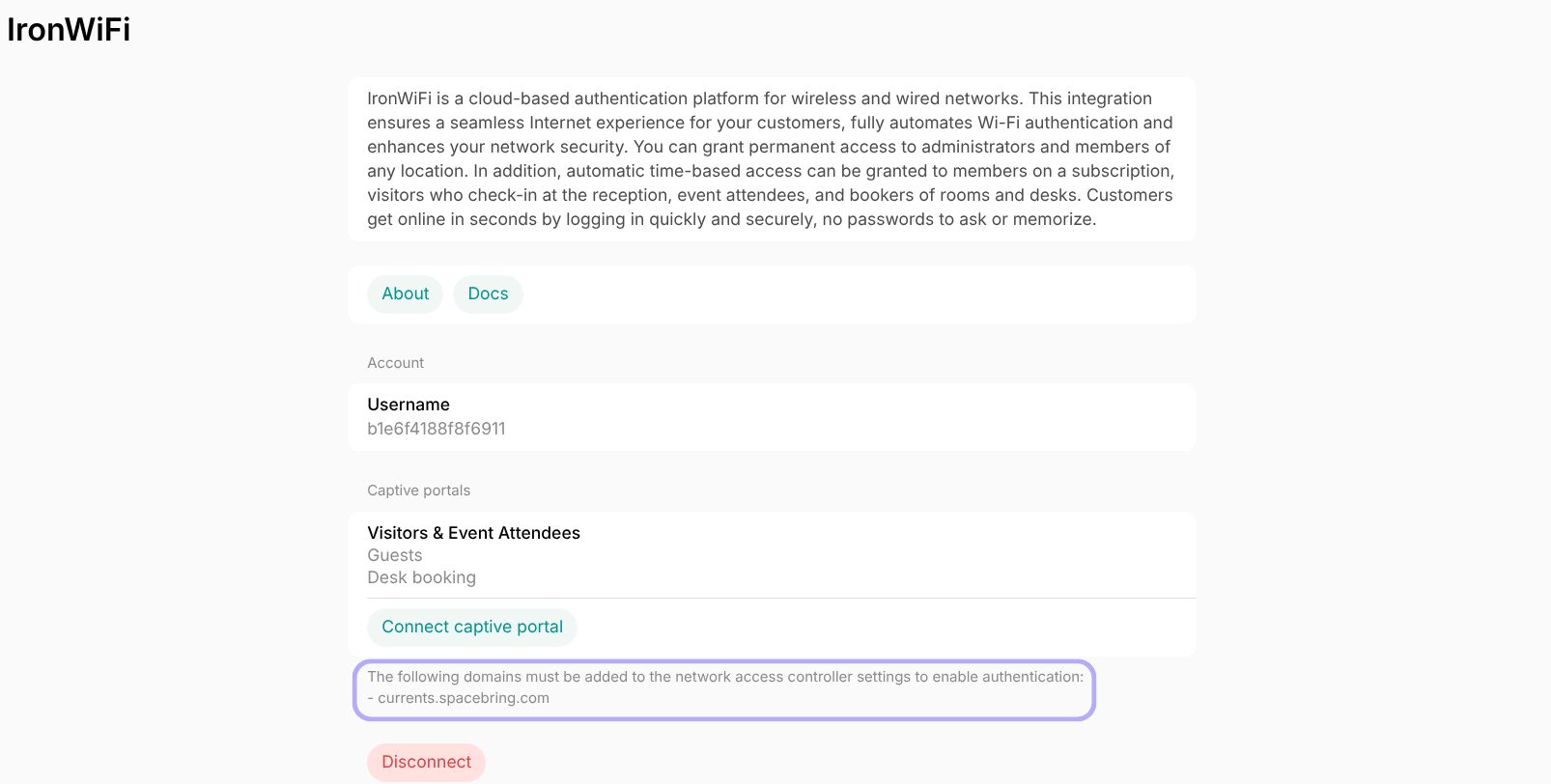
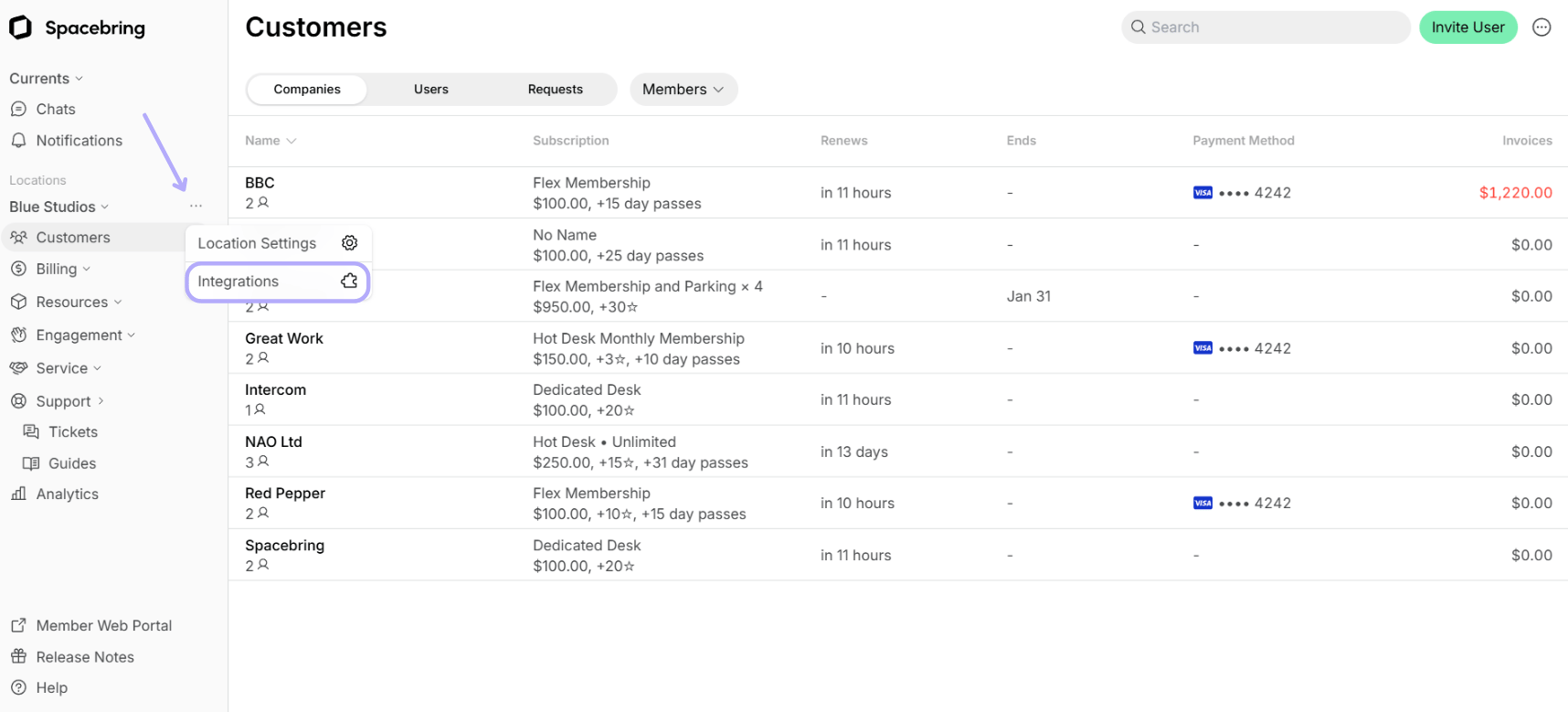 2. Find the **IronWiFi** integration page. *On this page, you'll also see two helpful buttons:*
* **About**: For general information about the integration.
* **Docs**: For detailed instructions on connecting and configuring.
2. Find the **IronWiFi** integration page. *On this page, you'll also see two helpful buttons:*
* **About**: For general information about the integration.
* **Docs**: For detailed instructions on connecting and configuring.
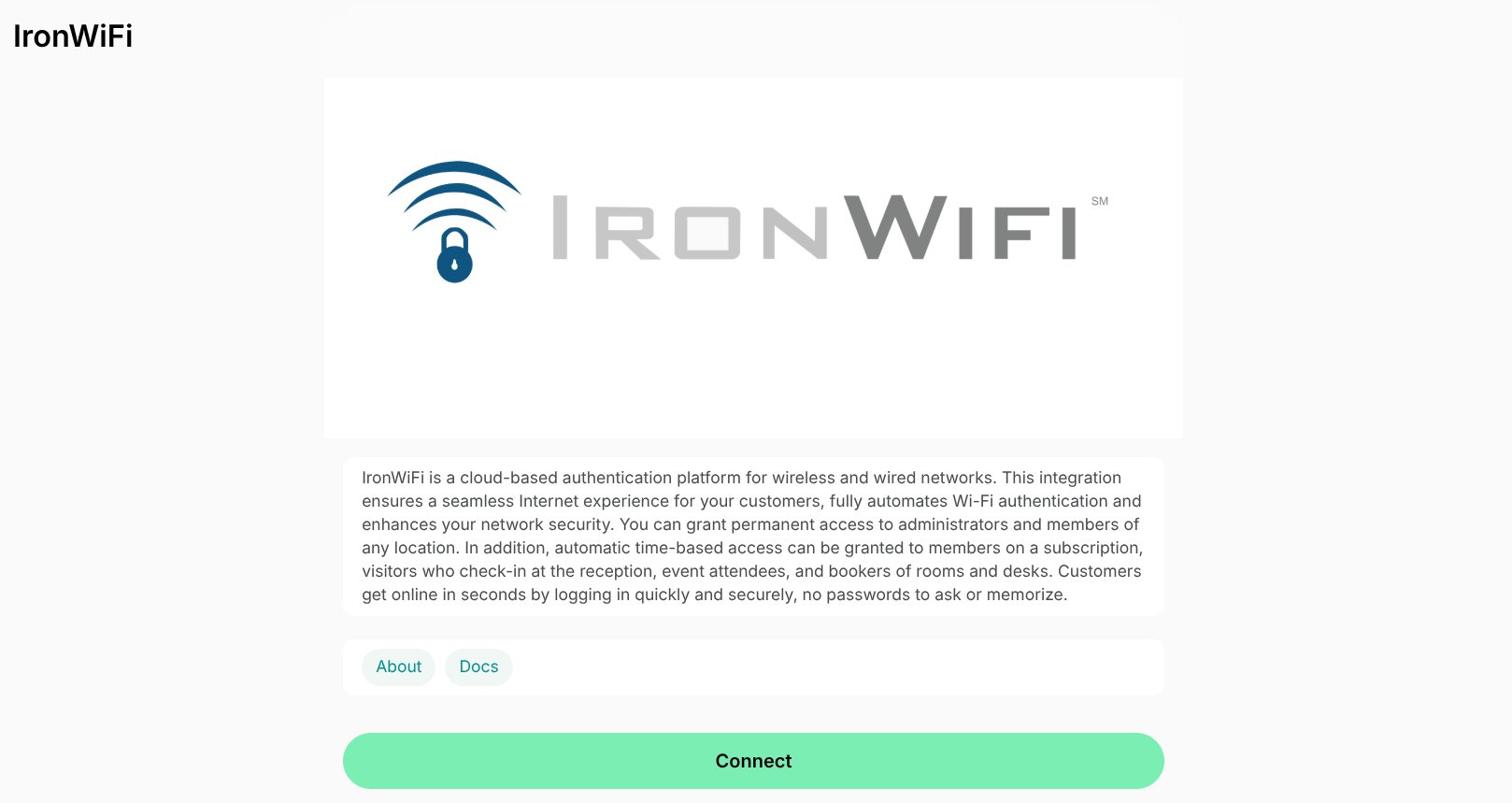 3. Press **Connect**.
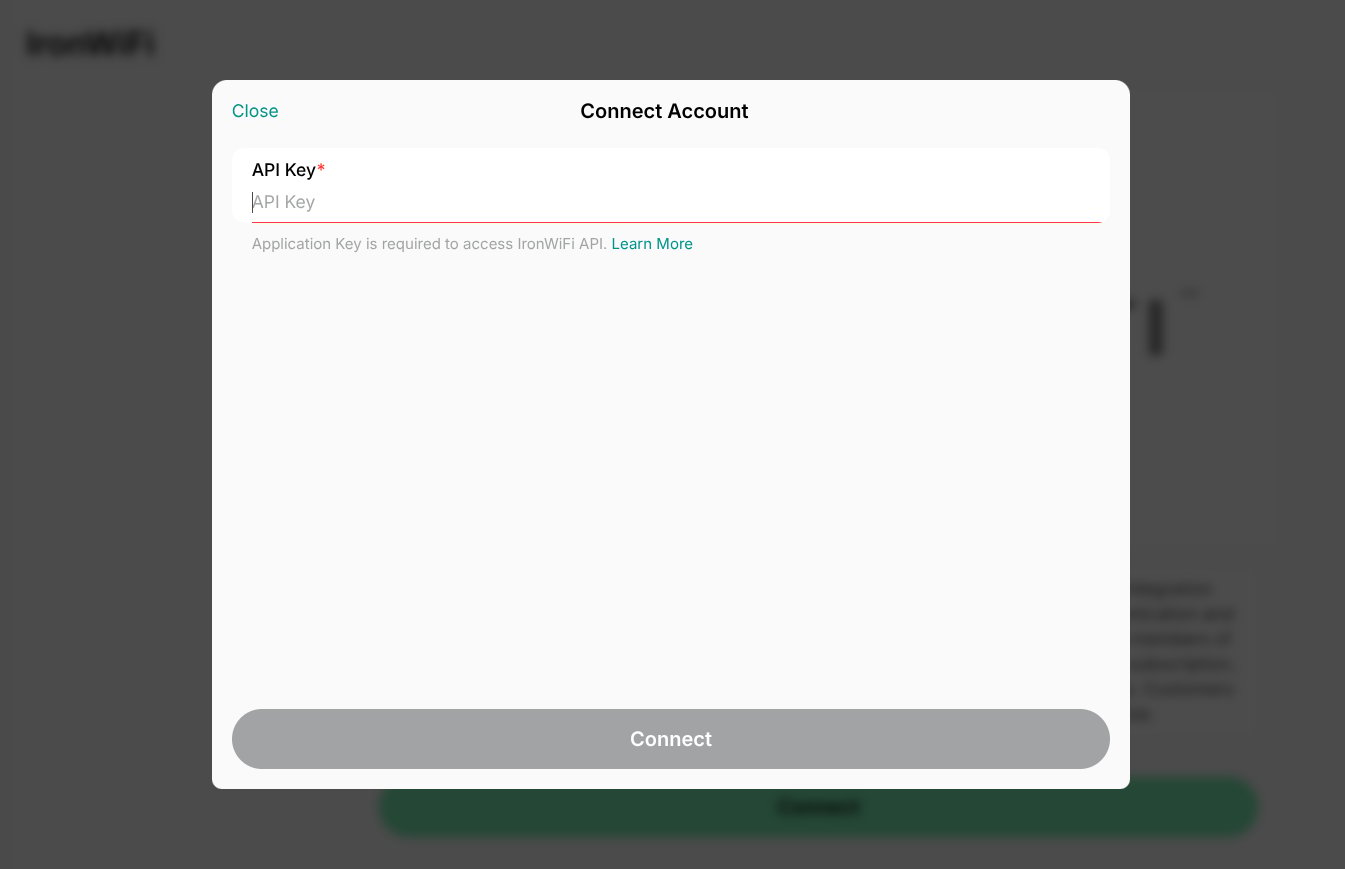
4. Enter your API Key and press **Save**. [Where to find the IronWiFi API key](https://github.com/IronWifi/docs#authorization)
3. Press **Connect**.
4. Enter your API Key and press **Save**. [Where to find the IronWiFi API key](https://github.com/IronWifi/docs#authorization)
 5. Once your IronWiFi account is connected, you will see the **Captive portals** section.
6. Click **Connect captive portal** > select the network from the dropdown > choose the captive portal that was preliminary created in your IronWiFi account.
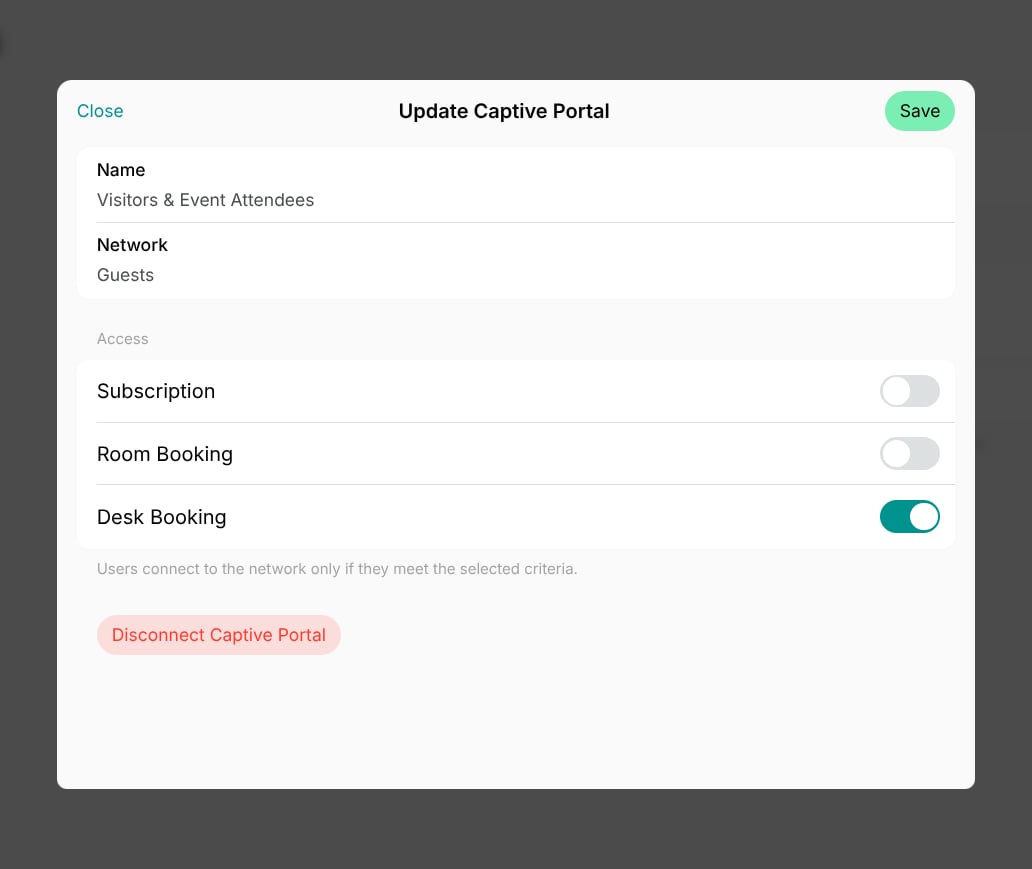
7. Set Wi-Fi access conditions. The integration between Spacebring and IronWiFi allows granting network access to your customers based on:
5. Once your IronWiFi account is connected, you will see the **Captive portals** section.
6. Click **Connect captive portal** > select the network from the dropdown > choose the captive portal that was preliminary created in your IronWiFi account.
7. Set Wi-Fi access conditions. The integration between Spacebring and IronWiFi allows granting network access to your customers based on:
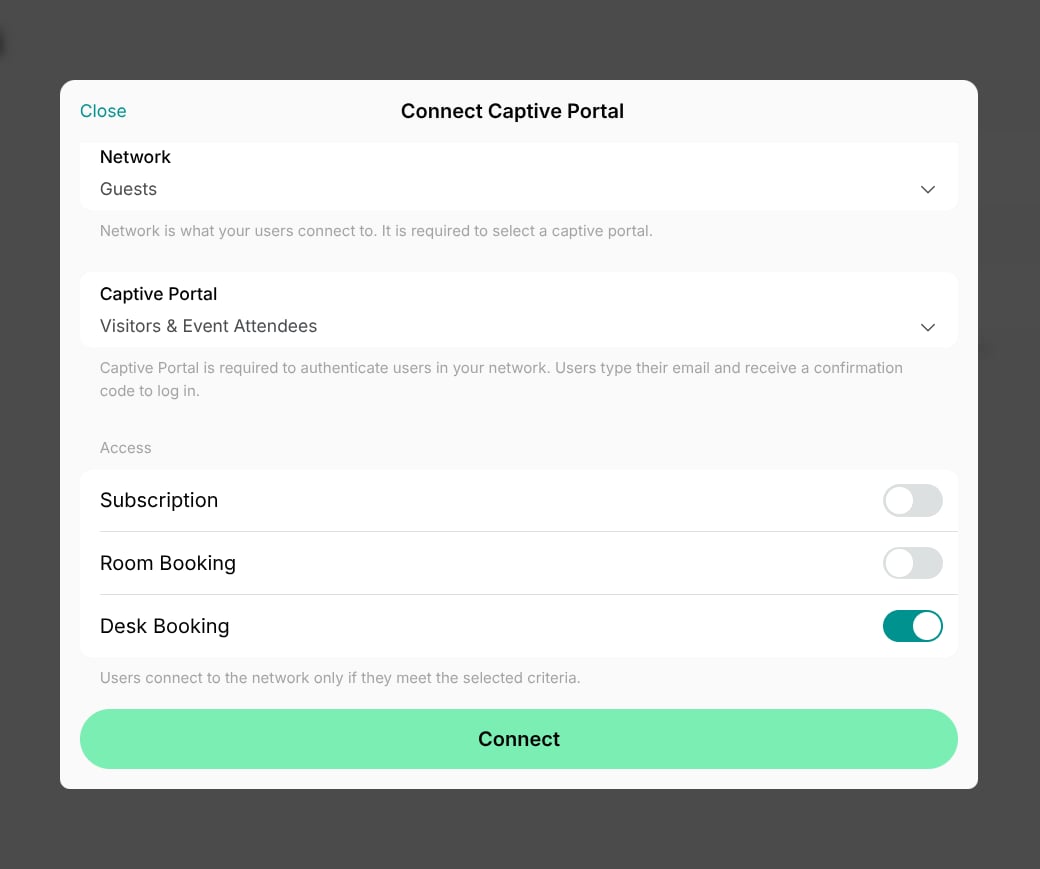 * An active subscription
* Room booking
* Desk booking.
8. Add the IP address provided on this page to your network access controller (router) settings.
* An active subscription
* Room booking
* Desk booking.
8. Add the IP address provided on this page to your network access controller (router) settings.
 ## How the IronWiFi integration works
### Access for subscriptions
When a user has a subscription (either [created by an administrator](/docs/billing/subscriptions) or through [self-sign-up](/docs/billing/plans/immediate-sign-ups)), they receive access to Wi-Fi for the full subscription period.
Wi-Fi access is granted for the entire subscription period, and remains available even if an administrator manually cancels the subscription before its expiration.
If a subscription is created for a company, all company users receive Wi-Fi access.
Once a user's or company's subscription expires, their Wi-Fi access will be automatically revoked.
### Access for room and desk bookings
Members and nonmembers who book a room or desk will have access to Wi-Fi for the booking duration. Additionally, room booking invitees will also be granted access.
Users will have a 30-minute grace period before and after the booking time. Below is an example of how access is provided:
| Booking date & time | Access to Wi-Fi |
| ---------------------------- | --------------------------- |
| 1/8/2024 12 PM - 4 PM | 1/8/2024 11:30 AM - 4:30 PM |
| 5/12/2024 9:30 AM - 11:30 AM | 5/12/2024 9:00 AM - 12 PM |
[Configure the location schedule](/docs/location/schedule)
Wi-Fi access is granted for the entire booking duration, and remains available even if the booking is manually canceled before it ends.
### How users connect to Wi-Fi
When users arrive at your space, they can go online in a few simple steps:
1. Choose the open Wi-Fi network from the list of available networks on their device. It's important that users select the network that matches the one you set up in IronWiFi and has a captive portal.

2. Type the email address they used when creating a booking or signing up for a plan in the member web portal or mobile app.
3. Receive a one-time password (OTP) code to that email address and type it on the Wi-Fi splash screen to gain network access.
OTP codes do not reset and work for 10 minutes.
### Authentication options without Internet access
To receive the OTP code, users need an active internet connection. If a user does not have cellular data or Internet on their device, they can use one of these options:
* **Use a secondary device**: Users must use a secondary device (e.g., a smartphone with a cellular data connection) to check their email and retrieve the OTP code.
* **SMS integration via Twilio:** Users can receive the OTP code via SMS if you have configured the [Twilio integration.](/docs/integrations/communication/twilio)
* **Walled garden/pre-authorization:** Administrators can configure a walled garden or pre-authorization list via the controller. This whitelists essential email apps (such as Gmail, Outlook, or Apple Mail), allowing users without cellular data to check their OTP codes via email even before connecting to the Wi-Fi network.
## Disconnect the IronWiFi integration
To disconnect a captive portal, follow these steps:
1. Go to Spacebring > **Integrations** page by pressing the menu **(...)** next to the location's name > **IronWiFi**.
2. Select a captive portal > press **Disconnect captive portal**.
## How the IronWiFi integration works
### Access for subscriptions
When a user has a subscription (either [created by an administrator](/docs/billing/subscriptions) or through [self-sign-up](/docs/billing/plans/immediate-sign-ups)), they receive access to Wi-Fi for the full subscription period.
Wi-Fi access is granted for the entire subscription period, and remains available even if an administrator manually cancels the subscription before its expiration.
If a subscription is created for a company, all company users receive Wi-Fi access.
Once a user's or company's subscription expires, their Wi-Fi access will be automatically revoked.
### Access for room and desk bookings
Members and nonmembers who book a room or desk will have access to Wi-Fi for the booking duration. Additionally, room booking invitees will also be granted access.
Users will have a 30-minute grace period before and after the booking time. Below is an example of how access is provided:
| Booking date & time | Access to Wi-Fi |
| ---------------------------- | --------------------------- |
| 1/8/2024 12 PM - 4 PM | 1/8/2024 11:30 AM - 4:30 PM |
| 5/12/2024 9:30 AM - 11:30 AM | 5/12/2024 9:00 AM - 12 PM |
[Configure the location schedule](/docs/location/schedule)
Wi-Fi access is granted for the entire booking duration, and remains available even if the booking is manually canceled before it ends.
### How users connect to Wi-Fi
When users arrive at your space, they can go online in a few simple steps:
1. Choose the open Wi-Fi network from the list of available networks on their device. It's important that users select the network that matches the one you set up in IronWiFi and has a captive portal.

2. Type the email address they used when creating a booking or signing up for a plan in the member web portal or mobile app.
3. Receive a one-time password (OTP) code to that email address and type it on the Wi-Fi splash screen to gain network access.
OTP codes do not reset and work for 10 minutes.
### Authentication options without Internet access
To receive the OTP code, users need an active internet connection. If a user does not have cellular data or Internet on their device, they can use one of these options:
* **Use a secondary device**: Users must use a secondary device (e.g., a smartphone with a cellular data connection) to check their email and retrieve the OTP code.
* **SMS integration via Twilio:** Users can receive the OTP code via SMS if you have configured the [Twilio integration.](/docs/integrations/communication/twilio)
* **Walled garden/pre-authorization:** Administrators can configure a walled garden or pre-authorization list via the controller. This whitelists essential email apps (such as Gmail, Outlook, or Apple Mail), allowing users without cellular data to check their OTP codes via email even before connecting to the Wi-Fi network.
## Disconnect the IronWiFi integration
To disconnect a captive portal, follow these steps:
1. Go to Spacebring > **Integrations** page by pressing the menu **(...)** next to the location's name > **IronWiFi**.
2. Select a captive portal > press **Disconnect captive portal**.
 To disconnect the entire integration, follow these steps:
1. Go to Spacebring > **Integrations** page by pressing the menu **(...)** next to the location's name > **IronWiFi**.
2. Press **Disconnect** and confirm your choice.
**FAQs**
Spacebring x IronWiFi integrations only provides Wi-Fi access to customers who have an active subscription, room booking, or desk booking.
To give access to visitors or external users, you'll need to manage it separately—outside of Spacebring.
To set internet access time limits, you'll need to configure them directly in your IronWiFi dashboard and/or your network controller.
This error typically occurs when the authentication system cannot validate the user against your specific location's database. Check the following:
* Integration setup: Ensure the location is [properly connected](/docs/integrations/wi-fi/ironwifi) under **Location Settings > Integrations** using its own API key and a unique captive portal.
* Global region: Confirm the captive portal was created in the global IronWiFi region, not a local one.
* Active access: To be recognized as eligible, the customers must have an **active subscription or a booking at that specific location**.
To disconnect the entire integration, follow these steps:
1. Go to Spacebring > **Integrations** page by pressing the menu **(...)** next to the location's name > **IronWiFi**.
2. Press **Disconnect** and confirm your choice.
**FAQs**
Spacebring x IronWiFi integrations only provides Wi-Fi access to customers who have an active subscription, room booking, or desk booking.
To give access to visitors or external users, you'll need to manage it separately—outside of Spacebring.
To set internet access time limits, you'll need to configure them directly in your IronWiFi dashboard and/or your network controller.
This error typically occurs when the authentication system cannot validate the user against your specific location's database. Check the following:
* Integration setup: Ensure the location is [properly connected](/docs/integrations/wi-fi/ironwifi) under **Location Settings > Integrations** using its own API key and a unique captive portal.
* Global region: Confirm the captive portal was created in the global IronWiFi region, not a local one.
* Active access: To be recognized as eligible, the customers must have an **active subscription or a booking at that specific location**.