> ## Documentation Index
> Fetch the complete documentation index at: https://www.spacebring.com/docs/llms.txt
> Use this file to discover all available pages before exploring further.
# Information
> Configure the Information page with your location's general details and cover photos or videos
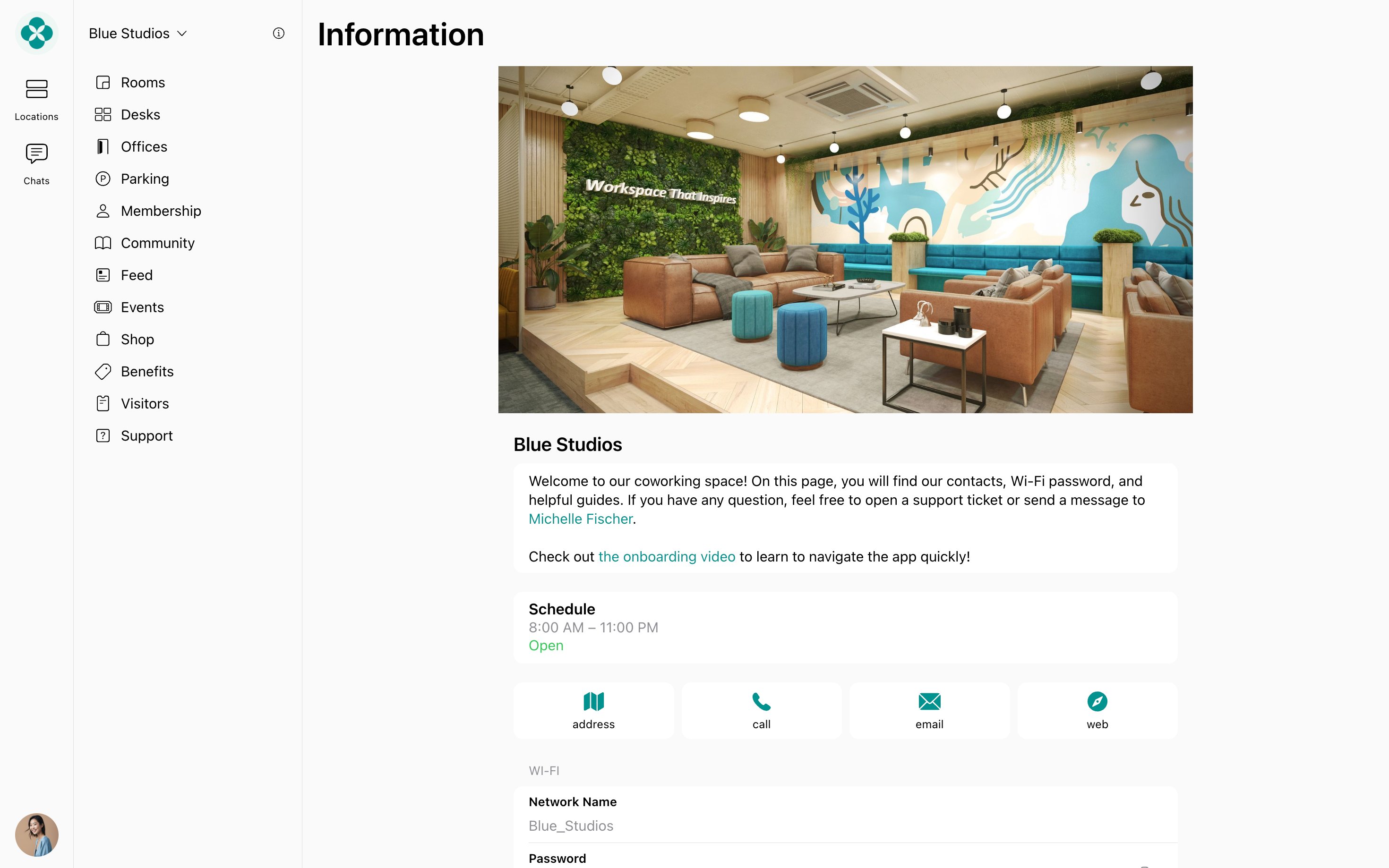
The **Information** page for each location helps your customers recognize what location and application they're using, get your address, Wi-Fi password, schedule, answers to common questions, and other general data. Your **Information** page shows users the following data:
* Your location's name and description
* Photos and videos of the location
* Schedule, address, and contact details
* [Location guides](/docs/support/guides)
* Wi-Fi details.
 ## Manage Information page
1. Click the menu **(...)** next to the location name on the left-side panel.
2. Go to **Location settings** > **General.**
3. Upload location photos or videos.
4. Fill out description, address, contact and Wi-Fi details.
5. [Configure the location schedule](/docs/location/schedule).
Once done, leave the page. The changes will save automatically.
The visibility of the **Information** page is defined by the highest [visibility settings](/docs/location/visibility) of other pages. For example, if **Rooms** has **Public** visibility, the **Information** page will be automatically visible to the public, too.
To enhance the security of your Wi-Fi access, take advantage of our [integration with IronWiFi](/docs/integrations/wi-fi/ironwifi). This feature automates the Wi-Fi access granting and revoking process, ensuring that only those with a membership, or those who have booked a room or desk, can access the Wi-Fi.
### Location media
The location photos and videos you upload appear to users in the following places:
1. [**Information**](/docs/location/information) page.
Location cover photos or videos appear on the ⓘ **Information** page of your location, where users can learn more about your space, find contact details, etc.
2. [Landing](/docs/member-web-portal/customize-landing-page) page.
* All location cover media added across all locations are included in the slideshow on the landing page of your member web portal.
* The first cover image or video will appear under the specific location in the **Our locations** section.
3. [Reception app](/docs/service/visitors)
If you have the [Visitors](/docs/service/visitors) add-ons, the last uploaded cover photo will be automatically shown as a background on the Reception app.
The media are updated across your apps immediately.
### Location address
The location address determines the order of locations on the main screen when there are multiple locations. If a user is a member of a particular location, that location will be displayed first, followed by others arranged based on the user's geolocation, from nearest to furthest. [Understand sorting of the app content](/docs/understand-content-sorting)
## Manage Information page
1. Click the menu **(...)** next to the location name on the left-side panel.
2. Go to **Location settings** > **General.**
3. Upload location photos or videos.
4. Fill out description, address, contact and Wi-Fi details.
5. [Configure the location schedule](/docs/location/schedule).
Once done, leave the page. The changes will save automatically.
The visibility of the **Information** page is defined by the highest [visibility settings](/docs/location/visibility) of other pages. For example, if **Rooms** has **Public** visibility, the **Information** page will be automatically visible to the public, too.
To enhance the security of your Wi-Fi access, take advantage of our [integration with IronWiFi](/docs/integrations/wi-fi/ironwifi). This feature automates the Wi-Fi access granting and revoking process, ensuring that only those with a membership, or those who have booked a room or desk, can access the Wi-Fi.
### Location media
The location photos and videos you upload appear to users in the following places:
1. [**Information**](/docs/location/information) page.
Location cover photos or videos appear on the ⓘ **Information** page of your location, where users can learn more about your space, find contact details, etc.
2. [Landing](/docs/member-web-portal/customize-landing-page) page.
* All location cover media added across all locations are included in the slideshow on the landing page of your member web portal.
* The first cover image or video will appear under the specific location in the **Our locations** section.
3. [Reception app](/docs/service/visitors)
If you have the [Visitors](/docs/service/visitors) add-ons, the last uploaded cover photo will be automatically shown as a background on the Reception app.
The media are updated across your apps immediately.
### Location address
The location address determines the order of locations on the main screen when there are multiple locations. If a user is a member of a particular location, that location will be displayed first, followed by others arranged based on the user's geolocation, from nearest to furthest. [Understand sorting of the app content](/docs/understand-content-sorting)