> ## Documentation Index
> Fetch the complete documentation index at: https://www.spacebring.com/docs/llms.txt
> Use this file to discover all available pages before exploring further.
# Visibility
> Control who can see the content of your location by setting visibility levels for each module and resource ranging from public to administrators
The **Visibility** property lets you control who can see the content and pages.
## Visibility levels
There are four visibility levels:
| **Administrators** | Only the administrators of the selected location. |
| --------------------------------- | ------------------------------------------------------------------------------------------------------------------------------------------------------------------------------------------------ |
| **Location members** | Members see the object in their location of membership. |
| **Network members** | Any member of any location within your network can view the information. |
| **Public** | Any user who opened the member web portal and mobile app. |
| **Members with exclusive access** | Members who are subscribed to a plan that explicitly includes these resources (via the [**Exclusive access** setting](/docs/billing/plans)). This visibility setting is available for resources only. |
## How to set up visibility
To configure the page visibility, follow these steps:
1. Go to the Spacebring > tap the **(...)** button next to the location name > **Locations** **settings** page.
2. Choose a desired module > locate the **Visibility** dropdown > select the desired value. The visibility settings for certain pages are limited to only a few options.
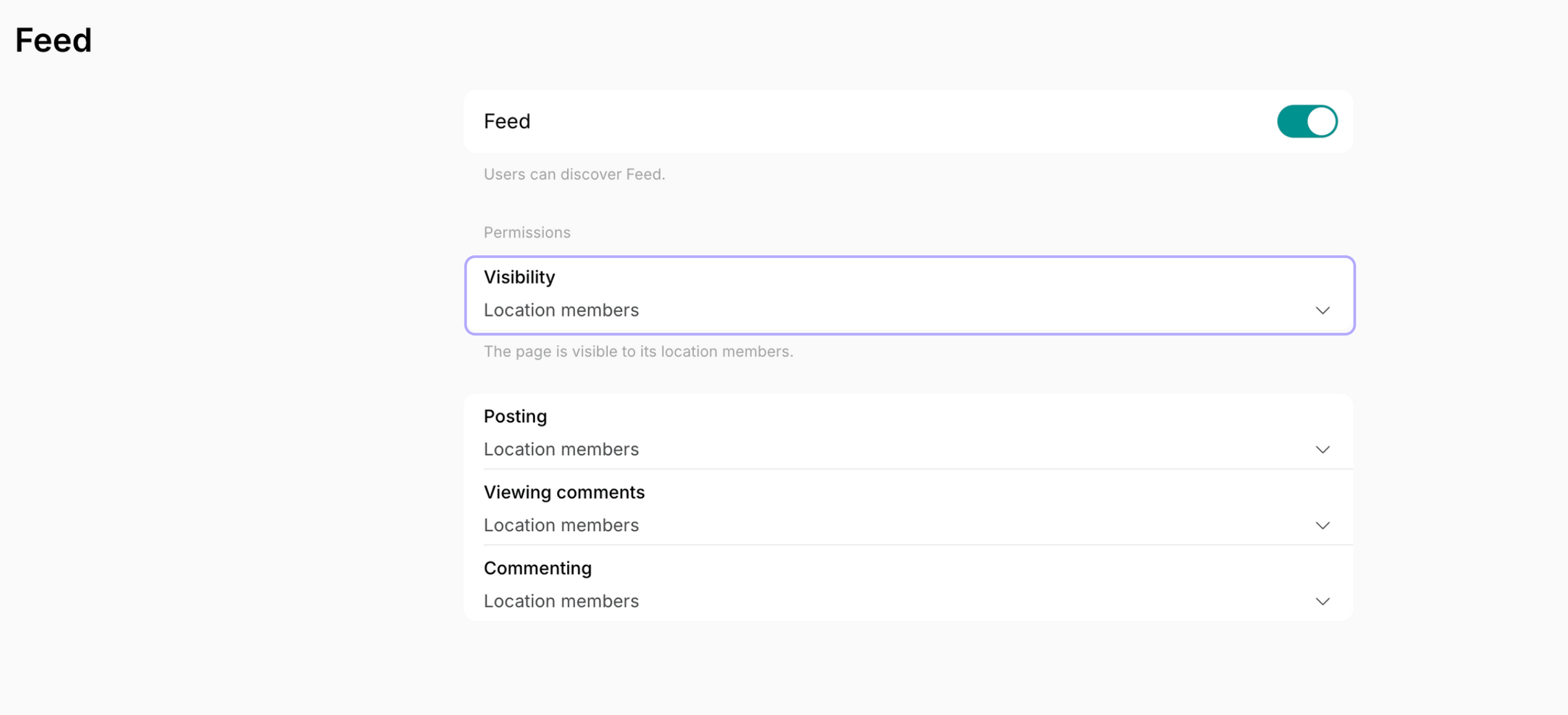 The following pages have visibility controls:
* **Community**
* **Feed**
* **Visitors**
* **Support**
The visibility of pages such as **Rooms**, **Desks**, **Offices**, **Parking**, **Equipment**, **Events**, **Shop,** and **Benefits** depends on the visibility settings of resources added to these pages.
The following pages have visibility controls:
* **Community**
* **Feed**
* **Visitors**
* **Support**
The visibility of pages such as **Rooms**, **Desks**, **Offices**, **Parking**, **Equipment**, **Events**, **Shop,** and **Benefits** depends on the visibility settings of resources added to these pages.
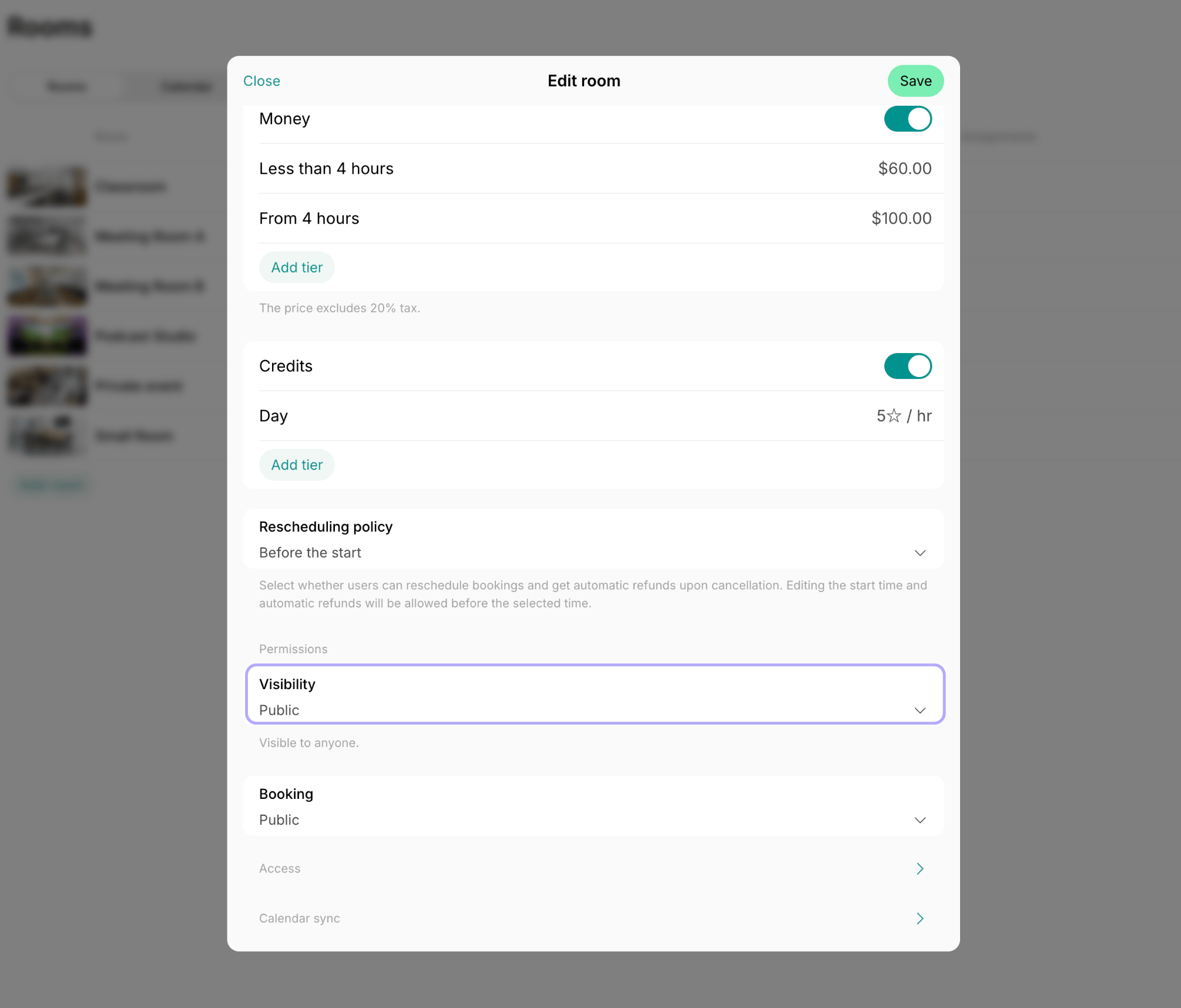 Sharing your app content through the **Share** button on **Rooms**, **Feed**, **Events**, **Benefits**, and **Shop** does not change the visibility property of the object.
**FAQ**
Network members exist when you have multiple locations—they may belong to one location but not another. Location members belong to a specific location. They can access member-only areas in the member web portal and mobile app, have subscriptions, and can view content marked for **Location members** and above.
Location members and network members can be found on the **Customers**page in the app.
If a resource isn't visible on its dedicated page (for example, you don't see your room on the **Rooms** page), it may be [assigned](/docs/resource-management/rentals/assignments) to a member or company. Navigate to Spacebring > **Resources** > open the necessary module and locate the resource you are looking for to see the assignment. If the resource should be available to all, [remove the assignment](/docs/resource-management/rentals/assignments).
Sharing your app content through the **Share** button on **Rooms**, **Feed**, **Events**, **Benefits**, and **Shop** does not change the visibility property of the object.
**FAQ**
Network members exist when you have multiple locations—they may belong to one location but not another. Location members belong to a specific location. They can access member-only areas in the member web portal and mobile app, have subscriptions, and can view content marked for **Location members** and above.
Location members and network members can be found on the **Customers**page in the app.
If a resource isn't visible on its dedicated page (for example, you don't see your room on the **Rooms** page), it may be [assigned](/docs/resource-management/rentals/assignments) to a member or company. Navigate to Spacebring > **Resources** > open the necessary module and locate the resource you are looking for to see the assignment. If the resource should be available to all, [remove the assignment](/docs/resource-management/rentals/assignments).