> ## Documentation Index
> Fetch the complete documentation index at: https://www.spacebring.com/docs/llms.txt
> Use this file to discover all available pages before exploring further.
# Claude
> Connect Spacebring to Claude to look up members, subscriptions, invoices, bookings, and more from a Claude conversation.
Spacebring is an official Claude connector, listed in [Anthropic's connector directory](https://claude.ai/directory/connectors/b1c47748-6c8e-4777-bf2d-59801519977a). Once connected, you can ask Claude about your Spacebring network — members, subscriptions, invoices, and more — and get answers in the conversation instead of navigating the admin dashboard.
## What you can do
Claude can look up and summarize data from across your network in plain language:
* Network and locations
* Members and companies
* Plans and subscriptions
* Resources and bookings
* Invoices and contracts
* Shop products and orders
* Benefits and applications
* Guides
Claude can also cross-reference these in a single request — for example, matching a member to their subscription, recent invoices, and bookings — and pass what it finds to other connectors you've added, such as drafting reminder emails for overdue invoices.
For the full list of tools Claude can use, see [Supported tools](/docs/mcp-server#supported-tools).
## Connect Spacebring in Claude
* Open [Spacebring in the Claude connector directory](https://claude.ai/directory/connectors/b1c47748-6c8e-4777-bf2d-59801519977a).
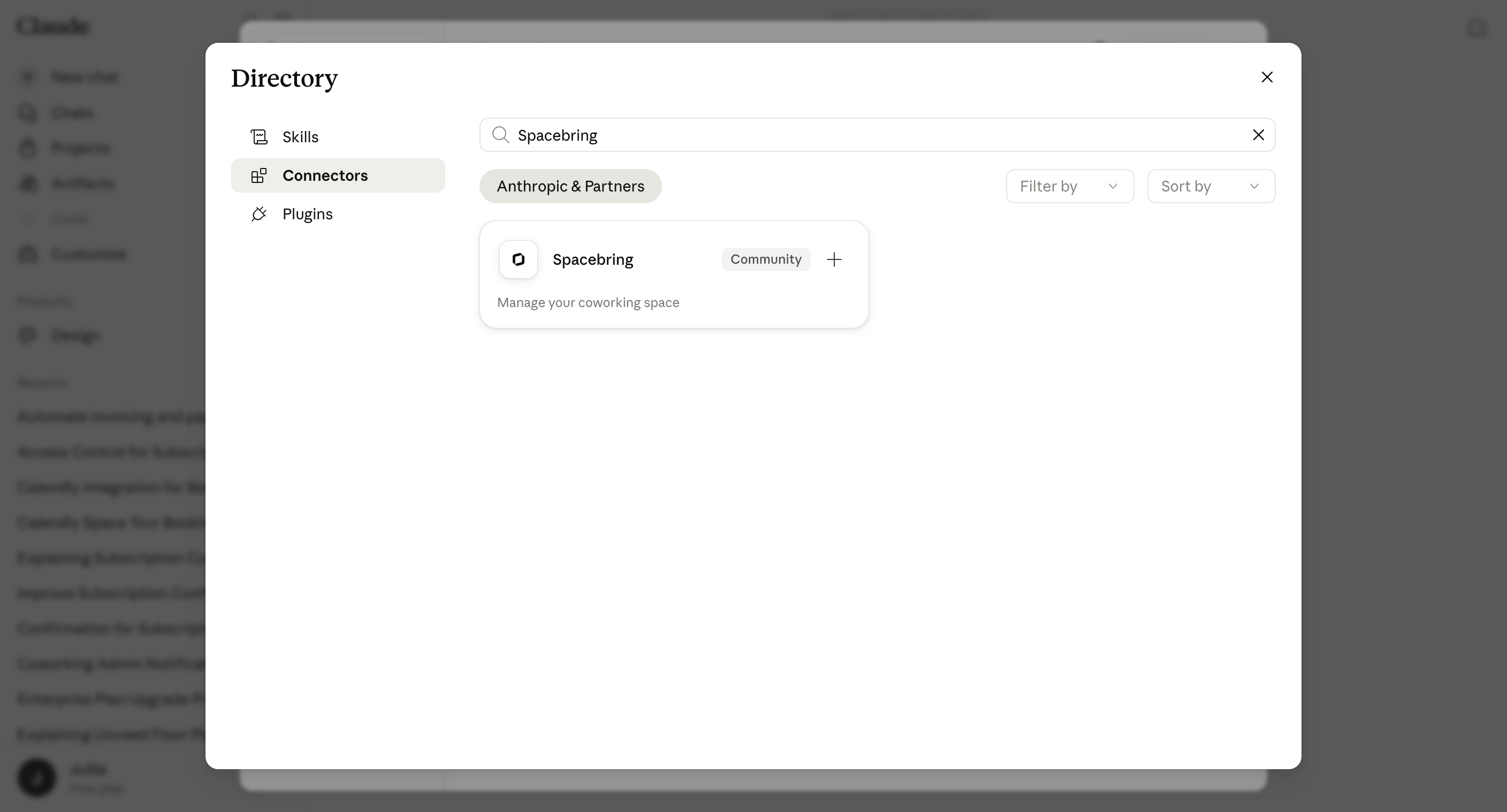
* Alternatively, in Claude go to **Settings > Connectors** and search for **Spacebring**.
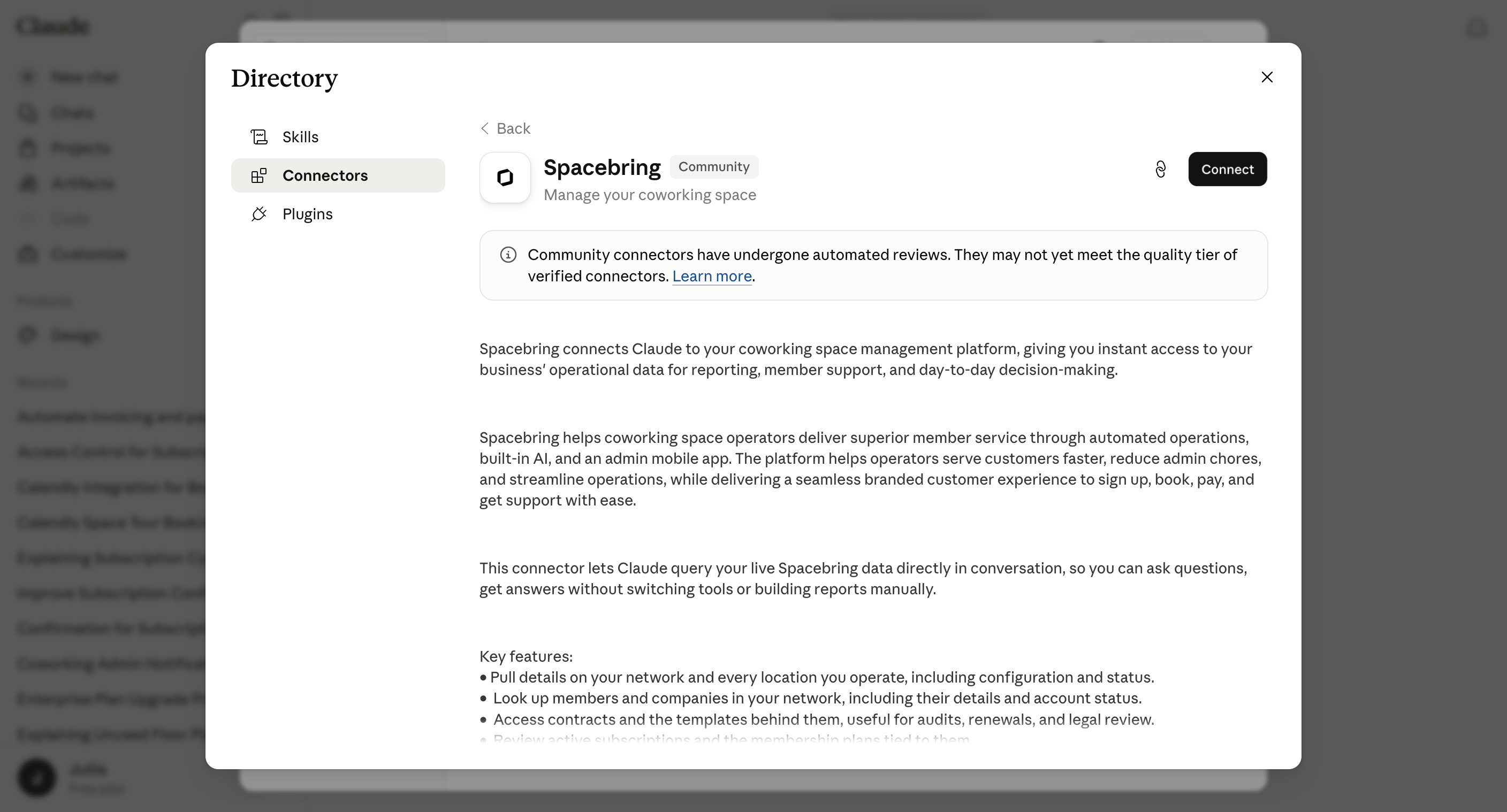
 Click **Connect**.
 When prompted, sign in and authorize access to your Spacebring network.
Once connected, Claude can look up data from your Spacebring network.
You can also [connect Spacebring to ChatGPT, Gemini, or any other MCP-compatible assistant](/docs/mcp-server#connect-in-another-ai-assistant).
## Disconnect
You can disconnect Spacebring from Claude at any time to end its access.
In Claude, go to **Settings > Connectors**.
Locate **Spacebring** in your list of connectors.
Disconnect the connector to immediately end its access to your network.
When prompted, sign in and authorize access to your Spacebring network.
Once connected, Claude can look up data from your Spacebring network.
You can also [connect Spacebring to ChatGPT, Gemini, or any other MCP-compatible assistant](/docs/mcp-server#connect-in-another-ai-assistant).
## Disconnect
You can disconnect Spacebring from Claude at any time to end its access.
In Claude, go to **Settings > Connectors**.
Locate **Spacebring** in your list of connectors.
Disconnect the connector to immediately end its access to your network.