> ## Documentation Index
> Fetch the complete documentation index at: https://www.spacebring.com/docs/llms.txt
> Use this file to discover all available pages before exploring further.
# Account
> Learn how users navigate their Account page, edit their profile, change their email, set privacy settings, report or block other users, log out of other devices, and delete their account
Users manage their own profile and personal data on the **Account** page of the member web portal or mobile app. Administrators can't change a user's name, photo, email, or phone number.
## Navigate the Account page
To open the **Account** page, users click their photo, initials, or the person icon.
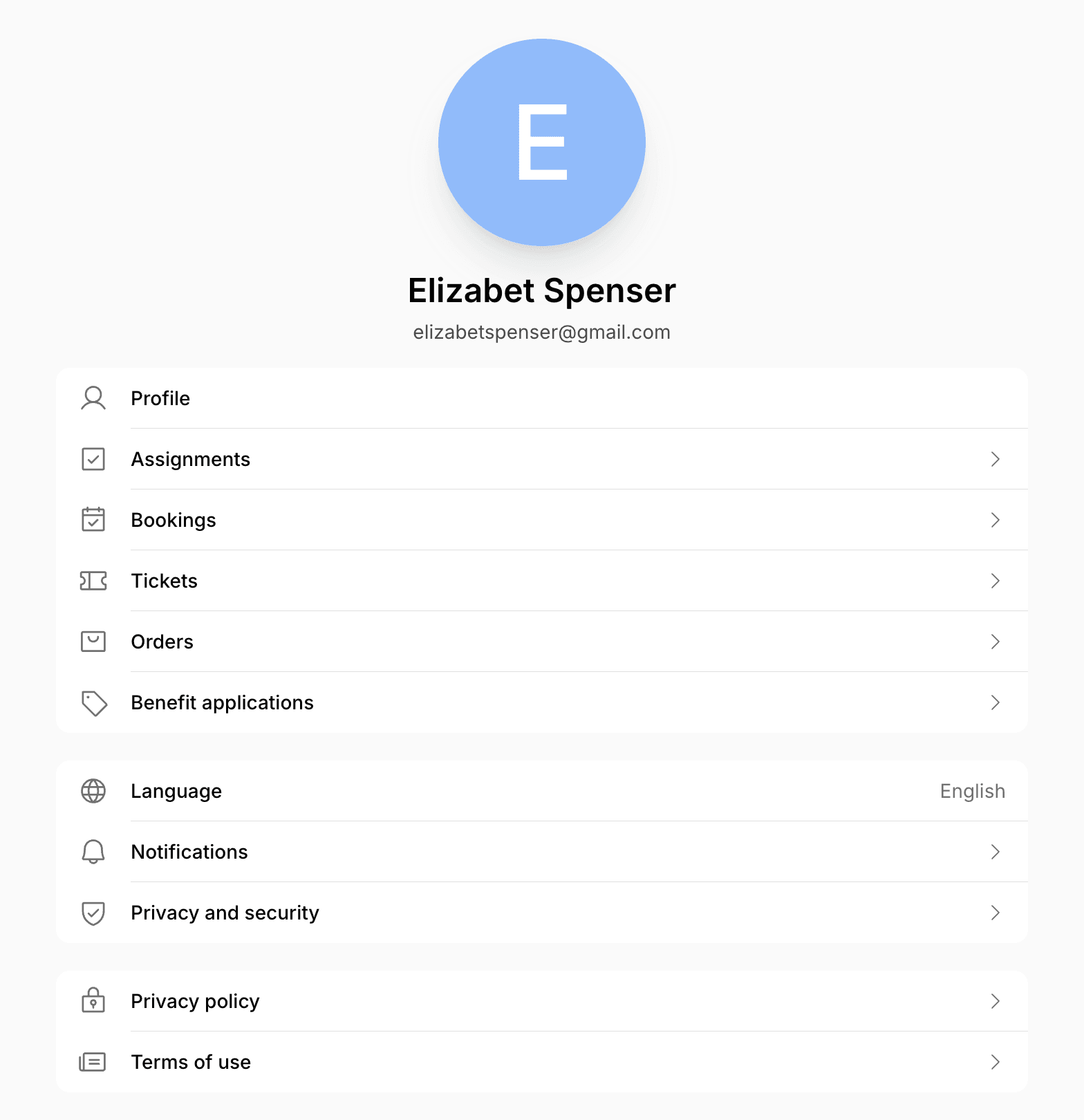 * **Profile** — edit their name, photo, and contact details.
* **Assignments** — the resources assigned to them.
* **Bookings**, **Tickets**, **Orders**, and **Benefit applications** — their bookings, event tickets, shop orders, and benefit applications.
* **Language** — their [account language](/docs/member/account/language).
* **Notifications** — their [email and push notification settings](/docs/member/account/notifications).
* **Privacy and security** — their email, privacy settings, other sessions, and account deletion.
* **Privacy policy** and **Terms of use** — your privacy policy and terms of use.
Subscriptions, invoices, credits, and payment methods are on the [**Membership**](/docs/member/membership) page instead.
## Edit the profile
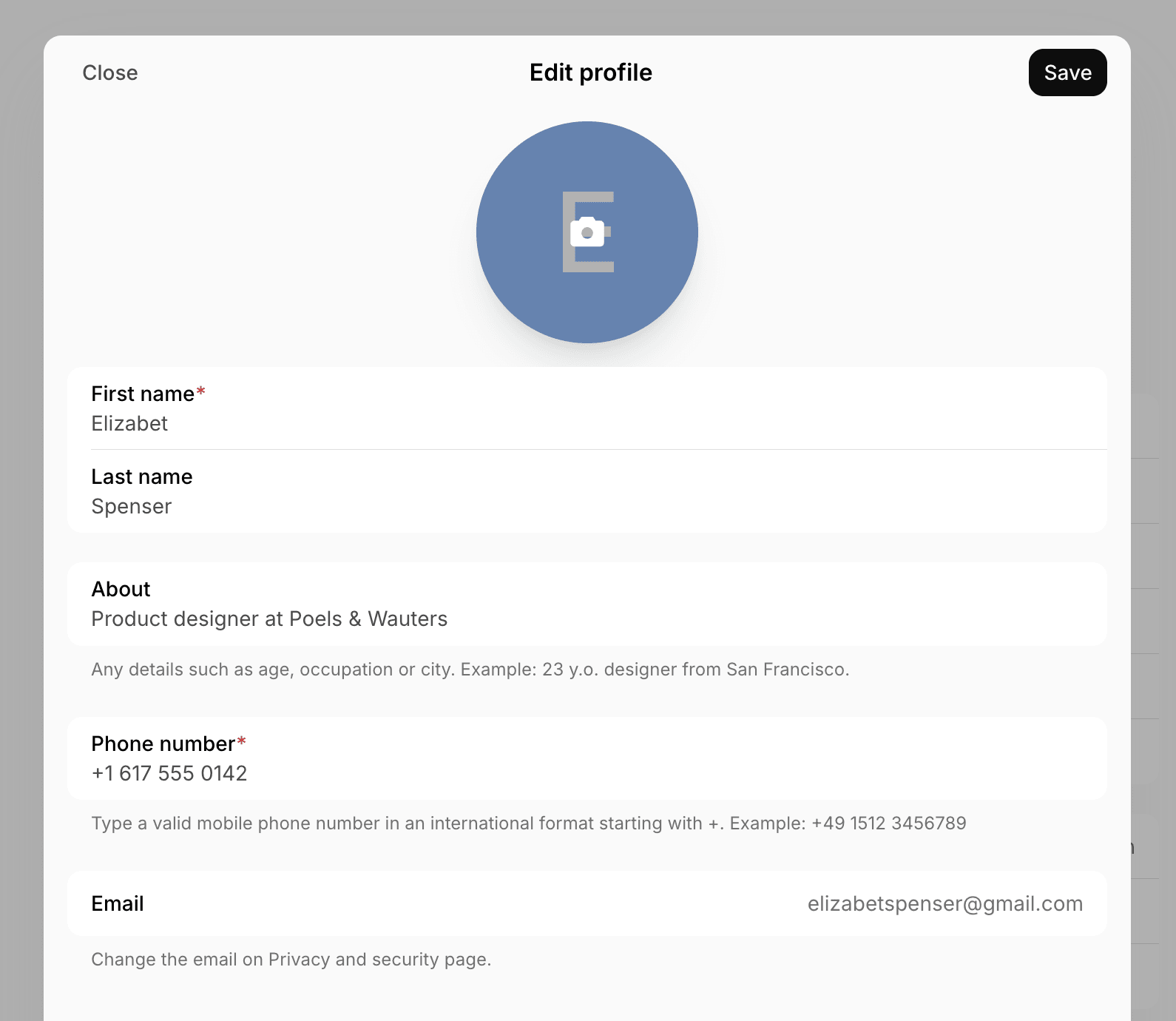
1. On the **Account** page, click **Profile**.
2. Update the photo, **First name**, **Last name**, **About**, or **Phone number**. **First name** is always required, and **Last name** and **Phone number** are required if the owner requires them.
3. Click **Save**.
* **Profile** — edit their name, photo, and contact details.
* **Assignments** — the resources assigned to them.
* **Bookings**, **Tickets**, **Orders**, and **Benefit applications** — their bookings, event tickets, shop orders, and benefit applications.
* **Language** — their [account language](/docs/member/account/language).
* **Notifications** — their [email and push notification settings](/docs/member/account/notifications).
* **Privacy and security** — their email, privacy settings, other sessions, and account deletion.
* **Privacy policy** and **Terms of use** — your privacy policy and terms of use.
Subscriptions, invoices, credits, and payment methods are on the [**Membership**](/docs/member/membership) page instead.
## Edit the profile
1. On the **Account** page, click **Profile**.
2. Update the photo, **First name**, **Last name**, **About**, or **Phone number**. **First name** is always required, and **Last name** and **Phone number** are required if the owner requires them.
3. Click **Save**.
 ## Change the email address
Each account has a unique email, and only the user can change it.
1. Go to **Account** > **Privacy and security** > **Email**.
## Change the email address
Each account has a unique email, and only the user can change it.
1. Go to **Account** > **Privacy and security** > **Email**.
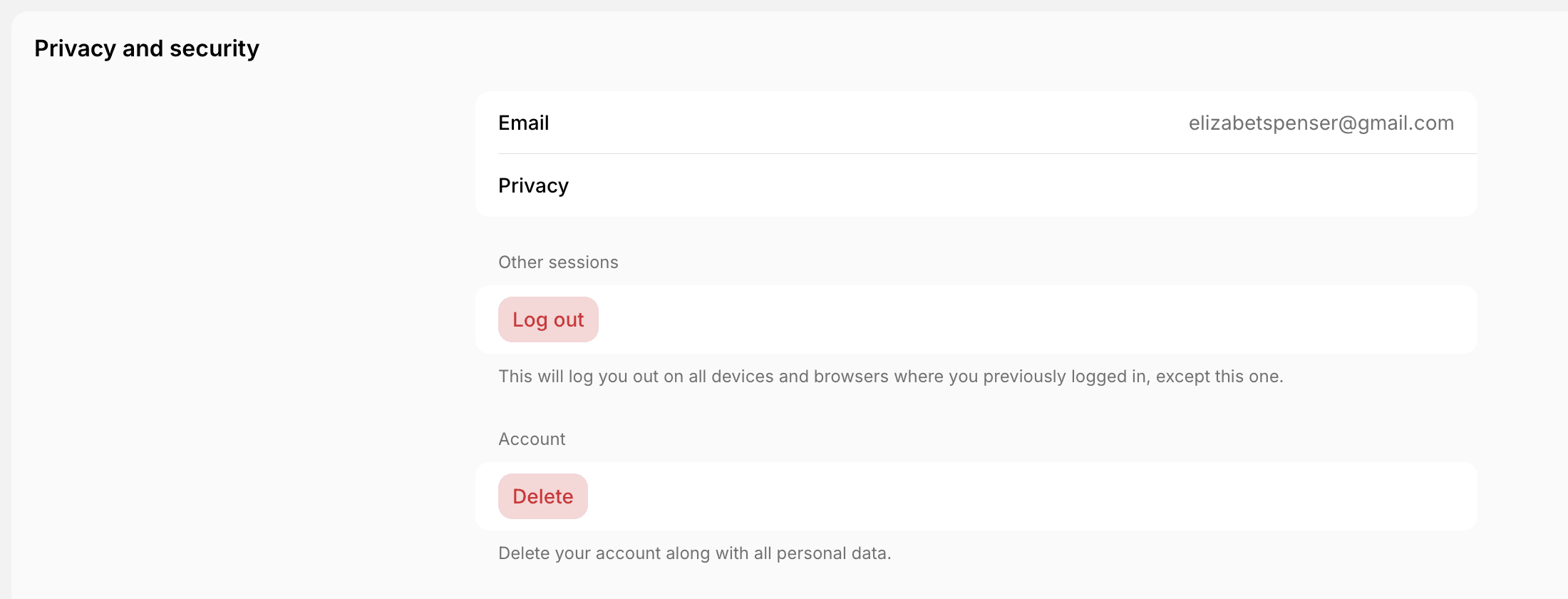 2. Enter the new email address and click **Continue**.
3. Enter the confirmation code sent to the new address.
If the new address already belongs to another account, users see "The email is incorrect or connected to another account." To free up the address:
1. Log in with the new email address.
2. Go to **Account** > **Privacy and security** and click **Delete** to delete that account.
3. Log in with the old email address and change it to the new one.
## Set privacy settings
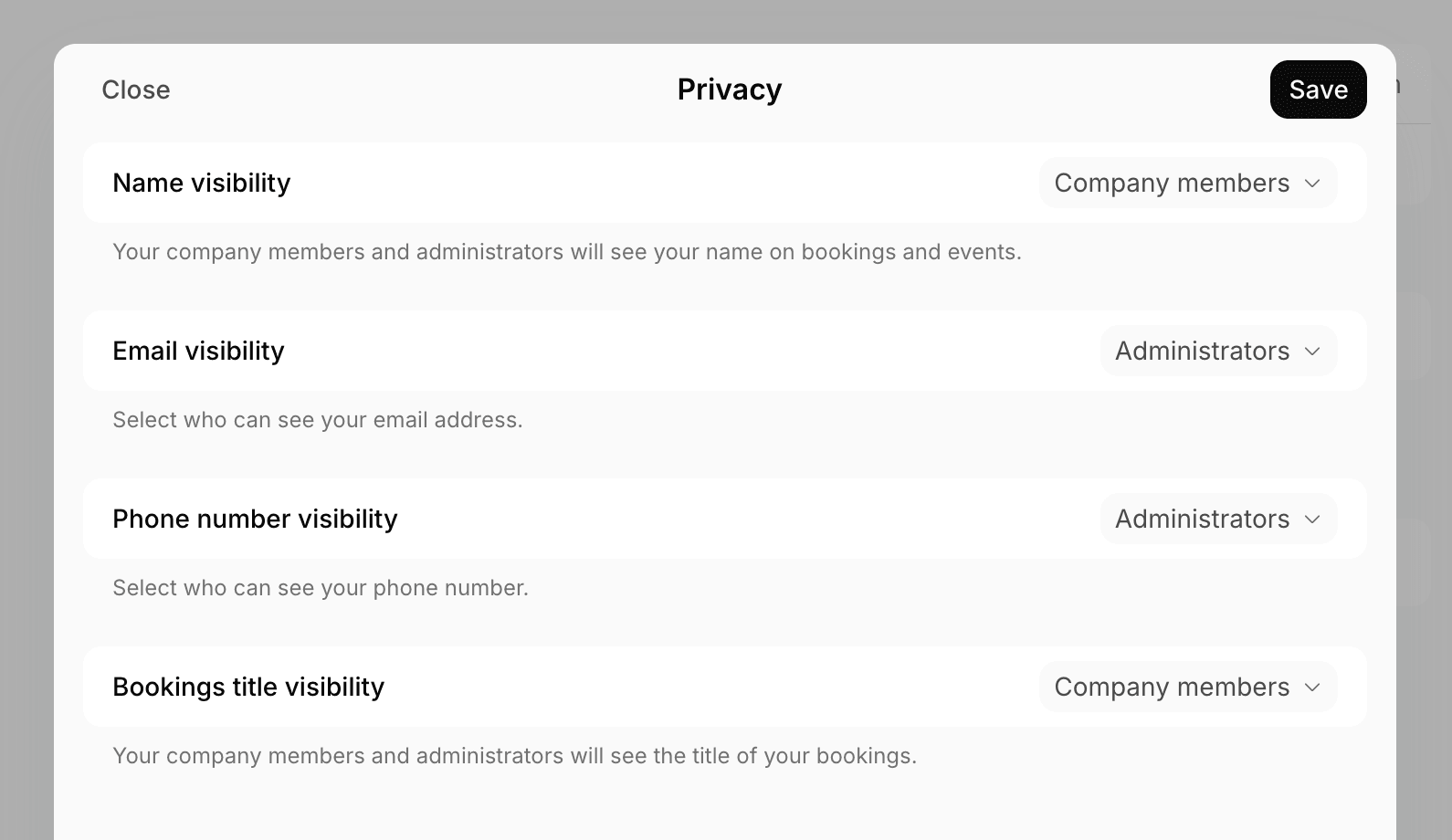
1. Go to **Account** > **Privacy and security** > **Privacy**.
2. Choose who can see each detail — **Administrators**, **Location members**, **Network members**, or **Public**:
* **Name visibility** — their name on bookings and events. It can also be limited to **Company members**.
* **Email visibility** — their email address.
* **Phone number visibility** — their phone number.
* **Bookings title visibility** — the titles of their bookings. It can also be limited to **Company members**.
3. Click **Save**.
2. Enter the new email address and click **Continue**.
3. Enter the confirmation code sent to the new address.
If the new address already belongs to another account, users see "The email is incorrect or connected to another account." To free up the address:
1. Log in with the new email address.
2. Go to **Account** > **Privacy and security** and click **Delete** to delete that account.
3. Log in with the old email address and change it to the new one.
## Set privacy settings
1. Go to **Account** > **Privacy and security** > **Privacy**.
2. Choose who can see each detail — **Administrators**, **Location members**, **Network members**, or **Public**:
* **Name visibility** — their name on bookings and events. It can also be limited to **Company members**.
* **Email visibility** — their email address.
* **Phone number visibility** — their phone number.
* **Bookings title visibility** — the titles of their bookings. It can also be limited to **Company members**.
3. Click **Save**.
 [Default privacy settings](/docs/general/users#manage-visibility-of-user-information) are set by the owner, but users can override them, which may make their personal information visible to others.
## Report or block a user
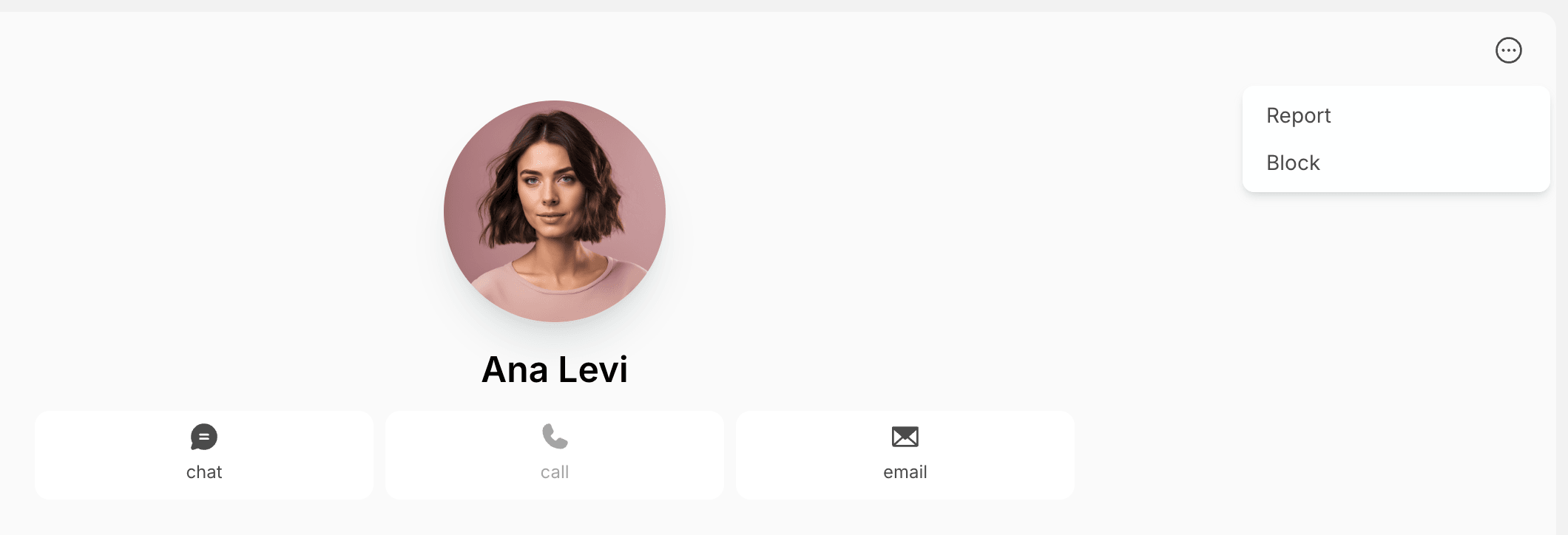
1. Open the other user's profile from **Chats** or **Feed**.
2. Click **(...)** in the top right corner and select **Report** or **Block**.
[Default privacy settings](/docs/general/users#manage-visibility-of-user-information) are set by the owner, but users can override them, which may make their personal information visible to others.
## Report or block a user
1. Open the other user's profile from **Chats** or **Feed**.
2. Click **(...)** in the top right corner and select **Report** or **Block**.
 3. Confirm by clicking **OK**.
When a user reports someone:
* Administrators receive a notification and can handle the report.
* The reported user isn't notified.
* The reported user's activity isn't restricted until they are blocked, removed from **Customers**, or added to the blacklist.
When a user blocks someone:
* The blocked user can't see their name and personal details on the **Community** page, contact them in chat, or see their booking details.
* Their profile appears to the blocked user as **Unavailable user**.
Administrators can blacklist users from the admin web portal.
## Log out of other devices
On the **Account** > **Privacy and security** page, users click **Log out** under **Other sessions** and confirm. This logs them out on every other device and browser, except the one they are using. To log out of the current device, they click **(...)** on the **Account** page > **Log out**.
## Delete the account
1. Go to **Account** > **Privacy and security**.
2. Click **Delete** under **Account** and confirm.
The account is deleted permanently, with all personal data.
Only users can delete their accounts. Administrators can only remove users from members or nonmembers, and a deleted user's profile stays on the **Customers** page as **Deleted user**.
3. Confirm by clicking **OK**.
When a user reports someone:
* Administrators receive a notification and can handle the report.
* The reported user isn't notified.
* The reported user's activity isn't restricted until they are blocked, removed from **Customers**, or added to the blacklist.
When a user blocks someone:
* The blocked user can't see their name and personal details on the **Community** page, contact them in chat, or see their booking details.
* Their profile appears to the blocked user as **Unavailable user**.
Administrators can blacklist users from the admin web portal.
## Log out of other devices
On the **Account** > **Privacy and security** page, users click **Log out** under **Other sessions** and confirm. This logs them out on every other device and browser, except the one they are using. To log out of the current device, they click **(...)** on the **Account** page > **Log out**.
## Delete the account
1. Go to **Account** > **Privacy and security**.
2. Click **Delete** under **Account** and confirm.
The account is deleted permanently, with all personal data.
Only users can delete their accounts. Administrators can only remove users from members or nonmembers, and a deleted user's profile stays on the **Customers** page as **Deleted user**.