> ## Documentation Index
> Fetch the complete documentation index at: https://www.spacebring.com/docs/llms.txt
> Use this file to discover all available pages before exploring further.
# Customer journey
> Understand the customers' journey in your member web portal and mobile app
Customers can access your member portal in two ways — by discovering it on their own or by receiving a direct member invitation. This page outlines what each journey looks like.
## New customer journey
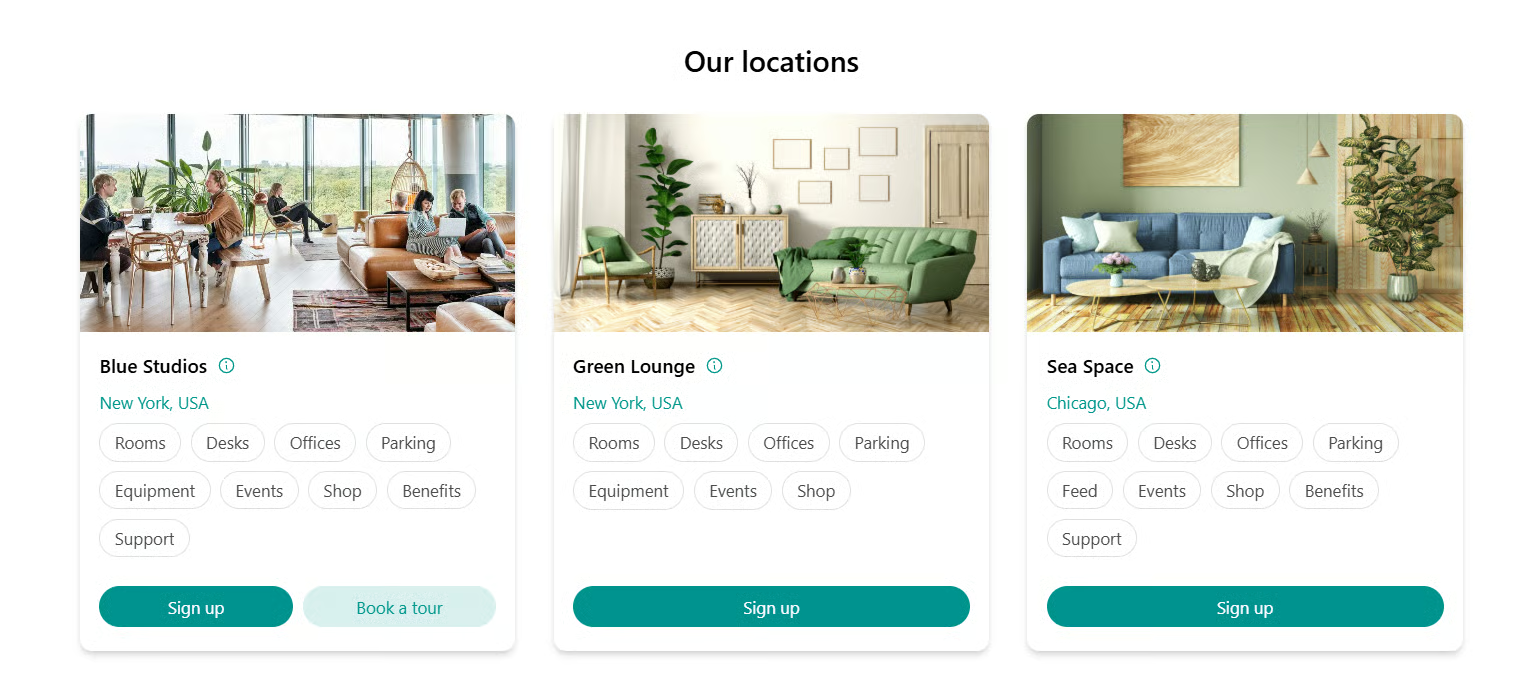
A new customer lands on your member web portal or mobile app from your website, a social media link, a QR code, or anywhere else you've shared your portal publicly.
Users can explore everything you've set to **Public** visibility — **Rooms, Desks, Offices, Equipment, Parking, Events, Shop, Feed, Support,** and **Sign up** button with membership plans — without needing to log in.
 The moment a visitor starts a booking, signing up for a plan, or any other interaction, they are prompted to enter and verify their email address. By continuing, they agree to your organization's [privacy policy](/docs/general/privacy-policy).
 The confirmation code is valid for 10 minutes.
When proceeding with a booking, purchase, or any action that creates a mutual obligation, customers are prompted to enter their name and accept your [terms of use](/docs/general/terms-of-use).
The confirmation code is valid for 10 minutes.
When proceeding with a booking, purchase, or any action that creates a mutual obligation, customers are prompted to enter their name and accept your [terms of use](/docs/general/terms-of-use).
 Terms of use acceptance applies to all actions that create mutual obligations or liabilities — bookings, product orders, and similar — even when no payment is involved.
If the action involves a payment, customers may also be asked to provide billing details, depending on whether you have enabled that.
After their first interaction, a **Complete your profile** banner appears at the top of the main page. Customers can add a photo, bio, or phone number at any time.
Terms of use acceptance applies to all actions that create mutual obligations or liabilities — bookings, product orders, and similar — even when no payment is involved.
If the action involves a payment, customers may also be asked to provide billing details, depending on whether you have enabled that.
After their first interaction, a **Complete your profile** banner appears at the top of the main page. Customers can add a photo, bio, or phone number at any time.
 ## Invited member journey
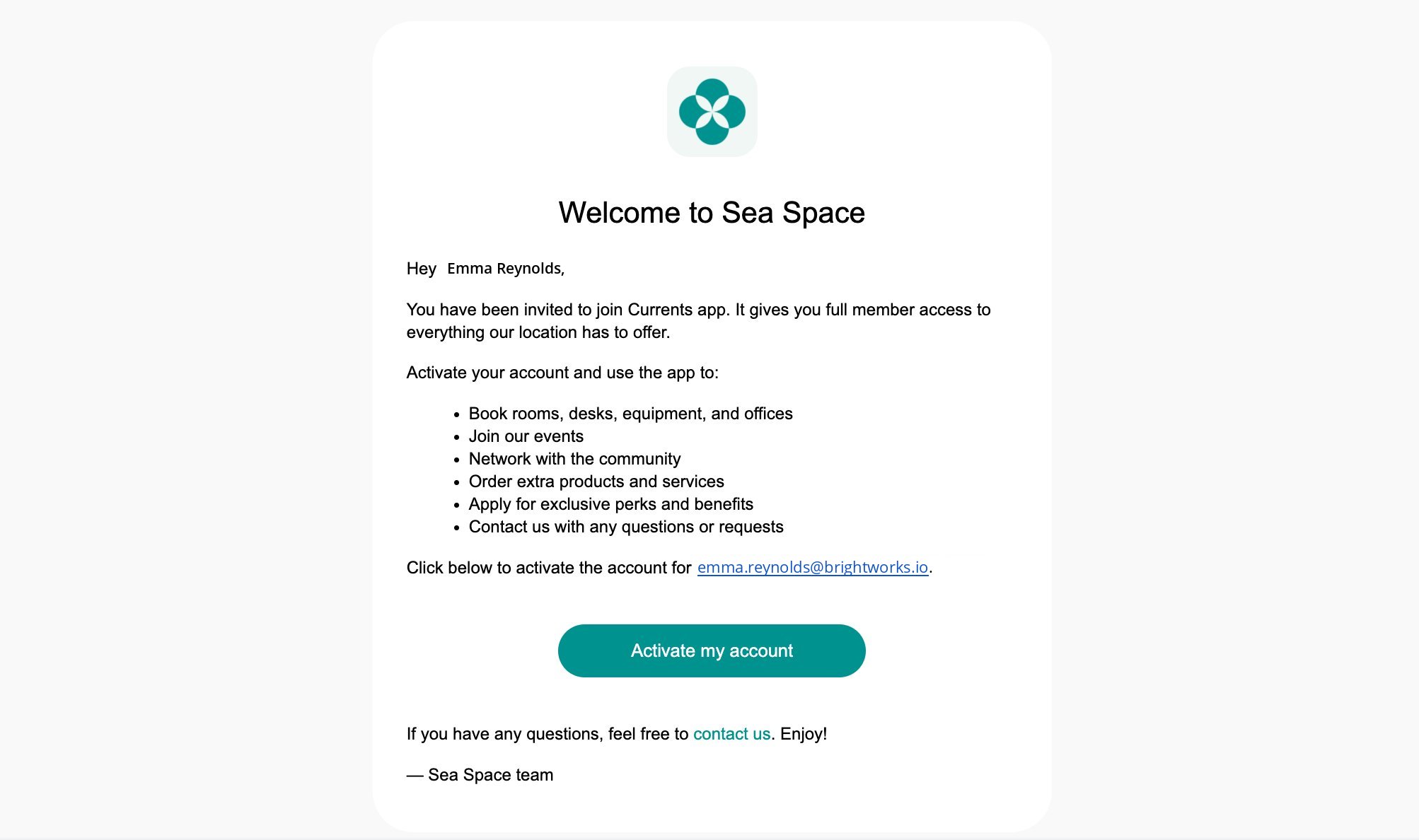
When you invite someone as a member, they receive an email with an \*\*Activate my account \*\*button.
Clicking **Activate my account** in the invitation email logs the user into the member portal automatically — no email verification required. Their profile is prefilled with the details you entered when inviting them.
## Invited member journey
When you invite someone as a member, they receive an email with an \*\*Activate my account \*\*button.
Clicking **Activate my account** in the invitation email logs the user into the member portal automatically — no email verification required. Their profile is prefilled with the details you entered when inviting them.
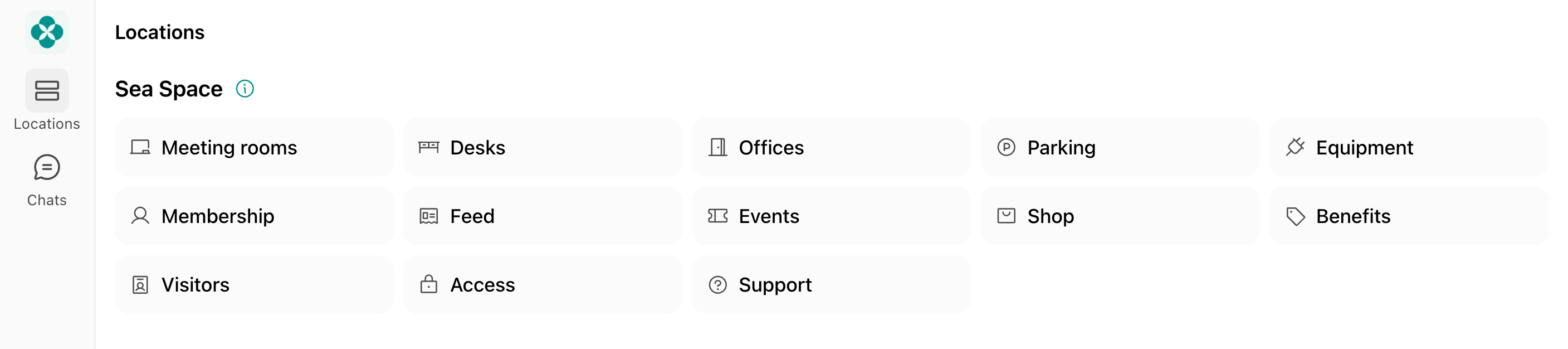
 Invited members immediately see and can interact with all products and services set to **Location members**, **Network members**, or lower visibility. If you have assigned them a subscription, all its entitlements and access are available right away (unless the subscription is set to start on a future date).
 When making their first booking, purchase, or any action that creates a mutual obligation, they are prompted to accept your [terms of use](/docs/general/terms-of-use).
A **Complete your profile** banner appears at the top of the main page. Customers can add or update their photo, bio, or other personal details at any time.
## How customers log out
Tap the icon showing their photo, name initials, or the **Person** icon to open the **Account** page.
Tap the **(...)** menu in the top right >**Log out**.
When making their first booking, purchase, or any action that creates a mutual obligation, they are prompted to accept your [terms of use](/docs/general/terms-of-use).
A **Complete your profile** banner appears at the top of the main page. Customers can add or update their photo, bio, or other personal details at any time.
## How customers log out
Tap the icon showing their photo, name initials, or the **Person** icon to open the **Account** page.
Tap the **(...)** menu in the top right >**Log out**.

 **FAQs**
* **Sign up** is not about account creation. It opens the list of every membership plan your space offers so a customer can subscribe to one. As with any booking or other purchase, if the customer is new, the system creates an account for them automatically as part of the flow.
* **Log in** is for customers who already have an account. A new customer who doesn't have one yet simply creates one the moment they click **Log in**.
Logging in is usually not necessary for new customers, though. They can explore all your resources and services without logging in and start booking, [sign up for a plan](/docs/billing/plans/immediate-sign-ups#how-users-sign-up-for-plans), apply for a service, or take any other action — an account is created automatically the moment they act.
If you or your customer are having trouble logging in, check the following:
1. Double-check the entered email address. If there is a mistake, tap `Wrong email?` to correct it.
2. Entering an incorrect confirmation code 5 times within 20 minutes triggers a temporary lockout for 20 minutes from the first failed attempt. Wait for the lockout to expire, then re-enter the email address to receive a new code.
3. If OTP emails are not arriving, follow [these email delivery troubleshooting steps](/docs/general/mail-from-and-footer#troubleshoot-email-delivery-issues).
* Members with a full-time plan or an assigned resource (e.g. a dedicated desk or private office) do not need to check in — they have continuous access through the member portal. If your space uses an access control system, door access is granted automatically based on their subscription.
* Members with a plan that includes [day passes](/docs/billing/credits-and-day-passes/day-passes) check in by booking a desk with a day pass on each visit. With access control, door access is granted only on days they book, rather than on a permanent basis.
**FAQs**
* **Sign up** is not about account creation. It opens the list of every membership plan your space offers so a customer can subscribe to one. As with any booking or other purchase, if the customer is new, the system creates an account for them automatically as part of the flow.
* **Log in** is for customers who already have an account. A new customer who doesn't have one yet simply creates one the moment they click **Log in**.
Logging in is usually not necessary for new customers, though. They can explore all your resources and services without logging in and start booking, [sign up for a plan](/docs/billing/plans/immediate-sign-ups#how-users-sign-up-for-plans), apply for a service, or take any other action — an account is created automatically the moment they act.
If you or your customer are having trouble logging in, check the following:
1. Double-check the entered email address. If there is a mistake, tap `Wrong email?` to correct it.
2. Entering an incorrect confirmation code 5 times within 20 minutes triggers a temporary lockout for 20 minutes from the first failed attempt. Wait for the lockout to expire, then re-enter the email address to receive a new code.
3. If OTP emails are not arriving, follow [these email delivery troubleshooting steps](/docs/general/mail-from-and-footer#troubleshoot-email-delivery-issues).
* Members with a full-time plan or an assigned resource (e.g. a dedicated desk or private office) do not need to check in — they have continuous access through the member portal. If your space uses an access control system, door access is granted automatically based on their subscription.
* Members with a plan that includes [day passes](/docs/billing/credits-and-day-passes/day-passes) check in by booking a desk with a day pass on each visit. With access control, door access is granted only on days they book, rather than on a permanent basis.