> ## Documentation Index
> Fetch the complete documentation index at: https://www.spacebring.com/docs/llms.txt
> Use this file to discover all available pages before exploring further.
# Events
> Undertsand how users browse and join events, purchase and cancel tickets, and the automated event reminders users receive
Members and nonmembers can easily join events. This process ensures a superior experience, allowing users to engage with your activities and space with just a few clicks.
## How users join the event
Users join the event by following these steps:
Purchasing multiple tickets at once is currently available on the member web portal. In the member mobile app, it'll be possible starting with version 4.8.16.
1. Go to the **Events** page.
* View all the scheduled events in the event feed, or
* Use the **Calendar** tab to switch to a monthly calendar view of all events, or
* Use the **Search** field to quickly find a specific event or all available dates and time slots for that event.
 2. Select the desired event and press **Join**.
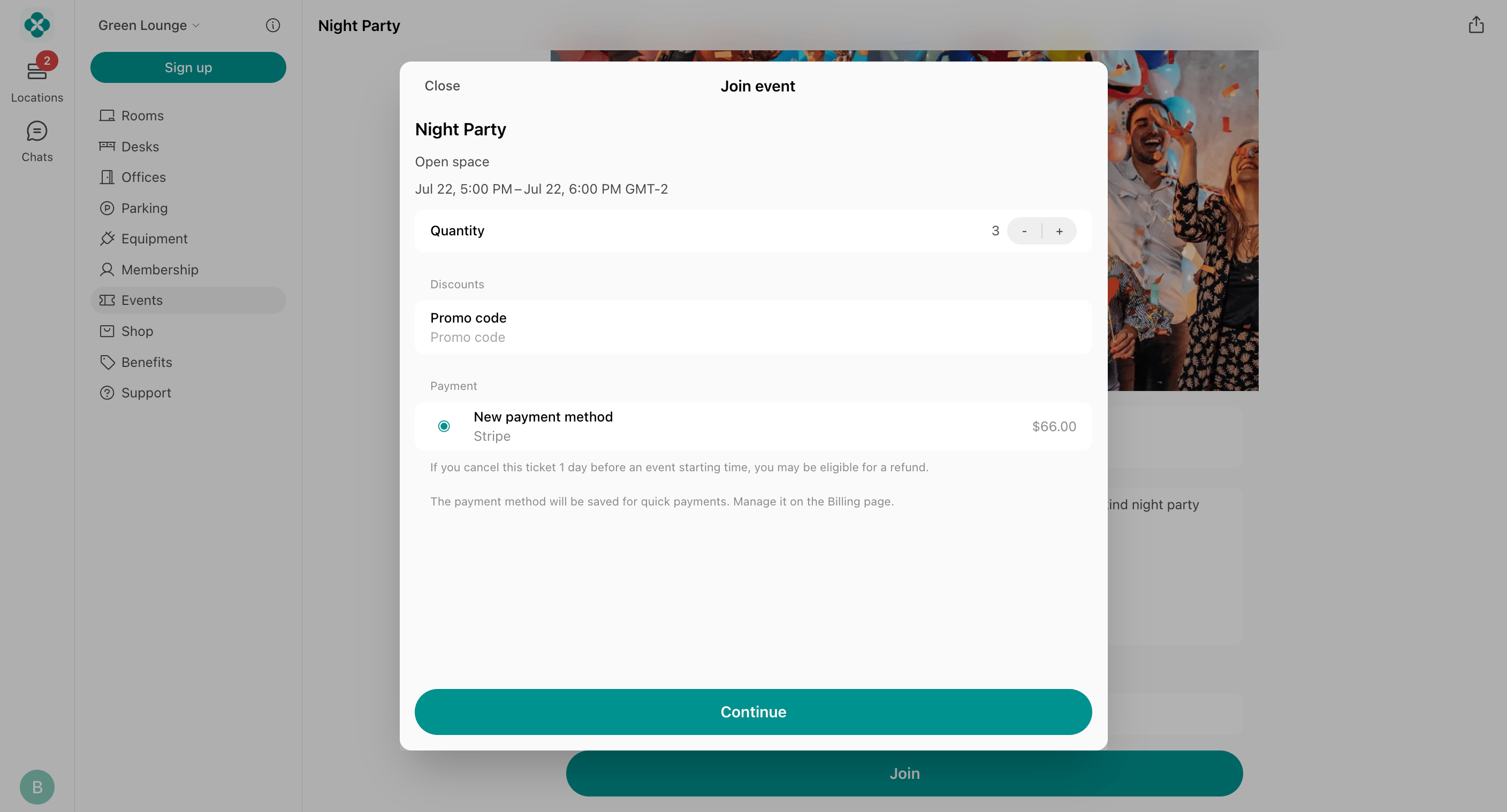
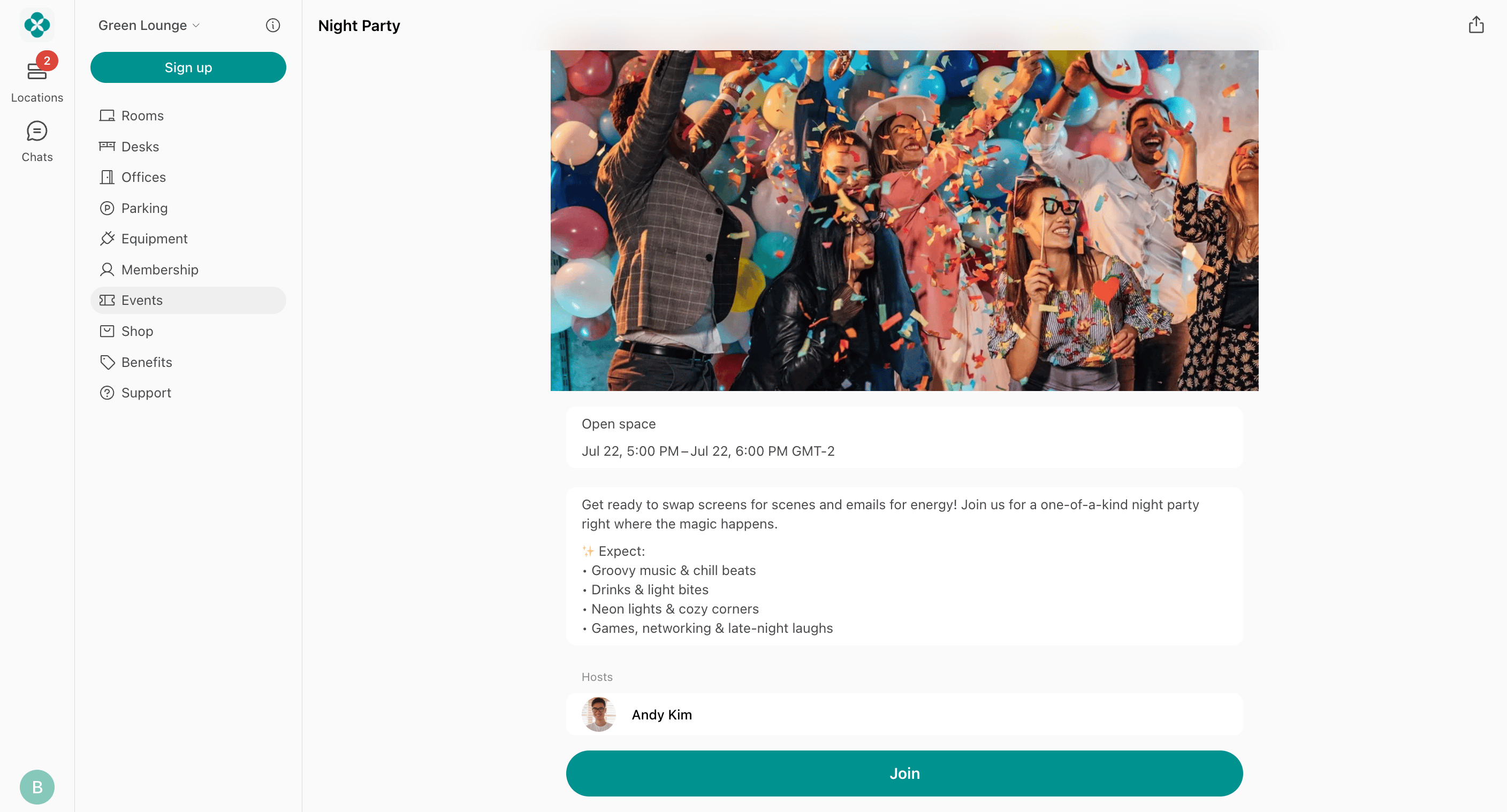 3. Select the number of tickets to purchase. If the user purchases more than one, they still get a single ticket, with the quantity indicated on it, rather than a separate ticket per attendee.
4. Enter a [promo code](/docs/billing/discounts/give-and-apply#create-promo-codes) to redeem a discount on the event ticket if you qualify.
5. Select the payment method and press the **Join for...** button.
6. Enter their [billing details](/docs/customer-management/billing-details), if they haven't yet. Billing details fields appear depending on the [**Require billing details** setting.](/docs/customer-management/billing-details)
3. Select the number of tickets to purchase. If the user purchases more than one, they still get a single ticket, with the quantity indicated on it, rather than a separate ticket per attendee.
4. Enter a [promo code](/docs/billing/discounts/give-and-apply#create-promo-codes) to redeem a discount on the event ticket if you qualify.
5. Select the payment method and press the **Join for...** button.
6. Enter their [billing details](/docs/customer-management/billing-details), if they haven't yet. Billing details fields appear depending on the [**Require billing details** setting.](/docs/customer-management/billing-details)
 6. Once a ticket is purchased, users can also add the event to their Google Calendar or Microsoft 365 Outlook.
 ## How users view event tickets
Users can view their tickets for events in a few ways:
* Right after joining the event. Attendees' tickets show the time of the event and the unique QR code. If a user purchased more than one ticket, the ticket view also displays the quantity.
## How users view event tickets
Users can view their tickets for events in a few ways:
* Right after joining the event. Attendees' tickets show the time of the event and the unique QR code. If a user purchased more than one ticket, the ticket view also displays the quantity.

 * On the **Account** (by pressing a button with your profile image, initials, or the user icon on the app's main page) > **Tickets** page.
 * At the top of the **Locations** page. By pressing it, the user's ticket is displayed.
 ## Event reminders
There are several reminders of upcoming events for event attendees:
* Email confirmation (if enabled in event settings) at the time of purchase.
* [Notification](/docs/member/account/notifications) 24 hours before the event starts.
* [Notification](/docs/member/account/notifications) 1 hour before the event starts.
* Banner on the **Locations** page until the event ends.
## How users cancel the ticket
Users can cancel their event ticket in two ways:
* Go to Locations > **Events** > select the event they joined > press **View ticket** > press **Cancel ticket** and confirm.
## Event reminders
There are several reminders of upcoming events for event attendees:
* Email confirmation (if enabled in event settings) at the time of purchase.
* [Notification](/docs/member/account/notifications) 24 hours before the event starts.
* [Notification](/docs/member/account/notifications) 1 hour before the event starts.
* Banner on the **Locations** page until the event ends.
## How users cancel the ticket
Users can cancel their event ticket in two ways:
* Go to Locations > **Events** > select the event they joined > press **View ticket** > press **Cancel ticket** and confirm.
 * Go to the **Account** page > **Tickets >** open the necessary ticket > press **Cancel ticket** and confirm the choice. [How users receive a refund](/docs/billing/payments/refunds)
## How members view event attendees
When members open an event, they can view the attendee list. The visibility of attendees depends on two factors: the [event's **Show attendees** setting](/docs/engagement/events) and the individual members' [privacy settings](/docs/customer-management/users/manage-account). However, the event host is always visible to members, irrespective of the host's personal name visibility settings.
## How nonmembers view event attendees
Once [nonmembers](/docs/customer-management/users/roles) open an event, they cannot see any information on event attendees, regardless of [their privacy settings](https://arc.net/l/quote/kdroifny). They can view the event host, depending on the host's [name visibility settings](/docs/customer-management/users/manage-account).
## Tips
* [Configure the notifications](/docs/account/notifications) to instantly receive notifications about purchased and canceled tickets.
* Differentiate ticket prices for event attendees and offer early-bird discounts for your events by using [discounts](/docs/billing/discounts).
**FAQs**
* Pre-event confirmation emails\*\*:\*\* enable the **Confirmation email** option when creating an event to send a custom email to all attendees as soon as they join.
* Post-event emails: export an [**Event attendees** report](/docs/analytics/reports) to get email addresses, then upload them to your preferred email platform for follow-up messages.
The **Event** feed shows upcoming events first from nearest to furthest, followed by past events in chronological order from the most recent to the oldest.
* Go to the **Account** page > **Tickets >** open the necessary ticket > press **Cancel ticket** and confirm the choice. [How users receive a refund](/docs/billing/payments/refunds)
## How members view event attendees
When members open an event, they can view the attendee list. The visibility of attendees depends on two factors: the [event's **Show attendees** setting](/docs/engagement/events) and the individual members' [privacy settings](/docs/customer-management/users/manage-account). However, the event host is always visible to members, irrespective of the host's personal name visibility settings.
## How nonmembers view event attendees
Once [nonmembers](/docs/customer-management/users/roles) open an event, they cannot see any information on event attendees, regardless of [their privacy settings](https://arc.net/l/quote/kdroifny). They can view the event host, depending on the host's [name visibility settings](/docs/customer-management/users/manage-account).
## Tips
* [Configure the notifications](/docs/account/notifications) to instantly receive notifications about purchased and canceled tickets.
* Differentiate ticket prices for event attendees and offer early-bird discounts for your events by using [discounts](/docs/billing/discounts).
**FAQs**
* Pre-event confirmation emails\*\*:\*\* enable the **Confirmation email** option when creating an event to send a custom email to all attendees as soon as they join.
* Post-event emails: export an [**Event attendees** report](/docs/analytics/reports) to get email addresses, then upload them to your preferred email platform for follow-up messages.
The **Event** feed shows upcoming events first from nearest to furthest, followed by past events in chronological order from the most recent to the oldest.