> ## Documentation Index
> Fetch the complete documentation index at: https://www.spacebring.com/docs/llms.txt
> Use this file to discover all available pages before exploring further.
# Migrate to Spacebring
> A step-by-step guide to migrating from Archie, Cobot, Coworks, OfficeRnD, Optix, Nexudus, Yardi Kube, or any other platform to Spacebring
Migrating to Spacebring is straightforward when you follow the right sequence. This guide covers the full process—from exporting your existing data to collecting your first payments through Spacebring.
Throughout the entire process, a dedicated customer success specialist will be available to [**support you**](https://www.spacebring.com/docs/administration/billing/onboarding-process) and answer any questions.
Log in as an administrator to your old platform and export all relevant data:
* Individual members and their contact details
* Company members
* Subscriptions and billing details for each member and company
* Upcoming bookings
* Your products: plans, resources, and any other services you offer with their settings and pricing
Save everything in organized spreadsheets — you'll use them when inviting members and recreating content in Spacebring.
Before inviting members, complete your setup in Spacebring so members can book, pay, and engage the moment they log in. Follow the [Get started guide](/start) to configure:
* **Network:** branding, custom domain, privacy policy, terms of use
* **Location:** address, schedule, billing settings, and connecting a payment gateway
* **Resources:** rooms, desks, offices, parking, equipment
* **Plans and contracts:** membership plans with pricing and contract templates
Use [Lem AI bulk create](/lem-ai/bulk-create) to mass-create resources, shop products, member benefits, or events in one go — just upload the file with your items and their settings and ask Lem AI to bulk-create them for you.
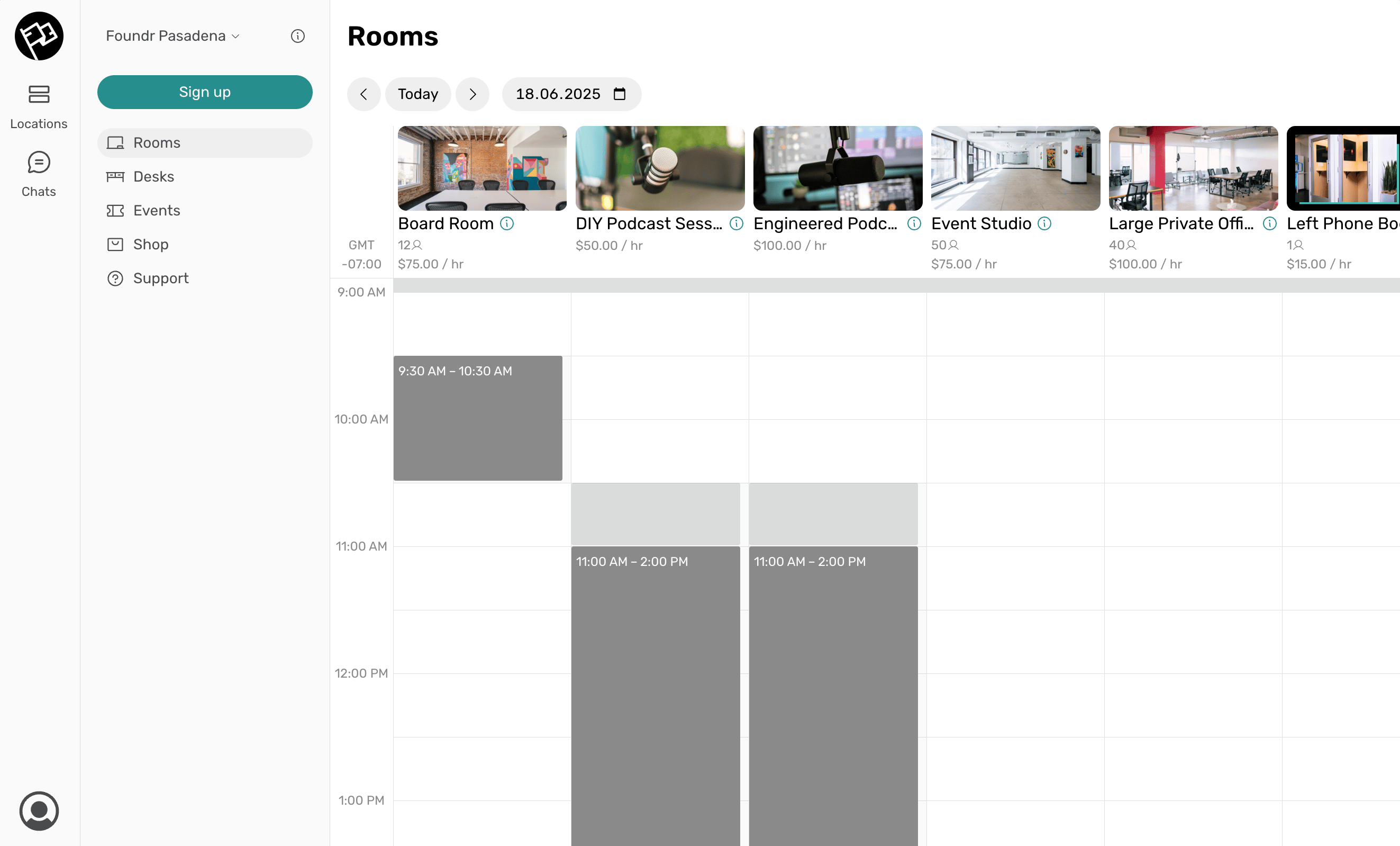
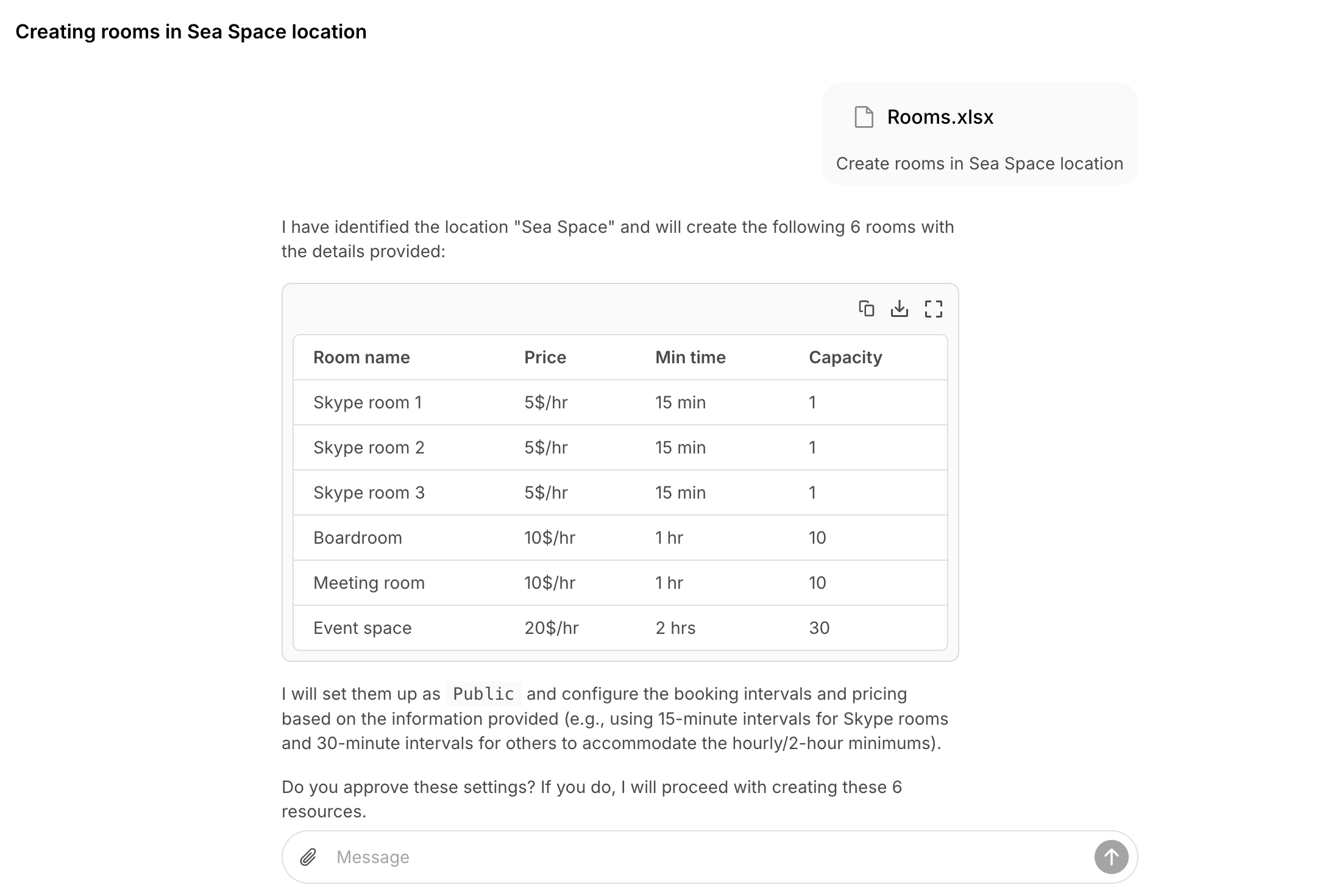 Get inspired by other incredible spaces and explore how they added content to Spacebring:
* [**Creative States**](https://members.creativestates.net/suite/organizations/c460ef70-8abd-11ea-ad60-0acdd2d7dfbc/rooms)
* [de Werkplek](https://app.de-werkplek.nl/suite/organizations/ea22fc80-0927-11ee-b915-51cc0b0872d2/shop)
* [FoundrSpace](https://app.foundrspace.com/suite/organizations/604083f0-a62e-11ec-8692-b5c32013b210/rooms)
* [Virspacio Coworking Spaces](https://members.virspacio.com/suite/organizations/a8947410-6750-11ee-be53-1bfff2f9a2c1/shop)
Get inspired by other incredible spaces and explore how they added content to Spacebring:
* [**Creative States**](https://members.creativestates.net/suite/organizations/c460ef70-8abd-11ea-ad60-0acdd2d7dfbc/rooms)
* [de Werkplek](https://app.de-werkplek.nl/suite/organizations/ea22fc80-0927-11ee-b915-51cc0b0872d2/shop)
* [FoundrSpace](https://app.foundrspace.com/suite/organizations/604083f0-a62e-11ec-8692-b5c32013b210/rooms)
* [Virspacio Coworking Spaces](https://members.virspacio.com/suite/organizations/a8947410-6750-11ee-be53-1bfff2f9a2c1/shop)
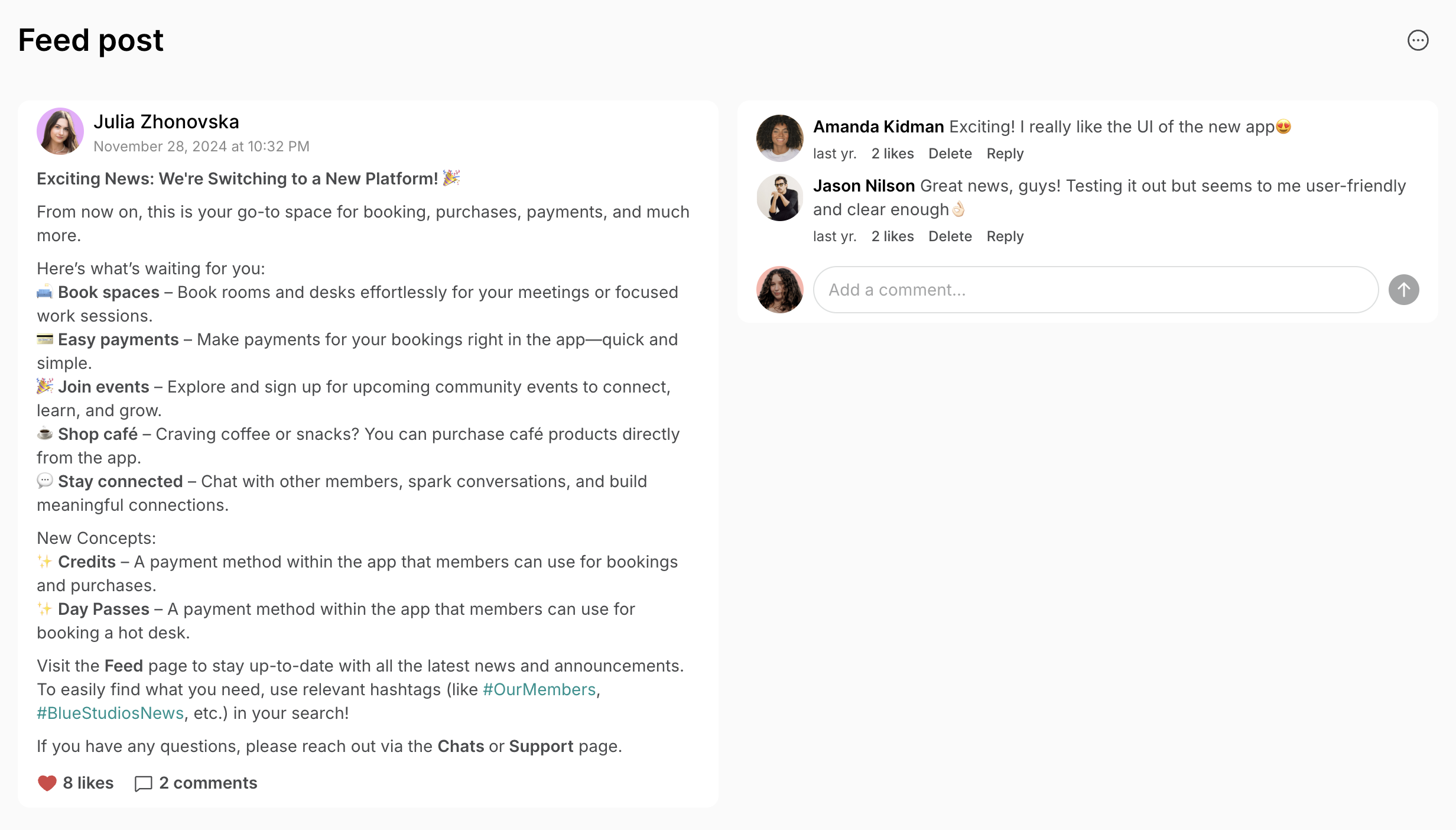
 Set up your communication channels before sending invitations, so members have all the context they need the moment they log in.
* Send an announcement email a few days in advance.
* In **Location settings > Customers**, [customize member invitation emails](/customize-emails-to-users) with a personal message.
* In **Engagement** > **Feed**, create and pin a welcome post highlighting key information about the new member portal.
Set up your communication channels before sending invitations, so members have all the context they need the moment they log in.
* Send an announcement email a few days in advance.
* In **Location settings > Customers**, [customize member invitation emails](/customize-emails-to-users) with a personal message.
* In **Engagement** > **Feed**, create and pin a welcome post highlighting key information about the new member portal.
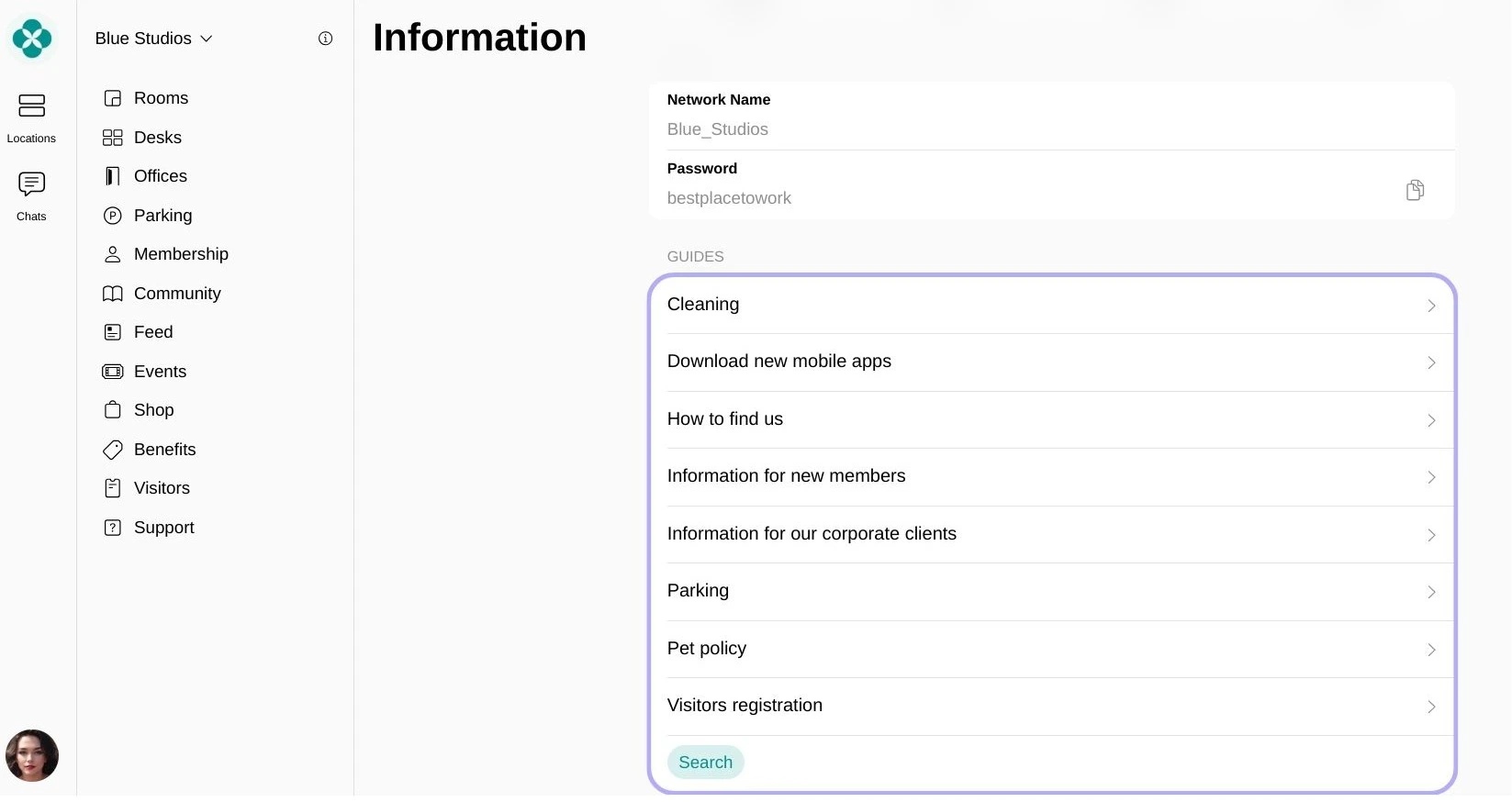
 * In **Support > Guides**, [add guides](/support/guides) with essential information members are likely to need.
 Complete this step before creating subscriptions in Spacebring to avoid double-charging members.
1. 1–2 weeks before your next billing cycle, cancel all memberships or disable the invoicing schedule in your previous platform.
2. Notify members that future invoices will come from the new platform.
1. Prepare the following spreadsheet with members' personal details:
| | | | | |
| :---------- | :------------- | :------------ | :-------- | :--------------- |
| Column name | **First name** | **Last name** | **Email** | **Phone number** |
| Required | + | | + | |
2. Prepare a second file or spreadsheet with each member's subscription details — the membership plan or resource they're subscribed to, and any custom details or pricing.
3. Go to **Customers > (…)** top right **> Invite multiple users**, paste your member table, and send the mass invitation.
4. [Set a subscription](/billing/subscriptions/index) for each member by assigning your pre-created plans and resources.
We recommend setting the subscription **Start date** to when the member originally signed up — not the next billing date — to keep accurate records.
To avoid invoicing for the current period (if already billed via your old platform): set **Issue first invoice > Manually** when creating the subscription. The invoice will stay as a draft, so you can delete it. All subsequent invoices will be issued automatically from the next renewal date.
5. [Add billing details](/customer-management/billing) for each member, or ask members to add them after logging in.
If member subscriptions use standard plan settings with no custom details or billing adjustments, you can also select plans for each member and mass-create subscriptions directly from the invitation window.
### 1. Set up company profiles and subscriptions
Set up company profiles, subscriptions, and billing **before** inviting company members. When members receive their invitation, their access and entitlements will already be in place.
1. Prepare a spreadsheet with each company's name and subscription details.
2. Go to **Customers > (…) > Create multiple companies**, paste your list of company names to mass-create company profiles.
3. [Set a subscription](/billing/subscriptions/index) for each company by assigning your pre-created plans and resources.
We recommend setting the subscription **Start date** to when the company originally signed up — not the next billing date — to keep accurate records.
To avoid invoicing for the current period (if already billed via your old platform): set **Issue first invoice > Manually** when creating the subscription. The invoice will stay as a draft; and you can delete it. All subsequent invoices will be issued automatically from the next renewal date.
4. [Add billing details](/customer-management/billing) for each company, or ask company managers to add them after logging in.
If company subscriptions use standard plan settings with no custom details or billing adjustments, you can also select plans for each company and mass-create subscriptions directly in the company creation window.
### 2. Invite company members
1. Prepare a spreadsheet(s) with each company's member details.
| | | | | | | |
| :---------- | :------------- | :------------ | :-------- | :--------------- | :----------- | :------------- |
| Column name | **First name** | **Last name** | **Email** | **Phone number** | **Language** | **Company ID** |
| Required | + | | + | | | |
You can get each company's ID from **Analytics** > **Companies** report and paste them into your member spreadsheet — this will automatically assign members to the right company upon invitation.
2. Go to **Customers > (…)** top right **> Invite multiple users** and paste your member table.
3. Alternatively, open a specific company profile > **Mass invite** on the right panel to invite that company's members separately.
4. In each company profile, designate a company manager — this person receives invoices and manages billing on the company's behalf.
You can invite all members at once for a quick transition or invite members gradually over a few days if you have a large number of members. Either way, set a clear deadline — a defined timeline keeps the process organized and ensures a coordinated migration.
**Understand members' experience**
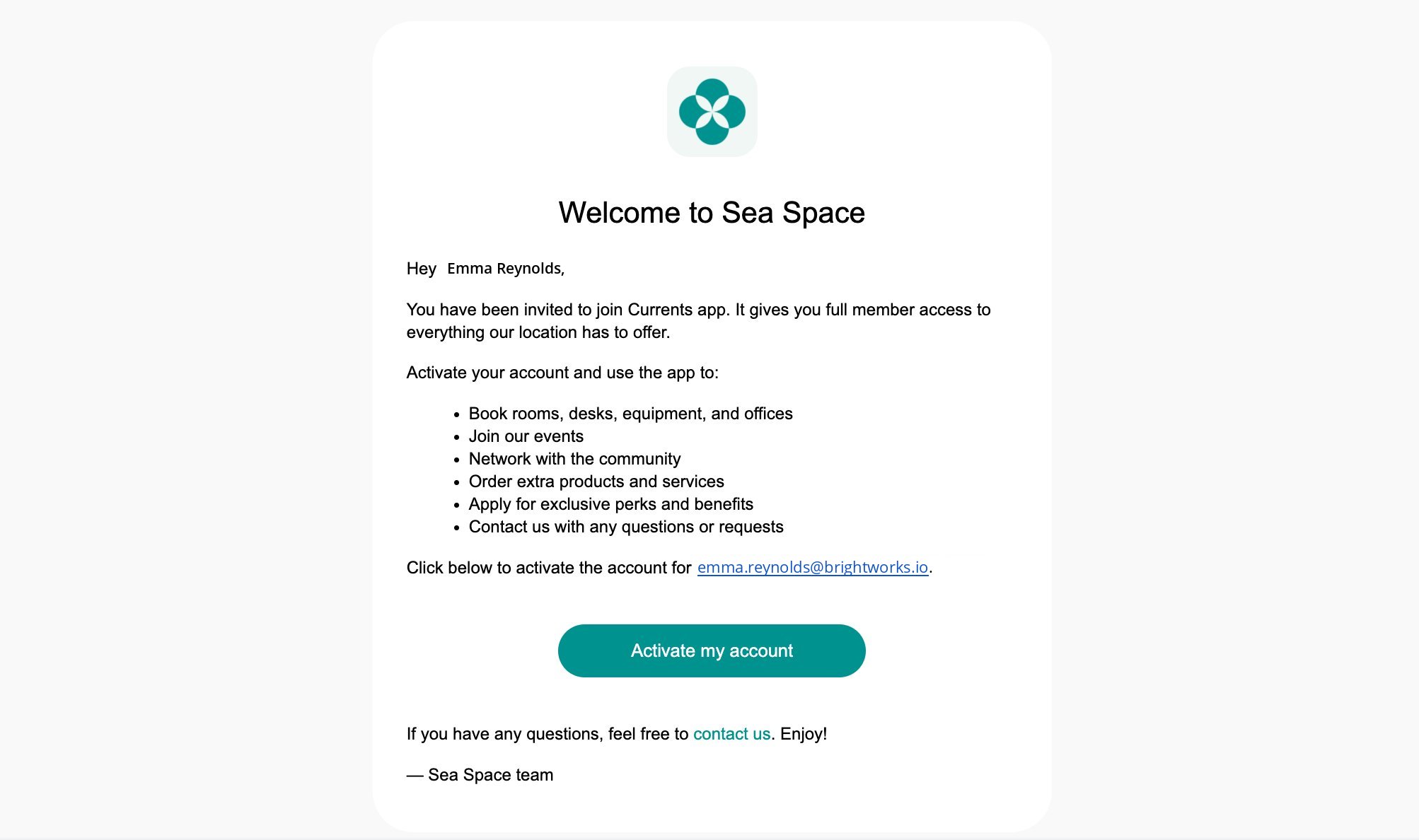
Members receive an invitation email to activate their account. They immediately gain access to bookings, credits, discounts, access, and all their plan entitlements. On their next subscription renewal date, Spacebring automatically issues their first invoice. [See the member onboarding experience](/member/onboarding)
Complete this step before creating subscriptions in Spacebring to avoid double-charging members.
1. 1–2 weeks before your next billing cycle, cancel all memberships or disable the invoicing schedule in your previous platform.
2. Notify members that future invoices will come from the new platform.
1. Prepare the following spreadsheet with members' personal details:
| | | | | |
| :---------- | :------------- | :------------ | :-------- | :--------------- |
| Column name | **First name** | **Last name** | **Email** | **Phone number** |
| Required | + | | + | |
2. Prepare a second file or spreadsheet with each member's subscription details — the membership plan or resource they're subscribed to, and any custom details or pricing.
3. Go to **Customers > (…)** top right **> Invite multiple users**, paste your member table, and send the mass invitation.
4. [Set a subscription](/billing/subscriptions/index) for each member by assigning your pre-created plans and resources.
We recommend setting the subscription **Start date** to when the member originally signed up — not the next billing date — to keep accurate records.
To avoid invoicing for the current period (if already billed via your old platform): set **Issue first invoice > Manually** when creating the subscription. The invoice will stay as a draft, so you can delete it. All subsequent invoices will be issued automatically from the next renewal date.
5. [Add billing details](/customer-management/billing) for each member, or ask members to add them after logging in.
If member subscriptions use standard plan settings with no custom details or billing adjustments, you can also select plans for each member and mass-create subscriptions directly from the invitation window.
### 1. Set up company profiles and subscriptions
Set up company profiles, subscriptions, and billing **before** inviting company members. When members receive their invitation, their access and entitlements will already be in place.
1. Prepare a spreadsheet with each company's name and subscription details.
2. Go to **Customers > (…) > Create multiple companies**, paste your list of company names to mass-create company profiles.
3. [Set a subscription](/billing/subscriptions/index) for each company by assigning your pre-created plans and resources.
We recommend setting the subscription **Start date** to when the company originally signed up — not the next billing date — to keep accurate records.
To avoid invoicing for the current period (if already billed via your old platform): set **Issue first invoice > Manually** when creating the subscription. The invoice will stay as a draft; and you can delete it. All subsequent invoices will be issued automatically from the next renewal date.
4. [Add billing details](/customer-management/billing) for each company, or ask company managers to add them after logging in.
If company subscriptions use standard plan settings with no custom details or billing adjustments, you can also select plans for each company and mass-create subscriptions directly in the company creation window.
### 2. Invite company members
1. Prepare a spreadsheet(s) with each company's member details.
| | | | | | | |
| :---------- | :------------- | :------------ | :-------- | :--------------- | :----------- | :------------- |
| Column name | **First name** | **Last name** | **Email** | **Phone number** | **Language** | **Company ID** |
| Required | + | | + | | | |
You can get each company's ID from **Analytics** > **Companies** report and paste them into your member spreadsheet — this will automatically assign members to the right company upon invitation.
2. Go to **Customers > (…)** top right **> Invite multiple users** and paste your member table.
3. Alternatively, open a specific company profile > **Mass invite** on the right panel to invite that company's members separately.
4. In each company profile, designate a company manager — this person receives invoices and manages billing on the company's behalf.
You can invite all members at once for a quick transition or invite members gradually over a few days if you have a large number of members. Either way, set a clear deadline — a defined timeline keeps the process organized and ensures a coordinated migration.
**Understand members' experience**
Members receive an invitation email to activate their account. They immediately gain access to bookings, credits, discounts, access, and all their plan entitlements. On their next subscription renewal date, Spacebring automatically issues their first invoice. [See the member onboarding experience](/member/onboarding)
 Transfer your customers' upcoming bookings from your previous platform using whichever method fits your situation.
**Best if:** your previous platform can be connected to Google Calendar.
**Prerequisites:**
1. Connect your Google Calendar to your previous platform.
2. In your Google account, [**create separate calendars**](https://support.google.com/calendar/answer/37095?hl=en) for each resource (room, desk, etc.). For example, a calendar called “Meeting room”, “Conference room”, “Hot desk zone”, etc.
3. Ensure all upcoming bookings are correctly synced to these corresponding calendars.
4. [**Add your resources**](/resource-management/set-up) to Spacebring.
**Steps:**
1. In Spacebring, go to **(…)** next to the location name > **Integrations > [Google Calendar](/integrations/bookings/google-calendar)**.
2. Connect the same Google account used in your previous platform and grant read/write access.
3. For each resource, go to **Resources > Rooms / Desks** (or **Parking / Equipment**) > **(…) > Edit**.
4. Under **Calendar sync**, link the corresponding Google Calendar and enable **Two-way sync**.
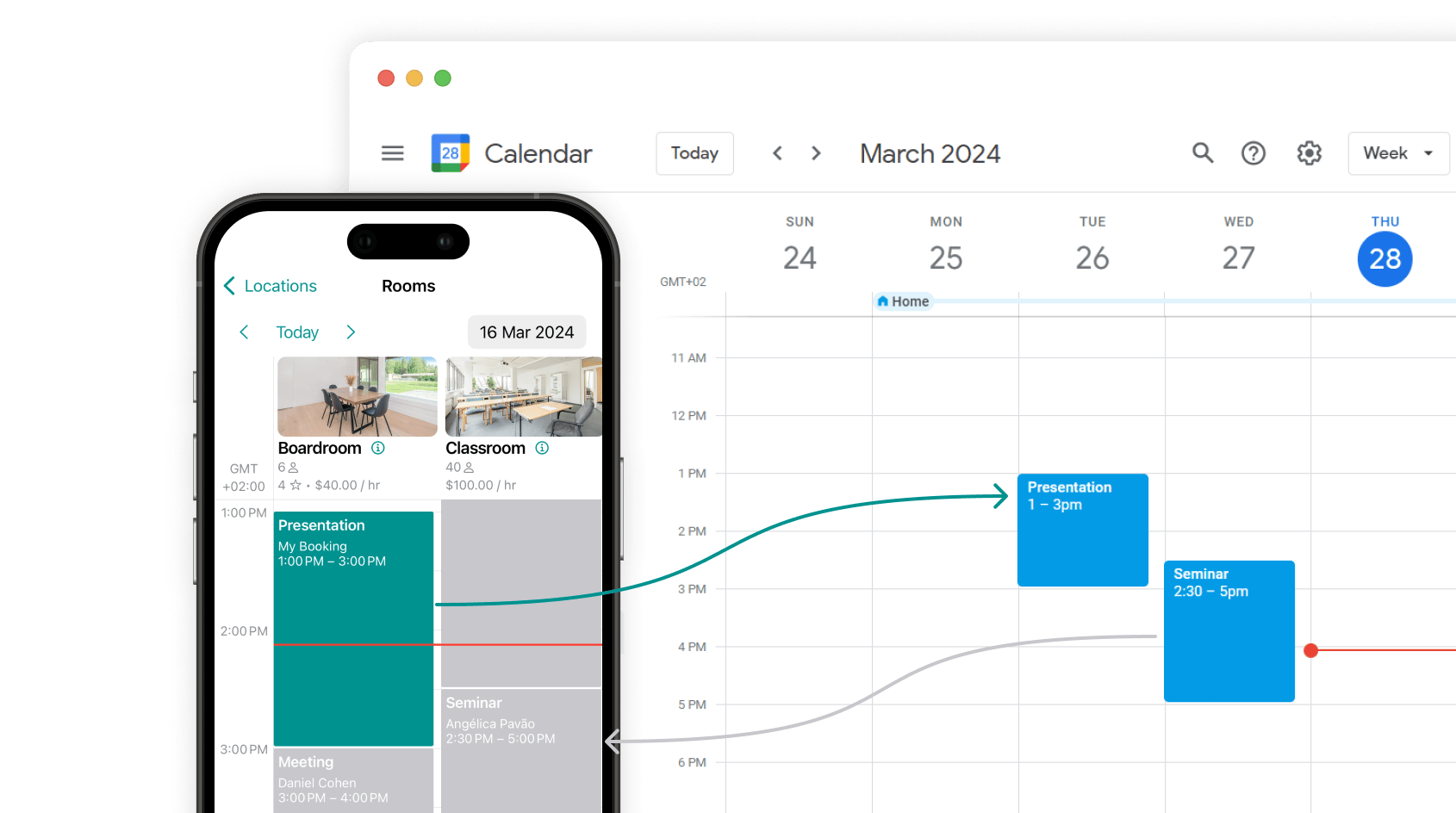
All upcoming bookings from your previous software will instantly and automatically appear in Spacebring.
Transfer your customers' upcoming bookings from your previous platform using whichever method fits your situation.
**Best if:** your previous platform can be connected to Google Calendar.
**Prerequisites:**
1. Connect your Google Calendar to your previous platform.
2. In your Google account, [**create separate calendars**](https://support.google.com/calendar/answer/37095?hl=en) for each resource (room, desk, etc.). For example, a calendar called “Meeting room”, “Conference room”, “Hot desk zone”, etc.
3. Ensure all upcoming bookings are correctly synced to these corresponding calendars.
4. [**Add your resources**](/resource-management/set-up) to Spacebring.
**Steps:**
1. In Spacebring, go to **(…)** next to the location name > **Integrations > [Google Calendar](/integrations/bookings/google-calendar)**.
2. Connect the same Google account used in your previous platform and grant read/write access.
3. For each resource, go to **Resources > Rooms / Desks** (or **Parking / Equipment**) > **(…) > Edit**.
4. Under **Calendar sync**, link the corresponding Google Calendar and enable **Two-way sync**.
All upcoming bookings from your previous software will instantly and automatically appear in Spacebring.
 Once all these bookings have passed, you can [disconnect the Google Calendar integration](/integrations/bookings/google-calendar#disconnect-the-google-calendar-integration) from Spacebring.
**Best if:** you want to import bookings from a CSV, Airtable, Excel, Google Sheets, or Slack.
**Steps:**
1. Log in to [**Zapier**](https://zapier.com/app/dashboard) and create a new Zap.
2. Follow [Zapier's guide](https://help.zapier.com/hc/en-us/articles/8496274335885-Transfer-existing-data-using-a-Zap) to transfer your bookings data.
3. On the “Action” step, select Spacebring > “Create Booking” event.
**Best for:** large-scale or complex migrations if you have technical resources or developers on your team.
1. Add the [API & Webhooks](/administration/api-&-webhooks) add-on to your Spacebring subscription.
2. Use the [developer documentation](/integrations/automation/zapier) to build a custom booking transfer automation.
This approach gives full control and flexibility for high-volume or complex migrations.
**Best if:** you have a small number of upcoming bookings.
1. Invite your members first (see Step 5).
2. Create each booking, selecting the relevant user in the **Booker** field and choosing **Free** as the payment method.\\
* For nonmember bookings, select **New nonmember** in the **Booker** field and enter their details.
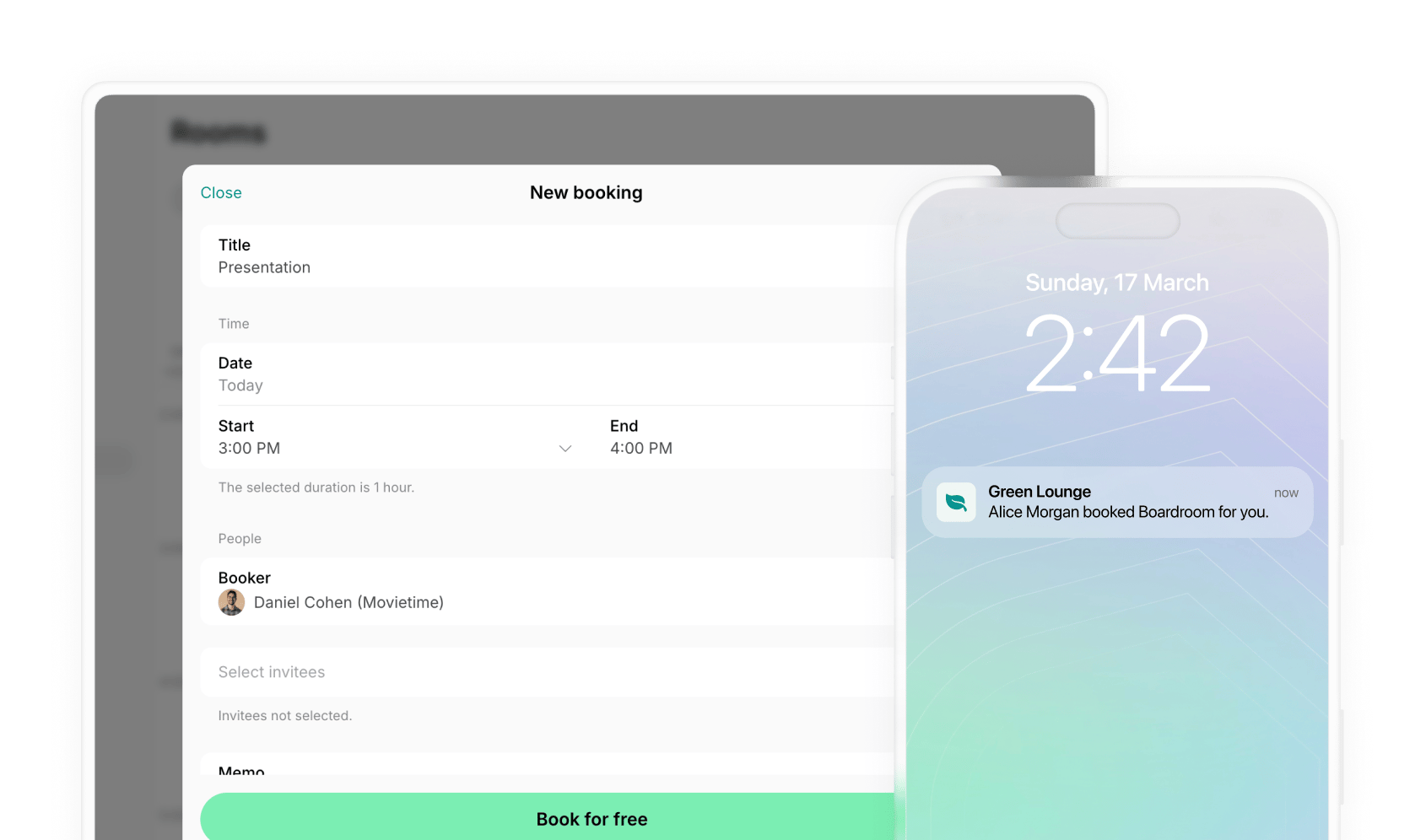
3. Customers will receive a notification for bookings you created for them.
Once all these bookings have passed, you can [disconnect the Google Calendar integration](/integrations/bookings/google-calendar#disconnect-the-google-calendar-integration) from Spacebring.
**Best if:** you want to import bookings from a CSV, Airtable, Excel, Google Sheets, or Slack.
**Steps:**
1. Log in to [**Zapier**](https://zapier.com/app/dashboard) and create a new Zap.
2. Follow [Zapier's guide](https://help.zapier.com/hc/en-us/articles/8496274335885-Transfer-existing-data-using-a-Zap) to transfer your bookings data.
3. On the “Action” step, select Spacebring > “Create Booking” event.
**Best for:** large-scale or complex migrations if you have technical resources or developers on your team.
1. Add the [API & Webhooks](/administration/api-&-webhooks) add-on to your Spacebring subscription.
2. Use the [developer documentation](/integrations/automation/zapier) to build a custom booking transfer automation.
This approach gives full control and flexibility for high-volume or complex migrations.
**Best if:** you have a small number of upcoming bookings.
1. Invite your members first (see Step 5).
2. Create each booking, selecting the relevant user in the **Booker** field and choosing **Free** as the payment method.\\
* For nonmember bookings, select **New nonmember** in the **Booker** field and enter their details.
3. Customers will receive a notification for bookings you created for them.
 1. On each member's next subscription renewal date, Spacebring automatically issues and delivers their invoice — via email, push notification, and in-app.
2. Members [pay the invoice](/billing/invoicing/pay-for-invoice) using their preferred payment method.
3. If your payment gateway is Stripe, WayForPay, plata by mono, ot Tap, the payment method is auto-saved as default for [automatic charging](/billing/subscriptions/invoice-auto-charge) on all future invoices.
If you exported customers' payment methods from your previous platform, you can also [add them](/billing/payments/payment-gateway#add-a-payment-method) to member accounts or ask members to add them in advance to enable auto-charge from the very first invoice.
4. Monitor invoice payments on the **Notifications** and **Billing** > [**Invoices**](/billing/invoicing/track-and-manage-invoices) pages.
The technical migration is only half the job. Here's how to get members actively using the new member portal.
**Incentivize early engagement**
* Give members extra [credits](/billing/credits-and-day-passes/credits#add-credits) or [day passes](/billing/credits-and-day-passes/day-passes#add-day-passes) beyond their plan allowance to encourage their first self-served bookings.
* Offer a temporary [discount](/billing/discounts/set-up) on bookings or any other purchases via the new member portal.
**Place QR codes around your space**
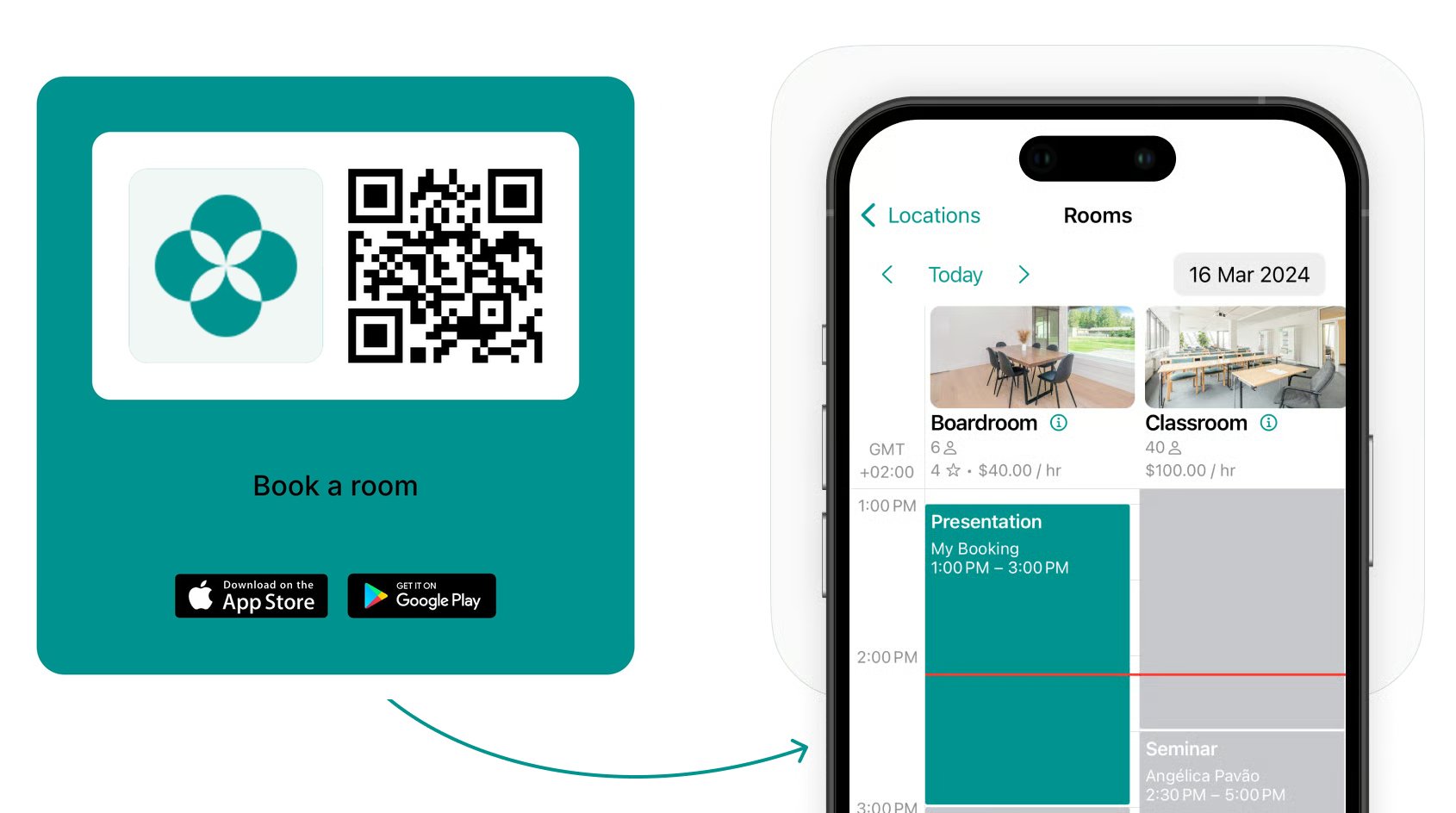
Generate [QR code stickers](/guides/promote-member-web-portal-and-mobile-app-with-qr-codes) for rooms, desks, mobile app download, or other key pages, and place them at reception, in meeting rooms, and in common areas. Members scan to access the portal, download the mobile app, book a resource, or make a purchase — boosting usage with no staff help.
1. On each member's next subscription renewal date, Spacebring automatically issues and delivers their invoice — via email, push notification, and in-app.
2. Members [pay the invoice](/billing/invoicing/pay-for-invoice) using their preferred payment method.
3. If your payment gateway is Stripe, WayForPay, plata by mono, ot Tap, the payment method is auto-saved as default for [automatic charging](/billing/subscriptions/invoice-auto-charge) on all future invoices.
If you exported customers' payment methods from your previous platform, you can also [add them](/billing/payments/payment-gateway#add-a-payment-method) to member accounts or ask members to add them in advance to enable auto-charge from the very first invoice.
4. Monitor invoice payments on the **Notifications** and **Billing** > [**Invoices**](/billing/invoicing/track-and-manage-invoices) pages.
The technical migration is only half the job. Here's how to get members actively using the new member portal.
**Incentivize early engagement**
* Give members extra [credits](/billing/credits-and-day-passes/credits#add-credits) or [day passes](/billing/credits-and-day-passes/day-passes#add-day-passes) beyond their plan allowance to encourage their first self-served bookings.
* Offer a temporary [discount](/billing/discounts/set-up) on bookings or any other purchases via the new member portal.
**Place QR codes around your space**
Generate [QR code stickers](/guides/promote-member-web-portal-and-mobile-app-with-qr-codes) for rooms, desks, mobile app download, or other key pages, and place them at reception, in meeting rooms, and in common areas. Members scan to access the portal, download the mobile app, book a resource, or make a purchase — boosting usage with no staff help.
 **FAQs**
Credit balances cannot be transferred automatically. After migration, [manually add credits](/billing/credits-and-day-passes/credits) to members' accounts as needed.
**FAQs**
Credit balances cannot be transferred automatically. After migration, [manually add credits](/billing/credits-and-day-passes/credits) to members' accounts as needed.