> ## Documentation Index
> Fetch the complete documentation index at: https://www.spacebring.com/docs/llms.txt
> Use this file to discover all available pages before exploring further.
# Dynamic pricing
> Configure automatic dynamic variation of prices for bookings based on demand to maximize revenue and occupancy
Dynamic pricing automatically adjusts the price of resource bookings based on its demand—helping you maximize revenue and optimize occupancy.
It automatically increases booking price during peak times, popular hours, or busy days of the week, and lowers price during low-demand periods to encourage discounted off-peak bookings.
The system continuously analyzes booking demand and automatically varies prices within limits you define. You stay in control by setting clear maximum (“Delta above”) and minimum (“Delta below”) price adjustments from the initial base price.
## Configure dynamic pricing
You can set dynamic pricing for rooms, desks, parking spaces, and equipment.
1. In the **Resources** module, go to the necessary page (**Rooms**/**Desks**/**Equipment**/**Parking**).
2. Create or [edit a resource](/docs/resource-management/edit-a-resource).
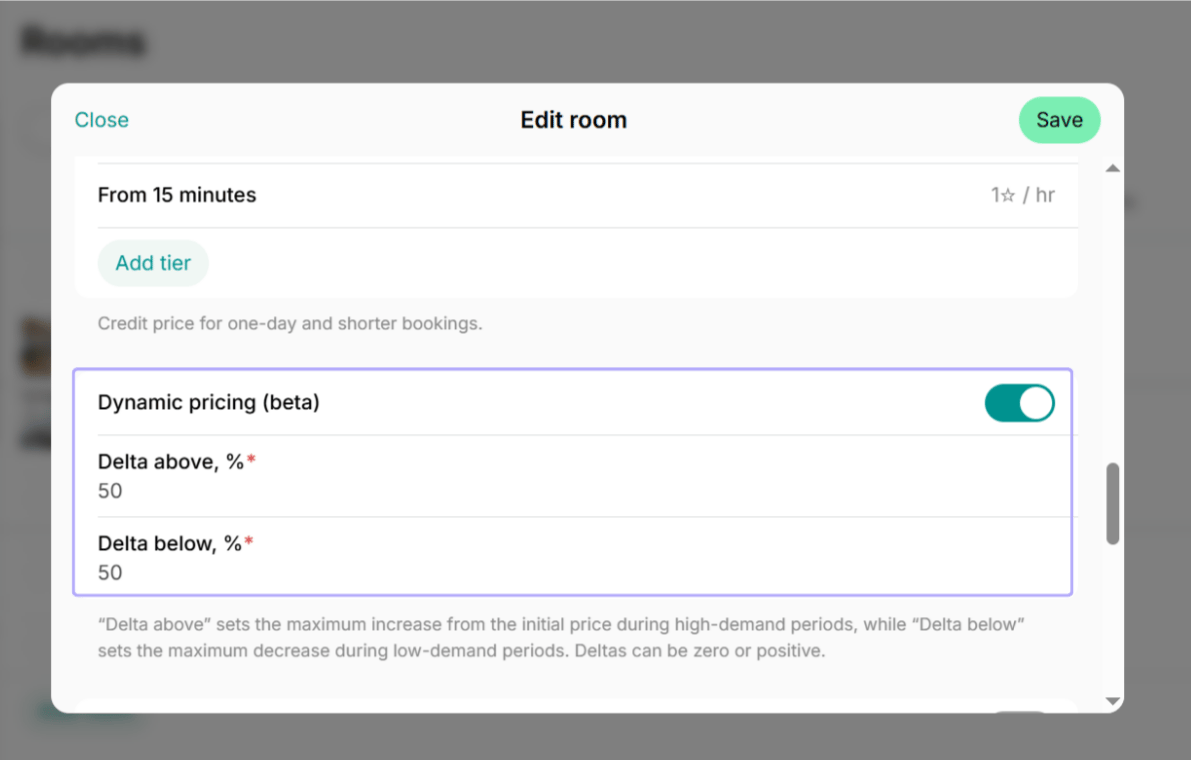
3. Enable the "Dynamic pricing (beta)" toggle.
4. Set your pricing deltas:
* **Delta above** – The maximum percentage the price can increase from the base price during high-demand periods.
* **Delta below** – The maximum percentage the price can decrease from the base price during low-demand periods.
### Example settings
| **Setup** | **Example** | **Result** |
| :----------------------------------------------------------------------------------------------------------------------------------------------------------------------------------- | :------------------------------------------------------------------ | :------------------------------------------ |
| To both increase and decrease the price dynamically, set:
Both **Delta above** and **Delta below** to positive percentages.
| Initial price = \$100 Delta above = 50% Delta below = 20% | Maximum price = \$150 Minimum price = \$80 |
| To only dynamically increase the price during high-demand periods and never decrease, set:
**Delta above** to a positive percentage.
**Delta below** to 0%
| Initial price = \$100 Delta above = 50% Delta below = 0% | Maximum price = \$150 Minimum price = \$100 |
| To only dynamically decrease the price during low-demand periods and never increase, set:
**Delta above** to 0%
**Delta below** to a positive percentage.
| Initial price = \$100 Delta above = 0% Delta below = 20% | Maximum price = \$100 Minimum price = \$80 |
Resources with dynamic pricing enabled display a “trending up” arrow on the **Resources** pages.
## What affects dynamic pricing
Dynamic pricing evaluates multiple factors and large data references to determine the most accurate rate for each booking, including:
* Utilization rate
* Time of day
* Day of the week
For example, if a meeting room is always fully booked on Wednesday but has a lower number of bookings on Thursday, its price will automatically be higher on Wednesday due to the high demand according to delta above you set.
## How dynamic pricing works
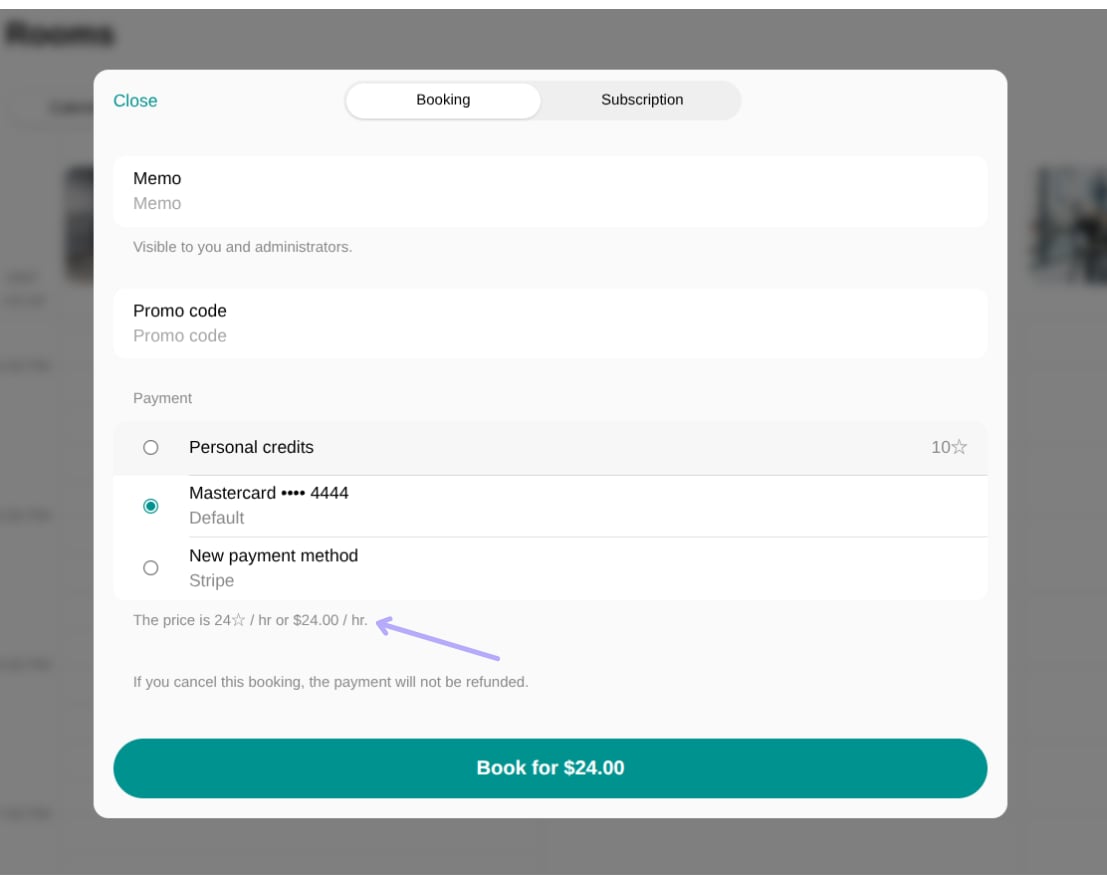
When a customer selects a date and time for their booking, the system automatically calculates the rate for their booking. This rate is shown on the booking page in the member web portal and mobile app.
* **Example (peak demand):** If your meeting room is usually \$20/hour, on a high-demand Wednesday, the user will see a higher price, such as \$24/hour. This price is calculated based on the high occupancy rate and is capped by the delta above percentage you set.
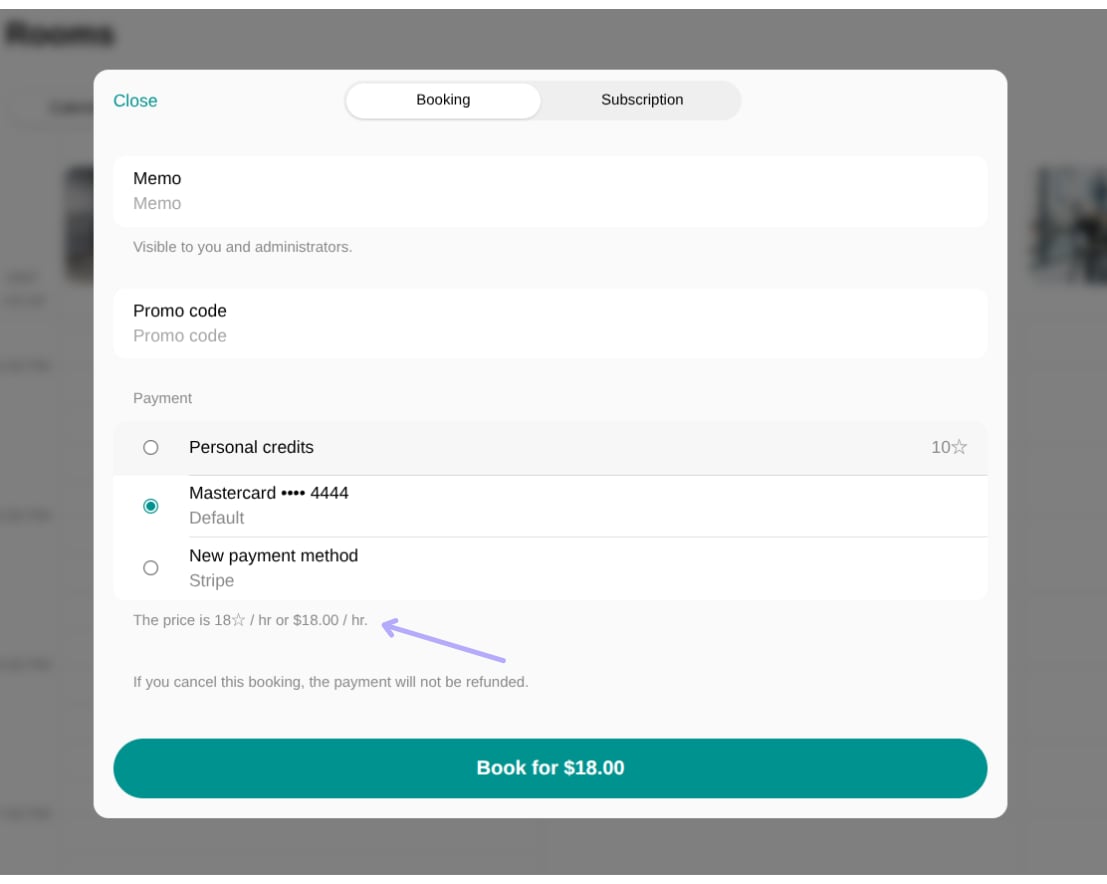
* **Example (off-peak demand):** Conversely, if you have low demand on a Thursday afternoon, the user may see a discounted price, such as \$18/hour, capped by your delta below setting.
Dynamic pricing applies to:
* Monetary and credit prices.
* Bookings made with all [payment methods](/docs/billing/payments/payment-methods) except day passes (payment gateways, external payments, payments with **Invoice**, and credits).
* Bookings made by members, nonmembers, and administrators.
* All [price tiers](/docs/resource-management/set-up-pricing) for the configured resource.
Dynamic pricing does not apply to:
* Bookings made with [day passes](/docs/billing/credits-and-day-passes/day-passes)
* [Subscriptions](/docs/billing/plans/immediate-sign-ups)
If a booking is made with credits or an **Invoice** payment method and [rescheduled](/docs/resource-management/resources/bookings#edit-a-booking), the price is recalculated and extra charged or refunded based on demand during the new selected time.
## Best practices
* Only enable dynamic pricing if your space or a specific resource is established and already has a history of bookings. If a new space or new resource has zero booking history, the system will calculate low demand, causing the price to always drop to the minimum delta below limit.
* Dynamic pricing relies exclusively on data created and logged within Spacebring. Ensure all resource bookings—including those made manually by administrators or received via other platforms—are recorded in Spacebring's calendar. If external bookings are missed, the system will register low occupancy, leading to incorrectly low prices.
 ### Example settings
| **Setup** | **Example** | **Result** |
| :----------------------------------------------------------------------------------------------------------------------------------------------------------------------------------- | :------------------------------------------------------------------ | :------------------------------------------ |
| To both increase and decrease the price dynamically, set:
### Example settings
| **Setup** | **Example** | **Result** |
| :----------------------------------------------------------------------------------------------------------------------------------------------------------------------------------- | :------------------------------------------------------------------ | :------------------------------------------ |
| To both increase and decrease the price dynamically, set: 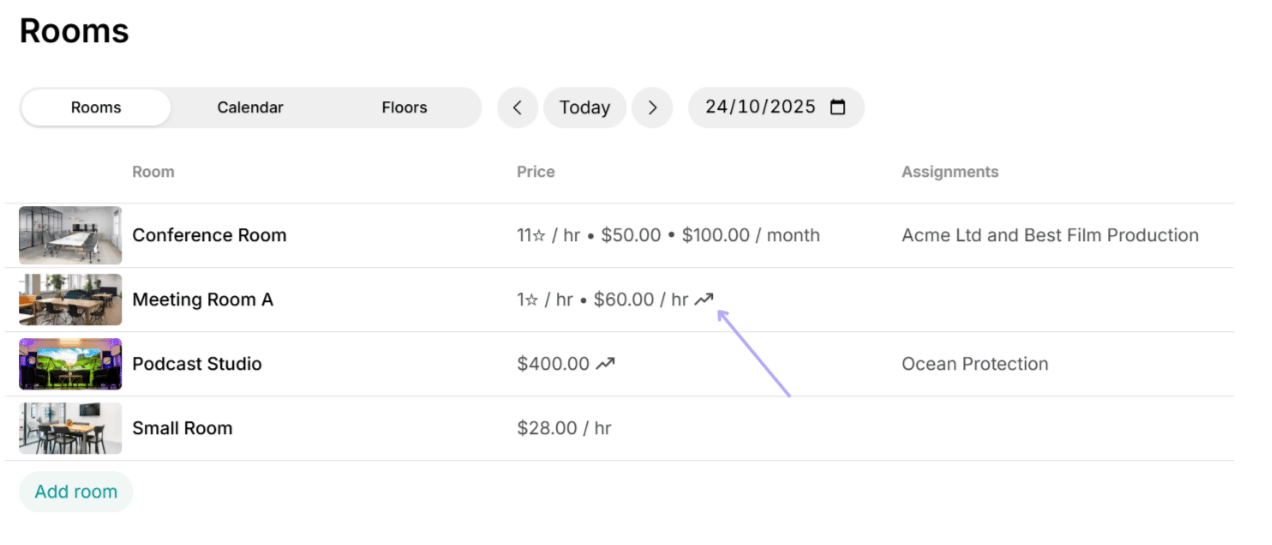 ## What affects dynamic pricing
Dynamic pricing evaluates multiple factors and large data references to determine the most accurate rate for each booking, including:
* Utilization rate
* Time of day
* Day of the week
For example, if a meeting room is always fully booked on Wednesday but has a lower number of bookings on Thursday, its price will automatically be higher on Wednesday due to the high demand according to delta above you set.
## How dynamic pricing works
When a customer selects a date and time for their booking, the system automatically calculates the rate for their booking. This rate is shown on the booking page in the member web portal and mobile app.
* **Example (peak demand):** If your meeting room is usually \$20/hour, on a high-demand Wednesday, the user will see a higher price, such as \$24/hour. This price is calculated based on the high occupancy rate and is capped by the delta above percentage you set.
## What affects dynamic pricing
Dynamic pricing evaluates multiple factors and large data references to determine the most accurate rate for each booking, including:
* Utilization rate
* Time of day
* Day of the week
For example, if a meeting room is always fully booked on Wednesday but has a lower number of bookings on Thursday, its price will automatically be higher on Wednesday due to the high demand according to delta above you set.
## How dynamic pricing works
When a customer selects a date and time for their booking, the system automatically calculates the rate for their booking. This rate is shown on the booking page in the member web portal and mobile app.
* **Example (peak demand):** If your meeting room is usually \$20/hour, on a high-demand Wednesday, the user will see a higher price, such as \$24/hour. This price is calculated based on the high occupancy rate and is capped by the delta above percentage you set.
 * **Example (off-peak demand):** Conversely, if you have low demand on a Thursday afternoon, the user may see a discounted price, such as \$18/hour, capped by your delta below setting.
 Dynamic pricing applies to:
* Monetary and credit prices.
* Bookings made with all [payment methods](/docs/billing/payments/payment-methods) except day passes (payment gateways, external payments, payments with **Invoice**, and credits).
* Bookings made by members, nonmembers, and administrators.
* All [price tiers](/docs/resource-management/set-up-pricing) for the configured resource.
Dynamic pricing does not apply to:
* Bookings made with [day passes](/docs/billing/credits-and-day-passes/day-passes)
* [Subscriptions](/docs/billing/plans/immediate-sign-ups)
If a booking is made with credits or an **Invoice** payment method and [rescheduled](/docs/resource-management/resources/bookings#edit-a-booking), the price is recalculated and extra charged or refunded based on demand during the new selected time.
## Best practices
* Only enable dynamic pricing if your space or a specific resource is established and already has a history of bookings. If a new space or new resource has zero booking history, the system will calculate low demand, causing the price to always drop to the minimum delta below limit.
* Dynamic pricing relies exclusively on data created and logged within Spacebring. Ensure all resource bookings—including those made manually by administrators or received via other platforms—are recorded in Spacebring's calendar. If external bookings are missed, the system will register low occupancy, leading to incorrectly low prices.
Dynamic pricing applies to:
* Monetary and credit prices.
* Bookings made with all [payment methods](/docs/billing/payments/payment-methods) except day passes (payment gateways, external payments, payments with **Invoice**, and credits).
* Bookings made by members, nonmembers, and administrators.
* All [price tiers](/docs/resource-management/set-up-pricing) for the configured resource.
Dynamic pricing does not apply to:
* Bookings made with [day passes](/docs/billing/credits-and-day-passes/day-passes)
* [Subscriptions](/docs/billing/plans/immediate-sign-ups)
If a booking is made with credits or an **Invoice** payment method and [rescheduled](/docs/resource-management/resources/bookings#edit-a-booking), the price is recalculated and extra charged or refunded based on demand during the new selected time.
## Best practices
* Only enable dynamic pricing if your space or a specific resource is established and already has a history of bookings. If a new space or new resource has zero booking history, the system will calculate low demand, causing the price to always drop to the minimum delta below limit.
* Dynamic pricing relies exclusively on data created and logged within Spacebring. Ensure all resource bookings—including those made manually by administrators or received via other platforms—are recorded in Spacebring's calendar. If external bookings are missed, the system will register low occupancy, leading to incorrectly low prices.