> ## Documentation Index
> Fetch the complete documentation index at: https://www.spacebring.com/docs/llms.txt
> Use this file to discover all available pages before exploring further.
# Hourly desk bookings
> Set up hourly, half-day, and full-day desk booking options, and learn how users book and how the system automatically calculates seat availability by time slot
Spacebring solutions help you optimize desk usage and provide customers with flexible booking options. You can set up hourly, half-day, and full-day booking options for a single desk, each with customized pricing tiers.
## Prerequisites
* Make sure only one desk remains by removing any existing full-day or half-day bookings. For example, if you have **Open Space full-day** and **Open Space half-day** desks, leave only the **Open Space** desk.
* Before deleting any resources used for hourly desk bookings, ensure you [download your customers' future bookings](/docs/analytics/reports) associated with the resources you plan to delete.
* Check [use cases on using price tiers](/docs/resource-management/set-up-pricing) to learn how to set them up in the app further.
## Enable hourly desk bookings
Administrators go to Spacebring and follow these steps to set up different pricing options for desks:
1. Navigate to the **Resources** > **Desks** page.
2. Start [editing](/docs/resource-management/edit-a-resource) one of your desks, or [create a new one](/docs/resource-management#desks) if necessary.
3. Choose the availability increment (the smallest bookable time slot), minimum, and maximum booking time. For example, if your desk can be booked for a minimum of 1 hour, choose "1 hour" in the "Min time."
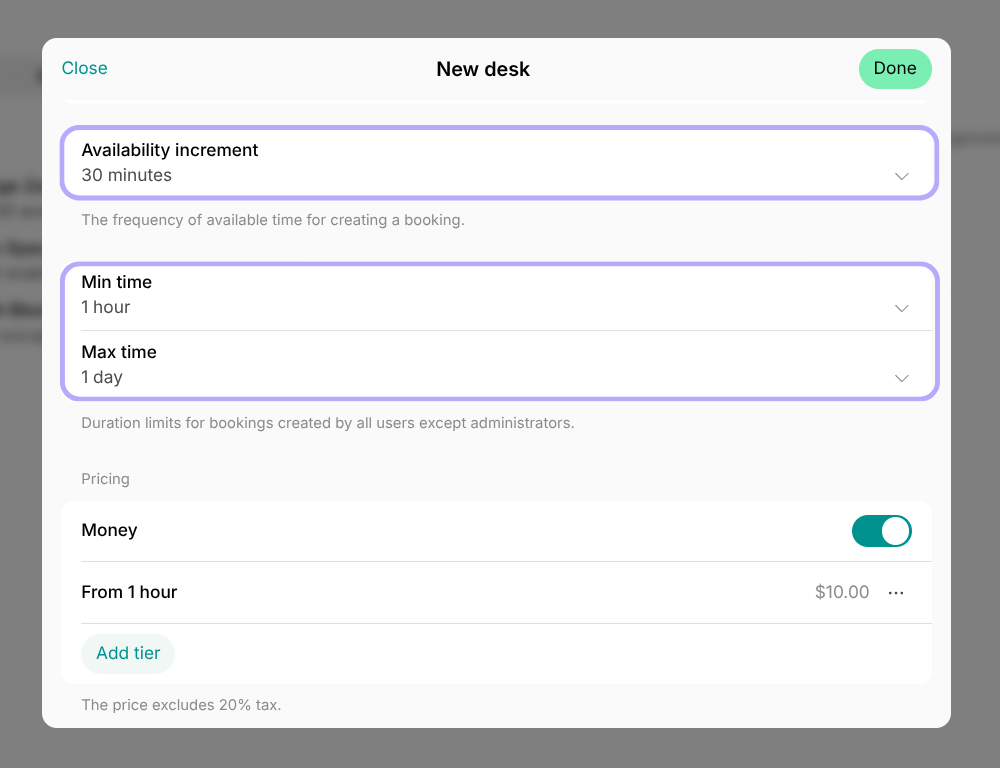 4. [Add price tiers](/docs/resource-management/set-up-pricing) to define fees for hourly, half-day, and full-day bookings, and save your change.
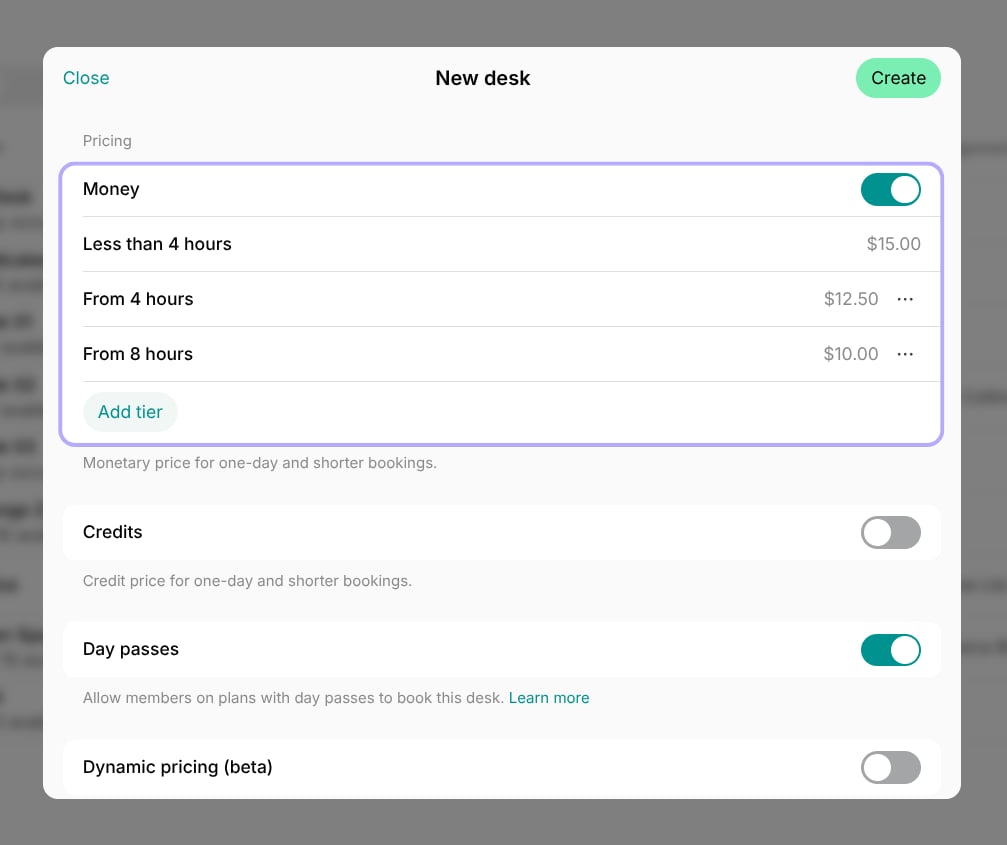 5. If you have deleted any of your resources that had user bookings for future dates, [recreate those bookings](/docs/member/bookings/book-a-desk) for your customers.
## How users view desk booking options
Users can view desk booking options by navigating to **Locations** > **Desks**, selecting the desired desk, and checking the **Pricing** section.
5. If you have deleted any of your resources that had user bookings for future dates, [recreate those bookings](/docs/member/bookings/book-a-desk) for your customers.
## How users view desk booking options
Users can view desk booking options by navigating to **Locations** > **Desks**, selecting the desired desk, and checking the **Pricing** section.
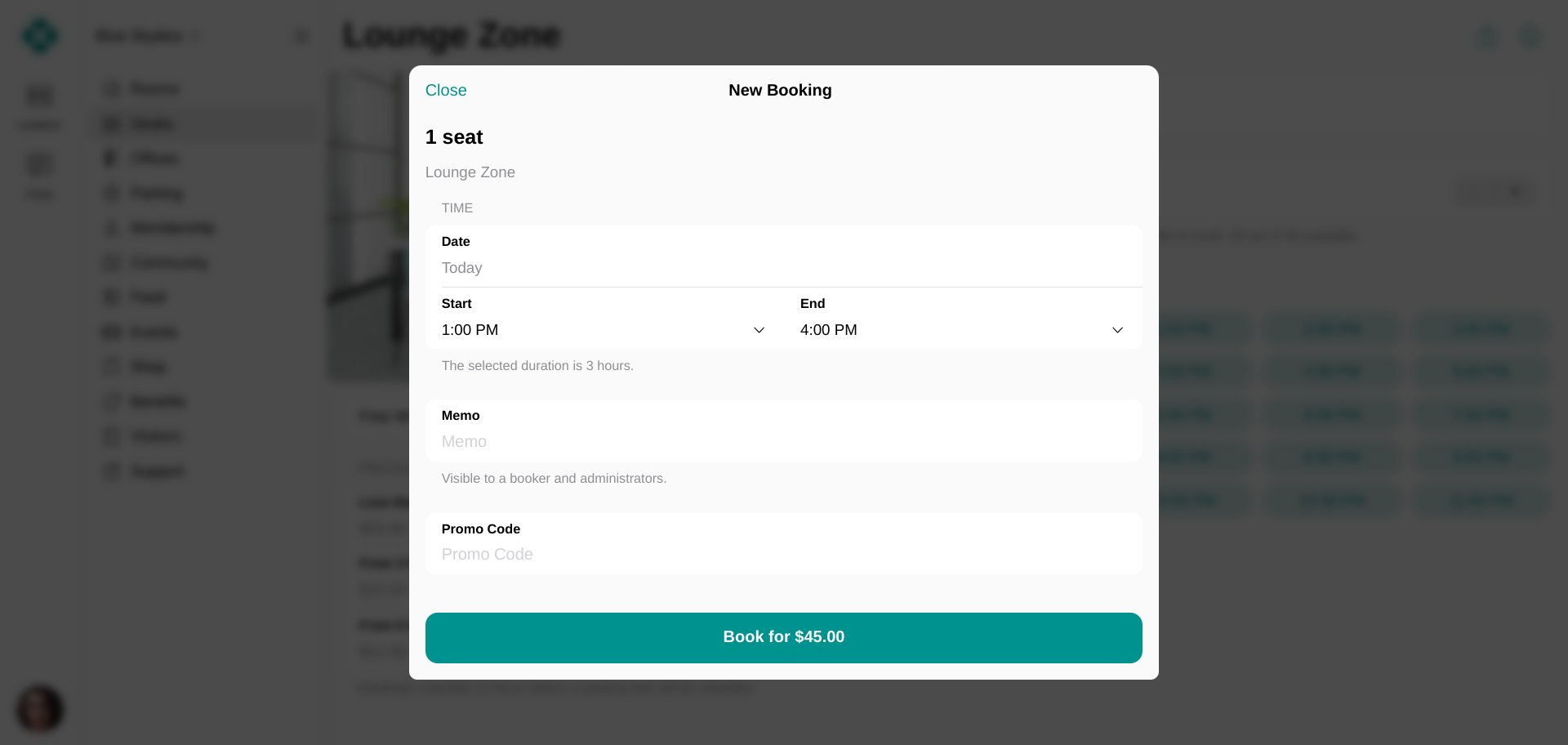
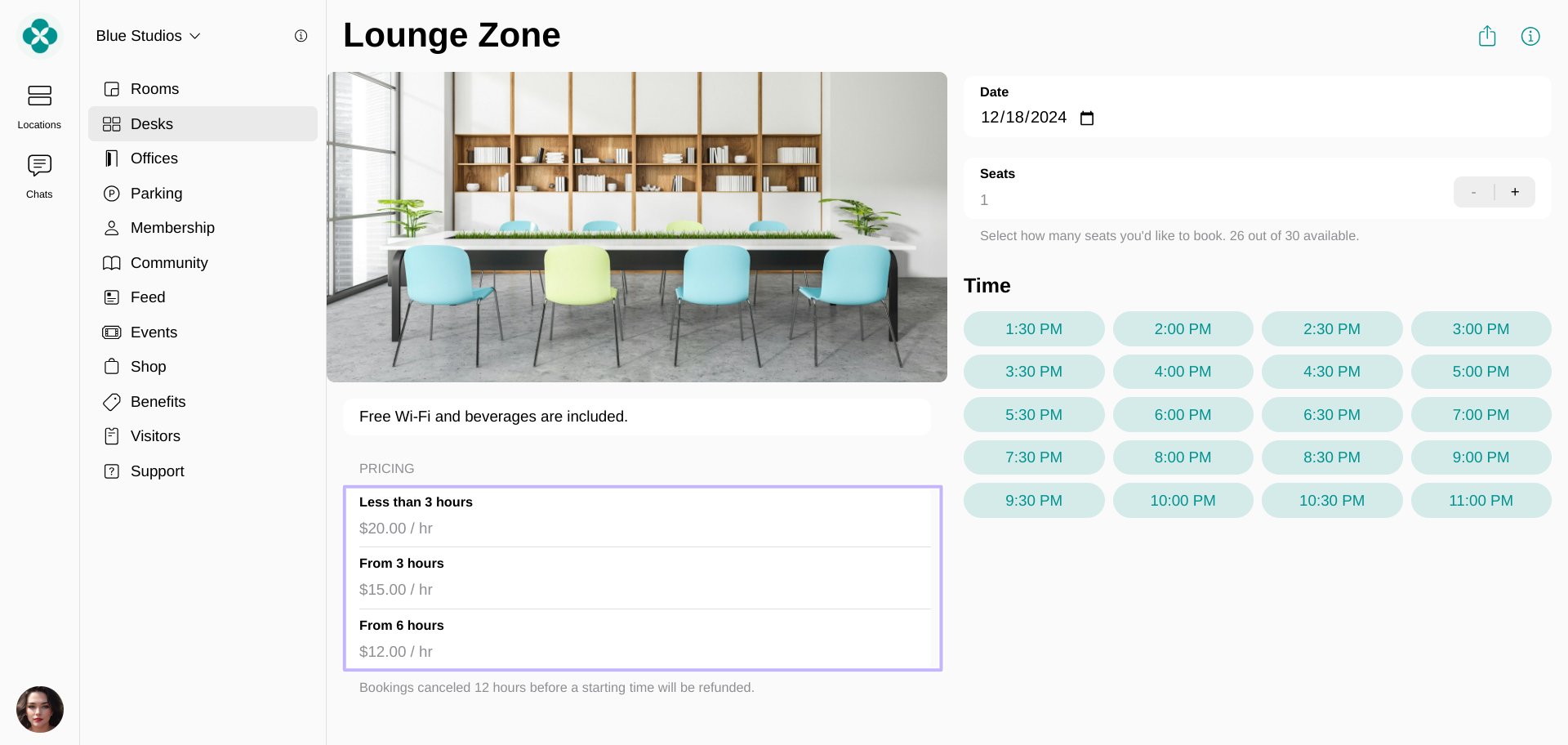 The price is automatically calculated and is based on the booking duration.
 ## How desk availability works for hourly bookings
When desks are set up for hourly bookings, their availability shows the maximum number of seats that can be booked at the same time in each time slot.
For example:
* Your desk has 10 seats in total.
* 2 seats are booked for half a day from 8 AM to 2 PM.
## How desk availability works for hourly bookings
When desks are set up for hourly bookings, their availability shows the maximum number of seats that can be booked at the same time in each time slot.
For example:
* Your desk has 10 seats in total.
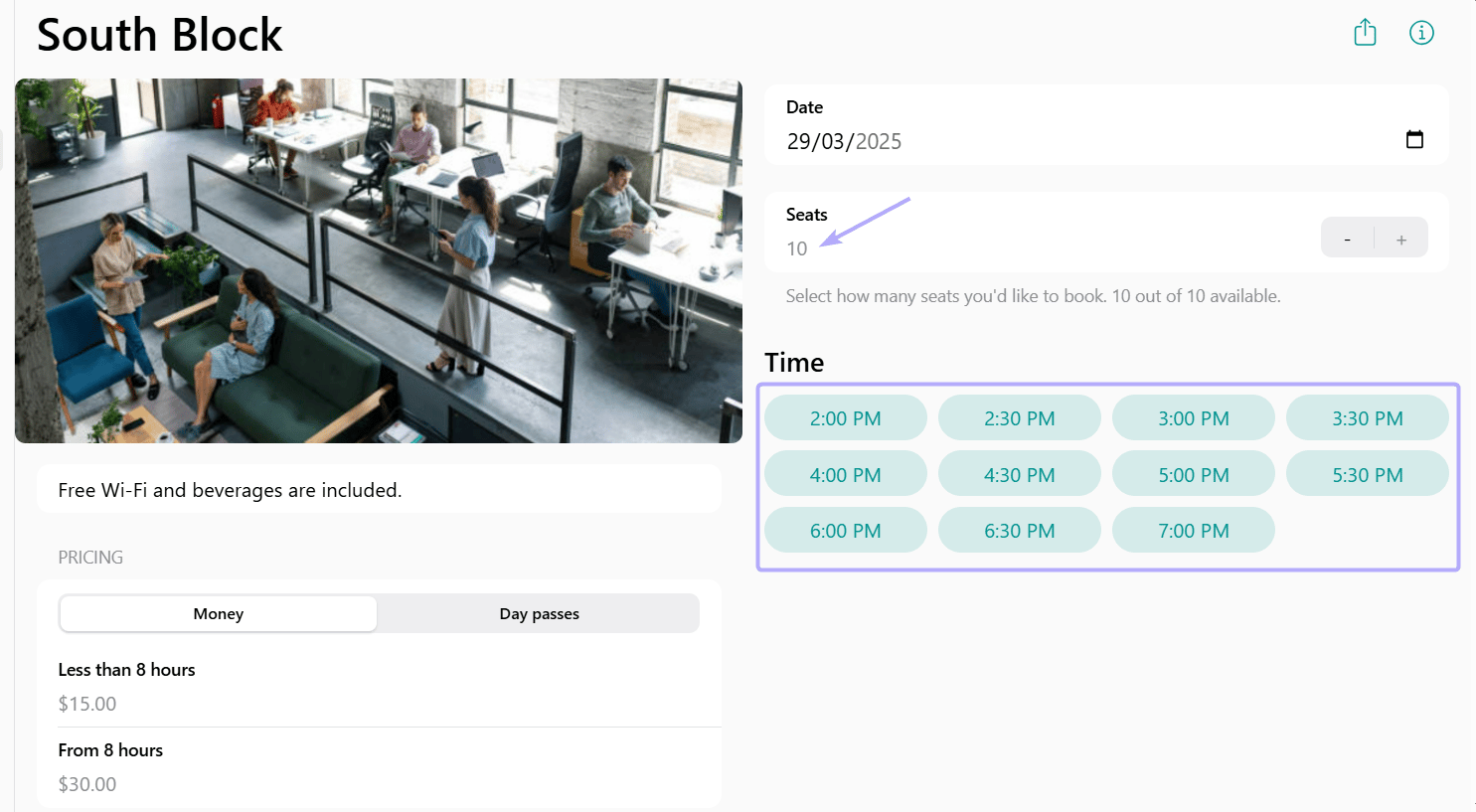
* 2 seats are booked for half a day from 8 AM to 2 PM.
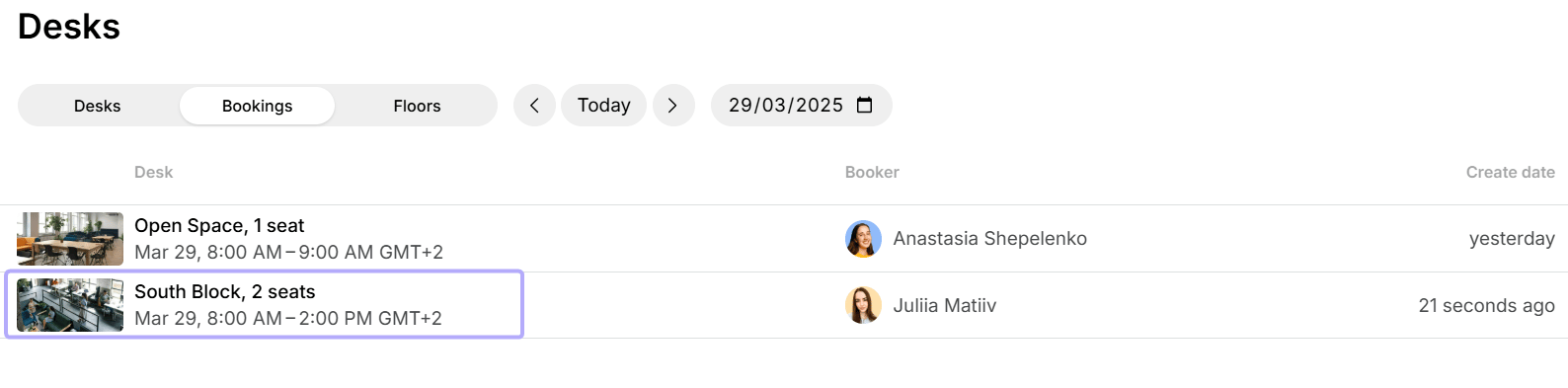 * The desk will still show 10 out of 10 seats available because users can still book all 10 seats—but only for the afternoon.
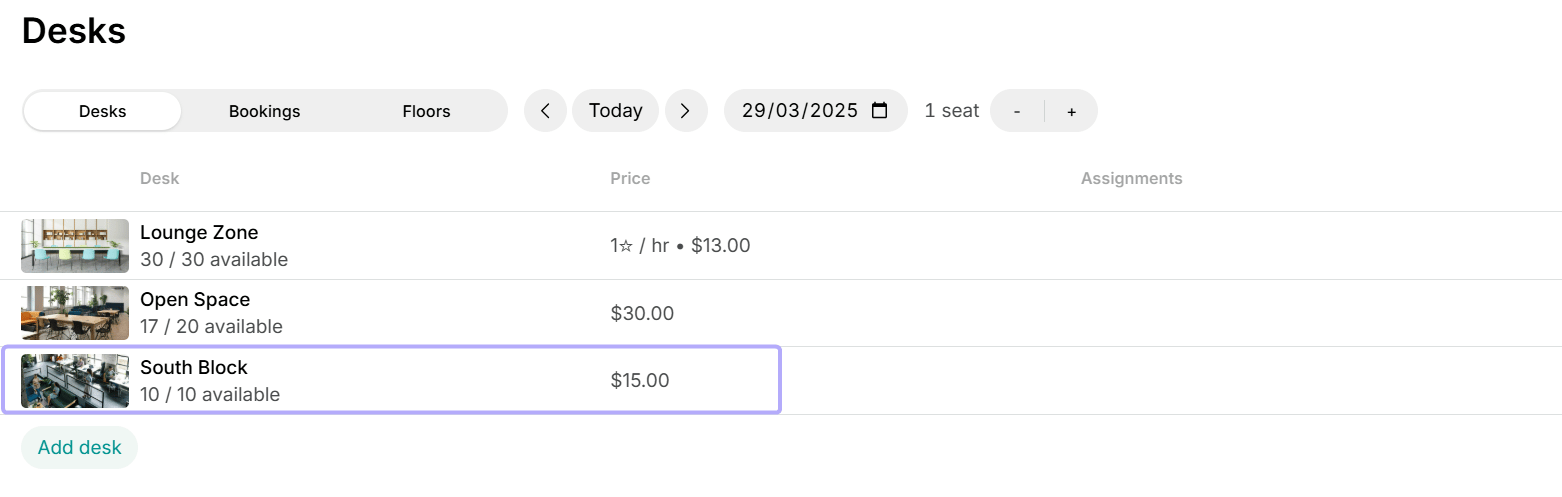 * When a user selects the number of seats needed, the system displays only those slots where the required seats are available. This ensures there are no booking conflicts while making the best use of your available desks.
 * When 1 or more seats are booked for the entire day, the total seat availability shows the reduced number accordingly.