> ## Documentation Index
> Fetch the complete documentation index at: https://www.spacebring.com/docs/llms.txt
> Use this file to discover all available pages before exploring further.
# Manage resource rentals with assignments
> Learn how to assign resources to customers for rental and track all rentals using the Assignments timeline
The Assignments timeline gives you a visual overview of all current and upcoming long-term rentals for your resources—such as private offices or dedicated desks. Assignments are created automatically when a customer subscribes to a rental or when an administrator sets up a subscription on their behalf.
## Assign resources to customers for rental
1. Go to the **Customers** page.
2. Open the customer's profile.
3. [Create](/docs/billing/subscriptions) or [edit](/docs/billing/subscriptions/edit) their subscription.
4. Add a subscription item.
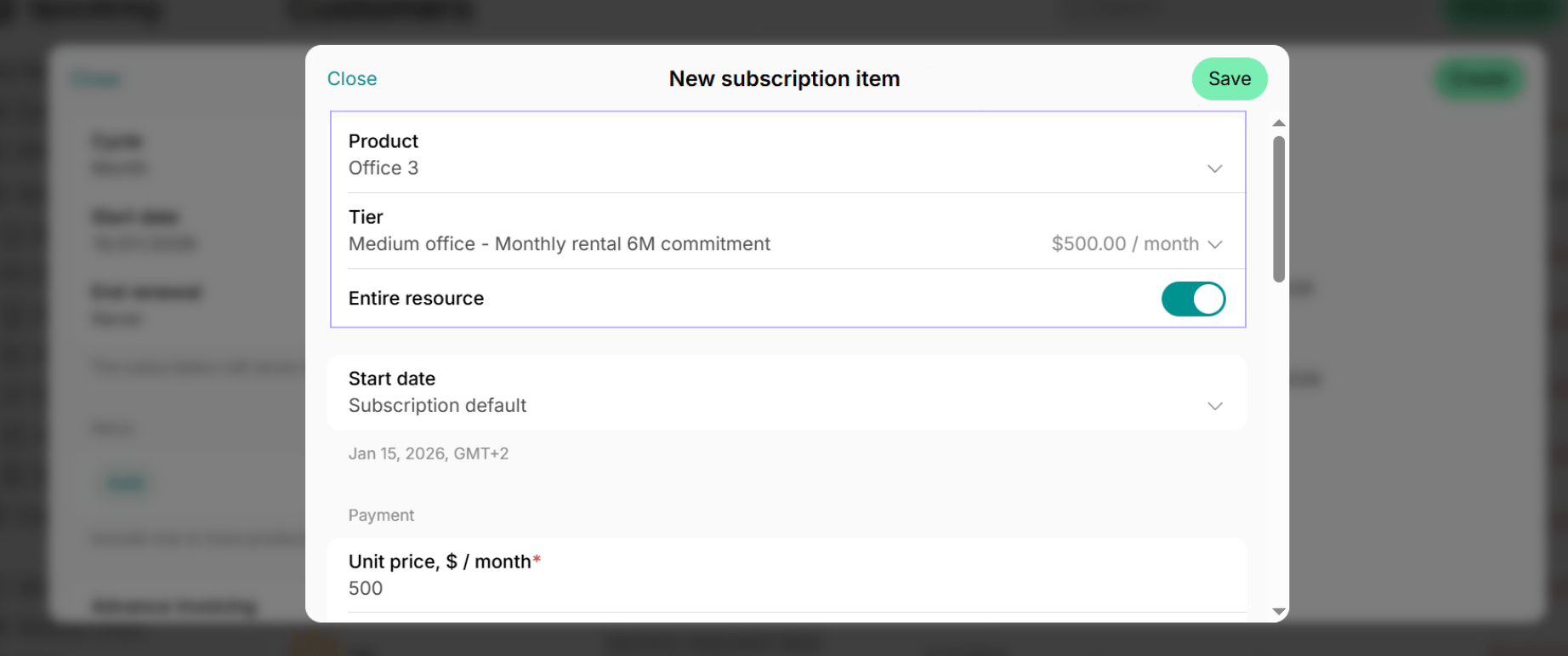
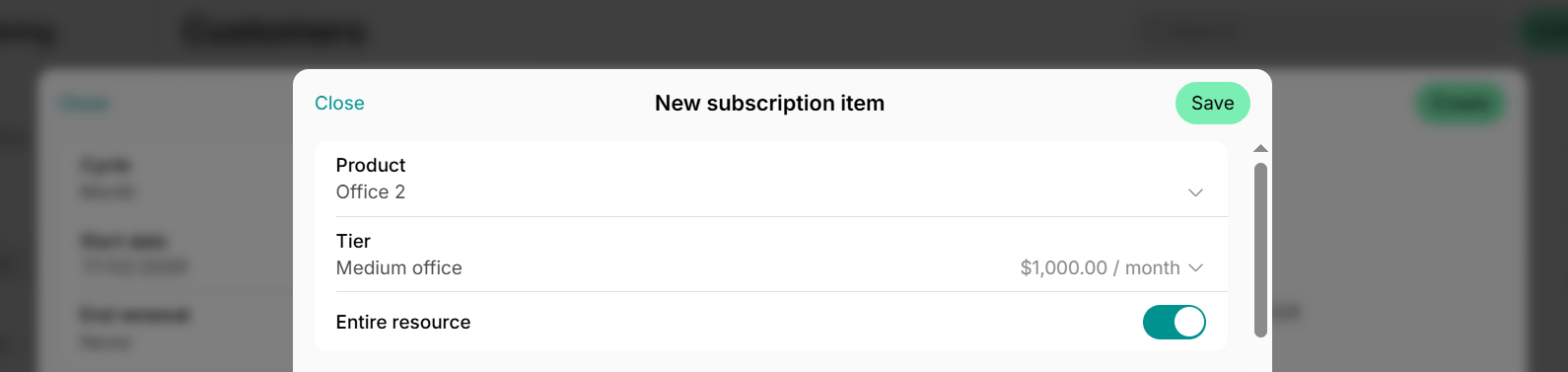
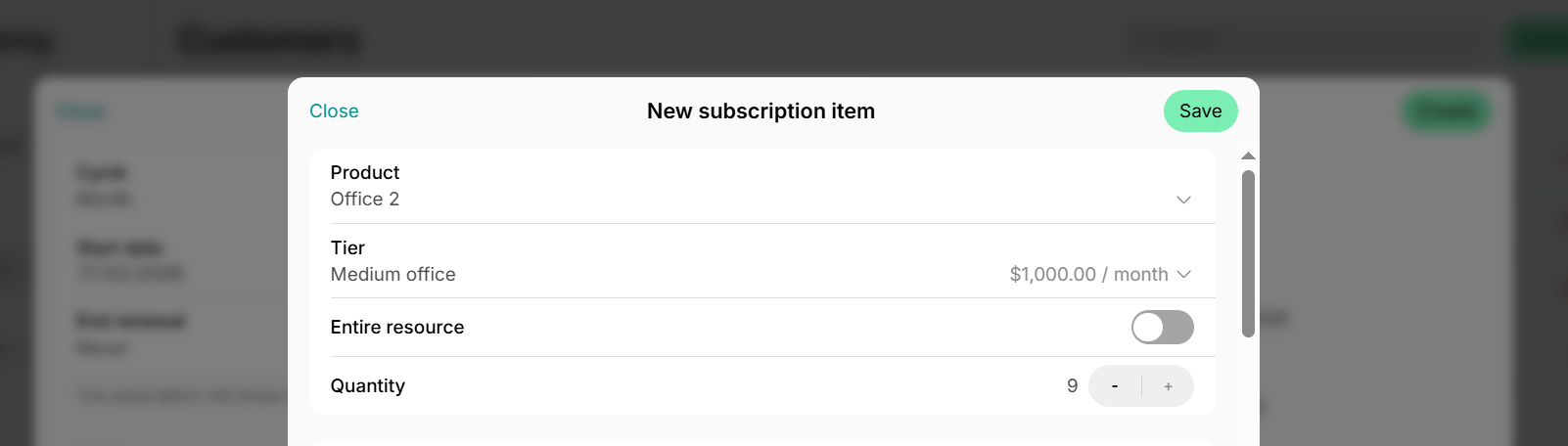
5. In the ****Product**** field, select a resource (desk, office, etc.).
6. In the ****Tier**** field, choose one of the tiers (pricing options) you added in this resource settings or choose **Custom** to set up the subscription details from scratch.
7. Manage the ****Entire resource**** switch to choose the appropriate assignment type.
If you [configured long-term rental pricing](/docs/resource-management/set-up-pricing) in resource settings, customers can also [apply or sign up](/docs/resource-management/rentals/rental-applications-or-immediate-sign-ups) for a resource rental by themselves and be automatically assigned to the resource.
### Entire resource
Use it when:
* The customer rents the whole resource, such as:
* A private office
* A meeting room
* A parking lot rented entirely by one company
* A company rents a full resource (e.g., an office or desk), and their company members book seats internally ([hybrid office setup](/docs/resource-management/rentals/hybrid-offices)).
Entire resource assignment makes the resource only visible to the assigned customer and hides it from others.
### Quantity of seats/spaces/items
Use it when:
* The customer rents part of a shared resource, such as:
* 1 dedicated desk in a 10-desk zone
* 3 parking spaces in a 20-space lot
With this assignment type, customers don't book their seat(s) during their subscription period; they're reserved for the customer.
* You want the resource to remain visible to others even when fully occupied.
* In this case, leave the “Entire resource” option off and assign the maximum quantity instead.
* The resource will appear with the “Fully occupied” label, allowing others to express interest for future availability.
How resources assigned by seats appear to others:
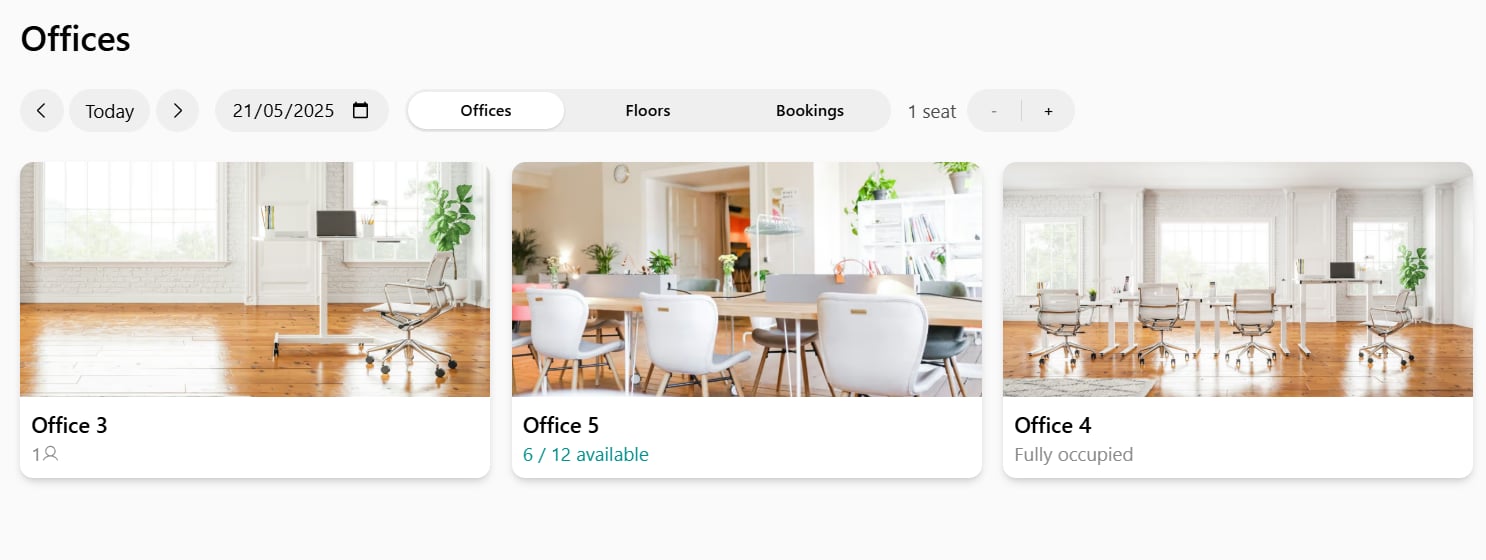
* Users see the the reduced resource availability (e.g., 7/10 available).
* When capacity reaches zero, it remains visible with a “Fully occupied” label.
Rooms can only be assigned entirely.
## Track all rentals on the Assignments page
1. Go to **Resources** > **Assignments.**
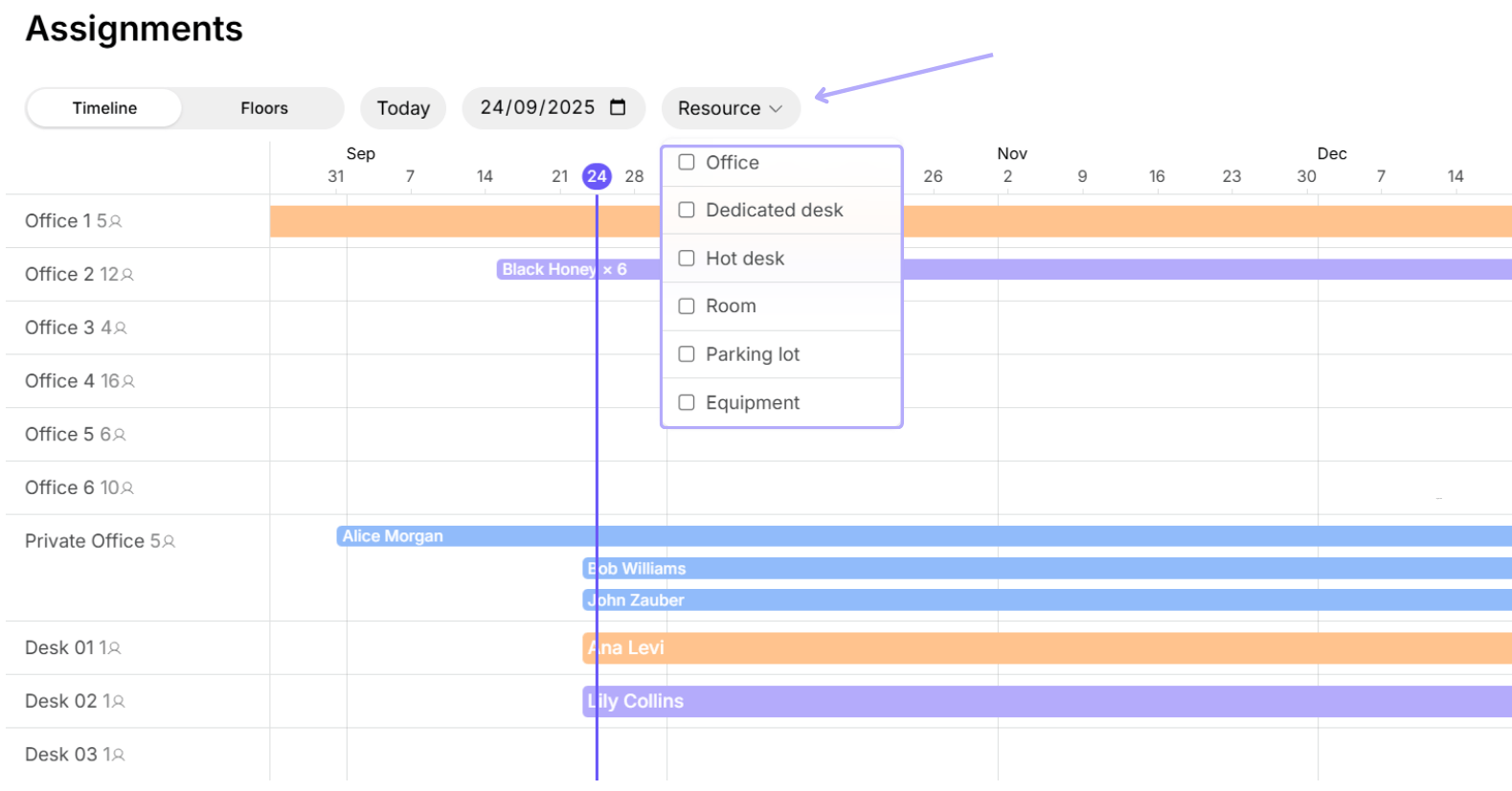
2. The **Assignments** page gives you a consolidated overview of:
* Resources rented by customers
* Resources available for rental
### How to read the Assignments timeline
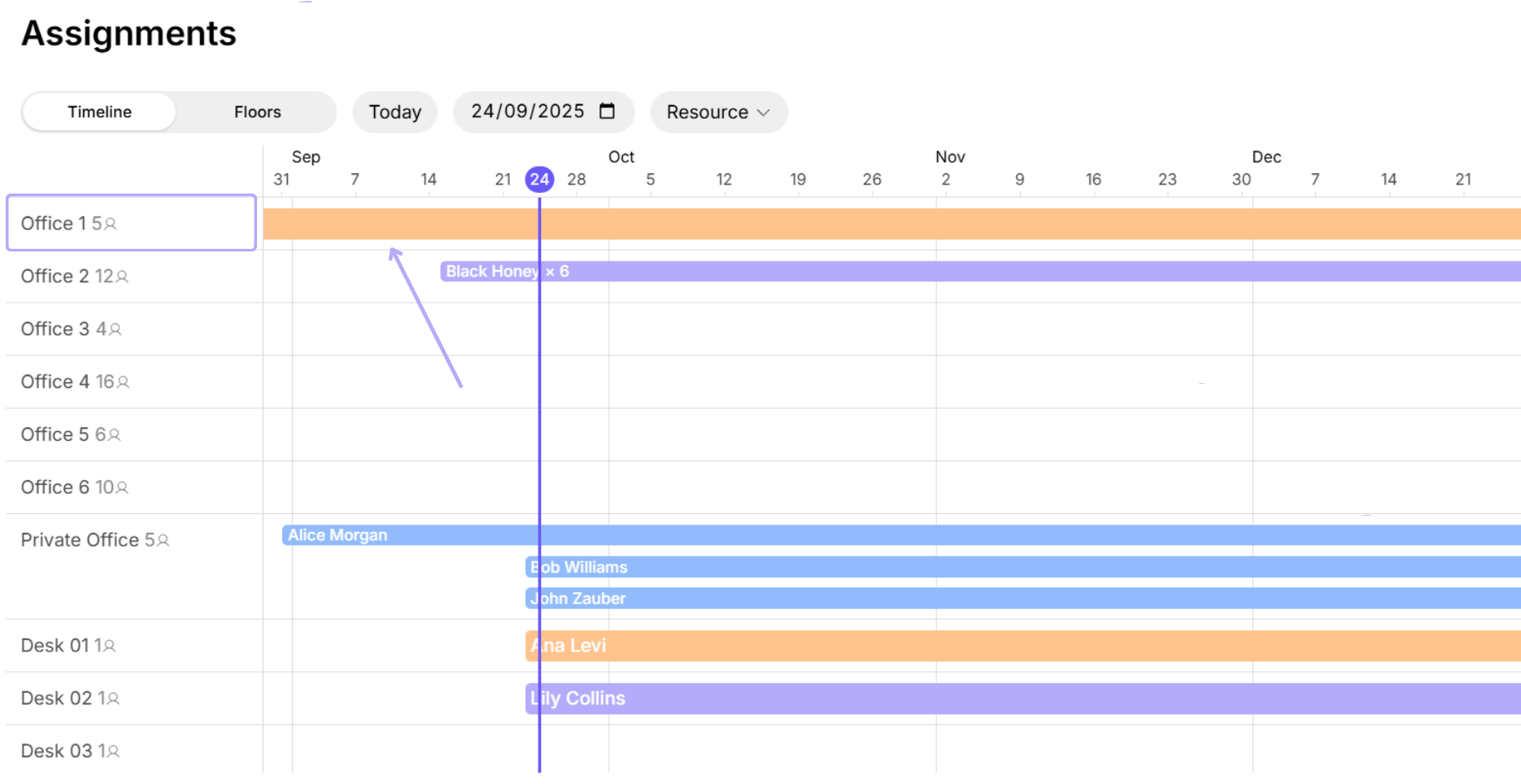
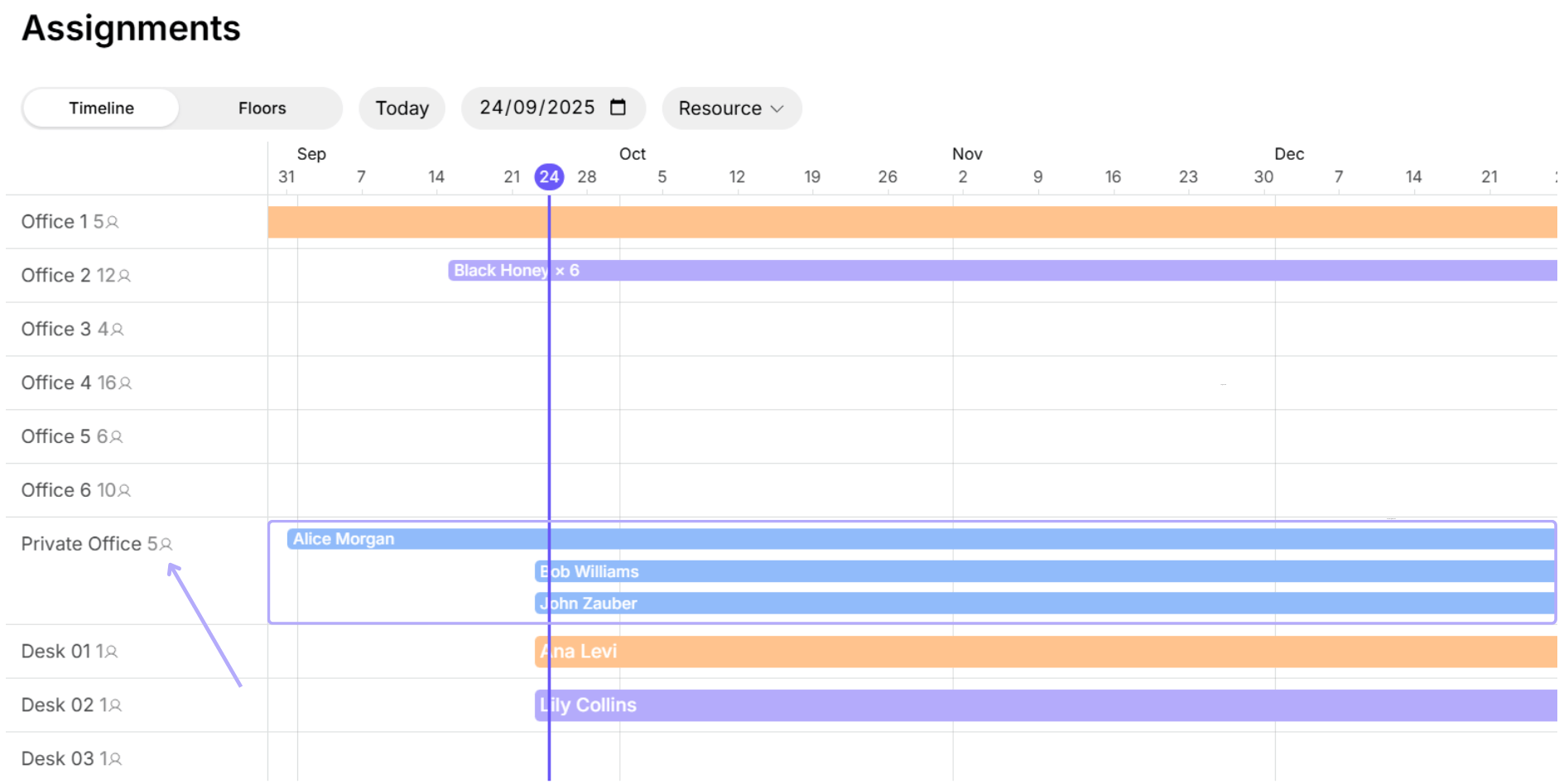
Each resource appears with one or more bars labeled with customer names.
* Thicker bars indicate entire resource assignments.
* Thinner bars indicate a [partial assignments](#quantity-of-seatsspacesitems).
* The number of seats is shown next to the custome name
* If no seat count appeaars on the thin bar, it means 1 seat is assigned.
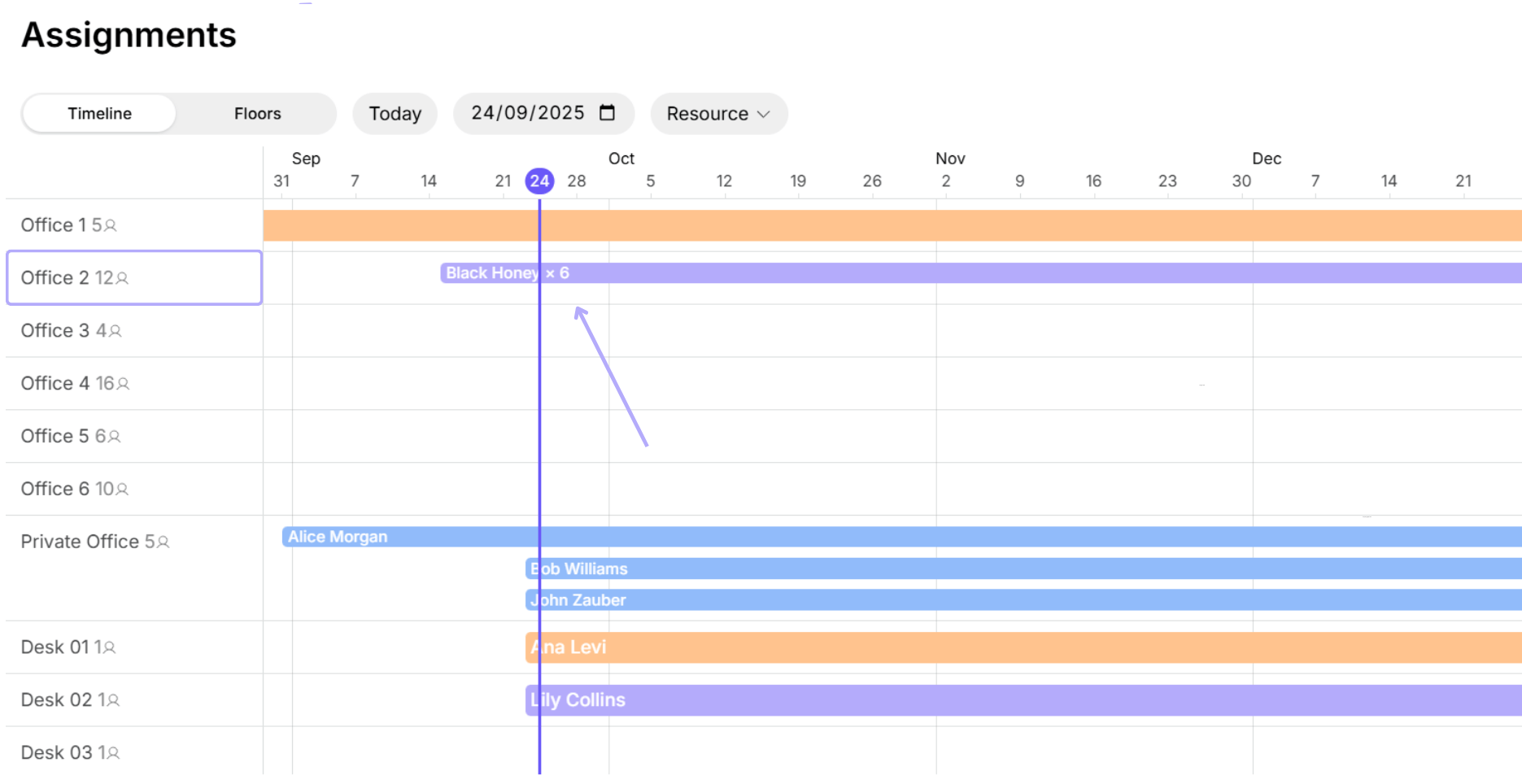
* Each resource shows its total capacity, so you can quickly assess remaining availability.
* Unassigned resources appear without any bars.
**Interactions:**
* Hover over a bar to see the rental period. It is shown based on the customer's [subscription item dates](/docs/billing/subscriptions).
* For subscriptions with no end date set, the assignment shows as indefinite.
* Click a bar to open the customer's profile and [manage the resource assignment](/docs/billing/subscriptions/edit) in their subscription.
* Click a resource to view its details.
**Filters:**
* Use the date picker to check availability for a specific period.
* Use the “Resource” dropdown to view all resources or filter resource of a specific type.
The **Assignments** page is for tracking long-term rentals only — it does not include bookings.
### Floor plan view
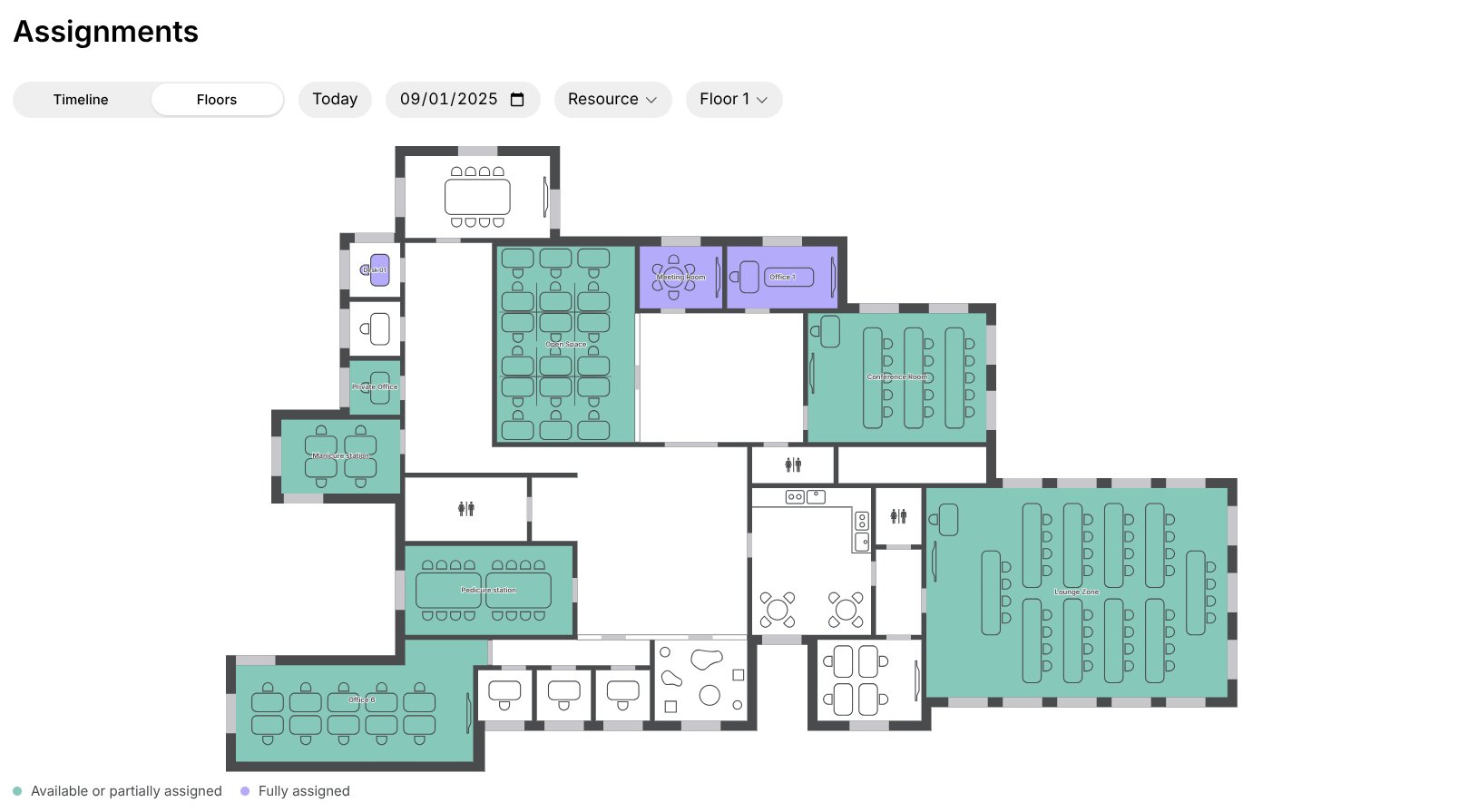
* If you have the [Floor plans add-on](/docs/resource-management/floors/use-floor-plans), switch to **Floors** to see the occupancy visually on floor plans.
* Use **Date** or “Resource” filters to check availability for a specific period or a specific resource type.
You can also view real-time availability and current assignments for each resource directly on the **Resources** pages.
**FAQs**
There are several reasons why you see this error message:
* One or more resources you've added to the customer's subscription are already assigned to another customer for the same dates or with a different assignment type (entire VS by seat).
To fix this:
1. Go to **Resources > Assignments.**
2. Find the resource in question to check:Tip:
* Which customer it's assigned to
* The assignment dates
* The type of assignment
* Wide bars = Entire resource assignments
* Narrow bars = Assignments by seats
3. To fix the conflict:
* Choose a different resource for your new customer.
* Go to the profile of the customer who currently rents this resource and remove this resource from their subscription items or adjust its dates.
* If the resource is assigned by seat, assign the resource to the new customer by seat as well.
1. Go to the **Resources > Assignments** page or to **Rooms, Desks, Offices, Parking,** or **Equipment** pages.
2. Find the resource in question to check which customer it's assigned to.
3. Go to the **Customers** page.
4. Open the profile of the customer who currently rents this resource.
5. [Edit their subscription](/docs/billing/subscriptions/edit) and remove this resource from their subscription items, or adjust the item's rental dates to assign it to a new customer for other dates.
One-off bookings, used for short-term or day-specific use, are not displayed on the **Assignments** timeline. These can be tracked on respective resource pages or through [analytics tools.](/docs/analytics)
If a customer rents an office, desks, room, or other resource on specific days of the week (for example, only on Mondays and Tuesdays), you can:
1. [Create a recurring booking](/docs/resource-management/resources/bookings#create-a-recurring-booking) for that resource for the customer with the required schedule.
2. [Create a subscription](/docs/billing/subscriptions) to invoice the customer for rental.
* Do not select this resource as a subscription item — this would assign it to the customer every day.
* Instead, choose a plan or **Custom** option to set up the charge only.
 ### Quantity of seats/spaces/items
Use it when:
* The customer rents part of a shared resource, such as:
* 1 dedicated desk in a 10-desk zone
* 3 parking spaces in a 20-space lot
### Quantity of seats/spaces/items
Use it when:
* The customer rents part of a shared resource, such as:
* 1 dedicated desk in a 10-desk zone
* 3 parking spaces in a 20-space lot
 How resources assigned by seats appear to others:
* Users see the the reduced resource availability (e.g., 7/10 available).
* When capacity reaches zero, it remains visible with a “Fully occupied” label.
How resources assigned by seats appear to others:
* Users see the the reduced resource availability (e.g., 7/10 available).
* When capacity reaches zero, it remains visible with a “Fully occupied” label.
 * Thinner bars indicate a [partial assignments](#quantity-of-seatsspacesitems).
* The number of seats is shown next to the custome name
* If no seat count appeaars on the thin bar, it means 1 seat is assigned.
* Thinner bars indicate a [partial assignments](#quantity-of-seatsspacesitems).
* The number of seats is shown next to the custome name
* If no seat count appeaars on the thin bar, it means 1 seat is assigned.
 * Each resource shows its total capacity, so you can quickly assess remaining availability.
 * Unassigned resources appear without any bars.
**Interactions:**
* Hover over a bar to see the rental period. It is shown based on the customer's [subscription item dates](/docs/billing/subscriptions).
* For subscriptions with no end date set, the assignment shows as indefinite.
* Click a bar to open the customer's profile and [manage the resource assignment](/docs/billing/subscriptions/edit) in their subscription.
* Click a resource to view its details.
**Filters:**
* Use the date picker to check availability for a specific period.
* Use the “Resource” dropdown to view all resources or filter resource of a specific type.
* Unassigned resources appear without any bars.
**Interactions:**
* Hover over a bar to see the rental period. It is shown based on the customer's [subscription item dates](/docs/billing/subscriptions).
* For subscriptions with no end date set, the assignment shows as indefinite.
* Click a bar to open the customer's profile and [manage the resource assignment](/docs/billing/subscriptions/edit) in their subscription.
* Click a resource to view its details.
**Filters:**
* Use the date picker to check availability for a specific period.
* Use the “Resource” dropdown to view all resources or filter resource of a specific type.