> ## Documentation Index
> Fetch the complete documentation index at: https://www.spacebring.com/docs/llms.txt
> Use this file to discover all available pages before exploring further.
# Bookings
> Learn how administrators book rooms, desks, offices, parking, equipment, and make recurring bookings; how users and administrators edit and cancel bookings, and how the system processes refunds and extra charges
Administrators can create, edit, and cancel bookings for customers or themselves in the admin portal.
## Create a booking
1. Open the relevant resource page — **Rooms**, **Desks**, **Offices**, **Parking**, or **Equipment**.
2. Start creating a booking.
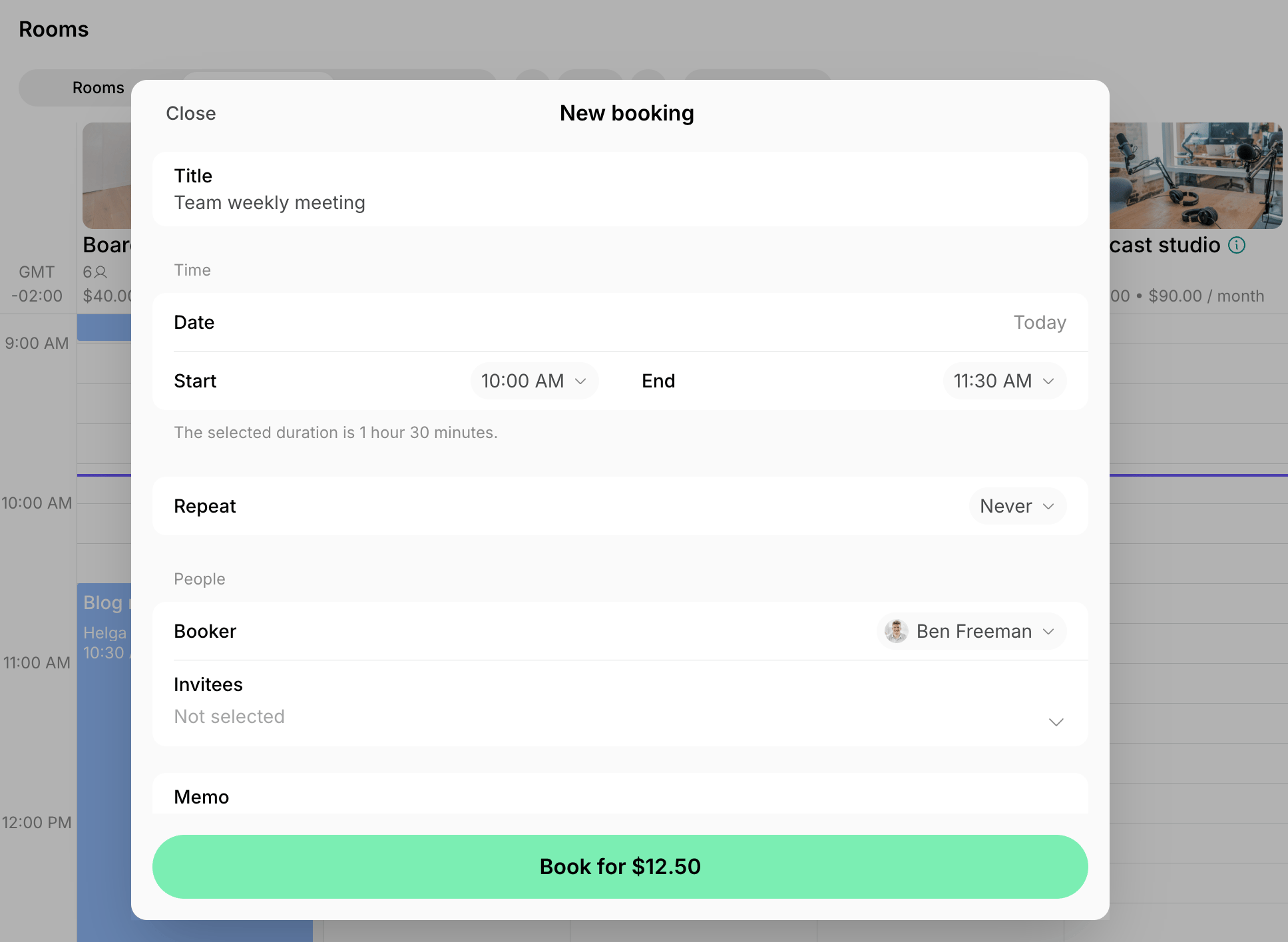
3. Choose the booking date, time, and number of seats. Optionally, add a title, memo, or apply a coupon discount.
4. Choose the customer in the **Booker** field.
5. Choose the [payment method](/docs/billing/payments/payment-methods) to charge the customer for the booking.
6. If you book for another customer or add invitees, choose whether to notify them about the booking.
Administrators can also record bookings for past dates.
 ### Create a recurring booking
When a customer needs to book the same resource on a recurring schedule — for example, every Friday from 3:00 PM to 6:00 PM — you can create a recurring booking for them:
1. Start creating a booking.
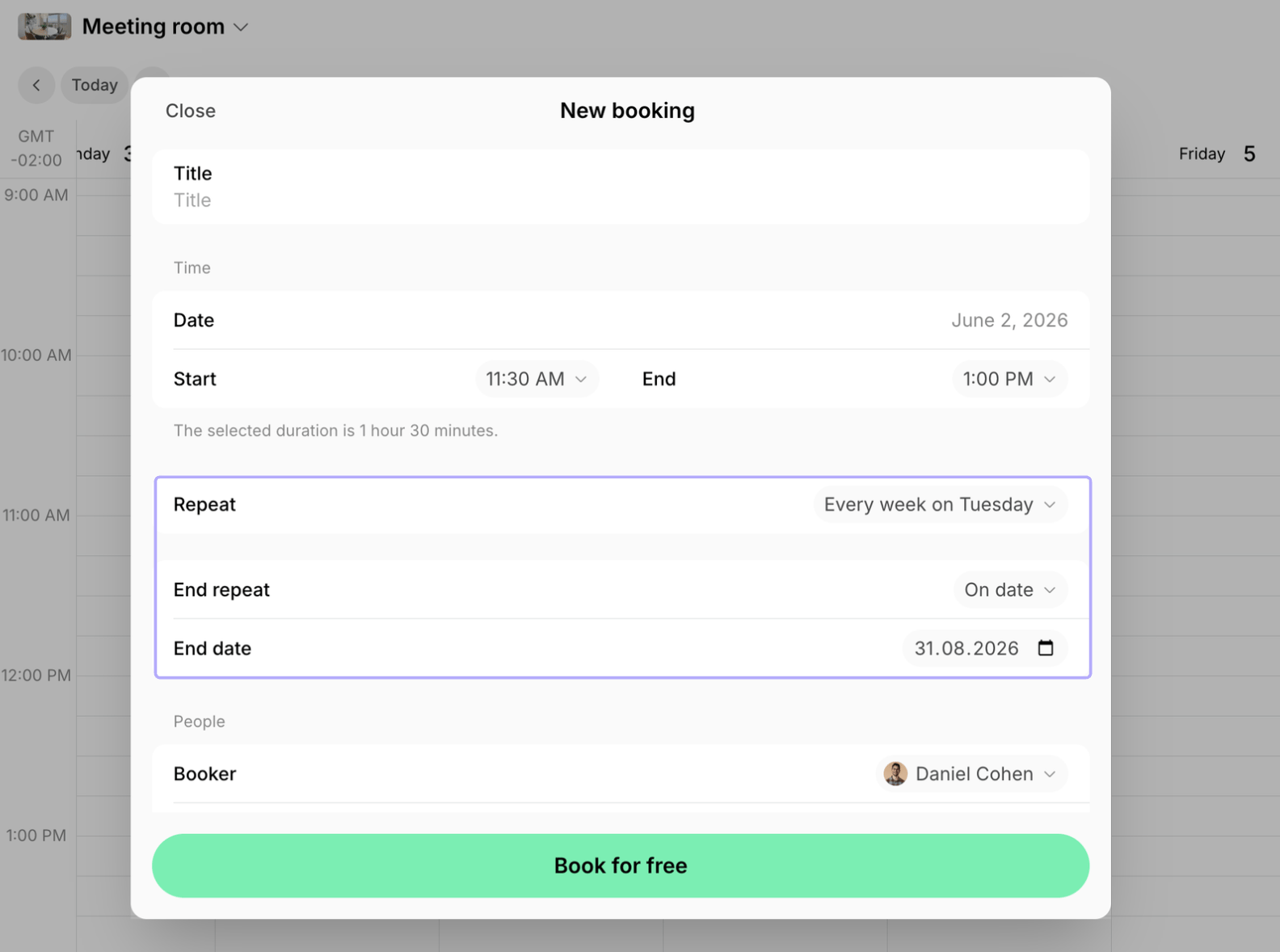
2. Under the **Repeat** settings, choose one of the suggested recurrence patterns, or select **Custom** to set your own recurrence pattern.
3. In the **End repeat** field, choose:
* **On date** — to set a specific final booking date, or
* **Never** — to set an open-ended recurrence.
* For **Custom** recurrences, you can also choose **After number of occurrences** to schedule a specific number of recurring bookings.
4. Choose the customer for whom you're booking in the **Booker** field.
### Create a recurring booking
When a customer needs to book the same resource on a recurring schedule — for example, every Friday from 3:00 PM to 6:00 PM — you can create a recurring booking for them:
1. Start creating a booking.
2. Under the **Repeat** settings, choose one of the suggested recurrence patterns, or select **Custom** to set your own recurrence pattern.
3. In the **End repeat** field, choose:
* **On date** — to set a specific final booking date, or
* **Never** — to set an open-ended recurrence.
* For **Custom** recurrences, you can also choose **After number of occurrences** to schedule a specific number of recurring bookings.
4. Choose the customer for whom you're booking in the **Booker** field.
 Administrators can currently make recurring bookings only with the **Free** payment method. Users can make recurring bookings only for completely free resources.
If you need to charge the customer, create a recurring booking on their behalf with the **Free** method, then [issue an invoice](/docs/billing/invoices/issue#manual-one-off-invoices) for it, or deduct from their [credit](/docs/billing/credits-and-day-passes/credits#deduct-credits) or [day pass](/docs/billing/credits-and-day-passes/day-passes#deduct-day-passes) balance manually.
## Edit a booking
To edit a booking, users and administrators follow these steps:
1. Open the relevant booking from the **Resources, Bookings,** or customer profile page.
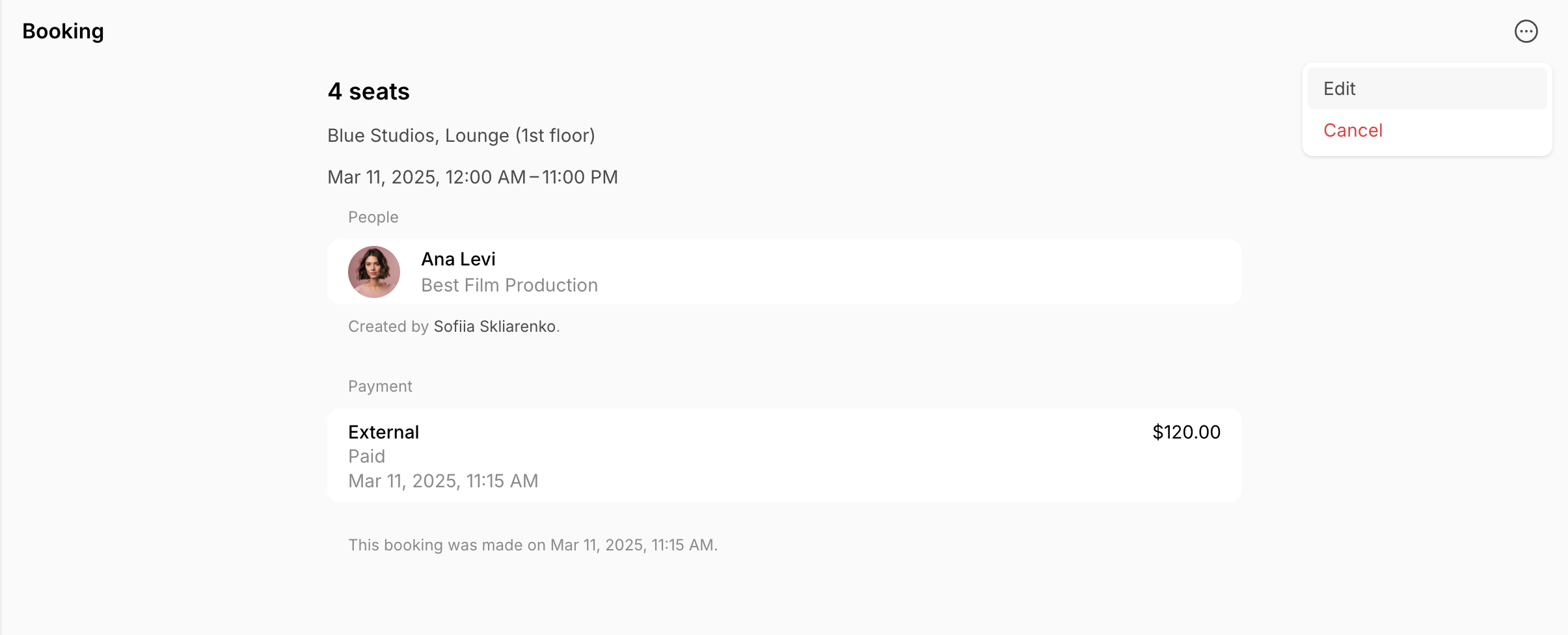
2. Click **(...)** in the top right corner > **Edit**.
3. Make your changes and save. If the booking was made for another customer or has invitees, choose whether to notify them about the change.
Administrators can currently make recurring bookings only with the **Free** payment method. Users can make recurring bookings only for completely free resources.
If you need to charge the customer, create a recurring booking on their behalf with the **Free** method, then [issue an invoice](/docs/billing/invoices/issue#manual-one-off-invoices) for it, or deduct from their [credit](/docs/billing/credits-and-day-passes/credits#deduct-credits) or [day pass](/docs/billing/credits-and-day-passes/day-passes#deduct-day-passes) balance manually.
## Edit a booking
To edit a booking, users and administrators follow these steps:
1. Open the relevant booking from the **Resources, Bookings,** or customer profile page.
2. Click **(...)** in the top right corner > **Edit**.
3. Make your changes and save. If the booking was made for another customer or has invitees, choose whether to notify them about the change.
 Booking editing permissions differ for users and administrators.
### How users edit bookings
| Payment method/Change | Credits, day passes, invoice, or free resource | Payment gateway |
| ----------------------------------- | ---------------------------------------------------------------------------------------------------------------------------------------------------------- | -------------------------------------------------------------------------------------------------------------------------- |
| Reschedule (change start date/time) | Up to a specific time before the booking starts, based on the resource's [rescheduling policy.](/docs/billing/payments/refunds) | Up to a specific time before the booking starts, based on the resource's [rescheduling policy](/docs/billing/payments/refunds). |
| Extend | Anytime before or during the booking, with an extra charge. | Can't extend. The prepaid amount is fixed. Create one more booking instead. |
| Shorten | Up to a specific time before the booking starts, based on the resource's [rescheduling policy](/docs/billing/payments/refunds), with a refund. | Can't shorten. The prepaid amount is fixed. |
| Change number of seats/items | Up to a specific time before the booking starts, based on the resource's [rescheduling policy](/docs/billing/payments/refunds), with an extra charge or refund. | Can't change. The prepaid amount is fixed. |
### How administrators edit bookings
| Payment method/Change | Credits, day passes, invoice, free resource | Payment gateway, External |
| ----------------------------------- | ----------------------------------------------------------------------------- | --------------------------------------------------------------------------- |
| Reschedule (change start date/time) | Anytime before, during, or after the booking. | Anytime before, during, or after the booking. |
| Extend | Anytime before, during, or after the booking, with an extra charge. | Can't extend. The prepaid amount is fixed. Create one more booking instead. |
| Shorten | Anytime before, during, or after the booking, with a refund. | Can't shorten. The prepaid amount is fixed. |
| Change number of seats/items | Anytime before, during, or after the booking, with an extra charge or refund. | Can't change. The prepaid amount is fixed. |
**Notes**
* If an administrator created a booking for a user, the user cannot edit it, regardless of the payment method.
* Both users and administrators can edit the booking title, memo, and invitees at any time—before, during, or after the booking.
* Every booking modification triggers a dedicated transaction to handle additional charges or refunds. This approach allows both users and administrators to audit booking history and associated costs with ease.
* When editing or canceling a recurring booking, administrators can choose to apply the change to `This occurrence` only, or to `This and future` bookings.
## Track bookings
There are several ways to track all bookings:
* Enable [admin notifications](/docs/account/notifications) to receive alerts whenever a new booking is created or canceled.
* Go to the **Resources > Bookings** page to view a comprehensive list of all resource bookings in one place.
* Filter by date to see all bookings on, before, or after a specific date.
* Filter bookings by status.
* Filter by resource type to see bookings for a specific type of resource, such as rooms, desks, offices, parking, or equipment.
* Filter by a specific resource to see all bookings for that individual resource only.
* Filter by user to view all bookings of a specific customer.
### Booking statuses
| | |
| ------------- | -------------------------------------------------------------------------------------------------------------------------------------------------------------------------------------------------------------------------------------------------------------------------------------------------------------------------------------------------------------------------------------------------------------------------------------------------------------------------------------------------------------------------------------------------------------------------------------------------------------------------------------------------------------------------------------------------------------------------------------------------------------------------------------------------------------------------------- |
| **Tentative** |
Booking editing permissions differ for users and administrators.
### How users edit bookings
| Payment method/Change | Credits, day passes, invoice, or free resource | Payment gateway |
| ----------------------------------- | ---------------------------------------------------------------------------------------------------------------------------------------------------------- | -------------------------------------------------------------------------------------------------------------------------- |
| Reschedule (change start date/time) | Up to a specific time before the booking starts, based on the resource's [rescheduling policy.](/docs/billing/payments/refunds) | Up to a specific time before the booking starts, based on the resource's [rescheduling policy](/docs/billing/payments/refunds). |
| Extend | Anytime before or during the booking, with an extra charge. | Can't extend. The prepaid amount is fixed. Create one more booking instead. |
| Shorten | Up to a specific time before the booking starts, based on the resource's [rescheduling policy](/docs/billing/payments/refunds), with a refund. | Can't shorten. The prepaid amount is fixed. |
| Change number of seats/items | Up to a specific time before the booking starts, based on the resource's [rescheduling policy](/docs/billing/payments/refunds), with an extra charge or refund. | Can't change. The prepaid amount is fixed. |
### How administrators edit bookings
| Payment method/Change | Credits, day passes, invoice, free resource | Payment gateway, External |
| ----------------------------------- | ----------------------------------------------------------------------------- | --------------------------------------------------------------------------- |
| Reschedule (change start date/time) | Anytime before, during, or after the booking. | Anytime before, during, or after the booking. |
| Extend | Anytime before, during, or after the booking, with an extra charge. | Can't extend. The prepaid amount is fixed. Create one more booking instead. |
| Shorten | Anytime before, during, or after the booking, with a refund. | Can't shorten. The prepaid amount is fixed. |
| Change number of seats/items | Anytime before, during, or after the booking, with an extra charge or refund. | Can't change. The prepaid amount is fixed. |
**Notes**
* If an administrator created a booking for a user, the user cannot edit it, regardless of the payment method.
* Both users and administrators can edit the booking title, memo, and invitees at any time—before, during, or after the booking.
* Every booking modification triggers a dedicated transaction to handle additional charges or refunds. This approach allows both users and administrators to audit booking history and associated costs with ease.
* When editing or canceling a recurring booking, administrators can choose to apply the change to `This occurrence` only, or to `This and future` bookings.
## Track bookings
There are several ways to track all bookings:
* Enable [admin notifications](/docs/account/notifications) to receive alerts whenever a new booking is created or canceled.
* Go to the **Resources > Bookings** page to view a comprehensive list of all resource bookings in one place.
* Filter by date to see all bookings on, before, or after a specific date.
* Filter bookings by status.
* Filter by resource type to see bookings for a specific type of resource, such as rooms, desks, offices, parking, or equipment.
* Filter by a specific resource to see all bookings for that individual resource only.
* Filter by user to view all bookings of a specific customer.
### Booking statuses
| | |
| ------------- | -------------------------------------------------------------------------------------------------------------------------------------------------------------------------------------------------------------------------------------------------------------------------------------------------------------------------------------------------------------------------------------------------------------------------------------------------------------------------------------------------------------------------------------------------------------------------------------------------------------------------------------------------------------------------------------------------------------------------------------------------------------------------------------------------------------------------------- |
| **Tentative** | - The booking is awaiting an [external payment.](/docs/billing/payments/external#manage-pending-external-bookings)
- Payment for the booking was started via payment gateway and is being [processed](/docs/billing/payments/payment-gateway#track-transactions) or customer hasn't completed the payment yet.
- The booking is made for a future subscription period with a [scheduled credit or day pass transaction](/docs/billing/credits-and-day-passes/scheduled-transactions).
- The booking is free and requires a [check-in](/docs/resource-management/room-display/use-room-display#how-abandoned-booking-protection-works) on Room display before the start.
|
| **Confirmed** | The booking is fully secured. |
| **Canceled** | - The booking was canceled by the customer or administrator.
- The booking was awaiting an [external payment](/docs/billing/payments/external#manage-pending-external-bookings), but the payment was not settled and was canceled by admin.
- Payment for the booking was [started via payment gateway](/docs/billing/payments/payment-gateway#track-transactions) but wasn't completed, and was abandoned or canceled by the customer.
- The booking was made with a [scheduled credit or day pass transaction](/docs/billing/credits-and-day-passes/scheduled-transactions) and the charge was unsuccessful.
- The booking required a [check-in](/docs/resource-management/room-display/use-room-display#how-abandoned-booking-protection-works) on Room display and was auto-canceled due to no check-in.
|
* To track bookings for specific resource types, go to their dedicated pages. From there, you can filter by date to see bookings for today or any specific day:
* **Rooms:** Go to **Resources > Rooms >** **Calendar**
* **Desks:** Go to **Resources > Desks >** **Bookings**
* **Offices:** Go to **Resources > Offices >** **Bookings**
* **Parking:** Go to **Resources > Parking >** **Bookings**
* **Equipment:** Go to **Resources > Equipment >** **Timeline**.
### Booking colors
When viewing room bookings on a calendar, you can identify the user type and booking status by the booking colors and style:
* Blue - the booking of an administrator.
* Green - the booking of a member.
* Yellow - the booking of a nonmember.
* Outlined booking with transparent background - booking in tentative status.
 * Click any booking to check more details about it.
 ## Cancel a booking
To cancel a booking, users and administrators follow these steps:
1. Open the relevant booking from the **Resources, Bookings,** or customer profile page.
2. Click **(...)** in the top right corner > **Cancel**.
Bookings can be canceled at any time, however, the refund depends on the resource's rescheduling policy and the payment method used.
| Bookings | Monetary | Credit |
| :-------------------------------------------------------------------------------------------- | :----------------------------------------------------------------------------------------------------------------------------------------------------------------------------------------------------------------------------------------------------------------------------------------------------------------------------------------------------------------------------------------------------------------------- | :------------------------------------------------------- |
| Canceled according to the [**resource’s rescheduling policy**](/docs/billing/payments/refunds) |
## Cancel a booking
To cancel a booking, users and administrators follow these steps:
1. Open the relevant booking from the **Resources, Bookings,** or customer profile page.
2. Click **(...)** in the top right corner > **Cancel**.
Bookings can be canceled at any time, however, the refund depends on the resource's rescheduling policy and the payment method used.
| Bookings | Monetary | Credit |
| :-------------------------------------------------------------------------------------------- | :----------------------------------------------------------------------------------------------------------------------------------------------------------------------------------------------------------------------------------------------------------------------------------------------------------------------------------------------------------------------------------------------------------------------- | :------------------------------------------------------- |
| Canceled according to the [**resource’s rescheduling policy**](/docs/billing/payments/refunds) | - If [**Stripe**](/docs/billing/payments/refunds) or [**KakaoPay**](https://www.spacebring.com/integrations/payments/kakaopay) payment gateways are connected and refunds enabled, [**the refund is automatic**](/docs/billing/payments/refunds).
- If another payment gateway is connected, administrators can [**manually refund**](/docs/billing/payments/refunds) bookings via the payment gateway dashboard.
| [**The refund is automatic**](/docs/billing/payments/refunds) |
| Canceled not according to the [**resrouce’s rescheduling policy**](/docs/billing/payments/refunds) | The booking is not refunded. | The booking is not refunded. |
**FAQs**
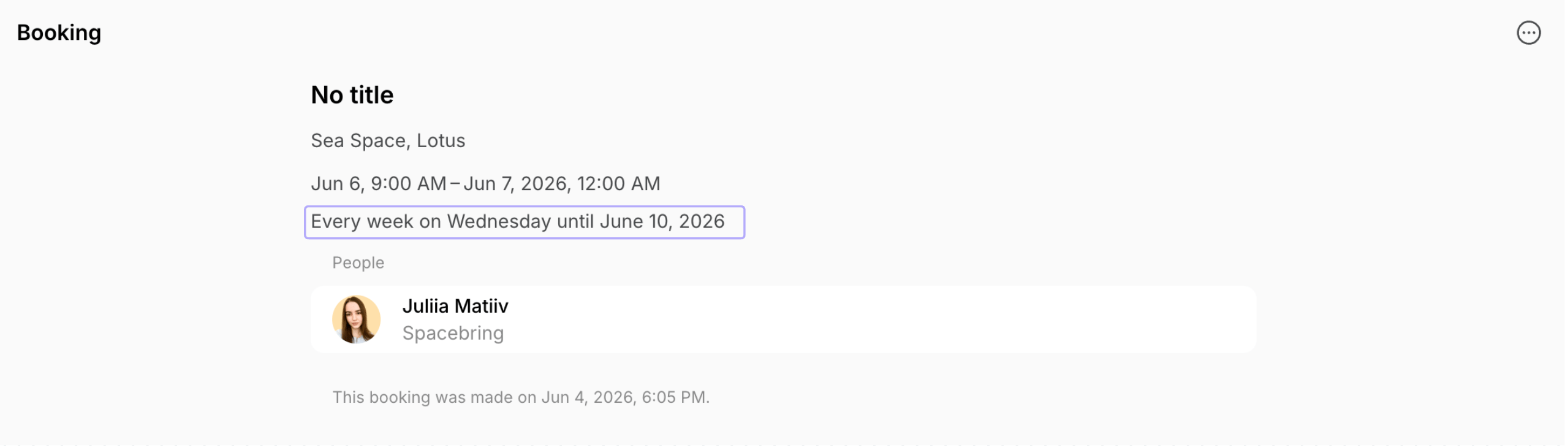
Opening a booking shows its recurrence details if it is part of a recurring series:
 Office resources are designed primarily for long-term rental assignments, but short-term bookings are also possible in certain cases:
* **Assigned offices** — If an entire office is assigned to a customer for rental, that member or company can book it for free on a daily basis (e.g. a hybrid office for a company, where company members book seats daily).
* **Unassigned offices** — If an office is not assigned, you as an administrator can manually book it for any interested customer.
* Office bookings are always full-day only — hourly booking is not available.
* Office bookings always use the **Free** payment method — you can issue a separate invoice to the customer for office usage as needed.
* Customers cannot book unassigned offices for a day — they can only subscribe for a long-term rental. Only administrators can make office bookings for a day for customers on request.
* Customers cannot book unassigned offices for a day — they can only subscribe for a long-term rental. Only administrators can make daily office bookings for customers on request.
* Customers cannot book unassigned offices for a day — they can only subscribe for a long-term rental. Only administrators can make daily office bookings for customers on request.
This desk must be not a **Hot desk** type or the **Day passes** switch is turned off in its settings. To allow booking it with day passes:
1. Go to **Resources > Desks.**
2. Start editing this specific desk.
3. Verify it is set to the **Hot desk** type. Only hot desks can be booked with day passes.
4. Verify it has the **Day passes** switch enabled.
This error means that on one or more dates in the recurring series, there is already a booking scheduled for that resource at that time. To identify the conflicting booking, go to **Analytics**, generate a **Bookings** report, and filter it by the specific resource. This will show all existing bookings for that resource so you can find which one overlaps with your recurring series.
Office resources are designed primarily for long-term rental assignments, but short-term bookings are also possible in certain cases:
* **Assigned offices** — If an entire office is assigned to a customer for rental, that member or company can book it for free on a daily basis (e.g. a hybrid office for a company, where company members book seats daily).
* **Unassigned offices** — If an office is not assigned, you as an administrator can manually book it for any interested customer.
* Office bookings are always full-day only — hourly booking is not available.
* Office bookings always use the **Free** payment method — you can issue a separate invoice to the customer for office usage as needed.
* Customers cannot book unassigned offices for a day — they can only subscribe for a long-term rental. Only administrators can make office bookings for a day for customers on request.
* Customers cannot book unassigned offices for a day — they can only subscribe for a long-term rental. Only administrators can make daily office bookings for customers on request.
* Customers cannot book unassigned offices for a day — they can only subscribe for a long-term rental. Only administrators can make daily office bookings for customers on request.
This desk must be not a **Hot desk** type or the **Day passes** switch is turned off in its settings. To allow booking it with day passes:
1. Go to **Resources > Desks.**
2. Start editing this specific desk.
3. Verify it is set to the **Hot desk** type. Only hot desks can be booked with day passes.
4. Verify it has the **Day passes** switch enabled.
This error means that on one or more dates in the recurring series, there is already a booking scheduled for that resource at that time. To identify the conflicting booking, go to **Analytics**, generate a **Bookings** report, and filter it by the specific resource. This will show all existing bookings for that resource so you can find which one overlaps with your recurring series.