> ## Documentation Index
> Fetch the complete documentation index at: https://www.spacebring.com/docs/llms.txt
> Use this file to discover all available pages before exploring further.
# Use Room display
> Understand how Room display app uses color indicators to show live room availability, enable ad-hoc QR code bookings, use a check-in feature to automatically cancel abandoned room bookings, and troubleshoot Room display issues
Room display helps customers see room availability at a glance, make instant bookings via QR code, and prevents abandoned bookings with a check-in feature.
## How room display availability indicators work
Room display signals room availability by tinting the background color of the tablet.
| **Tablet color** | **Explanation** |
| ---------------- | -------------------------------------------------------------------------------------------------------------------------------------- |
| Green | The room is available for booking. The free time until the next booking is longer than the minimum booking duration set for this room. |
| Yellow | A meeting room will become available in less than 60 minutes. |
| Red | The room is unavailable for the next 60 minutes. |
The display also shows the current and upcoming bookings. Bookings include the full name of the booker, booking title, and time. This helps users understand when the room will be free.
Room display respects users' [privacy settings](/customer-management/manage-user-account). If a user selects **Administrators** for their **Booking title visibility**, their booking title will not appear on the display.
## How users make ad-hoc bookings with a QR code
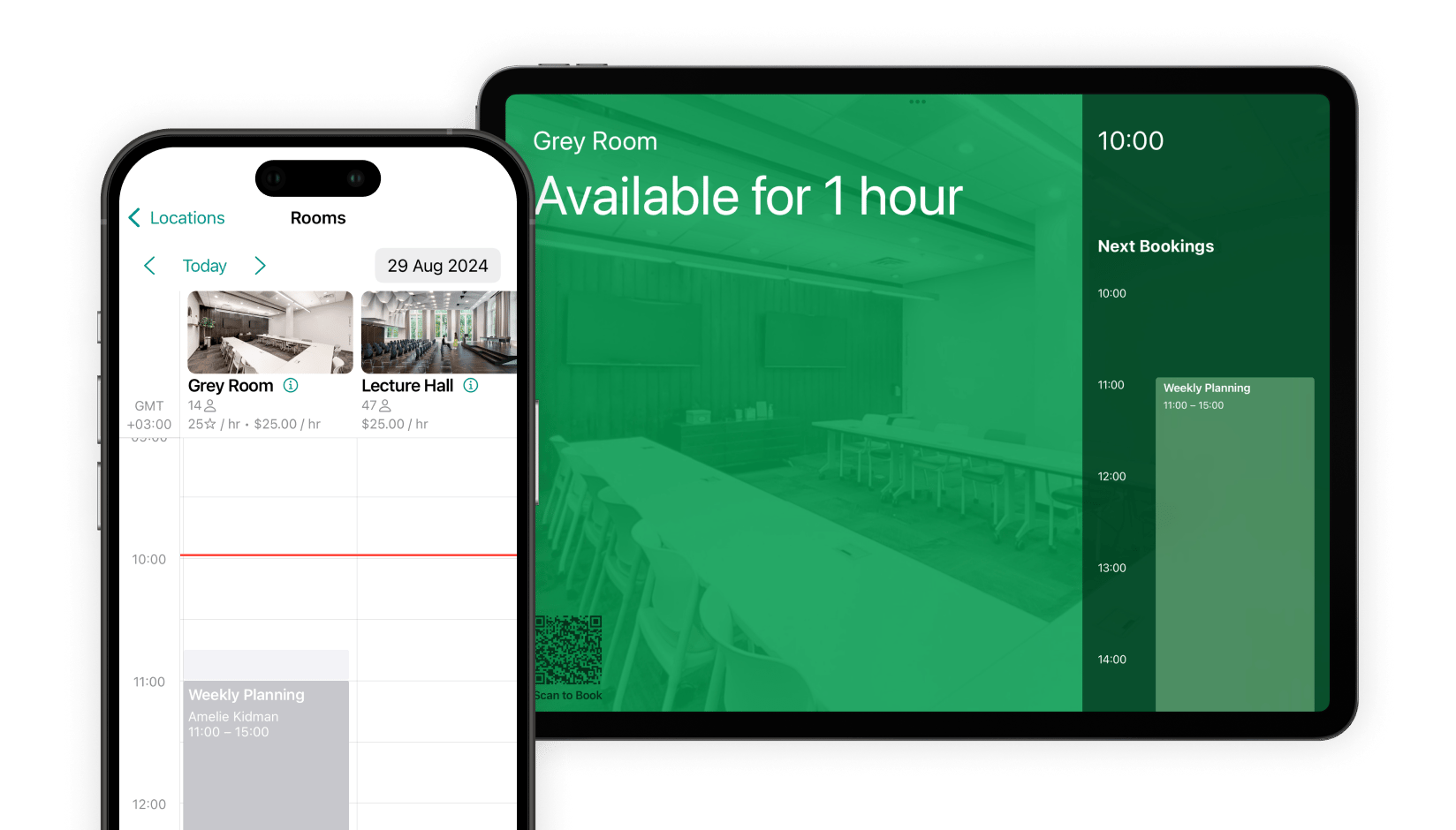 Room display shows a unique QR code for the room in the bottom-left corner of the screen.
By scanning the QR code, users are taken to the room’s booking calendar in the member web portal or mobile app, where they can book the room instantly.
[Video](https://www.loom.com/embed/6f484a0b9d874535a7afeb5583d939ff)
## How abandoned booking protection works
To prevent no-shows, Room display supports a check-in feature for totally free rooms (with **Money** and **Credits** pricing disabled).
When a booking is made for a room, it is initially created in a **Tentative** status. The booking remains **Tentative** until the user checks in via Room display.
When [creating](/resource-management/set-up) or [editing](/resource-management/edit-a-resource) a free room in Spacebring, you can enable and configure **Check in** to prevent abandoned bookings:
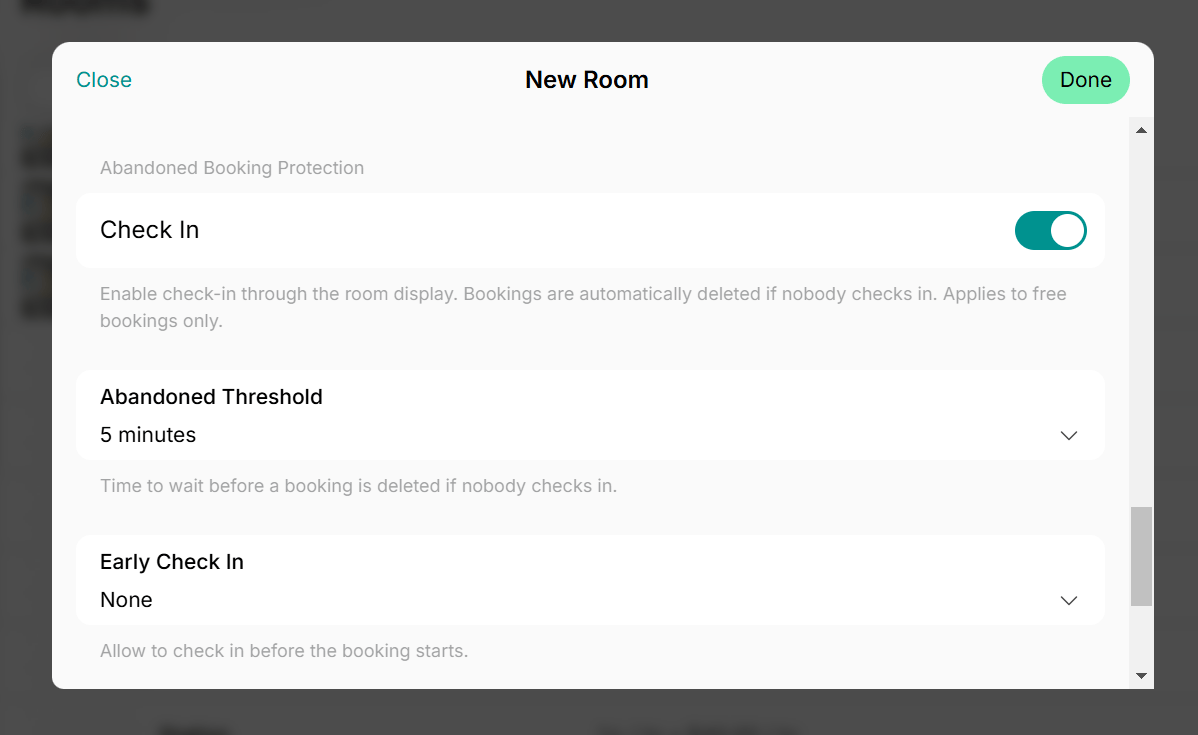
* **Abandoned threshold** — defines in how much time after the booking start the booking is auto-removed if nobody checks in. If the threshold is reached without a check-in, the booking status automatically changes to **Canceled**.
* **Early check in** — defines how much time before the booking start the **Check in** button appears and users can check in. Once a user arrives and checks in, the booking status automatically changes to "Confirmed."
Room display shows a unique QR code for the room in the bottom-left corner of the screen.
By scanning the QR code, users are taken to the room’s booking calendar in the member web portal or mobile app, where they can book the room instantly.
[Video](https://www.loom.com/embed/6f484a0b9d874535a7afeb5583d939ff)
## How abandoned booking protection works
To prevent no-shows, Room display supports a check-in feature for totally free rooms (with **Money** and **Credits** pricing disabled).
When a booking is made for a room, it is initially created in a **Tentative** status. The booking remains **Tentative** until the user checks in via Room display.
When [creating](/resource-management/set-up) or [editing](/resource-management/edit-a-resource) a free room in Spacebring, you can enable and configure **Check in** to prevent abandoned bookings:
* **Abandoned threshold** — defines in how much time after the booking start the booking is auto-removed if nobody checks in. If the threshold is reached without a check-in, the booking status automatically changes to **Canceled**.
* **Early check in** — defines how much time before the booking start the **Check in** button appears and users can check in. Once a user arrives and checks in, the booking status automatically changes to "Confirmed."
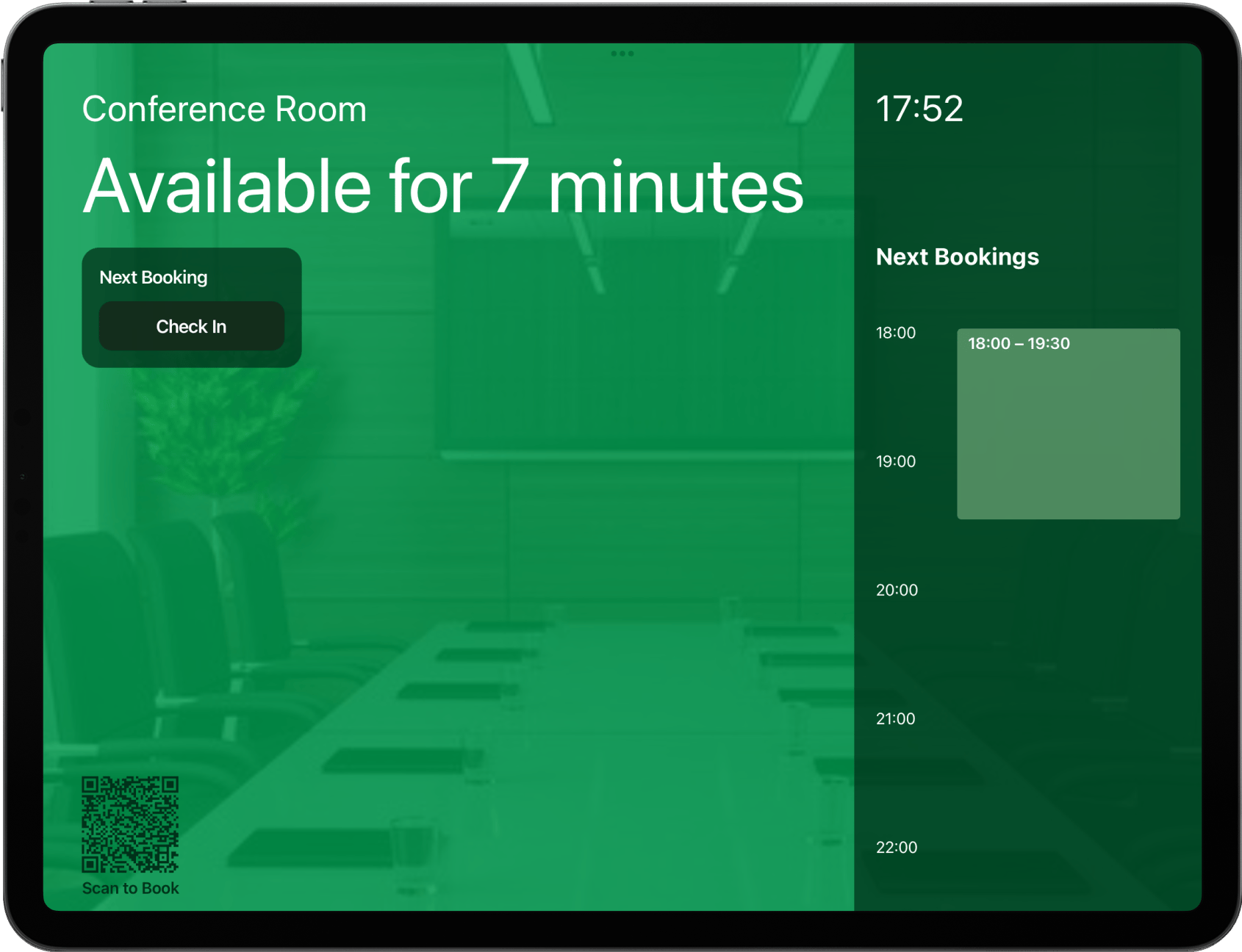
 Before the meeting, the **Check in** button appears on the room display based on the **Early check in** time you set (e.g., 10 minutes before the booking starts).
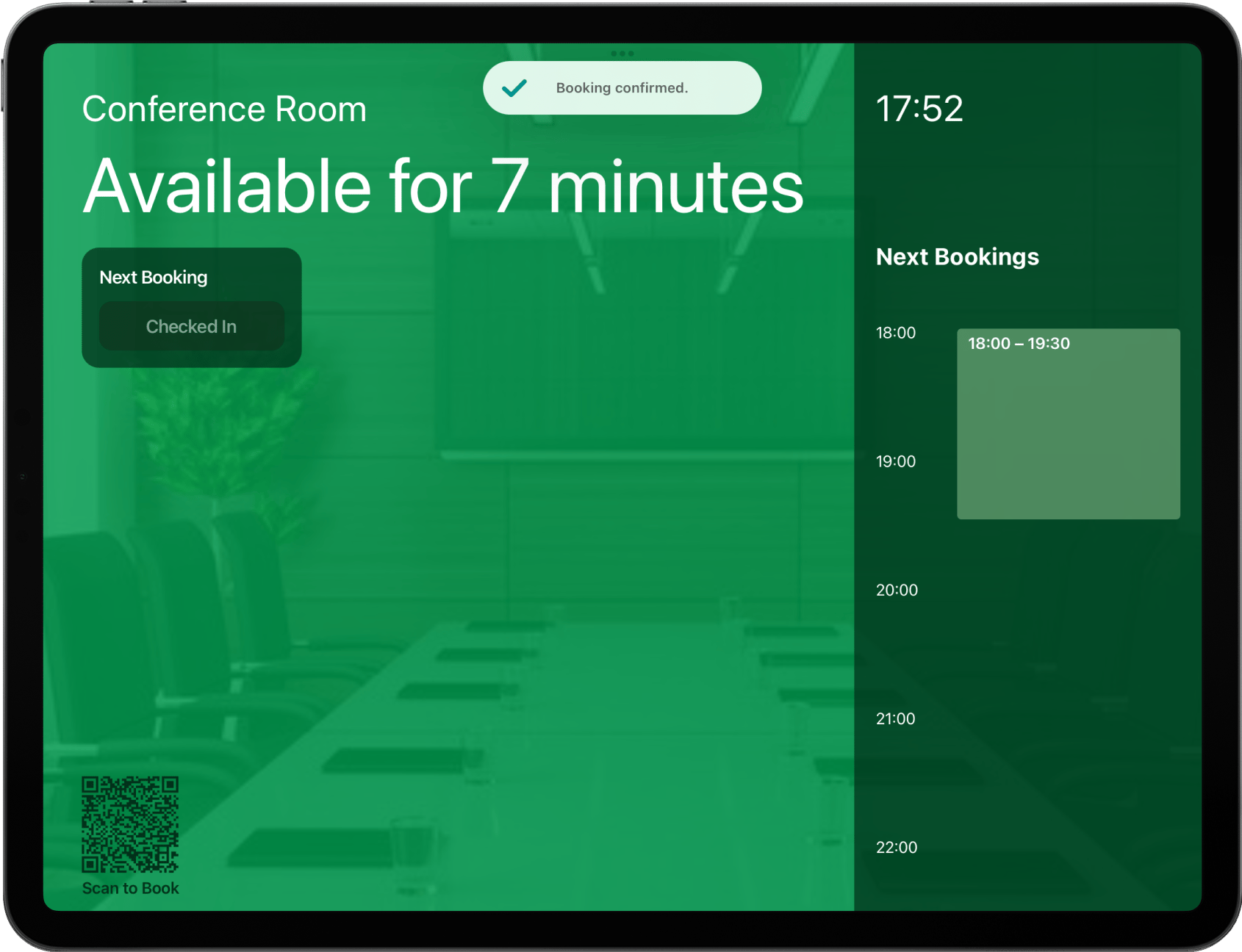
 If the user taps **Check in**, the booking is confirmed, and a confirmation message appears on the screen.
 If no check-in happens, after the **Abandoned threshold** time passes (e.g., 5 minutes after the booking starts), the booking is automatically removed from the calendar, freeing up the room for others.
## Troubleshoot issues with Room display
If you are having trouble enabling or using the Room display app, here are the most common reasons and how to fix them:
If bookings don't appear on the room display or you've faced an issue accessing it, the tablet might have a weak or unstable internet connection. Reconnect the tablet to Wi-Fi or connect to a different network.
To set up Room display for a room in a specific location, you need to be logged in with an [administrator account](/administration/roles) for that location.
[Log out of the app](/resource-management/room-display) and log back in with an administrator account that has access to the correct location.
Make sure you're using the latest version of the room display app. The new version of the Room display might be available to install. Check the App Store or Google Play for updates, or simply click on the `Update` button.
[Check your Spacebring subscription](/administration/billing) status to make sure it is active and not suspended.
Ensure your tablet device meets the [requirements](/resource-management/room-display) to install the Room display app.
If no check-in happens, after the **Abandoned threshold** time passes (e.g., 5 minutes after the booking starts), the booking is automatically removed from the calendar, freeing up the room for others.
## Troubleshoot issues with Room display
If you are having trouble enabling or using the Room display app, here are the most common reasons and how to fix them:
If bookings don't appear on the room display or you've faced an issue accessing it, the tablet might have a weak or unstable internet connection. Reconnect the tablet to Wi-Fi or connect to a different network.
To set up Room display for a room in a specific location, you need to be logged in with an [administrator account](/administration/roles) for that location.
[Log out of the app](/resource-management/room-display) and log back in with an administrator account that has access to the correct location.
Make sure you're using the latest version of the room display app. The new version of the Room display might be available to install. Check the App Store or Google Play for updates, or simply click on the `Update` button.
[Check your Spacebring subscription](/administration/billing) status to make sure it is active and not suspended.
Ensure your tablet device meets the [requirements](/resource-management/room-display) to install the Room display app.